
Steam Mobile Authenticator: Setup and Security Guide
Published August 17, 2026 · Updated August 21, 2026

The steam mobile authenticator is a Steam Guard feature inside the official Steam Mobile app for iOS and Android. It adds a phone-held credential to Steam sign-in, provides changing one-time codes, supports QR login and push confirmation, and helps protect Community Market and trade actions.
Valve says the code changes every 30 seconds, works only once, and can be generated without an internet connection as long as the phone’s time is accurate. The app also displays details for QR and push sign-ins so the account owner can reject a request that was not initiated.
This guide explains official installation, setup, recovery-code storage, the three sign-in methods, multiple accounts, trade holds, phishing defense, phone transfer, and removal consequences. Follow Steam Support rather than third-party tools because the authenticator controls access to both the account and valuable inventory.
1. Understand Steam Guard Mobile Authentication
Compare mobile and email protection
Steam Guard can authorize a new sign-in through email or through the steam mobile authenticator. Email protection sends a special access code to the account’s contact email. Mobile protection uses a credential stored in the Steam Mobile app and can provide QR login, push confirmation, or a rotating code.
The mobile method separates the Steam password on a PC from the approval credential on a supported phone. It also enables mobile confirmations that matter for trading and Community Market activity. A steam guard email authenticator may remain the fallback after mobile protection is removed, but it does not provide the same app-based workflow.
Understand the credential model
If you ask how does steam mobile authenticator work, the concise answer is that Steam and the phone share protected account-specific material during enrollment. The app uses that material and the current time to produce a short-lived steam authenticator code, while Steam checks whether the value is correct for that account and time window.
QR and push sign-in use the same trusted phone relationship but provide contextual confirmation rather than requiring manual code entry. The app can show an approximate location and information about a QR sign-in attempt. These details help the user decide whether the request matches an action just started.
| Method | User action | Main dependency |
|---|---|---|
| Steam Guard email | Retrieve and enter emailed code | Secure email access |
| Manual mobile code | Enter current app code | Accurate phone time |
| Push confirmation | Review and approve request | Phone connectivity |
| QR sign-in | Scan Steam login QR and approve | Trusted Steam app and correct page |
The steam guard mobile authenticator strengthens login, but it cannot protect someone who voluntarily shares a password, code, recovery value, or approval. Treat every request independently and reject anything not initiated.
Download Authenticator App
Secure your accounts with fast, reliable two-factor authentication. Download now and protect your login in seconds.
2. Check Requirements and Install the Steam Mobile App
Use a supported phone and official store
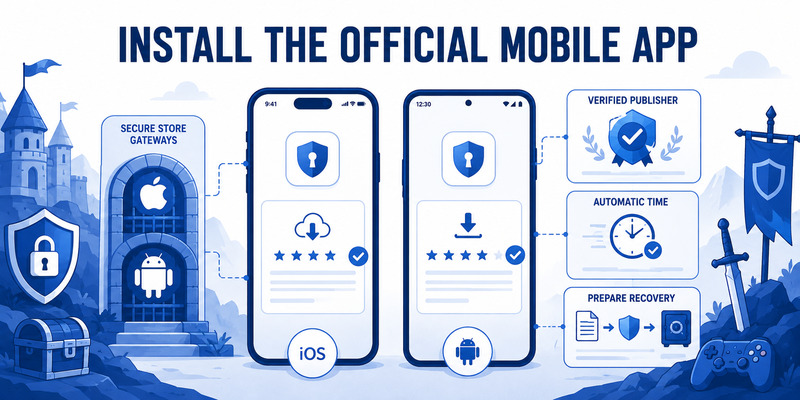
Steam Support currently lists iOS 13 or later and Android 5.0 or later for the steam mobile authenticator. Platform requirements can change, so check the official support page and current store listing before setup. Update the phone, enable a strong screen lock, set time automatically, and use a trusted network.
Install the official Steam Mobile app from Apple App Store or Google Play, or use the Android route linked by Steam Support when applicable. Verify Valve as the publisher. The steam authenticator app is a feature inside Steam’s official mobile app; it is not a separate desktop executable or browser extension.
For Apple users, steam guard ios and steam guard iphone both refer to the Steam Guard area inside the iOS Steam app. Review notification and camera permissions: notifications support sign-in requests and the camera supports QR scanning. Standard rotating codes can work offline after enrollment.
Prepare account and recovery access
Confirm the Steam account name, contact email, password, and current security status. Add or verify a mobile number if appropriate. Valve strongly recommends a phone number because it can simplify recovery, although the current setup walkthrough also provides a path for users who cannot access one.
Do not begin while a stranger is screen-sharing, directing the steps through chat, or offering a valuable trade. Scammers often create urgency so the victim supplies an SMS removal code, recovery value, or current login code.
Before activating steam mobile authenticator, sign out of untrusted sessions and review the account’s Security & Devices information. Keep the email account protected with its own strong, unique password and multifactor method. A compromised mailbox can weaken Steam recovery even when the mobile factor works.
Record the official support URL and installation source without recording secrets. This preparation gives authenticator steam setup a trustworthy baseline before the phone receives account-control credentials.
Keep that record for the next steam mobile authenticator update or reinstall so the official publisher and channel remain easy to verify.
🗺️ Browse How-To Guides: Microsoft Authenticator Download Mac: Safe Best Options
3. Add the Authenticator and Save Recovery Information
Follow the official setup sequence
Open the Steam Mobile app and sign in to the intended account. Go to the Steam Guard tab and select Add authenticator. If prompted, provide a phone number with the correct international prefix, receive Steam’s confirmation message, and enter the code only inside the official app or Steam page.
Steam’s walkthrough also describes an “I don’t have access to a phone number” path. Follow only the current prompts presented by the official app. Never give an SMS recovery or removal value to another person; Valve says these values are used to add or remove authenticator devices and are extremely sensitive.
When enrollment succeeds, the steam mobile app authenticator displays a recovery code. Write it down exactly and keep it in a secure location away from the phone. The future steam authenticator recovery code guide explains how this value supports recovery.
Verify before relying on the new method
Return to the Steam Guard page and confirm that the steam mobile authenticator is active. Sign out of a low-risk client or browser and complete one fresh login. Test the available QR, notification, or manual code path without exposing any code to another site.
Generate steam guard backup codes from Steam Account Details where available and store them securely. Backup codes and the authenticator recovery code serve different emergency roles; label them without putting them in screenshots or unencrypted notes synced everywhere.
Do not remove email access, erase the old phone, or make a high-value trade immediately after setup. Steam may apply protective holds during the initial period. A successful login proves that authentication works, but market and trade eligibility follow separate timing rules.
Document the activation date, phone model, official app version, and successful test without secrets. This evidence makes steam mobile authenticator setup verifiable and helps explain a temporary hold without exposing the recovery material.
📘 Find the Right Guide: Microsoft Authenticator APK Download for Android: Safe Installation Guide
4. Use QR, Push, and Manual Code Sign-In
Sign in with a Steam QR code
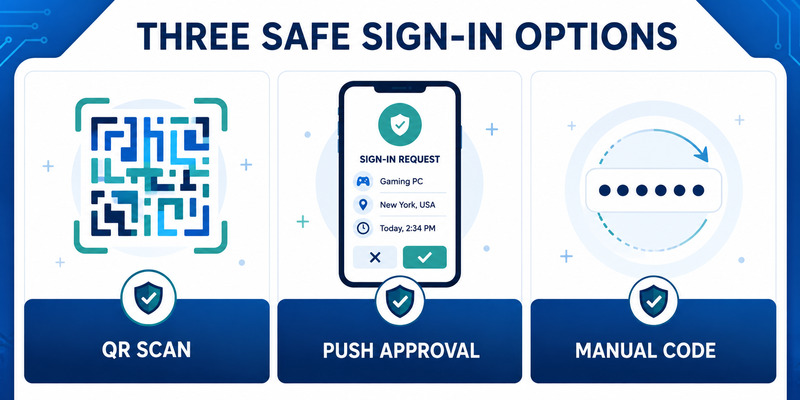
On the Steam client or official Steam website, display the QR sign-in option. Open the Steam Mobile app, go to Steam Guard using the shield icon, choose the scan prompt, and point the phone at the login panel. Never scan a QR code sent through chat, email, a trade offer, or an unrelated website.
After scanning, review the confirmation page. Steam can show details such as an approximate location for the device attempting to sign in. Approve only when the timing, device, and location make sense for the action you just started. A QR image is a login request, not a harmless promotional code.
Use notification or manual code entry
The steam login authenticator can also confirm a sign-in after the user enters the account name and password. Steam sends a notification to the registered phone; open it, review the details, and approve or deny. If no notification appears, open the app directly and check network and notification settings.
For manual entry, choose Show Steam Guard code on the Steam Guard page. Enter the newest steam authenticator code only in the official Steam client or a Valve-operated page. The value changes every 30 seconds, so wait for a new value if the timer is nearly complete.
| Sign-in option | Best use | Safety check |
|---|---|---|
| QR scan | Fast login on trusted PC or browser | Verify official Steam sign-in panel |
| Push confirmation | Contextual approval after password | Match device, location, and timing |
| Manual code | Offline phone or notification delay | Enter only on Valve-operated surface |
Steam Support states that its staff will never ask for authenticator codes. The steam mobile authenticator protects the account only when the owner keeps every code and approval private.
🗺️ Browse How-To Guides: Microsoft Authenticator: Complete Setup, Login, Backup & Troubleshooting Guide
5. Find Codes and Manage Multiple Accounts
Locate the current mobile code
Open Steam Mobile, select the Steam Guard shield, and choose Show Steam Guard code. The where to find steam mobile authenticator code guide provides a focused walkthrough. Use the code for the account currently selected in the Steam Guard account dropdown.
If steam authenticator codes are rejected, enable automatic date and time, confirm the correct account, wait for a fresh value, and try one clean login. Old values expire quickly. Do not change the password, reinstall the app, and create repeated attempts all at once; isolate the cause.
An internet connection is not required for the phone to calculate a current code, but the phone’s time must be accurate. Push approval, QR context, app updates, and account recovery do require connectivity.
Authenticate more than one account
Steam says one phone can authenticate multiple Steam accounts. In the Steam Guard tab, use the account dropdown and add each account through its own enrollment process. Notifications can then arrive for the registered accounts even when another identity is currently selected in the app.
A single Steam account, however, can be on only one mobile authenticator device at a time. Do not copy files or secrets to create unofficial duplicates. Use Steam’s Move Authenticator workflow when changing phones.
Label and verify each identity before entering a code or approving a request. Similar account names make mistakes easy, especially for traders, family libraries, test accounts, or gaming communities. Keep separate recovery records without storing all secrets beside the phone.
Review active devices and deauthorize anything unfamiliar. The steam mobile authenticator should make account ownership clearer, not encourage indefinite trust for every PC that once signed in.
Schedule this device review periodically so steam mobile authenticator approvals are tied only to sessions the owner still recognizes.
🧭 Explore Guides: Steam Authenticator App: Complete Steam Guard Setup, Codes & Recovery Guide
6. Confirm Trades and Understand Market Holds
Use mobile confirmations carefully
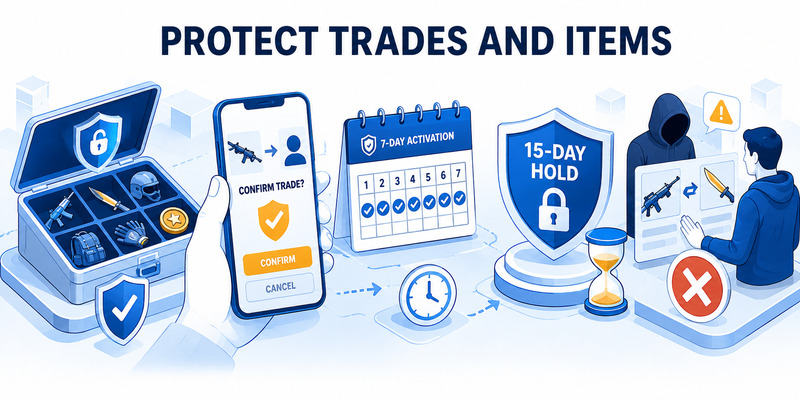
Steam inventory items can have real financial value, so account login and trade authorization are separate security decisions. Review the partner, items leaving, items received, quantity, and any warning before approving a trade or Community Market listing in the mobile app.
Never approve a confirmation because another user says it is needed to “verify” an item, reverse a ban, join a team, receive a prize, or authenticate a third-party marketplace. Steam Support does not require a trade to inspect an account.
The steam mobile authenticator reduces the chance that a stolen password alone can move items, but a convincing phishing site can still trick someone into approving the attacker’s session or trade. Pause when the confirmation differs from the offer shown elsewhere.
Understand initial and removal restrictions
Steam’s current support page says trades or Market listings made before adding the mobile authenticator, or during its first seven days, can be held for 15 days. Adding the authenticator does not shorten an existing hold. Activity created more than seven days after activation is not held under that specific rule.
Removing the mobile authenticator reduces security and, according to Steam Support, prevents trading or selling on the Market for 15 days. A direct authenticator transfer to a new phone carries a two-day trade and market restriction. These protective windows can change, so review current Steam Support before a time-sensitive transaction.
| Account change | Current documented effect |
|---|---|
| Authenticator newly added | Initial seven-day period can create 15-day holds |
| Existing held item | Adding authenticator does not shorten it |
| Authenticator transferred | Two-day trade and market restriction |
| Authenticator removed | 15-day trade and market restriction |
Do not disable steam mobile authenticator to bypass a hold; removal can create a longer restriction and lowers account security. Resolve the reason through Steam Support and wait for the documented protection to expire.
📘 Find the Right Guide: Download Microsoft Authenticator for Laptop: Safe Setup Guide
7. Defend the Account Against Phishing and Desktop Tools
Reject fake login and support requests
Check every domain before entering a Steam account name, password, or code. Typos, extra subdomains, copied designs, sponsored ads, and shortened links can make a phishing page look authentic. Navigate to Steam or Steam Support through a saved official link when in doubt.
Steam Support says never to share a password or mobile code and never to provide an SMS recovery or removal code. Staff and Valve employees do not need those secrets. Deny uninitiated QR and push requests, change the password from a trusted device, revoke sessions, and review Security & Devices.
Avoid unofficial desktop authenticators
A steam desktop authenticator, pc steam authenticator, or steam mobile authenticator on pc may promise convenience, automation, or phone-free codes. Steam’s official guidance says a supported phone is required for the mobile authenticator. Moving the credential onto the same PC as the password weakens factor separation and can expose account and inventory to malware.
Never download a program offered through chat to “fix,” “clean,” optimize, trade, verify, or unlock Steam. Valve explicitly warns that such programs can be scams or malware. Avoid browser extensions that request Steam credentials or session data unless they are independently trusted and genuinely necessary.
If an unofficial tool was used, stop it, disconnect sensitive activity, scan the PC with trusted security tools, change the Steam and email passwords from a clean device, deauthorize other devices, review API keys and sessions, and regenerate emergency credentials. Contact Steam Support when ownership or inventory may be affected.
The steam mobile authenticator is strongest when its secret stays on the supported phone and the PC is treated as a separate, potentially exposed environment.
8. Transfer, Recover, or Remove the Authenticator
Move to a new phone safely
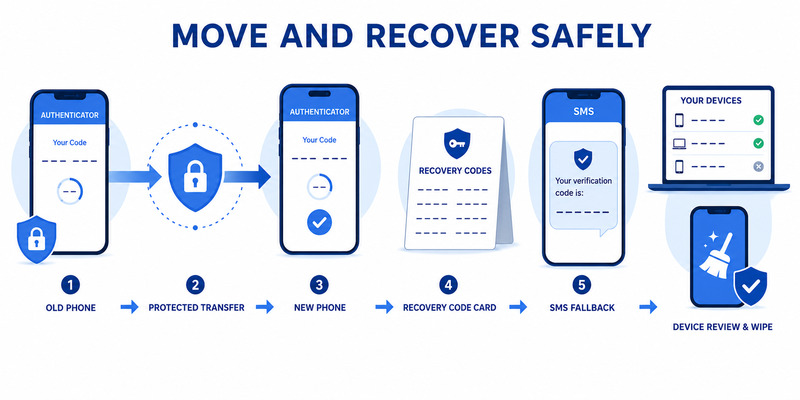
Install Steam Mobile on the new phone and sign in. If the old authenticator is available, choose Move Authenticator in the new device’s Steam Guard flow. If it is unavailable, choose the option indicating that access to the authenticator is lost and follow Steam’s SMS-based transfer instructions when the phone number remains available.
Steam documents a two-day trade and Market restriction after a transfer. Test login on the new phone, verify the recovery code and contact number, review active devices, and factory-reset the old phone before selling or giving it away.
Do not copy internal app files or use a desktop extractor. The official move operation updates the server relationship and confirms which phone now holds the steam mobile authenticator.
Recover or remove only through Steam
If the phone is lost, use the saved recovery code, SMS access to the registered number, backup code, trusted email, or Steam Support recovery. If both the phone and recovery code are unavailable, use help.steampowered.com and be prepared to prove account ownership without sending secrets to another user.
To remove the authenticator with the phone, open Steam Guard, use the gear or settings control, select Remove Authenticator, and confirm. Without the device, Account Details > Security & Devices may provide the supported path. Removal falls back to email Steam Guard and imposes the documented market and trade restriction.
Preserve access before changing a phone number. One number can be associated with a Steam account at a time, and Steam rejects new VoIP numbers that do not meet its security requirements. Update contact information through official Account Details.
The safest steam mobile authenticator recovery restores verified ownership, rotates compromised credentials, and removes untrusted devices. It does not depend on a stranger, paid unlock service, or downloadable recovery utility.
📘 Find the Right Guide: Microsoft Authenticator Download PC: Safe Options Guide
9. Frequently Asked Questions
Is Steam Mobile Authenticator a separate app?
No. It is a Steam Guard feature inside the official Steam Mobile app for iOS and Android. Verify Valve as the publisher and use Steam Support’s download links.
Does the phone need internet access for codes?
No. Steam says the app can generate codes offline, but the phone’s time must be correct. QR context, notifications, updates, and recovery require connectivity.
Can one phone protect several Steam accounts?
Yes. Add each account through the Steam Guard dropdown and complete separate enrollment. Select the correct identity before entering a code or approving a login.
Can one Steam account use two authenticator phones?
No. Steam states that an account can be on only one mobile authenticator at a time. Use Move Authenticator rather than creating an unofficial copy.
Where is the recovery code?
Steam presents it during mobile authenticator setup. Store it away from the phone. If it is lost along with access to the device and number, contact Steam Support and prove ownership.
Why is my new code rejected?
Enable automatic time, confirm the selected account, wait for a new 30-second value, and enter it only on the official Steam client or Valve website.
Why are trades still held after setup?
Steam documents an initial seven-day period during which new trades or listings can receive 15-day holds. Existing holds are not shortened when the authenticator is added.
Should I use a desktop authenticator?
Steam’s supported model requires a phone. An unofficial desktop tool can place the password and second factor on the same compromised PC and may expose account secrets.
These answers cover daily steam mobile authenticator use, but the current Steam Support page remains authoritative for platform requirements, restrictions, and recovery steps.
If the app and a third-party guide disagree, pause steam mobile authenticator changes and follow the current Valve support instructions.
📘 Find the Right Guide: Microsoft Authenticator Reset: Safe Step-by-Step Guide for Beginner
10. Final Thoughts
Set up steam mobile authenticator only through the official Steam Mobile app. Protect the phone, verify Valve as the publisher, enroll from the Steam Guard tab, save the recovery code away from the device, and complete a signed-out login test.
Use QR, push, or manual codes only for actions you initiated on the official Steam client or Valve-operated website. Steam Support will not ask for a password, mobile code, SMS removal value, or recovery secret. Deny unexpected requests and investigate them as possible credential compromise.
Respect the current seven-day activation window, transfer restriction, and removal restriction for trading and Market activity. Do not disable protection to escape a hold. Review the live Steam Support guidance before a time-sensitive inventory transaction.
Visit Authenticator App for broader two-factor setup, recovery, migration, and security guidance. A resilient steam mobile authenticator configuration combines a secure phone, protected email, recovery information, current contact details, active-device review, and cautious confirmation habits.
When changing phones, use Move Authenticator and test the new device before erasing the old one. When access is lost, recover only through Steam’s official help site and provide ownership evidence to Steam Support—not secrets to another player.
Review Security & Devices, backup codes, phone number, email protection, and recovery storage periodically. The best steam mobile authenticator setup is not just enabled; it remains current, separate from the gaming PC, and recoverable without trusting a stranger or unofficial tool.
Download Authenticator App
Secure your accounts with fast, reliable two-factor authentication. Download now and protect your login in seconds.
