
Steam Authenticator App: Complete Steam Guard Setup, Codes & Recovery Guide
Published August 11, 2026 · Updated August 20, 2026

A Steam account can hold much more than a username and a collection of games. Depending on how long you have used Steam, the account may contain purchased games, profile items, friends, Community Market activity, inventories, saved payment preferences, and years of account history. Protecting access to that account is therefore worth more attention than simply choosing a complicated password.
The steam authenticator app search term normally refers to the Steam Guard Mobile Authenticator built into Valve’s official Steam Mobile App. Steam Guard adds another authentication step on top of the account name and password. Once the mobile authenticator is enabled, the phone becomes an important part of verifying new Steam sign-ins.
The current Steam Mobile App provides several ways to confirm a login. You can scan a QR code displayed by Steam, enter your account credentials and approve a notification on the phone, or manually use a Steam Guard code generated inside the mobile app. Steam says those mobile codes change every 30 seconds.
That makes the steam authenticator app useful, but it also creates questions for new users. Where is the Steam Guard code located? What happens when you buy a new phone? Where should you store the recovery code? Can two devices have the same authenticator? What should you do if the code suddenly stops working?
This guide covers the entire process, from installation and initial activation to QR sign-in, recovery, moving phones, troubleshooting, and safely removing Steam Guard when necessary.
1. What Is the Steam Authenticator App?
Understanding Steam Guard Mobile Authenticator
People searching what is steam guard authenticator are often expecting a separate authentication application similar to other standalone two-factor authentication tools. In practice, Steam’s mobile authenticator is a security feature inside the official Steam Mobile App.
Valve describes the Steam Guard Mobile Authenticator as an additional security layer for Steam accounts. After the feature is configured, the app can generate a temporary authentication code that changes every 30 seconds and can be used only once.
The steam authenticator app therefore combines account authentication with the broader Steam mobile experience instead of requiring users to install a second dedicated Steam Guard application.
The basic protection model works like this:
- You know your Steam account credentials.
- Steam recognizes that a sign-in needs additional authorization.
- Your registered phone provides the second authentication element.
- You approve the request, scan the Steam QR code, or enter the generated code.
- Steam completes the sign-in after successful verification.
Steam describes this as two-factor authentication because account access no longer depends exclusively on the password.
Three common Steam sign-in methods
After the steam authenticator app is configured, Steam currently provides three common authentication routes.
The first is QR login. The Steam desktop client or Steam website displays a QR code, which you scan from the Steam Guard area of the mobile application.
The second is notification approval. You enter your Steam account name and password normally, then Steam sends an authentication request to the phone.
The third is the traditional Steam Guard code. You enter the account name and password and then manually enter the temporary code displayed by the app.
These options mean you do not necessarily need to type a six-character Steam Guard code every time. For many users, QR scanning or notification approval is faster.
Download Authenticator App
Secure your accounts with fast, reliable two-factor authentication. Download now and protect your login in seconds.
2. Why Use the Steam Mobile Authenticator?
Stronger protection than a password alone
The main reason to use steam mobile authenticator is account security.
Without an additional authentication method, someone who obtains your account credentials may have a much easier path toward attempting unauthorized access. Steam Guard introduces another step associated with a device you possess. Steam explicitly describes smartphone-based Steam Guard as providing stronger account protection than relying only on the account credentials.
The steam authenticator app is especially useful for users who regularly sign into Steam from different PCs or browsers.
Instead of depending entirely on memorized credentials, you can verify that the login attempt is actually yours.
This does not make an account impossible to compromise. Steam warns users never to share authenticator codes, passwords, or authentication information and to avoid entering credentials on websites that are not operated by Valve.
Faster sign-in with QR authentication
Security is only one benefit. The steam authenticator app can also make sign-in more convenient.
Instead of typing an account name, password, and Steam Guard code into the desktop client, you can open the Steam Mobile App and scan the QR code presented on the Steam sign-in screen.
Steam then shows information about the login request in the mobile application. You review the request and approve it when the details match the sign-in you initiated.
This can be particularly convenient on your own PC because the phone effectively becomes the device used to authorize the Steam session.
Trading and Community Market considerations
Steam also ties certain trading and Community Market security restrictions to Steam Guard status.
Valve states that removing a Steam Guard Mobile Authenticator reduces account security and can create restrictions on trading and Community Market activity. Its current removal guide warns of a 15-day period after authenticator removal during which trading or Market selling is unavailable.
For users with valuable inventories or frequent Community Market activity, keeping the steam authenticator app properly configured can therefore be important beyond simple account login.
🗺️ Browse How-To Guides: Steam Mobile Authenticator: Setup and Security Guide
3. Steam Mobile Authenticator Download: Android and iPhone
Download the official Steam Mobile App
A steam mobile authenticator download does not require searching for an application called “Steam Guard Authenticator.” The authenticator is included in Valve’s official Steam Mobile App.
Steam currently provides the mobile application for both Android and iOS. Valve’s mobile page lists a minimum requirement of Android 7.0 or iOS 15.1 at the time of writing.
To install the steam authenticator app functionality:
- Open the official app store on your phone.
- Search for Steam.
- Verify that you are installing Valve’s official Steam application.
- Install and open the app.
- Sign in to your Steam account.
- Navigate to the Steam Guard section.
- Begin authenticator setup.
Android users who cannot access Google Play may also find an Android download option through Steam’s official mobile page. Steam itself references an Android APK option for users who need it.
Avoid unofficial websites offering modified versions of the steam authenticator app. Your authentication application controls access to a valuable account, so the official Steam distribution channels are the appropriate source.
Can one app protect multiple accounts?
Yes.
Steam states that the same Steam Mobile App can authenticate multiple Steam accounts. From the Steam Guard screen, users can use the account menu and add another account, then configure its mobile authenticator.
However, one Steam account cannot simultaneously use its mobile authenticator on multiple devices. Steam says an account can be connected to only one mobile authenticator at a time.
This distinction becomes important when moving the steam authenticator app to a replacement phone.
🗺️ Browse How-To Guides: Steam Authenticator Recovery Code: How to Find and Use It Safely
4. How to Set Up Steam Authenticator App
Before starting setup
For users wondering how to set up steam mobile authenticator, the process begins inside the Steam Mobile App.
You should ideally have:
- Access to your Steam account.
- Your smartphone.
- A working mobile number if you plan to use phone-based recovery.
- Access to SMS if adding a phone number.
- A safe place to store your recovery code.
Valve recommends associating a phone number with the Steam account because it can simplify recovery if you lose access to the authenticator. Steam’s setup flow also currently provides an option for users who do not have access to a phone number.
Step-by-step setup
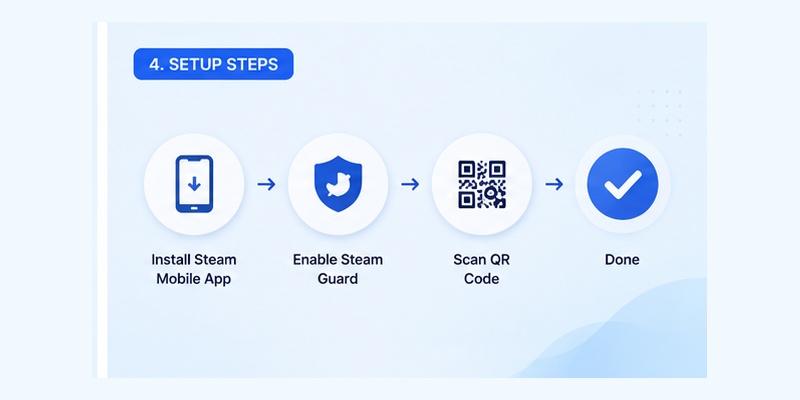
To configure the steam authenticator app:
- Download and open the official Steam Mobile App.
- Sign in using your Steam account credentials.
- Open the Steam Guard tab.
- Choose Add authenticator.
- Enter your phone number if prompted.
- Select the appropriate international country prefix.
- Wait for Steam to send a confirmation code.
- Enter the code received on your phone.
- Complete the activation process.
- Save the recovery code Steam provides.
Steam specifically tells users not to skip the recovery-code step because that code can be important if access to the phone or authenticator is lost later.
Once activation is successful, the steam authenticator app can be used for Steam Guard authentication.
Test it before relying on it
After setup, perform a normal login to verify that everything works.
Open Steam on a computer or browser and try one of the supported sign-in methods:
- Scan the QR code.
- Enter your credentials and approve the mobile notification.
- Enter your credentials and manually provide the Steam Guard code.
Testing immediately helps confirm that your steam authenticator app was actually registered and that you know where its controls are located.
Download Authenticator App
Secure your accounts with fast, reliable two-factor authentication. Download now and protect your login in seconds.
5. How to Enable Mobile Authenticator on Steam
Enable Steam Guard through your smartphone
The process for how to enable mobile authenticator on steam is essentially the authenticator enrollment described above, but understanding the difference between Steam Guard email protection and the mobile authenticator is useful.
Steam Guard can protect sign-ins through email codes, while Steam Guard Mobile Authenticator uses the Steam Mobile App.
Valve describes smartphone Steam Guard as the stronger option because login authorization is tied to a physical device under your control.
To enable the steam authenticator app, open Steam Mobile, sign into your account, visit Steam Guard, select the option to add the authenticator, and complete the verification process.
When setup finishes successfully, Steam will begin treating the registered mobile device as the account’s authenticator.
What happens after activation?
After activating the steam authenticator app, the Steam Guard page becomes the main place for authentication actions.
From there you can:
- Scan Steam login QR codes.
- Review authentication requests.
- Display the current Steam Guard code.
- Access authenticator-related settings.
- Find your recovery information.
- Manage additional Steam accounts.
The code itself changes automatically every 30 seconds. The phone does not need an active internet connection merely to generate the current authenticator code, although the device’s time must be correct.
That offline code generation can be useful when your phone temporarily has weak connectivity.
💡 Discover Helpful Guides: Where to Find Steam Mobile Authenticator Code Fast
6. Where to Find Steam Mobile Authenticator Code

Finding the current Steam Guard code
One of the most common questions from new users is where to find steam mobile authenticator code.
After the authenticator has been successfully configured:
- Open the Steam Mobile App.
- Navigate to the Steam Guard page.
- Select Show Steam Guard code.
- Use the currently displayed code when Steam asks for it.
Valve confirms that the current mobile authenticator code is available from the Steam Guard page through the Show Steam Guard code option.
The steam authenticator app generates another code automatically approximately every 30 seconds.
Why does the code keep changing?
This is intentional.
Steam Guard codes are temporary. Valve states that each mobile authenticator code changes every 30 seconds and should only be used once.
When entering a code manually, use the newest one shown by the steam authenticator app.
If the current code is about to change, waiting for the next code can prevent you from entering a code that expires during the login process.
You may not need the code at all
Modern Steam login flows increasingly allow the phone to handle authentication without manual code entry.
If your Steam login screen presents a QR code, you can scan it directly.
If you enter the account credentials normally, Steam may instead send a confirmation notification to your phone.
The manual Steam Guard code remains useful, but it is only one of several ways the steam authenticator app can authorize a login.
📘 Find the Right Guide: Steam Guard QR Code: Complete Login and Setup Guide
7. How to Use Steam Guard QR Code to Sign In
Where the QR code appears
The steam guard qr code appears on supported Steam login screens, such as the Steam desktop client or Steam website.
It is not a recovery QR code and should not be confused with generic QR codes found online.
To sign in using the steam authenticator app:
- Open Steam on your computer or browser.
- Locate the QR code on the sign-in screen.
- Open the Steam Mobile App.
- Go to Steam Guard.
- Choose the QR scanning option.
- Point the phone camera at the Steam QR code.
- Review the sign-in information displayed on the phone.
- Approve only if the details correspond to your login.
Steam states that the confirmation screen can include information about the sign-in attempt, including an approximate location.
Why QR login is useful
QR sign-in lets the steam authenticator app establish the session without requiring you to manually enter the account name, password, and Steam Guard code on that computer.
This is convenient, but it does not mean you should scan every Steam-looking QR code you encounter.
Only use the scanner when you intentionally started a login on an official Steam client or Steam website.
Steam advises users to inspect URLs carefully and never enter account credentials or authentication codes into suspicious websites.
Always review the approval screen
Treat every steam authenticator app approval request as a security decision.
If you were not trying to log in, do not approve the request.
If the device or approximate location shown by Steam looks unexpected, reject the request and review your account security rather than approving automatically.
📖 Explore Articles: Disable Steam Authenticator Safely: Complete Guide
8. Steam Authenticator Recovery Code: Where to Find It
What is the recovery code?
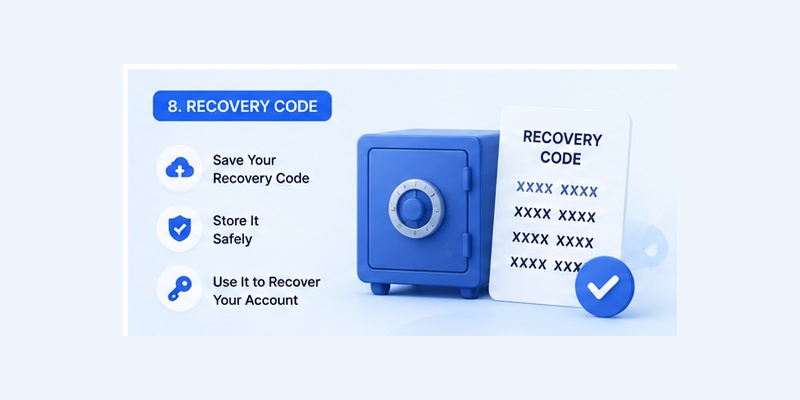
The steam authenticator recovery code is an important credential associated with Steam Guard Mobile Authenticator.
During authenticator setup, Steam displays a recovery code and advises the user to write it down and keep it somewhere safe. The recovery code can help you regain control of the account if access to the phone or authenticator is lost.
Do not treat this code like an ordinary Steam Guard login code.
The temporary Steam Guard code changes repeatedly. The recovery code exists specifically for account recovery and authenticator-related situations.
Where to find the recovery code later
If you did not save the recovery code during setup but still have access to the steam authenticator app, Steam currently provides a way to view it.
Open the Steam Mobile App, go to the Steam Guard page, open the gear/settings control, and select Recovery Code.
Store the steam authenticator recovery code somewhere that you can access if the phone itself becomes unavailable.
For example, saving the only copy exclusively inside the same phone defeats much of the purpose of having recovery information.
What if you lost the phone and recovery code?
If you no longer have the phone, the authenticator, or the recovery code, Steam’s account recovery system becomes the next step.
Valve states that Steam Support can assist with account recovery even in situations where several account details have been forgotten, although ownership may need to be verified.
Use Steam’s official support workflow rather than accepting account-recovery help from strangers.
Steam Support states that Valve employees will not ask you to provide your normal Steam Guard authenticator codes.
🛠️ Learn with Step-by-Step Guides: How to Enable Mobile Authenticator on Steam Safely
9. How to Move Steam Authenticator to a New Phone
Use the official transfer process
Understanding how to move steam authenticator to new phone is important before replacing, resetting, selling, or wiping your existing device.
Steam currently has a dedicated transfer process called Move Authenticator.
For the smoothest transfer, Valve recommends having both the existing device and the replacement phone available.
To move the steam authenticator app:
- Install the Steam Mobile App on the new phone.
- Sign into the same Steam account.
- Confirm the new-phone login using your existing authenticator when required.
- Open the Steam Guard area on the new phone.
- Select Move Authenticator.
- Steam sends a confirmation code to the registered phone number.
- Enter that confirmation code.
- Complete the transfer.
- Save the newly presented recovery code.
Steam’s current transfer documentation specifically instructs users to save the recovery code provided during the move.
Do not remove the old authenticator first
If both devices are available, transferring the steam authenticator app is generally preferable to immediately removing the old authenticator and starting from scratch.
Authenticator removal can affect account security and trigger trading or Community Market restrictions. Steam’s removal documentation warns that removing the mobile authenticator creates a 15-day restriction on trading and Market selling.
Using the official Move Authenticator flow is therefore the better route when you are simply upgrading phones.
What if the old phone is already gone?
If the original device is lost, broken, erased, or inaccessible, use Steam’s official account recovery tools.
A registered phone number and saved recovery code can make recovery easier. Steam specifically recommends adding a phone number to help with account recovery.
Do not try to run the same account’s steam authenticator app simultaneously on two independent authenticators. Valve states that one account can have only one mobile authenticator at a time.
💡 Discover Helpful Guides: How to Move Steam Authenticator to New Phone Safely
10. How to Use Steam Authenticator App With Multiple Accounts

Multiple Steam accounts on one phone
Users with several Steam accounts do not necessarily need several phones.
Steam allows the Steam Mobile App to authenticate multiple accounts. From the Steam Guard page, use the account selector and choose Add an account, then complete authenticator setup for the additional Steam identity.
Once configured, the steam authenticator app can deliver sign-in confirmations for the accounts added to that device.
This can be useful for users who manage separate personal or family Steam accounts.
One account, one authenticator
The reverse arrangement is different.
Steam does not support connecting one account to multiple Steam Mobile Authenticators simultaneously. Valve’s FAQ explicitly says that a Steam account can only be on one authenticator at a time.
Therefore:
- One phone → multiple Steam accounts: supported.
- One Steam account → multiple active mobile authenticators: not supported.
Understanding this rule helps prevent confusion when installing the steam authenticator app on a replacement phone.
📖 Read More Guides: What Is Steam Guard Authenticator? A Complete Guide
11. Steam App Authenticator Not Working: Common Fixes
Check whether the problem is the code or the app
A steam app authenticator not working problem can mean many different things.
For example:
- Steam rejects the generated code.
- The code appears to expire too quickly.
- QR scanning does not work.
- The sign-in approval never appears.
- The phone was replaced.
- The authenticator was removed.
- You cannot access the registered phone number.
- You cannot log into the Steam Mobile App.
Before changing security settings, determine which part of the steam authenticator app is actually failing.
Fix Steam Guard codes that are rejected
Steam says mobile authenticator codes are generated every 30 seconds and that older codes do not work.
If a code is rejected:
- Make sure you selected the correct Steam account.
- Wait for a fresh code.
- Enter the newest code.
- Check the phone’s date and time.
- Make sure the device clock is synchronized correctly.
Steam notes that the phone does not need internet access merely to generate a Steam Guard code, but the phone does need the correct time.
If you have several accounts configured in the steam authenticator app, double-check that you are reading the code belonging to the account you are trying to access.
QR scanner not working
If the QR function fails:
- Confirm you are using the Steam Mobile App’s Steam Guard scanner.
- Make sure the entire Steam QR code is visible.
- Clean the camera lens.
- Increase the computer screen brightness if necessary.
- Make sure Steam Mobile has camera permission.
- Try another supported login method.
Steam also supports notification confirmation and manual code entry, so QR login is not the only route.
Approval notification does not appear
If the steam authenticator app does not show a sign-in notification, open the Steam Mobile App manually and check Steam Guard.
Also verify that the phone has connectivity and that mobile notifications for Steam are permitted.
If notification approval remains unavailable, use the manual Steam Guard code option where Steam presents it.
Lost access completely
If the problem is not a temporary app error but total loss of authenticator access, do not repeatedly reinstall applications or create new Steam accounts.
Use Steam’s account recovery workflow.
Steam’s official support site includes a dedicated path for users experiencing problems with the Steam Guard Mobile Authenticator or who have lost it.
🧭 Explore Guides: Steam Mobile Authenticator Download: Official Android & iPhone Guide
12. How to Disable Steam Authenticator Safely
Remove Authenticator from Steam Mobile
Users searching disable steam authenticator should understand the consequences before doing it.
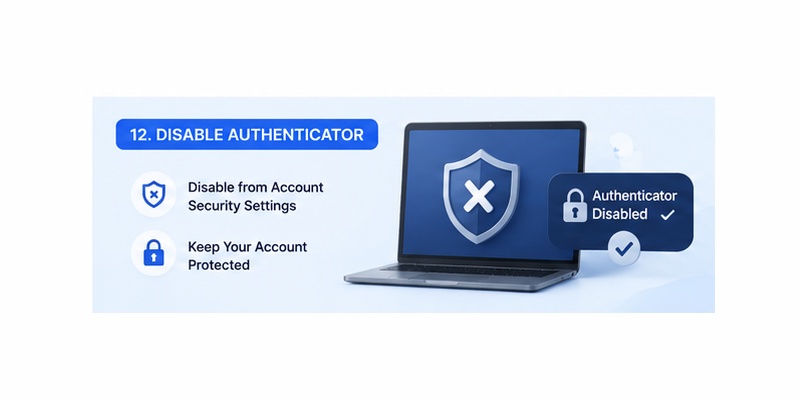
Steam states that removing the Steam Guard Mobile Authenticator lowers account security. It can also affect access to Steam trading and Community Market features.
If you still want to remove the steam authenticator app from the account:
- Open the Steam Mobile App.
- Go to Steam Guard.
- Select Remove Authenticator.
- Confirm the removal.
If you no longer have the original phone, Steam says authenticator removal can also be managed through the account’s security and device settings.
What happens after removal?
According to Steam’s current documentation, removing the mobile authenticator causes the account to return to Steam Guard email-code authentication for sign-ins.
Steam also warns that after removal you cannot trade or sell items on the Community Market for 15 days.
For that reason, do not disable steam authenticator merely because you purchased a new phone.
Use the Move Authenticator function instead whenever possible.
When removal makes sense
Removing the steam authenticator app may be appropriate if you intentionally no longer want mobile authentication and understand the security and feature consequences.
It should not normally be the first troubleshooting step.
If your goal is simply to:
- Change phones,
- Fix code synchronization,
- Recover a lost login,
- Add another Steam account,
there are dedicated Steam workflows that may solve the problem without removing the authenticator entirely.
🗺️ Browse How-To Guides: Steam App Authenticator Not Working: Complete Fixes
13. Steam Authenticator App Security Tips
Never share Steam Guard codes
The most important rule for the steam authenticator app is simple: do not share the authentication code with another person.
Steam states that Steam Support and Valve employees will not ask users for mobile authenticator codes.
A person asking for your Steam Guard code in a chat, trade conversation, direct message, or unofficial support page should not receive it.
The steam authenticator app is useful because the second authentication factor is under your control. Giving that factor to someone else defeats the purpose of using it.
Check websites before signing in
Phishing sites sometimes imitate familiar login pages.
Steam recommends checking links carefully and avoiding websites that are not operated by Valve when entering Steam usernames, passwords, or authenticator information.
When possible, begin sensitive account actions from the official Steam client or Steam website rather than following unexpected login links.
Review authorized devices
Steam Guard users can review devices that currently have access to the Steam account.
If a device looks unfamiliar or you accidentally stayed logged in on an untrusted computer, Steam provides device-management and sign-out controls.
This is an important companion practice to using the steam authenticator app.
Two-factor authentication protects new access attempts, but reviewing existing authorized sessions can help identify devices that already have account access.
Protect the recovery code
Keep the recovery code separate from the phone when possible.
If the same phone contains your steam authenticator recovery code, password screenshots, Steam credentials, and access to your email, losing that one device could create unnecessary recovery problems.
The recovery code exists specifically to help restore account access when the authenticator is unavailable. Steam explicitly advises users to save it safely.
📘 Find the Right Guide: How to Set Up Steam Mobile Authenticator For Everyone
14. Frequently Encountered Steam Guard Situations
“I changed my phone but still have the old one”
This is the easiest migration scenario.
Install Steam Mobile on the new phone and use Move Authenticator. Keep the old phone available until the process has completed and you can authenticate successfully from the new device.
Do not remove the steam authenticator app from the old device before starting the transfer unless Steam’s recovery process specifically requires another route.
“I lost my phone”
Use the account recovery options associated with Steam Guard.
Your registered phone number and recovery code can help. If self-service recovery is not possible, Steam Support provides an account-recovery process.
“I forgot to save my recovery code”
If you still have access to the functioning steam authenticator app, open Steam Guard, use the settings/gear control, and select Recovery Code.
Store the displayed code securely afterward.
“I have no internet on my phone”
The authenticator can still generate its rotating Steam Guard code without an internet connection as long as the phone’s time is correct.
QR login and mobile approval functions, however, rely on communication with Steam and therefore should not be treated the same way as offline code generation.
“I want Steam Guard on two phones”
A single Steam account cannot be attached to two active mobile authenticators simultaneously.
Steam states that an account can only be on one authenticator at a time.
If you are switching devices, use the transfer workflow rather than trying to maintain duplicate copies of the steam authenticator app.
“I have several Steam accounts”
That is supported.
One Steam Mobile App can authenticate multiple Steam accounts. Add additional accounts from the Steam Guard account selector and configure authentication for each one.
“Steam keeps rejecting my code”
Wait for the newest code and confirm that the phone’s time is correct.
The steam authenticator app produces a fresh code every 30 seconds, and Steam says older codes will not work.
Also make sure you selected the right account if several Steam identities are stored in the application.
“Should I remove Steam Guard to fix login issues?”
Usually, removal should not be the first option.
Removing the authenticator reduces account protection and can result in a 15-day restriction on trading and Community Market selling.
Try the supported recovery, transfer, QR, notification, or manual-code options first.
📖 Explore Articles: Google OTP App: Complete Guide to OTP, TOTP, and 2FA
15. Final Thoughts
The steam authenticator app is one of the most useful security features available to Steam users because it adds device-based authentication to the normal account login process.
Officially, the feature is called the Steam Guard Mobile Authenticator and is built into the Steam Mobile App for Android and iOS. Steam currently supports QR-code login, mobile approval notifications, and manually generated Steam Guard codes. Those codes refresh every 30 seconds.
For a new user, configuring the steam authenticator app comes down to a few important steps: install the official Steam Mobile App, open Steam Guard, add the authenticator, verify the account, and save the recovery code.
Download Authenticator App
Secure your accounts with fast, reliable two-factor authentication. Download now and protect your login in seconds.
