
Google Authenticator for PC: Windows, Desktop and Laptop Guide
Published August 11, 2026 · Updated August 20, 2026
Searching for google authenticator for pc usually leads to one simple question: can you install the official Google Authenticator directly on a Windows computer and generate your two-factor authentication codes without using a phone?
The short answer is that Google’s official Authenticator distribution currently focuses on mobile devices. Google lists the official application on Google Play for Android and Apple’s App Store for iPhone and iPad. The official listings describe verification codes as being generated by the Authenticator app on a phone and do not list a native Windows desktop release.
That does not mean a PC cannot be part of your authentication workflow.
You can still log in to websites on a Windows computer, enter codes generated by Google Authenticator on your phone, use backup methods when your phone is unavailable, or select another compatible authenticator solution if you specifically require codes on a computer.
This distinction is important because searches such as google authenticator desktop, google authenticator pc app, and google authenticator for windows can return unofficial software that may look similar to Google’s application.
For security-sensitive tools such as an Authenticator App, you should distinguish between Google’s official software and third-party TOTP applications before importing account secrets.
This guide focuses on the real search intent behind google authenticator for pc: what is officially available, how to use Authenticator while working on Windows, whether you can access codes directly from a desktop, and what options exist if you need a PC-based 2FA workflow.
1. Is Google Authenticator for PC Available?
The first thing to understand about google authenticator for pc is that using Google Authenticator with a PC is different from installing Google Authenticator on a PC.
Is There an Official Google Authenticator PC App?
As of August 2026, Google’s official Google Play listing provides Google Authenticator for Android, while Apple’s official App Store listing identifies iPhone and iPad as supported devices. Neither official distribution page lists a native Windows application.
Therefore, users searching is google authenticator available on pc should not assume that a Windows download with “Google Authenticator” in its name is an official Google product.
Similarly, searches for:
- google authenticator desktop app
- google authenticator app for windows
- google authenticator app for pc
- google authenticator desktop client
- google authenticator for windows pc
often reflect demand for a native desktop program rather than an existing official Google Windows client.
The official mobile app remains the primary Google Authenticator experience.
Can Google Authenticator Be Used on a PC?
Yes, if by can google authenticator be used on a pc you mean using a PC to sign in while your phone generates the verification code.
For example:
- Open Gmail or another protected account on your PC.
- Enter your username and password.
- The website requests a verification code.
- Open Google Authenticator on your phone.
- Read the current code.
- Type that code into the browser on your PC.
Google confirms that Authenticator generates one-time verification codes for services using Authenticator-based two-step verification. Those codes can be generated without an active internet or cellular connection.
This is the normal google authenticator for pc workflow even though the actual code generator remains on the mobile device.
Is There a Google Authenticator Web Version?
Google’s current Authenticator documentation explains mobile code generation, synchronization through a Google Account, and transfers between supported devices. It does not describe a browser-based desktop page where users can sign in and display their synchronized Authenticator codes.
Therefore, access google authenticator on pc should not be confused with logging into a web dashboard containing all of your TOTP codes.
The synchronized-code feature is designed around Authenticator running on supported devices.
📖 Read More Guides: Google Authenticator Lost: How to Recover Codes and Account Acces
2. How to Use Google Authenticator With a PC
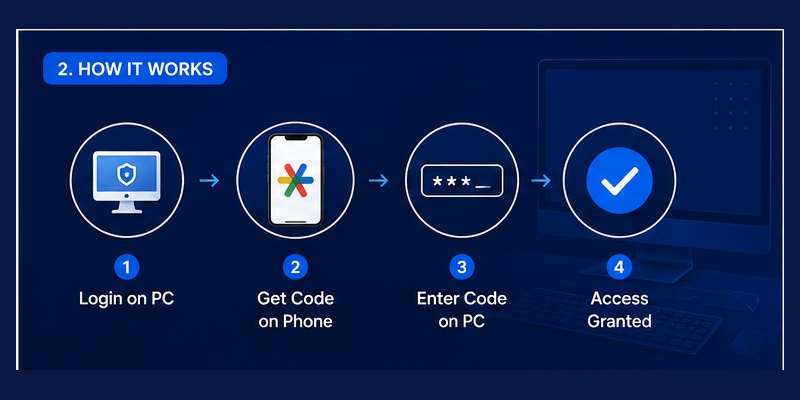
For most users, the safest and simplest way to use google authenticator for pc is to keep the Authenticator application on a trusted mobile device and use the computer for the actual website login.
This separates the password and the second authentication factor across devices.
Step 1: Enable Two-Step Verification
Open the account you want to protect on your PC.
Go to its security settings and enable two-factor or two-step verification.
If you are protecting a Google Account, Google’s computer instructions allow Google Authenticator or another application that generates one-time verification codes to be used as a verification method.
Step 2: Display the Setup QR Code on Your PC
When you select an authenticator application, the website normally presents setup information such as a QR code.
This is one of the situations where a PC is particularly convenient.
The QR code appears on the desktop monitor while you scan it with your phone.
Step 3: Add the Account on Your Phone
Open Google Authenticator.
Add a new account and scan the QR code displayed on your PC.
Google Authenticator will then begin generating verification codes for that account.
Google’s official documentation supports QR-code configuration and transferring Authenticator accounts between supported devices.
Step 4: Enter the Code on Your PC
Return to the setup page on your computer.
Enter the current code displayed in Google Authenticator.
Once it is accepted, the account is connected.
This is the key concept behind google authenticator pc use: the website can be open on the PC while the authentication code is generated independently on another trusted device.
Everyday Login
After setup, a normal google authenticator for pc login looks like this:
PC: Enter username and password.
Phone: Open Google Authenticator.
PC: Enter the current six-digit verification code.
Account: Complete sign-in.
You do not need to install a google authenticator app on pc for this workflow.
Download Authenticator App
Secure your accounts with fast, reliable two-factor authentication. Download now and protect your login in seconds.
3. Google Authenticator for Windows 10 and Windows 11
Many search queries are specifically about google authenticator for windows 11, google authenticator windows 10, or a google authenticator app for windows 10.
The underlying question is usually whether newer Windows versions change the situation.
Google Authenticator for Windows 11
Google’s official Authenticator listings do not currently identify Windows 11 as a supported native platform. The official Google Play version targets Android, while Apple’s listing covers iPhone and iPad.
Therefore, searching for google authenticator app for windows 11 should not be interpreted as evidence that Google publishes a Windows 11 edition.
You can nevertheless use your Windows 11 computer for the website side of authentication.
For example, you can:
- Open the account login page.
- Set up two-factor authentication.
- Display the QR code.
- Enter a verification code.
- Manage Google Account security settings.
Your phone remains the official Google Authenticator code generator.
Google Authenticator for Windows 10
The same concept applies to google authenticator on windows 10.
The operating system version does not change how Google’s official mobile Authenticator works.
If you are searching for google authenticator for desktop windows 10, the practical workflow is still:
Windows PC + browser + mobile Authenticator.
A dedicated official google authenticator app windows 10 is not listed in Google’s current official app distribution.
What About Windows Login?
A search such as google authenticator windows 10 login or “Windows login Google Authenticator” can mean something completely different: using a TOTP code to unlock Windows itself.
Google Authenticator’s normal purpose is to generate one-time verification codes for compatible sites and applications. Google’s official documentation does not present it as a native Windows sign-in provider.
That topic should therefore be separated from using google authenticator for pc to sign into websites from a Windows computer.
Why Older Windows Keywords Are Less Useful
Queries for Windows 7 and Windows 8 have been filtered from this article because they do not materially change the primary answer.
The important distinction is not Windows 7 versus Windows 10 versus Windows 11.
It is:
Official Google Authenticator mobile application vs third-party desktop authenticator software.
That is the distinction users should focus on when evaluating a google authenticator pc windows setup.
📖 Explore Articles: Google Authenticator Support: Setup, Supported Apps and Troubleshooting Guide
4. How to Get Google Authenticator Codes While Using a PC
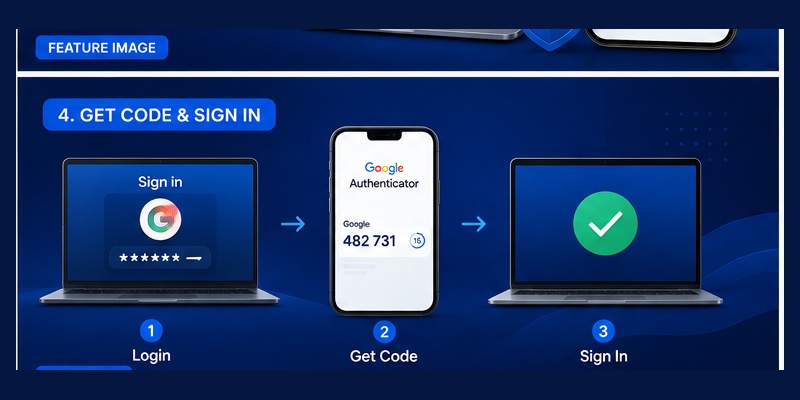
Another major intent behind google authenticator for pc is obtaining the actual verification code.
People may search google authenticator code pc because the login page on their computer asks for a six-digit code and they are unsure where it comes from.
Get the Code From Google Authenticator
If the account has already been configured:
- Leave the login page open on your PC.
- Open Google Authenticator on your phone.
- Find the relevant account.
- Read the current verification code.
- Enter it into the PC login page.
- Submit the verification step.
Google’s official documentation states that Authenticator codes can be generated even if the phone does not have an internet connection or mobile service.
That makes this 2fa google authenticator pc workflow particularly useful when a laptop has connectivity but the phone does not.
The Code Is Not Sent From the PC
The PC generally does not need to communicate directly with Google Authenticator to obtain the TOTP code.
The service and authenticator have already been configured with the necessary authentication information.
The Authenticator app generates the current one-time code, and you manually enter it on the computer.
This is why google auth pc can work even though there is no official native Google Authenticator Windows client.
What If You Do Not Have Your Phone?
If you cannot access Google Authenticator while signing into a Google Account, Google allows backup codes to be used as an alternative second step if you created them previously. Google provides sets of one-time backup codes for situations such as losing a phone or being unable to use Authenticator.
A backup code should be treated as sensitive login information and stored securely. Google warns users not to share these codes.
Can Synced Codes Be Viewed on the PC?
Google Authenticator can synchronize verification codes to your Google Account when you sign in within supported versions of the Authenticator app. Google says the synchronized codes are encrypted in transit and at rest.
However, synchronization should not be interpreted as a promise that those codes can be displayed in an ordinary desktop web browser.
Google’s current help documentation describes syncing codes across Authenticator devices rather than providing a Windows browser interface for viewing those codes.
So if your goal is access google authenticator on pc, normal Google Account synchronization does not turn Google Authenticator into a web-based desktop code manager.
📖 Explore Articles: Google OTP App: Complete Guide to OTP, TOTP, and 2FA
5. Google Authenticator for Laptop and Desktop Workflows
Searches for google authenticator laptop, google authenticator on laptop, and google authenticator in desktop generally describe the same need as google authenticator for pc.
Whether you use a tower desktop, gaming PC, work laptop, or Windows ultrabook, the authentication principle is the same.
Recommended Laptop Workflow
A simple setup is:
Laptop: account login and QR-code setup.
Phone: Google Authenticator.
Laptop: enter generated verification code.
This keeps authentication simple and avoids installing unknown software merely because it claims to be a google authenticator app for laptop.
Working With Multiple Accounts
Google Authenticator supports multiple accounts, and Google’s official App Store description notes that users can manage multiple accounts from the app.
This is useful if you regularly use a laptop for:
- Work email
- Cloud platforms
- Social accounts
- Developer tools
- Productivity services
You can open each service on the computer while keeping its verification code in the Authenticator App.
Laptop Travel Setup
Before traveling with a laptop, confirm that you can still access your authentication method.
Because Google Authenticator codes can be generated without mobile data or internet access, the phone can still provide codes in many situations where you have no cellular service.
You should also prepare a recovery method for important Google Accounts.
Google recommends backup codes as one alternative when normal two-step verification is unavailable.
New Laptop vs New Phone
Changing your laptop usually does not require transferring Google Authenticator itself because Authenticator runs on your mobile device.
Changing your phone is different.
Google explains that signed-in Authenticator users can synchronize codes through their Google Account, while users operating Authenticator without a Google Account can manually transfer codes between devices.
Therefore, a new google authenticator app laptop is generally not required just because you purchased a new computer.
📖 Explore Articles: Sign In Google Authenticator: Complete Setup and Login Guide
6. Alternatives to a Google Authenticator Desktop App
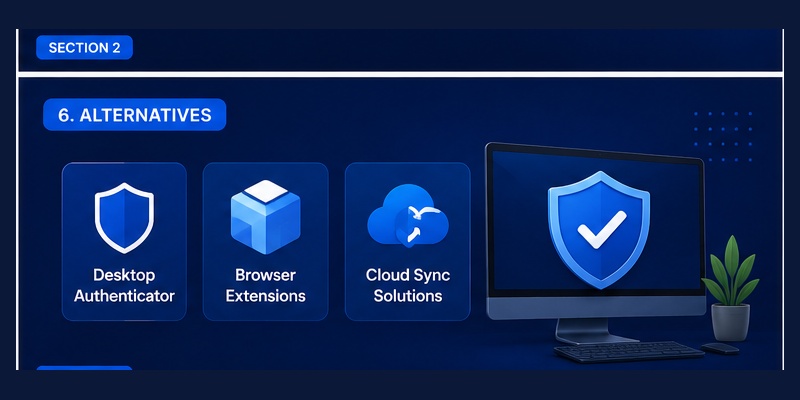
Some users genuinely need a desktop-based authenticator.
Perhaps phones are restricted in their workplace, they want a cross-device credential manager, or their workflow requires TOTP codes directly on the computer.
In that case, searching for google authenticator app for desktop makes sense—but it is important to understand what you are actually looking for.
Google Authenticator vs a TOTP-Compatible Desktop App
Google Authenticator is one implementation of one-time-password authentication.
A service that provides a standard authenticator QR code may also work with other compatible applications.
Google itself notes that users can set up Google Authenticator or another app that creates one-time verification codes for Google two-step verification.
This means a person who specifically needs desktop codes does not necessarily need software carrying the Google Authenticator name.
What they need is a trustworthy solution compatible with the authentication method used by their accounts.
Be Careful With Unofficial “Google Authenticator Desktop” Downloads
A search for google authenticator desktop app may surface browser extensions, emulators, third-party applications, and download pages.
Do not assume that these are published or endorsed by Google.
Google’s official Authenticator presence currently points users to its mobile applications rather than a native Windows package.
This matters because an authenticator stores security secrets that are capable of generating valid login codes.
Giving those secrets to untrusted software can weaken the protection that two-factor authentication is supposed to provide.
Should You Store Passwords and TOTP Codes on the Same PC?
There is a convenience-versus-separation tradeoff.
If your password and TOTP generator are both accessible from the same computer and same unlocked session, compromising that device may expose more of your login workflow.
Using Google Authenticator on a separate phone maintains stronger physical separation between the device where the password is entered and the device generating the verification code.
For many users, this is a good reason to continue using the standard mobile google authenticator for pc workflow rather than trying to replicate everything on Windows.
7. Common Google Authenticator PC Problems and Fixes
Even when you understand how google authenticator for pc works, several problems may occur during setup or login.
Problem 1: “I Can’t Find the Google Authenticator PC Download”
If you are specifically looking for an official google authenticator pc app, the current Google Play and Apple listings explain why the search is confusing: Google’s official distribution is centered on mobile devices rather than a Windows desktop release.
Do not download a random executable simply because its title resembles Google Authenticator.
Problem 2: “The Website on My PC Asks for a Code”
Open Google Authenticator on the phone where you originally configured that account.
Choose the appropriate account entry and enter the displayed code on your computer.
This is normal google 2fa authenticator for pc behavior.
The code does not have to be generated by the PC itself.
Problem 3: “My Code Is Rejected”
First, confirm that you are using the code for the correct account.
If you have several similar entries, selecting the wrong one is an easy mistake.
Google’s current documentation also notes that recent versions of Authenticator rely on the operating system’s time settings. Accurate device time is therefore important for time-based codes.
If the code is about to change, wait for the next one and try again.
Problem 4: “I Lost My Phone”
If you synchronized Authenticator codes to your Google Account, signing in to Google Authenticator on another supported device can restore synchronized codes. Google documents automatic synchronization after signing into the Google Account within Authenticator on a new device.
If synchronization was not used, account-specific recovery options or previously created backup codes may be necessary.
Problem 5: “I Want to Get Google Authenticator on PC as a Backup”
A better backup strategy may be to prepare official recovery methods rather than relying on an unofficial google authenticator app on desktop.
For a Google Account, backup codes can provide a second-step alternative when the phone or Authenticator is unavailable.
Google Authenticator synchronization or manual device transfer can also help protect against losing access when changing phones.
Problem 6: “I Installed a Browser Extension Called Google Authenticator”
Treat browser extensions and desktop tools as separate third-party products unless the publisher can be verified as Google.
This is why browser-specific keywords were intentionally filtered from this article.
The main google authenticator for pc search intent can be answered without recommending unverified extensions that may have access to sensitive authentication secrets.
📖 Explore Articles: Google Authenticator: Complete 2FA Setup & Security Guide
8. Is Google Authenticator for PC the Right Setup?
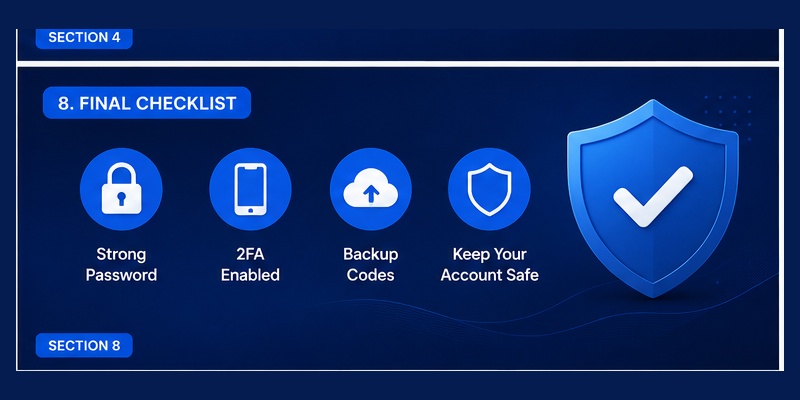
For most people searching google authenticator for pc, the answer is simpler than it first appears.
You generally do not need Google Authenticator installed directly on your desktop computer to use Google 2FA from that computer.
Best Setup for Most Users
The normal workflow is:
- Use the Windows PC or laptop to sign in.
- Keep Google Authenticator installed on your trusted mobile device.
- Open Authenticator when the website requests a verification code.
- Enter the code on the computer.
- Keep recovery options available in case the phone becomes inaccessible.
Google’s official Authenticator app generates one-time codes on supported mobile devices and can generate those codes even without network or cellular service.
This makes it well suited to desktop logins without requiring an official google authenticator app for pc.
When a Desktop Authenticator Makes Sense
A separate desktop TOTP solution may be useful if your environment genuinely requires authentication codes directly on a computer.
However, it should be evaluated as a separate authenticator product rather than assumed to be google authenticator for desktop.
Check the publisher, security model, backup behavior, and how authentication secrets are stored before moving important 2FA accounts.
Windows 10 and Windows 11
Users looking for google authenticator for windows 10 pc or google authenticator for windows 11 do not need different instructions.
Both can participate in the same desktop login workflow:
Windows browser → login request → phone Authenticator → verification code → Windows browser.
The official Google Authenticator application itself remains associated with Google’s mobile distribution.
Final Answer: Is Google Authenticator on PC?
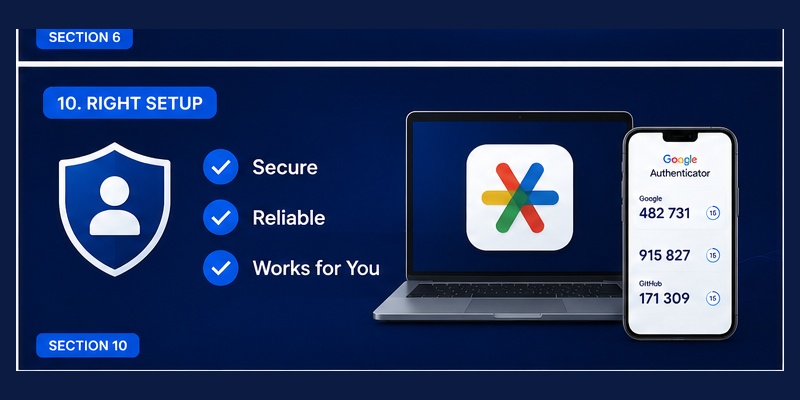
If the question is google authenticator on pc means “Can I use Google Authenticator while signing into websites on my PC?” the answer is yes.
If it means “Does Google currently provide an official native Google Authenticator Windows desktop application?” Google’s current official app listings do not show such a Windows release.
That distinction resolves most confusion surrounding google authenticator for pc.
For the majority of users, the recommended workflow remains straightforward: use your PC for the account login and use Google Authenticator on a trusted phone to generate the second-step verification code.
You can set up Google Authenticator while working from the PC, scan QR codes displayed on the desktop, enter generated codes into Windows browsers, synchronize Authenticator codes across supported devices through your Google Account, and maintain backup codes for recovery.
There is therefore no need to search endlessly for a questionable google authenticator desktop app simply to complete 2FA on a computer.
Use the official mobile Authenticator when possible, protect your recovery methods, and treat any third-party desktop authentication software as a separate security product that deserves careful evaluation.
For most users, that is the safest and clearest way to use google authenticator for pc.
Download Authenticator App
Secure your accounts with fast, reliable two-factor authentication. Download now and protect your login in seconds.
