
Google Authenticator Support: Setup, Supported Apps and Troubleshooting Guide
Published August 11, 2026 · Updated August 20, 2026
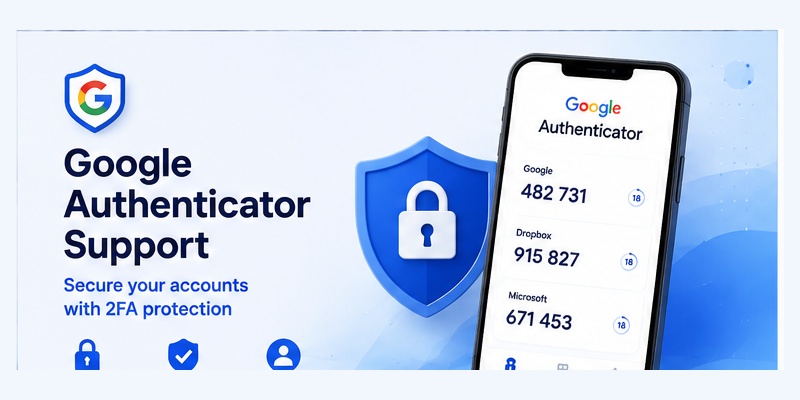
Two-factor authentication has become an important part of protecting online accounts. A password alone can be exposed through phishing, reused credentials, data breaches, or other security incidents. Adding a second authentication factor makes it more difficult for someone to access an account using only a stolen password.
This is where google authenticator support becomes useful. Google Authenticator can generate temporary verification codes for compatible accounts, allowing users to add another security step when signing in.
People may search for google authenticator support for many reasons. Some want to know how to set up the application. Others need help because verification codes are not working, they changed phones, or they lost access to the device containing their codes.
There are also questions about google authenticator supported apps, Microsoft and Hotmail compatibility, account recovery, and whether there is a reliable google authenticator support number to contact.
This guide explains how Google Authenticator works, where it can be used, how to configure it correctly, and how to solve common authentication problems.
1. What Is Google Authenticator Support?
The phrase google authenticator support can have several meanings depending on what the user is trying to accomplish.
In one context, it refers to whether a website, application, or online platform can work with Google Authenticator. In another context, it refers to troubleshooting when the authenticator application or verification codes are not working as expected.
Support for Two-Factor Authentication
Google Authenticator is primarily designed to generate time-based one-time passwords. These temporary codes provide an additional verification factor during login.
A typical authentication process might require:
- Username or email
- Password
- Temporary authenticator code
If all three steps are completed correctly, access is granted.
The benefit of this approach is that an attacker who knows only the password may still be unable to access the account.
This makes google authenticator support valuable for accounts containing personal information, work data, financial information, private messages, or important digital assets.
Support Is Often Controlled by the Account Provider
It is important to understand that Google Authenticator does not control every account connected to the application.
For example, if a third-party website allows you to add Google Authenticator, that website controls the authentication settings and account recovery process.
Google Authenticator simply generates the temporary code.
Therefore, when troubleshooting an account, google authenticator support may involve both the authenticator application and the company that operates the account.
Understanding this distinction can save significant time when trying to recover access.
📖 Explore Articles: Google Authenticator: Complete 2FA Setup & Security Guide
2. How Google Authenticator Works
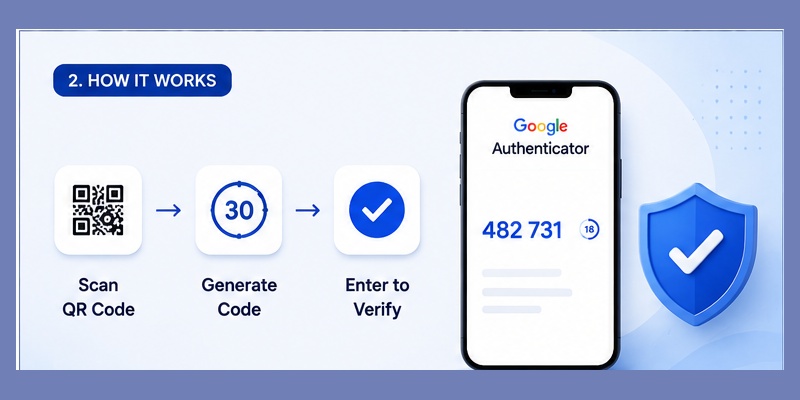
Google Authenticator uses a shared secret created when two-factor authentication is configured.
The website normally displays a QR code. When that QR code is scanned with the Authenticator App, the application stores information that allows it to generate temporary verification codes.
Time-Based Verification Codes
Most authenticator codes are valid only for a short period.
A new code is automatically generated after the current one expires.
For example, the application might display:
482 731
A short time later, that number changes to another code.
The website calculates the expected code independently. When the user enters the correct number during login, authentication succeeds.
This is why google authenticator support does not usually require an active mobile connection for every code. The code can often be generated directly on the device.
Why Authenticator Codes Improve Security
Suppose someone steals your account password through a phishing page.
Without two-factor authentication, that password may immediately provide access.
With Google Authenticator enabled, the attacker may still need the temporary code generated on your trusted device.
This creates an additional barrier.
However, authentication codes are still sensitive. A temporary code should never be shared with someone who contacts you unexpectedly.
Good google authenticator support therefore includes both technical setup and safe user behavior.
📖 Explore Articles: What Is Google Authenticator? How It Works, Codes, Setup, and Security
3. Google Authenticator Supported Apps and Services
One of the most common questions is which platforms are included among google authenticator supported apps.
Google Authenticator is not limited to Google services. Many third-party websites support standardized time-based authentication and can therefore work with compatible authenticator applications.
What Types of Accounts Can Use Google Authenticator?
Potentially compatible services may include:
- Email providers
- Cloud storage platforms
- Social networks
- Developer platforms
- Business applications
- Gaming accounts
- Password managers
- Productivity services
- Financial platforms
- Online marketplaces
The exact availability depends on the security features provided by each service.
To determine whether an account supports authentication codes, open its security settings and look for options such as:
- Two-factor authentication
- 2FA
- Two-step verification
- Authenticator app
- Authentication application
- TOTP
If the service provides a QR code for an authentication application, it may be compatible with Google Authenticator.
Google Authenticator Supported Apps Can Change
The list of google authenticator supported apps is not a fixed catalog because new websites can implement standard authentication methods at any time.
Instead of looking only for a specific Google Authenticator button, look for general authenticator or TOTP support.
This is an important part of understanding google authenticator support.
A service does not necessarily need to mention Google Authenticator by name. It may simply offer an option called “Authenticator App.”
Before enabling authentication, users should also review recovery options. Adding strong security is helpful, but losing access to the only authentication device can create problems if no backup method has been prepared.
Get Authenticator App
Add an extra layer of protection to your online accounts with two-factor authentication. Generate secure verification codes and protect your accounts whenever you sign in.
4. How to Set Up Google Authenticator
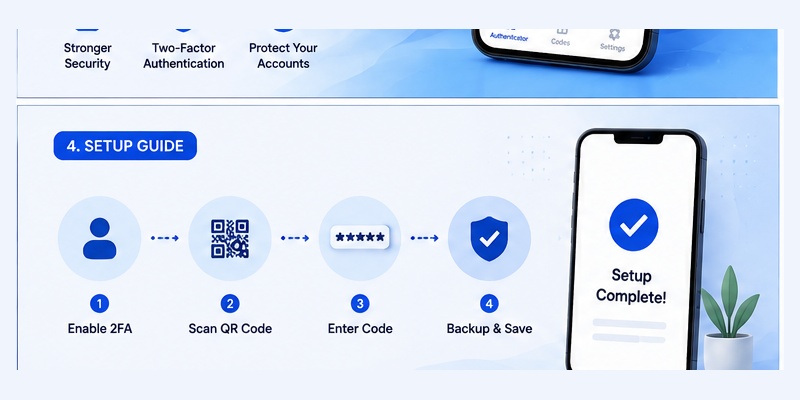
Setting up Google Authenticator generally takes only a few steps.
The exact wording differs between websites, but the basic process is similar across most compatible services.
Step 1: Enable Two-Factor Authentication
Open the account you want to protect.
Navigate to security settings and look for two-factor authentication.
Select an authenticator application as the verification method.
The service will usually display a QR code.
Open Google Authenticator and choose the option to add a new account.
Scan the QR code displayed by the service.
The new account should then appear inside the application with a temporary code.
Step 2: Confirm the Code
Most websites ask you to enter the current code before setup is completed.
For example, if Google Authenticator displays:
641 298
enter that number into the website’s verification field.
If accepted, the authenticator configuration is active.
This verification step is important because it confirms that the application and account are correctly connected.
Save Recovery Methods
Reliable google authenticator support begins before a problem happens.
If the website provides backup codes, save them in a secure location.
Do not keep your only backup copy on the same phone containing the authenticator.
You should also review whether the account supports alternative recovery methods such as trusted devices, recovery email, security keys, or another authentication option.
Testing the setup before logging out can prevent unnecessary account recovery problems.
📖 Explore Articles: Google OTP App: Complete Guide to OTP, TOTP, and 2FA
5. Google Authenticator Example and Hotmail Setup
Understanding authentication is easier with a practical google authenticator example.
Imagine that a user has enabled two-factor authentication on an online account.
Google Authenticator Example
The login page first asks for:
Email: [email protected]
Password: ••••••••••••
After the password is accepted, the service displays:
Enter authentication code
The user opens Google Authenticator and sees:
728 451
The user enters that number, and access is granted.
This google authenticator example demonstrates how the application acts as an additional verification step rather than replacing the account password.
The code changes frequently, which means an old code normally cannot be reused indefinitely.
This is the basic workflow behind much of google authenticator support.
Google Authenticator Hotmail Setup
Another common search is google authenticator hotmail.
Users sometimes assume that Google Authenticator works only with Gmail or Google accounts, but authenticator applications can also work with other compatible services.
Microsoft accounts associated with Hotmail or Outlook may offer several authentication options.
If an account allows the use of a compatible third-party authenticator application, the general process is similar:
- Open Microsoft account security settings.
- Find two-step verification options.
- Choose an authenticator application.
- Display the QR code.
- Scan it using Google Authenticator.
- Enter the generated code to confirm setup.
When configuring google authenticator hotmail, avoid deleting an existing working authentication method until the new one has been tested.
That way, you still have a way to access the account if something goes wrong during setup.
📖 Explore Articles: Google Authenticator App Store: Download, Setup & Best App
6. Common Google Authenticator Problems and Fixes
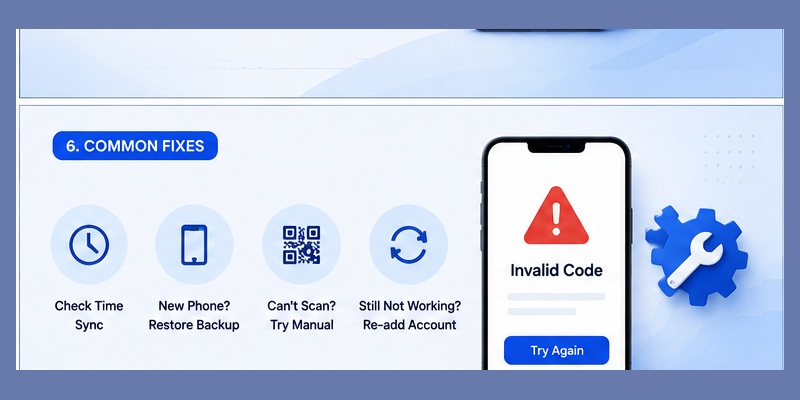
Many searches for google authenticator support happen only after a code stops working.
Fortunately, several common issues can be checked before beginning a full account recovery process.
Google Authenticator Code Is Incorrect
If a code is rejected, first confirm that you selected the correct account inside the application.
Users with many authenticator entries may have several accounts with similar names.
Next, check the time settings on the device.
Time-based verification depends on an accurate device clock. If the phone time is significantly incorrect, generated codes may not match the server.
Using automatic date and time settings can help prevent this problem.
You can also wait for the current code to expire and try the next one.
Avoid submitting a code when only a few seconds remain on its timer.
QR Code or Setup Problems
Another common google authenticator support issue occurs during initial setup.
If the QR code does not scan:
- Clean the camera lens
- Increase screen brightness
- Keep the full QR code visible
- Move the phone slightly farther from the screen
- Check whether a manual setup key is available
Some services allow the secret setup key to be entered manually instead of scanning a QR code.
Moving to a New Phone
Changing phones can also create authentication problems.
Whenever possible, move or reconfigure authentication accounts before deleting data from the original phone.
After transferring accounts, test several important logins.
Confirm that codes generated on the new phone are accepted before resetting or selling the old device.
Good google authenticator support planning means treating device migration as a security task, not simply an application transfer.
📖 Explore Articles: FIDO Google: Complete Guide to Secure Login and FIDO2
7. Google Authenticator Support Number and Account Recovery
When people lose access to their authentication codes, they may search online for a google authenticator support number.
This can create another security risk because fake support websites and impersonation scams may appear in search results.
Be Careful With Support Numbers
Do not trust an unknown google authenticator support number simply because a website claims to provide technical assistance.
Never give an unknown person:
- Your password
- Authenticator codes
- Backup codes
- Recovery keys
- Security answers
- Remote access to your device
A verification code can be enough for an attacker to complete a login if they already know your password.
Instead of relying on an unverified google authenticator support number, use the official support or recovery process for the account that is locked.
Recovering an Account
If Google Authenticator is unavailable, possible recovery options depend on the service.
They may include:
- Backup codes
- Trusted devices
- Recovery email
- Recovery phone
- Security keys
- Passkeys
- Alternative authentication methods
Remember that the website or service usually controls the recovery process.
For example, if a third-party account rejects your authenticator code, its own support team may need to help restore access.
This distinction is important when seeking google authenticator support.
Google Authenticator generates codes, but it does not automatically manage the recovery procedure for every account stored inside the application.
Having recovery methods prepared in advance can dramatically reduce the difficulty of restoring access.
📖 Read More Guides:
Google Account Two Step Verification: Complete Setup Guide
8. Google Authenticator Security Best Practices and Final Thoughts
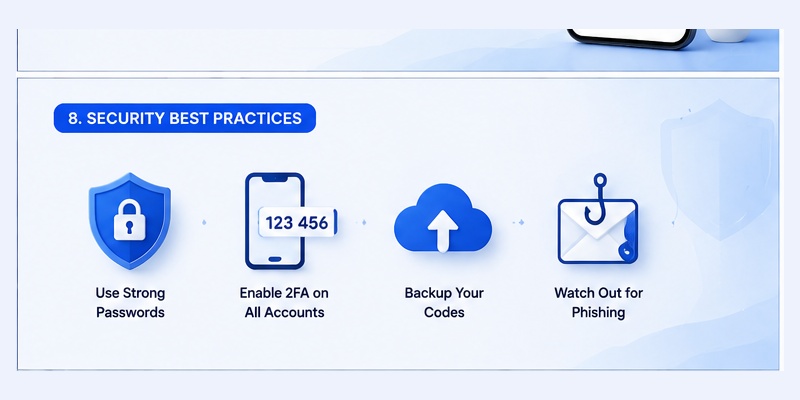
Using Google Authenticator can strengthen account security, but only when the entire authentication setup is handled carefully.
Strong google authenticator support should include preparation, secure device management, and reliable recovery options.
Protect Your Authentication Device
The phone containing your Authenticator App should have a secure lock method.
A strong PIN, password, or supported biometric authentication can reduce unauthorized access if the device is lost.
Keep the operating system and important applications updated.
Avoid installing unknown applications that request unnecessary permissions.
Never Share Verification Codes
Authenticator codes are temporary, but they are still sensitive.
If someone contacts you claiming to be technical support and asks for the current verification code, do not provide it.
The same applies to backup codes.
Authentication information should be treated similarly to passwords.
Maintain Recovery Options
Store recovery information securely and separately from your main authentication device.
For critical accounts, having more than one recovery method can help prevent permanent lockouts.
Before replacing a phone, review the accounts stored inside the authenticator and confirm that each important service can be transferred or recovered.
Final Thoughts
Google authenticator support covers much more than learning how to install an app.
It includes understanding how time-based verification works, checking which platforms support authentication codes, configuring accounts correctly, troubleshooting invalid codes, transferring authentication to new devices, and preparing for account recovery.
The range of google authenticator supported apps makes Google Authenticator useful for many types of online accounts beyond Google services.
A simple google authenticator example shows why: even if a password is compromised, an attacker may still need a temporary verification code before gaining access.
Users can also configure compatible Microsoft accounts, making google authenticator hotmail a useful option for people who prefer managing authentication codes through one application.
The most important rule is to prepare before something goes wrong.
Save recovery codes, maintain alternative login options, protect your phone, and verify any support source before sharing sensitive information.
Rather than depending on an unknown google authenticator support number, use official account recovery channels whenever access problems occur.
With careful configuration and good recovery planning, google authenticator support can become part of a practical security strategy that protects email, cloud services, business accounts, social platforms, and other important online identities.
Get Authenticator App
Add an extra layer of protection to your online accounts with two-factor authentication. Generate secure verification codes and protect your accounts whenever you sign in.
