
Google Account Two Step Verification: Complete Setup Guide
Published August 9, 2026 · Updated August 20, 2026
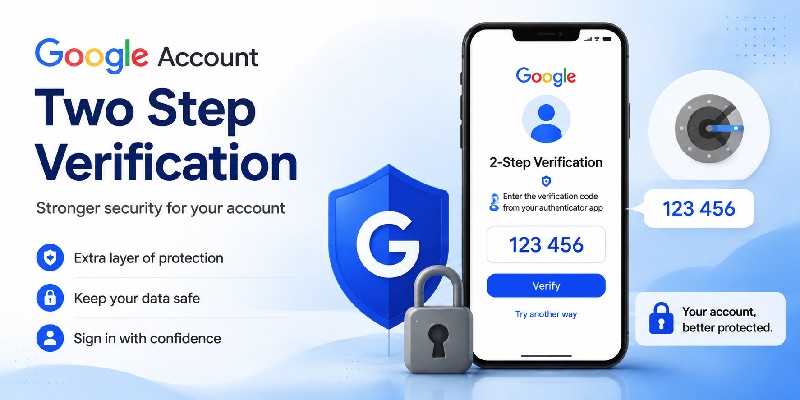
Protecting an online account with only a password is no longer the strongest security approach. Passwords can be reused, exposed in data breaches, guessed, or captured through phishing. Google account two step verification adds another layer between someone who knows your password and access to your account.
When you enable google account two step verification, signing in with a password can require an additional verification step. Depending on your security settings, Google can use Google prompts, Google Authenticator, passkeys, hardware security keys, backup codes, or other supported methods. Google currently recommends Google prompts when a user is not signing in with a passkey, while Authenticator remains useful because it can generate one-time verification codes without mobile service or an internet connection.
Many searches such as google account two factor, google account double verification, and 2 step verification for google account refer to this same security concept.
This guide covers the entire process—from turning security on to configuring Google Authenticator, managing multiple accounts, moving codes between devices, recovering lost access, and understanding what happens when google account 2 step verification off is selected.
1. What Is Google Account Two Step Verification?
How two-step authentication protects your account
Google account two step verification is Google’s implementation of two-factor or multi-step account protection. Once it is active, signing in with your password may require another method that verifies it is actually you.
Google describes 2-Step Verification as an extra layer of account security designed to protect the account if the password is stolen. After setup, users can sign in with a password and second step, or use a passkey where supported.
That second step might be:
- a Google prompt;
- an Authenticator verification code;
- a hardware security key;
- a passkey;
- a supported phone verification method;
- or a backup code.
This is why terms such as two step verification on google account, google account 2 step verification, and 2 step verification on google account generally describe the same core feature.
Is 2-Step Verification the same as MFA?
People searching set up mfa on google account often encounter the terms MFA, 2FA, two-factor authentication, and 2-Step Verification.
They are closely related, although the terminology can describe slightly different authentication architectures. For the average Google Account user, the important point is straightforward: google account two step verification adds another authentication requirement beyond simply knowing a password.
Google itself describes 2-Step Verification as two-factor authentication in its help documentation.
The second step provides useful protection because an attacker who obtains only your password may still lack the verification method associated with your account.
For most users wanting stronger google account authentication, enabling 2-Step Verification and registering multiple recovery options is a practical starting point.
📖 Explore Articles: Google Authenticator: Complete 2FA Setup & Security Guide
2. How to Turn On Google Account Two Step Verification
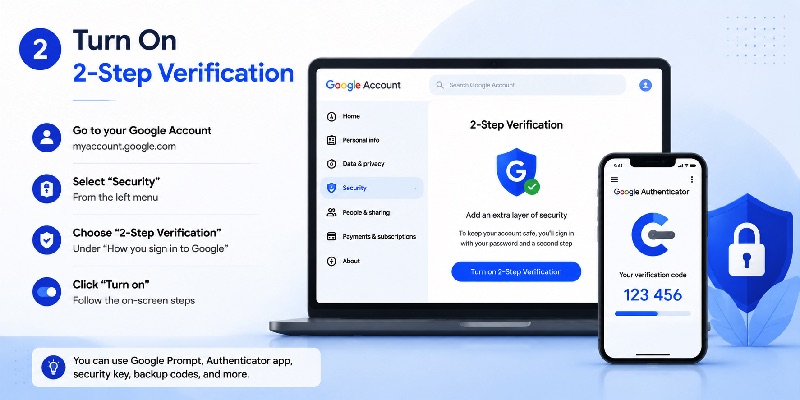
Enable 2-Step Verification from Google Account settings
Setting up google account two step verification is done through your Google Account security settings.
Google’s current setup path is:
- Open your Google Account.
- Select Security & sign-in.
- Find How you sign in to Google.
- Select Turn on 2-Step Verification.
- Follow the on-screen instructions.
Google notes that work, school, or organization-managed accounts may have different policies, so users who cannot enable the setting may need to contact their administrator.
This is the correct area for people searching two step verification in google account, my google account 2 step verification, or the google account security page authenticator settings.
Once google account two step verification is enabled, additional authentication methods can be configured.
Choose your preferred second step
Google supports several verification methods.
Google prompts are currently recommended by Google for many users who choose to sign in with a password rather than a passkey. A prompt is sent to eligible devices already signed into the account, allowing the user to approve or reject the sign-in.
You can also configure an authenticator application.
This is useful when you want google account 2fa authenticator protection that does not depend on receiving an SMS or maintaining cellular service.
A good google account two step verification setup should not rely on only one device. Add recovery options while you still have access to everything rather than waiting until a phone is lost.
📖 Explore Articles: What Is Google Authenticator? How It Works, Codes, Setup, and Securit
3. How to Add Google Authenticator to a Google Account
Connect Google Authenticator as a second step
Users searching add authenticator to google account or google authenticator for google account generally want Authenticator to generate the temporary codes used during sign-in.
After enabling google account two step verification, open the 2-Step Verification settings and select the option for Google Authenticator or an authentication application when it is available.
Follow Google’s displayed setup process and connect the Authenticator App to the account.
Once configuration is complete, Google Authenticator can generate verification codes even when the phone does not have cellular service or an internet connection.
That makes a google account google authenticator configuration particularly useful when traveling or when connectivity is unreliable.
A google authenticator gmail account setup does not create separate security specifically for Gmail. Gmail uses your Google Account, so protecting the underlying Google Account also protects access to Gmail associated with it.
Adding another entry inside Authenticator
Search queries such as google authenticator app add account, google authenticator add new account, google authenticator how to add account, and add account google authenticator can describe two different actions.
One is connecting a website to the Authenticator App by scanning its setup QR code.
The other is adding another Google Account to Authenticator for code synchronization.
Google currently supports multiple Google Accounts inside Authenticator. From the profile menu, users can select Add another account, choose or sign into the account, and allow codes to be saved there.
The same general concept applies to google authenticator add another account and google authenticator new account.
For add account to google authenticator iphone, the interface may look slightly different from Android, but Google Authenticator is also available for iPhone and iPad.
📖 Explore Articles: Google OTP App: Complete Guide to OTP, TOTP, and 2FA
4. How Google Account Verification Codes Work
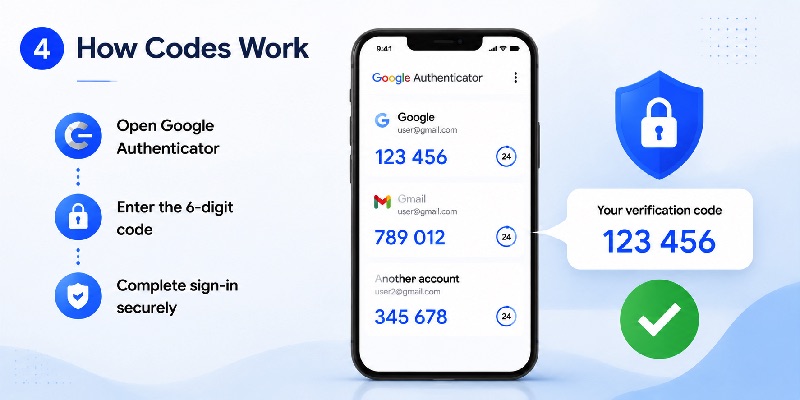
Where the verification code comes from
When google account two step verification requests an Authenticator code, Google Authenticator creates a temporary one-time code associated with the configured account.
A verification code for google account should only be entered into the legitimate sign-in process for the correct account.
Never send one to someone who contacts you asking for it. Google’s documentation explicitly warns users never to share verification codes and states that Google will not call users to ask them to verify a code.
Searches for verification code google account and my google account verification code may also refer to SMS codes or other Google verification challenges, so first check what method the sign-in page is requesting.
With google account two step verification, Google may choose different challenges depending on the account, device, and sign-in situation.
What if an Authenticator code does not work?
If an Authenticator code is rejected, first confirm that:
- the code has not expired;
- you selected the correct service;
- you selected the correct account;
- and your phone’s date and time are correct.
Google’s current Authenticator troubleshooting guidance specifically recommends checking that the code is entered before expiration, belongs to the right service and Google Account, and that the device time is synchronized correctly.
Do not repeatedly reset google account two step verification simply because one code failed.
If another verification method is available, use Try another way and then investigate the Authenticator setup once account access has been restored.
Download Authenticator App
Secure your accounts with fast, reliable two-factor authentication. Download now and protect your login in seconds.
5. Using Google Authenticator With Multiple Accounts
Add multiple Google Accounts to Authenticator
Google Authenticator is not limited to one Google Account.
Google states that Authenticator can synchronize codes for multiple Google Accounts and display them on the same mobile device. Users can select their profile picture or initials, choose Add another account, and then select or sign into another Google Account.
This makes google account two step verification easier to manage for users with personal and secondary Google Accounts.
However, do not confuse a google authenticator account with the individual services listed inside the app.
Authenticator can contain codes for Google and many third-party services. The account used to synchronize those entries is separate from the account each individual code protects.
What about shared accounts?
The search google authenticator shared account often appears when several people need access to the same login.
Sharing passwords and Authenticator secrets between multiple people can make account security and recovery harder. Whenever possible, use individual user accounts, proper delegation, organizational access controls, or other official sharing features rather than distributing the same authentication credentials.
For google account two step verification, each person should ideally authenticate through the access system intended for them rather than sharing one person’s verification method.
Authenticator itself can display multiple accounts on one device, but that does not mean authentication secrets should be casually shared.
For users managing several legitimate accounts, label entries clearly and check the username before entering a code. This reduces the chance of accidentally entering the verification code for the wrong account.
📖 Explore Articles: Google Authenticator App Store: Download, Setup & Best App
6. How to Transfer, Remove, or Delete Authenticator Accounts
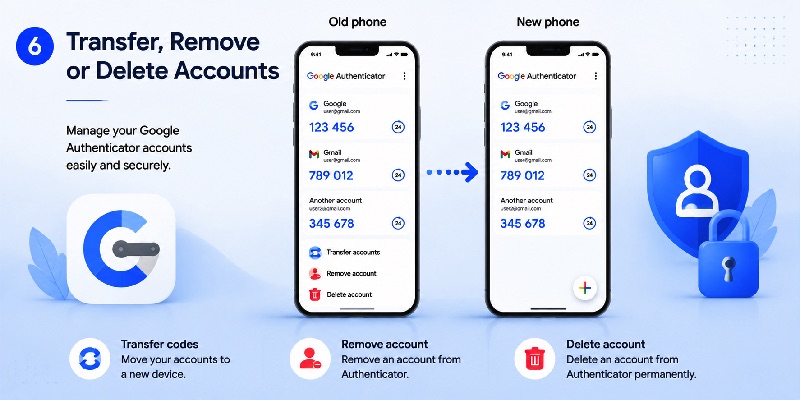
Transfer codes to another device or Google Account
If you purchase a new phone, google account two step verification does not necessarily need to be configured from scratch.
When codes are synchronized to your Google Account, signing into that same Google Account within Authenticator on the new device automatically synchronizes those codes to the device.
If Authenticator is being used without a Google Account, Google also supports manual transfer.
The old device can generate one or more export QR codes through Transfer accounts → Export accounts. The new device then uses Transfer accounts → Import accounts to scan them. Manual transfer requires access to the old device.
For google authenticator transfer codes to another account, Google also currently allows Android users to edit an Authenticator entry and change the associated Google Account where that code is saved.
Remove an Authenticator code safely
Users searching google authenticator remove account, google authenticator how to remove account, or google authenticator how to delete account should distinguish deleting an Authenticator code from disabling 2FA on the service itself.
On Android, Google says users can swipe right on an Authenticator code to reveal the delete option. If the code is synchronized, deleting it also deletes the synchronized copy from other devices using that Google Account.
Deleting the Authenticator entry does not necessarily disable the protected website’s two-factor authentication.
Before removing anything, confirm that you can still sign into the service through another method or first disable/replace the old authenticator inside that service’s security settings.
This precaution is especially important when google account two step verification depends on the code you are about to remove.
📖 Explore Articles: FIDO Google: Complete Guide to Secure Login and FIDO2
7. Google Authenticator Without an Account vs Synced Codes
Using Authenticator without Google Account sync
Google authenticator without account is still supported.
Google says that when first opening Authenticator, users can select Use without an account. If codes were previously saved to Google Accounts, switching to this mode removes those codes from the Google Accounts and stores them locally on the device instead. Those codes will no longer be available on other devices through account synchronization.
This can affect how easily you recover google account two step verification if the device is later lost.
Device-only Authenticator storage puts greater importance on manually transferring codes before replacing the phone and maintaining backup authentication options.
Benefits of synchronized Authenticator codes
When codes are synchronized, Google says signing into the same Google Account within Authenticator on a new device automatically syncs those codes to it.
For many users, this simplifies device replacement.
Google’s current Authenticator best practices recommend synchronizing codes, enabling Privacy Screen, and registering additional forms of 2-Step Verification so that losing one method does not lock you out.
Privacy Screen can require a device PIN, pattern, or biometric verification before Authenticator is opened.
For a strong google account two step verification setup, consider both convenience and recovery. Cloud synchronization makes migration easier, while additional independent verification methods can provide another route if Authenticator becomes unavailable.
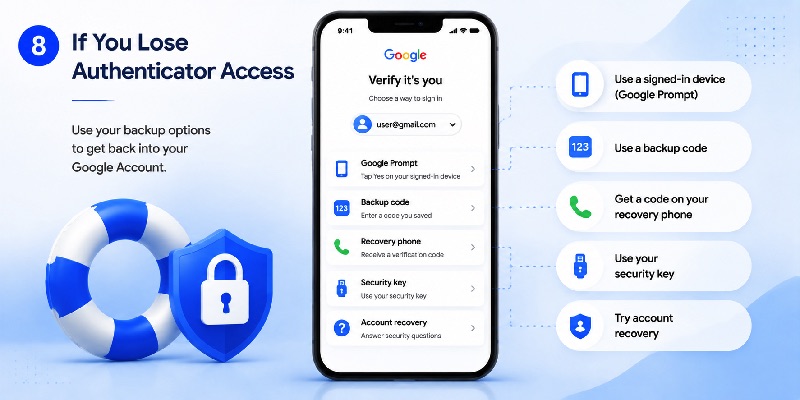
8. What to Do If You Lose Google Authenticator Access
Recover a Google Account without Authenticator
A lost google authenticator account situation does not automatically mean the Google Account itself is lost.
If google account two step verification asks for a code you cannot generate, choose another verification method when available.
Google currently lists alternatives that may include:
- another phone signed into the Google Account;
- another registered phone number;
- a previously saved backup code;
- a hardware security key;
- a passkey on another device;
- or a previously trusted device.
Google backup codes are specifically intended for situations where normal 2-Step Verification cannot be completed. Google provides a set of 10 backup codes, and each becomes inactive after it is used. Generating a new set invalidates the previous set.
If none of your verification methods is available, use Google’s official account recovery process. Google notes that some 2-Step Verification recovery cases can require several business days while account ownership is verified.
What about Facebook or other services?
The query how to recover facebook account with google authenticator describes a Facebook recovery problem, not Google Account recovery.
Google Authenticator only generates the authentication code. Facebook controls the Facebook account and its recovery methods. Meta currently supports recovery login codes for users who previously enabled two-factor authentication and saved those codes.
The same principle applies to nintendo account google authenticator. Nintendo currently supports Google Authenticator for Nintendo Account 2-Step Verification and provides backup codes that can be used when Authenticator is unavailable.
For third-party services, always use the recovery process provided by that service rather than attempting to change google account two step verification.
📖 Read More Guides:
Google Account Two Step Verification: Complete Setup Guide
9. How to Turn Off Google Account Two Step Verification
Disable 2-Step Verification
Users searching google account 2 step verification off generally want to remove the additional verification requirement.
Google currently provides the following process:
- Open your Google Account.
- Open Security & sign-in.
- Select 2-Step Verification.
- Sign in again if required.
- Select Turn off.
- Confirm the change.
Google warns that turning off google account two step verification removes an additional security layer and can make unauthorized account access easier.
Because of that, disabling the feature should not normally be the first response to inconvenience caused by a particular verification method.
Instead, consider changing the second-step method.
Clean up old backup codes and app passwords
When google account two step verification is disabled, Google recommends destroying previously saved backup codes.
Google also recommends reviewing and revoking App Passwords that are no longer needed.
If the reason you want to turn off 2-Step Verification is that Authenticator is difficult to use, consider replacing Authenticator with another supported verification method rather than eliminating the additional account protection completely.
For example, Google supports prompts, passkeys, security keys, Authenticator codes, and other account-dependent verification options.
The best choice depends on the devices you control and how you want to balance convenience, phishing resistance, and account recovery.
10. Best Practices for Google Account Two Step Verification
Keep at least one backup sign-in option
The most important rule for google account two step verification is simple: do not make one phone your only path into an important account.
Google specifically recommends registering additional forms of 2-Step Verification when using Authenticator.
Backup codes are particularly useful because they can be stored separately from your phone.
To create them, Google currently directs users to:
Google Account → Security & sign-in → 2-Step Verification → Backup codes.
A set contains 10 codes. Each code is single-use, and generating a new set invalidates the previous one.
Store them somewhere secure and separate from your Authenticator device.
Review your authentication methods regularly
A well-maintained google account two step verification configuration should evolve when your devices change.
Before replacing or factory-resetting a phone:
- Confirm that the new phone can access your Authenticator codes.
- Verify whether Authenticator synchronization is enabled.
- Test important account sign-ins.
- Confirm backup codes are available.
- Remove devices you no longer control.
- Update outdated verification methods.
If you use Authenticator without synchronization, manually transfer the codes before wiping the old device. Google requires the old device for its manual QR transfer process.
If the phone is lost rather than intentionally replaced, Google recommends securing the missing device immediately. When synchronized codes are involved, removing the lost device from the Google Account can help protect those codes. Unsynchronized codes may require visiting each protected service and replacing the old Authenticator relationship.
Final Checklist for Google Account Two Step Verification
A good google account two step verification configuration should provide stronger security without creating a single point of failure.
Start by opening your Google Account and enabling 2-Step Verification under Security & sign-in → How you sign in to Google.
Then choose appropriate authentication methods.
Google Authenticator is useful because it creates one-time verification codes without requiring cellular service or an internet connection. If you sign into Authenticator with a Google Account, the app can synchronize codes and make moving to a new device easier.
Users who prefer google authenticator without account can keep codes only on the device, but they should understand that manual migration requires access to the old phone.
For reliable google account two step verification, remember these principles:
- enable more than one recovery method;
- create backup codes;
- never share verification codes;
- protect Authenticator with device security;
- verify Authenticator migration before wiping an old phone;
- regularly review trusted devices and sign-in methods;
- and use official account recovery if every second-step method becomes unavailable.
Whether you searched for google account two factor, google account 2 step verification, google authenticator for google account, or set up mfa on google account, the objective is ultimately the same: make it significantly harder for someone else to access your account while making sure you still have a secure recovery path.
Google account two step verification works best when it is treated as a complete security system rather than simply an extra code at login. Configure Authenticator carefully, maintain backup options, and review your Google Account security settings whenever you change phones or authentication methods.
Download Authenticator App
Secure your accounts with fast, reliable two-factor authentication. Download now and protect your login in seconds.
