
Steam Guard QR Code: Complete Login and Setup Guide
Published August 17, 2026 · Updated August 20, 2026
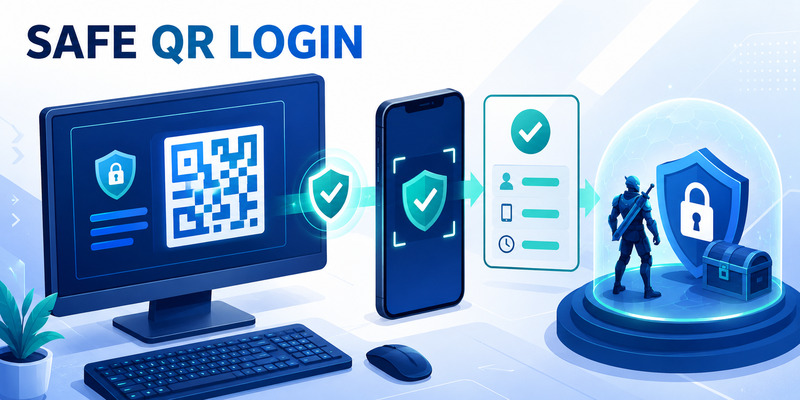
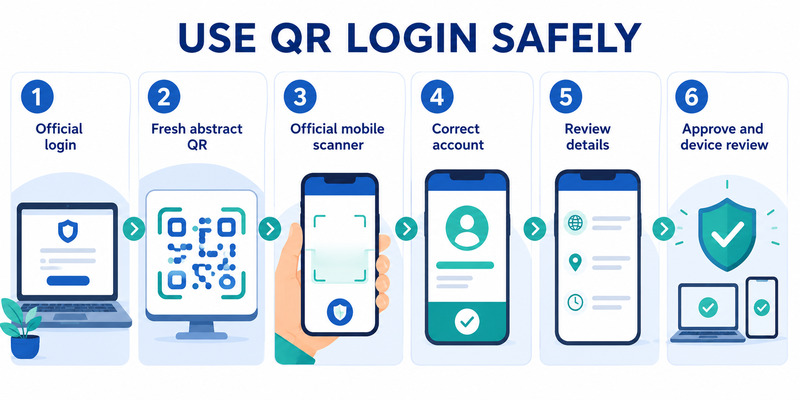
A steam guard qr code is a short-lived sign-in option displayed by the official Steam client or Valve-operated website. The account owner opens Steam Mobile, goes to the Steam Guard shield, scans the pattern, reviews the request details, and approves only when the device, location, and timing match the login just initiated.
It is not a universal enrollment image, a recovery code, or a QR sent by another player. Steam’s QR sign-in uses the two-factor credential already stored in the official mobile app. If the phone has not been enrolled, the account must first add Steam Guard Mobile Authenticator.
This guide covers where the QR appears, how to scan it, what to verify, why it expires, how to fix camera or account problems, and how to reject phishing attempts without exposing real QR images or credentials.
1. Understand What the Steam QR Code Does
Separate sign-in from authenticator enrollment
The steam guard qr code on a Steam login panel lets a registered phone authorize that sign-in without manually typing the account name, password, and rotating mobile code. Steam Mobile reads the short-lived request and uses the phone’s existing two-factor credential to identify the account.
This is different from authenticator enrollment. Steam’s current mobile setup begins inside the official app, uses the Steam Guard tab, may confirm a phone number, and presents a recovery code. A random QR does not add a legitimate authenticator to an account.
Understand the trust boundary
For users asking where to find steam qr code for authenticator, the important answer is “on the official Steam sign-in screen you intentionally opened.” The PC or browser displays the request; the phone scans and confirms it. A QR delivered in chat, email, a trade offer, or a third-party site has no trusted context.
| QR situation | What it may represent | Safe response |
|---|---|---|
| Official Steam client login | Intended sign-in request | Scan and review details |
| Valve website opened manually | Browser sign-in request | Verify domain, then scan |
| QR sent by another player | Their session or a phishing path | Do not scan |
| QR on a marketplace | Third-party authentication request | Use the site’s documented safe method or leave |
| QR in an article screenshot | Illustration, outdated request, or trap | Never treat it as enrollment |
A steam authenticator qr code should never be accepted solely because the image looks familiar. The trusted chain includes the official login surface, the registered mobile app, the confirmation details, and the user’s intentional action.
Write down that four-part check without saving the QR itself. It gives every future scan a repeatable security decision before the phone authorizes a session.
Download Authenticator App
Secure your accounts with fast, reliable two-factor authentication. Download now and protect your login in seconds.
2. Display the QR Code on a PC or Browser
Open the official login panel
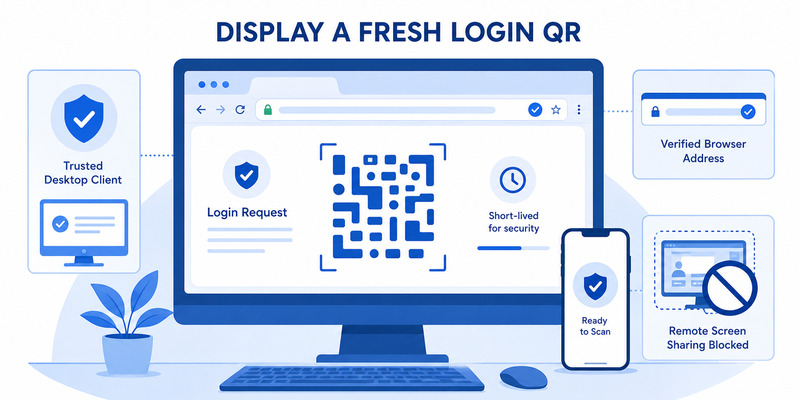
For steam guard qr code pc, launch the official Steam client and sign out if necessary, or navigate directly to a Valve-operated Steam login page. The login panel can display a QR option alongside traditional account-name and password fields.
Check the browser address carefully. Lookalike domains, extra subdomains, misspellings, sponsored ads, and shortened links can imitate the Steam design. When in doubt, close the page and navigate through a saved official link or the installed client.
Generate a fresh request
The QR is temporary. Display it only when the phone is ready and the account owner intends to sign in. If the panel has been open for a while, refresh or return to the login screen so Steam can issue a current request.
The answer to steam guard qr code where to find is not inside a chat or a downloadable image. It appears on the PC or browser login screen, while the scan control appears in Steam Mobile. Both sides are required.
Position the monitor so the pattern is visible without glare, cropping, scaling artifacts, or another window covering it. Increase browser zoom only if the entire image remains sharp. Do not screenshot, print, save, or send the QR; another person may be able to use the underlying sign-in request before it expires.
Before scanning the steam guard qr code, confirm that no remote-access or screen-sharing session is active. A scammer who controls or watches the PC may be arranging a login the owner did not intend.
💡 Discover Helpful Guides: Steam Mobile Authenticator: Setup and Security Guide
3. Scan the Code with Steam Mobile
Open the Steam Guard scanner
Install the official Steam Mobile app from Apple App Store or Google Play and verify Valve as the publisher. Sign in to the account and open the Steam Guard shield in the bottom navigation. Choose the Scan a QR code prompt.
The steam guard scan qr code function uses camera permission. Grant access to the official app when prompted. Point the phone at the entire pattern on the trusted Steam login panel and hold it steady until the app recognizes the request.
Use the correct registered account
Steam Mobile can protect multiple Steam accounts. If the app shows an account selector, choose the identity intended for the PC login. Each account has its own authenticator credential; scanning with the wrong identity can fail or authorize an unexpected account.
The steam guard mobile authenticator qr code flow does not require typing the rotating code. If scanning is unavailable, the user can enter the account name and password, then approve a push request or tap Show Steam Guard code for manual entry. The where to find steam mobile authenticator code guide covers that alternative.
Do not install a separate QR scanner, browser extension, or desktop authenticator to handle the request. Steam’s supported scanner is inside the official mobile app and uses the enrolled phone credential.
After the steam guard qr code is recognized, keep the phone open for the confirmation step. Scanning alone should not be treated as final authorization.
4. Review and Approve the Sign-In Details

Match the request to the initiated action
Steam Mobile can show details about the attempted sign-in, including an approximate location. Compare the account, device, location, and timing to the Steam client or browser you just opened. Approximate geolocation may not be exact, but a different country or unexpected device deserves rejection.
Approve the steam guard qr code only when all available context is reasonable. If the request is unfamiliar, deny it. Do not let another person explain away discrepancies while they remain on chat or screen share.
Verify the completed session
After approval, the PC or browser should finish signing in to the intended account. Confirm the displayed profile before trading, purchasing, changing settings, or accessing inventory. If the wrong account appears, sign out and restart with the correct mobile identity.
Review Security & Devices periodically and deauthorize computers, browsers, or phones that are unfamiliar, shared, sold, or no longer needed. A successful QR login creates a trusted session that can remain useful after the QR itself expires.
| Confirmation signal | Normal interpretation | Warning condition |
|---|---|---|
| Account identity | Matches selected phone account | Different profile or account |
| Location | Reasonable for network or VPN | Unrelated region with no explanation |
| Timing | Appears immediately after scan | Request arrives without an action |
| Device | Matches current PC or browser | Unknown platform or session |
Document a successful signed-out test without capturing the steam guard qr code or any sensitive detail. The acceptance evidence is the correct account session and independent recovery path, not a saved QR image.
Record only the test date and result so the steam guard qr code workflow remains auditable without preserving a live login request.
💡 Discover Helpful Guides: Where to Find Steam Mobile Authenticator Code Fast
5. Set Up Mobile Authenticator When QR Scan Is Missing
Enroll Steam Guard Mobile first
If Steam Mobile shows Add authenticator instead of scan and code controls, enrollment is incomplete. Open Steam Guard, choose Add authenticator, and follow Valve’s current setup walkthrough. Steam may confirm a phone number by SMS and then present a recovery code.
Write the recovery value down and store it away from the phone. It is not a steam guard qr code and should never be shared with another player. Generate backup codes through Account Details and Manage Steam Guard for emergency login.
Verify setup before QR login
Return to the Steam Guard page and confirm that the app can show a rotating code or receive a sign-in request. Perform one manual or push login before depending on QR. The steam mobile authenticator guide covers the full enrollment and recovery model.
Steam currently supports the mobile authenticator on iOS 13 or later and Android 5.0 or later. Platform requirements can change, so check current Steam Support. Unsupported devices or obsolete app versions may not show the expected scanner.
Protect the phone with a strong passcode, update the OS, enable automatic time, protect the contact email, and confirm the registered phone number. QR approval is only as secure as the phone credential and account-recovery channels.
After enrollment, return to the official PC login panel and display a fresh steam guard qr code. Do not reuse a screenshot from before the authenticator was activated.
🛠️ Learn with Step-by-Step Guides: Where to Find Steam Mobile Authenticator Code Fast
6. Fix Expired, Unreadable, or Rejected QR Sign-In
Refresh the request and camera conditions
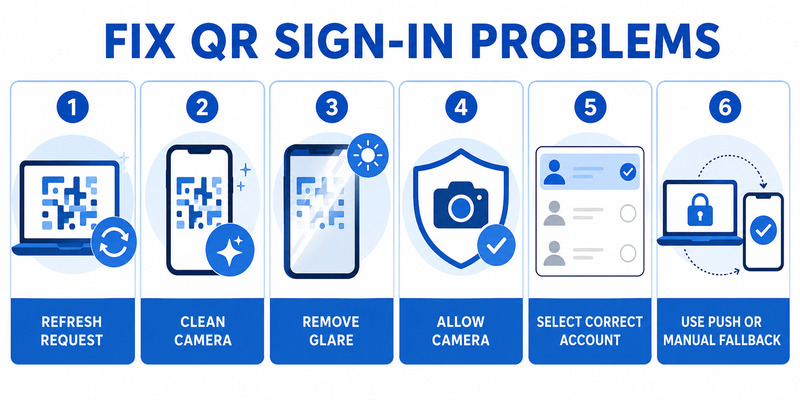
If the phone cannot read the steam guard qr code, generate a fresh request, clean the camera lens, increase screen brightness, remove glare, keep the entire pattern visible, and hold the phone steady. Try normal browser zoom and avoid dark overlays or color filters.
Confirm camera permission for Steam Mobile. Close unrelated QR scanners and update the app and phone OS. Do not upload the image to an online decoder; that shares a live sign-in request with another service.
Check account, network, and session state
Ensure the correct Steam account is selected in the mobile app and the PC login has not expired. Check phone and PC connectivity, Steam service status, and automatic time. Restart the app and create one clean request instead of scanning repeated stale images.
| Symptom | Likely cause | Safe fix |
|---|---|---|
| Scanner never detects pattern | Glare, crop, permission, or camera issue | Show full fresh QR and fix camera access |
| Request recognized but rejected | Expired session or wrong account | Refresh and select intended identity |
| Approval succeeds but PC stays logged out | Browser/session or network problem | Restart official login flow |
| No scan option in app | Authenticator not enrolled or app outdated | Complete setup and update Steam Mobile |
Use push or manual code sign-in as a fallback. If every method fails, go to help.steampowered.com and record the device, OS, app version, network, exact error, and time without recording the steam guard qr code.
Do not remove the authenticator merely to fix scanning. Removal reduces security and Steam currently documents a 15-day restriction on trading and Community Market selling.
Test a manual code login before changing account security; success helps isolate the problem to QR capture or session state.
7. Avoid QR Phishing and Session Theft
Reject QR codes delivered by other people
A scammer may send a QR and claim it verifies an item, joins a tournament, accepts a team invitation, checks a ban, or secures the account. Scanning can instead authorize the scammer’s login session. The correct steam guard qr code appears on the login panel the user personally opened.
Never approve because the requester knows the profile name, inventory, friends, or recent trade. Public information and compromised friend accounts make impersonation convincing.
Protect sessions after a suspicious scan
If a questionable QR was scanned but not approved, deny the request and close the page. If it was approved, immediately change the Steam password from a clean device, deauthorize other sessions, review Security & Devices, secure the email account, inspect API keys, and check trades, Market listings, and inventory history.
Steam Support says never to share passwords or mobile authenticator codes and never to run programs suggested through chat or email. Avoid QR extractors, desktop authenticators, trade bots, browser extensions, and “account fix” utilities that request Steam session data.
Do not provide SMS recovery or removal values. These can be used to add or remove authenticator devices. Steam and Valve employees do not need them through chat.
Keep evidence of the scam, such as the sender, domain, and messages, but redact the steam guard qr code and all credentials. Report through Steam’s official support site rather than continuing with the attacker.
💡 Discover Helpful Guides: Steam Mobile Authenticator: Setup and Security Guide
8. Recover or Move the Authenticator Safely
Transfer while the old phone works
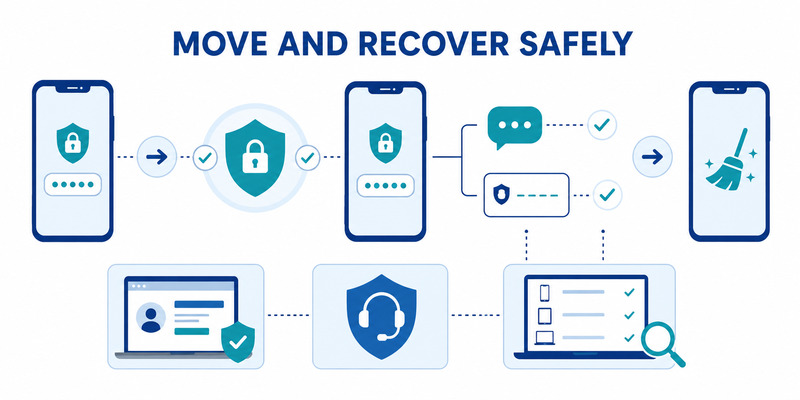
Install Steam Mobile on the new phone, sign in, and use Move Authenticator. Confirm the transfer through the official flow, save the newly presented recovery code, test QR or manual login, review devices, and wipe the old phone only after success.
Steam currently documents a two-day trade and Market restriction after transfer. Accept the protective window instead of using unofficial software to copy the authenticator secret.
Recover when the phone is lost
If the registered number remains available, install Steam Mobile on a replacement phone, choose that access to the old authenticator is lost, and follow the official SMS-based transfer steps. Use the saved recovery value or backup code only inside Valve-operated surfaces.
If the phone, number, and recovery information are unavailable, go to help.steampowered.com. Steam Support may ask for ownership evidence such as historical account names, email addresses, receipts, or product keys through a secure ticket.
After recovery, display a new steam guard qr code on the official login panel and perform a signed-out test. Save new recovery information, generate fresh backup codes, deauthorize stale sessions, and inspect trade activity.
Do not ask another player to generate or send a QR for the account. A genuine steam guard qr code is session-specific and belongs to the login the owner is actively performing.
💡 Discover Helpful Guides: Steam Authenticator App: Complete Steam Guard Setup, Codes & Recovery Guide
9. Frequently Asked Questions
Where do I find the Steam login QR code?
Open the official Steam client or Valve-operated website login panel. The QR appears there; the scan control appears in Steam Mobile under the Steam Guard shield.
Is the QR code used to add the authenticator?
Steam’s current mobile setup begins with Add authenticator in the app and may use phone confirmation. The login QR uses an authenticator that is already enrolled.
Can I scan a QR sent by a friend?
No. It may authorize their browser or an attacker’s session. Scan only the temporary QR on the login screen you personally opened.
Why does the QR keep expiring?
It is intentionally short-lived. Refresh the official login panel when the phone is ready, then scan and review the request promptly.
What if my phone camera is broken?
Use account name and password, then push confirmation or Show Steam Guard code for manual entry. Do not upload the QR to an online decoder.
Can one phone scan for multiple Steam accounts?
Steam Mobile can protect several accounts. Select the identity intended for the login before approving. One Steam account can be on only one mobile authenticator at a time.
Does QR login expose my password?
The QR flow can avoid typing the password on that login screen, but approving a malicious QR can still give an attacker a valid session. Context verification remains essential.
What should I do after approving the wrong QR?
Change Steam and email passwords from a clean device, deauthorize sessions, review Security & Devices, API access, trades, Market listings, and inventory, then contact Steam Support.
These answers explain steam guard qr code use without displaying a real, reusable, or scannable login request.
📘 Find the Right Guide: Apple Authenticator: Complete Guide to 2FA, Verification Codes & Apple Devices
10. Final Thoughts
Use a steam guard qr code only when it appears on the official Steam client or Valve website login panel that you intentionally opened. In Steam Mobile, open the Steam Guard shield, scan the pattern, and review the account, device, location, and timing before approval.
Do not scan QR images sent in chat, email, trade offers, giveaways, tournaments, or third-party marketplaces. Never save or share a live request. Steam Support and Valve employees do not need a QR, mobile code, password, recovery value, SMS removal value, or trade approval.
If scanning fails, refresh the request, fix camera permission and glare, update the app, choose the correct account, and use push or manual code entry as a fallback. Avoid removing the authenticator for a simple camera problem.
Visit Authenticator App for broader two-factor setup, recovery, migration, and phishing-defense guidance. A safe steam guard qr code workflow combines an official login surface, enrolled phone, careful confirmation, protected recovery information, and active-device review.
When changing phones, use Move Authenticator and expect Steam’s protective restriction. When access is lost, recover only through the registered number, saved recovery value, backup codes, or help.steampowered.com.
Review Security & Devices after shared-PC use and deny every request you did not initiate. The best steam guard qr code habit is simple: create the request yourself, inspect it on the phone, and approve only the session you recognize.
Download Authenticator App
Secure your accounts with fast, reliable two-factor authentication. Download now and protect your login in seconds.
