
Disable Steam Authenticator Safely: Complete Guide
Published August 17, 2026 · Updated August 20, 2026
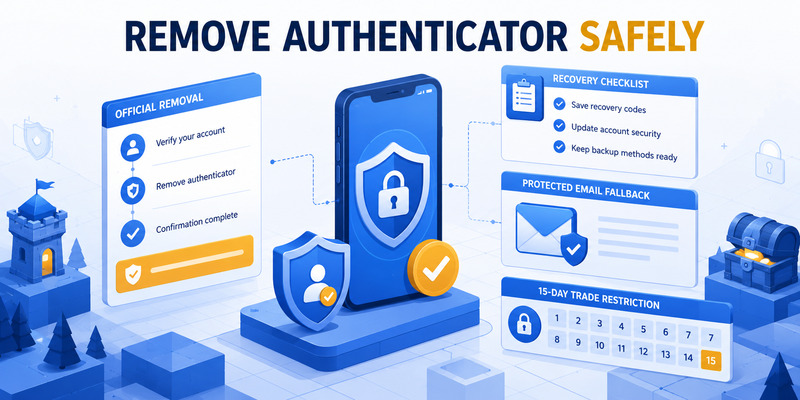
To disable steam authenticator, use the official Steam Mobile app or Steam Account Details and Security & Devices. In the app, open Steam Guard, use the gear or settings control, choose Remove Authenticator, and confirm. Steam warns that removal lowers account security and currently prevents trading or selling on the Community Market for 15 days.
Removal is not always the right fix. If the phone is being replaced, Move Authenticator preserves stronger protection and carries a shorter documented restriction. If codes fail, correcting time or choosing the correct account may solve the problem without changing security.
This guide covers the decision, consequences, in-app removal, lost-phone recovery, missing recovery codes, the difference between mobile and email Steam Guard, phishing risks, and the steps required to secure the account afterward.
1. Decide Whether to Disable, Transfer, or Repair Steam Guard
Identify the actual problem
Before choosing to disable steam authenticator, state the goal. Common situations include replacing a phone, losing a device, changing numbers, fixing invalid codes, escaping repeated prompts, giving up trading, or responding to suspected compromise. Each goal has a safer route than blanket removal.
If codes fail, enable automatic date and time, select the correct Steam account in the mobile app, wait for a fresh 30-second value, and try one clean login. If QR scanning fails, use push approval or manual code entry. Removal should not be the first troubleshooting step.
Prefer transfer when changing phones
If the old phone or registered number remains available, use the official Move Authenticator operation. Steam’s current guidance documents a two-day trade and Market restriction after transfer, compared with 15 days after removal. The how to move steam authenticator to new phone guide provides the complete migration path.
| Goal | Best first action | Why |
|---|---|---|
| New phone, old phone works | Move Authenticator | Preserves stronger protection |
| New phone, same number | Use official SMS transfer | Avoids unnecessary removal |
| Code rejected | Correct time and account | Keeps existing credential |
| Phone lost | Use recovery code, SMS, or Support | Restores verified ownership |
| Authenticator compromised | Secure account and remove through Steam | Rotates the affected method |
| No longer want mobile protection | Remove with consequences understood | Falls back to weaker email flow |
Someone asking how to get rid of steam authenticator should confirm recovery email, phone, backup codes, and ownership proof first. Losing the remaining method during removal can turn a preference change into an account lockout.
Write down the chosen reason before you disable steam authenticator, because transfer, repair, recovery, and permanent removal create different security outcomes.
Confirm an independent signed-out login first so disable steam authenticator never begins with an untested email or recovery path.
Download Authenticator App
Secure your accounts with fast, reliable two-factor authentication. Download now and protect your login in seconds.
2. Understand Security and Trading Consequences
Expect weaker sign-in protection
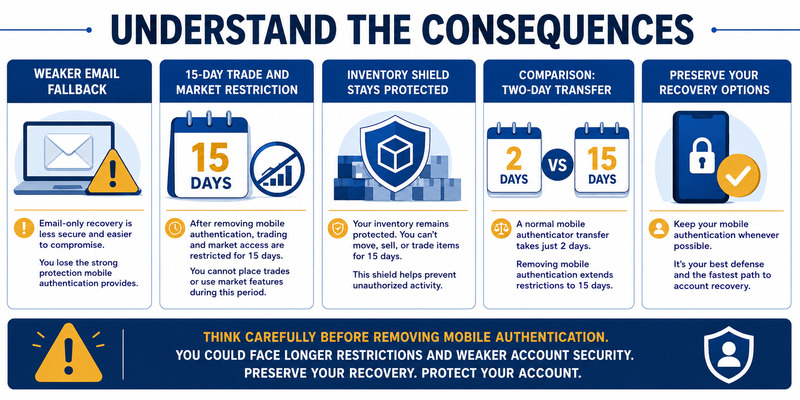
The mobile authenticator adds a phone-held factor to the password and supports QR, push, and rotating-code sign-in. When users remove steam authenticator, the account normally returns to Steam Guard email codes rather than having the same mobile protection.
Email Steam Guard can help, but a compromised mailbox may then expose both password-reset and sign-in authorization paths. Protect the contact email with a unique password and its own strong multifactor authentication before removing mobile protection.
Plan for trade and Market restrictions
Steam’s current support page says that after users remove steam guard mobile authenticator, they cannot trade or sell items on the Community Market for 15 days. The delay protects inventory while the owner detects unauthorized changes. It is not a software error and Steam Support may not remove a normal protective restriction.
Steam also documents that trades or listings created during the first seven days after adding a mobile authenticator can be held for 15 days. Re-enabling later does not immediately restore normal trading or shorten an existing hold.
| Security change | Current documented impact |
|---|---|
| Transfer authenticator to new phone | Two-day trade and Market restriction |
| Remove mobile authenticator | 15-day trade and Market restriction |
| Add mobile authenticator | Initial seven-day period can create 15-day holds |
| Add it while an item is held | Existing hold is not shortened |
Before you disable steam authenticator, finish time-sensitive legitimate trades only if doing so is safe and compliant; never rush because another player demands an immediate change. Scammers use urgency to make victims remove protection or reveal an SMS removal value.
Record the expected restriction date so disable steam authenticator does not trigger repeated, risky attempts to bypass a normal protective delay.
💡 Discover Helpful Guides: Steam Mobile Authenticator: Setup and Security Guide
3. Remove the Authenticator from Steam Mobile
Use the in-app removal control
Open the official Steam Mobile app and select the Steam Guard shield. Verify that the correct account is selected, especially when the phone protects several accounts. Tap the gear or settings control and choose Remove Authenticator.
Steam displays a confirmation explaining that removal reduces account security. Read it carefully, confirm the intended account, and continue only if the consequences are acceptable. Do not follow directions provided through another user’s chat or screen share.
The official sequence to disable steam authenticator is:
- Open Steam Mobile from the trusted device.
- Select Steam Guard.
- Choose the correct Steam account.
- Open the gear or settings control.
- Select Remove Authenticator.
- Review and confirm the removal.
- Test email Steam Guard and account recovery.
Protect codes and confirmation steps
Steam may request authentication appropriate to the account state. Enter values only inside the official app, Steam client, or Valve-operated website. Never provide a current mobile code, recovery value, backup code, or SMS removal code to another person.
After removal, sign out of a low-risk session and perform a fresh login. Confirm that the email code reaches the correct protected mailbox and review Security & Devices. A settings screen saying the method is removed is not enough if the fallback has never been tested.
Record the date and result without secrets. That evidence confirms that disable steam authenticator completed on the intended account and explains the start of the 15-day restriction.
📖 Read More Guides: Steam Guard QR Code: Complete Login and Setup Guide
4. Remove It Through Account Security and Devices
Use Steam Account Details when the app route is unavailable
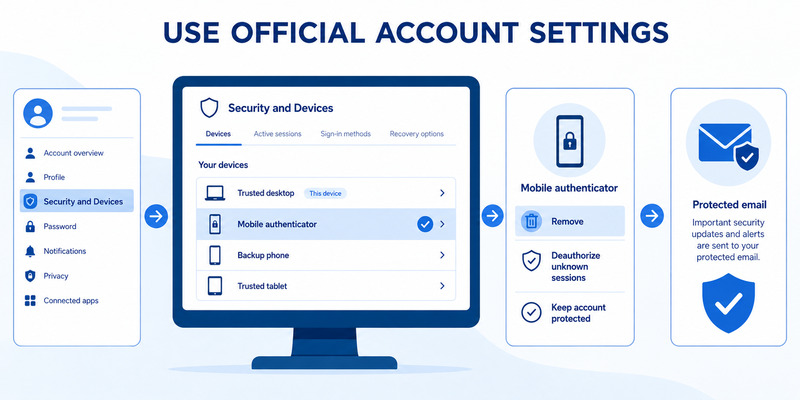
Steam Support says users without the device can also remove the authenticator from Account Details > Security & Devices. Navigate through the installed client or type the official Steam URL manually. Avoid search ads, shortened links, and pages sent by another player.
Sign in using an available official method, open account security, review registered devices, and choose the authenticator-removal path. The exact labels can change, so compare the current Steam Support instructions before confirming.
This route helps how to remove steam authenticator without phone when another recovery factor is still available. It does not allow an unauthenticated stranger to bypass account ownership checks.
Review connected sessions before and after removal
Deauthorize computers, browsers, or phones that are unfamiliar, sold, shared, or no longer used. Change the Steam password and email password from a clean device if compromise is suspected. Review trade offers, Market listings, inventory history, and any API access.
Do not use a desktop authenticator, credential extractor, session importer, or third-party “remove guard” tool. Such software can steal the password, browser session, inventory, and the remaining recovery channels.
When disable steam authenticator completes through account settings, expect the same security reduction and 15-day trading consequence as in-app removal. The location of the button does not change the underlying account event.
Generate fresh backup codes after security stabilizes and keep ownership evidence such as receipts or product keys. They may be important if the fallback email or number later becomes unavailable.
🗺️ Browse How-To Guides: Steam Guard QR Code: Complete Login and Setup Guide
5. Recover When the Phone Is Lost but the Number Works
Secure the phone number
For how to remove steam mobile authenticator without phone, first protect the registered number. Contact the carrier, report a lost or stolen device, add a carrier-account PIN, and obtain a replacement SIM or eSIM with the same number when possible.
Install the official Steam Mobile app on the replacement phone and sign in. When Steam requests the old authenticator, choose the option indicating that access is no longer available. Follow the supported SMS-based transfer or recovery steps.
Transfer is usually preferable to removal because it restores mobile protection. Save the newly presented recovery code and test the new phone. Steam currently documents a two-day trade and Market restriction after transfer.
Remove only when transfer does not meet the goal
If the intent is still to disable steam authenticator, use the official recovery flow to regain verified control, then remove the method from Steam Guard or Account Details. Do not disclose the SMS value or recovery code to anyone claiming they can accelerate the process.
After a lost-phone event, change Steam and email passwords, review Security & Devices, revoke unknown sessions, inspect inventory activity, and confirm the correct phone and email. A thief may have had access to notifications or an unlocked device even if the account was not obviously changed.
Save evidence and contact Steam Support for unauthorized trades or unresolved ownership problems. Do not pay an unlock service or negotiate with someone who found the phone.
The safest result is a verified account, current recovery channels, and either a transferred mobile factor or an intentionally removed one with tested email fallback.
6. Recover Without the Phone, Number, or Recovery Code
Use the official Steam help wizard
For how to remove steam authenticator without recovery code, go directly to help.steampowered.com. Steam’s support guidance says users who lack both phone access and the recovery code need assistance. Choose the sign-in or Steam Guard recovery path and follow the secure ticket process.
Do not use a link supplied by someone who contacted you first. A fake support portal can collect the account name, password, email access, and ownership records. Steam recovery belongs on Valve’s domain.
Prepare proof of ownership
Steam may request previous account names, historical email addresses, purchase receipts, product keys, or other records tied to the account. Provide only what the official ticket asks for and redact unrelated payment information.
The steam authenticator recovery code guide explains recovery preparation. If the current code was never saved, support can verify ownership; a community moderator or another player cannot safely retrieve it.
Never send the password, a current mobile code, an SMS removal value, or a recovery credential to a third party. Do not approve a trade as “proof.” Steam Support does not need inventory movement to disable steam authenticator.
Once access returns, change credentials, review devices, secure the email, reissue backup codes, and inspect trade and Market history. Then decide whether to re-enable mobile protection or proceed with removal and its restrictions.
Keep the support ticket number and a secret-free incident log. Multiple contradictory tickets or guessed evidence can slow ownership review.
📖 Read More Guides: Where to Find Steam Mobile Authenticator Code Fast
7. Distinguish Mobile Authenticator from Email Steam Guard
Understand what removal changes
Mobile Steam Guard uses the phone app for QR, push, and 30-second code sign-in. Email Steam Guard sends an access code to the contact email for unrecognized devices. Removing the mobile authenticator generally returns the account to email protection.
Searches for steam remove email authenticator or steam turn off email authentication describe a different goal from mobile removal. The email method is tied to Steam Guard and account security; users should not weaken every protection merely to stop one confusing prompt.
Troubleshoot email before trying to disable it
Confirm that the correct email address is registered, check spam and filtering, add Steam’s official sending addresses to trusted contacts, and request a new code by signing in again. Protect the mailbox with a unique password and MFA.
| User goal | Relevant method | Safer action |
|---|---|---|
| Stop mobile prompts | Steam Guard Mobile | Repair, transfer, or remove mobile method |
| Receive email code | Steam Guard email | Fix mailbox delivery and filters |
| Change contact email | Account contact settings | Verify old/new address through Steam |
| Recover lost phone | Mobile recovery | Use number, recovery code, or Support |
| Reduce login friction | QR or trusted-device review | Keep strong protection where possible |
Before users disable steam authenticator, they should test that email Steam Guard and mailbox recovery work. Removing mobile protection while the contact email is inaccessible can cause immediate lockout.
If the account is managed by a family, organization, or shared environment, stop sharing credentials. Steam accounts should remain under one verified owner with independent recovery channels.
Test the protected mailbox before you disable steam authenticator, then document only the result—not the email code or any recovery secret.
Recheck which prompt caused confusion; disable steam authenticator is unnecessary when the real issue is delayed email delivery or an unfamiliar device.
📖 Read More Guides: Steam Authenticator App: Complete Steam Guard Setup, Codes & Recovery Guide
8. Secure the Account After Removal or Re-Enable Protection
Harden the remaining recovery paths
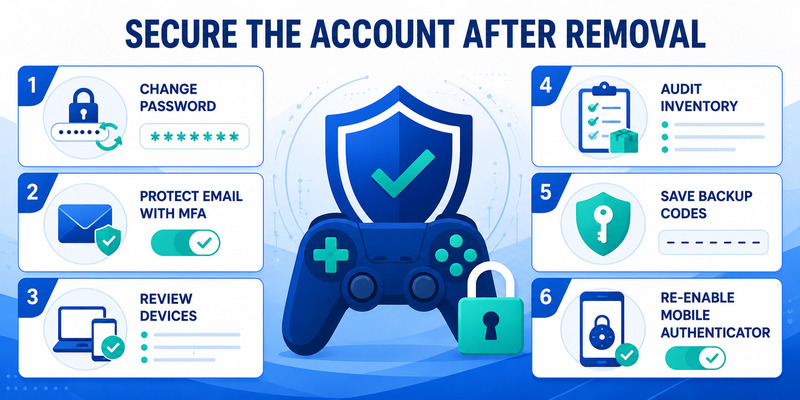
After you disable steam authenticator, change the Steam password if compromise is possible, protect the contact email with MFA, verify the phone number, generate backup codes, and review Security & Devices. Deauthorize unrecognized sessions and inspect inventory, trade, Market, and API activity.
Do not assume the 15-day restriction prevents every kind of abuse. It is a delay for trade and Market actions, not a replacement for password security, session review, and email protection.
Re-enable mobile protection when ready
Install the official Steam Mobile app, open Steam Guard, choose Add authenticator, complete the phone confirmation, save the new recovery code, and test a signed-out login. Expect the initial seven-day period and possible holds documented by Steam.
If a new phone caused the problem, use transfer next time. If notifications were inconvenient, use Show Steam Guard code or QR login rather than removing the factor. If accessibility is a concern, document a safe supported workflow with recovery prepared.
Watch for phishing after removal. A scammer may know that the account is temporarily restricted and offer a tool to bypass it. Never download software suggested through chat or provide an SMS removal value.
Review the decision after the restriction expires. If the reason no longer applies, re-enable mobile protection. A deliberate disable steam authenticator change should include a plan for the period after removal, not end at the confirmation button.
Schedule that review before you disable steam authenticator so the weaker email-only state does not quietly become permanent by default.
9. Frequently Asked Questions
How do I remove Steam Guard Mobile Authenticator?
Open Steam Mobile, go to Steam Guard, tap the gear or settings control, choose Remove Authenticator, and confirm. Account Details > Security & Devices can provide the official route without the device.
Will I lose my Steam account?
Removal should not delete the account, but it weakens security and changes sign-in to email Steam Guard. Confirm email, phone, backup codes, and ownership evidence first.
How long is the trading restriction?
Steam currently documents 15 days after authenticator removal. A transfer to a new phone has a two-day restriction. Check current Support guidance because rules can change.
Can I remove it without the old phone?
Yes, if another recovery path proves ownership. Use the registered number, saved recovery value, Account Details, or Steam’s official help wizard.
What if I have no recovery code?
Use help.steampowered.com. Steam Support may verify ownership with historical account and purchase information through the secure ticket.
Does removal turn off all Steam Guard protection?
It normally falls back to email Steam Guard. Protect and test the contact mailbox before removal. Mobile and email methods are not the same.
Can Steam Support remove the 15-day restriction?
Treat the documented restriction as a normal security measure. Do not pay another user or install a tool claiming to bypass it.
Should I remove the authenticator to fix a bad code?
Not first. Enable automatic time, select the correct account, wait for a fresh value, update Steam Mobile, and test QR or push sign-in.
These answers summarize disable steam authenticator decisions while preserving official recovery and avoiding third-party bypasses.
🛠️ Learn with Step-by-Step Guides: How to Set Up Steam Mobile Authenticator For Everyone
10. Final Thoughts
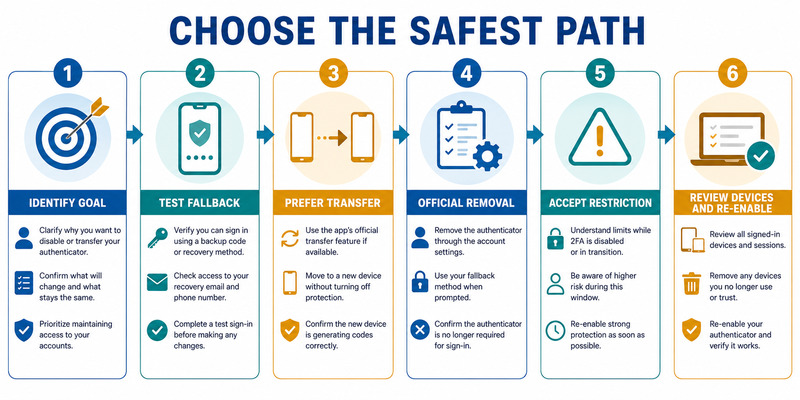
Use the official Steam Mobile app or Account Details > Security & Devices to disable steam authenticator. Read the warning, verify the intended account, protect every code, and expect Steam’s current 15-day restriction on trading and Community Market selling.
When changing phones, Move Authenticator is usually better than removal and currently carries a two-day restriction. When a code fails, correct automatic time and account selection before changing security. When the phone is lost, use the registered number, recovery value, backup codes, or Steam Support.
Do not confuse mobile removal with email Steam Guard. Test the contact mailbox and secure it with strong MFA before relying on email codes. Never share a password, current code, recovery credential, SMS removal value, or trade approval.
Visit Authenticator App for broader two-factor setup, transfer, recovery, and phishing-defense guidance. A safe disable steam authenticator workflow verifies ownership, accepts protective delays, reviews sessions, and leaves a tested fallback.
After removal, change compromised credentials, deauthorize old devices, inspect inventory and trade activity, generate fresh backup codes, and consider re-enabling the official mobile factor when the original reason is resolved.
The confirmation button is not the final step. Review account security throughout the restriction period and reject anyone offering a bypass. That discipline keeps disable steam authenticator from becoming an avoidable takeover.
Download Authenticator App
Secure your accounts with fast, reliable two-factor authentication. Download now and protect your login in seconds.
