
How to Transfer Authenticator to New Phone Without Losing Access: Complete 2FA Migration Guide
Published September 9, 2026
The safest way to transfer authenticator to new phone is to keep your old phone active until every important 2FA account works on the new device. Install the same Authenticator application on the new phone, use its official transfer, sync, or restore feature, test several accounts, save recovery codes, and only then erase the old device.
For Google Authenticator, codes can now sync automatically through your Google Account, or you can manually export them from the old phone using QR codes. Google confirms that signing into the same Google Account in Authenticator on a new device automatically synchronizes saved codes.
Microsoft Authenticator works differently. It supports backup and recovery, but Microsoft currently states that backup and restore must remain within the same device type: Android to Android or iOS to iOS.
The most important rule is simple:
Do not factory-reset, trade in, sell, or erase your old phone until you have verified that 2FA works on the new one.
1. What Happens to Your Authenticator When You Change Phones?
An authenticator app generates or approves a second authentication factor used after your password.
That factor may be:
- a six-digit time-based one-time password,
- a push approval,
- a cryptographic credential,
- or another device-bound authentication method.
When you buy a new phone, your applications may reinstall automatically from an iCloud or Android backup.
Your authentication credentials may not.
This is where people get locked out.
An Authenticator application contains security information that proves you possess an enrolled authentication device. Simply downloading the application again does not guarantee that the same accounts will appear.
The correct process to transfer authenticator to new phone therefore depends on three things:
- Which Authenticator application you use.
- Whether backup or synchronization was enabled.
- Whether you still have access to your old phone.
Google Authenticator, Microsoft Authenticator, Authy-style systems, password managers with TOTP, and service-specific authenticators can all behave differently.
Never assume that phone-to-phone migration automatically transfers 2FA credentials.
This matters because multi-factor authentication provides substantial protection.
A Microsoft Research study of commercial accounts found that MFA reduced account compromise risk by 99.22% overall and by 98.56% for accounts with leaked credentials. More than 99.99% of MFA-enabled accounts remained secure during the study period.
Those statistics come from Microsoft account data rather than every Authenticator service, but they demonstrate why preserving your second factor is worth the effort.
Download Authenticator App
Secure your accounts with fast, reliable two-factor authentication. Download now and protect your login in seconds.
2. What to Do Before You Transfer Authenticator to New Phone
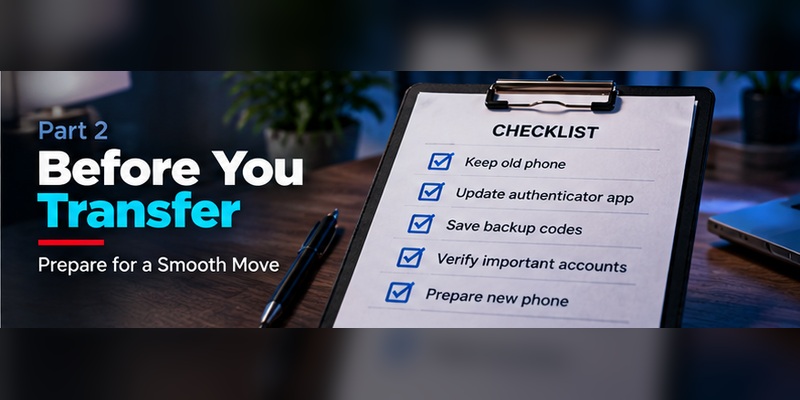
If you still have your old device, you are in the best possible position.
Before attempting to transfer authenticator to new phone, complete a short security check.
Keep the Old Phone
Do not delete the authenticator app yet.
Keep it charged, connected, and accessible.
Your old device is effectively your safety net until the migration is complete.
Confirm Your Account Passwords
An Authenticator code does not replace your password.
Make sure you still know the password for critical accounts such as:
- Microsoft
- Apple
- GitHub
- Discord
- Amazon
- cryptocurrency services
- work accounts
Do this before the migration.
Resetting a forgotten password after your old Authenticator disappears can make recovery more complicated.
Review Recovery Options
For each high-value account, check whether you have:
- recovery email,
- recovery phone number,
- passkey,
- security key,
- backup code,
- recovery code,
- secondary Authenticator.
These alternatives are crucial if the transfer fails.
Generate Recovery Codes
Where available, create authenticator app recovery codes before changing devices.
Google, for example, lets users generate a set of 10 backup codes for 2-Step Verification. Each backup code becomes invalid after use, and generating a new set invalidates the old set.
Store them somewhere separate from the phone you are replacing.
Check Sync or Backup
Open your Authenticator application’s settings.
Look for options such as:
- Sync
- Cloud Backup
- Backup
- Recovery Account
- Export Accounts
- Transfer Accounts
If you plan to transfer authenticator to new phone, knowing which migration method is already enabled can save a lot of time.
3. How to Transfer Google Authenticator to a New Phone
Google Authenticator provides two main migration methods.
Method 1: Sync Through Your Google Account
This is currently the easiest method.
Google states that when you sign into your Google Account inside Google Authenticator on a new device, Authenticator codes saved to that Google Account automatically sync to the device.
To transfer authenticator to new phone using synchronization:
- Install Google Authenticator on the new phone.
- Open the application.
- Sign in to the same Google Account used in Authenticator on your old phone.
- Allow the application to load synchronized accounts.
- Check that your expected 2FA entries appear.
- Test one or two important accounts before deleting anything from the old device.
This approach makes how to restore google authenticator on new phone much simpler than older migration processes.
However, there is an important exception.
Google Authenticator can also be used without signing into a Google Account.
In that mode, codes are stored locally and are not automatically available on your other devices.
If you use Authenticator without an account, use the manual transfer method instead.
Method 2: Transfer Google Authenticator Using QR Codes
Google officially supports manual account export.
On the old phone:
- Open Google Authenticator.
- Open Menu.
- Select Transfer accounts.
- Select Export accounts.
- Unlock the device when requested.
- Select the accounts you want to transfer.
- Tap Next.
- Google Authenticator creates one or more QR codes.
On the new phone:
- Install Google Authenticator.
- Open Menu.
- Select Transfer accounts.
- Select Import accounts.
- Tap Scan QR code.
- Scan the QR code shown on the old phone.
Google notes that transferring many accounts can generate multiple QR codes.
After importing them, test the new phone.
Do not photograph, email, upload, or publicly save the transfer QR code.
Anyone who obtains authentication secrets may be able to generate the same OTP codes.
That is why the safest way to transfer authenticator to new phone is to perform the QR transfer directly between devices in a private environment.
4. How to Transfer Microsoft Authenticator to a New Phone
Microsoft Authenticator uses a different migration system.
If you want to know how to backup microsoft authenticator, start with the application’s backup settings before changing devices.
Back Up Microsoft Authenticator
On supported Android configurations:
- Open Microsoft Authenticator.
- Go to Settings.
- Enable Cloud Backup.
- Select the Microsoft personal account used to store the backup.
Microsoft states that third-party OTP accounts can be included in the backup, while work and school accounts may require users to sign in again after restoration.
On iPhone, Microsoft Authenticator uses iCloud-related services for backup and recovery.
Restore on the New Phone
Install Microsoft Authenticator on the replacement device.
Before setting up accounts manually, select:
Restore from backup or Begin recovery.
Then sign in using the same recovery account associated with your backup.
Microsoft specifically advises beginning the recovery process before signing into Authenticator normally.
Important: Android and iPhone Backups Are Not Interchangeable
Microsoft currently states:
An iOS Authenticator backup cannot be restored to Android, and an Android backup cannot be restored to iOS.
This is one of the biggest differences between Google and Microsoft migration.
If you are switching from Android to iPhone or from iPhone to Android, plan to re-register affected accounts manually.
Upcoming Android Backup Change
Microsoft’s current support documentation also states that starting January 2027, Android users will no longer use a Microsoft personal account to enable Authenticator backup. Microsoft says the backup process will instead use Microsoft Authenticator through Google One backup.
If you read this guide after that change takes effect, verify Microsoft’s current instructions before migrating.
The general principle remains the same:
Confirm the backup exists before you transfer authenticator to new phone.
5. How to Move Other 2FA Accounts to a New Phone
Knowing how to move 2fa to new phone is not always the same as moving the Authenticator application itself.
Your Authenticator may contain entries for many independent services.
For example:
- Amazon
- GitHub
- Dropbox
- Discord
- X
- cryptocurrency exchanges
- hosting accounts
Each website controls its own 2FA registration.
If your Authenticator supports reliable export or synchronization, the account may appear on your new phone automatically.
If not, re-register it manually.
A safe manual workflow is:
- Sign into the website while the old Authenticator still works.
- Open Security or Two-Factor Authentication settings.
- Add or replace the authentication device.
- Scan the new setup QR code using the new phone.
- Enter a code from the new phone to confirm setup.
- Save newly issued recovery codes.
- Sign out.
- Test login again.
Only after that test succeeds should you consider removing the old device.
This service-by-service method takes longer, but it gives you direct confirmation that every account works.
6. How to Transfer 2FA Without Losing Access
The goal of every migration should be to transfer 2fa without losing access.
The safest approach is an overlap period.
For several minutes or days, maintain access to both phones while confirming the new setup.
Use this sequence:
Old device works → add or restore new device → test new device → save recovery options → remove old device.
Never reverse that order.
A common mistake is:
Remove old Authenticator → erase old phone → discover new Authenticator was never registered.
That turns a simple transfer into account recovery.
When you transfer authenticator to new phone, test your most important accounts individually.
Do not assume that seeing an account name inside the application proves the code works.
Actually sign out and sign back in.
For business accounts, check whether your organization’s administrator has special MFA requirements. Some Microsoft Entra work accounts, for example, may restore the account name but still require authentication to complete registration again.
A successful migration is not complete until you can authenticate.
7. What to Do If You Lost the Old Phone
A lost phone with authenticator app requires a different process.
You can no longer perform a direct QR transfer from the original device.
But losing the phone does not automatically mean losing the account.
Start With Cloud Sync or Backup
If you used Google Authenticator with Google Account synchronization, install Google Authenticator on the new device and sign into the same Google Account.
Synced codes may appear automatically.
If you used Microsoft Authenticator and previously enabled backup, install the app and choose its recovery option.
Try a Backup Code
Look for the backup authenticator codes you saved when enabling 2FA.
A backup code often allows you to bypass the missing Authenticator once.
After signing in:
- Remove the lost device.
- Register the new Authenticator.
- Generate new recovery codes.
- Invalidate old recovery methods if necessary.
Use Another Second Factor
Google specifically recommends trying another configured verification method if your normal device is unavailable.
Possible options include:
- Google Prompt
- backup code,
- backup security key,
- verification code,
- trusted device,
- recovery process.
Use the Service’s Account Recovery Process
For authenticator app lost phone recovery, go directly to the account provider.
Do not search for third-party services claiming they can bypass 2FA.
Legitimate recovery usually involves proving account ownership through:
- email,
- phone number,
- identity verification,
- trusted devices,
- previous credentials,
- organizational administrator.
After recovery, revoke the missing phone as an authentication device.
8. How Authenticator Backup and Cloud Sync Work
Authenticator app cloud backup can make device replacement much easier, but not every application implements it the same way.
There are three common models.
Local-Only Storage
Authentication secrets remain only on the device.
If you lose the device and did not export the accounts or save recovery methods, the codes may be impossible to recover directly.
You must recover each account from the service provider.
Account Synchronization
Google Authenticator can synchronize Authenticator codes to a Google Account.
When you sign into that account on another device, the synchronized entries become available there.
Encrypted or Platform-Based Backup
Other Authenticator applications create backups tied to an account or operating-system cloud service.
Microsoft Authenticator uses this model.
However, backup limitations matter.
Microsoft’s current system limits restore compatibility to the same platform family.
Therefore, before you transfer authenticator to new phone, ask:
Where are my authentication secrets stored?
Do not assume “my phone is backed up” means “my 2FA credentials are backed up.”
9. Backup Codes and Recovery Codes Explained
Authenticator app recovery codes are one of the most important parts of a secure 2FA setup.
They are emergency credentials designed for situations where your normal second factor is unavailable.
Think of them as emergency keys.
They may be called:
- Backup Codes
- Recovery Codes
- Emergency Codes
- One-Time Recovery Codes
Google currently provides sets of 10 backup codes for eligible 2-Step Verification accounts. Each code can be used once. Creating a new set disables the previous set.
Where Should You Store Recovery Codes?
Good options include:
- an encrypted password manager,
- an encrypted offline file,
- a secure physical copy,
- a locked document safe.
Avoid keeping your only recovery codes:
- solely on the phone running Authenticator,
- in public cloud notes without protection,
- in screenshots,
- in chat applications,
- in an email draft anyone could access.
If both your Authenticator and your backup authenticator codes exist only on one phone, losing that phone removes both recovery methods at once.
Recovery information should be independent from the device it protects.
10. Common Problems When Moving an Authenticator
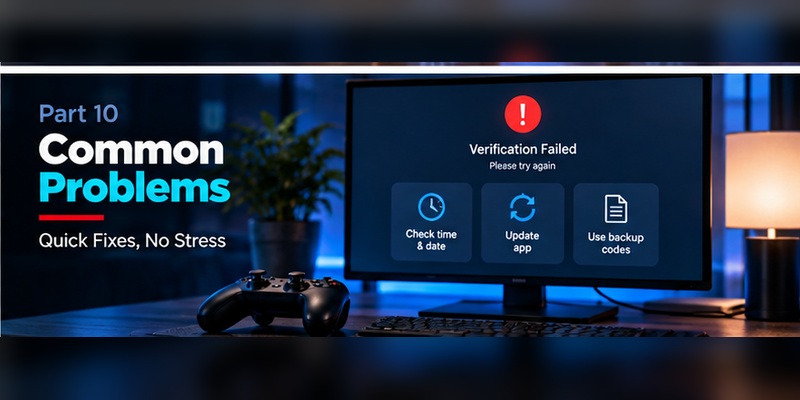
Problems can still appear even when you follow the correct migration process.
Codes Appear but Do Not Work
Check:
- whether you selected the correct account,
- whether the phone’s time is correct,
- whether you accidentally have duplicate entries,
- whether the service was reconfigured after the backup was created.
TOTP codes depend on time synchronization.
Google Authenticator Accounts Are Missing
Confirm that the old app actually saved codes to your Google Account.
Google allows Authenticator to operate without an account. In that mode, codes are stored locally and do not automatically appear on other devices.
If the old phone still works, use Transfer Accounts → Export Accounts.
Microsoft Restore Option Is Missing
Microsoft advises users to begin with Restore from backup or Begin recovery before normal sign-in.
If you already signed into the application, you may need to sign out or remove accounts before starting recovery.
Microsoft Accounts Appear but Need Verification
This can be normal.
Work and school account information may be restored, but Microsoft says users can still need to sign in again to complete recovery.
Switching Between Android and iPhone
This deserves special planning.
Microsoft Authenticator currently does not support restoring an Android backup directly to iPhone or vice versa.
Re-register affected accounts while the old device still works.
11. Security Risks During an Authenticator Transfer
The process to transfer authenticator to new phone involves sensitive authentication credentials.
Treat migration data like passwords.
Never Share a Transfer QR Code
An Authenticator setup or export QR code can contain information that allows another application to generate valid authentication codes.
Do not:
- screenshot it unnecessarily,
- upload it to Drive,
- send it through WhatsApp,
- email it,
- post it in support forums.
Avoid Unofficial Authenticator Applications
Install applications only from official sources.
A malicious Authenticator could potentially capture your 2FA secrets.
Protect the Old Phone Until It Is Wiped
After confirming the new phone works, remove account access from the old device and securely erase it before:
- selling,
- trading in,
- recycling,
- giving it away.
Understand That OTP Is Not Completely Phishing-Resistant
NIST distinguishes OTP authentication from cryptographic methods that provide verifier impersonation resistance. A one-time password can still be stolen through a convincing real-time phishing website and relayed to the legitimate service.
That is why modern security systems increasingly support passkeys and hardware security keys.
The authenticator app remains a major improvement over password-only security, but you should still verify websites before entering credentials or OTP codes.
12. Best Practices for Future Phone Changes
Once you successfully transfer authenticator to new phone, prepare for the next device change immediately.
Enable Backup or Sync
If your chosen Authenticator supports secure synchronization or backup, understand and configure it before you need it.
Keep Recovery Codes
Generate recovery codes for important services.
Store them independently from your phone.
Add More Than One Recovery Method
For critical accounts, consider having:
- an Authenticator,
- a passkey,
- a hardware security key,
- recovery codes,
- a verified recovery email.
Do not make one smartphone your only path back into every digital account you own.
Review 2FA Accounts Regularly
Remove:
- accounts you no longer use,
- duplicate entries,
- obsolete devices,
- old phone numbers.
Protect Your Main Email Account First
Your email often controls password resets for many other services.
Secure it with your strongest available authentication method.
Test Recovery Before an Emergency
You do not need to actually lock yourself out.
Simply confirm that your recovery email, phone, security keys, and codes still exist and are accessible.
A five-minute check today can prevent hours of account recovery later.
13. Frequently Asked Questions
Can I transfer my Authenticator to a new phone?
Yes. The exact method depends on the authenticator app.
Google Authenticator supports Google Account synchronization and manual QR-based export. Microsoft Authenticator supports backup and recovery, subject to platform limitations.
What is the safest way to transfer authenticator to new phone?
Keep both phones until the transfer is complete.
Move or restore the Authenticator, test important accounts, save recovery codes, and only then wipe the old device.
How do I transfer Google Authenticator?
If your codes are synced to your Google Account, sign into that account inside Google Authenticator on the new device.
Otherwise, use:
Transfer accounts → Export accounts on the old device and Transfer accounts → Import accounts on the new device.
Can I restore Google Authenticator without the old phone?
If Google Account synchronization was enabled, your saved Authenticator codes may sync to the new device.
Otherwise, use backup codes or the recovery options provided by each account.
How do I backup Microsoft Authenticator?
For users asking how to backup microsoft authenticator, open Microsoft Authenticator settings and enable its supported backup option.
Current Android instructions use Cloud Backup, while iOS relies on Apple’s iCloud infrastructure. Microsoft has announced an Android backup change beginning January 2027.
Can I move Microsoft Authenticator from Android to iPhone?
Microsoft’s current documentation says backups can only be restored to the same device type.
Android backups restore to Android. iOS backups restore to iOS.
For a cross-platform switch, plan to re-register accounts.
What happens if I lose my phone with Authenticator?
Use synchronized credentials, cloud backup, recovery codes, another second factor, or the service’s account recovery process.
After restoring access, remove the lost device from your account security settings.
Can someone use my Authenticator if they steal my phone?
Potentially, which is why your device should have a strong screen lock and you should revoke a lost device quickly.
Your risk also depends on the Authenticator application and how it protects access to codes.
Do I need to turn off 2FA before moving phones?
Usually, no.
Disabling 2FA before migration unnecessarily removes account protection.
It is normally safer to add or restore the new authentication method while the old one still works.
Should I save screenshots of Authenticator QR codes?
Generally, no.
A 2FA enrollment QR code can contain the secret needed to generate valid OTP codes.
Store official recovery codes instead.
Do backup codes expire?
That depends on the provider.
Google backup codes are single-use. Google also invalidates the previous set when you generate a new set.
Is cloud backup safe for an Authenticator?
It can provide valuable protection against device loss when securely implemented.
However, security depends on the Authenticator, encryption model, recovery account, and cloud platform.
Protect the account controlling your authenticator app cloud backup with strong authentication of its own.
14. Final Checklist
Before you finish the process to transfer authenticator to new phone, confirm all of the following:
- The old phone still works.
- The new Authenticator is installed from an official source.
- All important accounts appear on the new device.
- You have successfully tested real logins.
- Recovery email and phone details are current.
- Recovery codes are stored somewhere secure.
- Your Authenticator backup or sync settings are understood.
- Work accounts have been re-registered if required.
- The old phone has been removed from trusted-device lists where appropriate.
- Only after testing everything have you erased the old phone.
The core principle is simple:
Transfer first. Verify second. Erase last.
When you transfer authenticator to new phone in that order, changing devices should not mean losing access to the accounts protected by two-factor authentication.
Google Authenticator users can take advantage of Google Account synchronization or direct QR-code transfer. Microsoft Authenticator users can use backup and recovery while paying close attention to the same-platform restriction. For every other service, recovery codes and alternative authentication methods provide an essential safety net.
The worst time to discover that your 2FA recovery plan does not work is after your old phone is gone.
Prepare before switching devices, maintain multiple recovery options, and test the new Authenticator before removing the old one.
That is the safest way to transfer authenticator to new phone while keeping the security benefits of MFA and avoiding an unnecessary account lockout.
Secure your accounts with fast, reliable two-factor authentication. Download now and protect your login in seconds.Download Authenticator App
