Binance Authenticator QR Code: How to Find, Scan, and Set Up 2FA
Published September 11, 2026
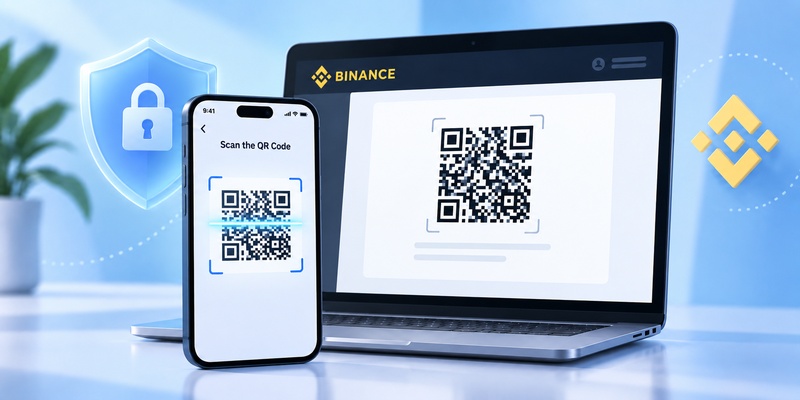
To get a Binance Authenticator QR code, sign in to Binance, open Account → Security → Authenticator App → Manage, enable an authenticator, and scan the displayed QR code with Google Authenticator or another compatible authenticator app.
Binance also provides a setup key beside the QR code. If scanning does not work, you can enter that key manually and then confirm setup with the 6-digit verification code generated by your authenticator.
According to Binance’s current support documentation, users setting up Google Authenticator on the website are shown both a QR code and setup key before completing verification.
The most important security rule is simple: do not share your Binance QR code or setup key with anyone. The QR code represents the secret used by your authenticator to generate future login codes.
1. Where to Find the Binance Authenticator QR Code
The binance authenticator qr code appears during the process of enabling or changing an authenticator for your Binance account.
For the Binance website, use this path:
- Sign in to Binance.
- Open your profile.
- Select Account.
- Go to Security.
- Find Authenticator App.
- Click Manage.
- Select Enable Authenticator App.
Binance then displays a QR code together with a setup key. Binance specifically advises users not to click Next until the authenticator setup has been completed.
This screen is what users are usually looking for when searching how to get binance qr code for google authenticator.
Once the QR appears, leave the Binance page open and switch to Google Authenticator on your phone.
Do you get a different QR code for each account?
Yes. A binance authenticator qr code is associated with the secret being registered for that authenticator setup.
You should therefore scan the QR code shown inside your own authenticated Binance Security settings, not a QR code copied from a guide, video, screenshot, or another person’s account.
2. How to Scan Binance QR Code With Google Authenticator
The easiest setup is to open Binance on a computer and Google Authenticator on your phone.
This lets your phone camera scan the binance qr code for google authenticator directly from the computer screen.
Follow these steps:
- Keep the Binance QR code visible on your computer.
- Open Google Authenticator.
- Tap the + button.
- Choose Scan a QR code.
- Point the camera at the QR code on Binance.
- Wait for the Binance account to appear in Google Authenticator.
- Return to Binance.
- Click Next.
- Enter the 6-digit code displayed in Google Authenticator.
Binance’s official instructions state that after scanning, an account labeled Binance.com should appear in Google Authenticator.
The binance qr code scan itself takes only a few seconds when the screen is clear and the phone camera can focus properly.
Google also confirms that Google Authenticator can generate one-time verification codes for websites and applications supporting authenticator-based two-step verification. The codes can continue to be generated without an active internet or mobile-data connection.
Download Authenticator App
Secure your accounts with fast, reliable two-factor authentication. Download now and protect your login in seconds.
3. How to Set Up Binance Authenticator on the Binance App
Setting up a binance authenticator qr code from the Binance mobile app is slightly different because Binance and Google Authenticator may both be running on the same phone.
Binance’s current app instructions use this path:
Account → Profile → Security → Authenticator App → Enable
The app then provides the setup information required to connect Google Authenticator.
Using the same phone
If Binance and your authenticator app are installed on the same phone, entering the setup key is usually the simplest approach.
Binance currently instructs Google Authenticator users on mobile to:
- Open Binance.
- Go to Security.
- Enable Authenticator App.
- Copy the setup key.
- Open Google Authenticator.
- Tap +.
- Choose Enter a setup key.
- Paste the key.
- Add the Binance account.
- Return to Binance and enter the generated 6-digit code.
This avoids the obvious problem of trying to point your phone camera at a QR code displayed on that same phone.
For searches such as binance app scan qr code verification, remember that QR scanning is easiest when the Binance QR is displayed on another screen.
4. What the Binance QR Code Actually Contains
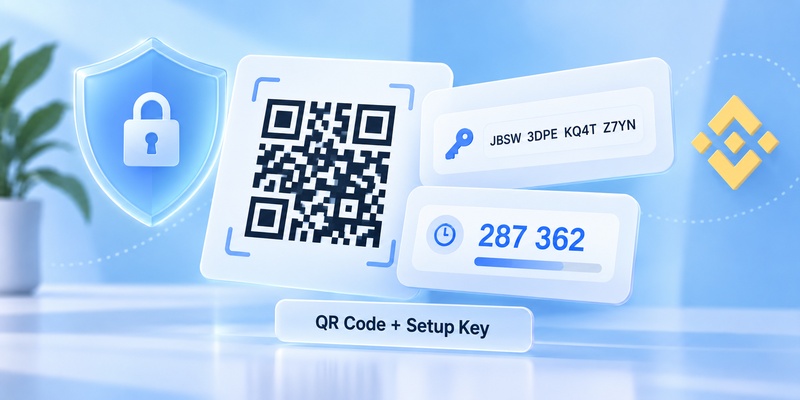
A binance authenticator qr code is not simply a visual login code.
It represents setup information that allows an authenticator to generate time-based one-time passwords for your account.
The underlying mechanism commonly used by authenticator applications is TOTP — Time-Based One-Time Password.
RFC 6238, the IETF specification for TOTP, explains that the authenticator and verification server share a secret and use time as part of the calculation that creates temporary codes.
This is why your binance authenticator qr should be treated as sensitive information.
QR code vs 6-digit code
These serve completely different purposes.
QR code / setup key: establishes the authenticator.
6-digit authenticator code: verifies future login or security actions.
Do not confuse them.
The QR is normally used during initial setup, while your authenticator continuously generates new temporary codes afterward.
Why the QR code should stay private
RFC 6238 requires the authenticator and server to possess the same secret and recommends protecting secret keys against unauthorized access.
If another person obtains your authenticator setup secret, they may be able to configure a compatible authenticator that generates the same kind of codes.
Never post your QR code publicly, send it through chat, or include it in a support screenshot.
5. What to Do If the Binance QR Code Will Not Scan
If your binance authenticator qr code does not scan, do not immediately reset your entire Binance security setup.
Try basic scanning fixes first.
Clean the camera lens
A blurred camera can prevent the QR pattern from being recognized.
Wipe the lens and try again.
Increase screen brightness
If Binance is open on a computer, increase the display brightness.
Avoid strong reflections across the QR code.
Adjust the distance
Do not hold the phone directly against the monitor.
Move backward until the entire QR code is visible inside the scanning frame.
Make the browser page larger
Zoom the Binance page slightly if the QR code is too small.
Make sure no browser pop-up or extension covers part of the code.
Use the setup key
If the binance qr code scan still fails, there is no need to keep fighting the camera.
Binance officially provides a manual setup key as an alternative.
This is often the fastest solution.
6. How to Use the 16-Digit Setup Key Instead
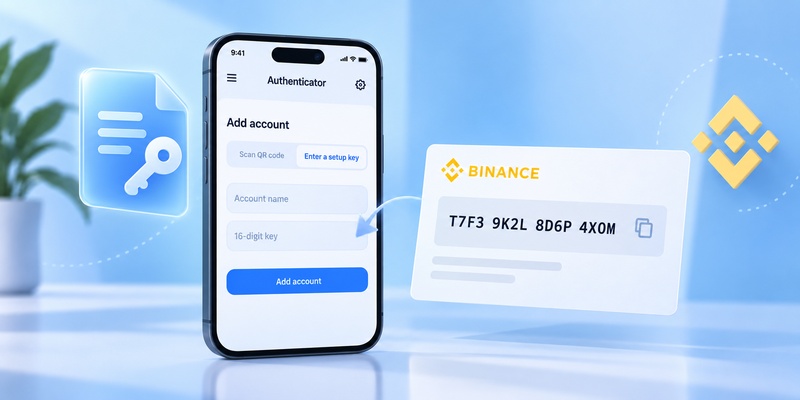
During authenticator setup, Binance provides a setup key alongside the binance authenticator qr code.
When changing an existing Google Authenticator, Binance’s current documentation describes this as a 16-digit code.
To use it:
- Copy the setup key from Binance.
- Open Google Authenticator.
- Tap +.
- Select Enter a setup key.
- Enter a recognizable account name such as Binance.
- Paste the key.
- Add the account.
- Wait for the 6-digit verification code to appear.
The setup key and QR code represent two ways of providing your authenticator with the information it needs.
You do not need both.
If scanning works, use the QR code.
If scanning fails, use the key.
The manual method is also particularly useful when Binance and Google Authenticator are installed on the same mobile device.
Treat the setup key with the same care as the binance authenticator qr code. Do not save it in an unprotected note or send it to someone else for help.
7. How to Verify the 6-Digit Authenticator Code
Scanning the QR code is not the final step.
After the binance authenticator qr code has been added to Google Authenticator, Binance requires you to prove the setup works.
Google Authenticator displays a temporary verification code for the Binance entry.
Return to Binance and enter the 6-digit code when requested.
Binance’s official setup documentation confirms that this final verification step is required before Google Authenticator is successfully enabled.
What if the code is rejected?
First, wait for the next code and try again.
Also check that your phone’s date and time are correct.
Binance specifically recommends automatic date/time settings when users encounter authenticator verification errors.
Google notes that newer Google Authenticator versions rely on the operating system’s time setting rather than the older manual time-correction feature.
Therefore, on Android or iPhone, keeping the system clock synchronized automatically is a useful troubleshooting step.
8. Common Binance Authenticator QR Code Problems
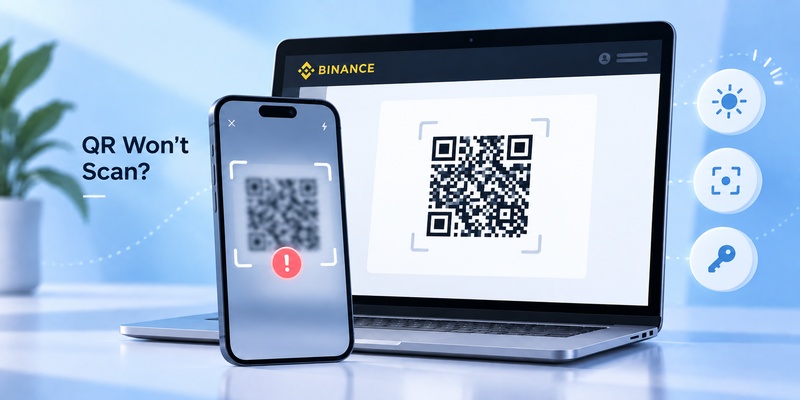
Most binance authenticator qr code issues fall into a few categories.
| Problem | Likely Cause | Recommended Fix |
| QR does not scan | Camera/focus/display issue | Use setup key |
| No Binance entry appears | Scan did not complete | Scan again |
| 6-digit code rejected | Time mismatch or wrong entry | Enable automatic time |
| QR disappeared | Setup page was closed | Restart authenticator setup |
| New phone cannot generate codes | Authenticator was not transferred | Change/reset authenticator |
| Same-phone setup is awkward | Camera cannot scan own display | Enter setup key manually |
One common mistake is closing the Binance QR page immediately after scanning.
Keep the setup page open until the 6-digit verification has been accepted.
Another mistake is adding the same account several times to Google Authenticator. If multiple Binance entries exist, make sure you are entering the code generated from the correct setup.
If verification continues to fail, use Binance’s official account-security recovery options rather than repeatedly creating new authenticator entries.
9. How to Change Google Authenticator on Binance
If you buy a new phone or lose access to the old authenticator, you may need a new binance authenticator qr code.
Binance allows users to change the Google Authenticator associated with their account.
On the website:
Account → Security → Authenticator App → Manage → Edit
Binance then requires security verification before displaying new setup information.
Current Binance documentation says the replacement screen provides a QR code and a 16-digit code that can be scanned or entered manually.
After adding the new authenticator, enter the generated six-digit code and submit the change.
Important security restriction
Binance’s support article updated in March 2026 says that after changing Google Authenticator, withdrawals, internal transfers, and P2P transactions may be disabled for up to 48 hours as a security measure.
That restriction applies when changing the authenticator, not simply every time you scan a QR code during normal use.
Plan the change accordingly if you expect to need those account functions soon.
10. How to Keep Your Binance Authenticator Setup Secure
The binance authenticator qr code should be treated like a security credential.
Follow a few basic rules.
Never share your QR code
Do not send it to:
- Friends
- Telegram accounts
- Discord users
- Unverified customer-support contacts
- Social media accounts
- Anyone claiming they need it to “fix” Binance
A legitimate troubleshooting guide does not need your actual QR code.
Protect the setup key
The manual setup key is sensitive for the same reason.
Store it only using a secure method appropriate to your account-recovery plan.
Download authenticator apps from trusted sources
Use official app stores and verify the developer before installing an authenticator app.
Avoid modified APKs or unknown downloads claiming to provide special Binance authentication features.
Protect the Binance account itself
Authenticator-based 2FA adds an extra security layer, but it should complement rather than replace:
- A strong unique password
- Device security
- Phishing awareness
- Secure email access
- Binance’s additional account-security options
Never enter an authenticator code into a website unless you have confirmed that you are actually on Binance.
A temporary code can still be stolen through phishing if you voluntarily enter it into a fraudulent login page.
11. Frequently Asked Questions
How do I get a Binance QR code for Google Authenticator?
Sign in to Binance and go to Account → Security → Authenticator App → Manage → Enable. Binance displays the binance authenticator qr code and setup key. Scan the QR with Google Authenticator, then verify setup using the generated 6-digit code.
Can I set up Binance Authenticator without scanning a QR code?
Yes. Binance provides a setup key that can be entered manually into Google Authenticator or another compatible authenticator. This is especially useful when Binance and the authenticator are running on the same phone.
Why is my Binance QR code not scanning?
Poor camera focus, screen reflections, low brightness, or incorrect scanning distance can cause problems. If scanning repeatedly fails, use the setup key provided next to the binance authenticator qr code instead.
Why does Binance reject my 6-digit code?
Check that you selected the correct Binance entry and that your phone’s date and time are set automatically. Binance recommends synchronizing device time when authenticator verification fails.
Can I screenshot my Binance authenticator QR code?
It is safer not to keep an unsecured screenshot. The QR represents authenticator setup information tied to a shared secret. RFC 6238 recommends protecting authenticator secret keys against unauthorized access.
12. Final Thoughts
Setting up a binance authenticator qr code is straightforward when you use Binance’s official Security settings.
The basic process is:
Binance Security → Authenticator App → Enable → Scan QR code → Enter 6-digit code → Verify.
For Google Authenticator, Binance officially supports both QR scanning and manual setup-key entry. If you’re setting up authentication from a computer, scanning the binance qr code for google authenticator with your phone is usually the fastest option.
If you’re working entirely from one phone, copying the setup key into your authenticator is often easier.
Remember the difference between the three pieces of information involved:
QR code = authenticator setup.
Setup key = manual alternative to the QR code.
6-digit code = temporary verification code generated after setup.
Most importantly, protect the binance authenticator qr code and setup key. They are not ordinary images or recovery hints; they represent the secret relationship that lets your authenticator generate valid verification codes.
Use only the QR code generated inside your own Binance account, complete the setup before closing the Binance page, and never share the QR or setup key with anyone.