
Blizzard Battle.net Authenticator: Complete Setup, Security and Troubleshooting Guide
Published September 9, 2026

The Blizzard Battle.net Authenticator is now built into the Battle.net mobile app rather than offered primarily as the old standalone Blizzard Authenticator application. If you want to protect a Battle.net account today, install the official Battle.net app on iOS or Android, sign in, enable the Authenticator, verify the required account information, and use your phone to approve new login requests.
If your blizzard battle.net authenticator is already enabled, you can normally approve a login with a push notification or open the Authenticator section of the Battle.net app manually. Blizzard moved the authentication feature into the main Battle.net mobile application so account security, account management, chat, news, and other Battle.net features can be handled from one app.
Important: Do not search app stores for an old standalone Blizzard Authenticator and assume you need it. The current official route is the Battle.net mobile app.
This distinction matters because many older tutorials for the blizzard battle.net authenticator describe screens, QR codes, migration procedures, or standalone downloads that no longer match the present experience.
What Is the Blizzard Battle.net Authenticator?
If you are asking what is blizzard authenticator, the simplest answer is:
It is an additional verification layer that helps prevent someone from accessing your Battle.net account with only your password.
The blizzard battle.net authenticator adds another factor tied to a device you control. When Battle.net needs additional verification, the system can send an authentication request to your registered phone. You approve or deny that request through the Battle.net mobile app.
Blizzard describes the Authenticator as optional two-factor authentication designed to protect accounts against unauthorized access. The company also supports one-tap approval through the mobile application.
That means an attacker who obtains your Battle.net password still faces another barrier.
This is important because passwords are routinely exposed through:
- Credential stuffing
- Password reuse
- Phishing
- Infostealer malware
- Fake login pages
- Database breaches on unrelated websites
- Social engineering
Multi-factor authentication is not a perfect defense, but research shows it can significantly reduce account-takeover risk. A Microsoft Research study found that more than 99.99% of MFA-enabled accounts in its studied population remained secure, while MFA reduced compromise risk by 99.22% overall.
Those figures come from Microsoft accounts rather than Blizzard accounts, so they should not be interpreted as a Blizzard-specific effectiveness rate. They demonstrate the broader security value of requiring another authentication factor.
For gamers with years of progress, purchases, characters, friends, and account history attached to one login, activating the blizzard battle.net authenticator is a practical security step.
Download Authenticator App
Secure your accounts with fast, reliable two-factor authentication. Download now and protect your login in seconds.
Where Is the Blizzard Authenticator Now?
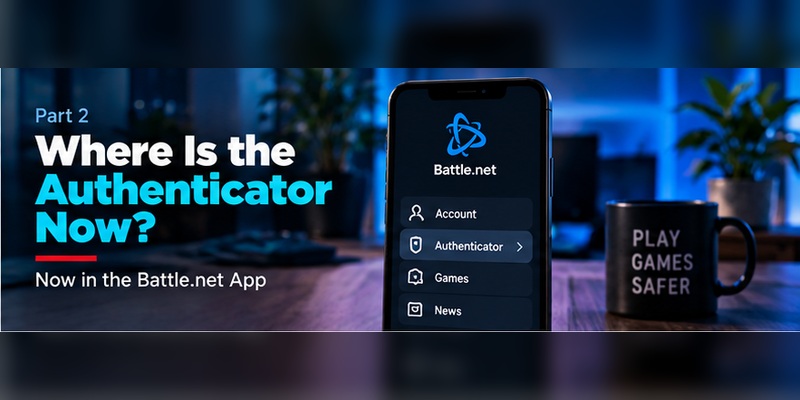
One of the biggest sources of confusion is blizzard authenticator download searches.
The old Blizzard Authenticator existed as a separate mobile application. Blizzard later moved the feature into its main Battle.net mobile app.
Blizzard announced that users could authenticate logins directly through the Battle.net app on iOS and Android and stated that the standalone Authenticator app would be retired.
Therefore:
Old approach:
Standalone Blizzard Authenticator app
Current approach:
Battle.net mobile app → Authenticator
If you encounter a page promising an independent blizzard authenticator download, check the publication date carefully.
For the current blizzard battle.net authenticator, you should use Blizzard’s official Battle.net mobile application from an authorized app store.
This also explains why some people search for an authenticator battle net app and find different instructions from older guides. The authenticator and Battle.net mobile experience are now integrated.
Blizzard’s support search currently lists an updated “Attaching a Battle.net Authenticator” article and separate troubleshooting resources for Authenticator errors, indicating that the integrated system remains actively supported.
How the Blizzard Battle.net Authenticator Works
The blizzard battle.net authenticator adds another proof of identity when Battle.net considers verification necessary.
A typical login works like this:
- You enter your Battle.net account information.
- Battle.net determines that Authenticator approval is required.
- A request is sent to your registered Authenticator.
- You open the Battle.net mobile app.
- You review the request.
- You approve it if you initiated the login.
- Battle.net completes the authentication.
Blizzard has historically described its one-button Authenticator experience as an Approve/Deny system. The current Battle.net mobile app continues to support one-tap authentication.
Never approve a login request you did not initiate.
An unexpected approval request can indicate that someone:
- knows your password,
- is testing compromised credentials,
- is attempting account takeover,
- or has directed you toward a phishing flow.
If the blizzard battle.net authenticator suddenly displays authentication requests while you are not signing in, treat them as a security warning rather than an inconvenience.
Change your Battle.net password, review account security information, and secure the email account connected to Battle.net.
How to Set Up the Blizzard Battle.net Authenticator
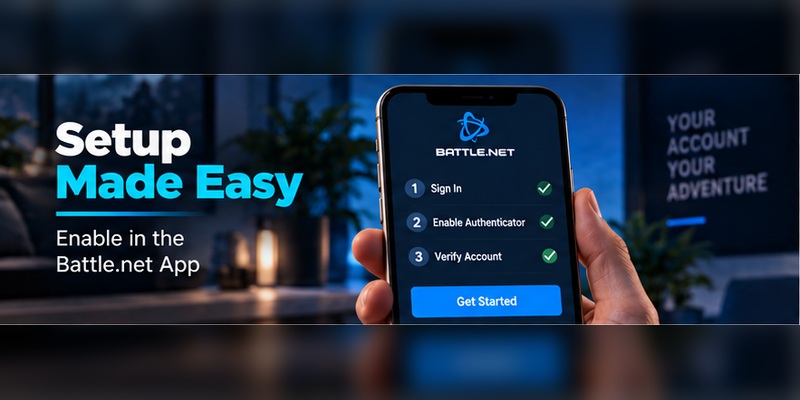
Setting up the blizzard battle.net authenticator is relatively straightforward if you have access to your Battle.net account and a supported mobile number.
Step 1: Download the Battle.net Mobile App
Install the official Battle.net mobile app on your iOS or Android device.
This is the correct current answer to most blizzard authenticator download queries.
Do not rely on unofficial APK files, archived versions of the old Authenticator, or third-party download websites.
Step 2: Sign In to Battle.net
Open the app and sign in using the Battle.net account you want to protect.
Depending on your current account state, Battle.net may require additional verification before allowing security settings to change.
Step 3: Open the Authenticator Feature
Find the Authenticator option inside the Battle.net mobile app.
Follow the prompts to attach the blizzard battle.net authenticator to your account.
Step 4: Verify Your Phone Number
Battle.net’s Authenticator setup requires a supported mobile phone number. Blizzard’s migration documentation states that a phone must be capable of receiving Battle.net Phone Notifications, and setup may send a security code to the registered number.
Step 5: Complete the Security Verification
Enter any verification code Battle.net requests.
Once setup is complete, your account should show the Authenticator as active.
Step 6: Save Recovery Information
If the app provides access to your Authenticator serial number or restore information, store it securely.
Do not publish restore information, serial numbers, passwords, or security codes online.
The blizzard battle.net authenticator is now ready to protect future login attempts.
Does Battle.net Use an Authenticator QR Code?
The keyword battle net authenticator qr code can be misleading because users often expect Battle.net to work exactly like a standard TOTP service.
For example, when setting up many websites with Google Authenticator, Microsoft Authenticator, Aegis, or another generic authenticator app, users scan a QR code containing a secret key.
Battle.net’s documented setup is different.
The current Blizzard setup directs users to enable the Authenticator through the official Battle.net mobile app rather than simply scanning a generic TOTP QR code into any authentication application.
So if you are searching for a battle net authenticator qr code because you want to add Battle.net to another 2FA application, do not assume a standard TOTP QR code should exist.
Follow Blizzard’s account-security setup flow instead.
This difference is important because QR-code authentication is not a universal standard across every MFA implementation. Some services use TOTP. Others use push approval, cryptographic credentials, proprietary authentication, passkeys, or combinations of several methods.
The blizzard battle.net authenticator primarily integrates authentication directly with the Battle.net application.
How to Use the Authenticator When Signing In
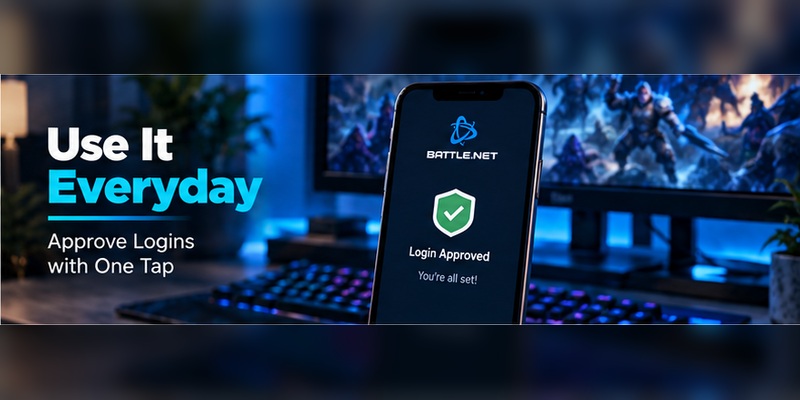
After the blizzard battle.net authenticator is active, everyday use is simple.
When Battle.net requests verification:
- Check your phone.
- Open the Battle.net notification.
- Review the login request.
- Confirm that you initiated it.
- Approve the request.
If a push notification does not appear, open the Battle.net mobile app manually and check the Authenticator section.
Blizzard also provides an option for entering an authentication code manually in situations where one-touch approval is unavailable. Blizzard’s current support search includes a dedicated article titled “How Do I Use the Authenticator Security Code Instead of One-Touch?”
Approve only requests you recognize.
This point is worth emphasizing because push-based authentication can create what security researchers call MFA fatigue. An attacker repeatedly sends approval requests hoping the user eventually taps Approve.
NIST specifically recognizes authentication-fatigue attacks as a security consideration for out-of-band authentication systems.
The safest behavior is simple:
No login initiated by you = no approval.
Blizzard Authenticator Restore Code and Changing Phones
Changing phones is one of the most common reasons users worry about losing the blizzard battle.net authenticator.
Historically, Blizzard provided an Authenticator serial number and restore information to help users recover an Authenticator when changing or resetting a device.
That is why searches for blizzard authenticator restore code remain common.
Before Changing Your Phone
If possible:
- Make sure you can access your Battle.net account.
- Confirm your registered phone number.
- Confirm access to your account email.
- Check the Authenticator settings.
- Save any available serial and recovery information securely.
- Keep the old phone available until the new device is working.
Battle.net support discussions referencing Blizzard’s setup instructions have directed users to the Serial & Restore Code area and described restoring an Authenticator with the existing serial number and restore code.
Recent Blizzard community troubleshooting also references retrieving restore information through Account Settings → Security → Battle.net Authenticator.
What If the Restore Process Fails?
If your blizzard authenticator restore code does not restore access:
- Verify that you are signing into the correct Battle.net account.
- Confirm the phone number on the account.
- Restart the Battle.net app.
- Clear app data/cache where appropriate.
- Reinstall the official Battle.net mobile app.
- Try the recovery options available in Battle.net Account Security.
- Contact Blizzard Support if you cannot prove account ownership through the available self-service methods.
Do not remove a working Authenticator before confirming that you have another reliable method of recovering the account.
Battle.net Authenticator Not Working: Common Fixes

If your battle.net authenticator not working problem appears suddenly, start with simple causes before removing security from the account.
1. Push Notification Does Not Appear
Open the Battle.net app manually.
Then check:
- Notification permissions
- Internet access
- Background app permissions
- Battery optimization settings
- Whether you are signed into the correct Battle.net account
You may still be able to use manual authentication even when the notification itself fails.
2. Battle.net App Is Frozen or Returning an Error
Force-close the app and reopen it.
If the problem remains:
- update the app,
- restart your phone,
- clear cached application data where supported,
- or reinstall the official application.
Blizzard support material referenced in recent troubleshooting recommends reinstalling the Battle.net mobile app or clearing its application data/cache when an Authenticator cannot be re-added correctly.
3. You Changed Phones
A new device may require restoration or additional identity verification.
Check your restore information and registered phone number.
4. You Changed Phone Numbers
Update the phone number associated with Battle.net before relying on SMS-based recovery.
A blizzard authenticator not working situation becomes harder to solve when both the old device and registered phone number are inaccessible.
5. You Receive Requests You Did Not Generate
Do not approve them.
Change your password and review account security immediately.
6. Reinstalling Did Not Fix It
If the battle.net authenticator not working issue continues after reinstalling, avoid repeatedly removing and re-adding account security without understanding the problem.
Blizzard maintains dedicated support articles covering Authenticator attachment, request errors, failed resynchronization, removal problems, and account recovery.
The blizzard battle.net authenticator protects account access, so troubleshooting should preserve that protection whenever possible.
Can You Use the Battle.net Authenticator Without a Phone Number?
Users frequently search battle net authenticator without phone number, but current setup requirements are restrictive.
Blizzard’s published migration instructions stated:
A mobile phone number is required when setting up the Battle.net Authenticator. The phone must support Battle.net Phone Notifications, and unsupported VoIP numbers may not qualify.
Therefore, if you are trying to configure a new blizzard battle.net authenticator without access to a supported phone number, the normal setup flow may not be available.
This does not mean your mobile number itself is the only authentication factor. The Authenticator operates through the Battle.net mobile application.
However, the number is part of Blizzard’s setup and recovery ecosystem.
For someone specifically searching battle net authenticator without phone number, the safest course is to check Blizzard’s current support requirements for your country rather than using temporary SMS services, online phone-number websites, or unsupported VoIP numbers.
Those workarounds can create a serious recovery problem later.
How Secure Is the Blizzard Battle.net Authenticator?
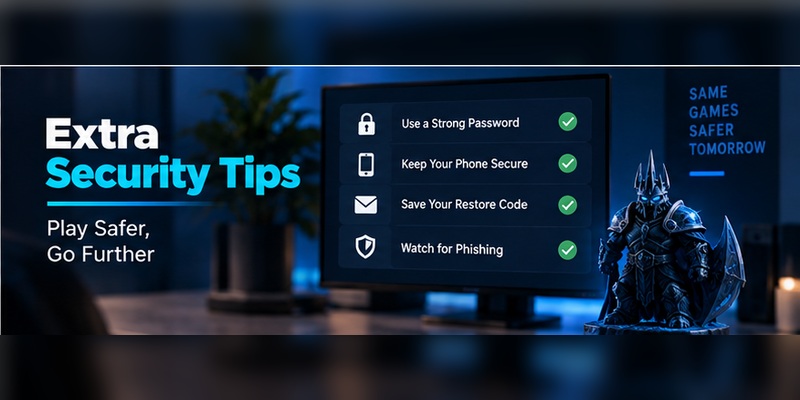
The blizzard battle.net authenticator is significantly better than protecting an account with a reusable password alone.
MFA adds another requirement before access is granted.
Microsoft Research examined a large population of commercial accounts and found that MFA reduced account-compromise risk by 99.22% overall and by 98.56% for accounts with leaked credentials. More than 99.99% of MFA-enabled accounts remained secure during the investigation period.
An earlier Microsoft analysis also reported more than 300 million fraudulent sign-in attempts against its cloud services per day and estimated that MFA could block more than 99.9% of account compromise attacks in the environment it studied.
Again, these are not Battle.net-specific statistics. They illustrate why adding another factor matters.
However, MFA is not invincible.
NIST points out that authentication methods involving manually entered OTP codes and some out-of-band mechanisms are not inherently phishing-resistant because attackers may relay authentication information through fake login pages.
That means users should combine the blizzard battle.net authenticator with good security behavior.
Never:
- approve unexpected login prompts,
- type credentials into suspicious websites,
- share authentication codes,
- reuse your Battle.net password,
- disclose recovery information,
- or install unofficial Battle.net software.
An Authenticator strengthens your account, but the user still controls the final approval.
Blizzard Authenticator vs Passkeys and Other Authentication Methods
The blizzard battle.net authenticator is no longer the only modern security option available around Battle.net authentication.
Blizzard has also introduced passkeys and email-delivered one-time passcodes for certain login and recovery situations. Blizzard describes passkeys as a faster and safer passwordless login method using security already built into a user’s device.
The differences are important.
| Method | Main Benefit | Main Limitation |
| Password | Familiar and widely supported | Can be stolen, reused or phished |
| SMS | Easy recovery and verification | Depends on phone network and number security |
| blizzard battle.net authenticator | Adds app-based approval | Requires secure control of registered device |
| Manual OTP | Works without push notification | Can be phished if entered into a fake site |
| Passkey | Strong, convenient, phishing-resistant design | Requires compatible platform and setup |
NIST distinguishes phishing-resistant cryptographic authentication from OTP and basic out-of-band authentication. Its current digital identity guidelines recommend phishing-resistant options where practical.
For that reason, a strong Battle.net security strategy can include both the blizzard battle.net authenticator and a properly configured passkey where Blizzard makes those options available.
Security works best in layers.
Best Practices for Protecting Your Battle.net Account
Activating the blizzard battle.net authenticator is a major improvement, but account security should not stop there.
Use a Unique Password
Your Battle.net password should not be reused on:
- Steam
- Discord
- Gmail
- gaming forums
- shopping websites
- or any unrelated service.
Credential stuffing works because attackers take usernames and passwords leaked from one service and try them elsewhere.
Secure Your Email Account
Your email can be involved in account recovery.
If an attacker controls both your Battle.net password and email account, recovering from an intrusion becomes much harder.
Use MFA or a passkey on your email account too.
Never Share Authentication Codes
Blizzard employees should not need you to disclose an active authentication code to prove your identity through random direct messages.
Treat requests for security codes as suspicious.
Verify the Domain Before Signing In
Phishing websites may closely copy the Battle.net login page.
Instead of following unexpected links, open Battle.net through a known bookmark, official application, or manually verified address.
Protect Your Phone
Because your phone may hold the blizzard battle.net authenticator, protect the device itself with:
- a PIN,
- strong passcode,
- fingerprint,
- Face ID or equivalent biometric protection,
- device encryption,
- and current software updates.
Keep Recovery Information Private
Store restore information somewhere secure.
Do not put it:
- in public screenshots,
- forum posts,
- Discord channels,
- shared documents,
- or unencrypted notes accessible to other people.
Review Unexpected Requests Immediately
Several denied requests in a short period may mean someone already knows your password.
Do not simply keep pressing Deny.
Change the password and investigate.
Frequently Asked Questions
Is the old Blizzard Authenticator app still required?
No. The blizzard battle.net authenticator functionality was moved into the Battle.net mobile app. Blizzard announced that the standalone Authenticator app would be retired and directed users to the main Battle.net application.
What happened to Blizzard Authenticator?
The feature itself continues, but it now lives inside Battle.net’s mobile application.
That is why older blizzard battle net authenticator tutorials may look different from what you see today.
Where do I download Blizzard Authenticator?
For current setup, download the official Battle.net mobile app for iOS or Android.
Avoid old standalone blizzard authenticator download files from unofficial websites.
Does Battle.net use a normal QR code?
Do not assume Battle.net uses the same generic TOTP enrollment process as every third-party authenticator app. Current Blizzard documentation directs users through the Battle.net mobile application’s Authenticator setup.
What should I do if the Blizzard Authenticator is not working?
For a blizzard authenticator not working issue, first check your internet connection, Battle.net app version, notifications, account login and device permissions. Restart or reinstall the app if necessary. Use Blizzard account recovery or Support when device access has been lost.
Can I restore my Authenticator after changing phones?
Potentially, yes. Keep access to your Battle.net email, registered phone number and available Authenticator recovery information before switching devices.
Should I remove my Authenticator before changing phones?
Usually, preserving access until the replacement device is ready is safer than unnecessarily removing account security.
Can someone hack my account if I use an Authenticator?
No authentication method provides absolute protection.
The blizzard battle.net authenticator makes password-only attacks substantially harder, but phishing, malware, malicious approval requests and compromised recovery channels can still create risk.
What should I do if I receive an Authenticator request I did not initiate?
Deny it immediately.
Then change your Battle.net password, secure your registered email account, and review your Battle.net security settings.
Is an Authenticator better than SMS?
Dedicated app-based authentication generally provides stronger security than relying solely on SMS. Microsoft Research found dedicated MFA applications performed better than SMS authentication in its studied population, although both significantly improved protection compared with having no MFA.
Should I use a passkey as well?
If passkeys are available for your account and devices, they can strengthen your security strategy. Blizzard currently supports passkeys, while NIST identifies properly implemented cryptographic authentication as capable of providing phishing resistance.
Final Takeaway
The Blizzard Battle.net Authenticator remains one of the most important security features available to Battle.net users, but the way you access it has changed.
The old standalone application is no longer the main route. Today, the blizzard battle.net authenticator is integrated into the official Battle.net mobile app.
For most users, the correct process is:
Download Battle.net → sign in → enable Authenticator → verify your phone → save recovery information → approve only legitimate login requests.
If something goes wrong, avoid immediately removing the Authenticator. Check notification permissions, app updates, account information and recovery options first.
Most importantly, treat the blizzard battle.net authenticator as one layer of a broader security setup.
Use a unique password. Protect your email. Keep your phone secure. Never approve an unexpected authentication request. Consider enabling a passkey when available.
With those measures combined, a stolen password becomes far less useful to an attacker—and your Battle.net games, purchases and account history become considerably harder to take over.
Download Authenticator App
Secure your accounts with fast, reliable two-factor authentication. Download now and protect your login in seconds.
