
Steam App Authenticator Not Working: Complete Fixes
Published August 17, 2026
When steam app authenticator not working problems appear, first identify whether the failure affects rotating codes, push approvals, QR sign-in, SMS verification, app startup, or account recovery. The fastest safe fixes are to confirm the correct Steam account, enable automatic date and time, wait for a fresh code, update Steam Mobile, and test one login from a trusted device.
Do not remove the authenticator as a first troubleshooting step. Steam currently documents a 15-day trading and Community Market restriction after removal, and eliminating a working factor can make recovery harder. If a phone is being replaced, the official Move Authenticator flow is safer and normally carries a shorter two-day restriction.
This guide provides a symptom-first troubleshooting process, explains offline code behavior, addresses delayed SMS and missing approvals, covers lost-phone recovery, and shows how to protect the account if a failed prompt may be malicious.
1. Identify the Exact Steam Guard Failure
Separate code, approval, and recovery problems
The phrase steam app authenticator not working can describe several unrelated failures. A rotating code may be rejected, a push notification may never arrive, the QR scanner may fail, an SMS verification message may be delayed, or Steam Mobile may not open. Each symptom has a different safest first action.
Write down the exact error, affected device, time, network, and action you initiated. Confirm whether the desktop client, official website, and mobile app fail in the same way. Avoid repeated attempts while collecting this information; expired values and rate limits can create extra noise.
Use a symptom-first decision table
| Symptom | Likely first check | Preserve |
|---|---|---|
| Rotating code rejected | Automatic time and correct account | Existing authenticator |
| Push prompt missing | App notification and network access | Manual code option |
| QR scan fails | Official page, camera, brightness | Manual or push login |
| SMS does not arrive | Number, prefix, cellular service | Latest requested value |
| App crashes | Update app and operating system | Recovery code and session |
| Phone lost | Registered number or recovery code | Authorized desktop access |
If the failure began after a suspicious message or unexpected approval, treat it as an account-security incident. Reject the prompt, change the Steam and email passwords from a clean device, and review authorized sessions.
Someone asking why is my steam mobile authenticator not working should determine whether the issue is local to one method before changing account security. A manual code may work when push delivery is delayed, and a push approval may work when the camera cannot scan QR.
Defining the symptom keeps steam app authenticator not working troubleshooting focused and prevents unnecessary removal.
A written symptom record also makes steam app authenticator not working easier to explain accurately if official support becomes necessary.
💡 Discover Helpful Guides: Steam Mobile Authenticator: Setup and Security Guide
2. Fix Incorrect or Expired Authenticator Codes
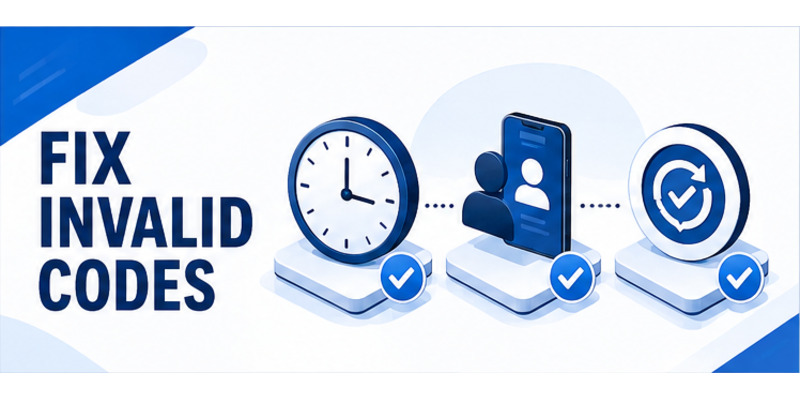
Synchronize the phone’s clock
Steam Guard codes rotate about every 30 seconds. If the phone’s clock or time zone is wrong, the displayed value can be valid on the device but outside the acceptance window on Steam’s server. Enable automatic date, time, and time zone, then restart Steam Mobile and wait for a complete new code interval.
Steam says mobile codes can be generated offline, so lack of internet alone does not prevent code creation. Accurate device time remains essential. Avoid manually adjusting the clock to “match” another device because even a small offset can cause recurring rejection.
Confirm the account and code context
When several Steam accounts are present in the app, select the exact account being signed into. Type the newest value once and avoid spaces or characters copied from an unrelated screen. If only a few seconds remain, wait for the next code.
Use where to find steam mobile authenticator code to confirm the correct Steam Guard screen. Never enter a recovery code or SMS removal value into a normal login field.
Follow this sequence when steam app authenticator not working means “invalid code”:
- Verify the account name on both devices.
- Enable automatic date, time, and zone.
- Close and reopen Steam Mobile.
- Wait for a fresh full-duration code.
- Type it into an official login you initiated.
- Stop and review security if another approval appears.
If steam authentication failed continues on every trusted device, update the app and desktop client, test the official website, and check Steam Support rather than removing the factor.
Careful synchronization resolves many steam app authenticator not working code failures without changing recovery settings.
This makes steam app authenticator not working a time-and-context check before it becomes an account recovery operation.
3. Restore Missing Push and QR Approvals
Restore push notification delivery
Push approval requires network access and permission to deliver notifications. Confirm that Steam Mobile can use Wi-Fi or cellular data, background activity is allowed, battery optimization is not suspending it, and notifications are enabled for the app. Open Steam Mobile manually to see whether the pending request appears inside Steam Guard.
Do not approve a delayed prompt unless it matches a login you are currently performing. An attacker may have triggered the request earlier. Compare the account, device, and location details, then reject anything unexpected and review sessions.
Fix QR sign-in safely
For QR problems, confirm that the code is displayed by the official Steam desktop client or a verified `steampowered.com` page you opened yourself. Increase display brightness, clean the phone camera, allow camera permission, and hold the device steady at a comfortable distance.
Never scan a QR image sent in Discord, email, social media, or a trade message. It may authorize someone else’s session. The steam guard qr code guide explains how to verify context.
If the scanner still fails, use the manual Steam Guard code or official push option. The methods provide alternative routes to the same account and help isolate whether steam app authenticator not working is a camera problem or a credential problem.
| Approval issue | Safe response |
|---|---|
| No push banner | Open app, check network and notification settings |
| Prompt has wrong location | Reject and secure account |
| Camera cannot focus | Clean lens, change distance, increase brightness |
| QR came from another user | Do not scan it |
| Manual code works | Keep authenticator; repair notification or camera settings |
Testing one method at a time makes steam app authenticator not working easier to diagnose while preserving secure login access.
💡 Discover Helpful Guides: Where to Find Steam Mobile Authenticator Code Fast
4. Resolve SMS and Phone Verification Problems
Check the registered number and latest message
SMS is used for selected setup, transfer, or recovery actions; it is not the normal rotating Steam Guard code. When steam guard sms code not sending, confirm the country prefix, registered number, cellular service, and ability to receive ordinary messages. Disable spam filtering temporarily only if you understand the carrier controls.
Wait for the latest requested value. Repeated requests can cause messages to arrive out of order, making an older valid-looking value fail. Do not post the message in support forums or send it to someone claiming to verify the account.
Use official recovery if the number changed
If the registered number is no longer yours, do not use a public SMS receiver or ask the new owner to forward codes. Start Steam’s official lost-phone or number-change recovery. Use the saved recovery code, protected email, an authorized session, or Steam Support’s ownership-verification process.
The steam authenticator recovery code guide explains secure recovery options. A recovery code should remain outside the phone and should be entered only on an official Steam screen.
For steam app authenticator not working during SMS verification:
- Confirm the phone number and country code.
- Restart cellular service or the phone.
- Wait before requesting a new message.
- Use only the newest SMS value.
- Contact the carrier if service messages are blocked.
- Continue through official Steam Support if the number is unavailable.
SMS failures do not justify disabling the authenticator or sharing credentials. Preserving ownership checks protects the account from an attacker attempting the same recovery route.
A disciplined SMS process keeps steam app authenticator not working from becoming an account takeover opportunity.
5. Repair the Steam Mobile App
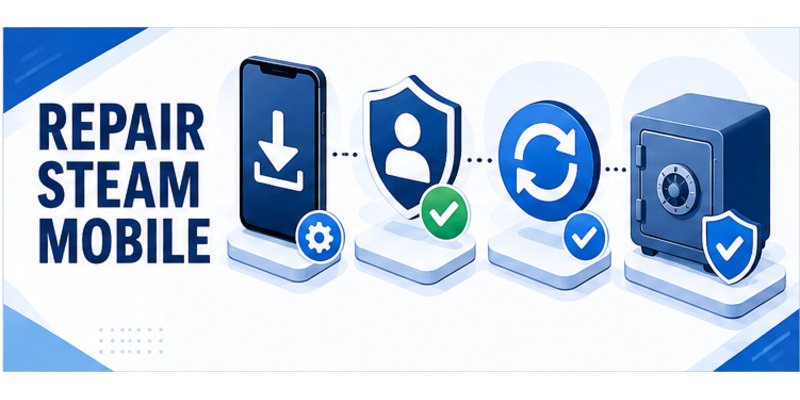
Update before reinstalling
Install the latest Steam Mobile update from the official app store and update the phone operating system. Restart the phone, reopen the app, and test Steam Guard on a trusted network. Check that storage is available and that system-level security or network filtering is not blocking the app.
Clear temporary cache only through normal operating-system controls. Avoid third-party “cleaner” utilities that may remove app data or capture credentials. On iPhone, offloading and reinstalling can affect local state; on Android, clearing storage signs the app out. Know the recovery path before either action.
Preserve recovery access before destructive steps
Do not uninstall Steam Mobile, clear all application data, or factory-reset the phone until the recovery code, registered number, protected email, and another trusted session are confirmed. An app problem is easier to solve than a self-created lockout.
When steam authenticator not working follows an app update, record the app version, operating-system version, exact error, and steps already tried. This information helps Steam Support distinguish a software defect from an account configuration issue.
Use this escalation order for steam app authenticator not working:
- Confirm the correct account and automatic time.
- Test manual code, push, and QR separately.
- Check network, permissions, and notification settings.
- Update Steam Mobile and the operating system.
- Restart the app and phone.
- Verify recovery access.
- Reinstall only if official guidance supports it.
- Contact Steam Support with specific evidence.
The general steam mobile authenticator overview can help separate intended behavior from an app fault. Keep credentials private throughout diagnosis.
Repairing the application in this order resolves steam app authenticator not working while minimizing risk to the account factor.
💡 Discover Helpful Guides: Steam Mobile Authenticator: Setup and Security Guide
6. Recover After a Lost or Replaced Phone
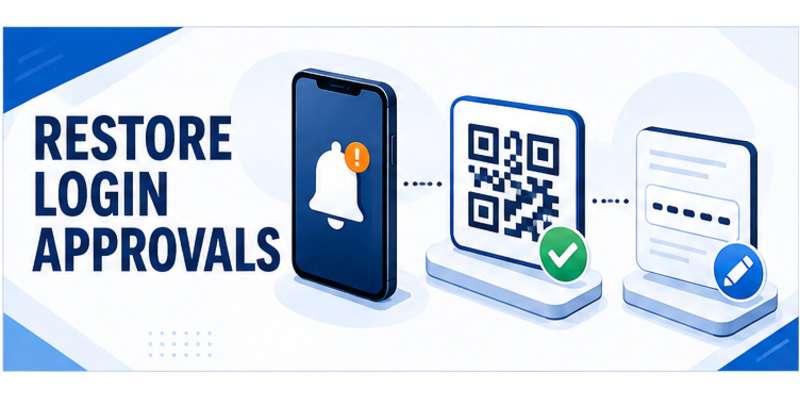
Transfer when the old device works
If a phone is being replaced rather than repaired, use Steam Mobile’s official Move Authenticator flow. Steam currently documents a two-day trading and Market restriction after transfer, compared with 15 days after authenticator removal.
Follow how to move steam authenticator to new phone for the full migration. Confirm the new phone generates valid codes and approves a test login before wiping the old device.
Recover when the phone is unavailable
If the old phone is lost but the registered number works, install Steam Mobile on the replacement and use Steam’s SMS-assisted recovery. If the number is also unavailable, use the stored recovery code or Steam Support. Submit ownership evidence only through the official help portal.
| Available method | Recommended recovery action |
|---|---|
| Old phone works | Move Authenticator |
| Registered number works | SMS-assisted recovery |
| Recovery code available | Official recovery flow |
| Authorized desktop session | Preserve it for context and review |
| No method available | Steam Support ownership verification |
Do not buy a “generated” code or remote recovery service. Steam Guard values are designed to prevent unauthorized access; no legitimate helper can calculate one without the credential.
If steam app authenticator not working began after loss or theft, change passwords on a clean device, deauthorize other sessions, review trades and API access, and protect the linked email. Recovery is both an access task and an incident response.
The safe recovery route solves steam app authenticator not working by proving ownership, not by bypassing the factor.
7. Check Account Security and Service Conditions
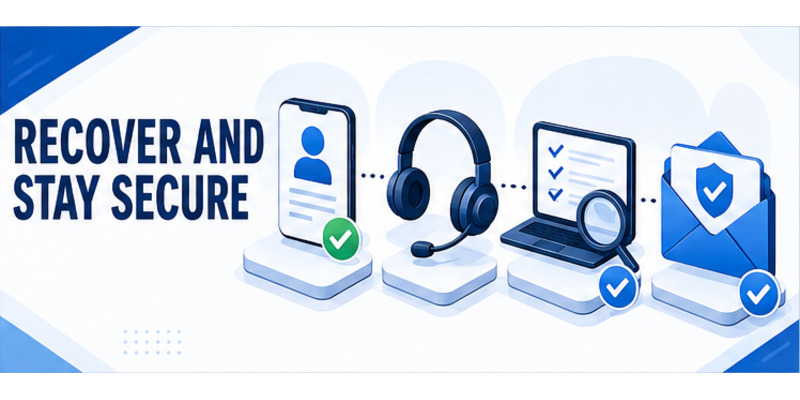
Rule out compromise and phishing
Unexpected prompts, unfamiliar locations, password-reset emails, or inventory changes indicate more than a routine app fault. Reject unknown approvals, change the Steam password, secure the email account, and deauthorize all other devices. Review trade history, Community Market activity, and any authorized API access.
Navigate to Steam by typing the official address or opening the installed client. Do not follow a login link from a stranger. Steam staff do not ask users to send rotating codes, SMS values, recovery codes, or QR scans.
Check service availability without weakening security
If multiple devices and sign-in methods fail simultaneously, consult Steam’s official support or status communications and try again later. A temporary service problem does not require removing the authenticator. Record timestamps and error messages for a support case.
Compare these signals when steam app authenticator not working:
| Signal | More likely cause | Action |
|---|---|---|
| One phone fails, website works | Local app or device issue | Repair app, time, network |
| All methods fail briefly | Service or account issue | Check official support, wait, document |
| Unexpected approvals appear | Credential compromise | Reject, change passwords, deauthorize |
| Correct code fails on one account | Wrong selected profile | Match account identity |
| Only SMS is missing | Carrier or number issue | Verify service and recovery route |
Avoid community tools that claim to test or validate live Steam Guard values. Such services can capture the very credential they claim to diagnose.
Separating service conditions from compromise keeps steam app authenticator not working troubleshooting proportionate and secure.
💡 Discover Helpful Guides: How to Move Steam Authenticator to New Phone Safely
8. Prevent Future Steam Guard Failures
Maintain the phone and recovery methods
Keep automatic date and time enabled, update Steam Mobile and the operating system, maintain a screen lock, and allow essential app notifications. Store the recovery code in an encrypted password manager or secure offline record outside the phone.
Keep the registered number and contact email current. Protect the email with a unique password and separate multifactor method. Review authorized devices monthly and remove old phones, shared computers, and unfamiliar browsers.
Practice deliberate approvals
Initiate every login yourself, verify the domain or client, compare the device and location, and reject surprise prompts. Scan QR codes only from an official Steam screen you opened. Never approve a request to satisfy a trader, tournament organizer, or person claiming to be Steam staff.
Create a small maintenance checklist:
- Verify Steam Mobile and phone updates.
- Confirm automatic time remains enabled.
- Review authorized Steam devices.
- Check recovery-code storage.
- Verify email and number access.
- Review trade and sign-in activity.
- Plan authenticator transfer before replacing the phone.
If steam app authenticator not working returns, this record shows what changed and which recovery methods remain available. It also reduces the temptation to remove protection during a stressful login.
The setup guide how to enable mobile authenticator on steam provides a clean baseline for re-enrollment when official recovery genuinely requires it.
Preventive maintenance makes steam app authenticator not working less frequent, easier to diagnose, and less likely to cause permanent account loss.
9. Frequently Asked Questions
Why is my Steam Guard code invalid?
The phone clock may be wrong, the code may have expired, or the wrong Steam account may be selected. Enable automatic time, choose the correct profile, wait for a fresh value, and try once on an official login.
Can Steam Guard generate codes offline?
Yes. Steam states that the mobile authenticator can generate codes without network access. Accurate device time is still required for the server to accept them.
Why did I not receive a push approval?
Check network access, notifications, background activity, battery optimization, and the pending requests inside Steam Mobile. Use a manual code if appropriate, and never approve a delayed request you do not recognize.
Why is Steam Guard SMS code not sending?
Verify the registered number, country prefix, cellular service, message filtering, and latest request. Wait before requesting another value. If the number is unavailable, use official account recovery.
Should I remove and re-add the authenticator?
Usually no. Removal weakens security and Steam documents a 15-day trading and Market restriction afterward. Repair the specific symptom or transfer the authenticator when replacing a phone.
What if my phone was stolen?
Change passwords from a clean device, deauthorize sessions, use the registered number or recovery code, and contact Steam Support if needed. Review trade, Market, and API activity for compromise.
Can Google Authenticator replace Steam Mobile?
Steam’s consumer Steam Guard enrollment is designed for the official Steam Mobile app, which integrates codes, QR sign-in, approvals, device controls, and recovery. Avoid third-party generators asking for Steam credentials.
How long should steam app authenticator not working troubleshooting take?
Time synchronization, account selection, and permission checks take minutes. Recovery can take longer when the phone, number, and code are unavailable because Steam must verify ownership.
10. Final Thoughts
The fastest safe response to steam app authenticator not working is to classify the symptom before changing security. Check the correct account, automatic time, fresh code, network, notifications, camera, SMS delivery, app version, and recovery access in that order.
Preserve the authenticator whenever possible. Use Move Authenticator for a replacement phone, and use the registered number, recovery code, or Steam Support after a loss. Removal should be a deliberate last resort because it weakens protection and creates a longer documented trading restriction.
Treat unexpected prompts as a security incident. Reject them, change passwords on a clean device, deauthorize sessions, and inspect trade and API activity. Never give another person a rotating code, SMS value, recovery code, password, or QR approval.
Visit Authenticator App for broader two-factor setup, recovery, and phishing-defense guidance. A methodical steam app authenticator not working workflow restores access while keeping the factor, account ownership, and inventory protected.
After access returns, document the cause and the successful fix in a private security checklist. Confirm that the recovery code remains readable, the contact email and number are current, and only recognized devices stay authorized. These steps turn a steam app authenticator not working incident into useful preparation for the next device change or service interruption.
Do not stop at the first successful login. Complete one additional trusted test, review recent account activity, and preserve the recovery path that made the repair possible. That final review ensures steam app authenticator not working does not conceal a separate compromise or leave an obsolete session active.
