Email Authentication Outlook: Setup and Recovery
Published September 16, 2026 · Updated September 23, 2026
By the Authenticator App Team
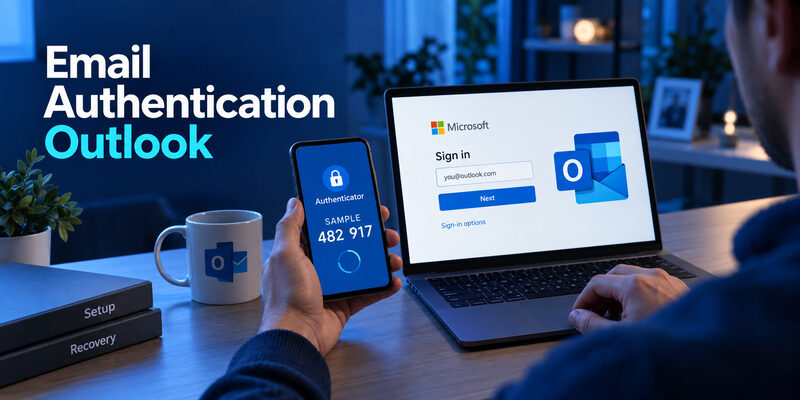
Outlook email authentication depends on whether you use a personal Microsoft account or a work or school account managed by an organization. Start with that distinction, then enroll the sign-in method offered for that account.
An “email authentication outlook” problem can also come from an outdated mail-client connection, which requires a different fix from a missing authenticator code. This guide covers personal two-step verification, workplace registration, iPhone sign-in, and the recovery choices available when the usual phone is unavailable. It also explains why notifications, standard app codes, and OAuth connections should not be treated as interchangeable parts of the same setup.
Identify the Account Behind Email Authentication Outlook
Personal Microsoft accounts
Outlook.com, Hotmail, and Live addresses commonly use personal Microsoft accounts. Their security methods are managed through the personal account’s security settings. Outlook is the email experience, while the Microsoft account is the identity being protected.
For “email authentication outlook,” first confirm the address shown on the sign-in page. A browser already signed into a different Microsoft identity can send you toward the wrong security settings. Use the account selector deliberately instead of assuming the mailbox currently visible in an app determines every browser session.
Work or school accounts
A workplace mailbox can use Microsoft 365 while its authentication is governed by organizational policy. An administrator can control permitted methods, registration requirements, application access, and device conditions. Personal-account recovery instructions do not automatically apply.
| Account situation | Security owner | Best starting point |
|---|---|---|
| Personal Outlook.com mailbox | You and Microsoft’s personal-account service | Personal account security settings |
| Work or school mailbox | Your organization | Work-account security information |
| Another provider inside Outlook | That mail provider | The provider’s sign-in and security settings |
Record which category applies before changing anything. If the Outlook app contains a Gmail account, for example, Google controls that account’s authentication. The email authentication outlook workflow follows the underlying identity provider, not merely the envelope icon on the device. This prevents unnecessary app changes and helps you contact the right support team if registration is blocked.
A single address can also appear in more than one account context. If the sign-in asks you to choose personal or work or school, select the identity that actually owns the mailbox you need. Keep that choice consistent during registration and testing so that a successful setup is not mistakenly attributed to the other account.
💡 Discover Helpful Guides: Email Authenticator: Complete Guide to Secure Email Authentication
Turn On Two-Step Verification for a Personal Account
Open the correct security settings
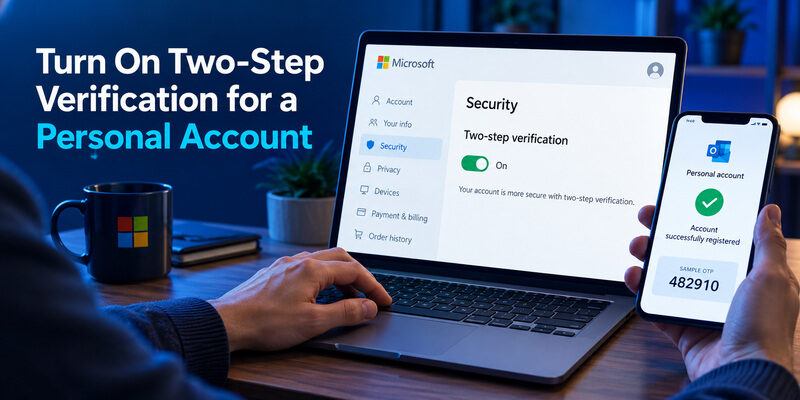
Sign in to your personal Microsoft account through a trusted route and open its security area. Microsoft’s documentation directs users to the sign-in management settings and additional security options for two-step verification. Labels can vary as the interface develops, so confirm that the page describes your personal account.
Before enabling the setting, review the methods you can actually access. A long-abandoned recovery address or an unavailable phone is not a useful safety net. Treat “email authentication outlook” setup as a chance to correct those dependencies while you still have ordinary access.
Finish registration and test the result
Follow the account’s offered enrollment flow for your chosen method. Complete the required verification rather than stopping when an app first displays an entry. Save the recovery information Microsoft provides and keep it separate from the device that will normally approve sign-ins.
Outlook email two factor authentication should leave you with a tested method and a realistic alternative. Microsoft warns that losing access to security information can seriously complicate recovery. Avoid assuming that knowing the password will always be enough once two-step verification is active.
After setup, review the account’s security-method list. Then perform a controlled sign-in while preserving your existing authenticated session. For email authentication outlook, that test should establish that the intended account accepts the intended method. It does not require signing out of every device or removing useful fallback access.
Download Authenticator App
Secure your accounts with fast, reliable two-factor authentication. Download now and protect your login in seconds.
Register a Work or School Account
Follow the organization’s registration flow
Workplace registration often begins with a prompt for additional security information. Microsoft’s sign-in-page guidance describes adding Microsoft Authenticator and completing the displayed test. The organization decides which methods are available, and some accounts require more than one registration step.
If “email authentication outlook” takes you to a work-account page, follow that page’s offered choices. Do not scan a personal-account setup image into a work entry or assume a generic authenticator option exists because another company allows it.
Keep the enrollment type consistent
Microsoft Authenticator supports different account types. A work or school registration used for notifications is not the same as adding a standard time-based code through an other-account workflow. Choose the type and sequence requested by your organization.
The test matters because it checks the connection the account actually intends to use. A visible code elsewhere in the app does not prove that push approval has been registered. Likewise, a successful personal Microsoft registration says nothing about your employer’s account.
If the required method is unavailable, contact the organization’s help desk through its established channel. Explain the exact registration screen and the device involved without sending the QR secret or live approval details. The email authentication outlook fix may require administrator action rather than another installation. Keep the current session open when possible until the organization confirms how to finish registration safely.
📘 Find the Right Guide: Email 2FA: Protect Your Inbox and Understand Email Codes
Read the Prompt Before Opening an Authenticator
A notification asks you to approve a request
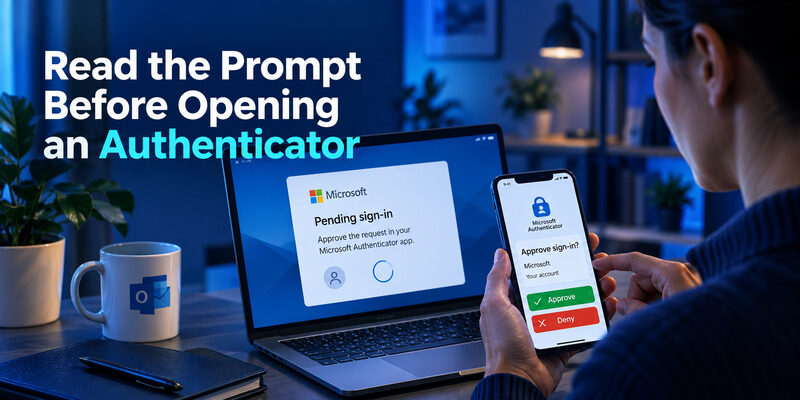
A Microsoft Authenticator notification can ask you to respond to a sign-in you just started, sometimes with a number-matching step. Check that the request belongs to your current action and the intended account. Deny unexpected requests rather than approving them to make notifications stop.
This is a central distinction in email authentication outlook troubleshooting. If the page expects a notification response, an arbitrary six-digit code from another app is not an equivalent answer. Connectivity, notification permissions, and the registered device can matter for this workflow.
A code prompt expects the enrolled generator
When the page specifically offers an authenticator code, open the matching enrolled entry and provide a fresh value. Standard time-based codes can be calculated locally, but they still require the correct enrollment and reasonably accurate device time.
An authenticator app for outlook email must support the method your account permits. A standard code generator cannot replace Microsoft-specific push or organizational requirements merely because both products use the word “authenticator.”
For email authentication outlook, describe the visible challenge precisely: notification approval, number matching, changing code, security key, or another offered method. That description immediately narrows the useful troubleshooting steps. It also prevents accidental approval of an unrelated request while you are trying to solve a legitimate access problem on a second device.
📖 Read More Guides: Email Authentication Failed Fixes for Login and Sending
Add Outlook Email to an iPhone
Choose the matching account connection
If you are asking how to add outlook email to iphone with authenticator, first decide whether you are adding the mailbox to Outlook for iOS or to Apple Mail. Use the current app’s add-account flow and choose the provider type that matches the account.
For personal Outlook.com in Apple Mail, Microsoft’s modern-authentication guidance recommends the Outlook.com account option. A work account may use a different organizational setup, and the company can require Outlook, device management, or another approved configuration. Follow the actual account policy rather than forcing a personal-account path.
Complete Microsoft sign-in and return to mail
The mail app should direct you through the supported Microsoft sign-in experience. Complete the requested verification using your registered method, then return to the mail app and allow the connection to finish. Do not paste a changing authenticator code into a field intended for a permanent account password.
A successful email authentication outlook connection should let the app synchronize the expected mailbox. Check that the visible address is correct before judging the result. If sign-in succeeded but mail does not appear, investigate the synchronization state separately.
Before removing and re-adding an existing account, check for unsent messages and data stored only on the device. That practical precaution is particularly relevant when email authentication outlook troubleshooting instructions suggest recreating a connection. Preserve local work so that fixing access does not create an unrelated loss.
On a phone containing several Microsoft identities, check the address displayed when switching between the mail app, browser, and authenticator. Each application can retain its own selected account. A successful approval for one identity will not complete a request for another. Pause and align the account names before retrying a flow that seems to return to the beginning.
📖 Read More Guides: Email Authentication SPF Checks and Domain Setup Explained
When the Password Works on the Web but the App Fails
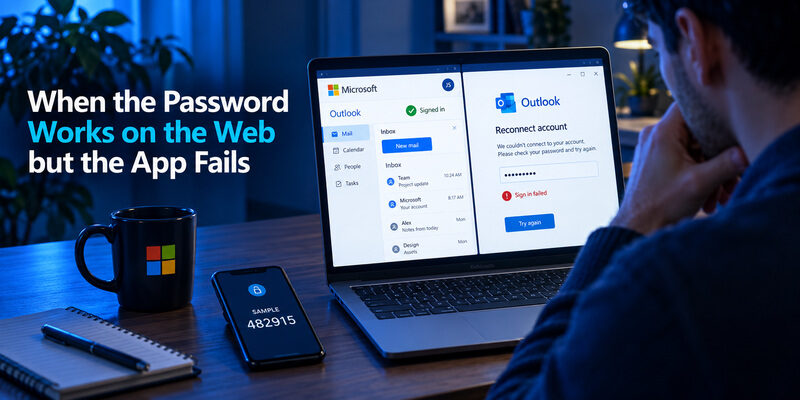
A working web sign-in is useful evidence. It suggests that the account credentials and at least one authentication route can work, while the mail client may have a connection or authorization problem. It does not prove that every client configuration is supported.
Microsoft’s Outlook.com documentation states that Basic Authentication is no longer available for those accounts. The recommended direction is a supported modern-authentication connection. If an old client repeatedly asks for the password, supplying more passwords or app codes will not repair an unsupported authentication method.
| Observation | Likely area to investigate | Useful next action |
|---|---|---|
| Web works; old client repeatedly prompts | Client configuration or compatibility | Check supported OAuth account setup |
| Correct page requests a missing phone | Registered security method | Use an offered alternative or recovery |
| Work sign-in mentions policy or device | Organizational access conditions | Contact the help desk with the exact message |
| App signs in but mailbox is wrong | Selected identity | Review the account address and connection |
For email authentication outlook, check both receiving and sending behavior when using a client with separate configurations. Avoid changing unrelated server settings from a generic forum post. Use the mail provider’s current instructions for that application and account type.
An app password is not a universal exception to discontinued Basic Authentication. Nor does disabling a second factor make an unsupported client modern. The email authentication outlook solution should preserve account protection while bringing the client onto a supported sign-in route.
Before rebuilding the connection, note the application version and whether it was added through an automatic provider option or manual server settings. Check for unsent drafts and local folders as well. That record makes email authentication outlook troubleshooting reversible and gives support a clearer view of the failing configuration without exposing the account password.
📖 Read More Guides: Google Email Two Factor Authentication Setup for Gmail
Sign In When the Usual Authenticator Is Unavailable
Use an alternative already available to the account
For , the legitimate starting point is the sign-in page’s alternative-method option. A registered security key, another allowed method, or provider-issued recovery material may be useful depending on the account. Only the choices supported by that account apply.
A recovery email available to a personal account does not imply that the same method can satisfy workplace MFA. Microsoft’s work-account security-information guidance explicitly distinguishes email for password reset from methods used for two-factor verification.
Route recovery to the correct owner
If no available method works, personal accounts use Microsoft’s applicable recovery guidance, while organizational accounts may need the company help desk to reset or re-register security information. Recovery can involve checks or restrictions, and success is not guaranteed simply because you know the mailbox address.
Preserve authenticated access you still have. Do not delete an existing app entry, wipe the old phone, or sign out of every session merely to “start fresh.” Those actions can remove useful options without resolving the missing proof.
For email authentication outlook, the objective is to regain an authorized method, not to bypass the challenge. A support agent should never need you to approve an unsolicited request on someone else’s behalf. Keep passwords, setup secrets, and live codes out of ordinary support conversations.
💡 Discover Helpful Guides: Google Workspace Email Authentication for Business Domains
Replace or Remove an Authenticator Safely
Register the replacement first
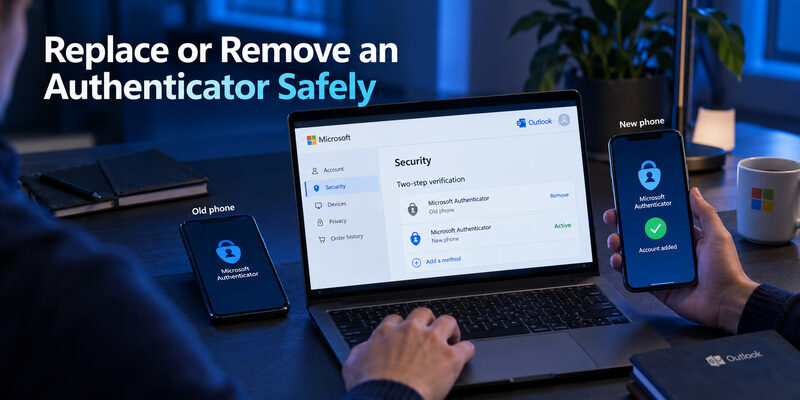
A planned phone change is easiest while the old phone still works. Review the app’s supported transfer or restoration process and the Microsoft account’s own method list. Some restored entries can require additional verification or re-registration, particularly for work or school use.
The email authentication outlook migration test is a successful account verification from the replacement device. An app icon, restored account name, or general backup-success message is not enough to establish that every sign-in capability is ready.
Remove only the retired method
If you need to know how to remove authenticator from outlook email, distinguish removing an app entry from removing the registered method on the account. Deleting local data does not necessarily stop Microsoft from asking for that method. Make account-side changes through the appropriate security settings.
Confirm an alternative first, remove the retired registration when appropriate, and review the remaining methods. A workplace can restrict removal or require a replacement before allowing it. In that case, follow the help desk’s approved process.
Keep recovery material private throughout the move. If a setup image or transfer file was exposed, replacing the active enrollment may be necessary rather than merely renaming the entry. The email authentication outlook plan should end with the new device working, the old method handled deliberately, and at least one suitable recovery route still available.
🗺️ Browse How-To Guides: Passwordless Email Authentication With Magic Links and Codes
Resolve Rejected Codes and Missing Notifications
Diagnose the failure you can observe
For a rejected code, verify the selected Microsoft identity, the enrolled app entry, the device’s time, and the code’s remaining validity. Wait for a fresh value if the current one is about to change. Avoid deleting the entry before establishing how it can be restored.
For a missing notification, check the registered device, connectivity, notification permissions, and whether the sign-in page offers another permitted method. A workplace restriction or stale device registration may require administrator assistance. Repeatedly reinstalling software is not a precise test.
Keep a useful support record
A concise email authentication outlook report should state whether web sign-in works, which account category applies, what the prompt expects, and what changed recently. Include the visible error wording and time of the attempt when appropriate. Exclude passwords, enrollment secrets, and active verification codes.
That record helps distinguish a wrong entry from a client problem or organizational policy. For example, “new phone; work account; notification still goes to the old device” is much more actionable than “Outlook is broken.”
If you are selecting a standard code manager for accounts that permit it, is one option to review. It does not replace Microsoft Authenticator where a Microsoft-specific method is required. Keep that compatibility boundary clear during email authentication outlook troubleshooting so that changing apps does not introduce another mismatch.
If the problem began after a password change or a device replacement, include that sequence in your report. Keep the last working method available until the cause is understood. A useful email authentication outlook investigation changes one relevant component at a time, so a later successful attempt can be connected to the specific correction rather than to several unrelated resets.
📘 Find the Right Guide: Email Authentication SPF Checks and Domain Setup Explained
Common Outlook Authentication Questions
These answers address the points most likely to remain unclear after account type, client connection, and verification method have been separated. Apply each answer to the actual Microsoft identity involved in your email authentication outlook task.
Where is the Outlook email authenticator QR code?
It appears during the appropriate account’s authenticator registration process when that method is offered. It is not a general QR code shared by all Outlook users. Start from personal account security or work-account security information, according to the identity you are enrolling.
Can every authenticator app approve Microsoft notifications?
No. Standard time-based code support does not provide Microsoft-specific notification approval. Use the method and application required by the registration flow. An organization can further restrict which methods satisfy its policy, even if another app can generate codes for other services.
Can my work account send MFA codes to email?
Microsoft’s security-information guidance treats email as a password-reset method, not a work-account two-factor verification method. Do not assume a recovery address can replace a required authenticator challenge. Use the alternatives your organization actually permits or contact its help desk.
Why is Outlook still syncing without asking for a code?
A previously authorized connection can continue using its valid session or tokens. MFA is not necessarily requested for every mailbox operation. Continued synchronization therefore does not by itself mean that the account’s additional sign-in protection has been disabled.
Does deleting the app remove two-step verification?
No. Local deletion and account security settings are separate. Removing the only usable entry can instead create an access problem. Establish another working method and make any intended registration changes through the appropriate Microsoft security settings before deleting local data.
💡 Discover Helpful Guides: Email Authentication in Zoho CRM With DKIM SPF and DMARC
Final Thoughts
Successful email authentication outlook setup begins with identifying the account behind the mailbox. Personal Microsoft accounts, work or school identities, and other providers displayed inside Outlook can follow different security and recovery rules.
Next, identify the method the sign-in actually expects. A Microsoft Authenticator notification is different from a standard time-based code. An OAuth connection is different from both, even when its setup includes an MFA challenge. Matching the method to the prompt prevents many unnecessary reinstalls and rejected-code loops.
For a new setup, finish enrollment and complete a controlled verification. For a replacement phone, preserve the old working method until the new device is proven. For a missing authenticator, use an account-authorized alternative or the recovery route owned by Microsoft or your organization.
When only a mail client fails, investigate its supported connection rather than weakening account protection. Protect unsent or locally stored work before rebuilding a connection, and record the exact error if support is needed.
A reliable email authentication outlook workflow leaves three things clear: which identity you are using, which proof it accepts, and how you can recover when the everyday method is unavailable. Maintain those details alongside the mailbox, and routine sign-ins, device changes, and troubleshooting become much easier to manage.