Email Authentication in Zoho CRM With DKIM SPF and DMARC
Published September 22, 2026
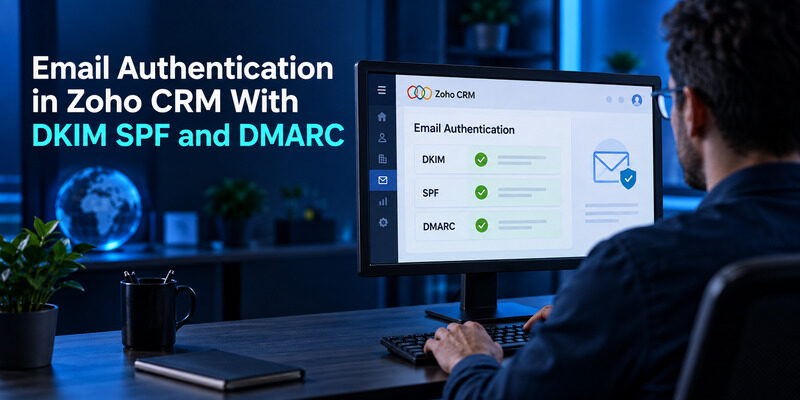
To configure email authentication in Zoho CRM, add and verify your sending domain, publish the records shown for that domain, validate them in CRM, and test a real outgoing message. DKIM is required in Zoho’s documented setup; SPF is recommended, while DMARC adds policy and alignment checks for the visible sender domain.
The work crosses two administrative boundaries: CRM controls the sending configuration, and the authoritative DNS host publishes the domain’s records. Having access to one does not automatically give you access to the other. Start by identifying the person responsible for each side.
This guide explains email authentication in Zoho CRM as a practical change process, including existing Zoho authentication, duplicate SPF policies, DNS name errors, and other platforms using the same domain. It finishes with a message-level check so a green setup status is supported by evidence from an actual recipient.
Prepare the Domain and Sending Inventory
Identify the visible sender and the actual service
Write down the address recipients should see and the route that sends the message. A salesperson’s connected mailbox, an organizational sender, and a mass-email workflow may not use identical infrastructure. Test the route you intend to change rather than assuming one successful message represents them all.
For email authentication in Zoho CRM, record the domain or subdomain exactly. A record for a parent domain does not necessarily configure every independently used subdomain. Keep the visible From address beside the workflow name in your notes so another administrator can reproduce the test.
Find the authoritative DNS owner
The registrar that sold the domain may not host its active DNS. Check where the domain’s authoritative nameservers point and identify the administrator who can edit that zone. Editing an unused DNS panel can produce a perfect-looking record that receiving mail systems will never query.
Before changing email authentication in Zoho CRM, preserve the current relevant records and identify other senders. A domain might also send employee mail, invoices, support replies, and marketing campaigns. Removing their authorization during a CRM fix can move the problem elsewhere.
A small change record should name the domain, service, existing record, intended modification, owner, and validation method. This is especially useful when a marketing team requests the change but an IT team performs it later. It reduces ambiguity without requiring anyone to exchange a registrar password or a screenshot containing unrelated account secrets.
 Discover Helpful Guides: Email Authenticator: Complete Guide to Secure Email Authentication
Open Email Authentication in Zoho CRM and Verify Ownership
Add the intended sending domain
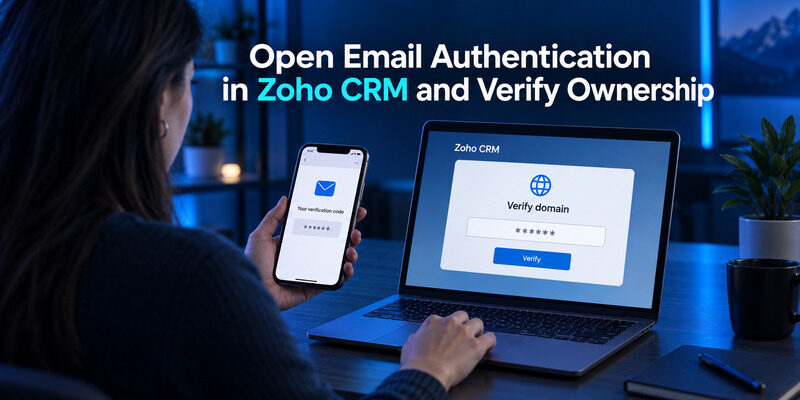
Zoho’s Email Authentication help page places the workflow under Setup, Channels, Email, Email Deliverability, and Email Authentication. An administrative profile is required. Add the relevant domain through the email address requested by the workflow, then complete the domain verification message.
If the interface differs, look for the email-deliverability and domain-authentication area rather than treating an older screenshot as authoritative. Confirm that you are in the correct CRM organization and using a role permitted to manage sending domains.
Keep verification separate from DNS validation
The ownership message and DNS records solve different parts of the setup. Completing the message does not mean that every outgoing email is already signed correctly. Continue to the record-validation stage and inspect the values associated with the verified domain.
For email authentication in Zoho CRM, use a short operational sequence:
1. Confirm the address and organization before requesting verification.
2. Complete the verification through the intended mailbox.
3. Open the domain’s record details and pass those exact values to the DNS owner.
4. Return to validate after the public records are available.
Finish with a real sending test
Keep the original working sender configuration available while the new domain is being prepared. Do not announce a completed rollout after the first verification step alone. The useful completion evidence is a validated configuration plus a received message from the intended workflow. That distinction gives the team a clear next action when ownership verification succeeds but DNS validation remains pending, instead of repeatedly requesting another verification email.
Download Authenticator App
Secure your accounts with fast, reliable two-factor authentication. Download now and protect your login in seconds.
📘 Find the Right Guide: Email Authentication Outlook: Setup and Recovery
Publish the DKIM Record Shown for Your Domain
Copy the selector and key accurately
DKIM lets a receiving system verify a message signature using a public key published in DNS. The selector identifies which key to retrieve. When configuring email authentication in Zoho CRM, copy the exact record name, type, and value displayed for your domain rather than borrowing another organization’s example.
Long key values are vulnerable to copy errors. Check for omitted characters, accidental spaces introduced by a document, and a record pasted into the wrong field. Follow the DNS provider’s expected input format; do not manually alter the key to make it resemble a shorter tutorial sample.
Confirm the final DNS name
Some DNS panels automatically append the zone’s domain to a short host label. If you paste a full name into a field that appends it again, the published result can contain the domain twice. The panel may save that entry without warning, leaving CRM unable to find the expected record.
For email authentication in Zoho CRM, inspect the resulting fully qualified DNS name before troubleshooting anything more complicated. Compare it character by character with the requested name. Also confirm that the record exists in the authoritative zone, not only in a local change form that has not been submitted.
After publishing, allow for DNS caching and use CRM’s validation action. Keep a timestamp for the change and the result of each check. If validation fails, preserve the evidence and change one suspected cause at a time. Replacing keys, hostnames, and unrelated sender settings simultaneously makes it difficult to identify which correction actually solved the problem.
💡 Discover Helpful Guides: Email 2FA: Protect Your Inbox and Understand Email Codes
Merge SPF Authorization Without Creating a Second Policy
Read the existing policy first
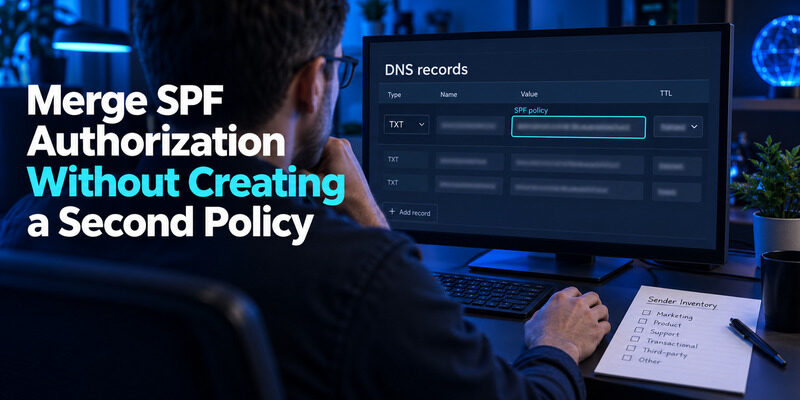
SPF evaluates whether a sending server is authorized for the domain being checked. An existing policy may already authorize other legitimate services. For email authentication in Zoho CRM, review that policy before adding the region-appropriate authorization shown by Zoho.
RFC 7208 specifies that multiple SPF records for the same domain cause a permanent error. Publishing a second TXT record beginning with v=spf1 is therefore not a safe way to add another sender. Other unrelated TXT records can coexist; the problem is multiple SPF policies for the same name.
Preserve syntax and the lookup budget
Merge required authorization into one valid policy and retain legitimate existing senders. The SPF specification also limits DNS-querying terms during evaluation. A policy can look concise while nested includes make it exceed the limit, so assess the complete evaluation rather than counting visible provider names alone.
| Situation | Useful check | Action to avoid |
|---|---|---|
| Existing SPF policy | Identify its current senders | Replacing it blindly |
| Two SPF policies | Consolidate into one valid policy | Leaving both active |
| Lookup-limit error | Review nested evaluation | Adding another include without review |
| Wrong Zoho region | Compare with account-generated value | Copying an unrelated region’s sample |
Email authentication in Zoho CRM should not trade one working sender for another. Ask the domain owner to review the combined policy, document the change, and test representative messages from other important services afterward. That modest regression check is particularly valuable on domains shared by billing, support, employee mail, and marketing automation.
Check the final published policy after saving, not only the proposed edit. Retain the previous value in the change record for diagnosis.
📘 Find the Right Guide: Email Authentication Failed Fixes for Login and Sending
Check DMARC Alignment on a Received Message
DMARC evaluates the visible From domain against an authenticated SPF or DKIM identity. A passing SPF result for some other domain does not necessarily align with the address the recipient sees. Likewise, a DKIM signature matters for DMARC only when the relevant signing domain aligns under the policy’s rules.
When reviewing email authentication in Zoho CRM, open a received message’s original headers and inspect Authentication-Results along with the visible From domain. Distinguish the envelope sender used in SPF from the From header shown in the mailbox interface.
Zoho’s troubleshooting guidance explains that its return-path behavior can affect SPF alignment. A valid, aligned DKIM signature can provide the successful path needed for DMARC even when SPF alignment is absent. Confirm the result on your message rather than assuming every SPF-related warning means DKIM should be replaced.
A monitoring policy can help identify legitimate senders before stronger enforcement is introduced. Moving directly to rejection without an inventory can disrupt mail from services nobody remembered to include. RFC 7489 explains the policy and alignment model; apply it to the whole domain, not just the CRM route under investigation.
For email authentication in Zoho CRM, keep a copy of sanitized header results with the change record. Record the sending workflow and receipt time as well. This makes the evidence useful when a later campaign behaves differently, and prevents a screenshot from one unrelated email being treated as proof for every sending path.
💡 Discover Helpful Guides: Passwordless Email Authentication With Magic Links and Codes
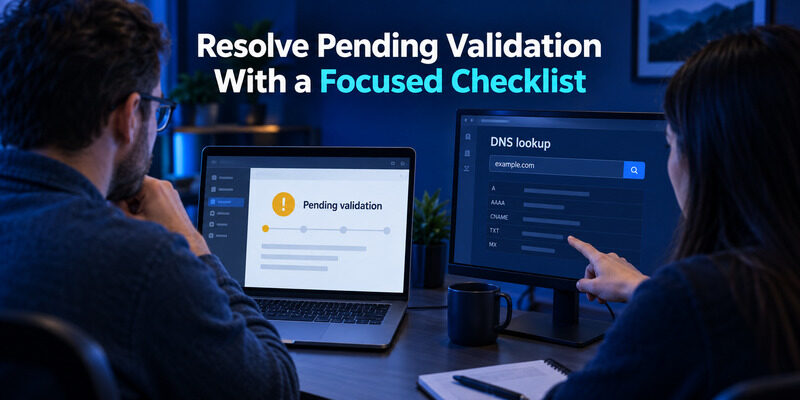
Resolve Pending Validation With a Focused Checklist
Check what the public DNS actually returns
A pending status can reflect a missing record, a wrong host name, an incomplete value, or cached information. Begin with the exact record CRM expects and compare it with the public result. A screenshot of a DNS editing form proves what someone entered, not necessarily what is currently published.
Use this sequence when email authentication in Zoho CRM remains pending:
- Confirm the authoritative DNS host and selected zone.
- Compare the complete requested name with the published name.
- Check the record type and full value.
- Review duplicate SPF policies or conflicting records.
- Allow the relevant cache interval, then validate again.
Keep status evidence and delivery evidence distinct
| Symptom | Likely investigation area | Evidence to collect |
|---|---|---|
| Record cannot be found | Zone or hostname | Public DNS response |
| Record found but rejected | Value or syntax | Requested and published values |
| CRM validates but mail fails | Actual sending route | Received-message headers |
| Only one workflow fails | Workflow-specific configuration | Matching test messages |
Do not repeatedly regenerate records just because validation is not immediate. First identify whether the existing value is wrong or merely not visible where it is being checked. Each new change can create another state that administrators must track.
Once email authentication in Zoho CRM validates, repeat the original sending test. If the message still fails, move the investigation to its actual headers and route. That transition avoids spending hours editing DNS after the configuration problem has already been resolved but a different delivery issue remains.
Record the exact lookup time and result. This helps distinguish a persistent configuration error from different resolvers returning cached information during the change.
💡 Discover Helpful Guides
Google Email Two Factor Authentication Setup for Gmail
Reconcile Existing Zoho Mail and Other Zoho Authentication
Zoho’s current CRM documentation describes recognition of domains authenticated through other Zoho products, subject to the conditions and update timing it lists. Therefore, do not assume that every domain requires a completely new, unrelated set of records merely because the team is opening CRM for the first time.
At the same time, do not infer success solely from a colleague saying that Zoho Mail already works. Inspect the domain’s actual authentication status in CRM and confirm which records and sending identities are involved. The correct decision for email authentication in Zoho CRM comes from that evidence, not from the similarity of product names.
If an existing authentication status is recognized, preserve working records and test a CRM-originated message. If the status is not recognized, review the documented prerequisites and timing before creating duplicate configuration. Use the values and validation path presented for the actual account.
Consider a team whose employee mailbox sends successfully while a CRM campaign uses a different From domain. The successful mailbox test does not establish that the campaign’s domain has been authenticated. Compare the domain names explicitly and record the outcome for each route.
This is where a shared domain inventory pays off. It shows whether two administrators are discussing the same domain, a subdomain, or simply two services owned by the same company. Email authentication in Zoho CRM becomes a bounded verification task instead of a debate over whether the organization has already configured email in general.
💡 Discover Helpful Guides: How to Add Email to Authenticator App With QR or Manual Setup
Coordinate Other Platforms That Send From the Same Domain
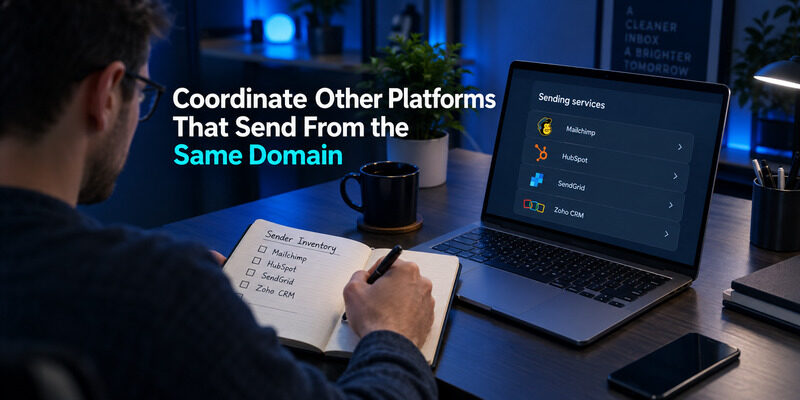
Keep each platform’s instructions with its records
If employee mail uses Google Workspace, review as part of the same inventory. A domain may also support Mailchimp, HubSpot, Constant Contact, SendGrid, Shopify, or Salesforce Account Engagement, historically called Pardot. Those names identify separate sending products, not interchangeable DNS values. Track each platform’s requested records and verification result in the same inventory.
Mailchimp’s domain-authentication documentation separates domain verification from authentication and provides its own setup workflow. Twilio SendGrid likewise documents a domain-authentication process. Use the current instructions generated by the account you are configuring; do not transplant CRM record values into another platform simply because both screens mention DKIM.
Assign DNS changes to a single review process
Searches such as email authentication mailchimp or email authentication hubspot can help locate the relevant product workflow, but they should not replace a consolidated review of the shared zone. A marketing team adding a new service can unintentionally change a policy maintained for several other senders.
When maintaining email authentication in Zoho CRM alongside those services, record which selector or sending subdomain belongs to which platform. Several distinct DKIM selectors can coexist. SPF changes still need to result in a valid policy at each applicable domain name.
The practical rule is to preserve provenance: requested by which account, published by whom, and validated with which test. This makes future removal safer when a subscription ends. Do not delete a DNS record solely because its name is unfamiliar; establish its owner and whether any active workflow still depends on it before changing the shared configuration.
📖 Explore Articles: How to Add Email to Authenticator App With QR or Manual Setup
Protect CRM and DNS Access Separately From Mail Authentication
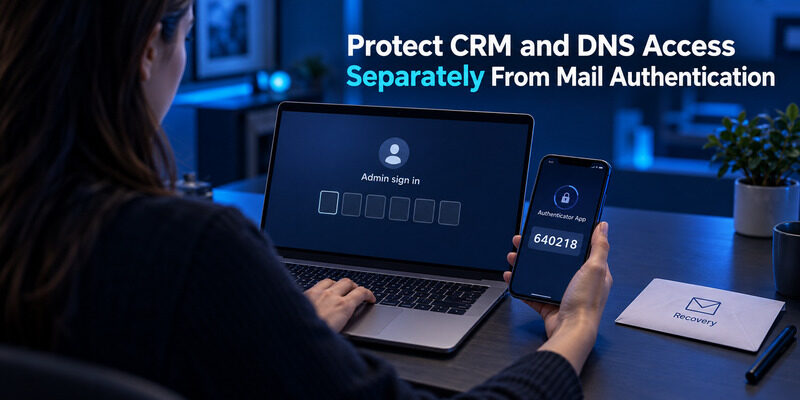
Secure the accounts that can change the configuration
DKIM, SPF, and DMARC do not protect an administrator’s interactive login. Someone with control of CRM or the DNS account may be able to change the settings that make messages appear trustworthy. Review access to both systems and remove accounts that no longer need administrative privileges.
For email authentication in Zoho CRM, assign routine ownership without sharing one personal login among several people. Use the provider’s supported role and access controls. Keep recovery details current so an employee departure does not leave the organization dependent on a former colleague’s phone.
Enroll supported factors and preserve recovery
A search for godaddy email two factor authentication concerns account access rather than the DNS proof used by a recipient. Similarly, cPanel email authentication settings and a cPanel administrator’s second factor solve different problems. Identify which layer you are working on before applying instructions.
Where an account offers compatible TOTP enrollment, can generate the codes after the account confirms setup. Test a fresh administrative sign-in and save the provider’s recovery method separately. An authenticator entry by itself does not prove that the account enabled the factor successfully.
Include access ownership in the handoff for email authentication in Zoho CRM. The next administrator should know who can validate CRM records, who controls DNS, and how approved emergency access is handled. That information helps maintain the configuration without embedding passwords or recovery secrets in the public-facing article or ordinary change ticket.
💡 Discover Helpful Guides:
Email Authentication Firebase Guide to Passwords Links and Verification
Final Thoughts
Finish email authentication in Zoho CRM by validating the domain configuration and checking a real message from the sending workflow you care about. Ownership verification, public DNS, authentication results, and recipient delivery are related milestones, but none should be used as a substitute for all the others.
The most useful checks are concrete: the intended domain is selected, the DKIM name and key match, SPF remains a single valid policy, and a received message shows the expected alignment. If something fails, preserve the evidence and work from the first failed boundary instead of replacing every setting at once.
Keep the shared domain inventory current as new marketing, billing, or support tools are added. Review recognized Zoho authentication before duplicating work, and follow each other platform’s own setup values. A later administrator should be able to explain why a record exists and which active sender depends on it.
Use Authenticator App where compatible second-factor enrollment is available for the accounts managing these settings. That supports the people-side access controls while DNS authentication supports the message-side checks. With both responsibilities assigned, email authentication in Zoho CRM becomes a configuration your team can verify, maintain, and troubleshoot without relying on a single green badge or an outdated screenshot of a DNS panel.