
Email Authentication Failed Fixes for Login and Sending
Published September 18, 2026 · Updated September 23, 2026
Fix an email authentication failed error by testing web access, then repairing the rejected login or sending connection.
Start by checking whether the error appears while opening your inbox, sending a message, or entering a verification code. Those moments point to different systems, so changing the password repeatedly can leave the original fault untouched. A working browser login is particularly useful evidence when a mail app keeps asking for credentials.
This guide separates account access, mail client authorization, SMTP submission, and sender domain checks. Follow the branch that matches your screen, keep any working session open, and record the complete error before changing settings. That gives you a clear next step without risking your only route back into the account.
Start With These Email Authentication Failed Checks
Test the provider website
Open your mail provider’s website directly and sign in with the full address you normally use. Avoid links in unexpected warning messages. If the browser also rejects the login, investigate the account itself before editing server settings in your mail app. Check for a misspelled domain, an old saved password, or a work account entered into a personal account form.
Apple’s official Mail troubleshooting guidance recommends testing the email address and password on the provider website. An email authentication failed alert in one app, alongside a successful web login, narrows the investigation to that app’s connection, credentials, or permitted sign-in method.
Preserve access and capture the error
Keep your working browser session available. Record these details:
- The exact error and the time it appeared.
- The application and affected account.
- Whether receiving or sending triggered the error.
A screenshot is useful after hiding addresses, message contents, and other private information. Never include a current verification code in a support attachment.
Preserve local messages before reconnecting
Before removing an account, check for local drafts and messages that have not synchronized. Some mail clients store items only on the device, and reconnecting the account may not restore those items. Start with a reauthorization prompt or an app update when available. If email authentication failed began immediately after a password change, review saved credentials for both incoming and outgoing connections; they may be stored separately.
Download Authenticator App
Secure your accounts with fast, reliable two-factor authentication. Download now and protect your login in seconds.
💡 Discover Helpful Guides: Email Authentication Outlook: Setup and Recovery
Identify Which Connection Was Rejected
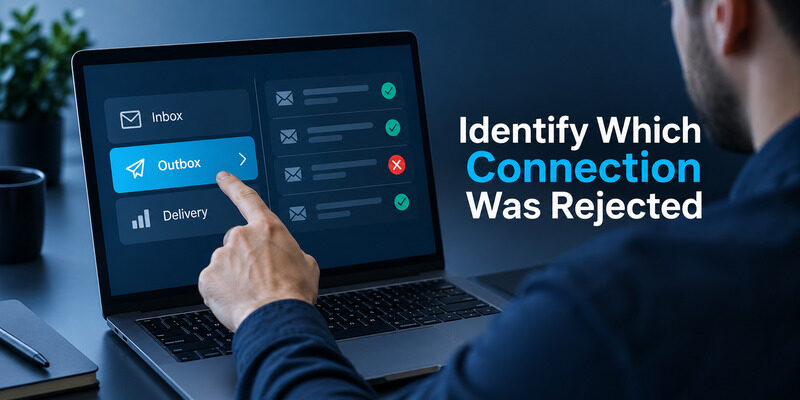
The word authentication can describe several checks in the same email journey. Your mail app authenticates to a server, an account may ask for a second factor, and a receiving server can evaluate the sender’s domain. An email authentication failed notification alone does not identify which one failed.
Use the location of the message as the first clue. An inbox that never loads suggests account access or incoming mail authorization. An Outbox full of unsent messages points toward sending. A bounce delivered after submission is evidence that the message progressed further and may have failed a recipient-side policy.
| Where you see the problem | Likely layer | First check |
|---|---|---|
| Provider sign-in page | Account access | Address, password, recovery |
| Mail app password dialog | Client authorization | Provider login and reconnect |
| Outgoing server error | SMTP submission | Authentication method and settings |
| Rejected verification code | Second factor | Correct account and fresh code |
| Delivery bounce mentioning SPF | Sender domain | Domain administrator review |
Check whether another account in the same app still works. An email authentication failed result limited to one mailbox suggests an account-specific issue; failures across every mailbox suggest a shared client or network problem. This comparison can prevent an unnecessary account reset.
Read the full text around the status code. An email account authentication failed message from a mobile client is different from a recipient rejecting an unauthenticated sender. Preserve the original bounce if one exists, because it can identify the rejecting server and the failed check. Do not forward it publicly with complete headers or personal data. Send a redacted copy to your provider or administrator when you cannot identify the responsible layer.
📘 Find the Right Guide: Email 2FA: Protect Your Inbox and Understand Email Codes
Repair Mail App Authorization on iPhone
Reconnect through the correct provider
For an email authentication failed iPhone problem, confirm web access first, then use the provider’s supported account connection flow. A Google, Yahoo, or Microsoft sign-in screen can grant an app access through modern authorization without placing the normal password into a generic server form. Choose the provider that actually hosts the mailbox, rather than guessing from a company logo or address nickname.
Update the mail app and operating system when an available update addresses compatibility. If an email authentication failed loop returns after authorization, check whether the browser handoff completed and whether you selected the intended account. Multiple signed-in browser profiles can make an apparently successful connection authorize the wrong mailbox.
Remove the connection only after preserving local data
Re-adding an account can help when its authorization is stale, but it is a later step. Confirm that important messages and drafts exist on the server or have been saved separately. Keep the provider website accessible before removing the device connection.
After reconnecting, test one incoming message and one outgoing message independently. Receiving mail does not prove the outgoing server is configured correctly. If the same failure returns, record whether it occurs before consent, after consent, or only when sending. That sequence gives support more useful evidence than a list of password changes and avoids repeating a repair that already failed.
📖 Read More Guides: Email Authentication Failed Fixes for Login and Sending
Check Yahoo Credentials and App Passwords
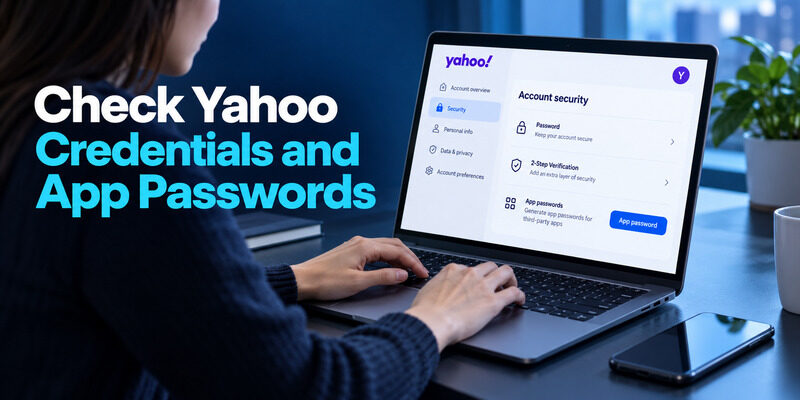
An email authentication failed Yahoo alert can arise when an older client expects a password-based connection that the account no longer accepts in that form. Yahoo’s official secure-access guidance distinguishes supported sign-in methods from third-party app password use. Prefer the provider authorization flow offered by your current client when it is available.
Do not paste a changing authenticator code into the permanent password field of a mail client. A one-time code, a normal account password, and an app password have different jobs. The server will not treat them as interchangeable simply because each is used somewhere during sign-in.
Yahoo documents app password management in its Account Security help. If the client and account require this option, create the credential through the official account settings and use it only for that connection. Follow the current instructions shown for your account; availability and screen labels can vary.
An email authentication failed result after changing credentials should trigger a check of the username and outgoing settings, not immediate creation of several more passwords. Remove obsolete app credentials after the replacement works. If you cannot create one, use a supported client or contact Yahoo through its official help path. Avoid sites that offer to generate a Yahoo password for you, and never give a third party your account password to fix a synchronization issue.
📖 Read More Guides: Email Authentication SPF Checks and Domain Setup Explained
Resolve SMTP Authentication Required Errors
Read the full server response
A search for SMTP email authentication required usually means the sending server wants an authorized submission session. A response containing email 530 authentication required may point to a missing AUTH step, but the complete response matters: some servers use related wording when encryption must happen first. Check the provider’s documented hostname, port, encryption mode, and authorization method together.
Microsoft’s Exchange Online documentation confirms that SMTP AUTH can use OAuth. This means an email authentication failed message is not automatically evidence that SMTP itself is unavailable; a client can support the protocol while lacking the method or permission required by that organization.
Correct the client and permission settings
Verify that outgoing authentication is enabled when the provider requires it. Use the complete username format specified by the host. Match STARTTLS or implicit TLS to the provider’s port instructions instead of changing ports randomly. Do not disable certificate validation to make a connection succeed.
| Evidence | What to investigate | Useful next action |
|---|---|---|
| Connection never opens | Network or host | Check endpoint and firewall |
| TLS negotiation fails | Encryption configuration | Match port and TLS mode |
| AUTH is rejected | Credential or policy | Reauthorize or ask administrator |
| Login works but sender fails | Send permission | Confirm authorized From address |
Test the configured From address as well as the login name. A server may accept credentials but reject sending on behalf of a different mailbox. That permission failure deserves a separate administrator check.
If email authentication failed affects only a work mailbox, ask the administrator whether the application and mailbox are permitted to submit through that route. Avoid requesting a blanket reduction in organizational security just to accommodate one outdated client.
📖 Read More Guides: Google Email Two Factor Authentication Setup for Gmail
Handle Missing Steam Guard Emails
Confirm the destination before requesting another code
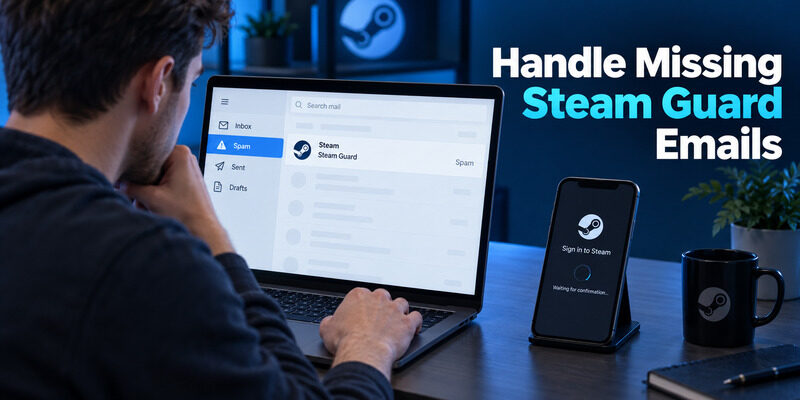
A Steam not sending problem concerns delivery of a Steam Guard message, not necessarily the password used by your mail client. Steam Support says these emails go to the last email address registered with the Steam account. Check that destination, including any old mailbox or forwarding arrangement you still use.
Search spam and filtered folders, then confirm the mailbox can receive an ordinary message. If no mail arrives at all, investigate the mailbox or provider before repeatedly asking Steam to resend. If other mail arrives normally, the evidence points toward filtering, delivery delay, or the destination recorded by Steam.
Use the code for the active sign-in attempt
When several messages arrive together, compare their timestamps and return to the current sign-in screen. A Steam email authenticator not working report can reflect an old message being used after a later attempt. Follow the current prompt and request a fresh message when the existing attempt has expired.
Do not interpret this as an email authentication failed condition in your phone’s mail settings unless the app itself reports a connection error. Reinstalling a generic authenticator will not redirect Steam’s email or recover its account. If you no longer control the registered mailbox, use Steam’s official recovery process. Keep purchase and ownership information ready for that process, but share it only through the genuine support interface.
💡 Discover Helpful Guides: Google Workspace Email Authentication for Business Domains
Separate Microsoft Account and Authenticator Problems
Check the account type and address
When email does not exist appears to describe your problem, determine whether the message comes from Microsoft sign-in or from adding an account to the app. A work identity and a personal Microsoft account can share similar-looking addresses while belonging to different account systems. Entering the right address in the wrong flow can produce a misleading account-not-found experience.
For Microsoft Authenticator not recognizing email, ask the organization’s administrator to confirm the actual sign-in name when it differs from the mailbox address. Avoid creating a new personal account as a substitute for an existing work identity. That does not grant access to the organization’s mailbox or restore its verification registration.
Identify the requested verification method
Microsoft Authenticator not sending code to email mixes two possible methods. An authenticator can generate a code or receive an approval request; an email verification message comes from the account service to a registered address. Read the prompt to determine which method is active before waiting for an email that was never requested.
An email authentication failed warning can also appear inside a phishing message. If an unexpected email asks you to scan a QR code, approve a sign-in, or provide a setup key, open the account security page independently. Do not act on the message merely because it names Microsoft Authenticator or includes a convincing logo. Report suspicious work messages using your organization’s established channel.
🗺️ Browse How-To Guides: Passwordless Email Authentication With Magic Links and Codes
Recognize Sender Domain Failures in Bounces
Read the domain checks
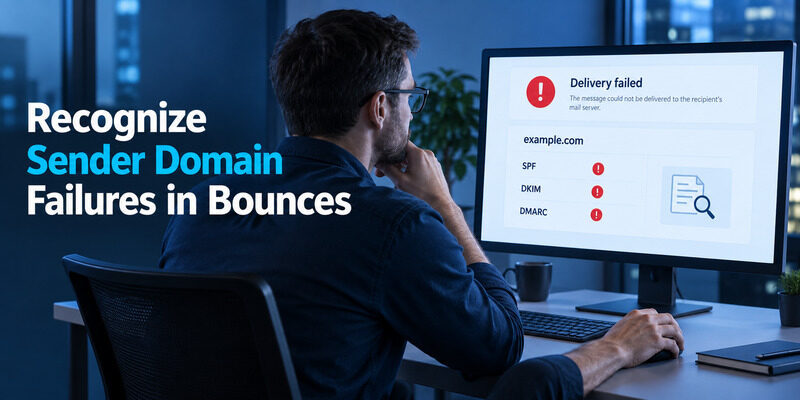
An email authentication failed bounce mentioning SPF, DKIM, or DMARC belongs to a different repair path from a rejected mailbox password. These checks concern the domain and message route used by the sender. An ordinary mailbox user usually cannot fix them by changing settings in an authenticator app.
SPF checks whether a sending server is authorized for the envelope domain. DKIM checks a signature associated with a signing domain. DMARC connects qualifying authentication results to the domain shown in the visible From address. A provider can accept a message from your app while the recipient later rejects its domain authentication.
Escalate the sending route
Google’s email sender guidelines explain that DMARC requires aligned SPF or DKIM authentication. Give your domain administrator the redacted bounce, the sending service, and a sample timestamp. If a CRM or newsletter tool sends the affected messages, mention that route explicitly; ordinary mailbox mail may pass while the separate service fails.
Do not add a second SPF record or replace existing DNS values from an unrelated tutorial. Those changes can break other legitimate senders. When email authentication failed occurs only for one recipient domain, compare a successful and failed message route before making global changes. A delivery problem can also involve reputation, recipient policy, or content, so a passing authentication result does not guarantee inbox placement.
💡 Discover Helpful Guides: Email Authentication in Zoho CRM With DKIM SPF and DMARC
Restore Reliable Verification After the Repair
Keep recovery independent
Once the connection works, check that your recovery methods still match devices and addresses you control. A repair is incomplete if the next sign-in will depend on a lost phone or abandoned mailbox. Save provider recovery codes where you can reach them independently of the account being protected.
Add a supported code method
For accounts that offer standard authenticator code enrollment, can generate the second-step codes after you register the provider’s QR code or manual setup key. It can reduce dependence on emailed codes when that account supports the alternative. It cannot repair an SMTP permission, recover an unknown secret, or fix a domain’s DNS authentication.
Use the provider security page to add and verify the method before relying on it. Keep the existing recovery route until a test succeeds. If email authentication failed returns during this test, distinguish a rejected rotating code from the original mail connection error; they may be separate problems with different causes.
Record the working configuration without writing down passwords in an ordinary troubleshooting note. Useful details include the client name, provider connection method, and the date you reauthorized it. This small record helps if another device later develops the same error. Remove unused app credentials only after the replacement is proven, and keep one reliable route to the provider’s account recovery process.
📘 Find the Right Guide: Email Authentication SPF Checks and Domain Setup Explained
Final Thoughts
Fix an email authentication failed error by identifying the rejected connection before changing credentials. Test the provider website, preserve any working session, and separate receiving, sending, verification, and delivery failures. That sequence gives each repair a clear purpose and makes it easier to tell whether the change actually helped.
A successful browser login is a useful dividing point. If the website works, focus on the mail client’s authorization and the provider’s supported connection method. If it fails too, use the account recovery or administrator route. When a bounce names SPF, DKIM, or DMARC, pass the evidence to whoever manages the sending domain instead of editing your phone’s security settings.
For an email authentication failed incident involving a missing verification message, confirm the registered destination and the current sign-in attempt. Never share codes or approve an unexpected request to make an error disappear. Use a standard authenticator only where the account offers that enrollment method.
After restoring access, test both incoming and outgoing mail, check recovery options, and document the working connection. Authenticator App is a practical next step for supported accounts that need an independent source of verification codes. Complete its enrollment through the account provider and verify a real sign-in before retiring an older method. A recurring email authentication failed warning should now have a documented starting point, a tested repair, and a recovery route you control.
Download Authenticator App
Secure your accounts with fast, reliable two-factor authentication. Download now and protect your login in seconds.
