
Google Workspace Email Authentication for Business Domains
Published September 18, 2026
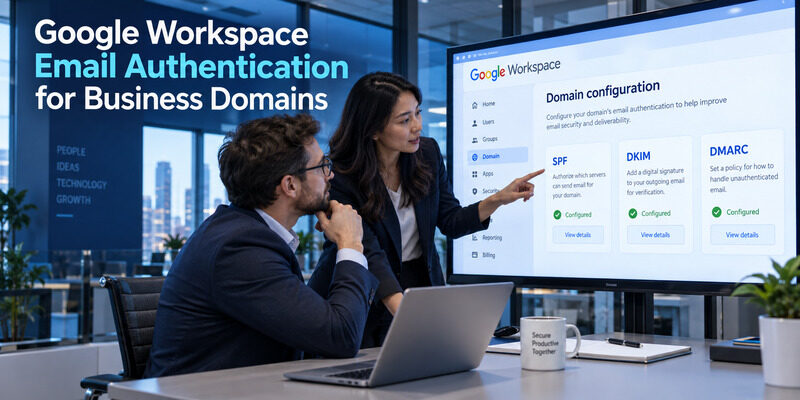
Configure SPF, DKIM, and DMARC to authenticate email sent from your Google Workspace domain.
These domain settings help receiving systems evaluate your organization’s messages. They are separate from the verification employees use to sign in and from the authorization a mail client needs to connect to Gmail. A complete deployment should address all three areas without treating them as interchangeable.
This Google Workspace email authentication guide focuses on the administrator’s work: inventorying senders, publishing the right DNS values, enabling signing, testing real message routes, and maintaining access controls. It also covers third-party applications and mixed Microsoft 365 environments. Start with your actual domain and sending services, since copying a Google-only record can break mail that also leaves through a CRM, website, or marketing platform.
Define the Scope of Google Workspace Email Authentication
Separate sender identity from account access
Sender authentication is the first scope. SPF, DKIM, and DMARC operate on domains and messages, helping receivers assess the mail that arrives. Enabling these mechanisms does not add a second sign-in step for employees, and enabling employee 2-Step Verification does not publish the domain’s DNS records.
Client authorization is another scope. A mail app or business application needs an approved way to access or submit messages. Google Workspace email authentication projects often encounter an old password-based client during the same rollout, but that connection must be repaired through its supported authorization path.
| Workstream | Main owner | Evidence of completion |
|---|---|---|
| Domain authentication | DNS and email administrators | Tested SPF, DKIM, DMARC results |
| Employee sign-in | Identity administrator and users | Accepted enrolled methods |
| Application access | Application owner and administrator | Authorized connection and test mail |
Assign the right people
Identify who controls the authoritative DNS zone, Google Admin console, application settings, and employee recovery process. One person may cover several roles in a small organization, but the responsibilities should still be explicit.
A Google Workspace email authentication change needs a clear scope before the first edit. Record the affected domain, message routes, success criteria, and rollback condition. This avoids a project where an employee resets a password while the real issue is missing DKIM signing, or a DNS administrator changes SPF to solve an application permission failure. Each workstream should produce its own evidence before being marked complete. Keep those results together so a reviewer can see which parts remain untested.
Download Authenticator App
Secure your accounts with fast, reliable two-factor authentication. Download now and protect your login in seconds.
Map Business Mail Before Editing DNS
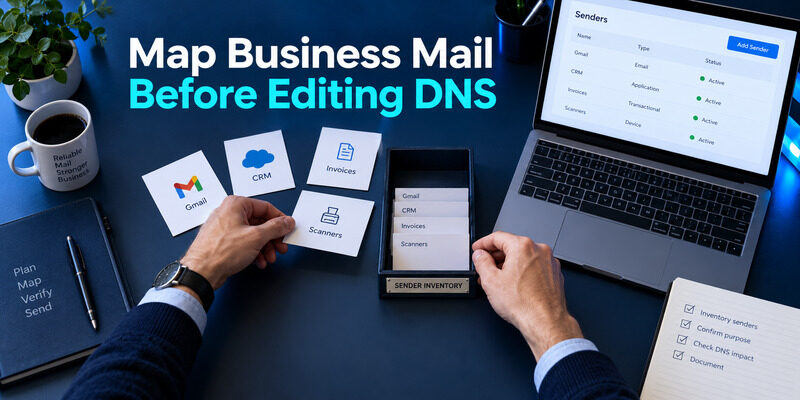
Include senders outside Gmail
List every system that sends using the organization’s domain. Start with Gmail, then add customer support, invoices, website forms, CRM automation, campaigns, scanners, and scheduled jobs. Ask department owners about infrequent mail, such as monthly statements or annual renewal messages, that a short test window may miss.
Google Workspace email authentication applies to the complete sender landscape even when Google hosts the employee mailboxes. A separate service may send directly from its own infrastructure and require its own domain setup. It will not automatically inherit Google’s DKIM signature just because its From address uses the same domain.
Collect representative messages
For each route, save a redacted sample showing the visible From domain, envelope domain, and DKIM signing domain. Record the service owner and whether the route is active. Use genuine messages from your own organization rather than an external tutorial’s header example.
This collection becomes the baseline for Google Workspace email authentication testing. If ordinary Gmail mail passes but automated invoices fail, you can investigate the invoice service without changing every other route. It also helps during provider migrations: you know which systems still rely on the old configuration and can retire permissions deliberately. Keep credentials and usable tokens out of the inventory; you need configuration ownership and routing evidence, not a second store of account secrets.
For a separate CRM sending route, review alongside the Workspace domain inventory.
💡 Discover Helpful Guides
Email Authenticator: Complete Guide to Secure Email Authentication
Consolidate SPF for the Actual Sending Architecture
Read the existing policy
Inspect the domain’s published TXT records and identify the current SPF policy. Google Workspace Help provides an SPF value for domains that send only through Google and separate guidance for multiple senders. Use the Google-only example only when it matches your complete inventory.
There should be one SPF policy at a given DNS owner name. When Google Workspace email authentication must coexist with another provider, update the combined authorization deliberately rather than creating a second SPF record. Leave unrelated TXT values, such as domain verification records, intact.
Evaluate complexity and maintenance
Includes can lead to nested DNS lookups, so a short-looking policy is not necessarily inexpensive to evaluate. Check the lookup behavior after adding a provider, and remove obsolete authorizations only after confirming their services have stopped sending. Do not replace a maintained provider include with a frozen IP list without a plan to keep it current.
Publish the intended value at the authoritative DNS provider and verify the public result. A control panel save in an inactive zone does not change what receivers use. For Google Workspace email authentication, document the record before and after the edit and allow for DNS caching when interpreting immediate tests. A new test message is required to assess the current result; old received messages will retain the authentication outcome recorded when they originally arrived.
📘 Find the Right Guide: Email Authentication Outlook: Setup and Recovery
Generate and Activate DKIM for Each Sending Domain
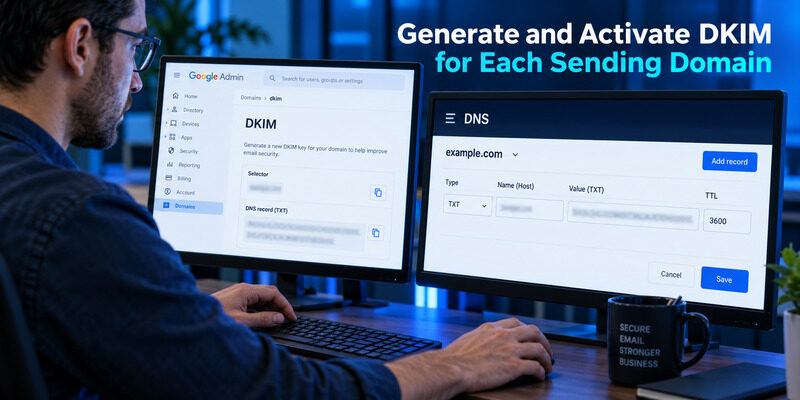
Publish the domain’s generated key
Use the Google Admin console’s Gmail email authentication area to generate the DKIM information for the relevant domain. Google Workspace Help describes generating the record, publishing it in DNS, and then starting authentication. Follow the key and selector generated for your own domain rather than copying a sample from another organization.
Confirm how your DNS host expects the record name. Some interfaces append the domain automatically, so entering a fully qualified name in the wrong field can duplicate it. A correctly formatted key at the wrong hostname will not be found by the receiving server.
Start signing and inspect a message
After publication is visible, complete the activation step in Google Admin. Google Workspace email authentication is not finished merely because the TXT record exists. The sending service must actually attach the expected signature to messages.
Send a fresh Gmail message to a mailbox you control outside the organization. Inspect its DKIM result and signing domain at the receiver. If you manage multiple sending domains or aliases, test the identities that people actually use. Do not assume one passing primary-domain message covers every alternate From address. Keep a note of the selector and activation date so future rotation or provider changes have a known baseline. If signing fails, compare the generated record and published value before regenerating keys or deleting an existing working selector.
Introduce DMARC Through Observation and Alignment
Verify the domain relationships
DMARC evaluates the visible From domain against qualifying SPF or DKIM authentication. An aligned pass from either mechanism can satisfy its authentication requirement. A green SPF result for an unrelated return-path domain is not enough by itself.
For Google Workspace email authentication, inspect actual messages from every listed service before selecting a stronger DMARC policy. A third-party campaign may depend on aligned DKIM while Gmail mail has a different combination of results. The key Google Workspace email authentication question is whether each legitimate route has an aligned passing mechanism.
Review reports before enforcing stricter handling
Google’s DMARC setup guidance recommends establishing SPF and DKIM first and observing their operation before enabling DMARC. Plan a monitoring period appropriate to your organization’s sending cycle, then review reports and correct legitimate failures. A monthly invoice sender deserves a test even if no invoice happened to be sent during the first week.
Move to enforcement when evidence supports it
Strengthen the requested handling policy only when the evidence supports it. Google Workspace email authentication should reduce impersonation opportunities without unexpectedly rejecting valid business messages. Assign responsibility for ongoing report review and provider additions. A domain policy is not self-maintaining: marketing platforms change, applications are retired, and new subdomains appear. Record why a policy changed and which routes were tested so the next administrator can understand its assumptions instead of weakening it blindly during a delivery incident.
💡 Discover Helpful Guides: Email 2FA: Protect Your Inbox and Understand Email Codes
Validate Delivery With Headers and Email Log Search
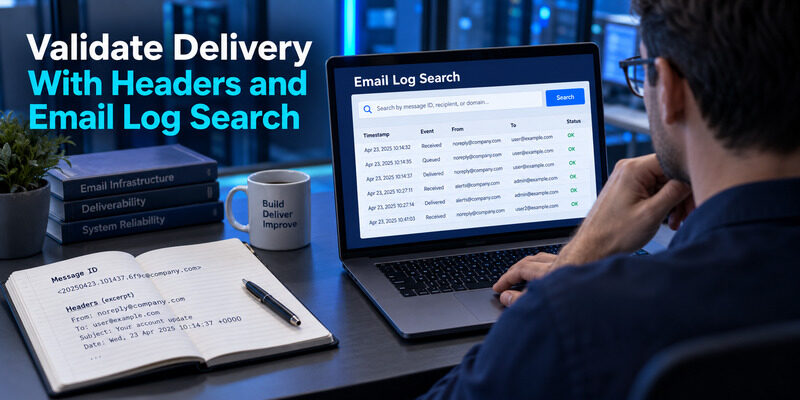
Test from source to destination
Send a distinct test through each route in your inventory, using recipients you control. Record the sending application, From address, recipient, timestamp, and message identifier. Check what the receiving service reports for SPF, DKIM, and DMARC, and compare those results with the intended configuration.
Google Workspace email authentication validation should also confirm that the message reached the expected destination. Authentication and delivery are related, but a pass does not guarantee inbox placement. Content, reputation, forwarding, and recipient policy can affect the outcome after the domain checks succeed.
Trace a missing message
Google Workspace Help describes Email Log Search as a tool for investigating message delivery. Use the available log evidence to determine whether a message entered Google’s route and what happened next. If the application sent through an independent provider, its own logs may be the relevant starting point instead.
| Evidence | Likely investigation |
|---|---|
| Application has no submission event | Application generation or configuration |
| Submission rejected | Authorization, limits, or server policy |
| Message accepted then bounced | Recipient response and sender domain checks |
| Authentication passes but mail is filtered | Reputation, content, or recipient policy |
Also check whether the recipient address was correct and whether a forwarding rule changed the destination. Those details can explain missing mail even when the sender authentication itself is valid.
For a Google Workspace email authentication incident, compare one successful and one failed route before changing DNS globally. Retain redacted evidence that another administrator can follow. A report that says only “email is broken” cannot identify whether the failure occurred before submission, during authentication, or after delivery.
📘 Find the Right Guide: Email Authentication Failed Fixes for Login and Sending
Modernize Third-Party Mail App Access
Google’s current Workspace guidance has retired ordinary username-and-password access for less secure applications. Supported clients should use the appropriate Google authorization flow. The change concerns how the client obtains access; it does not mean that all versions of every third-party mail app are unusable.
When investigating Google Workspace email authentication in a client, compare a successful browser login with the failing app connection. If the website works, check the client’s authorization, selected account, and administrator permissions. Do not disable employee verification simply because an old app asks for a password it cannot use.
App passwords and specialized device routes have their own availability and policy conditions. Follow the current official guidance for the actual application rather than treating an exception as the default for every employee. Credentials used by an approved device should be managed, scoped, and retired when that device leaves service.
Before rebuilding a mail profile, preserve local drafts and any messages that have not synchronized. Reconnect with the intended account and test receiving and sending independently. Google Workspace email authentication work should produce a maintained client connection, not just one successful login after a broad policy relaxation. Document the supported method so a future device replacement does not recreate the same legacy setup and the same avoidable failure.
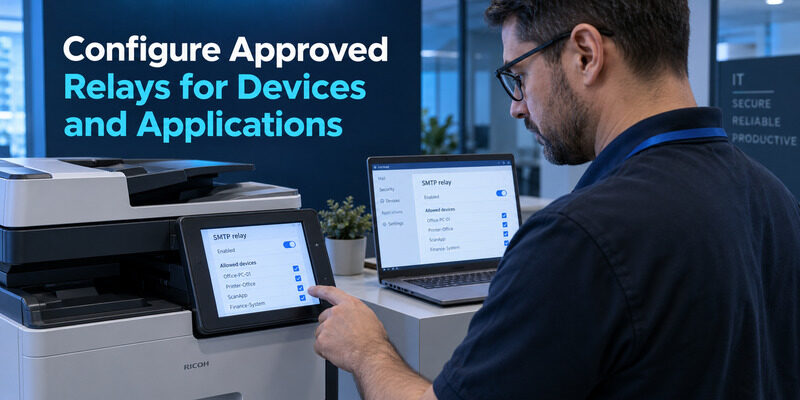
Configure Approved Relays for Devices and Applications
Choose a route suited to the device
A scanner or line-of-business application may not support the same interactive sign-in as an employee’s browser. Google Workspace offers an SMTP relay service with administrator-controlled settings. Its documented configuration includes sender restrictions, allowed IP arrangements or authentication options, and transport requirements depending on the chosen setup.
For Google Workspace email authentication, distinguish a deliberately configured relay from an open server that accepts arbitrary senders. A route without a user typing a password on every message can still be restricted through other controls. It should not become an unrestricted public submission endpoint.
Test boundaries as well as success
Document which device or application may use the relay, the allowed sender identities, and whether the route supports the intended recipients. Require protected transport where the deployment calls for it and follow Google’s current configuration guidance. Avoid copying a port and hostname without the associated authentication and restriction settings.
Test an approved message and confirm that an unauthorized source is not permitted by the design. Record what happens when the device’s public IP changes or its credential expires. Google Workspace email authentication for automated systems needs an owner who can maintain those dependencies. A scanner that works today but has no documented relay policy can become either a future outage or an unnecessarily broad sending route when its network changes.
💡 Discover Helpful Guides: Passwordless Email Authentication With Magic Links and Codes
Coordinate Google Workspace and Microsoft 365
A mixed environment may use Google for some mailboxes and Microsoft for others, or retain devices and applications configured during a migration. Begin by identifying the actual host and sending route for each account. The email address alone may not reveal where the mailbox currently resides.
Office 365 email authentication uses the same broad sender-domain mechanisms, but the provider-specific DNS values and administrative settings differ. Microsoft Learn also distinguishes client submission, connector-based relay, and direct-send scenarios for devices. These options have different requirements and recipient scope, so they are not interchangeable shortcuts around sign-in.
A search for Office 365 send email without authentication should therefore lead to a documented, restricted sending design. It should not lead to an open relay or the assumption that any device can send as any organizational address. During Google Workspace email authentication planning, record which provider is responsible for each automated route and test it independently.
Employee protection is separate again. Office 365 email 2 factor authentication is governed by the Microsoft identity environment, while Google verification follows the Google account and Workspace policy. Do not register a Google QR code and expect it to approve Microsoft push requests. Migration work should preserve access to both providers until the relevant mail flow and verification changes are complete, with obsolete routes removed only after their replacements are proven.
💡 Discover Helpful Guides
Google Email Two Factor Authentication Setup for Gmail
Protect Administrator Access and Recovery

Reduce shared administrative access
The accounts controlling DNS, Google Admin, and sending platforms can change the trust settings for the entire organization. Use individual administrative identities and appropriate role assignments where supported. Keep a clear record of who owns each system and how that ownership is transferred when staff or vendors change.
Google Workspace email authentication should include protection for these control points. Domain records cannot compensate for an attacker using a legitimate administrator session to add a new sender or change recovery information. Review account access alongside the technical mail configuration.
Enroll supported additional verification
Follow the organization’s required verification methods and recovery procedures. For services that accept standard time-based authenticator codes, can generate them after the service’s QR code or setup key is enrolled. It protects that supported sign-in method; it does not replace Workspace policy, generate DNS keys, or analyze DMARC reports.
Test administrator recovery before an incident, using the organization’s approved process without exposing active recovery codes in shared notes. Google Workspace email authentication maintenance should remain possible when the usual administrator is unavailable. Keep recovery ownership independent of a single employee’s personal phone, and review emergency access deliberately. A configuration that only one person can repair is fragile even when all current messages pass their domain checks.
Frequently Asked Questions
Does Google configure every authentication record automatically?
No. Domain setup can involve values generated by Google and records published at your DNS provider, followed by activation and testing. Existing provider integrations may automate parts of the process, but verify the actual published records and received-message results rather than assuming a mailbox purchase completed everything.
Is 2-Step Verification the same as domain authentication?
No. It protects a person’s sign-in, while SPF, DKIM, and DMARC concern sender domains and messages. An organization needs to manage both. A successful employee authenticator setup does not fix a delivery bounce caused by a missing or misaligned DKIM signature.
Can a CRM use the same domain as Gmail?
Yes, when the domain and CRM are configured for the intended sending arrangement. Follow the CRM’s current records and verify aligned authentication on a message sent through that service. A passing Gmail test does not prove the CRM’s independent delivery route is authenticated.
Should we move directly to a rejecting DMARC policy?
Only after the legitimate sending routes have been evaluated and the rollout plan supports it. Observe results, test infrequent business senders, and correct alignment problems first. Stronger requested handling applied before the inventory is complete can disrupt messages that the organization still needs to deliver.
Can an authenticator app repair a Workspace bounce?
No. A code app protects supported account sign-ins. A bounce must be diagnosed through its delivery response, sending route, and domain configuration. Use Authenticator App for enrolled administrative accounts where appropriate, while the mail administrator investigates SPF, DKIM, DMARC, and recipient-side evidence separately.
Final Thoughts
Google Workspace email authentication is a coordinated administration task across DNS, message signing, domain policy, application access, and employee verification. Begin with the sending inventory and assign owners before editing records. That foundation makes the later results understandable and prevents unrelated login problems from being confused with sender-domain failures.
Configure SPF for all legitimate senders, activate DKIM for the relevant domains, and introduce DMARC with evidence from actual messages. Test each route independently, including third-party systems and infrequent automated mail. When delivery fails, use the application’s logs, Google’s available trace tools, and the receiver’s response to locate the failure before making another global change.
Keep Google Workspace email authentication current as the organization adds tools or moves mailboxes between providers. Modernize unsupported client connections through the appropriate authorization method, and document relay restrictions for devices that cannot use interactive sign-in. A working test should be accompanied by a maintenance owner and a clear recovery path.
Finally, protect the administrative accounts that control the configuration. Authenticator App can supply standard verification codes where those services permit its enrollment method, alongside the organization’s other required controls. With protected access, tested sending routes, and a short change history, the domain remains easier to maintain when staff, applications, or delivery requirements change.
Download Authenticator App
Secure your accounts with fast, reliable two-factor authentication. Download now and protect your login in seconds.
