
Discord 2FA Code: Setup, Backup Codes, Errors, and Account Recovery Guide
Published August 24, 2026
A Discord 2FA code adds an extra layer of protection to your account by requiring a temporary verification code when you sign in. However, losing access to your authenticator app, entering an invalid code, or misplacing backup codes can quickly turn into an account recovery problem. This guide explains how Discord 2FA codes work, how to set up and back up your authentication method, what to do when codes fail, and the recovery options to consider if you lose access.
1. What Is a Discord 2FA Code?
A discord 2fa code is a temporary verification code that helps prove you are the real owner of a Discord account when signing in. It adds another security step after your password, making it much harder for someone to access your account with a stolen password alone.
If you are asking what is 2fa discord, 2FA means two-factor authentication. Discord can use several forms of multi-factor authentication, including an authenticator app, passkeys or security keys, SMS authentication, and one-time backup codes. For many users, the standard setup is an authenticator app that generates a new six-digit code every few seconds.
A discord 2fa code is not your Discord password, email verification code, or phone confirmation code. It is generated from a secret connection created when you enable two-factor authentication. Your authenticator app and Discord both use that secret to calculate the same current code.
This means the code changes regularly. Even if someone sees an old code, it should not work later. However, a scammer who gets both your password and a current code may still be able to access your account. Never send your code to another person, including someone claiming to be Discord staff.
A typical 2fa code example looks like a short numeric code, such as 482 913. The digits are only an example; do not expect the same code to appear in your own app. Your valid code changes on a schedule, usually every 30 seconds.
Discord also gives users backup codes after enabling MFA. These are different from the normal rotating code and can help if you lose the phone or device holding your authenticator.
Download Authenticator App
Secure your accounts with fast, reliable two-factor authentication. Download now and protect your login in seconds.
2. How Does a Discord 2FA Code Work?
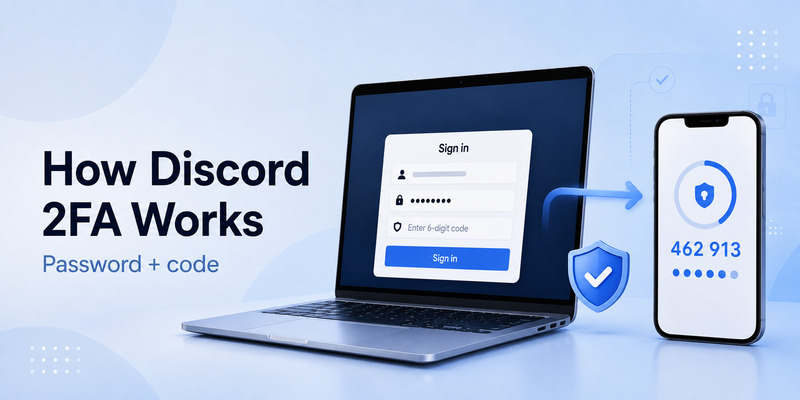
A discord 2fa code usually uses Time-Based One-Time Password technology, commonly called TOTP. During setup, Discord displays a QR code or a manual secret key. You scan or enter that information into an authenticator App, such as Google Authenticator, Microsoft Authenticator, Authy, 1Password, or another reputable TOTP-compatible tool.
After the app is connected, it generates a new discord 2fa code at regular intervals. When you log in, Discord asks for your email or phone number, password, and current authentication code.
The process works like this:
- You enter your Discord login details.
- Discord recognizes that MFA is enabled.
- Your authenticator app creates a current temporary code.
- You type the code into Discord.
- Discord compares it to the code expected for your account.
- If it matches and has not expired, Discord completes the sign-in.
A discord two factor code improves protection because an attacker needs more than your password. They would also need access to your authenticator, passkey, backup codes, or approved backup method.
Discord currently supports multiple MFA approaches. Passkeys and security keys are often more resistant to phishing because they are tied to the legitimate Discord sign-in process. TOTP codes are still widely used and remain a strong security upgrade over password-only login.
Do not confuse a 2 factor code discord prompt with a message from a server bot or direct message. Discord does not need you to send a login code through chat. If a bot, stranger, or “support agent” asks for your current code, treat it as an account-theft attempt.
💡 Discover Helpful Guides: 2FA Authenticator App: Complete Guide to Setup, Use, Download, and Secure Your Accounts
3. How to Set Up a Discord 2FA Code
You can enable a discord 2fa code from Discord’s account settings on mobile, desktop, or a browser. The menu wording can change slightly between versions, but the core steps remain similar.
Set up Discord 2FA on desktop or browser
For 2fa discord pc, open Discord in the desktop app or your preferred web browser, then follow these steps:
- Click the gear icon next to your username to open User Settings.
- Go to My Account or the password and authentication section.
- Select Enable Authenticator App.
- Download or open a trusted authenticator app on your phone.
- Scan the QR code Discord displays.
- Enter the current six-digit code from the authenticator app.
- Save your backup codes in a secure location.
- Add a phone number and enable SMS authentication only if you want an additional fallback option.
Once complete, Discord should ask for a discord 2fa code whenever you sign in from a new session or device.
Set up Discord 2FA on mobile
On the Discord mobile app, open your profile, then access account settings. Look for the option to enable an authenticator app under account or security settings. Discord may provide either a QR code or a manual key for setup.
The best practice is to use the QR code only inside your authenticator app. Do not take a screenshot and send it to another device unless you fully understand the security risk. The QR code contains the secret used to generate your future authentication codes.
After you enter the first valid discord 2fa code, Discord will show backup codes. Download them immediately and store them somewhere private.
4. How to Scan a Discord 2FA QR Code Safely
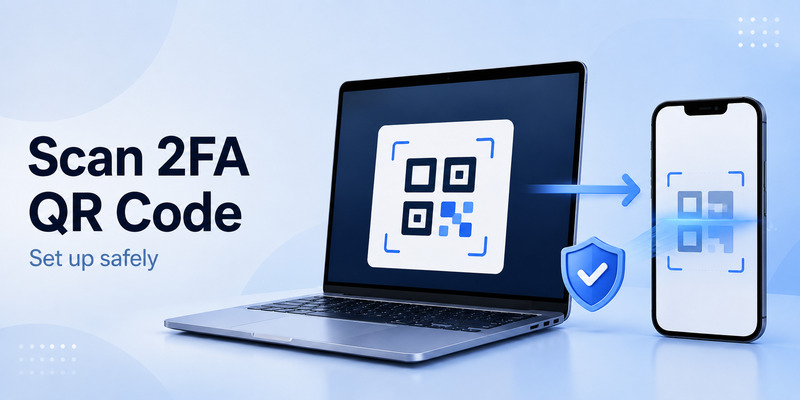
A discord 2fa qr code is the bridge between Discord and your authenticator app. It contains the setup secret that allows the app to generate future login codes for your account.
When Discord displays the QR code:
- Open your authenticator app.
- Choose Add Account, Add Code, or Scan QR Code.
- Scan the code directly from your Discord screen.
- Wait for the new Discord entry to appear in the app.
- Enter the current code from that entry into Discord.
- Confirm the setup and save recovery information.
Never post a discord 2fa qr code in a Discord server, private message, support ticket, email, screenshot folder, or cloud document that others can access. Anyone who scans it can potentially generate valid codes for your account.
If you cannot scan the QR code, Discord may provide a manual key. Enter that key only into a trusted authenticator. Do not paste it into random websites that promise to generate 2FA codes. Those services can capture the secret and compromise your account.
After setup is complete, the original QR code should no longer be needed. If you believe someone saw it, remove your authenticator app from Discord and set it up again with a fresh secret.
💡 Discover Helpful Guides: 2FA Authenticator Chrome: How to Set Up Secure Two-Factor Authentication in Your Browser
5. Discord 6-Digit Codes vs. Backup Codes
A normal discord 6 digit code and a backup code serve different purposes.
The usual discord 2fa code comes from your authenticator app. It changes regularly and is usually six digits long. You use it during routine sign-in.
A backup code is a one-time recovery credential generated by Discord after you enable MFA. Discord backup codes are generally eight digits and each one can be used only once. They are meant for emergencies, such as losing your phone, accidentally deleting your authenticator entry, or being unable to access your usual device.
| Code type | Typical format | When to use it | Can it be reused? |
| Authenticator code | Six digits | Normal sign-in | No; it expires quickly |
| SMS code | Temporary digits | Backup sign-in if enabled | No; it expires |
| Backup code | Usually eight digits | Recovery or emergency access | No; one use only |
| Passkey | Device-based approval | Passwordless sign-in | Not a typed code |
If Discord asks for a discord 2fa code, look for the correct account entry in your authenticator app. If you no longer have that app, choose the “Verify with something else” option when available and select a backup code or SMS method.
Do not try to shorten an eight-digit backup code into a six-digit code. It will not work. Use the verification option that specifically says backup code.
6. How to Use Discord 2FA Backup Codes
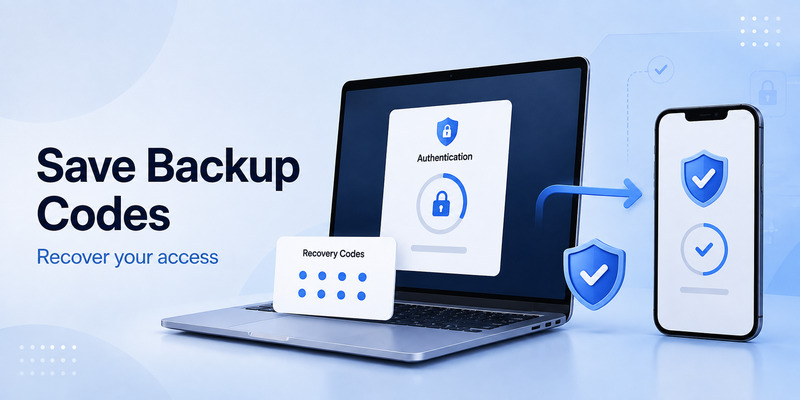
A discord 2fa backup code can save your account if you no longer have access to your regular authenticator app. This is why downloading the codes during initial setup is essential.
To use a discord 2fa backup code during login:
- Enter your Discord email or phone number and password.
- When Discord requests an authenticator code, choose Verify with something else.
- Select Use a backup code.
- Enter one unused backup code.
- Confirm the sign-in.
- Once back in your account, update your 2FA settings immediately.
Your discord 2fa backup codes should be stored like passwords. Good storage options include a reputable password manager, an encrypted secure note, or a printed copy kept in a private physical location.
Avoid storing discord 2fa backup codes in a public cloud folder, unprotected email draft, Discord DM, or ordinary screenshot gallery. Anyone with access to one unused code may be able to use it to pass your sign-in verification.
If you are currently signed in on any Discord client, you may be able to view or download backup codes from User Settings under My Account. Discord may ask you to enter your password before revealing them. Do this before switching phones, resetting your device, or deleting your authenticator app.
After using a backup code, create new backup codes once your security setup is stable. Remember that each old code is single-use, so a list with several used entries is less useful during a future emergency.
📘 Explore More Useful Guides: 2FA Authenticator Free: How to Choose and Use a Free Authenticator App Safely
7. How to Fix a Discord 2FA Code Not Working
A discord 2fa code not working is frustrating, but it does not always mean your account has been hacked. In many cases, the issue comes from the wrong authenticator entry, device time settings, or an expired code.
Try these fixes in order.
Check that you are using the correct account entry
People often have several Discord-related entries in their authenticator app after changing devices or setting up 2FA more than once. Make sure you are using the entry connected to the current Discord account.
If you have multiple email addresses or Discord accounts, check that you are signing into the same account that matches the authenticator entry.
Wait for a fresh code
A normal discord 2fa code expires quickly. If only a few seconds remain before the app refreshes the code, wait for the next one before entering it. Then type it carefully without spaces.
Set your device date and time automatically
TOTP codes depend on accurate device time. If your phone’s date, time, or time zone is incorrect, the app may generate codes that Discord rejects.
On iPhone or Android, turn on automatic date and time settings. Then close and reopen the authenticator app before trying another code.
Update the app and sign in again
Update Discord and your authenticator app to their latest available versions. Then restart your device, confirm your internet connection is stable, and attempt the sign-in again.
Use a backup method
If the regular code fails repeatedly, choose Verify with something else. You may be able to use a backup code or SMS code if these methods were set up previously.
Users may search discord 2fa codes not working when every code fails. If automatic time is enabled, you are using the right entry, and backup methods also fail, do not keep guessing. Repeated attempts can waste valid code windows and increase stress. Review your saved backup codes or use an already logged-in device to update the MFA setup.
8. Discord Lost 2FA and Backup Codes: What Are Your Options?
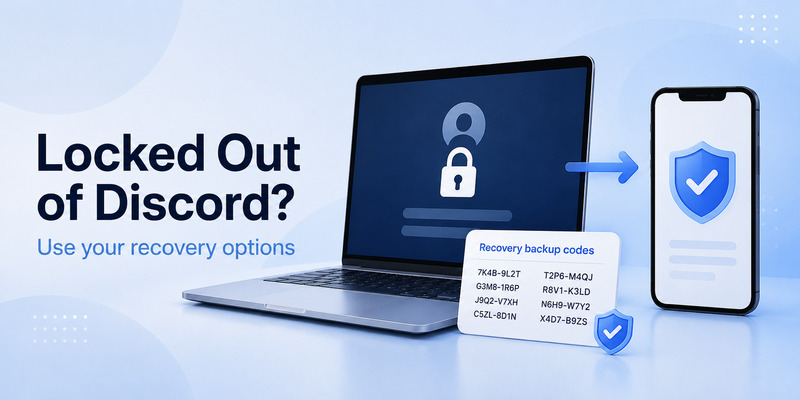
The phrase discord lost 2fa and backup codes describes the most difficult recovery situation: you no longer have your authenticator app, you cannot find any unused backup code, and you may not have SMS authentication or another active session.
First, check every device where you may still be signed in:
- Discord desktop app on an old computer.
- Discord mobile app on an iPad or previous phone.
- A browser profile that still has an active Discord session.
- A password manager that may store recovery codes.
- A secure note or encrypted drive.
- A downloaded text file, often named similarly to discord_backup_codes.txt.
- A photo gallery, if you saved the codes as an image.
If you find an active session, do not log out. Go to User Settings, locate your account security options, view backup codes if possible, and update your authenticator setup.
If you are searching how to recover discord account without 2fa and backup code, be careful with misleading recovery guides. Discord’s official guidance states that support cannot remove MFA or generate new backup codes if you do not have access to valid backup codes or another approved authentication method. Discord’s MFA recovery guide explains the supported options.
This may feel strict, but it protects accounts from social-engineering attacks. If support could remove 2FA based only on an email request, attackers could use the same process to take over accounts.
A 2fa discord lockout is therefore best handled through legitimate recovery assets: an active session, an authenticator backup, SMS fallback if previously enabled, a passkey or security key, or unused Discord backup codes.
📘 Explore More Useful Guides: How to Use 2FA Authenticator: A Complete Step-by-Step Guide for Better Account Security
9. Can You Reset or Disable Discord 2FA Without a Code?
Many users search discord reset 2fa after changing phones, but resetting 2FA safely usually requires proof that you already control the account.
If you are logged in, you can normally remove the authenticator app from account settings and then set up a new one. Discord may ask you to verify the action using an active authenticator code, a backup code, or another available method.
The answer to how to disable 2fa on discord without code is usually no if you are completely locked out. Discord does not provide a bypass for MFA simply because the user knows the password. This is intentional: removing the second factor without verification would undermine the whole security feature.
If you are still logged in on a desktop or mobile device, follow this safer route:
- Open User Settings.
- Go to My Account or Password and Authentication.
- Select View Backup Codes and save them first.
- Choose Remove Authenticator App if you need to replace it.
- Verify with an approved method.
- Enable a new authenticator app, passkey, or security key.
- Download a fresh set of backup codes.
Do not remove 2FA only because you find it inconvenient. Instead, add reliable backup methods before replacing a phone. Discord supports authenticator apps, security keys or passkeys, SMS as an optional fallback, and backup codes. Official Discord guidance recommends saving backup codes and notes that SMS is less secure than stronger authentication methods. Discord’s MFA setup guide provides current instructions.
10. Is There a 2FA Code Discord Bot?
A 2fa code discord bot cannot generate a valid login code for your personal Discord account. Legitimate Discord authentication happens through Discord’s own login pages, your authenticator app, trusted passkeys, security keys, SMS fallback, or backup-code flow.
Be suspicious of any bot that claims it can:
- Generate a discord 2fa code for your account.
- Recover an account instantly without recovery details.
- Remove Discord 2FA for a fee.
- Verify your account by asking for your password or code in DM.
- “Check” your backup codes.
- Help you claim Nitro by requiring a current authentication code.
These are common signs of phishing or account theft. A real Discord bot can help with server moderation, roles, games, and automation, but it should never need your login code.
If a bot sent you a suspicious link, do not open it. If you entered credentials on a suspicious page, change your Discord password from the official Discord app or website, revoke unfamiliar authorized apps, review active sessions, and update your 2FA method if you still have access.
📘 Explore More Useful Guides: 2FA Authenticator APK: Safe Download, Installation, and Setup Guide for Android
11. Best Practices for Protecting Your Discord Account
A discord 2fa code is only one part of account security. Use it with other practical protections.
Use a unique password
Create a long password that you do not reuse for email, gaming, social media, or work accounts. A password manager can generate and remember unique passwords safely.
Save backup codes immediately
When Discord shows your discord 2fa backup codes, save them before clicking away. Treat this as a required setup step, not an optional task for later.
Choose an authenticator with recovery options
Before enabling MFA, consider how you will move your codes to a new phone. Some authenticator apps support encrypted backup or secure multi-device access; others are intentionally local-only. Understand the migration process before a device loss.
Add a passkey or security key
A passkey can make sign-in easier and more phishing-resistant. If you use a high-value Discord account for communities, business, development, or creator work, consider adding a passkey or hardware security key in addition to your other recovery options.
Never share a current code
Discord staff do not need your discord 2fa code through direct messages. A legitimate verification flow happens on Discord’s official site or app, not through another user, bot, or unknown website.
Review connected apps and sessions
Regularly review unfamiliar authorized applications, devices, and login activity. Remove anything you do not recognize and change your password if you suspect account exposure.
📘 Explore More Useful Guides: GitHub 2FA Authenticator: Complete Setup, QR Code, Recovery, and Troubleshooting Guide
12. Frequently Asked Questions
What is a Discord 2FA code?
A discord 2fa code is a temporary verification code used with your password to confirm that you own the account. It is usually generated by an authenticator app.
Why is Discord asking for a six-digit code?
A discord 6 digit code usually comes from the authenticator app you linked when enabling 2FA. Open the app, find the Discord entry, and enter the current code before it refreshes.
Can I use a backup code instead of my authenticator code?
Yes. A discord 2fa backup code can be used when you cannot access your authenticator app. Choose Verify with something else on the Discord sign-in screen, then select the backup-code option.
Why does my Discord 2FA code not work?
A discord 2fa code not working may be caused by using the wrong account entry, an expired code, incorrect phone time, or a changed 2FA setup. Use a fresh code and ensure automatic date and time are enabled.
Can Discord support remove 2FA from my account?
If you no longer have your authenticator, backup codes, SMS fallback, passkey, security key, or an active session, Discord support generally cannot remove MFA for you. This policy prevents unauthorized account takeovers.
Can I get Discord backup codes after enabling 2FA?
Yes, if you are still signed in. Go to User Settings and look for the option to view or download backup codes. Save them securely before changing devices.
Do Discord backup codes expire?
Backup codes are one-time use. They remain useful until used or replaced, but each specific code can only be used once.
Final Thoughts
A discord 2fa code is one of the easiest ways to protect your Discord account from password theft and unauthorized logins. The normal six-digit code from an authenticator app is useful for everyday sign-ins, while backup codes provide a vital recovery path if your phone is lost or replaced.
Set up your discord 2fa code carefully, store backup codes in a safe place, and add a passkey or security key when possible. If you are ever locked out, use official recovery options only—never share your authentication code with bots, strangers, or websites that promise an instant bypass.
Download Authenticator App
Secure your accounts with fast, reliable two-factor authentication. Download now and protect your login in seconds.
