
GitHub 2FA Authenticator: Complete Setup, QR Code, Recovery, and Troubleshooting Guide
Published August 23, 2026
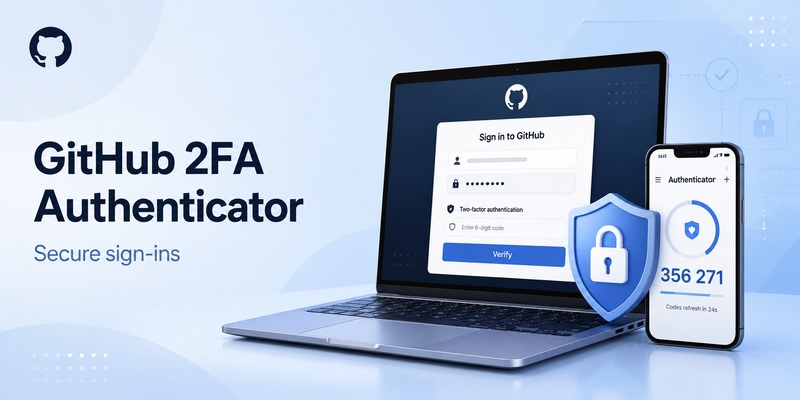
A github 2fa authenticator is a time-based authentication method that adds another verification step to your GitHub login. Instead of protecting an account with only a username and password, two-factor authentication requires a second credential before access is granted.
For many GitHub users, that second credential is a temporary six-digit code generated by an authenticator application.
GitHub supports time-based one-time password, or TOTP, applications on mobile devices and computers. GitHub specifically recommends using a TOTP app for 2FA rather than SMS because TOTP applications are generally more reliable and avoid several weaknesses associated with text-message authentication.
A github 2fa authenticator can therefore be Google Authenticator, Microsoft Authenticator, a password manager with TOTP support, or another compatible application.
GitHub is largely app-agnostic for TOTP authentication. Its documentation states that users can choose their preferred TOTP application rather than being required to install a GitHub-branded authenticator.
That makes setting up a 2fa authenticator github workflow relatively flexible.
For developers, this additional protection is particularly valuable because a GitHub account may provide access to source code, private repositories, organizations, packages, automation workflows, and other development resources.
GitHub began requiring many users who contribute code on GitHub.com to enable 2FA as part of its account-security initiative beginning in March 2023.
Whether 2FA is mandatory for your account or simply enabled voluntarily, understanding your github 2fa authenticator configuration helps prevent both unauthorized access and accidental account lockouts.
How Does GitHub 2FA Authenticator Work?
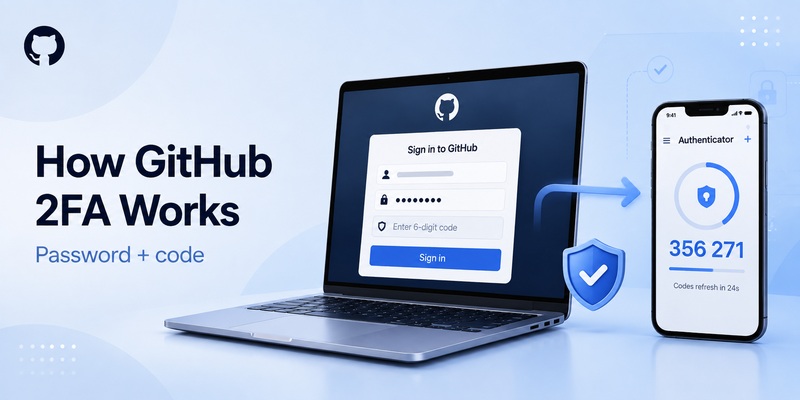
A github 2fa authenticator commonly uses the TOTP standard.
During setup, GitHub creates a secret associated with your account. That secret is represented by a QR code or a manual setup key. Your authenticator stores the secret and combines it with the current time to calculate temporary login codes.
GitHub’s current TOTP configuration uses six digits and a default 30-second period. The manual configuration documented by GitHub uses TOTP, SHA-1, six digits, and a 30-second interval.
A basic 2fa authentication example looks like this:
- You enter your GitHub username and password.
- GitHub asks for two-factor authentication.
- You open your authenticator application.
- The app displays a six-digit GitHub code.
- You enter the active code on GitHub.
- GitHub verifies the code and completes the login.
Because the code changes regularly, a previously used or expired code will not remain valid indefinitely.
When using github 2fa authenticator, GitHub does not send the TOTP code to your app each time you log in. The authenticator calculates the code using the secret stored during setup.
That distinction becomes important when troubleshooting.
If you wait for GitHub to “send” an authenticator code, nothing will arrive. Instead, you need to open the authenticator App you originally configured and retrieve the current code from the GitHub entry. GitHub explicitly highlights this behavior in its 2FA troubleshooting guidance.
Download Authenticator App
Secure your accounts with fast, reliable two-factor authentication. Download now and protect your login in seconds.
How to Set Up GitHub 2FA Authenticator
Setting up github 2fa authenticator takes only a few minutes, but recovery preparation is just as important as scanning the QR code.
Start by installing a reputable TOTP authenticator.
Then sign in to GitHub and open your account settings.
According to GitHub’s current setup flow:
- Click your profile picture.
- Open Settings.
- Find the Access section.
- Select Password and authentication.
- Find the two-factor authentication section.
- Choose Enable two-factor authentication.
- Scan the QR code with your authenticator.
- Enter the generated six-digit code.
- Download and securely save your recovery codes.
- Finish enabling 2FA.
These github 2fa settings are also where you can later add, modify, or change authentication methods.
Once your github 2fa authenticator has scanned the account information, the application creates a GitHub entry and begins producing temporary codes.
Do not close the setup page immediately.
Enter the code from your authenticator and confirm GitHub accepts it first. Then securely store the recovery codes GitHub provides.
This last step is critical.
A working github 2fa authenticator app protects you when your password is compromised, but recovery codes protect you when the authenticator itself becomes unavailable.
GitHub recommends configuring more than one authentication or recovery method so that losing one device does not automatically mean losing access to your account.
How to Use the GitHub 2FA QR Code
The github 2fa qr code connects GitHub with your authenticator without requiring you to manually type the TOTP secret.
Open the QR scanner inside your chosen authenticator and point your phone camera at the code shown in GitHub’s security settings.
After scanning, the authenticator should display a GitHub account entry and a six-digit code.
The github authenticator qr code contains authentication setup information, so it should be treated as sensitive.
Do not post a screenshot of it, send it in an unsecured message, or include it in documentation shared with other people.
Anyone who obtains the underlying TOTP secret could potentially generate the same temporary codes.
If your camera cannot scan the github 2fa qr code, GitHub also provides a setup key.
The documented manual parameters are:
- Type: TOTP
- Label: GitHub followed by your username
- Issuer: GitHub
- Algorithm: SHA-1
- Digits: 6
- Period: 30 seconds
You can enter the setup key manually into a compatible github 2fa authenticator instead of scanning the QR code.
GitHub also notes that if you want the same TOTP authentication configured on multiple devices during initial setup, you can scan the QR code with each device before completing configuration, or securely preserve the setup key.
 Discover Helpful Guides: 2FA Authenticator App: Complete Guide to Setup, Use, Download, and Secure Your Accounts
Using Google Authenticator with GitHub 2FA

Yes, you can use Google Authenticator as your github 2fa authenticator.
GitHub allows compatible TOTP apps, so Google Authenticator can generate the six-digit codes required for GitHub login.
The github 2fa google authenticator setup follows the normal GitHub TOTP process.
Open GitHub’s Password and authentication settings, choose authenticator-based 2FA, and display the QR code.
In Google Authenticator, choose the option to add an account and scan the QR code.
If you are researching adding accounts to google authenticator, GitHub is simply another standard TOTP account. After scanning the setup QR code, the GitHub entry appears alongside your other authentication accounts.
The resulting 2fa code google authenticator displays for a limited period before being replaced with another six-digit code.
For users asking how to use google authenticator 2fa with GitHub, the login process is simple: enter your GitHub password, open Google Authenticator, find the correct GitHub account, and enter the current code.
A common mistake occurs when people have multiple GitHub profiles inside Google Authenticator.
Your github 2fa authenticator code is account-specific. A code generated for one GitHub account cannot authenticate another.
GitHub’s troubleshooting guidance specifically recommends checking that you are using the correct account entry when a TOTP code repeatedly fails.
Using Microsoft Authenticator with GitHub 2FA
Microsoft Authenticator can also serve as a github 2fa authenticator because it supports standard TOTP accounts.
The github 2fa microsoft authenticator setup is similar to Google Authenticator.
Open GitHub’s authentication settings and choose to configure a TOTP application. When GitHub displays the setup QR code, open Microsoft Authenticator and add an appropriate third-party or other account.
Scan the QR code and wait for the GitHub account entry to appear.
Microsoft Authenticator should then generate the temporary code required by GitHub.
Enter that code on GitHub to verify the configuration.
The advantage of GitHub’s flexible TOTP implementation is that developers are not locked into one github 2fa app.
GitHub states that it is app-agnostic for TOTP, and any compatible application can be used when configured with the appropriate secret.
That means choosing between Google Authenticator, Microsoft Authenticator, or another github 2fa authenticator can depend on factors such as backup preferences, device ecosystem, synchronization, security features, and personal workflow.
How to Sign In with GitHub 2FA Authenticator
Once github 2fa authenticator is enabled, signing in remains straightforward.
Enter your normal GitHub login credentials first.
GitHub will then request your second authentication method.
Open your authenticator and locate the GitHub entry. Enter the current six-digit code before it expires.
GitHub explains that users may be prompted for 2FA after logging out, signing in from a new device, performing sensitive actions, or when an existing session expires.
If the code is close to expiring, waiting for the next code can prevent unnecessary failures.
A TOTP code lasts only a short time, so entering one just as it changes can occasionally result in a rejection.
A properly configured github 2fa authenticator will continuously generate a new code without requiring GitHub to send anything to your phone.
If you configured additional authentication methods, you may also see alternatives such as GitHub Mobile, security keys, passkeys, or recovery options.
GitHub allows users with multiple 2FA methods to choose a preferred method in account settings.
Discover Helpful Guides: 2FA Authenticator Chrome: How to Set Up Secure Two-Factor Authentication in Your Browser
How to Fix GitHub 2FA Authentication Failed Errors

Seeing github 2 factor authentication failed can be alarming, but it does not automatically mean your account has been compromised.
GitHub’s troubleshooting documentation states that a two-factor authentication failed message generally means the authentication code being entered is incorrect.
If your github 2fa authenticator code fails, check these areas first.
Check the correct authenticator
Use the application that contains the GitHub TOTP secret created during setup.
GitHub does not transmit a new TOTP code to your device during login.
Check the correct GitHub account
If your authenticator contains several GitHub entries, make sure you selected the account that matches the username currently signing in.
Synchronize your device clock
TOTP depends on time.
If the phone or computer running the authenticator has an incorrect clock, its code may not match GitHub’s expected code.
GitHub recommends setting date, time, and time zone to synchronize automatically.
Wait for a new code
If github 2fa authentication failed appears near the end of a code’s 30-second window, allow the next code to appear and enter it immediately.
Avoid extra characters
Enter only the authentication digits requested.
Spaces, copied formatting, or other accidental characters can cause validation failure.
These checks solve many github 2fa authenticator problems without requiring account recovery.
 Explore More Useful Guides: 2FA Authenticator Free: How to Choose and Use a Free Authenticator App Safely
What to Do When GitHub 2FA Is Not Working
A search for github 2fa not working can describe several different problems.
The QR code may fail to scan. The generated code may be rejected. The wrong authenticator entry may be selected. A device clock may be inaccurate. Or the original authenticator may have been lost entirely.
When github 2 factor authentication not working becomes an issue, identify whether you still have access to the original TOTP secret.
If your authenticator still shows GitHub codes, begin with:
- Confirming the correct account
- Setting device time automatically
- Waiting for a fresh code
- Entering the code promptly
- Checking that you are using the original TOTP account
GitHub specifically recommends these steps for TOTP troubleshooting.
If your github 2fa authenticator was restored from a backup, confirm that the GitHub TOTP entry was actually included in the restored data.
If your phone was completely lost and you no longer have access to the TOTP account, stop attempting random codes and switch to a configured recovery method.
That could include GitHub recovery codes, a passkey, a security key, or other available account-recovery factors.
Explore More Useful Guides: How to Use 2FA Authenticator: A Complete Step-by-Step Guide for Better Account Security
GitHub 2FA Recovery Codes and Account Recovery

Recovery codes are one of the most important parts of a github 2fa authenticator setup.
When you activate two-factor authentication, GitHub provides recovery codes and asks you to store them safely.
Each recovery code can help you regain account access when the normal authenticator is unavailable.
GitHub’s default downloaded recovery-code filename is github-recovery-codes.txt.
Store these codes somewhere secure and separate from the phone containing your github 2fa authenticator.
If you lose your authenticator:
- Open the GitHub sign-in page.
- Enter your username and password.
- Open the additional authentication options.
- Choose the 2FA recovery-code option.
- Enter a valid recovery code.
GitHub also supports other recovery possibilities depending on what you configured, including passkeys, security keys, previously verified devices, SSH keys, and personal access tokens in certain account-recovery flows.
However, users should not assume GitHub Support can simply disable 2FA for them.
GitHub warns that Support cannot restore access when a user has lost both 2FA credentials and available recovery methods. In the worst case, permanent account access can be lost.
That makes recovery preparation part of using github 2fa authenticator, not an optional task to think about later.
How to Change or Add a GitHub Authenticator App
You do not have to disable two-factor authentication completely just because you want to change your github 2fa authenticator.
GitHub allows users to change an existing TOTP application or add another 2FA method from Password and authentication settings.
To change the authenticator:
- Open GitHub Settings.
- Choose Password and authentication.
- Find your authenticator method.
- Select Edit.
- Scan the new QR code with the new app.
- Enter the newly generated code.
- Save the change.
Do not delete the existing GitHub entry from your old app before GitHub successfully validates and saves the replacement.
GitHub explicitly warns that changes take effect only after a valid code from the new method has been provided and the change has been saved.
This approach makes moving your github 2fa authenticator to a different application much safer.
You can also add additional authentication methods rather than replacing your current setup.
Using multiple methods can reduce the chance of being locked out if one device is lost.
Explore More Useful Guides: 2FA Authenticator APK: Safe Download, Installation, and Setup Guide for Android
GitHub 2FA Security Best Practices

A github 2fa authenticator significantly improves account security, but the way you configure it matters.
First, securely store your recovery codes immediately after enabling 2FA.
Second, consider adding more than one authentication method.
GitHub recommends multiple 2FA and recovery methods to reduce lockout risk.
Third, protect the device that contains your authenticator with a secure PIN, password, or biometric lock.
Fourth, never share your TOTP setup secret or QR code.
Fifth, confirm that your authenticator’s time settings remain synchronized automatically.
For even stronger account protection, GitHub supports security keys and passkeys. GitHub notes that passkeys can satisfy both password and 2FA requirements, while security keys can be configured as an additional method after 2FA is enabled.
A practical security setup might therefore combine github 2fa authenticator with secure recovery codes and a hardware security key or passkey.
This creates multiple ways to authenticate without depending entirely on one phone.
Frequently Asked Questions
What authenticator app should I use for GitHub?
GitHub does not require one specific TOTP application.
You can use Google Authenticator, Microsoft Authenticator, desktop TOTP software, or another compatible app.
The best github 2fa authenticator is one you trust, can back up safely, and can access reliably.
Does GitHub generate six-digit authenticator codes?
Yes.
GitHub’s documented TOTP configuration uses six digits with a default 30-second period.
Why does my GitHub authenticator code keep failing?
Check your device’s date and time, confirm you selected the correct GitHub account in your authenticator, and wait for a new code before entering it.
These are GitHub’s main recommendations when github 2fa not working occurs with a TOTP application.
Can I use Google Authenticator for GitHub?
Yes.
Google Authenticator supports TOTP and can function as a github 2fa authenticator.
Scan GitHub’s QR code into Google Authenticator and verify the generated six-digit code during setup.
Explore More Useful Guides: Facebook 2FA Authenticator: How to Set Up, Use, and Fix Two-Factor Authentication
Can I use Microsoft Authenticator for GitHub?
Yes.
Microsoft Authenticator can generate standard TOTP codes and can therefore be configured for GitHub.
Can I have GitHub 2FA on more than one device?
During initial TOTP setup, GitHub says you can scan the QR code with multiple devices at the same time or preserve the setup key securely. If 2FA is already enabled and you want another device, GitHub recommends reconfiguring your TOTP method through security settings.
What happens if I lose my phone?
Use your stored GitHub recovery codes or another configured recovery method.
Do not wait until your phone is lost to configure recovery.
A good github 2fa authenticator strategy always includes a backup authentication path.
Does GitHub recommend authenticator apps or SMS?
GitHub strongly recommends TOTP applications and suggests security keys as backup methods instead of relying on SMS.
Can I manually configure GitHub 2FA without scanning the QR code?
Yes.
GitHub provides a setup key that you can enter into a compatible TOTP application when QR scanning is unavailable.
Does GitHub Mobile replace an authenticator app?
GitHub Mobile can be used as an additional 2FA method after you have configured another supported primary method. GitHub Mobile uses public-key cryptography rather than TOTP for this authentication workflow.
Final Thoughts
A github 2fa authenticator is one of the most practical ways to strengthen a GitHub account beyond password-only security.
GitHub supports standard TOTP authentication, which means developers can choose from Google Authenticator, Microsoft Authenticator, and many other compatible tools rather than being locked into one application.
Setting up github 2fa authenticator requires only a few steps: open GitHub’s password and authentication settings, enable 2FA, scan the QR code, enter the generated six-digit code, and securely store the recovery codes.
The recovery step should never be skipped.
A lost phone is inconvenient, but a lost phone combined with missing recovery methods can become a serious account-access problem. GitHub explicitly warns that Support cannot simply restore accounts when users lose both their 2FA credentials and recovery options.
If a github 2fa authenticator code fails, first confirm the correct account, synchronize the device clock, wait for a fresh 30-second code, and enter it promptly.
For users who want stronger protection, GitHub also supports additional authentication methods including security keys, GitHub Mobile, and passkeys.
The strongest setup is not simply turning on github 2fa authenticator once and forgetting about it. It is combining a reliable authenticator with secure recovery codes, additional authentication options, and careful protection of the device that holds your TOTP credentials.
Download Authenticator App
Secure your accounts with fast, reliable two-factor authentication. Download now and protect your login in seconds.
