
Apple 2FA Authenticator: How It Works, Setup, Codes, and iPhone Security
Published August 23, 2026
Protecting an Apple Account involves more than choosing a strong password. Your account can contain photos, backups, messages, payment information, subscriptions, device information, and access to other Apple services, making additional login protection particularly important.
This is where apple 2fa authenticator searches can become confusing. Apple supports two-factor authentication for Apple Accounts, but Apple Account sign-in does not work exactly like the traditional QR-code-based authenticator system used by many websites.
For Apple Account two-factor authentication, you normally sign in with your password and then verify the login using a six-digit code displayed on a trusted Apple device or sent to a trusted phone number. Apple states that two-factor authentication is the default security method for most Apple Accounts.
At the same time, an iPhone can function like an authenticator for third-party websites and apps. Apple’s Passwords app can generate time-based verification codes after you connect a compatible account using a QR code or setup key.
Understanding this difference is essential when researching apple 2fa authenticator options.
In this guide, you’ll learn how Apple Account 2FA works, how to get verification codes, how the built-in iPhone authenticator functionality works, when Google Authenticator can be useful, and how to avoid getting locked out of important accounts.
What Is Apple 2FA Authenticator?
The term apple 2fa authenticator can describe two related but different security systems.
The first is two-factor authentication for your Apple Account.
With apple 2fa authentication, your password acts as the first factor. When Apple requires additional verification, a six-digit security code provides the second factor.
For example, suppose you sign in to your Apple Account on a new Mac or through the web.
A simple 2fa authentication example looks like this:
- Enter your Apple Account email or phone number.
- Enter your password.
- Receive a six-digit verification code on a trusted Apple device or trusted phone number.
- Enter that code.
- Complete the sign-in.
Apple confirms that this password-plus-six-digit-code model is used when signing in for the first time on a new device or on the web.
The second meaning of apple 2fa authenticator is using an iPhone to generate one-time codes for other websites and apps.
For example, a website may display a QR code and ask you to connect an authenticator. Your iPhone can store that setup in Passwords and generate the temporary verification code when needed.
This makes the iPhone an effective iphone 2fa authenticator even though the system is different from the verification method Apple uses for Apple Account sign-ins.
Keeping these two concepts separate will prevent most confusion around Apple authentication.
Download Authenticator App
Secure your accounts with fast, reliable two-factor authentication. Download now and protect your login in seconds.
Does Apple Have Two-Factor Authentication?
If you are asking does apple have two factor authentication, yes. Apple provides two-factor authentication for Apple Accounts and recommends it as an additional security layer.
Apple describes the feature as protection designed to help ensure that only you can access your account even when another person knows your password.
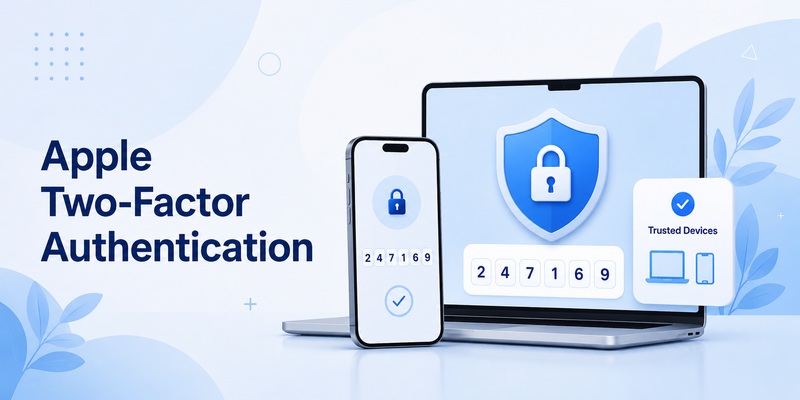
The basic 2fa apple system relies on three important components:
Your Apple Account password, trusted devices, and trusted phone numbers.
A trusted device can receive or display verification information when Apple needs to confirm a new sign-in.
For most modern users, the apple 2fa authenticator experience is therefore integrated directly into the Apple ecosystem rather than requiring a separate TOTP application just to sign in to an Apple Account.
This is an important distinction because some users search for 2fa apple account instructions expecting to scan a QR code into Google Authenticator.
Apple Account authentication does not generally follow that workflow.
Instead, Apple says that when you sign in on a new device or on the web, you can be required to provide both your password and a six-digit verification code from a trusted device or trusted phone number.
You may also encounter the phrase mfa apple. MFA means multi-factor authentication, while 2FA specifically refers to two factors. In everyday searches, users sometimes use these terms interchangeably, although the Apple Account feature is officially described as two-factor authentication.
💡 Discover Helpful Guides: 2FA Authenticator App: Complete Guide to Setup, Use, Download, and Secure Your Accounts
Does Apple Have an Authenticator App?
A common question is does apple have an authenticator.
The answer depends on what you mean by “authenticator.”
Apple does not require a separate standalone Apple-branded authenticator app for Apple Account 2FA. Instead, Apple Account verification is integrated into trusted Apple devices and trusted phone numbers.
However, iPhone does include built-in functionality capable of generating authenticator-style verification codes for compatible third-party websites and apps.
Apple’s Passwords app can store passwords, passkeys, and verification codes. It can also generate one-time codes after an account is configured using a QR code or setup key.
For someone searching for an apple 2fa authenticator app, Passwords is therefore an important option to understand.
You could think of it this way:
Apple Account 2FA → trusted Apple device or trusted phone number.
Third-party website 2FA → Apple Passwords can act like an authenticator when the service supports standard verification codes.
This means terms such as apple 2fa app, 2fa app apple, and 2fa apple app may refer to the built-in Passwords experience rather than a separate application called “Apple Authenticator.”
The distinction matters because an apple 2fa authenticator for a third-party account does not change how your Apple Account itself verifies new sign-ins.
💡 Discover Helpful Guides: 2FA Authenticator Chrome: How to Set Up Secure Two-Factor Authentication in Your Browser
How to Set Up Two-Factor Authentication for Your Apple Account
Setting up apple 2fa authenticator protection for your Apple Account is usually straightforward.
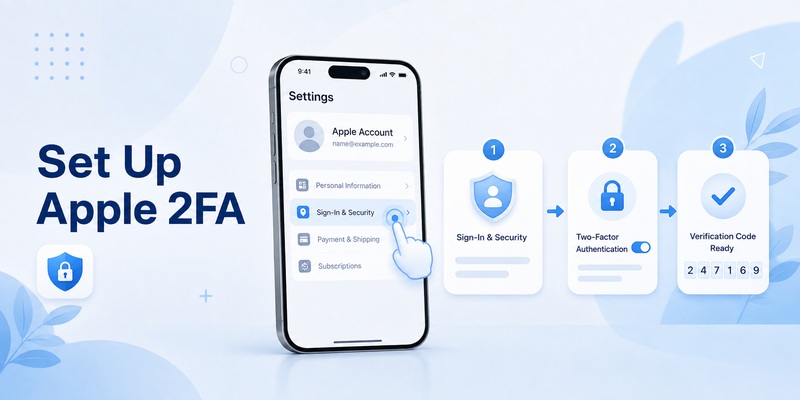
According to Apple’s current instructions, on iPhone or iPad you can go to Settings, select your name, open Sign-In & Security, and turn on Two-Factor Authentication if the account is not already using it.
The general process is:
- Open Settings on your iPhone or iPad.
- Tap your name.
- Open Sign-In & Security.
- Select the two-factor authentication option.
- Follow the onscreen instructions.
- Add or verify a trusted phone number when required.
For many users, apple 2fa authentication may already be enabled because Apple says it is the default security method for most accounts.
Once activated, a trusted device becomes an important part of the apple 2fa authenticator system.
You should regularly review which devices have access to your Apple Account.
Apple provides a device list where you can see devices signed in to your account. Removing a device means that device will no longer have access to Apple services associated with the account and will no longer display Apple Account two-factor verification codes.
That makes device management an important security habit.
If you still use the older phrase apple id 2fa authenticator app, note that Apple now refers to Apple ID as Apple Account. The security concept remains the same: protect your Apple credentials and verify sensitive sign-ins with a second factor.
How Apple 2FA Verification Codes Work
An apple 2fa authenticator verification code is normally a six-digit number used to confirm that a login is really being performed by you.
Suppose you sign in to your Apple Account on a browser you have never used before.
After entering the correct password, Apple may display a notification on a trusted device.
You can then obtain the verification code and enter it on the new device.
This is different from a traditional authenticator 2fa code generated continuously by a TOTP app.
A standard authenticator application might display a code that automatically changes every 30 seconds. Apple Account 2FA instead uses Apple’s trusted-device and trusted-phone-number verification system.
This difference is one of the most important things to understand about apple 2fa authenticator searches.
If you do not have access to a trusted device during a new sign-in, Apple’s instructions allow you to request a code using an associated trusted phone number through the “Didn’t Get a Verification Code?” flow.
Do not share these verification codes with another person.
If someone contacts you claiming to be technical support and requests an Apple verification code, treat the request as suspicious.
The apple 2fa authenticator code is designed to prove possession of your trusted authentication method. Giving it to another person defeats that security layer.
📘 Explore More Useful Guides: 2FA Authenticator Free: How to Choose and Use a Free Authenticator App Safely
How to Use iPhone as an Authenticator for Other Accounts
One of the most useful features for users researching 2fa authenticator apple options is the ability to generate verification codes directly on an iPhone.
Suppose a website offers an authenticator-based 2FA option.
Open that website’s security settings and choose to set up an authentication app.
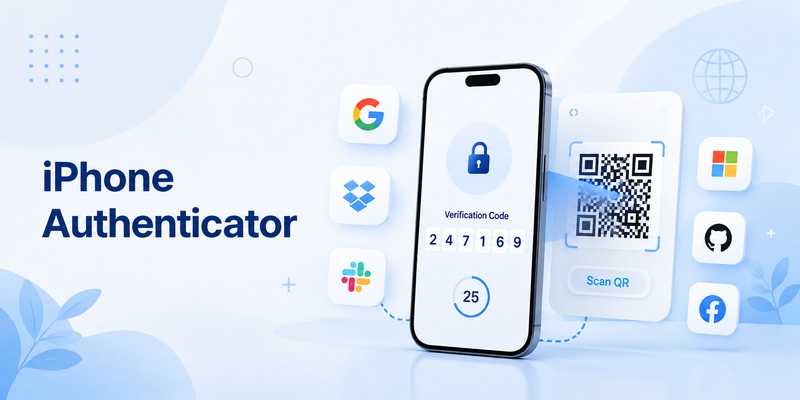
The website will usually provide a QR code or setup key.
On iPhone, you can connect the account to Passwords.
Apple’s current instructions explain that iPhone can generate one-time verification codes for compatible websites and apps. A user can scan the site’s QR code or use its setup key, then retrieve or AutoFill the verification code during future sign-ins.
This turns your device into an iphone 2fa authenticator without requiring an additional authenticator application for every supported account.
A typical setup looks like this:
- Enable two-factor authentication on the website.
- Choose the authenticator-app option.
- Display the QR code or setup key.
- Add the setup to Passwords on iPhone.
- Enter the generated verification code into the website.
- Confirm that 2FA is enabled.
After setup, the apple 2fa authenticator functionality can generate a new code whenever required by that website.
Because Passwords can also work with Apple’s password ecosystem, this approach can be convenient for people who primarily use Apple devices.
However, always keep recovery codes provided by third-party websites. Your authenticator should not be your only recovery path.
Can You Use Google Authenticator for Apple?
This question requires an important distinction.
You can install Google Authenticator on an iPhone and use it to generate codes for websites and services that support compatible authenticator-based verification.
However, you should not assume that a 2fa code google authenticator can replace the trusted-device verification code used to sign in to an Apple Account.
Apple Account two-factor authentication uses Apple’s own trusted-device and trusted-phone-number model.
So when someone searches how to use google authenticator 2fa on an iPhone, the answer depends on the account being protected.
For a compatible third-party website: yes, Google Authenticator can often be used.
For Apple Account 2FA: follow Apple’s built-in two-factor authentication process instead.
This distinction helps prevent users from trying to connect an apple 2fa authenticator QR code that does not exist for Apple Account login.
Google Authenticator itself supports code synchronization when signed into a Google Account. Google also provides a manual transfer process for users who operate Authenticator without account-based syncing.
Therefore, both Apple Passwords and Google Authenticator can be useful on an iPhone, but they should not be confused with the Apple Account’s own 2FA verification system.
📘 Explore More Useful Guides: How to Use 2FA Authenticator: A Complete Step-by-Step Guide for Better Account Security
How to Use an Authenticator on Two Phones
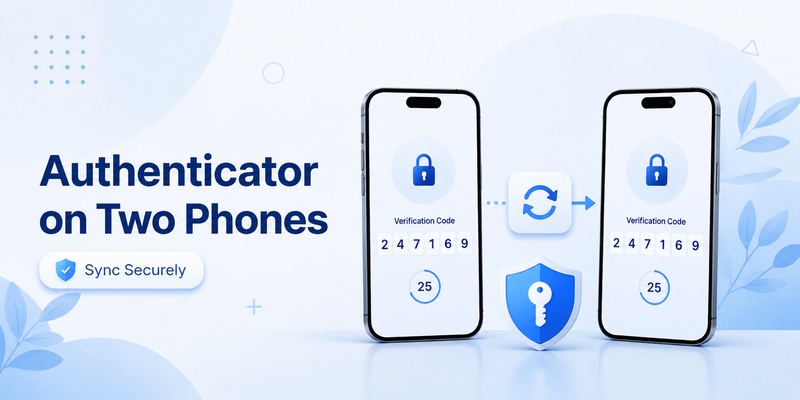
Using an authenticator on two phones can provide convenience and reduce the risk of losing all access when one phone is unavailable.
However, how this works depends on the authentication system.
For Apple Account 2FA, you can have multiple trusted Apple devices signed in to the same Apple Account. Eligible trusted devices can participate in the apple 2fa authenticator verification process. Apple also recommends maintaining trusted phone numbers for verification and recovery scenarios.
For verification codes stored through Apple’s Passwords ecosystem, passwords and related credentials can be available across devices signed in to the same Apple Account when appropriate iCloud Passwords & Keychain features are enabled.
Google Authenticator works differently.
Google says Authenticator codes can sync to a new device when you sign in to your Google Account inside Authenticator. Codes can also be manually transferred when Authenticator is used without a Google Account.
Whichever apple 2fa authenticator approach you use, test the second device before wiping, selling, or resetting your old phone.
Never assume that authenticator data has transferred successfully simply because your other apps appeared on the new device.
Apple 2FA Authenticator Not Working: Common Problems and Fixes
When an apple 2fa authenticator process fails, first identify which type of authentication is causing the problem.
If you are signing in to your Apple Account and no verification code appears, check your trusted devices and trusted phone numbers.
Make sure the device is actually signed in to the correct Apple Account.
If no trusted device is currently available, use Apple’s option to request verification through a trusted phone number when offered.
If the problem involves a third-party apple 2fa authenticator app code stored in Passwords, check that you selected the correct account and that the website’s current 2FA setup still matches the stored authenticator configuration.
If you disabled and re-enabled 2FA on a website, the old secret may no longer work. You may need to configure the account again using the website’s new QR code or setup key.
For an authenticator 2fa code, correct device time is also important because many third-party authentication systems generate codes based on time.
Before deleting any authentication entry, make sure you have a recovery option.
If you still have an active session on another device, use it to review and repair the account’s security configuration before signing out.
For an Apple Account issue specifically, follow Apple’s official account recovery process rather than trying to bypass apple 2fa authenticator security using third-party tools.
Best Practices for Apple 2FA Security
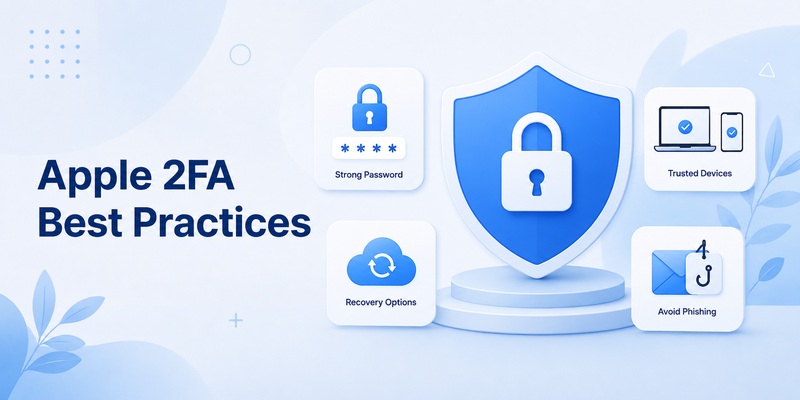
Correctly configuring an apple 2fa authenticator is only one part of strong account security.
Start with a unique Apple Account password that you do not reuse elsewhere.
Protect your iPhone, iPad, and Mac with strong device passcodes and biometric authentication where appropriate. Apple recommends device passcodes and supported options such as Face ID or Touch ID as part of protecting accounts and trusted devices.
Keep your trusted phone number current.
If you change phone numbers, update your Apple Account security information before losing access to the old number.
Review trusted devices periodically.
Remove devices you sold, lost, or no longer recognize.
When using apple 2fa authenticator functionality for third-party websites, save recovery codes somewhere secure. Do not store your only recovery copy in a location that will disappear if the same phone is lost.
Never share one-time codes.
Be cautious when a website unexpectedly requests your password and authentication code at the same time, especially after you clicked a link in an email or message.
Phishing sites can imitate legitimate login pages and attempt to capture both factors.
Finally, understand which system is protecting which account.
Your Apple Account’s two-factor authentication, the Passwords app’s verification-code generator, and a third-party authenticator App such as Google Authenticator are related security technologies, but they are not interchangeable in every situation.
Understanding that difference makes apple 2fa authenticator security easier to manage and much less confusing.
📘 Explore More Useful Guides: 2FA Authenticator APK: Safe Download, Installation, and Setup Guide for Android
Frequently Asked Questions About Apple 2FA Authenticator
Does Apple have its own two-factor authentication?
Yes. If you are wondering does apple have two factor authentication, Apple provides built-in two-factor authentication for Apple Accounts. New-device or web sign-ins can require your password plus a six-digit code from a trusted device or trusted phone number.
Does Apple have an authenticator like Google Authenticator?
For third-party accounts, iPhone’s Passwords app can generate one-time verification codes using QR codes or setup keys. Therefore, users searching for an apple 2fa authenticator have a built-in Apple option for compatible websites and apps.
Is there an Apple Authenticator app?
There is no need for a separate application specifically named Apple Authenticator to use Apple Account 2FA. Apple’s Passwords app provides authenticator-style verification-code functionality for compatible third-party accounts.
This is usually what people looking for an apple 2fa app or 2fa apple app are trying to find.
Can Google Authenticator generate my Apple Account verification code?
Apple Account 2FA uses Apple’s trusted-device and trusted-phone-number verification process. A typical Google Authenticator TOTP code should not be treated as a replacement for Apple’s Apple Account verification code.
Can my iPhone generate 2FA codes for websites?
Yes. Apple’s Passwords app supports verification codes for compatible websites and apps, making an iphone 2fa authenticator possible without necessarily installing another application.
What is the difference between Apple 2FA and an authenticator app?
Apple Account apple 2fa authenticator verification typically relies on trusted devices or trusted phone numbers.
A traditional authenticator application normally uses a stored secret to generate rotating time-based codes for compatible third-party accounts.
Can I use Apple 2FA on multiple devices?
Yes. Multiple compatible devices signed in to the same Apple Account can become trusted devices. You should regularly review your device list and remove devices you no longer control.
Should I use Apple Passwords or Google Authenticator?
Both can be appropriate depending on your preferences and the services you use.
Apple Passwords integrates closely with Apple’s ecosystem and can generate verification codes for compatible accounts. Google Authenticator is a dedicated authenticator application available across supported devices.
Neither changes the fundamental apple 2fa authenticator method used for Apple Account sign-in.
What should I do before replacing my iPhone?
Verify your trusted phone numbers, check trusted devices, ensure important third-party authentication codes can be transferred or synchronized, and save account recovery information.
Do this before erasing your old phone.
Is Apple 2FA completely secure?
No authentication system can eliminate every security risk. An apple 2fa authenticator provides an important additional layer, but you should still use a strong password, protect trusted devices, keep recovery information secure, and remain alert to phishing.
📘 Explore More Useful Guides: GitHub 2FA Authenticator: Complete Setup, QR Code, Recovery, and Troubleshooting Guide
Final Thoughts
The phrase apple 2fa authenticator can initially seem confusing because Apple provides two different experiences involving verification codes.
For your Apple Account, two-factor authentication is built into Apple’s security system. When additional verification is required, you generally use a trusted Apple device or trusted phone number to obtain a six-digit code.
For third-party websites and apps, your iPhone can also operate as an authenticator. Apple’s Passwords app can store and generate compatible one-time verification codes, providing a built-in alternative to dedicated authenticator applications.
Google Authenticator can also be installed on iPhone for compatible third-party services, but it should not be confused with the verification mechanism used for your Apple Account.
Once you understand this difference, setting up and managing an apple 2fa authenticator becomes much simpler.
Use strong passwords, maintain your trusted devices and phone numbers, securely store recovery options, and never share verification codes with another person. With those habits in place, apple 2fa authenticator protection can add a valuable security layer to both your Apple Account and the other online accounts you access from your iPhone.
Download Authenticator App
Secure your accounts with fast, reliable two-factor authentication. Download now and protect your login in seconds.
