
Facebook 2FA Authenticator: How to Set Up, Use, and Fix Two-Factor Authentication
Published August 23, 2026
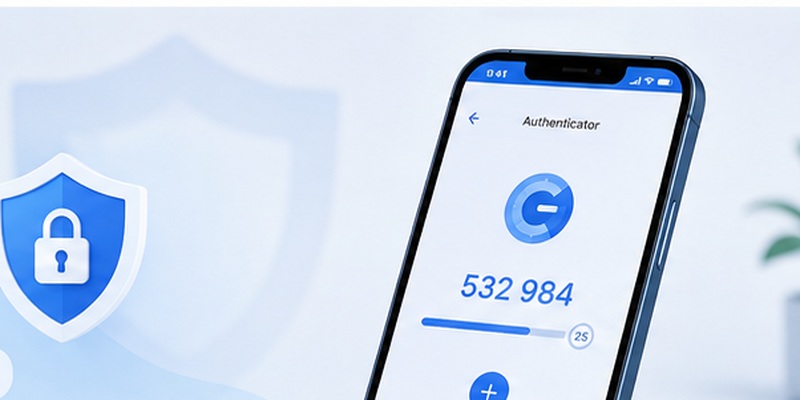
Passwords are still an essential part of online security, but relying on a password alone can leave an account vulnerable if that password is stolen, leaked, guessed, or reused. Adding two-factor authentication creates an additional barrier between an attacker and your Facebook account.
A facebook 2fa authenticator provides this extra protection by generating temporary verification codes on your phone. After entering your Facebook password, you may be asked for one of these codes before the login can be completed.
For most users, learning how a facebook 2fa authenticator works is straightforward. You enable two-factor authentication in Facebook’s security settings, connect an authentication application, scan a QR code or enter a setup key, and confirm the connection with a temporary code.
After setup, the authentication app continues generating new codes that can be used when Facebook requests additional login verification.
This guide explains how to configure a facebook 2fa authenticator, use Google Authenticator with Facebook, troubleshoot invalid codes, and prepare recovery methods in case you lose access to your phone.
What Is Facebook 2FA Authenticator?
A facebook 2fa authenticator is an authentication method that adds a second verification step to your Facebook login.
Normally, signing in requires something you know: your password.
With two-factor authentication enabled, Facebook can also require something you have, such as a smartphone containing an authentication application.
If you are wondering does facebook have two factor authentication, the answer is yes. Facebook supports additional account-protection methods, including authentication apps. Facebook’s exact menus and security interfaces may change over time, but two-factor authentication remains part of its account security system.
An authenticator typically generates a short numerical code that changes every few seconds. When Facebook requests a second factor, you open your authenticator App, locate the Facebook account, and enter the current code.
A typical login could look like this:
Password → Authenticator code → Account access
This is the basic principle behind facebook 2fa authentication.
The advantage is easy to understand. Suppose someone obtains your Facebook password through a phishing site. If your account requires a facebook 2fa authenticator, the password may not be enough because the attacker also needs the second verification factor.
This does not make an account impossible to compromise, but it creates another important security barrier.
Download Authenticator App
Secure your accounts with fast, reliable two-factor authentication. Download now and protect your login in seconds.
Why Should You Use an Authenticator for Facebook?
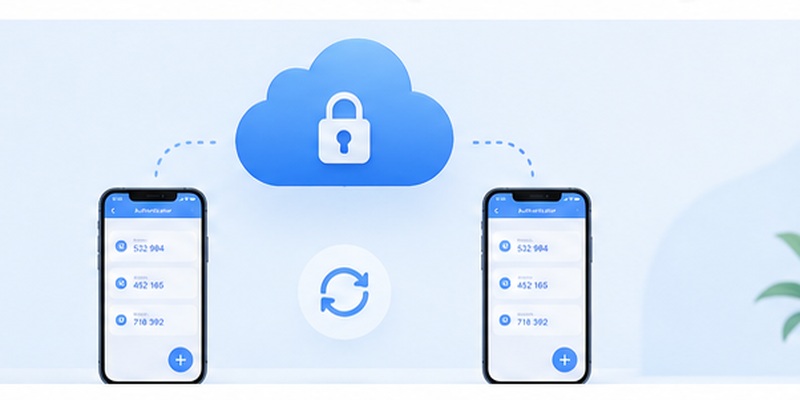
A facebook 2fa authenticator can reduce the risk associated with stolen passwords.
People often reuse passwords between websites. If another service suffers a data breach and the same password is used for Facebook, attackers may attempt to sign in using those leaked credentials.
Two-factor authentication can help prevent password-only access.
An authenticator can also be useful because authentication codes are usually generated directly on your phone instead of being delivered through SMS.
Once your facebook 2fa authenticator is configured, the app can normally generate temporary codes without needing a text message each time.
For users who manage important Facebook Pages, advertising accounts, communities, or business assets, protecting the personal Facebook profile connected to those resources can be particularly important.
Another benefit is awareness.
If you suddenly encounter a facebook 2fa login request that you did not initiate, it may indicate that someone is trying to sign in to your account. You should avoid approving unexpected requests and review your account security.
However, a facebook 2fa authenticator should not replace a strong password.
The strongest setup combines several habits:
- Use a unique Facebook password.
- Enable two-factor authentication.
- Protect the phone containing your authenticator.
- Store recovery options securely.
- Avoid entering credentials on suspicious websites.
- Review unfamiliar sessions and devices.
Together, these measures provide stronger protection than any single security feature.
💡 Discover Helpful Guides: 2FA Authenticator App: Complete Guide to Setup, Use, Download, and Secure Your Accounts
How to Set Up Facebook 2FA Authenticator
Setting up a facebook 2fa authenticator typically starts from your Facebook account security settings.
Facebook’s interface can vary between devices and versions, but the general process is similar.
First, sign in to Facebook using a trusted device.
Open your account settings and locate the security, password, login, or two-factor authentication controls. Facebook may organize these options through Accounts Center depending on your account and app version.
Find the two-factor authentication option and select the Facebook profile you want to protect.
Choose the authentication app option when available.
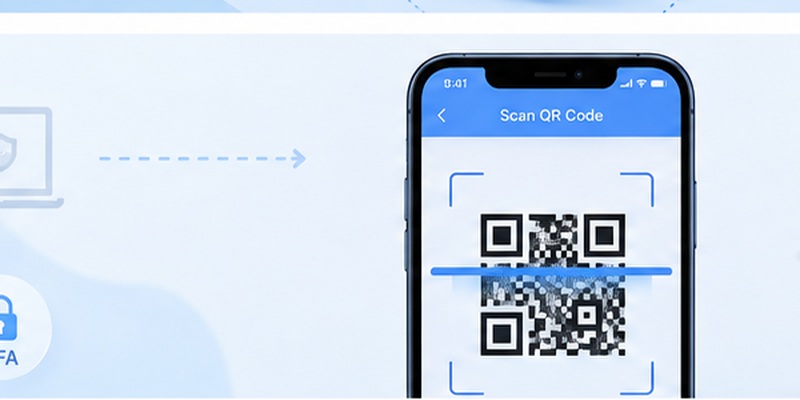
Facebook should then provide information that can be used to connect your authenticator. This commonly appears as a QR code and may also include a manual setup key.
Open your preferred authentication app.
Choose the option to add a new account and scan the QR code shown by Facebook.
Your facebook 2fa authenticator should then create an entry for your Facebook account and begin generating temporary codes.
Enter the current code back into Facebook to verify that setup works.
Once Facebook accepts the code, two-factor authentication should be activated.
Do not immediately leave the security page.
Check whether Facebook offers recovery methods, backup codes, trusted devices, or other ways to regain access. Saving recovery information can prevent a difficult lockout later.
The overall facebook 2fa authentication setup therefore follows five basic steps:
Enable 2FA, choose an authentication app, scan the setup information, enter the generated code, and save recovery options.
After completing these steps, your facebook 2fa authenticator is ready for future login verification.
💡 Discover Helpful Guides: 2FA Authenticator Chrome: How to Set Up Secure Two-Factor Authentication in Your Browser
How to Add Facebook to Google Authenticator
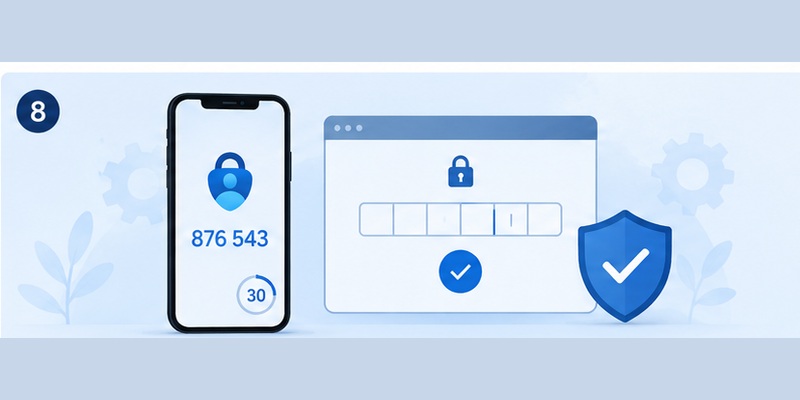
Google Authenticator is one of the applications commonly used to generate time-based verification codes.
The process of adding facebook to google authenticator begins inside Facebook rather than Google Authenticator.
Open Facebook’s two-factor authentication settings and choose the authentication app method.
When Facebook displays a QR code, open Google Authenticator on your phone.
Tap the option to add an account.
Choose the QR scanning option and point your camera at the code displayed by Facebook.
Google Authenticator should create a new Facebook entry and begin showing a temporary six-digit code.
Return to Facebook and enter that code to confirm the connection.
That completes a typical facebook 2fa google authenticator setup.
People frequently ask, can i use google authenticator for facebook? In general, Facebook’s authentication-app option is designed to work with compatible authenticator applications, allowing Google Authenticator to be used when configured correctly.
Similarly, users searching how do i use google authenticator for facebook mainly need to remember one important distinction: Google Authenticator generates the code, while Facebook is the service requesting and verifying it.
You configure the connection from Facebook’s security settings and then generate future codes through Google Authenticator.
After adding facebook to google authenticator, do not delete the Facebook entry from your authenticator unless you have already disabled or replaced the authentication method in Facebook.
Deleting the entry from your phone does not necessarily disable 2FA on the Facebook account.
If you want to use google authenticator for facebook on a new phone, transfer or reconfigure your authentication information carefully before wiping the old device.
This prevents your facebook 2fa authenticator setup from becoming inaccessible during a phone upgrade.
📘 Explore More Useful Guides: 2FA Authenticator Free: How to Choose and Use a Free Authenticator App Safely
How Facebook 2FA Login Works
Once your facebook 2fa authenticator has been configured, everyday use is simple.
Start by entering your Facebook email address, username, or phone number and password as usual.
If Facebook requires additional verification, you will see a prompt asking for an authentication code.
Open your authenticator application.
Find the Facebook entry.
You should see a temporary numerical code.
Enter that code into Facebook before it expires.
If the code is valid, Facebook can complete the login.
This is the standard facebook 2fa login process.
Authenticator codes typically rotate frequently, so you may notice a countdown indicator beside the code. If only a few seconds remain, it can be easier to wait until a new code appears and then enter the new one.
Your facebook 2fa authenticator does not usually generate one permanent password for Facebook. Instead, it continually generates temporary codes.
That distinction is important.
Never write one authentication code down and expect it to work days later. The code is designed to expire quickly.
Also, never send your current authentication code to another person. A scammer who already knows your password could potentially use a valid temporary code to complete a login attempt.
📘 Explore More Useful Guides: How to Use 2FA Authenticator: A Complete Step-by-Step Guide for Better Account Security
How to Find and Use Your Facebook 2FA Code

A common question from users setting up a facebook 2fa authenticator is where the actual code is located.
If your account is connected to an authentication app, open that app and look for your Facebook account.
The numerical value shown next to Facebook is your current 2fa facebook code.
For example, the authenticator might display:
482 193
After a short period, that number could change automatically to another code.
When Facebook asks for authentication, enter whichever code is currently active.
If you have several Facebook accounts, carefully check which authenticator entry you are using.
This is especially important when one facebook 2fa app contains several personal, work, or testing accounts. Similar names can make it easy to enter the wrong code.
You should also avoid sharing screenshots of your authenticator.
Even though each individual code expires, authenticator screens contain sensitive security information that should remain private.
The safest workflow is simple:
Open Facebook → enter password → receive 2FA prompt → open your facebook 2fa authenticator → copy the current code → return to Facebook → complete verification.
Once this becomes familiar, the process normally takes only a few seconds.
Facebook 2FA Not Working: Common Causes
Problems can occasionally occur even when a facebook 2fa authenticator has been configured correctly.
Searches such as facebook 2fa not working or two-factor authentication facebook not working can refer to several different problems.
One of the most common is an expired code.
Authentication codes remain valid only briefly. If you enter an older code after the authenticator has already generated a new one, Facebook may reject it.
Another possibility is incorrect device time.
Time-based authentication depends on your phone and the authentication system having sufficiently synchronized clocks. If your device’s date or time is significantly incorrect, the generated code may fail.
A third possibility is selecting the wrong account inside the authenticator.
If your app contains multiple entries, verify that you are using the code associated with the correct Facebook profile.
Users searching 2 factor authentication facebook not working may also be dealing with an old authenticator setup.
For example, if 2FA was disabled and then re-enabled, an older Facebook entry stored inside Google Authenticator may no longer correspond to the current configuration.
Your facebook 2fa authenticator can also become inaccessible after changing phones without transferring the authentication data.
The important point is to identify whether the problem involves:
- The code itself
- The authenticator entry
- Device time
- Account access
- A changed 2FA configuration
- A lost or replaced phone
Once you know which category applies, troubleshooting becomes much easier.
📘 Explore More Useful Guides: 2FA Authenticator APK: Safe Download, Installation, and Setup Guide for Android
How to Fix Facebook Authenticator Code Problems
If your facebook 2fa authenticator code is being rejected, begin with the simplest checks.
First, wait for a fresh authentication code.
Enter the new code immediately rather than using one that is about to expire.
Next, verify that your phone’s date and time are set automatically.
Then check the account name inside your authenticator. Make sure the code belongs to the Facebook account you are currently attempting to access.
If you recently changed your facebook two factor authentication google authenticator configuration, confirm that you are not using an obsolete authenticator entry.
Do not repeatedly delete authenticator entries while troubleshooting.
Removing a working facebook 2fa authenticator entry can make recovery more difficult if you do not have another authentication method available.
If you are already logged in on another trusted device, review your Facebook security settings there. You may be able to confirm, replace, or reconfigure your authentication method.
If you are completely locked out, use Facebook’s official recovery options instead of relying on third-party services that claim they can bypass authentication.
Never provide a password, recovery code, or active authenticator code to someone offering to “unlock” your account.
A problem described as facebook 2fa not working is frustrating, but bypassing security through an unknown third party creates a much greater risk.
📘 Explore More Useful Guides: Microsoft 2FA Authenticator: Complete Setup, Recovery, and Troubleshooting Guide
What to Do If You Lose Access to Your Authenticator
Losing the phone containing your facebook 2fa authenticator does not necessarily mean losing your Facebook account permanently.
Your recovery options depend on what you configured before the device was lost.
Start by checking whether you still have access through another trusted or already logged-in device.
If you do, open Facebook’s security settings and review your two-factor authentication configuration.
You may be able to configure a new authentication app or update your security options.
If you stored recovery codes when setting up the facebook 2fa authenticator, use an available recovery code according to Facebook’s login process.
If no alternative method is available, follow Facebook’s official account recovery flow.
Avoid creating unnecessary changes while you still have access somewhere.
For example, if Facebook remains logged in on your computer but the authenticator phone is missing, use that active session to secure and update the account before logging out.
Planning ahead is much easier than recovering from a complete lockout.
Before replacing or resetting a phone, review how your authenticator handles account transfers. Move your authentication accounts first whenever possible and test the new device.
Only erase the old phone after confirming the new facebook 2fa authenticator can successfully generate a valid Facebook code.
Best Practices for Facebook Two-Factor Authentication
Setting up a facebook 2fa authenticator is valuable, but how you manage it matters just as much.
Use a strong, unique Facebook password rather than reusing one from another website.
Protect your authenticator phone with a PIN, password, fingerprint, or other device-lock method.
Save recovery codes in a secure location that is separate from your phone.
Be suspicious of login pages reached through unexpected messages.
An authenticator cannot completely protect you from phishing if you voluntarily give a fake website both your password and your current verification code.
Always check that you are signing into the legitimate Facebook service before entering credentials.
Do not share your facebook 2fa authenticator code with another person, even if they claim to work for support.
You should also review active sessions periodically and remove devices you no longer recognize or use.
If your email account is connected to Facebook recovery, secure that email account with strong authentication as well.
For people using a facebook 2fa app across many accounts, clear account labels are also helpful. An authenticator containing several nearly identical entries can cause confusion during login.
Finally, plan for device replacement before it happens.
Knowing how to migrate your facebook 2fa authenticator and where your recovery codes are stored can turn a lost phone from a major account problem into a manageable inconvenience.
Frequently Asked Questions About Facebook 2FA Authenticator
Does Facebook support authenticator apps?
Yes. Facebook provides two-factor authentication options that can include compatible authentication apps. A facebook 2fa authenticator generates temporary verification codes that may be requested during login.
Can I use Google Authenticator with Facebook?
Users asking can i use google authenticator for facebook can generally connect Google Authenticator through Facebook’s authentication-app setup. Facebook supplies the QR code or setup information, and Google Authenticator generates the temporary codes.
How do I connect Facebook to Google Authenticator?
Open Facebook’s two-factor authentication settings, choose an authentication application, display the setup QR code, and scan it using Google Authenticator. Enter the generated code into Facebook to verify your facebook 2fa authenticator setup.
What is my Facebook 2FA code?
Your 2fa facebook code is the temporary code displayed by the authenticator associated with your Facebook account. It changes frequently and should be entered before it expires.
Why isn’t my Facebook authenticator code working?
If your facebook 2fa authenticator code fails, check whether the code expired, verify automatic date and time settings, confirm that you selected the correct Facebook entry, and make sure you are not using an old 2FA configuration.
What happens if I delete Facebook from Google Authenticator?
Deleting an authenticator entry does not necessarily turn off Facebook’s two-factor authentication requirement. You could lose access to the codes required for login.
Change or disable the authentication method from Facebook’s official account settings before intentionally deleting your facebook 2fa authenticator entry.
Can I use another authenticator instead of Google Authenticator?
A compatible authenticator App may work with Facebook’s authentication-app method. The setup principle is usually the same: scan Facebook’s QR code, generate a temporary code, and confirm it.
Do I need internet access to generate a Facebook 2FA code?
Many time-based authenticator applications generate codes locally, so the code-generation feature itself can work without a constant internet connection. You still need connectivity to access Facebook and complete the login.
Is Facebook 2FA enough to protect my account?
A facebook 2fa authenticator significantly improves login security, but it should be combined with a unique password, phishing awareness, secure recovery methods, and regular reviews of account activity.
Should I save Facebook recovery codes?
Yes. Recovery methods can be extremely useful if your phone is lost, damaged, reset, or unavailable.
Store them somewhere secure rather than keeping your only copy on the same phone as your facebook 2fa authenticator.
Final Thoughts
Using a facebook 2fa authenticator is a practical way to strengthen your Facebook account beyond password-only protection.
The basic process is simple: enable two-factor authentication, connect an authentication application, scan Facebook’s setup QR code, verify the temporary code, and securely store your recovery options.
If you prefer Google Authenticator, the facebook 2fa google authenticator setup follows the same process. Once connected, Google Authenticator generates the code you enter when Facebook requests additional verification.
Most problems involving two-factor authentication facebook not working can be traced to expired codes, incorrect device time, outdated authenticator entries, or lost access to the device.
Preparing recovery methods in advance is therefore just as important as enabling 2FA itself.
With a secure password, sensible recovery plan, and correctly configured facebook 2fa authenticator, you can make unauthorized access to your Facebook account considerably more difficult.
Download Authenticator App
Secure your accounts with fast, reliable two-factor authentication. Download now and protect your login in seconds.
