
Best Authenticator App for Apple: Top Choices for iPhone, iPad, and Mac
Choosing the best authenticator app for Apple devices is about more than generating six-digit verification codes. The right option should work smoothly across your iPhone, iPad, and Mac while offering secure backups, easy account recovery, biometric protection, and convenient 2FA setup. From Apple Passwords and Google Authenticator to Microsoft Authenticator and 1Password, this guide compares the top choices to help you find the option that best fits your Apple ecosystem and security needs.
1. What Makes the Best Authenticator App for Apple?
Choosing the best authenticator app for apple devices is not only about finding an app that generates six-digit codes. The right choice should fit naturally into the way you use your iPhone, iPad, Mac, passwords, work accounts, and backup habits.
Authenticator apps add a second layer of protection to online accounts. After entering a password, you provide a temporary verification code generated by the app. This code usually changes every 30 seconds, making it much harder for someone to access your account with a stolen password alone.
For Apple users, the ideal option should work smoothly across iOS, iPadOS, and macOS. It should also support Face ID, Touch ID, iCloud syncing or another secure backup method, and easy account recovery when you change or lose a device.
The best authenticator app for apple users should also avoid creating unnecessary friction. If logging in becomes difficult, people may skip security steps, store recovery codes carelessly, or disable two-factor authentication altogether. A good app balances security with speed.
When comparing options, focus on these factors:
- Compatibility with iPhone, iPad, and Mac
- Secure backup and recovery options
- Support for time-based one-time passwords (TOTP)
- Biometric protection through Face ID or Touch ID
- Offline code generation
- Password-manager integration
- Sharing and team administration features
- Clear export or migration options
There is no single winner for every Apple user. Apple Passwords may be enough for personal use, while 1Password or Microsoft Authenticator may be more practical for people managing work, school, or multi-platform accounts.
Download Authenticator App
Secure your accounts with fast, reliable two-factor authentication. Download now and protect your login in seconds.
2. Does Apple Have Its Own Authenticator App?
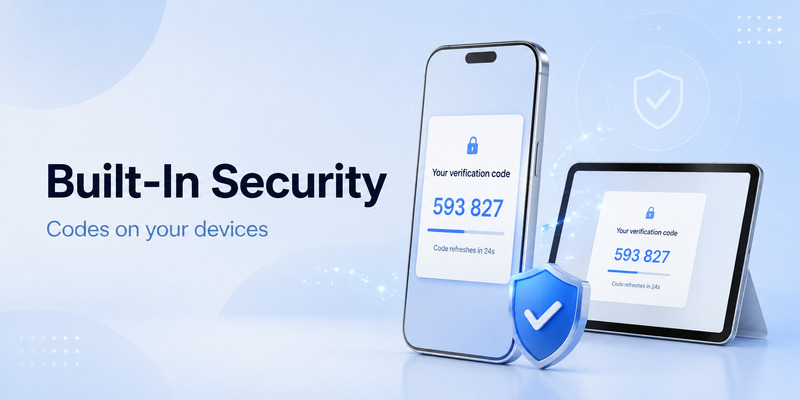
A common question is whether Apple offers a dedicated standalone app similar to Google Authenticator or Microsoft Authenticator. The short answer is that Apple does not market a separate TOTP-only app under an “Apple Authenticator” name. However, Apple has built verification-code functionality into its Passwords experience.
For many users, this makes Apple Passwords a strong candidate for the best authenticator app for apple ecosystem. On supported Apple devices, you can save verification codes alongside account passwords. When you sign in, the device can often fill the password and current verification code automatically.
This built-in approach is especially convenient for people who use Safari, iCloud Keychain, and Apple devices as their primary technology setup. Instead of opening another app, copying a code, returning to the browser, and pasting it, you can keep the process within Apple’s password workflow.
Apple also protects Apple Account sign-ins with its own two-factor authentication system. Trusted devices or trusted phone numbers can receive verification codes when you sign in to a new device or browser. That system protects your Apple Account, while saved verification codes in Passwords can help secure many third-party websites and services.
Still, Apple’s built-in option may not suit every situation. People who use Windows, Android, shared team vaults, enterprise identity systems, or multiple browsers may prefer a dedicated app with stronger cross-platform features.
💡 Discover Helpful Guides: Apple TV 2 Factor Authentication: How to Fix Authentication Required on Apple TV
3. Apple Passwords: Best Built-In Choice for Many Users
For a person who uses an iPhone and Mac every day, Apple Passwords can be the best authenticator app for apple devices because it keeps passwords, passkeys, and verification codes in one familiar place.
The biggest advantage is convenience. You can scan a QR code or enter a setup key for a website, then save the time-based code with the related login. When you return to that website, your Apple device may offer the current code automatically. This reduces copy-and-paste mistakes and makes two-factor authentication feel less disruptive.
Apple Passwords also benefits from Apple’s ecosystem security. Access can be protected by Face ID, Touch ID, or your device passcode. If you use iCloud syncing, your saved credentials can be available across your approved Apple devices.
This option is particularly useful for:
- Personal email, shopping, and social accounts
- Users who mostly browse with Safari
- People who want fewer security apps
- Families using Apple devices
- Users beginning with two-factor authentication
However, keeping the password and second factor in the same ecosystem is not the most cautious setup for everyone. Some security-focused users prefer to separate password storage from their code generator. The logic is simple: if one password vault is compromised, a separate authentication app can provide an additional barrier.
Apple Passwords is practical, polished, and easy to use. But users with cross-platform needs, complex account management, or professional requirements may need a more flexible solution.
4. Microsoft Authenticator for Apple Users
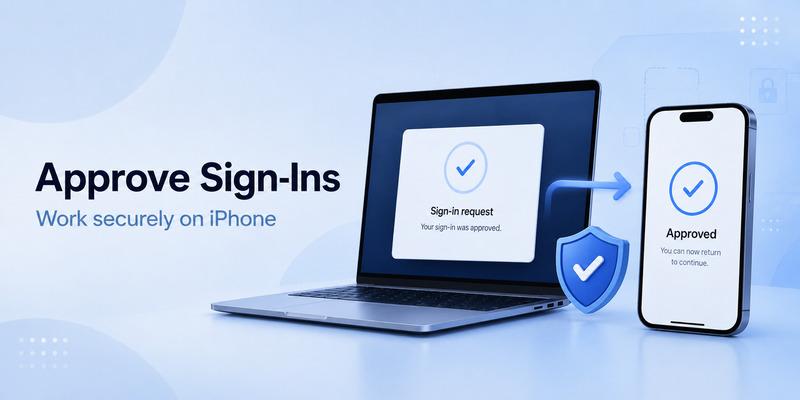
Microsoft Authenticator is often the best authenticator app for apple users who regularly sign in to Microsoft 365, Outlook, Teams, Azure, Windows devices, or work-managed accounts.
The app is available for iPhone and supports standard TOTP codes for many online services. It can also handle Microsoft-specific sign-in approvals, passwordless sign-in prompts, and number matching when an organization requires them. This makes it more than a basic code generator.
For business users, Microsoft Authenticator is especially useful because many workplaces already rely on Microsoft Entra ID, formerly Azure Active Directory. Employees may need the app to approve sign-ins, register a device, or meet company multi-factor authentication requirements.
Key benefits include:
- Push notifications for Microsoft sign-ins
- Support for standard six-digit codes
- Face ID protection on iPhone
- Work and personal account support
- Passwordless options for supported Microsoft accounts
- Familiarity for enterprise IT teams
The downside is that Microsoft Authenticator can feel more complex than a simple code app. If you only need codes for a few personal accounts, its extra features may be unnecessary. It is also important to check backup and recovery settings before replacing an iPhone.
For a mixed Apple-and-Microsoft environment, though, it is one of the strongest choices. It combines flexible code generation with workplace-friendly security controls that many organizations already use.
5. 1Password: Best for Password Management and Teams
1Password is a premium choice for users who want the best authenticator app for apple experience combined with a powerful password manager. It is especially attractive for professionals, families, freelancers, and teams that need stronger organization than a basic code app can provide.
Instead of treating authentication codes as separate items, 1Password can store them with the related login. When you sign in through its browser extension or supported app integration, it can fill the password and time-based code with minimal effort.
The service works across iPhone, iPad, Mac, Windows, Android, and major browsers. That broad compatibility is valuable if you use Apple devices personally but need to access work systems from another platform.
1Password also includes features that help users manage security at scale:
- Shared vaults for families or teams
- Travel Mode for temporarily removing selected vaults from devices
- Security alerts for weak, reused, or exposed passwords
- Secure document and recovery-code storage
- Passkey support for compatible websites
- Admin controls for business accounts
Its main drawback is cost. Unlike free code generators, 1Password requires a paid plan after any available trial period. However, the value can be worthwhile when it replaces multiple tools and improves password hygiene across a household or company.
If you want clean cross-platform syncing, shared access controls, and one secure place for passwords and two-factor codes, 1Password is a polished option.
💡 Discover Helpful Guides: Apple Authenticator: Complete Guide to 2FA, Verification Codes & Apple Devices
6. Google Authenticator: Best Simple Free Option
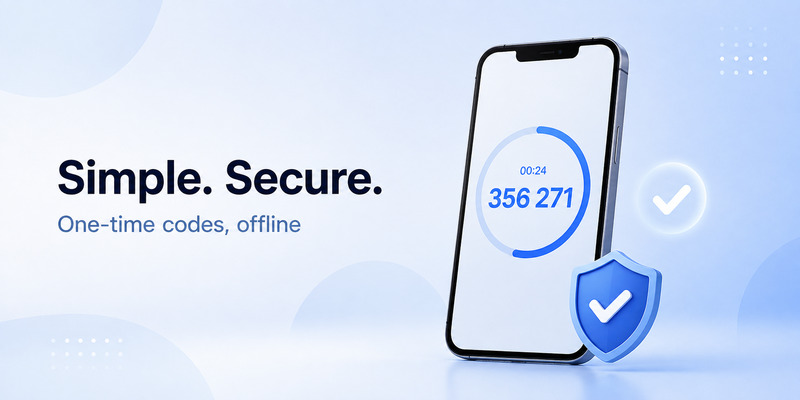
Google Authenticator remains a popular answer for users seeking a lightweight, free best authenticator app for apple alternative. It is designed primarily to generate verification codes, so the interface is simple and easy to understand.
You add an account by scanning a QR code or entering a setup key. After that, the app displays a rotating code that you enter when signing in. The codes can be generated offline, which is useful while traveling or when mobile service is unavailable.
Google Authenticator is a good fit for users who want:
- A no-cost app
- Fast setup
- Minimal features and fewer distractions
- Support for common TOTP-based accounts
- A familiar option from a major technology company
Recent versions offer more convenient account transfer and synchronization options than older versions did. Even so, users should carefully understand how their accounts are backed up before relying on the app as their only security tool.
The limitation is that Google Authenticator does not function as a complete password manager, team vault, or enterprise approval tool. It does one primary job: generate codes. For many people, that is exactly what they need.
If you want a focused authenticator App without subscriptions or advanced workspace features, Google Authenticator can be a sensible choice. Just remember to store recovery codes separately for every important account.
7. Authy Alternatives and Cross-Device Access
Some users prioritize syncing codes across several devices. In that case, the best authenticator app for apple setup may be one that supports secure multi-device access rather than keeping codes only on one phone.
This category includes password managers with built-in authenticators, enterprise identity apps, and dedicated TOTP tools that offer encrypted backups. The right option depends on how much convenience you need and how comfortable you are with cloud synchronization.
Cross-device access can be useful when you have an iPhone, iPad, MacBook, work laptop, and backup phone. If your primary iPhone is lost, damaged, or unavailable, you may still be able to access critical accounts through a trusted secondary device.
However, syncing introduces an important security tradeoff. A backup is useful only if it is protected properly. Look for end-to-end encryption, a strong master password, biometric access, and clear recovery controls. Avoid apps that make it hard to understand where your codes are stored or how to export them.
For higher-risk accounts, consider separating your recovery process. Keep recovery codes in a secure password manager or encrypted document vault, and do not depend solely on one physical phone.
The most secure setup is not always the most complicated one. It is the setup you can maintain, recover, and understand during an emergency.
💡 Discover Helpful Guides: Microsoft Authenticator Apple Guide for iPhone
8. How to Choose the Best Authenticator App for Apple Devices
To find the best authenticator app for apple users, start by identifying how and where you sign in. A student with three personal accounts has different needs from a remote worker using Microsoft 365, a developer managing cloud dashboards, or a family sharing subscriptions.
Use this practical comparison framework.
Choose Apple Passwords if you use only Apple devices, want automatic code filling, and prefer an integrated experience. It is convenient for personal accounts and reduces the number of apps you need to manage.
Choose Microsoft Authenticator if your school or employer uses Microsoft services. It is a strong option for push approvals, work accounts, and passwordless Microsoft sign-ins.
Choose 1Password if you want a complete security hub across Apple, Windows, Android, browsers, families, or teams. It is the most feature-rich option in this comparison, but it is paid.
Choose Google Authenticator if you want free, basic, offline code generation without a complex interface. It is suitable for users who prefer simplicity and do not need shared vaults or advanced password management.
Before committing to any app, answer these questions:
- Can I access my codes after replacing my iPhone?
- Do I use non-Apple devices?
- Do I need work approval notifications?
- Do I want passwords and codes stored together?
- Can I export or migrate my accounts safely?
- Have I saved recovery codes for critical services?
The right decision should reflect your real workflow, not just an app’s feature list.
9. How to Set Up an Authenticator App on iPhone
Setting up the best authenticator app for apple devices is usually straightforward. Most websites follow nearly the same process, even though button names may vary.
First, sign in to the account you want to protect. Open the account’s Security, Privacy, Login, or Two-Factor Authentication settings. Look for an option such as “Set up authenticator app,” “Authentication app,” or “Time-based one-time password.”
The website will normally display a QR code and sometimes a manual setup key.
Next, open your chosen app on your iPhone. Select Add Account, Add Code, or the plus icon. Use the iPhone camera to scan the QR code. If scanning is unavailable, choose the manual-entry option and type the setup key exactly as shown.
Your app will then create a six-digit code. Enter that code on the website to confirm setup. Once verified, the account is linked to your app.
Do not skip the final step: save the recovery codes supplied by the website. Download, print, or store them in a secure password manager. Recovery codes are often the fastest way back into an account if your device is lost.
After setup, test the process while you are still signed in. Log out in a private browser window, sign in again, and confirm that your new code works correctly.
🗺️ Browse How-To Guides: Secondary Authentication Apple ID: Codes, Devices, and Recovery
10. Backup, Recovery, and Security Best Practices
Even the best authenticator app for apple devices cannot protect you if you lose access to it without a recovery plan. Two-factor authentication improves security, but it can also create a lockout risk when people change phones without preparing first.
Start by protecting your iPhone itself. Use a strong device passcode, enable Face ID, keep iOS updated, and avoid sharing your unlocked phone with others. Your authentication codes are valuable because they can approve access to email, banking, social media, and work tools.
Next, create a recovery routine:
- Save recovery codes for important accounts
- Verify your app’s backup or sync method
- Keep your Apple Account recovery information current
- Add trusted phone numbers where appropriate
- Review old devices and remove ones you no longer own
- Test access from a backup device when possible
- Keep account email addresses secure with strong two-factor authentication
Avoid taking screenshots of QR codes, especially if those screenshots will sync to an unprotected photo library. Anyone with the QR code can potentially create the same rotating codes on another device.
You should also be cautious with phishing. An authenticator code is safer than a password alone, but attackers may still trick you into entering a real-time code on a fake login page. Always check the website address before entering credentials or approving a push notification.
For the highest-risk accounts, use passkeys or hardware security keys when supported. These methods can offer stronger phishing resistance than traditional one-time codes.
11. Frequently Asked Questions
Is Apple Passwords enough for two-factor authentication?
For many personal users, yes. Apple Passwords can be the best authenticator app for apple ecosystem because it stores and fills verification codes alongside passwords and passkeys. It is most effective for people who primarily use Apple devices and Safari.
What is the safest authenticator app for iPhone?
Safety depends on your setup. A dedicated code generator can separate your passwords from your second factor. A password manager with encrypted vaults can be safer for recovery and multi-device access. The safest choice is one with strong device protection, reliable backups, and recovery codes stored securely.
Can I use more than one authenticator app?
Sometimes. Many services allow you to set up only one TOTP secret at a time, while others support multiple authentication methods. You can often add a hardware key, backup codes, or a second approved sign-in method. Check the service’s security settings before changing anything.
Should I store passwords and authenticator codes together?
It is convenient, but it is a tradeoff. Keeping both together simplifies login and recovery. Separating them creates an extra layer of protection if one vault is compromised. Choose based on the importance of the account and your ability to manage multiple tools consistently.
Do authenticator apps work without internet?
Yes. Standard TOTP codes are generated from a secret key and the current time, so they generally work offline. However, push approval features and cloud syncing usually require an internet connection.
📘 Find the Right Guide: Apple TV 2 Factor Authentication: How to Fix Authentication Required on Apple TV
12. Final Verdict
The best authenticator app for apple users depends on whether you prioritize simplicity, cross-platform access, workplace compatibility, or complete password management.
Apple Passwords is an excellent default for people who live entirely in the Apple ecosystem and want automatic verification-code filling. Microsoft Authenticator is the practical choice for Microsoft 365 and enterprise accounts. Google Authenticator is ideal for simple free code generation. 1Password is the strongest all-in-one option for users who need advanced organization, sharing, and support across multiple platforms.
No matter which option you choose, enable two-factor authentication on your most important accounts, save recovery codes, secure your iPhone with Face ID and a strong passcode, and review your backup plan before you need it.
The real goal is not merely downloading the best authenticator app for apple devices. It is creating a security system you can use confidently every day and recover safely when something goes wrong.
Download Authenticator App
Secure your accounts with fast, reliable two-factor authentication. Download now and protect your login in seconds.
