
2FA Code KuCoin: Setup, Find, Fix, and Recover Your Google Verification Code
Published August 24, 2026
A 2fa code kucoin is one of the most important security checks on a KuCoin account. It helps confirm that the person logging in, changing account security, or requesting a withdrawal is the real account holder. Even if someone discovers your password, they should not be able to complete sensitive actions without your current verification code.
For most users, the 2fa code kucoin comes from Google Authenticator or another compatible time-based authenticator tool. The app creates a short, changing six-digit code linked to your KuCoin account. Because the code changes frequently, it is much harder for an attacker to reuse an old code.
However, 2FA can also create stress when a phone is lost, an authenticator is deleted, or the code suddenly appears invalid. The good news is that most 2fa code kucoin problems can be solved safely by checking the correct account entry, syncing device time, using a saved security key, or following KuCoin’s official recovery flow.
This guide explains how a 2fa code kucoin works, where to find it, why it may fail, and what to do if you lose access. It also covers secure migration to a new phone and the mistakes that can put a crypto account at risk.
1. What Is a 2FA Code KuCoin?
A 2fa code kucoin is a one-time verification number used as part of two-factor authentication. It is normally generated by an authenticator app installed on your phone rather than sent in a standard SMS message.
When Google Authenticator is connected to KuCoin, the app creates a six-digit code that refreshes about every 30 seconds. You enter the current code after your password or when KuCoin asks you to confirm a security-sensitive action.
In simple terms, the first factor is something you know, such as your password. The second factor is something you possess, such as the phone or secured device that generates your verification code.
A 2fa verification code kucoin is therefore different from:
- Your KuCoin login password.
- An email verification code.
- An SMS verification code.
- A trading password.
- A backup or recovery key.
Each of these can have a separate purpose. Read the screen carefully before entering any code. Entering an email code in the Google verification field, for example, will not work.
The strongest reason to enable a 2fa code kucoin is that cryptocurrency transactions can be irreversible. If an attacker gains access and withdraws digital assets, recovery may be difficult or impossible. Two-factor authentication adds an important barrier between a stolen password and account takeover.
Download Authenticator App
Secure your accounts with fast, reliable two-factor authentication. Download now and protect your login in seconds.
2. Why KuCoin Uses Two-Factor Authentication
A password alone is not enough for a valuable exchange account. Passwords can be exposed through phishing pages, malware, password reuse, leaked databases, or social engineering. A 2fa code kucoin reduces this risk because the attacker also needs access to your current authenticator code.
KuCoin may request 2FA during activities such as:
- Signing in on a new browser or device.
- Withdrawing crypto assets.
- Changing security settings.
- Linking or changing Google verification.
- Updating key account details.
- Completing certain high-risk account actions.
This security layer is why many users search for 2fa kucoin or kucoin 2fa before they begin trading or withdrawing assets. The goal is not to make access difficult. The goal is to stop an unauthorized person from making irreversible changes.
Google-based time codes are useful because they are not dependent on mobile signal reception. Unlike SMS, a code generated by an authenticator app can work without a network connection, as long as the device’s time is correct.
Still, you should protect the device itself with a passcode, biometric lock, and a secure account-recovery method. A 2fa code kucoin is powerful only if the phone and backup information are protected as well.
💡 Discover Helpful Guides: 2FA Authenticator App: Complete Guide to Setup, Use, Download, and Secure Your Accounts
3. How to Set Up Google 2FA on KuCoin
Setting up a 2fa code kucoin should be completed before you hold a meaningful balance or begin regular trading. Use only the official KuCoin website or app, and never follow a setup link sent through an unsolicited message.
The general process is:
- Sign in to your KuCoin account.
- Open your profile or account-security settings.
- Find Google Verification or Google Authenticator.
- Choose the option to configure or bind Google 2FA.
- Complete the required security confirmation, such as email, phone, passkey, or another available method.
- Open Google Authenticator or your preferred compatible authenticator.
- Scan the displayed QR code or enter the setup key manually.
- Save the setup key securely.
- Enter the six-digit code currently displayed in the app.
- Confirm that setup is complete.
This creates your google 2fa code kucoin entry. The app may label it with your email address, KuCoin, or another identifier based on the setup data. Rename the entry clearly if your app allows it, but do not change or share the secret key.
The setup QR code and manual key are extremely sensitive. Anyone who scans or copies them may be able to generate the same 2fa code kucoin on another device. Do not save screenshots of the QR code in an unsecured photo library, send it through chat, or store it in plain text.
Instead, use a secure offline record or a trusted encrypted password manager that supports secure notes. Keep the recovery information separate from your everyday phone whenever possible.
💡 Discover Helpful Guides: 2FA Authenticator App: Complete Guide to Setup, Use, Download, and Secure Your Accounts
4. How to Find Your 2FA Code for KuCoin
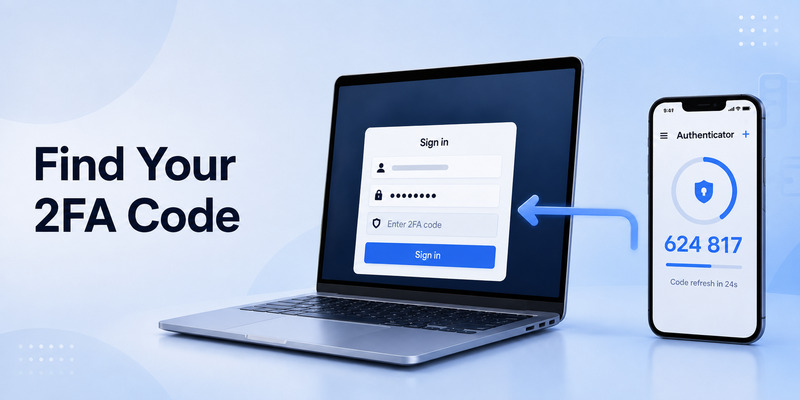
Many users ask how to find 2fa code kucoin after the exchange asks for verification. The answer is usually simple: open the authenticator app that you linked during setup and locate the KuCoin entry.
To find the current 2fa code kucoin:
- Open Google Authenticator or the authenticator app you used.
- Look for an account entry associated with KuCoin or your KuCoin email address.
- Use the current six-digit code shown beside that entry.
- Enter it before the timer reaches zero if possible.
- Wait for a new code if the current one is about to refresh.
You do not find this code inside an email inbox unless KuCoin specifically asks for an email verification code. The 2fa code kucoin is generated locally by the authenticator tool.
If several accounts appear in your app, confirm that you are using the code linked to the correct KuCoin email. This is a common issue for users who have multiple KuCoin accounts, multiple exchange accounts, or more than one authenticator profile.
People also search how to get 2fa code for kucoin when they have not configured Google verification yet. In that case, there is no existing code to retrieve. You must first complete the Google Verification setup inside the official KuCoin security settings.
📘 Explore More Useful Guides: Discord 2FA Code: Setup, Backup Codes, Errors, and Account Recovery Guide
5. When KuCoin Requests a 2FA Verification Code
A 2fa code on kucoin may be requested more often than expected when you are using a new device, changing browsers, clearing cookies, traveling, or updating security settings. This is normal because these events may increase account risk.
The 2fa code in kucoin screen should clearly identify the type of verification required. Before entering anything, check whether KuCoin is asking for:
- Google Authenticator code.
- Email verification code.
- Phone verification code.
- Passkey confirmation.
- Identity verification.
- Trading password.
Never assume every six-digit prompt uses the same code. A 2fa code for kucoin generated by Google Authenticator cannot replace an email code, and an email code cannot replace the authenticator code.
It is also important to watch for phishing. Fraudulent websites may imitate the design of an exchange and ask for your password plus a current 2FA code. If you enter both into a fake page, the attacker may use them immediately on the real website.
Always check the full domain name, use bookmarks for the official site, avoid exchange links in unexpected messages, and never provide a 2fa code kucoin to anyone claiming to be support staff. Legitimate support should not ask you to reveal a current Google Authenticator code or your secret key in a chat message.
💡 Discover Helpful Guides: 2FA Authenticator Chrome: How to Set Up Secure Two-Factor Authentication in Your Browser
6. Why Your KuCoin 2FA Code Is Not Working
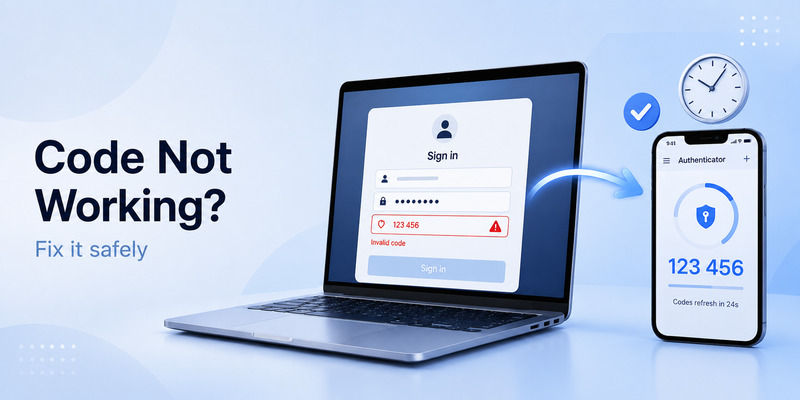
A rejected 2fa code kucoin does not always mean that your account has been compromised. In many cases, the issue is a wrong entry, expired code, or incorrect device time.
Check these common causes first.
You used the wrong authenticator entry
If your app contains multiple exchange accounts, make sure you selected the entry linked to the KuCoin account you are using. Verify the email label if available.
The code expired before submission
A 2fa code kucoin is time-sensitive. If the countdown is nearly finished, wait for a new code and enter it promptly. Avoid copying an old code from a screenshot, note, or clipboard history.
Your phone time is out of sync
Time-based authentication depends on accurate device time. Enable automatic date and time settings on your phone. On iPhone, review Settings, General, Date & Time. On Android, enable automatic time and time zone; Google Authenticator may also provide time-correction options depending on the version and device.
The app was reinstalled or restored incorrectly
Deleting the authenticator app can remove locally stored accounts if they were not backed up or transferred. Restoring a phone backup does not always restore every authenticator configuration correctly.
The code was entered repeatedly
Do not keep guessing. Multiple failed attempts may trigger a temporary security lock. Pause, check the correct entry and device time, then try once with a newly generated code.
If your google 2fa kucoin code still fails after these checks, use the official recovery or reset options rather than trusting third-party “recovery” services.
📘 Explore More Useful Guides: 2FA Authenticator Free: How to Choose and Use a Free Authenticator App Safely
7. How to Recover Access If You Forgot Your 2FA Code
The phrase forgot 2fa code kucoin usually means one of two things: you forgot where the code is generated, or you lost access to the authenticator device. The response depends on which situation applies.
If you still have the original phone, open your authenticator and search for the KuCoin entry. The code is generated there; it is not something you memorize.
If you lost the phone but saved the Google Authenticator setup key, you may be able to add the KuCoin entry to a new authenticator app using that key. Once it is added, your new device will generate the current six-digit code.
If you do not have the old device or setup key, use KuCoin’s official Google Authentication reset process. Follow only the directions in the official app or help center. You may need to prove account ownership through email, identity checks, or other security verification steps.
Do not try to bypass account protection. The safe method is account recovery through KuCoin’s official workflow. You should expect the platform to apply extra review and security limits because a 2FA reset is a high-risk account action.
After a 2FA change or reset, withdrawal access may be temporarily restricted. This delay is a protective measure designed to reduce the chance that a criminal who takes over an account can immediately move assets.
8. How to Move KuCoin 2FA to a New Phone
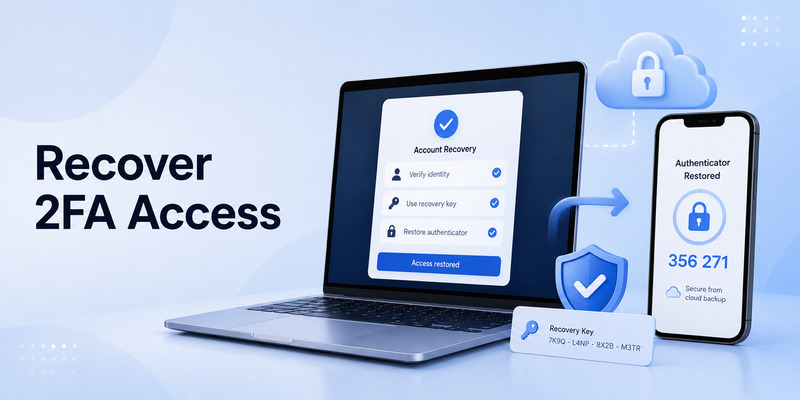
Before replacing or resetting your old phone, move your 2fa code kucoin carefully. Do not erase the old device until the new authenticator has been tested.
If you still have access to the old device and saved the security key, add the KuCoin account to the new authenticator using the key. Confirm that both devices generate the same current code before deleting the old entry.
If you still have access to the old device but do not have the key, sign in to KuCoin and use the account-security option to change Google verification. KuCoin may require you to enter the existing 2FA code before it provides a new QR code or key.
A secure migration checklist:
- Install a trusted authenticator on the new phone.
- Keep the old phone active during the transfer.
- Complete the official KuCoin change flow.
- Scan the new QR code only in your own authenticator.
- Enter the new code to confirm activation.
- Test sign-in or an allowed verification action.
- Delete the old entry only after the new code works.
- Store the newest setup key securely.
Remember that each new binding can create new secret information. An old recovery key may no longer be the valid one after you change the setup. Update your secure backup record immediately.
9. How to Change or Disable KuCoin 2FA Safely
Disabling a 2fa code kucoin should be a last resort. A better option is often to transfer or replace the authenticator on a new device.
If you must change Google verification, open KuCoin’s official account-security section and follow the available change option. You may need to complete email, phone, passkey, identity, or old authenticator verification first.
Never disable kucoin 2fa just because it feels inconvenient. The few seconds saved during login are not worth reducing protection for a crypto account. If you are having repeated code issues, correct the cause—such as phone time settings, duplicate entries, or missing backup details—instead.
If you choose to unlink Google verification, review which other safeguards remain on the account. Use a strong unique password, enable passkeys if available, secure your email inbox, and consider other account-protection options offered by KuCoin.
Do not hand your account to any third party promising to reset or disable 2FA quickly. These services commonly target people who are stressed after losing a phone. Only the official exchange recovery process should be used for account access problems.
📘 Explore More Useful Guides: How to Use 2FA Authenticator: A Complete Step-by-Step Guide for Better Account Security
10. Security Best Practices for KuCoin 2FA
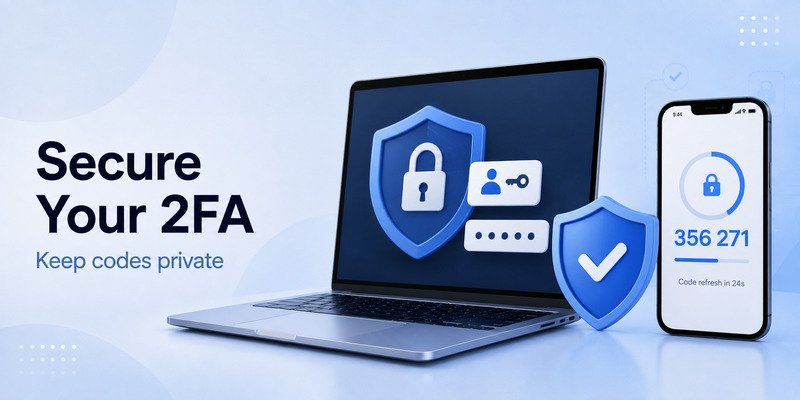
The best 2fa code kucoin setup combines authentication security with good account habits.
Use a unique password for KuCoin. Do not reuse a password from email, social media, gaming, or another exchange. A password manager can create and store strong unique credentials.
Protect your email account with strong multi-factor authentication. Email often acts as a recovery channel, so an exposed email inbox can put your exchange account at risk.
Keep your authenticator device updated and protected with a device passcode, biometrics, and remote-wipe features. Avoid rooting or jailbreaking a phone used for financial accounts.
Never share any of the following:
- Your current 2fa code kucoin.
- Your Google Authenticator secret key.
- A QR code used to bind 2FA.
- Your password.
- Recovery photos or identity-verification documents.
- Email confirmation codes.
- Passkey approval prompts.
Use official app stores to download an authenticator App. Be cautious of clones that imitate popular authentication tools or exchange applications. Confirm the publisher name, reviews, and app listing before installation.
Finally, verify every withdrawal destination carefully. 2FA is important, but it cannot protect you from approving a transfer to the wrong wallet address after your own account has been accessed legitimately.
📘 Explore More Useful Guides: 2FA Authenticator APK: Safe Download, Installation, and Setup Guide for Android
11. Frequently Asked Questions
Is the KuCoin 2FA code always six digits?
Google Authenticator-style codes for KuCoin are typically six digits and change frequently. Check the prompt because email or SMS verification may also use numeric codes.
Can I receive my 2FA code by email?
No. A Google-based 2fa code kucoin is generated inside your authenticator app. Email verification is a separate security method.
Why does my code change every 30 seconds?
This is how time-based one-time passwords work. The changing code helps reduce replay risk because an old code quickly becomes invalid.
Can I use the same authenticator app for several exchanges?
Yes, one authenticator app can hold multiple entries. Label each account clearly and make sure you use the correct KuCoin entry before submitting a code.
What should I do if I lose my phone?
Use your saved setup key to restore the account if you have it. If not, begin KuCoin’s official Google Authentication reset process and complete the required ownership checks.
Should I save my QR code?
Do not keep an unsecured QR-code screenshot. Treat it like a password. Store recovery information only in a secure, private location.
12. Final Thoughts
A 2fa code kucoin is a small number with a major security role. It helps protect login, withdrawals, and account changes when your password alone is not enough.
Set up Google verification through official KuCoin settings, save the latest recovery key securely, keep device time accurate, and never share your code or QR setup details. If you lose access, use KuCoin’s official reset process rather than trying shortcuts from untrusted sources.
With a careful setup and secure backup plan, your 2fa code kucoin can provide reliable protection without becoming an obstacle when you change phones or need account recovery.
Download Authenticator App
Secure your accounts with fast, reliable two-factor authentication. Download now and protect your login in seconds.
