
Changing Two Factor Authentication Apple: What You Need to Know
Published August 20, 2026
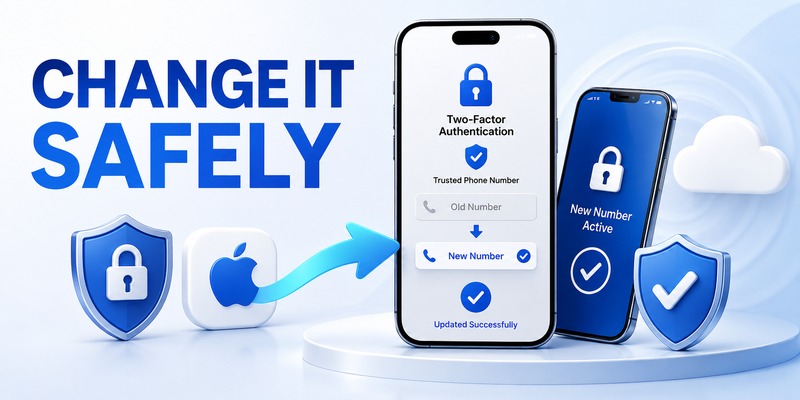
Changing Two Factor Authentication Apple can mean different things depending on what you are trying to change. You may be replacing an old trusted phone number, moving to a new iPhone, updating the devices that can receive verification codes, or setting up an authenticator for another service on an Apple device.
These systems are related, but they are not identical. Apple Account two factor authentication uses trusted devices and trusted phone numbers to help verify your identity when you sign in. Separately, Apple’s built-in Passwords app can store and generate verification codes for compatible websites and apps that use authenticator-based two factor authentication. A third-party authenticator app can perform a similar role for supported services.
Understanding this distinction is the first step toward changing your security settings without accidentally locking yourself out.
1. What Does Changing Two Factor Authentication Apple Mean?
two factor authentication adds another verification step after your password. Instead of relying only on something you know, such as a password, the account also checks something you have, such as a trusted device or another enrolled authentication method.
For an Apple Account, this can involve a trusted Apple device or trusted phone number. The exact options available depend on the account and devices already associated with it.
By contrast, many websites use a time-based one-time password, or TOTP. In that setup, an authenticator stores a secret and uses the current time to generate a short-lived verification code.
This difference matters when changing your setup.
If you are trying to change Apple Account two factor authentication, start with Apple’s account security settings. If you are trying to change the authenticator used for Gmail, Facebook, Microsoft, a bank, or another third-party service, make the change from that service’s own security settings.
An authenticator app does not automatically become an approved authentication method simply because it is installed on your iPhone.
Download Authenticator App
Secure your accounts with fast, reliable two-factor authentication. Download now and protect your login in seconds.
2. Before You Change Your Apple two factor Authentication
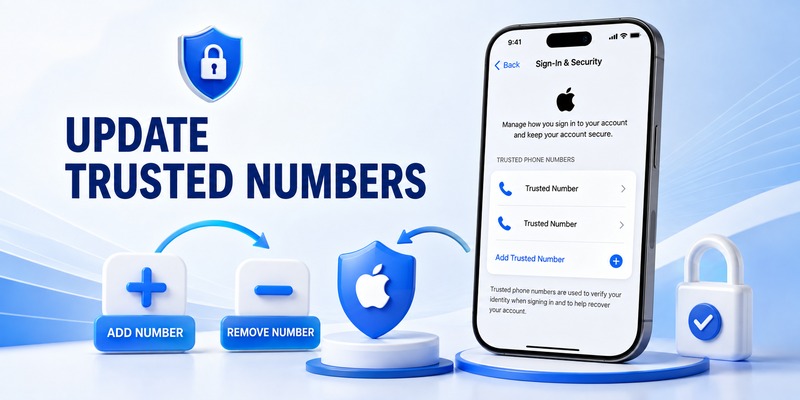
The safest time to change authentication settings is while your current setup still works.
Before removing a trusted device or changing a phone number, make sure you can still sign in and receive verification information.
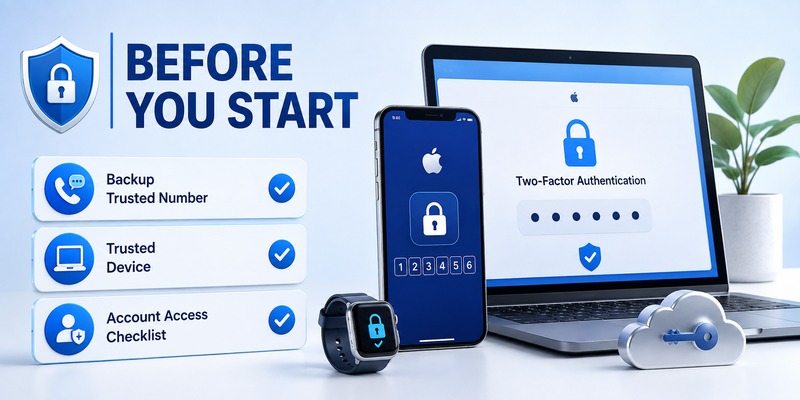
Check your current access
Confirm that you have access to:
- Your Apple Account password
- At least one trusted Apple device
- Your current trusted phone number
- Your account recovery information
- Any other authentication method you intentionally use
Do not remove your only working verification method first.
A safer principle is:
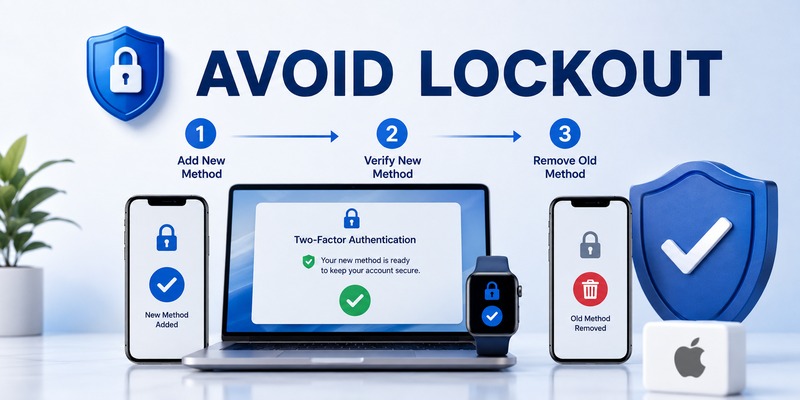
Add and verify the replacement before removing the old method.
This is especially important when you are changing phones.
Keep recovery information available
two factor authentication improves account security, but it can also make account recovery more complicated when every trusted device or number is lost.
Keep your recovery information somewhere secure and separate from the phone you use every day.
Never share:
- Verification codes
- Passwords
- Recovery codes
- Authentication setup secrets
- QR enrollment codes
- Security keys or backup keys
A legitimate support representative should not need your live verification code.
💡 Discover Helpful Guides: Apple TV 2 Factor Authentication: How to Fix Authentication Required on Apple TV
3. How to Change Two Factor Authentication on Apple
The exact screens can vary depending on your Apple device and software version, so always use Apple’s current account-security settings rather than following an old screenshot from a random website.
The general process is:
Step 1: Open your Apple Account settings
On your iPhone or iPad, open the account settings associated with your Apple Account.
Look for the security section where trusted phone numbers, devices, passwords, and other account-security options are managed.
Step 2: Review your trusted information
Before making a change, check which devices and phone numbers are currently associated with your account.
This gives you a clear picture of what will happen if you remove or replace one of them.
Step 3: Add or update the replacement method
If you are changing a phone number or moving to another device, make sure the replacement is ready before removing the old one.
Follow Apple’s verification process when prompted.
Step 4: Complete the verification
Apple may require you to authenticate using an existing trusted method before accepting a security change.
Do not continue if the request looks unexpected.
Step 5: Test the new configuration
After making the change, perform a normal sign-in or verification test.
Confirm that you can receive the expected verification code or approval.
Only after the new configuration works should you consider removing the old device or method.
💡 Discover Helpful Guides: Apple Authenticator: Complete Guide to 2FA, Verification Codes & Apple Devices
4. Changing Two Factor Authentication When You Get a New iPhone
Getting a new iPhone is one of the most common reasons people search for changing two factor authentication apple.
The biggest mistake is wiping or trading in the old phone before confirming that the new device can handle account verification.
Keep the old iPhone available
If the old iPhone is still trusted, keep it powered on and accessible during the migration.
Complete the setup of the new iPhone first.
Then verify that your Apple Account and other important services work correctly.
Do not assume every authenticator transfers automatically
Apple Account verification and third-party authenticator tokens are different systems.
If you use an authenticator app for Google, Microsoft, Facebook, your bank, or another service, transferring the iPhone does not necessarily mean that every TOTP secret has been transferred.
Some authenticator apps support encrypted sync or migration. Others require you to export or re-enroll accounts.
The safest approach is to test every important account before erasing the old device.
Test critical accounts first
Prioritize:
- Primary email
- Apple Account
- Banking and financial accounts
- Work accounts
- Password manager
- Social accounts
- Other important services
If a code does not work, do not repeatedly uninstall and reinstall the authenticator. Reinstallation can make recovery more difficult when the token was stored locally.
💡 Discover Helpful Guides: Microsoft Authenticator Apple Guide for iPhone
5. Apple Authenticator App: Is There a Built-In Apple Authenticator?
The phrase apple authenticator app built in can be confusing.
Apple does not currently offer a separate app with the exact product name “Apple Authenticator.” On supported Apple devices, the Passwords app can store credentials and generate verification codes for compatible websites and apps that use authenticator-based 2FA.
This is different from Apple Account two factor authentication.
Think of the two systems this way:
| Apple feature | What it does |
| Apple Account 2FA | Helps verify your identity when signing in to your Apple Account |
| Passwords verification codes | Generates codes for compatible third-party services |
| Third-party authenticator app | Stores and generates TOTP codes for supported services |
| Trusted Apple device | Can participate in Apple Account verification |
This distinction prevents a common setup mistake: installing an authenticator and expecting it to replace Apple’s own Apple Account verification system.
🗺️ Browse How-To Guides: Secondary Authentication Apple ID: Codes, Devices, and Recovery
6. How to Use an Apple Authenticator for Third-Party Accounts
If by how to use Apple authenticator app you mean generating verification codes for another website or service, the process is different from changing your Apple Account security.
A typical TOTP setup works like this:
- Open the security settings of the website or service.
- Enable authenticator-based two factor authentication.
- The service provides a QR code or setup key.
- Add that account to Apple’s supported verification-code feature or a compatible authenticator app.
- Enter the generated code back into the service.
- Complete the enrollment.
- Save the recovery information provided by the service.
The important point is that the service controls enrollment.
An authenticator app only generates the code after the service has created and registered the authentication secret.
Keep the setup secret private
The QR code or manual setup key used during TOTP enrollment is sensitive.
Someone who obtains the secret may be able to generate future verification codes.
Do not send setup QR codes through:
- Public chat
- Support tickets
- Screenshots shared with strangers
- Cloud folders with unrestricted access
Treat the setup secret like a credential.
🗺️ Browse How-To Guides: Apple Watch Authenticator: Apps, Codes, and Limits
7. Apple iCloud two factor Authentication and Verification
Searches for apple icloud two factor authentication and apple icloud verification usually relate to signing into an Apple Account associated with iCloud.
The important distinction is that iCloud access follows your Apple Account’s security configuration.
When you sign in on a new device or browser, Apple may require additional verification through an approved method.
If you cannot complete the verification, do not attempt to bypass the security prompt with a third-party website.
Instead:
- Confirm that you are signing into the correct Apple Account.
- Check your trusted devices.
- Confirm access to your trusted phone number.
- Check whether the verification request matches the action you initiated.
- Use Apple’s official account-recovery process if you no longer have access to the required methods.
A missing verification code is an account-access problem, not a reason to give your password or code to someone offering “recovery” services.
Download Authenticator App
Secure your accounts with fast, reliable two-factor authentication. Download now and protect your login in seconds.
8. Apple Pay and two factor Authentication
Another group of searches involves apple pay two factor authentication and two factor authentication not turned on apple pay.
Apple Account security, Apple Pay authentication, and authentication for a bank or card issuer should not automatically be treated as the same system.
If Apple Pay or another payment-related service asks you to verify something, first identify who is actually requesting the verification.
The request may involve:
- Your Apple Account
- Your device
- A payment card
- Your bank
- Your card issuer
- A specific transaction
What if Apple asks you to contact your card issuer?
For searches such as apple contacting card issuer for authentication, the safest response is to follow the instructions shown inside the legitimate Apple or financial-service workflow.
Do not call a phone number supplied by an unexpected text message or pop-up.
Instead, open the relevant app or official website independently and use the contact information provided there.
If your Apple Card or another payment method requires additional verification, the issue may be related to the card or issuer rather than your Apple Account’s two factor authentication.
📘 Find the Right Guide: Apple TV 2 Factor Authentication: How to Fix Authentication Required on Apple TV
9. Why Is Apple Two Factor Authentication Not Working?
Authentication failures can come from several different layers.
You cannot receive a verification code
Check:
- Your trusted phone number
- Network connectivity
- Whether the correct Apple Account is being used
- Whether another trusted device can receive the verification
- Whether the request was actually initiated by you
Do not repeatedly request codes if the service begins limiting attempts.
You are using the wrong account
If multiple Apple Accounts or third-party accounts are involved, make sure the authentication method belongs to the account you are currently signing into.
This is especially important with authenticator apps because multiple entries can have similar labels.
Your authenticator code is rejected
For third-party TOTP accounts, check:
- Automatic date and time
- The correct account entry
- Whether the service was recently re-enrolled
- Whether the old secret was replaced
- Whether you are entering the code on the legitimate website
TOTP codes depend on the shared secret and device time. A clock that is significantly out of sync can result in rejected codes.
10. What to Do If You Lose Your iPhone
Losing the phone that handles authentication can be stressful, but it is exactly why recovery should be prepared in advance.
If you still have another trusted device or another approved authentication method, use it to regain access.
If you have recovery information, follow the official recovery process.
If you have lost every trusted method, use Apple’s official account-recovery process rather than a third-party service claiming it can bypass two factor authentication.
For third-party accounts protected by an authenticator app, use that service’s recovery codes or alternate authentication methods.
Never trust anyone who asks for:
- Your Apple Account password
- A live verification code
- Your authenticator setup key
- Recovery codes
- Remote access to your device
A person offering to “bypass” two factor authentication is a major warning sign.
11. Is an Authenticator App Better Than SMS?
For many third-party accounts, a TOTP authenticator can be a stronger everyday option than SMS because it does not depend on the mobile phone number in the same way.
However, TOTP is not completely phishing-resistant.
A real-time phishing website can ask for your password and current code and immediately relay them to the legitimate service.
Passkeys and hardware security keys can provide stronger phishing resistance when a service supports them. The right choice depends on the account and the authentication methods it offers.
The key principle is simple:
Use the strongest authentication method that you can reliably recover.
An extremely secure setup is not useful if losing one phone permanently locks you out.
📖 Read More Guides: Apple iPhone Authentication: Face ID, 2FA, Passkeys
12. How to Change an Authenticator Without Losing Access
If you are actually replacing a third-party authenticator rather than changing Apple Account 2FA, use a different migration process.
Keep the old authenticator
Do not delete the old app immediately.
First transfer or re-enroll your accounts on the new authenticator.
Verify important accounts
Generate a new code and test it on the actual service.
If the service accepts it, the new authenticator is working.
Save recovery codes
Keep recovery codes somewhere secure and separate from the phone.
Remove the old method only after testing
Once every important account has been verified, remove the old authenticator entry or device according to the service’s instructions.
This “add first, remove second” approach greatly reduces the chance of lockout.
13. Security Mistakes to Avoid When Changing 2FA
Changing authentication settings is safest when you avoid a few common mistakes.
Do not remove your only working method
Always have another way back into the account before removing a trusted device or authentication method.
Do not share live codes
A verification code is intended for the sign-in process you initiated.
If someone asks you to read a code over the phone, stop.
Do not approve unexpected prompts
If you receive an authentication request that you did not initiate, deny it.
Repeated unexpected prompts may indicate that someone has obtained your password and is attempting to sign in.
Do not trust search-result support numbers blindly
When an account or payment issue occurs, open the official app or website yourself.
This is especially important for Apple, banking, and payment-related problems.
Do not erase your old phone too early
When moving to a new iPhone, keep the old device available until critical accounts have been tested.
14. Frequently Asked Questions
Can I change two factor authentication on Apple?
You can manage the security methods associated with your Apple Account, including trusted devices and trusted phone information, through Apple’s account-security settings. The exact options depend on your account and current device configuration.
Can I turn off Apple two factor authentication?
Whether two factor authentication can be turned off depends on the Apple Account and when it was enabled. Do not rely on generic instructions from old articles; check the current Apple Account security options available to you.
What happens to Apple 2FA when I get a new iPhone?
Your Apple Account security does not simply become a completely new system because you changed phones. Keep the old trusted device available during setup and verify that the new device works before erasing the old one.
Is Apple Authenticator the same as Apple Account 2FA?
No. Apple’s Passwords app can generate verification codes for compatible third-party websites and apps, while Apple Account two factor authentication is a separate security system.
Can an authenticator app replace Apple’s two factor authentication?
Not automatically. Apple Account verification and third-party TOTP authentication use different enrollment systems. Follow Apple’s account-security process for Apple Account protection.
Can authenticator codes work without internet?
Standard TOTP codes can usually be generated without an internet connection because the authenticator uses a stored secret and the device clock. The website or service you are signing into still needs connectivity to receive and validate the code.
What if I lose my trusted Apple device?
Use another trusted method if available. If you no longer have access to the required trusted devices or phone number, use Apple’s official account-recovery process.
Is a passkey safer than a TOTP authenticator?
Passkeys can provide stronger protection against phishing because authentication is tied to the legitimate website or app. Availability and recovery vary by service, so maintain a reliable recovery path.
Should I save my authenticator QR code?
Treat the QR code or setup key as sensitive credential material. Do not share it publicly or send it to someone claiming to provide technical support.
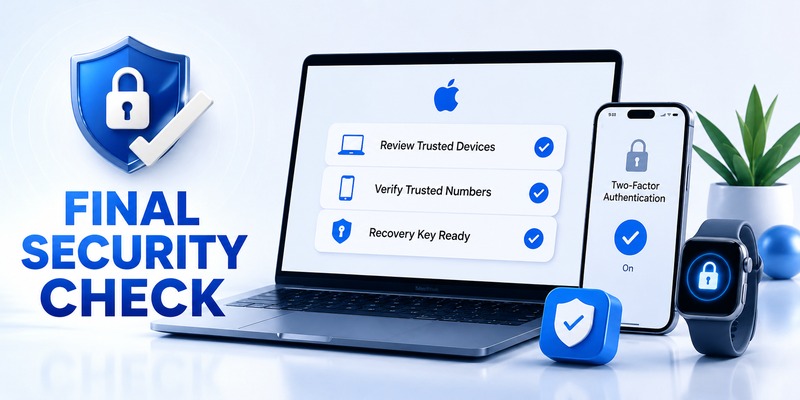
15. Final Security Checklist
Before considering your Apple or authenticator security changes complete, verify the following:
- Your Apple Account password is current and unique.
- You know which devices are trusted.
- Your trusted phone information is current.
- You can complete a normal verification test.
- Your new iPhone works before the old one is erased.
- Important third-party accounts have been tested after an authenticator migration.
- Recovery information is stored securely.
- You have not shared any verification codes or setup secrets.
- Unknown authentication prompts are denied.
- Unknown devices or sessions are reviewed.
- Payment-related verification requests are handled through legitimate Apple, bank, or card-issuer channels.
- You know where to find the official account-recovery process.
Changing Two Factor Authentication Apple should be treated as a security migration, not simply a settings change. The safest approach is to understand which authentication system you are actually changing, keep your existing recovery path available, verify the replacement, and only then remove the old method.
If your goal is to protect other websites and services with standards-based verification codes, a dedicated Authenticator App can be useful alongside Apple’s built-in security features. Just remember that each service must be enrolled individually, and the authenticator should never be presented as an official Apple Account authentication replacement.
Download Authenticator App
Secure your accounts with fast, reliable two-factor authentication. Download now and protect your login in seconds.
