
Apple iPhone Authentication: Face ID, 2FA, Passkeys
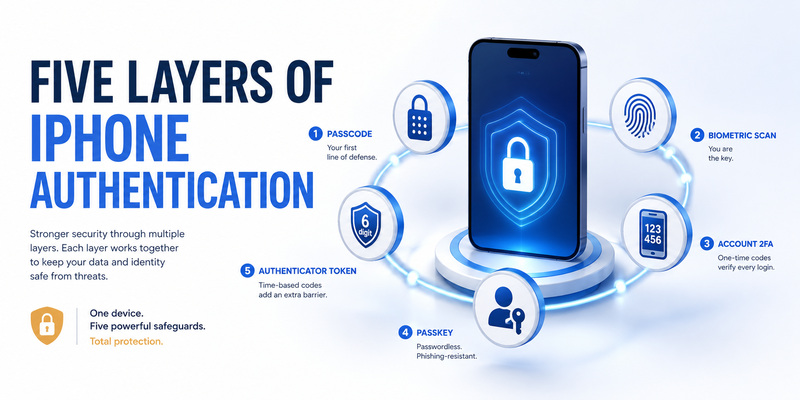
Apple iphone authentication is a stack of protections rather than one login screen. The device passcode encrypts and unlocks local data; Face ID or Touch ID provides convenient biometric approval; Apple Account two-factor authentication protects cloud sign-ins; Passwords stores passkeys and website verification codes; and independent authenticator apps can generate TOTP for other services.
These layers work together but are not substitutes for one another. Face ID can unlock a passkey locally, yet it does not generate an Apple Account verification code. A six-digit website TOTP can secure a social account, yet it cannot unlock the iPhone. Recovery also differs by layer.
This apple iphone authentication guide explains how to configure each control, what happens when the iPhone is lost, and how to avoid making one device the only path into every account. The safest design combines a strong passcode, current software, controlled biometrics, independent recovery, and phishing-resistant sign-in methods where available.
1. Quick Answer
Five controls protect different boundaries
The passcode is the foundation of apple iphone authentication. It helps protect encryption keys and remains required after restart, long periods without unlock, repeated biometric failures, Emergency SOS activation, remote lock, and certain security-sensitive changes. Face ID and Touch ID do not replace that passcode; they authorize convenient access within defined limits.
Apple Account two-factor authentication covers a different boundary. A new device or browser may require the account password plus a six-digit code from a trusted device or trusted phone number. Passkeys replace passwords at participating websites, while Passwords or another authenticator can provide verification codes for third-party accounts.
The phrase apple iphone authenticator may refer to the verification-code feature in Passwords or to a separate App Store authenticator. Neither is the same as Apple Account two-factor authentication. Identify the account asking for proof before looking for a code.
Authentication map
| Security layer | Protects | Typical proof | Recovery priority |
|---|---|---|---|
| iPhone passcode | Local device and encryption keys | Numeric or alphanumeric secret | Memorize; do not store beside phone |
| Face ID or Touch ID | Convenient local authorization | Face or enrolled fingerprint match | Passcode remains the fallback |
| Apple Account 2FA | iCloud and Apple service sign-ins | Password plus trusted-device code | Add another trusted phone number |
| Passkey | A participating website or app | Device credential authorized locally | Keep synced or alternate credentials |
| TOTP verification code | A participating third-party account | Rotating code from stored seed | Preserve provider backup codes |
Reliable apple iphone authentication keeps those recovery paths separate enough that losing one phone does not lock every account.
Download Authenticator App
Secure your accounts with fast, reliable two-factor authentication. Download now and protect your login in seconds.
2. The Layers of iPhone Authentication
Local trust starts with the passcode
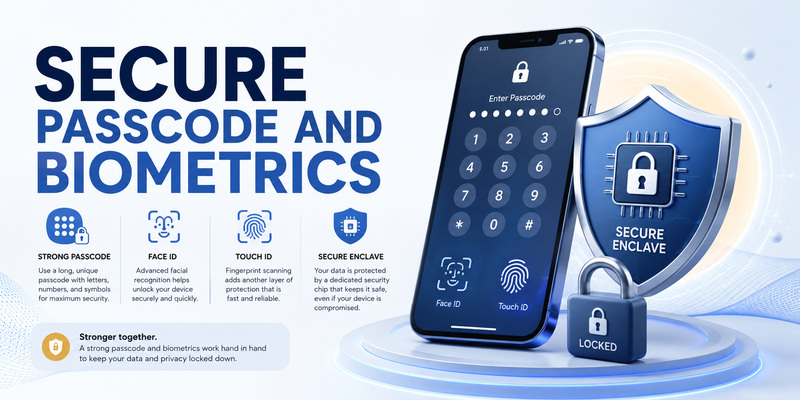
Apple’s security documentation describes the passcode as the foundation for cryptographically protecting device data. Face ID data is represented mathematically, encrypted, and protected by the Secure Enclave; Apple says it does not leave the device or get backed up to iCloud. Touch ID follows a comparable model for fingerprint representations.
In apple iphone authentication, biometrics answer “is the enrolled user present?” while the passcode remains a knowledge secret and security fallback. Apps can request biometric authorization, but they do not receive the stored face or fingerprint template. A successful result is returned through system interfaces.
Remote accounts add their own requirements. A bank, employer, email provider, or social platform can request a passkey, authenticator code, push approval, hardware key, or recovery proof. The iPhone facilitates those methods but does not make them one universal Apple credential.
Account trust extends beyond the phone
Apple Account two-factor authentication creates trusted devices and trusted phone numbers. iCloud Keychain can synchronize passwords, passkeys, and verification codes across approved devices. That improves availability, but each approved device becomes relevant to the account’s trust boundary.
Review apple iphone authentication after selling a device, changing phone numbers, leaving a job, or sharing a password group. Remove hardware you no longer control, keep recovery information current, and use separate personal accounts rather than sharing one Apple Account among several people.
Do not approve unexpected sign-in alerts. Approximate locations may be affected by network routing, but the timing and action should still match something you initiated.
 Find the Right Guide: Microsoft Authenticator Apple Guide for iPhone
3. Set a Strong Passcode and Biometrics
Improve the device passcode
Open Settings > Face ID & Passcode or Touch ID & Passcode, authenticate, and choose Change Passcode. A longer numeric or custom alphanumeric passcode is harder to observe and guess than a short familiar pattern. Avoid birthdays, repeated digits, phone numbers, and values reused elsewhere.
Protect apple iphone authentication from shoulder surfing by shielding the screen in public and using biometrics when appropriate. If someone learns the passcode, change it promptly and review sensitive accounts. Enable Stolen Device Protection where available and appropriate, because device theft plus passcode knowledge can create serious account risk.
The phone will still require the passcode in defined situations. After restart, a remote lock, five failed Face ID matches, or certain time limits, a biometric prompt will not be enough. That is expected behavior, not a broken sensor.
Enroll biometrics carefully
Set up Face ID in a private place and keep Require Attention enabled unless accessibility needs require otherwise. Apple states that Face ID uses depth information and attention-aware features to resist simple photographs. For Touch ID devices, enroll only fingerprints belonging to authorized users.
Review which features may use biometrics: iPhone Unlock, Password AutoFill, purchases, Wallet, and individual apps. Apple iphone authentication should minimize unnecessary approvals while preserving accessibility. Remove an alternate appearance or fingerprint if trust changes.
Know how to require the passcode quickly. Holding the side and volume buttons to bring up the power or Emergency SOS screen temporarily disables biometric unlock until the passcode is entered.
📖 Explore Articles: Apple Authenticator: Complete Guide to 2FA, Verification Codes & Apple Devices
4. Protect Your Apple Account with 2FA
Enable and maintain trusted routes
For apple iphone 2 factor authentication, open Settings, tap your name, choose Sign-In & Security, and select Two-Factor Authentication. Add and verify a trusted phone number. Apple requires at least one, but a second secure number can prevent dependence on the only iPhone.
When signing in to a new device or browser, enter the Apple Account password and the six-digit code shown on a trusted device or sent to a trusted number. Choose Allow only when the attempt is yours. Never give the value to an inbound caller or text sender.
The search phrase apple iphone two factor authentication sometimes implies an app-based QR enrollment. Normal consumer Apple Accounts use Apple’s trusted-device system instead. A generic TOTP application does not replace the Apple code flow.
Review devices and advanced options
Scroll through the device list under the Apple Account and remove hardware that is lost, sold, or unfamiliar. Protect trusted phone numbers through carrier account security. Add a recovery contact or consider a recovery key only after understanding its responsibility and lockout risk.
Security Keys for Apple Account is an advanced option using compatible FIDO-certified keys. Apple requires at least two registered keys and compatible software on signed-in devices. This can make apple iphone authentication more resistant to targeted phishing, but losing all trusted devices and keys can cause permanent lockout.
Maintain keys in separate secure locations and test them before travel. Do not adopt an advanced control without documenting recovery.
Find the Right Guide: Apple Watch Authenticator: Apps, Codes, and Limits
5. Use Passkeys and Passwords
Passkeys replace passwords on supported services
A passkey uses public-key cryptography and is bound to the legitimate website or app. The private credential stays protected by the credential provider, while the service stores a public key. On iPhone, Face ID, Touch ID, or the device passcode authorizes use.
This apple iphone authentication method is more resistant to ordinary phishing than a password plus manually typed TOTP. Apple requires iCloud Keychain and Apple Account two-factor authentication for synced passkeys. Current passkeys appear in the Passwords app alongside website credentials.
When a service offers Create a passkey, follow the prompt and complete a test sign-in. Preserve any alternate recovery method until the new credential works on the devices you actually use.
iCloud Keychain and Passwords
iCloud Keychain can synchronize passwords and passkeys across approved devices. Apple documents end-to-end encryption for this data. Turn it on under Settings > your name > iCloud > Passwords, with wording that may differ on older software.
Because synced credentials expand availability, secure every approved device. Apple iphone authentication is only as dependable as the Apple Account, device passcodes, and recovery routes supporting the keychain. Remove obsolete devices and avoid leaving an approved shared computer unlocked.
Use Passwords security recommendations to replace weak, reused, or compromised passwords. A passkey is not a reason to ignore old sessions or recovery email security.
6. Generate Verification Codes for Other Accounts
Use Passwords as a built-in code generator
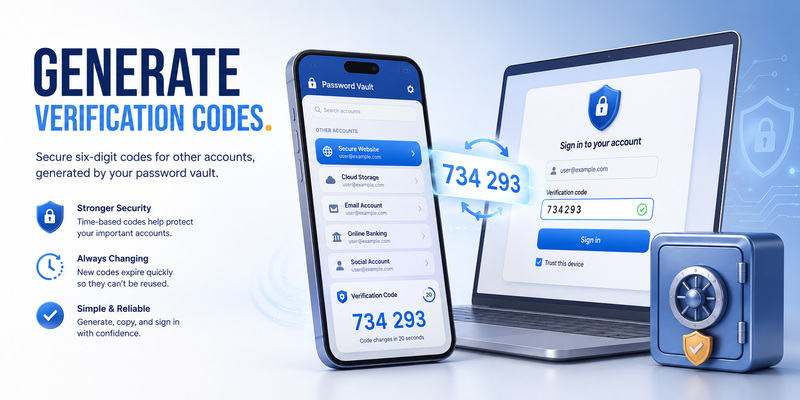
On current iOS, Passwords can store and produce verification codes for websites that offer authenticator-app 2FA. Open the service’s genuine security page, choose an authenticator option, then add its QR code or setup key to the matching Passwords entry. Submit a fresh code to prove enrollment.
This apple iphone authentication feature is TOTP for the third-party service. It is not the six-digit code used for Apple Account sign-in. Password AutoFill can suggest the saved value during login, reducing app switching.
Treat the QR image and manual setup key as durable secrets. Anyone who copies one can generate future codes. Never save the only copy as an ordinary screenshot or send it to support.
Separate authenticator apps remain an option
A dedicated apple iphone authenticator may provide cross-platform sync, local-only storage, encrypted export, organizational controls, or separation from the password manager. Evaluate the publisher, privacy policy, backup encryption, export format, biometric lock, updates, and subscription terms.
Whichever app you choose, save provider recovery codes outside the iPhone and test migration before wiping old hardware. A visible code entry does not prove the website still accepts that seed.
Prefer passkeys or physical security keys for high-value services that support them, because TOTP can still be relayed through real-time phishing.
Find the Right Guide: Google Authenticator for Apple: iPhone Setup Guide
7. Authenticate Without the Usual iPhone
Apple Account access without the device
Apple 2 factor authentication without iphone is possible when another trusted Apple device or trusted phone number remains accessible. On the sign-in screen, request a code from another trusted device, SMS, or automated call. A trusted number does not have to belong to the missing iPhone.
If every trusted device and number is permanently unavailable, begin official account recovery. Apple says recovery may take days or longer and support cannot accelerate the waiting period. Do not pay someone who promises a bypass.
Prepare apple iphone authentication before loss by adding another trusted number, maintaining Find My, reviewing recovery contacts, and storing any recovery key securely away from the phone.
Third-party account access
For website TOTP, use provider-issued backup codes, a second enrolled authenticator, a security key, or the provider’s recovery process. Synced apps may restore entries on another device after secure sign-in; local-only apps require prior export or direct re-enrollment.
Do not wipe the old iPhone until the replacement completes real sign-ins. Confirm Passwords sync, authenticator inventories, work-account registration, and passkeys. An apple iphone authentication migration is complete only when every critical provider accepts the new device.
For managed accounts, contact the organization’s help desk. Personal Apple recovery cannot recreate an employer’s device registration or conditional-access approval.
📖 Explore Articles: Apple iPhone Authentication: Face ID, 2FA, Passkeys
8. Fix Authentication Failures
Face ID, Touch ID, or passcode issues
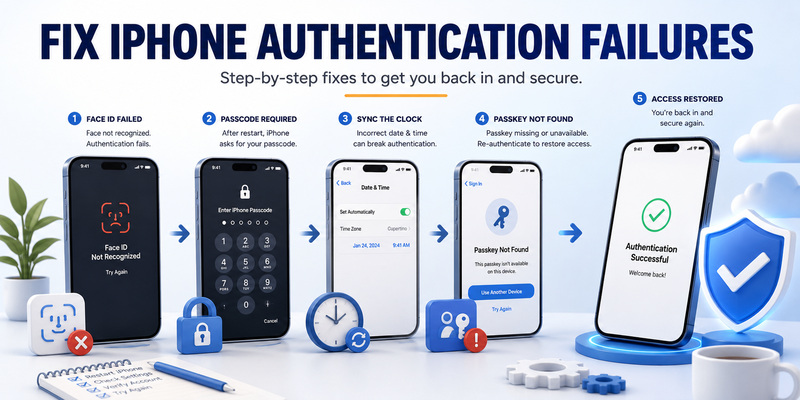
Clean the sensor area, remove obstructions, confirm the relevant feature is enabled, and restart the phone. Enter the passcode when iOS requires it after restart, elapsed time, failed matches, or security actions. If biometric recognition remains unreliable, update iOS and re-enroll from Settings.
Do not weaken apple iphone authentication by switching to a trivial passcode. Biometrics depend on the passcode as fallback. If the phone is lost, mark it lost through Find My and protect accounts rather than repeatedly attempting remote access through unofficial tools.
If you forgot the passcode, Apple’s official device recovery may require erasing the iPhone. Restoring data depends on an available backup and Apple Account access.
Codes, passkeys, and approval problems
For a rejected TOTP, enable automatic date and time, select the correct account entry, wait for a fresh code, and confirm the website still uses the same enrollment. For a missing Apple Account code, use Get Verification Code on another trusted device or request delivery to a trusted number.
If a passkey is missing, verify the same Apple Account, iCloud Keychain settings, compatible software, and the Passwords entry. The website may still offer an alternate credential or recovery route.
Safe apple iphone authentication troubleshooting preserves existing factors until a replacement succeeds. Removing a local code does not disable 2FA at the provider and can turn a minor sync issue into lockout.
💡 Discover Helpful Guides: Secondary Authentication Apple ID: Codes, Devices, and Recovery
9. Frequently Asked Questions
What is Apple iPhone authentication?
It is the combined security system of device passcodes, Face ID or Touch ID, Apple Account two-factor authentication, passkeys, website verification codes, and app-specific sign-in methods. Each protects a different boundary.
Is Face ID safer than a passcode?
Face ID is a secure convenience layer, but the passcode remains the cryptographic foundation and fallback. Use a strong passcode, require attention where appropriate, and protect it from observation.
Can iPhone generate authenticator codes?
Yes. The Passwords app can generate standard verification codes for participating websites, and independent authenticator apps are available. These codes are separate from Apple Account trusted-device verification.
Is Apple iPhone authentication safe from phishing?
Passkeys and FIDO security keys are strongly phishing-resistant. Passwords, TOTP codes, and approval prompts can still be stolen or relayed. Verify domains and reject unexpected requests.
What if my iPhone is lost?
Use Find My, protect the carrier account, sign in through another trusted device or number, and remove unsafe access. For third-party services, use backup codes or another enrolled factor.
Can I use Apple two-factor authentication without an iPhone?
Yes. A trusted iPad, Mac, compatible Apple Watch, trusted phone number, or configured security key may provide access depending on setup. Plan those routes before losing the phone.
Are passkeys better than authenticator codes?
Passkeys are usually more phishing-resistant and easier on supported services. TOTP remains broadly compatible. Many users need both while services transition.
Should I use a separate authenticator app?
Use one when you need cross-platform operation, local-only storage, export, or separation from Passwords. Evaluate security and recovery, then save provider backup codes independently.
The practical apple iphone authentication strategy is layered: strong local protection, resistant online credentials, and recovery that survives device loss.
📖 Explore Articles: Google Authenticator for Apple: iPhone Setup Guide
10. Final iPhone Security Checklist
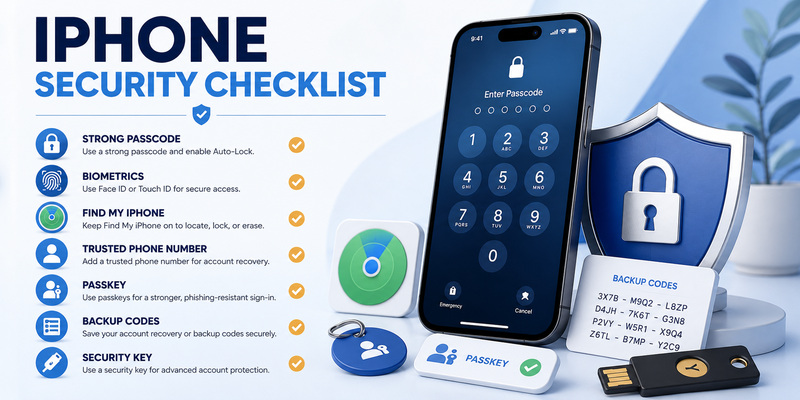
Harden daily authentication
Secure apple iphone authentication with a long passcode, carefully enrolled Face ID or Touch ID, current iOS, Find My, restrained notification previews, and reviewed application permissions. Turn on Apple Account two-factor authentication and add a second trusted phone number where practical.
Use passkeys for supported accounts, verification codes for compatible services, and physical security keys for high-value identities when appropriate. Test every enrollment and store recovery codes outside the phone.
Use this checklist:
- Replace a short or reused device passcode.
- Review Face ID or Touch ID enrollments and permissions.
- Update iOS and enable Find My.
- Verify trusted devices and phone numbers.
- Turn on iCloud Keychain deliberately.
- Prefer passkeys or security keys where supported.
- Protect TOTP QR secrets and recovery codes.
- Complete new-device sign-ins before erasing old hardware.
Keep recovery independent
Revisit apple iphone authentication after a phone replacement, number change, relationship change, job transition, or suspected phishing attempt. Remove obsolete devices and factors only after the replacement works. Update provider recovery codes after resetting 2FA.
For vendor-neutral help with TOTP setup, backup, and migration, visit Authenticator App. The iPhone can securely hold many credentials, but it should not be the only object capable of restoring them.
The strongest setup combines convenient everyday authentication with an independent path through another trusted device, phone number, recovery contact, backup code, or physical key.
Download Authenticator App
Secure your accounts with fast, reliable two-factor authentication. Download now and protect your login in seconds.
