
Apple Device Authentication Failed CarPlay: How to Fix the Error
Published August 20, 2026
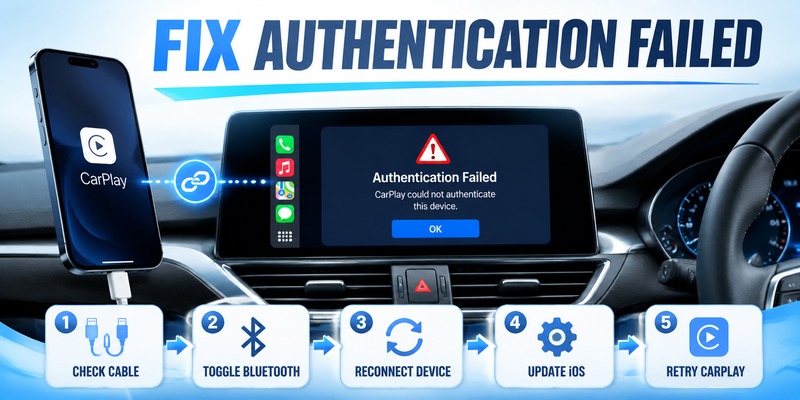
Seeing an apple device authentication failed carplay message can be confusing because the word “authentication” makes the problem sound like an Apple Account or two-factor authentication issue.
In many cases, however, a CarPlay failure is actually related to the connection between your iPhone and the vehicle’s infotainment system. The problem can involve the USB cable, USB port, wireless connection, iPhone settings, Siri, an existing CarPlay pairing, vehicle compatibility, or the car’s infotainment firmware.
Apple recommends checking CarPlay compatibility, updating iOS, checking the wired or wireless connection, confirming Siri is enabled, restarting the devices, and forgetting and reconnecting the vehicle when CarPlay does not work as expected.
If you are seeing an authentication-related CarPlay error, work through the fixes below in order. Start with the simple connection checks before changing account settings or resetting anything.
1. What Does “Apple Device Authentication Failed” Mean on CarPlay?
The exact wording of a CarPlay error can vary between iPhone versions, vehicle systems, and infotainment software.
An apple authentication failed carplay problem generally means that your iPhone and the vehicle did not successfully complete the process required to establish or maintain a CarPlay connection.
That does not automatically mean that your Apple Account password or two-factor authentication is incorrect.
CarPlay relies on several components working together:
- A compatible iPhone
- A compatible vehicle or CarPlay stereo
- A working USB connection for wired CarPlay
- Bluetooth and Wi-Fi for supported wireless setups
- Siri
- CarPlay permissions on the iPhone
- The vehicle’s infotainment system
- A valid pairing between the iPhone and vehicle
Because several components are involved, the same visible error can have different causes.
For example, a faulty USB cable can prevent wired CarPlay from starting, while an old pairing can prevent a previously connected iPhone from reconnecting correctly.
The first goal is therefore to determine whether the problem is connection, settings, pairing, software, or compatibility related.
Download Authenticator App
Secure your accounts with fast, reliable two-factor authentication. Download now and protect your login in seconds.
2. Try These Quick Fixes First
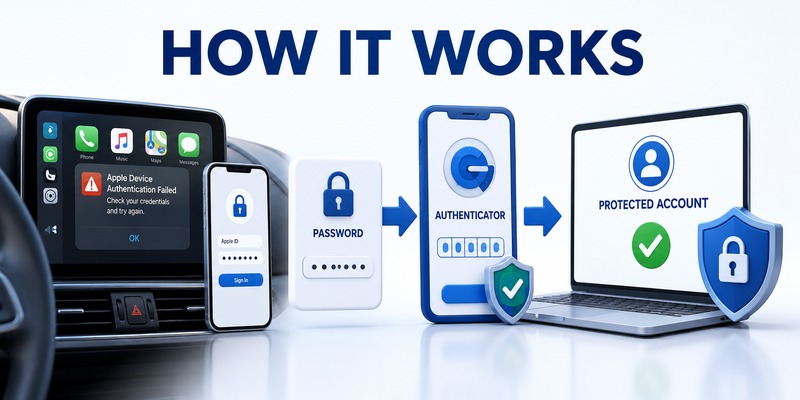
Before changing advanced settings, try the simplest solutions.
Restart your iPhone
Restart the iPhone and allow it to boot completely before reconnecting to the vehicle.
Restart the vehicle
Turn the vehicle off, wait for the infotainment system to shut down, then start the vehicle again.
Disconnect and reconnect the cable
For wired CarPlay, disconnect the USB cable from both the iPhone and vehicle.
Wait a few seconds and reconnect it.
If possible, try another known-good cable.
Apple specifically recommends trying another USB cable and another USB port when troubleshooting wired CarPlay.
Try another USB port
Some vehicles have multiple USB ports, but not every port necessarily supports CarPlay.
If your vehicle identifies a specific USB port for smartphone or CarPlay use, connect the iPhone there.
Mazda documentation, for example, notes that some models require the USB port marked for smartphone/CarPlay use rather than another USB port.
Check whether another iPhone is connected
If another phone is already connected to the vehicle, disconnect it temporarily.
Some Mazda Connect systems specifically document cases where CarPlay is already active with another iPhone and the additional iPhone cannot start CarPlay until the existing connection is disconnected.
If CarPlay starts after these basic steps, there is usually no reason to change your Apple Account or two-factor authentication settings.
 Discover Helpful Guides: Apple TV 2 Factor Authentication: How to Fix Authentication Required on Apple TV
3. Check Your iPhone and iOS Version
An outdated iOS version can contribute to compatibility and connection problems.
Apple recommends making sure your iPhone is running the latest available version of iOS when troubleshooting CarPlay.
Go to:
Settings > General > Software Update
If an update is available, install it when convenient and then restart the iPhone.
After updating, test CarPlay again.
Check your iPhone compatibility
CarPlay is not supported by every vehicle or aftermarket system, and the available features can vary by vehicle.
If you recently purchased a car or changed your iPhone, verify that your specific vehicle supports the CarPlay connection method you are attempting to use.
Apple recommends contacting the vehicle manufacturer when you are unsure whether a vehicle supports CarPlay.
This is especially important with wireless CarPlay because some vehicles support only wired CarPlay while others support both.
4. Make Sure Siri Is Enabled
Siri is required for CarPlay.
If Siri has been disabled or restricted, CarPlay may not function correctly.
Check your iPhone’s Siri settings and make sure Siri is enabled.
Apple and Mazda both identify Siri as an important requirement for CarPlay functionality.
If Siri works normally on your iPhone but CarPlay still fails, continue with the connection and pairing checks.
Check Siri separately
Try activating Siri directly on the iPhone.
If Siri itself is not responding, fix that issue before troubleshooting CarPlay.
For Mazda vehicles, poor Siri recognition can also be affected by network connectivity, road noise, and iPhone language settings. Mazda recommends checking these factors if Siri commands are not recognized correctly through CarPlay.
5. Check CarPlay Restrictions on Your iPhone
Your iPhone may recognize the vehicle but still prevent CarPlay from operating because of a restriction.
Check:
Settings > Screen Time > Content & Privacy Restrictions
If restrictions are enabled, make sure CarPlay is allowed.
Apple specifically recommends checking whether CarPlay is restricted when an iPhone is not detected by CarPlay.
After changing the setting, reconnect your iPhone and test CarPlay again.
This is an important step because a connection can appear to work physically while the iPhone still prevents the CarPlay service from launching.
Discover Helpful Guides: Apple Authenticator: Complete Guide to 2FA, Verification Codes & Apple Devices
6. Forget the Car and Pair It Again
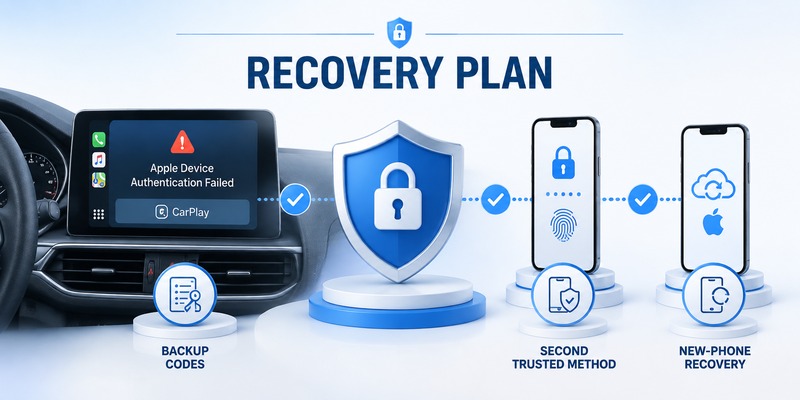
One of the most useful fixes for persistent apple carplay authentication failed problems is removing the existing CarPlay pairing and setting it up again.
On the iPhone, open the CarPlay settings and locate your vehicle.
Choose:
Forget This Car
Then restart your iPhone and vehicle.
After that, connect the iPhone again and follow the on-screen setup instructions.
Apple recommends forgetting the vehicle and setting up CarPlay again when other troubleshooting steps do not resolve the problem.
Why this can help
An existing pairing can become outdated or inconsistent after:
- An iOS update
- An infotainment update
- Changing iPhones
- Changing connection methods
- Removing or restoring device settings
- Connecting multiple phones to the same vehicle
Starting the pairing process again gives the iPhone and vehicle an opportunity to establish a fresh connection.
Discover Helpful Guides: Microsoft Authenticator Apple Guide for iPhone
7. Fix Wired CarPlay Connection Problems
If you use a cable, troubleshoot the physical connection before investigating account authentication.
Use a reliable data cable
Not every cable performs equally well for data connections.
A cable may still charge the iPhone while failing to provide a stable CarPlay data connection.
If CarPlay suddenly stops working, test another known-good cable.
Apple recommends trying another USB cable when wired CarPlay is not working.
Check the USB port
Try the USB port designated for smartphone or CarPlay connections.
Some vehicles have separate ports for charging and data.
Mazda documentation specifically identifies USB-port selection as a possible cause of CarPlay problems on some systems.
Avoid unnecessary adapters
If your iPhone and vehicle support a direct cable connection, test that configuration first.
Apple notes that some combinations of USB-C-to-Lightning adapters, cables, and vehicle entertainment systems can disrupt wired CarPlay. For cars that support wired CarPlay, Apple recommends a direct USB connection when adapter combinations cause problems.
Check the iPhone connector
Inspect the iPhone’s charging/data port for obvious debris or physical damage.
Do not force the connector into the port.
If the iPhone repeatedly disconnects from other accessories as well, the phone’s physical port may require attention.
 Browse How-To Guides: Secondary Authentication Apple ID: Codes, Devices, and Recovery
8. Fix Wireless Apple CarPlay Authentication Problems
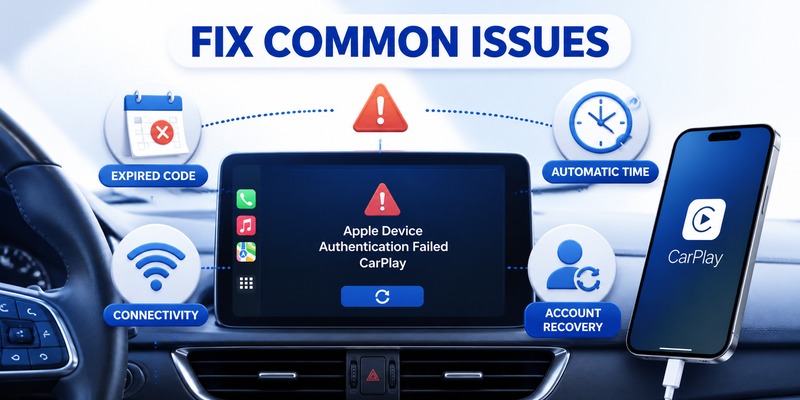
Wireless CarPlay uses more than a simple Bluetooth connection.
If you are troubleshooting apple carplay authentication failed with a wireless setup, check both Bluetooth and Wi-Fi.
Apple recommends making sure Bluetooth and Wi-Fi are enabled on the iPhone when using wireless CarPlay.
Check:
Settings > Bluetooth
and:
Settings > Wi-Fi
Make sure both are enabled.
Check the CarPlay network
For supported wireless setups, make sure the relevant CarPlay network can connect automatically.
Apple recommends checking the CarPlay network and confirming that Auto-Join is enabled when applicable.
Restart wireless connections
If wireless CarPlay previously worked but suddenly stopped:
- Turn Bluetooth off.
- Turn Wi-Fi off.
- Restart the iPhone.
- Turn Bluetooth and Wi-Fi back on.
- Restart the vehicle.
- Try connecting again.
If that does not work, forget the vehicle and pair it again.
Browse How-To Guides: Apple Watch Authenticator: Apps, Codes, and Limits
9. How to Fix Apple Device Authentication Failed CarPlay on Mazda
If you are specifically experiencing apple device authentication failed carplay mazda, check the Mazda Connect system as well as your iPhone.
Mazda’s own troubleshooting documentation identifies several CarPlay-related causes, including communication problems between Mazda Connect and the iPhone, incorrect USB-port selection, a different iPhone already using CarPlay, and device connection settings.
Reconnect the USB cable
If Mazda Connect displays an error such as “Unable to connect to Apple CarPlay,” Mazda recommends disconnecting the connector from the USB port and reconnecting it.
This is one of the first things to try.
Use the correct USB port
Some Mazda models require the USB port marked with the appropriate smartphone/CarPlay icon.
If the iPhone charges but CarPlay does not start, try the designated CarPlay USB port.
Mazda documentation specifically lists an incorrect USB port as a possible cause on certain systems.
Check the device connection permission
Some Mazda Connect systems provide options such as:
- Always Enable
- Enable Once
- Never Enable
- Cancel
If the iPhone’s CarPlay connection has previously been set to Never Enable, CarPlay may not start normally.
Mazda documentation recommends changing the device connection status to an allowed option such as Always Enable or Enable Once when this setting is responsible for the problem.
Disconnect another iPhone
If another iPhone is already using CarPlay, disconnect it first.
Mazda notes that some systems cannot use CarPlay with an additional iPhone while CarPlay is already active with another iPhone.
Check Mazda Connect software
If the iPhone works correctly with another CarPlay-compatible vehicle but consistently fails with your Mazda, investigate the Mazda Connect system.
Apple recommends checking that the CarPlay stereo has the latest firmware from the vehicle manufacturer.
For Mazda vehicles, consult the appropriate Mazda Connect manual or dealer for firmware and vehicle-specific procedures.
 Find the Right Guide: Apple TV 2 Factor Authentication: How to Fix Authentication Required on Apple TV
10. What If CarPlay Works With Another iPhone?
This is a useful diagnostic test.
If your car works normally with another iPhone, the vehicle itself is less likely to be the primary problem.
Focus on your iPhone:
- iOS version
- Siri
- CarPlay restrictions
- Bluetooth
- Wi-Fi
- existing CarPlay pairing
- USB connection
- device permissions
If your iPhone works normally with another CarPlay vehicle but not your own car, investigate the vehicle’s infotainment system, compatibility, pairing configuration, or firmware.
This simple comparison can prevent you from unnecessarily resetting your Apple Account.
11. What If CarPlay Still Says Authentication Failed?
If the basic fixes do not work, use a more systematic process.
Step 1: Restart both devices
Restart the iPhone and vehicle.
Step 2: Test a different connection
If using wireless CarPlay, test wired CarPlay if the vehicle supports it.
If using wired CarPlay, try another compatible cable and USB port.
Step 3: Forget the vehicle
Remove the existing CarPlay pairing and establish a new one.
Step 4: Check Siri
Make sure Siri is enabled and functioning.
Step 5: Check restrictions
Make sure CarPlay is not blocked under Screen Time restrictions.
Step 6: Update software
Update iOS and check the vehicle manufacturer’s firmware information.
Step 7: Test another iPhone
If possible, test another compatible iPhone with the vehicle.
This helps determine whether the problem is on the phone side or vehicle side.
Step 8: Escalate appropriately
If multiple compatible iPhones fail with the same vehicle, contact the vehicle manufacturer or dealer.
If your iPhone fails with multiple known-good CarPlay systems, Apple Support may be the more appropriate escalation point.
12. Do You Need to Change Apple Two-Factor Authentication?
Usually, no.
This is one of the most important distinctions when troubleshooting an apple authentication failed carplay message.
CarPlay connection problems should not automatically be treated as Apple Account two-factor authentication problems.
Apple Account 2FA is designed to protect your account. CarPlay is a vehicle integration system that connects your iPhone with a compatible vehicle.
An authenticator app also does not automatically fix CarPlay.
If you use an authenticator for a separate account, such as a work account or third-party service, that is a different authentication system.
Changing Apple Account security settings should therefore be one of the last, not first, troubleshooting steps unless you have a separate Apple Account sign-in problem.
13. What About Apple 2FA on Android?
The search query apple 2 factor authentication android can refer to several different situations, so it is important not to mix it with CarPlay.
Android phones cannot directly function as a CarPlay device because CarPlay is designed to integrate compatible iPhones with supported vehicles.
If you are asking about Apple Account verification while using another device, follow Apple’s current account-security and verification procedures.
If you are asking about using an authenticator app on Android for a third-party service, that is a separate TOTP use case.
In other words:
Apple Account 2FA ≠ CarPlay authentication ≠ third-party authenticator codes.
Keeping these systems separate makes troubleshooting much easier.
14. Frequently Asked Questions
Why does Apple CarPlay say authentication failed?
The error can be related to the connection or pairing between your iPhone and vehicle. Check the USB cable or wireless connection, restart both devices, verify Siri and CarPlay permissions, and try forgetting and reconnecting the vehicle.
How do I fix Apple CarPlay authentication failed?
Start with the simplest fixes: restart your iPhone and vehicle, reconnect the cable or check Bluetooth and Wi-Fi, confirm Siri is enabled, check CarPlay restrictions, and forget the vehicle before pairing again.
Why is CarPlay not connecting even though my iPhone is charging?
Charging does not necessarily mean that the USB connection is successfully carrying the data required for CarPlay. Try a different known-good data cable and the vehicle’s designated CarPlay USB port.
Why does CarPlay work with another iPhone but not mine?
The problem may be specific to your iPhone’s CarPlay settings, iOS version, pairing information, Siri configuration, restrictions, or connection.
Try forgetting the vehicle and setting up CarPlay again.
Why does my Mazda say it cannot connect to Apple CarPlay?
Mazda documentation identifies several possible causes, including communication problems between Mazda Connect and the iPhone, using the wrong USB port, an existing iPhone already using CarPlay, and device connection settings.
How do I fix Apple CarPlay on Mazda?
Reconnect the USB cable, use the correct CarPlay-enabled USB port, disconnect other iPhones, check the device connection permission, restart the system, and update the relevant software when available.
Does Apple CarPlay require two-factor authentication?
CarPlay itself should not be confused with Apple Account two-factor authentication. If you are seeing a CarPlay connection error, troubleshoot the CarPlay connection before changing your Apple Account security settings.
Can an authenticator app fix Apple CarPlay?
No. A third-party authenticator app generates authentication codes for compatible online services. It does not repair a USB, Bluetooth, Wi-Fi, pairing, Siri, or vehicle-infotainment problem.
Should I reset my Apple Account if CarPlay fails?
Usually not. Start with CarPlay-specific troubleshooting. Resetting account security without identifying an account problem can create unnecessary recovery complications.
What should I do if CarPlay still does not work?
Test another cable or connection method, forget and reconnect the vehicle, update your iPhone, check the vehicle firmware, and test another compatible iPhone if possible. If the problem follows the vehicle, contact the manufacturer; if it follows the iPhone, contact Apple Support.
15. Final CarPlay Troubleshooting Checklist
Before escalating an apple device authentication failed carplay problem, work through this checklist:
- Confirm that your vehicle supports Apple CarPlay.
- Make sure your iPhone is running the latest available iOS.
- Restart your iPhone.
- Restart the vehicle.
- Make sure Siri is enabled.
- Check that CarPlay is not restricted.
- Try another known-good USB cable for wired CarPlay.
- Try the vehicle’s designated CarPlay USB port.
- Disconnect other iPhones from the vehicle.
- Check Bluetooth and Wi-Fi for wireless CarPlay.
- Check the CarPlay network and Auto-Join where applicable.
- Forget the vehicle in CarPlay settings.
- Pair the iPhone with the vehicle again.
- Check the vehicle manufacturer’s firmware information.
- Test another compatible iPhone if possible.
- Contact the vehicle manufacturer if multiple phones fail with the same vehicle.
- Contact Apple if the problem follows your iPhone across multiple CarPlay systems.
Final Thoughts
An apple device authentication failed carplay error does not necessarily indicate a problem with your Apple Account or two-factor authentication.
In many cases, the real cause is much simpler: an unstable USB connection, the wrong USB port, a stale CarPlay pairing, disabled Siri, a restricted CarPlay setting, wireless connection problems, incompatible software, or communication issues between the iPhone and the vehicle.
The best troubleshooting strategy is to work from the outside in.
Start with the cable or wireless connection. Then check the iPhone. Next, reset the CarPlay pairing. After that, investigate the vehicle’s infotainment system and firmware.
For Mazda owners, pay particular attention to the designated USB port, Mazda Connect’s device connection settings, and whether another iPhone is already using CarPlay. Mazda’s own manuals identify these as potential causes of CarPlay connection problems.
Most importantly, do not change your Apple Account two-factor authentication simply because CarPlay displays an authentication-related error. These are different systems.
If you use an authenticator app for your other online accounts, it can help protect those accounts with standards-based verification codes, but it is not a solution for a CarPlay connection failure.
Download Authenticator App
Secure your accounts with fast, reliable two-factor authentication. Download now and protect your login in seconds.
