Authenticator ℠ App Authenticator ℠ App by Begamob

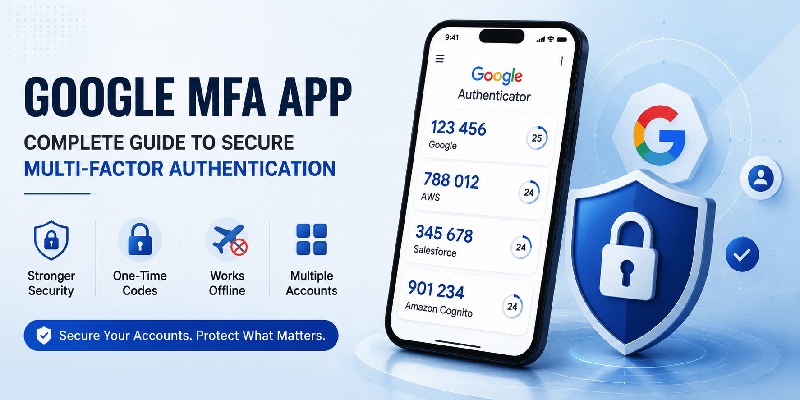
Google MFA App: Complete Guide to Secure Multi-Factor Authentication

Passwords alone are no longer enough to protect important online accounts. A stolen, reused, or exposed password can potentially give an attacker access to email, cloud platforms, business applications, and sensitive information. Multi-factor authentication adds another verification step so that knowing a password alone is not enough.

A google mfa app provides one convenient way to complete that second authentication step. Instead of relying only on a password, users can generate temporary verification codes on a trusted mobile device and enter them when signing in.

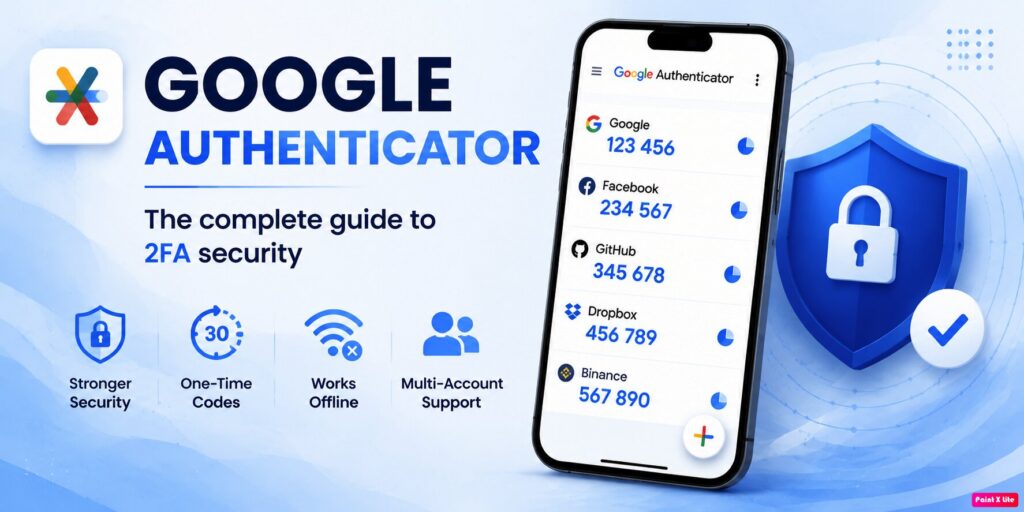
Google Authenticator is one of the best-known examples. It can generate one-time verification codes for services that support authenticator-based two-step verification, and those codes can continue to work without mobile service or an internet connection.

However, a google mfa app is not limited to Google accounts. Standards-based authenticator codes are supported by many business and cloud platforms, making this type of authentication useful for individuals, administrators, developers, and organizations.

This guide explains how MFA apps work, where they can be used, and what you should consider when configuring them.

📖 Explore Articles: Google Authenticator: Complete 2FA Setup & Security Guide

1. What Is a Google MFA App and How Does It Work?

A google mfa app is a mobile authentication application that generates temporary verification codes used as an additional login factor.

In a typical login process, a user first enters a username and password. The website or application then asks for another form of verification. When authenticator-based MFA has been configured, the user opens the authentication app and enters the temporary code displayed for that account.

How TOTP authentication works

Many authenticator applications rely on Time-Based One-Time Passwords, commonly called TOTP.

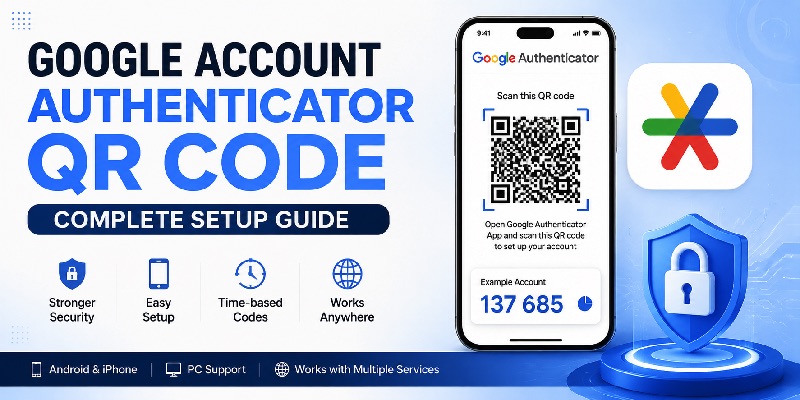
During setup, the service provides a secret key, usually represented through a QR code. The user scans that QR code with the google mfa app, allowing the application and service to share the information required to generate matching verification codes.

The authenticator then calculates temporary codes based partly on time. Because the code changes regularly, an old code cannot simply be reused indefinitely.

Google confirms that Google Authenticator generates one-time verification codes for applications and websites that support authenticator-based two-step verification.

MFA versus a password-only login

A password represents something you know.

An authenticator application represents access to something you possess: the device containing your authentication configuration.

Using the two together makes unauthorized account access more difficult. Even if someone learns the password, they may still be unable to complete the additional verification challenge.

That is the basic security benefit behind google mfa and similar multi-factor authentication systems.

Get Authenticator App

Add an extra layer of protection to your online accounts with two-factor authentication. Generate secure verification codes and protect your accounts whenever you sign in.

Download Now

2. Why Use a Google MFA App for Account Security?

Google MFA App: Complete Guide to Secure Multi-Factor Authentication
Why Use a Google MFA App for Account Security?

The biggest advantage of a google mfa app is that it reduces dependence on passwords as the only protection around an account.

Passwords can be exposed through phishing, credential leaks, malware, weak password choices, or password reuse. MFA creates an additional barrier.

Protection after password exposure

Imagine that someone obtains your account password. With password-only authentication, that credential may provide immediate access.

When a google mfa app is enabled, the login attempt can also require a temporary verification code.

Without access to the configured authentication method, possessing the password alone may not be enough.

Verification codes can work offline

Another practical advantage is that authenticator-generated codes do not necessarily require SMS delivery.

Google Authenticator can generate verification codes even without mobile service or an internet connection.

This makes a google mfa app useful when traveling, working in areas with weak cellular coverage, or using accounts where SMS verification is inconvenient.

One application can protect multiple services

Authenticator apps are not restricted to a single website.

One Authenticator App can often store multiple TOTP accounts, allowing a user to protect services from different providers without installing a separate app for every account.

For example, the same phone may contain authentication entries for Google, cloud infrastructure, developer platforms, productivity tools, or business applications.

However, each service still has its own MFA configuration. Adding one account to an authenticator does not automatically enable MFA for every other account.

3. How to Set Up a Google MFA App Step by Step

The exact menus vary depending on the service, but the general google mfa app setup process is similar across most TOTP-compatible platforms.

Step 1: Install an authenticator application

Install Google Authenticator or another compatible authenticator application on your trusted mobile device.

If you use Google Authenticator for a Google Account, Google provides the authenticator option through the account’s 2-Step Verification settings.

Step 2: Open the account’s security settings

Sign in to the account you want to protect.

Look for a section such as:

  • Security
  • Sign-in settings
  • Multi-factor authentication
  • Two-factor authentication
  • 2-Step Verification
  • MFA settings

Select the option to configure an authenticator application.

Step 3: Scan the QR code

The service usually displays a QR code.

Open your google mfa app, choose the option to add an account, and scan the QR code.

If QR scanning is unavailable, some services provide a setup key that can be entered manually.

Step 4: Enter the generated verification code

After enrollment, your google mfa app should display a temporary code for the new account.

Enter the requested code on the website to verify that the configuration is working correctly.

Step 5: Configure recovery options

Do not ignore the recovery stage.

Depending on the platform, recovery options may include backup codes, another authentication method, a security key, or administrative account recovery.

Google, for example, provides backup codes that can be used when normal two-step verification methods are unavailable.

Store recovery information somewhere secure rather than keeping your only backup beside the phone used for authentication.

📖 Read More Guides: Google Authenticator 2FA: Complete Guide to Two-Step Verification

4. Using Google MFA App With Google Workspace

Google MFA App: Complete Guide to Secure Multi-Factor Authentication
Using Google MFA App With Google Workspace

Organizations using Google Workspace can also apply multi-step authentication to business accounts.

google workspace mfa is particularly important because a compromised organizational account can potentially expose Gmail messages, Drive files, shared resources, and other company information.

Google Workspace MFA for employees

Administrators can manage two-step verification policies for Workspace users.

Once authentication requirements are configured, employees may use supported verification methods during sign-in. Google describes 2-Step Verification as an additional barrier between business accounts and attackers attempting to use stolen usernames and passwords.

A google mfa app can therefore become part of a broader Workspace security policy rather than an optional tool used by individual employees.

Google Workspace MFA for administrators

Administrator accounts deserve especially strong protection.

These accounts can have permissions that ordinary users do not have, making unauthorized access potentially much more serious.

Organizations implementing google workspace mfa should consider:

  • Requiring MFA for privileged accounts.
  • Providing secure recovery procedures.
  • Maintaining more than one appropriately protected administrator account.
  • Reviewing authentication methods periodically.
  • Removing access for employees who leave the organization.

A google mfa app works best when it is combined with good account administration rather than treated as the entire security strategy.

5. Using Google MFA App With Salesforce

Authenticator applications can also be used with Salesforce.

Salesforce supports third-party authenticator applications that generate standards-based TOTP codes. Its documentation specifically lists Google Authenticator among popular compatible options.

That makes salesforce mfa google authenticator a practical configuration for users who already manage verification codes through Google Authenticator.

Connecting an authenticator to Salesforce

The general process is straightforward:

  1. Sign in to Salesforce.
  2. Open the appropriate MFA or verification-method settings.
  3. Select a third-party authenticator application.
  4. Display the registration information or QR code.
  5. Scan it using your google mfa app.
  6. Enter the generated verification code.
  7. Complete registration.

After configuration, Salesforce can request the temporary code during authentication.

Why organizations may use third-party authenticators

Businesses sometimes prefer a standardized authentication workflow across several tools.

Instead of teaching employees a different MFA application for each service, an organization may use a compatible google mfa app for several TOTP-enabled accounts.

The important requirement is compatibility. Salesforce states that supported third-party authenticator applications generate codes based on the OATH TOTP standard defined in RFC 6238.

6. Using Google MFA App With AWS and Amazon Cognito

Google MFA App: Complete Guide to Secure Multi-Factor Authentication
Using Google MFA App With AWS and Amazon Cognito

The google mfa app can also be relevant to AWS environments.

AWS supports virtual authenticator applications that implement standards-based TOTP authentication.

AWS accounts and IAM users

For teams researching aws mfa google authenticator, Google Authenticator can act as a virtual authenticator for compatible AWS MFA configurations.

A typical configuration involves:

  1. Opening the appropriate AWS security or IAM settings.
  2. Selecting an authenticator application as the MFA device.
  3. Scanning the displayed QR code.
  4. Generating temporary codes using your google mfa app.
  5. Entering the requested codes to complete registration.

AWS notes that virtual authenticator apps implement the TOTP algorithm. AWS also warns that TOTP authentication is not as phishing-resistant as options such as FIDO2 security keys or passkeys.

Therefore, a google mfa app can significantly improve a password-only setup, but organizations managing high-value infrastructure should still evaluate stronger authentication methods where appropriate.

Amazon Cognito MFA

Developers building applications with Amazon Cognito can also configure software-token MFA.

For cognito mfa google authenticator configurations, Amazon Cognito can provide a secret that the application presents to the user, commonly through a generated QR code. The user then scans that information into a TOTP application such as Google Authenticator.

The google mfa app subsequently generates the temporary codes required during supported authentication flows.

This makes TOTP useful not only for employees signing into cloud consoles but also for applications where developers want to offer MFA to their own users.

Get Authenticator App

Add an extra layer of protection to your online accounts with two-factor authentication. Generate secure verification codes and protect your accounts whenever you sign in.

Download Now

7. Common Google MFA App Problems and How to Fix Them

Although a google mfa app is usually simple to use, authentication problems can still occur.

Most issues involve device changes, incorrect configuration, account recovery, or time synchronization.

The verification code is rejected

TOTP depends on accurate time.

If your phone’s clock is incorrect, the generated verification code may not match what the server expects.

Google notes that current versions of Google Authenticator rely on the operating system’s time settings.

Check that automatic date and time settings are enabled on the device, then generate a new code and try again.

You replaced or lost your phone

This is one of the most important scenarios to prepare for before it happens.

If the phone containing your google mfa app becomes unavailable, you may need another registered authentication method or an account recovery option.

Depending on the service, possible recovery methods include:

  • Backup codes.
  • Another trusted device.
  • A security key.
  • A secondary verification method.
  • Administrator-assisted recovery.

Never assume that reinstalling the authenticator application will automatically restore every account exactly as it existed before.

The QR code will not scan

If scanning fails:

  • Clean the camera lens.
  • Increase screen brightness.
  • Ensure the full QR code is visible.
  • Avoid scanning from an extreme angle.
  • Use the manual setup key if the service provides one.

Also verify that you are adding the account through the correct google mfa app menu.

You deleted the wrong account

Removing an entry from an authenticator does not necessarily disable MFA on the original service.

If the service still expects codes but the authentication entry has been removed, you may need a recovery method or administrator assistance.

For that reason, verify that MFA has been replaced or disabled on the service before deleting an important authenticator entry.

8. Google MFA App Security Best Practices

Google MFA App: Complete Guide to Secure Multi-Factor Authentication
Google MFA App Security Best Practices

Simply installing a google mfa app is not enough. The phone and recovery process also need protection.

Protect your mobile device

Use a strong device PIN, biometric lock, or another secure screen-lock method.

Avoid leaving the phone unlocked in public places.

If the device itself is poorly protected, an attacker who obtains physical access may be able to reach authentication information.

Keep recovery methods separate

A common mistake is storing every recovery method on the same device.

For example, keeping screenshots of QR codes and backup codes directly beside your google mfa app can reduce the benefit of having separate recovery credentials.

Use a secure storage method appropriate for the sensitivity of the account.

Never share temporary codes

Treat authenticator codes as sensitive.

A legitimate verification code can potentially be abused if you give it to someone while it is still active.

Do not provide codes in response to unexpected calls, chats, emails, or messages claiming that someone needs your MFA code to “verify” your account.

Review MFA registrations

Periodically review which devices and verification methods are connected to important accounts.

Remove obsolete devices and outdated authentication methods.

For business environments, administrators should also review MFA policies when employees change roles or leave the organization.

A google mfa app should be one part of an ongoing access-security process.

📖 Read More Guides: Google Authenticator for PC: Windows, Desktop and Laptop Guide

9. Is a Google MFA App the Right MFA Solution for You?

For many users, a google mfa app offers a practical balance between convenience and stronger account security.

It can generate temporary TOTP verification codes, work with multiple compatible services, and provide codes even when the device has no active mobile connection.

It is particularly useful for users who manage several online accounts and want one familiar authentication workflow.

At the same time, TOTP is not the strongest authentication technology available in every situation. AWS, for example, explicitly notes that TOTP-based MFA is less phishing-resistant than technologies such as FIDO2 security keys and passkeys.

The best authentication setup therefore depends on the account.

For everyday services, a google mfa app can be a substantial improvement over password-only protection. For administrator accounts, cloud infrastructure, financial systems, or other highly sensitive resources, organizations may want to combine MFA policies with phishing-resistant authentication, careful recovery procedures, device protection, and access monitoring.

Whether you are configuring google authenticator mfa for a personal account, protecting employees through Google Workspace, connecting Salesforce, or setting up AWS services, the principle remains the same: avoid relying on a password as the only barrier protecting an important account.

A properly configured google mfa app gives users an additional verification layer that is relatively simple to manage while significantly strengthening the login process.

Get Authenticator App

Add an extra layer of protection to your online accounts with two-factor authentication. Generate secure verification codes and protect your accounts whenever you sign in.

Download Now

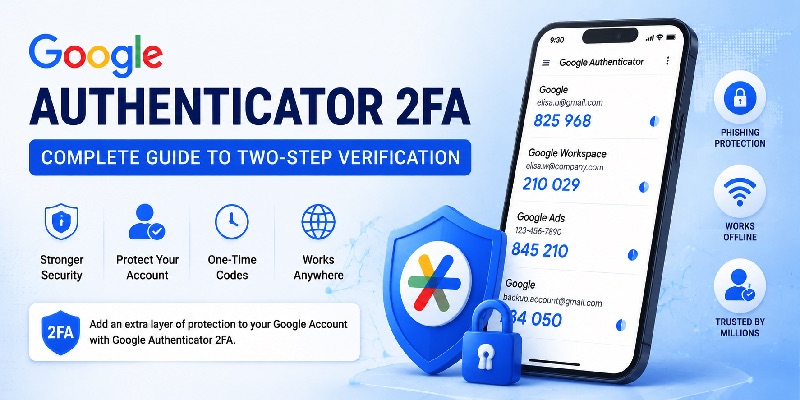
Google Authenticator 2FA: Complete Guide to Two-Step Verification

Passwords alone are no longer the strongest way to protect an online account. A password can be exposed through phishing, reused across multiple services, or obtained through a data breach. Adding another verification method creates an extra barrier between an attacker and your personal information.

That is where google authenticator 2fa becomes useful. Instead of relying only on your Google Account password, you can configure an additional authentication step that proves you have access to an authorized device or authentication method.

Google calls this security feature 2-Step Verification, while terms such as two-factor authentication, 2FA, MFA, google two factor, and google multi factor authentication are often used when people search for similar security features.

With google authenticator 2fa, the Authenticator application can generate a temporary verification code that you enter during sign-in when the Authenticator method is requested. Google confirms that these codes can still be generated without an Internet connection or mobile service.

However, Authenticator is only one possible verification method. Google also supports options such as Google prompts, security keys, backup codes, and passkeys. Google currently recommends Google prompts over SMS codes when a user is not signing in with a passkey.

This pillar guide explains how google authenticator 2fa works, how to configure it, what to do if your phone is unavailable, and how Google 2-Step Verification applies to Gmail, Workspace, Google Ads, and other Google services.

1. What Is Google Authenticator 2FA and How Does It Work?

Google authenticator 2fa adds another verification mechanism to the sign-in process. After 2-Step Verification is enabled, Google may request an additional authentication step when necessary, particularly when signing in from a new device or when Google needs to verify that it is really you.

Google Authenticator and Two-Factor Authentication

The google authenticator 2fa app generates temporary one-time verification codes. A website or account must first be connected to the application before those codes can be used.

The basic workflow looks like this:

  1. Sign in to the account you want to protect.
  2. Enable two-step or multi-factor authentication.
  3. Select an authenticator application as a verification method.
  4. Scan the displayed QR code with the Authenticator application.
  5. The application creates a temporary verification code.
  6. Enter that code on the website to confirm setup.
  7. Future sign-ins may request a new code.

For a Google Account, the google two factor authenticator is therefore not replacing your password. It provides another method of proving account ownership when the second step is requested.

Google describes Authenticator as an application capable of generating one-time verification codes for apps and websites supporting Authenticator-based 2-Step Verification.

What Is a Google Two Factor Authentication Code?

A google two factor authentication code displayed inside Authenticator is temporary. When an older code expires, another one is generated automatically.

This means you do not need to memorize a permanent second password.

A common misconception is that google authenticator 2fa requires constant network access. It does not. After the account has been configured, Google states that Authenticator can generate codes even without an Internet connection or mobile service.

That makes an authenticator application especially useful when traveling, experiencing unreliable mobile coverage, or signing in somewhere without SMS reception.

📖 Explore Articles: Google Authenticator: Complete 2FA Setup & Security Guide

2. Why Use Google Authenticator 2FA for Your Google Account?

Google Authenticator 2FA: Complete Guide to Two-Step Verification
Why Use Google Authenticator 2FA for Your Google Account?

The main purpose of google authenticator 2fa is to reduce the risk associated with a compromised password.

If an attacker learns your password but cannot complete the requested second step, gaining account access becomes more difficult.

Password Plus Another Verification Step

With traditional password-only security, anyone who obtains the correct password may attempt to sign in.

With google two factor auth, authentication can involve:

Something you know: your password.

Something you have or control: an authorized device, Authenticator code, security key, or another verification method.

This concept is also why searches for google2fa, google two step, and Google MFA often lead to the same Google Account security area.

Google explains that 2-Step Verification provides additional protection even if someone obtains your password.

Authenticator Is Only One Available Second Step

Although this guide focuses on google authenticator 2fa, Google Accounts can use several verification methods.

Depending on your account and configuration, these can include:

  • Google prompts
  • Authenticator codes
  • Backup codes
  • Security keys
  • Passkeys
  • Phone-based verification methods

Google recommends prompts instead of SMS verification codes in many password-based sign-in scenarios because prompts can help reduce exposure to phone-number-based attacks such as SIM swapping.

Passkeys work differently. Google explains that when a passkey is used to sign in to an account with 2-Step Verification, it can bypass the additional authentication step because unlocking the passkey already demonstrates possession of the device.

Therefore, google authenticator 2fa should be viewed as part of a broader account-security system rather than the only way to secure a Google Account.

3. How to Set Up Google Authenticator 2FA Step by Step

The first requirement for google authenticator 2fa is enabling Google 2-Step Verification.

Google’s current account instructions direct users to the Security & sign-in area of their Google Account and then to 2-Step Verification under the sign-in settings.

Step 1: Open Your Google Account Security Settings

Sign in to the Google Account you want to protect.

Open the Security & sign-in settings and find the section covering how you sign in to Google.

Users searching for google security settings 2 step verification, 2 step verification settings google, or a google 2 step verification page are generally looking for this account-security area.

Select 2-Step Verification and follow Google’s on-screen instructions.

Step 2: Enable Google 2-Step Verification

Complete the initial setup requested by Google.

Your available verification methods can depend on the devices connected to your account and your account type.

After 2-Step Verification is active, look for the option to configure an Authenticator application.

Step 3: Add Authenticator

Open your Authenticator App on the device you intend to use.

The setup process typically presents a QR code. Scan it with the application to connect the account.

This setup is frequently described using searches such as:

  • 2 step verification google authenticator
  • google authenticator two step verification
  • google two step authenticator
  • google 2 step authenticator
  • google 2 step verification authenticator app

After scanning the setup code, Authenticator starts displaying verification codes for the account.

Step 4: Confirm the Code

Enter the current Authenticator code into Google’s verification screen when requested.

Once accepted, your google authenticator 2fa method has been configured.

Do not assume that seeing codes inside Authenticator automatically means your entire account-recovery setup is complete. Configure backup methods as well so that losing one device does not leave you dependent on a single authentication path.

Google specifically recommends setting up backup methods for 2-Step Verification to reduce the risk of being locked out.

Get Authenticator App

Add an extra layer of protection to your online accounts with two-factor authentication. Generate secure verification codes and protect your accounts whenever you sign in.

Download Now

📖 Read More Guides: Google Authenticator 2FA: Complete Guide to Two-Step Verification

4. How to Use Google Authenticator 2FA on Android and iPhone

Google Authenticator 2FA: Complete Guide to Two-Step Verification
How to Use Google Authenticator 2FA on Android and iPhone

After configuration, using google authenticator 2fa is straightforward.

When Google requests your Authenticator verification code:

  1. Open Google Authenticator.
  2. Locate the correct account.
  3. Read the current verification code.
  4. Return to the Google sign-in screen.
  5. Enter the code.
  6. Complete sign-in.

Using Google Authenticator on Android

On Android, Authenticator can generate codes locally without requiring a mobile signal or active Internet connection.

That is useful when you need google authenticator 2fa while traveling or while your device is temporarily offline.

Google’s current Authenticator documentation also states that users can synchronize Authenticator codes across devices by signing in to their Google Account.

This is an important change from older versions of Authenticator, so older tutorials stating that Authenticator codes can never synchronize may now be outdated.

Using Google Authenticator on iPhone

The google two factor authentication iphone app workflow follows the same general principle.

Install Authenticator on your iPhone, connect the account using the QR setup process, and use the generated codes whenever they are requested.

Users searching for a google two factor authentication app or google two step verification app should distinguish between the overall Google Account 2-Step Verification feature and the Authenticator application itself.

2-Step Verification is the security system.

Authenticator is one method that can be used within that system.

Google also supports Google prompts on iPhones when supported Google apps are signed in to the account.

For this reason, google authenticator 2fa may be one of several authentication options visible on the same Google Account.

5. Google 2FA Without Phone: Backup and Recovery Options

A common concern is what happens to google authenticator 2fa if your phone is lost, damaged, replaced, or unavailable.

This is why backup methods should be configured before a problem occurs.

Can You Use Google 2FA Without Phone Access?

The phrase google 2fa without phone can mean several different things.

If you mean “without mobile service,” Authenticator can still generate codes offline after it has been configured.

If you mean “without having the Authenticator device at all,” you need another authentication or recovery method.

Possible options can include:

  • Backup codes
  • Another signed-in device
  • Google prompts
  • A security key
  • A passkey
  • Other recovery methods available on the account

Google allows users to create backup codes specifically for situations where their normal second step is unavailable.

Google 2 Step Verification Without Phone

For google 2 step verification without phone, backup codes can be particularly important.

Each backup code acts as an alternative second step. They should therefore be stored somewhere secure rather than kept only on the phone that you are trying to protect against losing.

If you cannot use any configured second step, Google may require account recovery. Google notes that additional security verification can make account recovery take several business days in some situations.

Therefore, do not wait until your phone disappears before thinking about recovery.

A resilient google authenticator 2fa setup has more than one way back into the account.

📖 Read More Guides: Google Account Authenticator QR Code: Complete Setup Guide

6. Google Authenticator 2FA for Gmail, Workspace, Ads, and Google Pay

Google Authenticator 2FA: Complete Guide to Two-Step Verification
Google Authenticator 2FA for Gmail, Workspace, Ads, and Google Pay

A Google Account can provide access to many different Google services. That is why google authenticator 2fa can protect more than just Gmail.

However, some business products also include additional administrator-controlled security requirements.

Google Mail 2 Step Verification

For most personal Gmail users, google mail 2 step verification is managed through the Google Account’s security settings.

You are protecting the Google Account used to access Gmail rather than configuring an entirely separate Gmail authenticator system.

After google authenticator 2fa is enabled as a verification method, Google can request an additional step when appropriate during account sign-in.

Google Workspace 2 Step Verification

Google workspace 2 step verification can behave differently because an organization administrator can manage security policies.

Google provides Workspace administrators with controls for deploying and enforcing 2-Step Verification across an organization.

This explains why an employee may see a message stating that their sign-in configuration does not meet the organization’s requirements even when a personal Google Account would allow different options.

If google authenticator 2fa is being used for a school or workplace account, organization policies may determine which methods are permitted.

Google Ads Two Step Verification

Google ads two step verification can also be controlled at the advertising-account level.

Google Ads states that 2-Step Verification helps protect advertising accounts from unauthorized access and account hijacking.

Administrators can manage the verification requirement from the Access and security settings in Google Ads. Google’s current instructions show a two-step-verification setting under the Security tab.

Therefore, google ads 2 step verification may involve both your Google Account authentication configuration and security requirements applied to the Ads account.

Google Pay 2 Step Verification

The phrase google pay 2 step verification can be confusing because payment verification and Google Account 2-Step Verification are not always the same process.

Google Pay recommends adding 2-Step Verification to the Google Account as an additional layer of account protection.

Separately, Google Pay or Google Wallet may request verification of payment information or require device verification for purchases. Payment-method verification codes can also come from the bank rather than from Google Authenticator.

In other words, google authenticator 2fa secures account authentication, while payment verification may involve additional processes.

7. How to Move Google Authenticator 2FA to a New Phone

Replacing your smartphone does not necessarily mean rebuilding every google authenticator 2fa entry from zero.

Google Authenticator currently provides synchronization and transfer options.

Option 1: Sync Authenticator Codes With Your Google Account

Google states that Authenticator codes can be synchronized across devices when you sign in to your Google Account inside Authenticator.

For supported versions, this can simplify device replacement.

Before wiping an old phone, check that the accounts you need are available correctly on the replacement device.

Option 2: Transfer Accounts With a QR Code

Authenticator also supports transferring accounts between devices.

Google’s instructions describe generating a QR code on the old device and scanning it using the new device.

A sensible migration process is:

  1. Keep the old device available.
  2. Install Authenticator on the new device.
  3. Use the transfer or synchronization option.
  4. Confirm that all required accounts appear.
  5. Test critical logins.
  6. Only then erase or dispose of the old device.

Do Not Remove the Old Device Too Early

The biggest mistake during a google authenticator 2fa migration is deleting the old authentication setup before confirming that the new one works.

If synchronization, transfer, or account configuration is incomplete, you may need to rely on backup codes or another second step.

A few minutes of verification before resetting a device can prevent a much longer account-recovery process.

📖 Read More Guides: Google Authenticator Web: How to Use 2FA Securely in Your Browser

8. Google Authenticator 2FA Not Working: Problems and Fixes

Google Authenticator 2FA: Complete Guide to Two-Step Verification
Google Authenticator 2FA Not Working: Problems and Fixes

Even a correctly configured google authenticator 2fa setup can occasionally cause confusion.

The key is identifying which part of the authentication process is failing.

Google 2 Step Verification Not Showing Up

If google 2 step verification not showing up is the problem, first confirm that you are signed in to the correct Google Account.

Then check the Security & sign-in area and locate 2-Step Verification.

For work or school accounts, an administrator may control whether certain authentication options are available. Google explicitly notes that users of organization-managed accounts may need to contact their administrator when normal 2-Step Verification setup steps do not work.

The Authenticator Code Is Rejected

If your google authenticator 2fa code is rejected:

  • Confirm you selected the correct account in Authenticator.
  • Wait for the next code and try again.
  • Confirm your device time settings are correct.
  • Check whether the service is requesting another authentication method instead.

Google’s documentation notes that Authenticator now relies on the operating system’s time settings and that the older time-correction setting is no longer available in Authenticator version 7.0.

Google Prompt Appears Instead of a Code

Sometimes users expect a code but receive a Google prompt.

That does not necessarily mean google authenticator 2fa has stopped working.

Google may present different available authentication methods. Its troubleshooting documentation specifically notes that users who do not receive an expected verification code may have received a Google prompt instead.

Google Is Requiring Two-Step Verification

Searches such as google forcing 2 step verification or google requiring 2 step verification often come from users who suddenly encounter stronger sign-in requirements.

For personal accounts, security requirements can depend on Google’s account-protection policies.

For Workspace, administrators can enforce organization-wide 2-Step Verification policies. Google also documents enforcement of 2-Step Verification for Workspace administrator accounts.

For Google Ads, administrators can also require 2-Step Verification from the account’s security configuration.

The correct solution is therefore not automatically to disable google authenticator 2fa. First determine whether the requirement comes from your personal Google Account, an organization policy, or a specific Google product.

Get Authenticator App

Add an extra layer of protection to your online accounts with two-factor authentication. Generate secure verification codes and protect your accounts whenever you sign in.

Download Now

9. Should You Turn Google 2-Step Verification Off?

People searching for google two step verification off or google 2 step verification off usually want to remove an inconvenient sign-in step.

Technically, Google provides a way to turn off 2-Step Verification for eligible personal accounts. However, Google warns that disabling it removes an additional security layer and can make unauthorized access easier.

When Turning Off 2-Step Verification Is Usually the Wrong Fix

Suppose you are having problems with google authenticator 2fa because you are changing phones.

Disabling account security entirely is usually less appropriate than:

  • transferring Authenticator
  • configuring synchronization
  • adding a backup method
  • creating backup codes
  • using another supported verification option

Likewise, if Authenticator is inconvenient, you may be able to use a Google prompt, passkey, or security key rather than removing two-step security.

When You May Not Be Able to Turn It Off

For organization-managed accounts, users may not control the security requirement themselves.

A Workspace administrator can enforce 2-Step Verification policies.

Google Ads administrators can also configure a two-step-verification requirement for account access.

Therefore, searching for a universal google 2 step verification site or switch to disable the feature can be misleading. The available setting depends on the account and the policy controlling it.

Before removing google authenticator 2fa, consider whether replacing the authentication method would solve the problem without reducing account protection.

📖 Read More Guides: Google Authenticator MacBook: How to Use 2FA Safely on Mac

10. Google Authenticator 2FA Security Best Practices

Google Authenticator 2FA: Complete Guide to Two-Step Verification
Google Authenticator 2FA Security Best Practices

Setting up google authenticator 2fa is only the first step. A strong configuration should also account for device loss, recovery, phishing, and changes in the devices you use.

Set Up More Than One Recovery Path

Do not depend on a single phone.

Google recommends backup methods for users of 2-Step Verification. Backup codes can be created specifically for situations where your normal second step is unavailable.

Keep those codes somewhere appropriately protected.

Review Your Google Security Settings

Periodically review the google security 2 step verification area and confirm that the authentication methods belong to you.

Remove devices or methods you no longer control.

Check recovery information and make sure you understand which method will be available if your primary device disappears.

Never Share Verification Codes

Treat an Authenticator code like a temporary password.

A legitimate authentication workflow may ask you to enter a code into the service you are signing into, but you should not provide a code to someone who contacts you unexpectedly.

Google’s account-recovery guidance advises users to enter passwords and verification codes only through the legitimate Google Account sign-in environment.

Consider Phishing-Resistant Options

While google authenticator 2fa provides significant protection compared with password-only authentication, Google also supports passkeys and hardware security keys.

Google describes passkeys as providing stronger protection against phishing because they cannot be shared or copied in the same manner as traditional passwords.

For higher-risk accounts, it can therefore make sense to evaluate several authentication methods rather than viewing every form of 2FA as identical.

Test Your Recovery Setup

After completing google 2 step verification, make sure you know how you would sign in if your normal phone were unavailable.

A good security configuration answers these questions before an emergency:

  • Do I have another authorized device?
  • Do I have backup codes?
  • Is my recovery information current?
  • Do I know whether my Authenticator codes are synchronized?
  • Does an employer or administrator control my account security?
  • Do I have a security key or passkey configured?

The goal of google authenticator 2fa is not only to stop unauthorized users. It should also allow the legitimate account owner to recover access safely.

📖 Explore Articles: Google Password Verification: Passwords, 2FA, Passkeys and Authenticator

11. Frequently Asked Questions About Google Authenticator 2FA

What is Google Authenticator 2FA?

Google authenticator 2fa is a method of using the Google Authenticator application to generate temporary verification codes that can serve as an authentication step for compatible accounts. Google Authenticator can generate codes without mobile service or an Internet connection after setup.

Is Google Authenticator the same as Google 2-Step Verification?

No. Google 2 step verification is the broader Google Account security feature. Google Authenticator is one authentication method that can be used within it.

Google prompts, backup codes, security keys, passkeys, and other supported methods can also be part of the sign-in system.

Does Google Authenticator need Internet access?

No. Once configured, google authenticator 2fa can generate verification codes without Internet access or mobile service.

Internet access may still be necessary for the service you are attempting to sign in to.

Can I use Google Authenticator on more than one device?

Yes. Google’s current documentation says Authenticator codes can be synchronized across multiple devices by signing in to a Google Account in Authenticator. Google also provides account-transfer functionality.

What happens if I lose my phone?

Use another configured verification or recovery method.

Backup codes are specifically designed to help when normal verification methods are unavailable.

If no second step is accessible, you may need to use Google’s account-recovery process.

Why is Google asking for 2-Step Verification?

Google may request an additional authentication step to confirm that a sign-in is legitimate. Organization-managed Workspace accounts and Google Ads accounts can also have security requirements controlled by administrators.

Can I turn Google 2-Step Verification off?

Eligible personal accounts can have 2-Step Verification disabled, but Google warns that doing so removes an additional security layer.

Workspace or other managed-account policies may prevent individual users from changing the requirement.

Is an Authenticator app safer than SMS?

Google recommends Google prompts instead of SMS verification codes when a user is signing in with a password, noting that prompts provide better protection against phone-number-based account attacks.

Authenticator codes also avoid dependence on SMS delivery, but users should still protect their device and configure recovery methods.

Does Google Authenticator work for accounts outside Google?

Yes. Google describes Authenticator as capable of generating codes for sites and applications that support Authenticator app 2-Step Verification, not only Google Accounts.

Can I use a passkey instead of Google Authenticator?

For Google Accounts that support passkeys, a passkey can provide another way to sign in. Google states that when a passkey is used on an account with 2-Step Verification, it can bypass the second authentication step because successful device unlocking demonstrates device possession.

12. Final Thoughts

Google authenticator 2fa remains a practical way to add an authentication method beyond a Google Account password. It can generate verification codes even when your phone has no mobile service or Internet connection, and current versions can synchronize Authenticator codes through a Google Account.

However, account security should not depend on Authenticator alone.

A stronger approach combines google authenticator 2fa with secure recovery information, backup codes, trusted devices, and—where appropriate—phishing-resistant authentication such as passkeys or security keys.

For Gmail users, the configuration is primarily managed through Google Account security settings. For businesses, google workspace 2 step verification can be controlled by organization policy, while google ads two step verification can be managed through Google Ads account-security settings.

Most importantly, configure recovery methods before you need them. A good google authenticator 2fa setup should make an account difficult for an unauthorized person to enter without making recovery unnecessarily difficult for its legitimate owner.

Whether you are setting up a personal Gmail account, protecting Workspace data, managing advertising access, or simply looking for a reliable google two factor authentication app, understanding how each verification method works will help you build a safer and more resilient Google Account.

Get Authenticator App

Add an extra layer of protection to your online accounts with two-factor authentication. Generate secure verification codes and protect your accounts whenever you sign in.

Download Now

Google Authenticator: Complete 2FA Setup & Security Guide

Passwords alone are no longer enough for many important online accounts. A password can be reused, guessed, stolen through phishing, exposed in a data breach, or captured by malware. Adding a second verification step significantly changes that security model because an attacker now needs more than the password.

That is where Google Authenticator fits in.

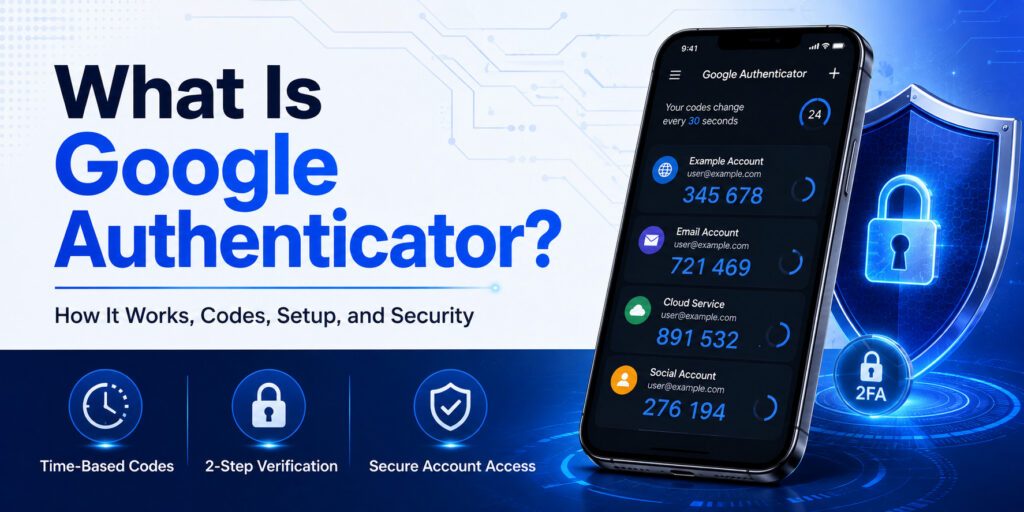
At its core, Google Authenticator is a mobile authentication app that generates temporary verification codes for services that support authenticator-app-based two-step verification. These codes can be generated even when the phone has no mobile service or internet connection. Google also supports syncing Authenticator codes through a Google Account, allowing them to appear across compatible devices signed into that account.

People searching what is google authenticator are often trying to answer several questions at once: Is it an app? Does it replace a password? Is it only for Gmail? Can it protect Facebook or Instagram? Does it work on a PC? What happens when a phone is lost?

This pillar guide explains all of those topics while also separating Google Authenticator from related technologies such as passkeys, security keys, FIDO, OAuth, SMS verification, and password managers.

Most importantly, Google Authenticator should be viewed as one part of a broader account-security strategy. It can provide a practical second factor, but users should still maintain strong passwords, recovery methods, backup authentication options, and secure devices.

1. What Is Google Authenticator and Why Does It Matter?

Google Authenticator explained simply

If you are asking what is google authenticator, the simplest explanation is that it is an app that produces temporary verification codes for compatible online accounts.

Instead of signing in with only a username and password, an account protected by Google Authenticator may ask for two things:

  1. Something you know — usually your password.
  2. Something generated or available on a device you possess — the temporary verification code.

This is why people often call it google authenticator 2fa or a google mfa app.

Google describes Authenticator as an app capable of creating one-time verification codes for sites and apps that support authenticator-app-based 2-Step Verification. The codes remain available without network or cellular connectivity.

Is Google Authenticator an OTP app?

Yes, although terminology matters.

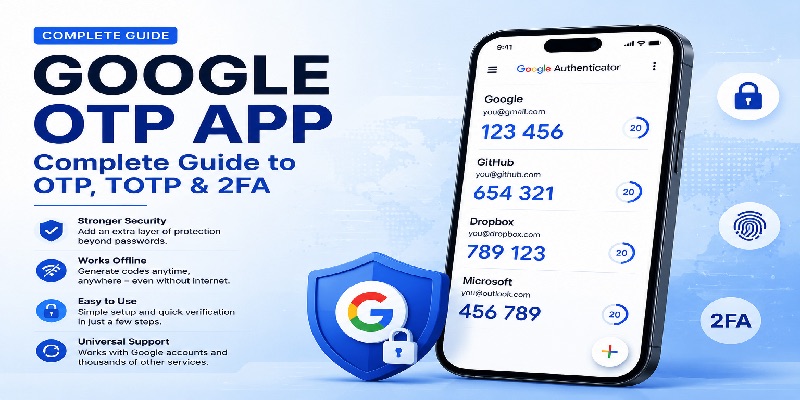
People sometimes search for a google otp app because the codes are one-time passwords, or OTPs. More precisely, most common Authenticator configurations use time-based one-time passwords.

A typical Google Authenticator entry includes:

  • The account or service name.
  • A temporary six-digit code.
  • A timer showing when that code will change.

The code is not your permanent password. It is designed to expire quickly.

That distinction is important when trying to understand google authenticator app code searches. The number shown in the app is a temporary authentication factor rather than a reusable credential.

Why use Google Authenticator?

A major advantage of Google Authenticator is independence from SMS delivery.

If your mobile network is unavailable, the app can still generate codes. Google explicitly states that Authenticator codes can be generated without internet connectivity or mobile service.

The app also supports multiple accounts, which means one installation can store authentication entries for many compatible services rather than requiring a separate code app for every account.

For everyday users, that combination makes Google Authenticator a relatively straightforward way to add another security layer without carrying a separate hardware device.

📖 Explore Articles:

What Is Google Authenticator? How It Works, Codes, Setup, and Securit

2. How Google Authenticator Works: TOTP, OTP Codes, and QR Codes

Google Authenticator
How Google Authenticator Works: TOTP, OTP Codes, and QR Codes

The shared secret behind each code

To understand Google Authenticator, it helps to understand what happens during enrollment.

When a compatible website asks you to enable an authentication app, it typically creates a secret value shared between that service and your authenticator.

The website commonly presents that secret as a QR code.

When Google Authenticator scans that QR code, the app stores the information required to calculate future verification codes.

This is the basic concept behind a google account authenticator qr code as well as QR enrollment for many third-party services.

OpenVPN’s official documentation provides a useful technical description of the same TOTP model: the server and authenticator possess a shared key and independently calculate a temporary code using that key and the current time. Authentication succeeds when the values match.

Why the code changes

The temporary code displayed by Google Authenticator changes after a short period.

That design limits how long a captured code remains usable.

Suppose a code is displayed as:

483 271

A short time later, Google Authenticator may display another code such as:

925 604

The previous value is no longer intended to remain valid indefinitely.

This is fundamentally different from a password.

Does Google Authenticator send the code to Google?

For ordinary TOTP generation, the app can calculate codes locally, which is why it can operate without an internet connection.

If users choose Google Account synchronization, their Authenticator entries can also synchronize across devices. Google states that synchronized codes are encrypted in transit and at rest across its products.

That means there are now two common ways to use Google Authenticator:

  • With Google Account synchronization.
  • Without a Google Account, keeping the Authenticator data on the device and using manual transfer when necessary.

Both models are officially supported.

📖 Read More Guides:

Google Authenticator 2FA: Complete Guide to Two-Step Verification

3. How to Set Up Google Authenticator on Android and iPhone

Installing the official application

The first step in setting up google authenticator is installing the official app from a trusted store.

For Android users, the official google authenticator app android listing is published by Google LLC on Google Play. Google Play describes the app as supporting multiple accounts, QR-code setup, offline code generation, synchronization, and Privacy Screen protection.

For Apple devices, google authenticator for iphone is available through Apple’s App Store from Google LLC. The current App Store listing describes it as free and compatible with supported iPhone and iPad versions.

Connecting an account

After installing Google Authenticator, the next step happens inside the account you want to protect.

The exact menu varies by service, but the general flow is:

  1. Open the account’s security settings.
  2. Enable two-factor or two-step verification.
  3. Choose “Authenticator app” or a similar option.
  4. Display the QR code.
  5. Open Google Authenticator.
  6. Scan the QR code.
  7. Enter the generated code back into the service.

Google’s own account setup follows this general pattern through the Google Account 2-Step Verification settings.

Protect the setup secret

The QR code used during setup should be treated carefully.

Someone who obtains the underlying authentication secret may be able to configure another authenticator that generates matching codes.

For that reason, do not casually screenshot authentication QR codes, place them in public cloud folders, post them in chats, or share them with someone who claims to provide technical support.

After enrollment, Google Authenticator should be protected by the device’s screen security. Google also provides a Privacy Screen feature that can require device authentication such as a PIN, pattern, or biometric verification before Authenticator is opened.

Get Authenticator App

Add an extra layer of protection to your online accounts with two-factor authentication. Generate secure verification codes and protect your accounts whenever you sign in.

Download Now

4. Google Authenticator for Google Account Two-Step Verification

Google Authenticator
Google Authenticator for Google Account Two-Step Verification

Enabling a second step

For a Google Account, google account two step verification can include several possible methods.

Google supports verification through options such as prompts, authentication apps, backup codes, security keys, and passkeys depending on account configuration.

If you choose Google Authenticator, the app becomes one method for generating a code during sign-in.

This does not normally eliminate the account password.

Instead, the traditional model is:

Password → Google Authenticator code → account access.

That distinction is particularly useful when people search google password verification and assume the authenticator replaces the password.

How to use Google Authenticator during sign-in

If you are wondering how to use google authenticator after setup, the normal process is simple.

When the login screen requests an authenticator code:

  1. Open Google Authenticator.
  2. Find the correct account.
  3. Read the current six-digit code.
  4. Enter it before the timer expires.

Do not send that code to another person.

Google warns that verification codes should not be shared and that Google will not call users asking them to disclose a verification code.

What does “sign in Google Authenticator” mean?

The keyword sign in google authenticator can refer to two different activities.

First, you can sign into a Google Account inside Google Authenticator so that Authenticator entries synchronize across devices.

Second, you can use a code from Google Authenticator when signing into another account.

Those are separate actions.

The authenticator app is not a universal login portal. It generally supplies a temporary code to a login process that happens somewhere else.

📖 Read More Guides: Google Authenticator Web: How to Use 2FA Securely in Your Browser

5. Google Authenticator on Web, PC, MacBook, and Chrome

Is there a Google Authenticator web app?

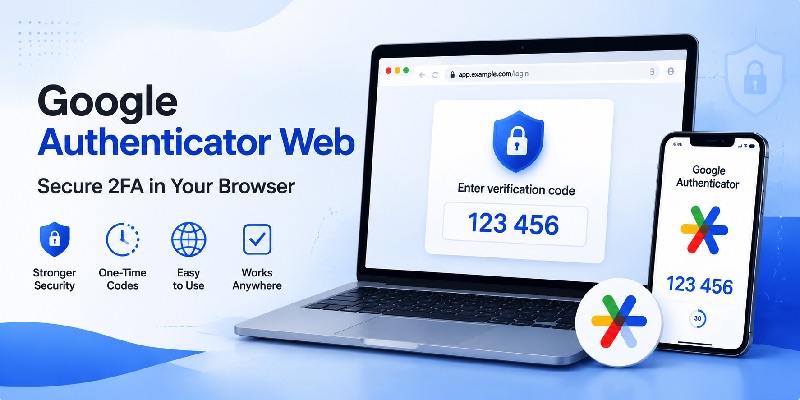
People frequently search google authenticator web, expecting the same code generator in a browser tab.

Google’s official Authenticator documentation and current store listings describe the product as a mobile app for Android and iOS/iPadOS. Google does not document a standalone official browser-based Authenticator product equivalent to those mobile apps. This is an inference from Google’s current official product documentation and listings.

This matters because putting a second factor into the same browser environment as the password can change the security model.

Google Authenticator for PC

The same issue appears with google authenticator for pc.

There is no official standalone Windows edition listed alongside Google’s official Android and Apple releases.

Searches for google authenticator for pc free download can therefore lead to unrelated third-party software.

Before installing anything labeled “Google Authenticator for Windows,” check who published it.

Do not assume that a similar name means Google created it.

Google Authenticator on MacBook

Likewise, google authenticator macbook and google authenticator for mac are common searches, but Google’s official Authenticator distribution remains centered on supported mobile platforms.

A Mac can still be the computer where you enter a code generated on your phone.

For example:

MacBook login page → asks for six-digit code → open Google Authenticator on your phone → enter code on MacBook.

The code generator and the website do not have to run on the same device.

What about Chrome extensions?

Searches for chrome google authenticator can surface third-party extensions.

Google Chrome supports extensions through the Chrome Web Store, but Google explicitly advises users to approve only extensions they trust and to review requested permissions.

A Chrome authenticator extension should therefore not automatically be treated as the official Google Authenticator product.

For security-sensitive tools, verify the publisher and permissions before installing anything.

📖 Read More Guides: Google Authenticator MacBook: How to Use 2FA Safely on Mac

6. Google Authenticator vs FIDO, Passkeys, OAuth, and Password Verification

Google Authenticator
Google Authenticator vs FIDO, Passkeys, OAuth, and Password Verification

Google Authenticator and FIDO are different technologies

The search phrase fido google often appears next to questions about two-factor authentication, but FIDO and Google Authenticator are not the same mechanism.

Google supports FIDO-compatible security keys and FIDO2 passkeys.

Google states that FIDO1 or FIDO2 security keys may be used as a second step, while FIDO2-capable hardware can also store passkeys.

A TOTP authenticator, by contrast, asks the user to read and enter a temporary numeric code.

📖 Read More Guides: FIDO Google: Complete Guide to Secure Login and FIDO2

Passkeys

Google describes passkeys as a phishing-resistant alternative to passwords that can use device authentication such as a fingerprint, face scan, or screen lock.

For Google Accounts with 2-Step Verification, a successful passkey sign-in may bypass the additional second step because possession and unlocking of the device have already been verified.

That is structurally different from Google Authenticator, where the user normally transfers a temporary code from the app into a login screen.

Google OAuth is not Google Authenticator

Another common source of confusion is google oauth.

OAuth 2.0 is an authorization framework used by applications to request access to Google APIs and user data through granted scopes and access tokens. Google’s developer documentation describes OAuth flows involving client credentials, authorization, access tokens, scopes, and refresh tokens.

That is not what Google Authenticator does.

A simple distinction is:

Google Authenticator → temporary second-factor codes.

OAuth → delegated access and authorization between applications and Google services.

They can exist in the same application architecture, but they solve different problems.

7. Using Google Authenticator With Facebook, Instagram, OpenVPN, and Other Services

Facebook

You do not need to use Google Authenticator only with Google products.

Many third-party services support standard authentication apps.

For example, Meta’s official Facebook documentation explicitly states that third-party authentication apps such as Google Authenticator can generate login codes for Facebook two-factor authentication.

That means users searching use google authenticator for facebook are generally looking for Facebook’s Authentication App option.

The account should be configured from Facebook’s own security settings rather than through an unofficial QR code received elsewhere.

📖 Explore Articles: Sign In Google Authenticator: Complete Setup and Login Guide

Instagram

Meta also documents authentication-app-based 2FA for Instagram and specifically lists Google Authenticator as an example of a supported third-party authenticator.

Therefore, google authenticator for instagram is a valid use case when the Instagram account has authentication-app 2FA enabled.

Again, the connection should originate inside Instagram’s official account security settings.

OpenVPN

google authenticator openvpn is another legitimate technical use case.

OpenVPN Access Server includes support for TOTP multi-factor authentication. OpenVPN’s documentation specifically names Google Authenticator as an example TOTP application users can enroll by scanning an Access Server QR code or entering a shared key.

This illustrates an important principle: Google Authenticator is useful beyond Google because TOTP is a broader authentication standard.

Other third-party services

Searches such as google authenticator tokocrypto may refer to security settings on third-party platforms that support authenticator applications. For any financial platform, users should rely on that service’s official security documentation and avoid authentication QR codes sent through unsolicited messages.

Similarly, battle net google authenticator can be misleading because Blizzard documents its own Battle.net Authenticator mechanism. Users should follow the account-security options provided by Battle.net instead of assuming every service uses generic Google Authenticator TOTP.

8. Google Authenticator for Developers and TOTP Integrations

Google Authenticator
Google Authenticator for Developers and TOTP Integrations

Google Authenticator is not a special server API

Developers sometimes assume that integrating Google Authenticator means sending authentication requests to Google.

That is usually not how TOTP integration works.

The more general model is:

Server creates shared secret → authenticator stores secret → both calculate time-based code → server compares the submitted value.

OpenVPN’s official TOTP documentation describes this shared-secret and time-based calculation process clearly.

Because this is standards-based behavior, the server does not need to ask Google whether the current six-digit number is valid.

Laravel applications

Developers searching google authenticator laravel are typically looking to add TOTP-based multi-factor authentication to a Laravel login flow.

Conceptually, the backend needs to securely handle enrollment secrets, display an appropriate QR code, validate a temporary code, and protect recovery paths.

The important architectural point is that Google Authenticator acts as the user’s TOTP code generator. It should not be confused with google oauth, which handles delegated Google authorization.

Secure enrollment matters

When building an authentication flow, the QR code is sensitive because it encodes or represents the shared enrollment secret.

A secure implementation should therefore treat enrollment as a privileged action rather than a harmless image-generation step.

Applications should also provide a safe recovery path.

If a user destroys the only device holding the authenticator secret and has no backup method, a technically strong 2FA system can become an account-lockout problem.

That is why mature Google Authenticator deployments should think about enrollment, authentication, recovery, revocation, and device replacement as one complete lifecycle.

📖 Read More Guides: Google Password Verification: Passwords, 2FA, Passkeys and Authenticator

9. Google Authenticator Lost: Sync, Recovery, Transfer, and Support

What happens if your phone is lost?

The phrase google authenticator lost often appears only after something has already gone wrong.

Modern Google Authenticator offers Google Account synchronization, which can make device replacement easier.

When codes are synced, signing into the same Google Account in Authenticator on another supported device can restore synchronized entries.

However, users can also run Authenticator without a Google Account.

In that case, automatic cloud synchronization is not available.

Manual transfer

Google supports manually transferring Authenticator entries when you still have access to the old device.

The official help documentation describes code transfer between devices for users who do not rely on Google Account synchronization.

This is one reason replacing a phone before it completely stops working is much easier than recovering after a device disappears.

If the device is gone

If an unsynchronized device is lost and no backup authentication method exists, the recovery process occurs at each protected account.

For a Google Account, possible backup methods can include another signed-in phone, another registered number, backup codes, security keys, or a passkey on another device depending on how the account was configured.

Google also recommends removing or remotely erasing lost devices when appropriate.

Google Authenticator support

For google authenticator support, start with Google’s official Account Help documentation rather than unofficial “support agents” asking for codes.

Never provide an active Google Authenticator code to someone claiming they need it to diagnose your account.

Verification codes are authentication credentials.

📖 Read More Guides: Google Authenticator Lost: How to Recover Codes and Account Acces

10. How to Download Google Authenticator Safely

Google Play

For Android, google authenticator google play should lead to the application published by Google LLC.

The current official Google Play listing identifies Google LLC as the developer and describes QR setup, multiple accounts, offline code generation, synchronization, and Privacy Screen.

If you want to download google authenticator app on Android, verifying the publisher is more important than simply choosing the first similarly named result.

📖 Explore Articles: Google Authenticator Google Play: Download, Setup & 2FA App Guide

Apple App Store

For iPhone and iPad, google authenticator app store searches should resolve to the Google LLC application.

Apple currently lists Google Authenticator as free.

Avoid unofficial desktop downloads

A search engine may show pages advertising “Authenticator for Windows,” browser versions, APK mirrors, or desktop clones.

That is especially important for searches such as google authenticator for pc free download.

The official Google product is distributed through supported mobile platforms, so treat third-party desktop packages as different products rather than assuming they are an official PC version.

Security apps deserve more scrutiny than ordinary utilities because they store information connected to account access.

A compromised authenticator can undermine the extra security it is supposed to provide.

11. Google Authenticator vs SMS, Security Keys, and Other MFA Methods

Google Authenticator
Google Authenticator vs SMS, Security Keys, and Other MFA Methods

Google Authenticator vs SMS

SMS verification is easy to understand because codes arrive as text messages.

However, Google Authenticator does not depend on cellular delivery.

That makes it useful when mobile reception is poor, a phone has no active SIM, or network connectivity is unavailable.

Google also recommends stronger second-verification options than SMS for users concerned about phishing and account security.

📖 Read More Guides: Google Authenticator Web: How to Use 2FA Securely in Your Browser

Google Authenticator vs security keys

Security keys offer a different security model.

Google describes compatible hardware security keys as among its strongest second-step options and supports FIDO-based keys.

With Google Authenticator, users can still be tricked into typing a valid temporary code into a convincing phishing website.

FIDO-based authentication is designed to provide stronger resistance to that class of phishing.

Google Authenticator vs passkeys

Passkeys can be even more streamlined because users may authenticate through device unlock rather than copying a six-digit code.

Google describes passkeys as more resistant to phishing and supports them on compatible computers, phones, browsers, and FIDO2 security keys.

Does that make Google Authenticator obsolete?

Not necessarily.

TOTP remains widely supported and useful for services that do not yet provide passkeys.

For users managing many different websites, Google Authenticator can therefore remain a practical compatibility layer even as more phishing-resistant authentication methods become available.

Download Authenticator App

Secure your accounts with fast, reliable two-factor authentication. Download now and protect your login in seconds.

Download Now

12. Common Google Authenticator Problems and How to Fix Them

“Invalid code”

If a Google Authenticator code is rejected, first confirm that you selected the correct account entry and entered the code before it expired.

Also confirm that the device time is accurate.

Google’s current documentation notes that Authenticator now relies on the operating system’s time settings rather than the older in-app time-correction option.

Codes disappeared

If synchronized codes appear to have vanished, verify which Google Account is active inside Google Authenticator.

Google notes that users may have saved codes under another Google Account or may have been signed out.

Duplicate accounts

During phone migrations, manual transfers, or repeated enrollment, users can sometimes end up with multiple entries that look similar.

Before deleting anything, determine which entry produces the code currently accepted by the service.

Deleting an authenticator entry does not necessarily turn off two-factor authentication on the website.

The account may continue expecting codes even after you remove the local entry.

New phone

If Google Authenticator is synchronized, the easiest path may be signing into the same Google Account on the new device.

If synchronization is disabled but the old phone is still accessible, Google’s manual transfer process can move entries.

If neither option exists, use the recovery methods provided by the individual service.

Never “fix” Authenticator by disabling security everywhere

A temporary login problem does not automatically mean two-factor authentication should be permanently removed.

It is usually better to recover access, enroll the replacement device, confirm that recovery options work, and then remove outdated devices or credentials.

📖 Explore Articles: Google OTP App: Complete Guide to OTP, TOTP, and 2FA

13. Frequently Asked Questions About Google Authenticator

Is Google Authenticator free?

Yes. For users asking is google authenticator free, the official iOS App Store currently lists the application as free, and Google’s Android version is distributed through Google Play.

There is no subscription required simply to generate Google Authenticator codes.

Can Google Authenticator work without internet?

Yes.

After an account is enrolled, Google Authenticator can generate verification codes without internet or cellular connectivity.

Connectivity may still be required by the website where you are attempting to sign in.

Can I use Google Authenticator without a Google Account?

Yes.

Google officially supports using Google Authenticator without signing the authenticator into a Google Account.

The trade-off is that Google Account-based synchronization will not be available for those locally stored entries.

Does Google Authenticator back up my codes?

If you sign into a Google Account inside Google Authenticator, supported versions can synchronize authentication entries across devices.

Google says synchronized Authenticator data is encrypted in transit and at rest.

If you choose to use the app without an account, plan for manual transfer and account-specific recovery methods instead.

Can Google Authenticator protect several accounts?

Yes.

The official app supports multiple accounts.

You can therefore use Google Authenticator with several compatible websites without installing a separate application for each one.

Is Google Authenticator only for Google?

No.

As Facebook, Instagram, and OpenVPN demonstrate, third-party services can support compatible authentication-app/TOTP workflows.

That cross-platform compatibility is one of the reasons Google Authenticator is widely recognized.

Does Google Authenticator replace a password?

Usually not.

With a conventional two-factor login, the password remains one factor and the Google Authenticator code becomes another.

Passkeys use a different model and may bypass the traditional password-plus-second-step flow for Google Accounts.

14. Best Practices and Final Verdict

Keep more than one recovery option

The biggest mistake with Google Authenticator is treating the authenticator itself as the recovery plan.

A second factor protects the account only while you can still access it.

Before depending heavily on Authenticator, check whether critical accounts offer recovery codes, trusted devices, security keys, additional authentication factors, or another recovery route.

Google specifically recommends additional 2-Step Verification methods so users do not become locked out of their Google Account.

Protect the device

Because Google Authenticator lives on a phone, device security matters.

Use a secure screen lock.

Consider enabling Authenticator’s Privacy Screen.

Keep the operating system updated.

Avoid installing untrusted software.

Do not hand an unlocked device to someone who should not have access to your authentication codes.

Never share verification codes

An authenticator code is temporary, but while it is valid it can still help authorize a login.

A convincing phishing page may ask for both a password and the current Google Authenticator code.

That is why users should treat six-digit verification codes as secrets rather than harmless numbers.

For accounts that support phishing-resistant passkeys or FIDO security keys, consider those methods for especially important accounts. Google specifically describes passkeys and security keys as stronger protection against phishing.

Is Google Authenticator still worth using?

For many users, yes.

Google Authenticator is free, relatively simple, works offline for code generation, supports multiple accounts, can synchronize through a Google Account, and works with many services that support authenticator-app-based two-factor verification.

It is not the strongest possible authentication technology for every scenario.

Passkeys and FIDO security keys offer better phishing resistance in supported environments.

However, not every website supports those methods.

That makes Google Authenticator particularly valuable as a widely compatible security tool.

For users who want a practical improvement over password-only authentication, Google Authenticator remains a strong option. Pair it with unique passwords, secure recovery methods, device protection, and phishing-resistant authentication wherever available.

The most useful way to think about Google Authenticator is not as a complete security solution but as one reliable layer in a broader account-protection strategy.

Get Authenticator App

Add an extra layer of protection to your online accounts with two-factor authentication. Generate secure verification codes and protect your accounts whenever you sign in.

Download Now

What Is Google Authenticator? How It Works, Codes, Setup, and Security

Google Authenticator is one of the most familiar tools used for two-step verification, yet many users install it without fully understanding what happens behind the six-digit code on the screen. If you are asking what is google authenticator, the simplest answer is that it is an app that creates temporary verification codes for compatible websites and services. Those codes act as an additional sign-in factor after your password, helping an account verify that the person signing in also has access to the authenticator setup.

Understanding what is google authenticator matters because the app is not a password manager, it does not approve every login automatically, and it does not need a mobile signal to generate standard time-based codes. It is best understood as a code generator that stores account-specific authentication secrets and uses them with the current time to produce short-lived one-time passwords. This approach is widely known as TOTP, or time-based one-time password authentication.

This guide explains what is google authenticator, how the verification codes are created, how setup works, what happens when you change phones, how synchronization works, and where Google Authenticator fits alongside SMS, passkeys, security keys, and other authentication methods. By the end, you should be able to answer not only what is google authenticator but also when it is useful and how to use it with a sensible recovery plan.

1. What Is Google Authenticator and What Is It Used For?

A direct answer to what is google authenticator is that it is a mobile authenticator app from Google that generates one-time verification codes for accounts that support authenticator-app two-step verification. After you connect an account to the app, Google Authenticator can display a temporary code that the website checks during sign-in. The code is separate from your normal password, so a stolen password alone may not be enough to complete the login.

People sometimes search google authenticator what is it because the app can look surprisingly simple. There is no inbox, no password vault, and usually no conversation with the website after setup. Instead, the app holds the information needed to calculate a code locally. The website has corresponding setup information, allowing both sides to independently calculate and compare the expected code for the current time window.

📖 Explore Articles: Google Authenticator: Complete 2FA Setup & Security Guide

Google Authenticator is a second factor, not a replacement password

When someone asks what is google authenticator app, the important distinction is that the app normally participates after the first sign-in factor. In a classic login flow, you first enter your username and password. The service then asks for a verification code. You open Google Authenticator, read the current code for that account, and enter it on the website.

That means what is google authenticator is really a question about multi-factor authentication. The password is something you know. The authenticator setup is tied to something you have access to. Requiring both can reduce the risk of an attacker signing in with only a leaked or reused password.

Why users choose an authenticator app

For many people, what is google authenticator becomes relevant when a service offers several second-step options. Authenticator codes can be useful because they do not depend on a text message arriving and can usually be generated even when the phone is offline. They can also keep authentication separate from the phone number used for SMS.

However, an authenticator app is only one security tool. Some services support passkeys, security keys, device prompts, or other stronger and more phishing-resistant methods. The best setup depends on the account, the supported options, and how carefully you manage recovery.

Get Authenticator App

Add an extra layer of protection to your online accounts with two-factor authentication. Generate secure verification codes and protect your accounts whenever you sign in.

Download Now

2. How Does Google Authenticator Work?

What Is Google Authenticator? How It Works, Codes, Setup, and Security
How Does Google Authenticator Work?

If the question is how does google authenticator work, the key idea is shared secret plus time. During setup, the service gives the authenticator app a secret value, commonly encoded inside a QR code. The app stores the information needed for that account. The service also keeps the information required to verify future codes. Both sides then use a time-based algorithm to calculate the temporary one-time password.

This explains what is google authenticator without treating the app like a message-delivery service. Standard authenticator codes are calculated rather than sent. When your phone shows a code, the website does not need to send that exact number to the phone first. The app and service independently arrive at the matching value for the current time period.

Why the six-digit code keeps changing

A common question is what is google authenticator and how does it work when the phone is offline. The answer is that time-based codes are designed to change on a repeating schedule. Because the secret was shared during setup, the phone can calculate the current code locally. The website calculates what the valid code should be for the same period and compares your entry.

So, google authenticator how does it work without Wi-Fi? The code generation itself can continue without an internet connection or mobile service. Google specifically states that Authenticator can generate verification codes without internet connectivity or mobile service. You still need connectivity to sign in to an online website, of course, but the code calculation is not dependent on receiving a live SMS.

This also answers what is google authenticator for travelers or users with weak cellular coverage: it can provide a second-step code even when a text message might not arrive. The practical advantage is reliability, provided the account has already been set up and the phone time is correct.

Why phone time matters

Another part of what is google authenticator is the relationship between time and code validity. Because the common TOTP model is time-based, a device clock that is significantly wrong can cause a service to reject a code. In current Google Authenticator versions, Google notes that the older time-correction setting is no longer available in version 7.0; the app uses the operating system’s time setting.

If codes repeatedly fail, checking that the phone automatically sets date and time is a sensible troubleshooting step. It is also worth confirming that you are entering the code for the correct account, especially if several entries have similar names.

📖 Read More Guides: Google Authenticator 2FA: Complete Guide to Two-Step Verification

3. What Is a Google Authenticator Code?

If you are asking what is google authenticator code, it is a short-lived one-time verification code generated for a specific account that you previously linked to the app. The visible code is not your password, and it is not the permanent setup secret. It is a temporary result created from the stored account information and the current time.

That distinction helps clarify what is google authenticator because users sometimes save screenshots of a displayed code or assume the same number will work later. A normal time-based authenticator code expires quickly. When the next time window begins, the app displays a new value and the old one stops being the expected current code.

The code is temporary, but the setup secret is important

The temporary nature of the displayed code does not mean the authenticator setup can be treated casually. What is google authenticator protecting? It is protecting the second factor by relying on access to the configured authenticator data. If someone obtains enough information to recreate the authenticator setup, they may be able to generate future codes.

Why a correct-looking code can still be rejected

When people understand what is google authenticator but still see an “invalid code” message, the cause is often practical rather than mysterious. You may be looking at the wrong account entry, the code may have just changed, the phone clock may be inaccurate, or the service may have been reconfigured with a new authenticator secret.

If you recently disabled and re-enabled two-step verification, the old entry in the app may no longer match the website. Removing that old entry and setting up the new QR code carefully can solve the mismatch, but only do this after confirming that you have another way to access the account.

4. How to Set Up Google Authenticator Step by Step

What Is Google Authenticator? How It Works, Codes, Setup, and Security
How to Set Up Google Authenticator Step by Step

For users who search what is google authenticator immediately before setup, the most important rule is to begin from the security settings of the account you want to protect. Do not scan random QR codes from tutorials, screenshots, emails, or social posts. The correct QR code should be generated by the service while you are signed in to your own account and enabling its authenticator option.

Step 1: Install the official app

Download Google Authenticator from the official app store for your device and check the publisher information before installing. This keeps the setup process focused on the legitimate app rather than a similarly named copy.

Step 2: Enable two-step verification on the account

Open the website or service you want to protect. Find its Security, Sign-in, Two-Step Verification, 2FA, or Multi-Factor Authentication settings. Choose the option for an authenticator app if it is available. This is where what is google authenticator becomes practical: the service creates the enrollment information that connects its verification system to your app.

Step 3: Scan the QR code or enter the setup key

Open Google Authenticator and add a new account. Scan the QR code shown by the service, or use the manual setup option when provided. The account should then appear in the app with a changing code.

Keep the setup screen private. If you are working on a shared computer or presenting your screen, avoid exposing the QR code to other people.

Step 4: Confirm the first code

Enter the current code from the app back into the service. Successful confirmation proves that the authenticator and service are calculating compatible values. Once this succeeds, the account can begin requiring the authenticator code during sign-in.

This is the practical answer to what is google authenticator in a normal login flow: the app supplies a temporary second-step code after the service recognizes your password or another first factor.

Step 5: Set up recovery before signing out

Do not stop at the first successful code. Review the account’s recovery choices. Google Accounts, for example, can provide backup codes for two-step verification. Google describes these as one-time codes you can use if your normal second step is unavailable.

Store recovery information somewhere safe and separate from the phone. Understanding what is google authenticator also means understanding that losing the device can become an account-access problem if you have no backup sign-in method.

📖 Explore Articles:

Google MFA App: Complete Guide to Secure Multi-Factor Authentication

5. Google Authenticator Sync, Backup, and Phone Transfer

Older explanations of what is google authenticator sometimes describe it as purely device-bound, but current versions include optional synchronization through a Google Account. Google says Authenticator codes can be synchronized across devices simply by signing in to your Google Account within the app, and that synchronized Authenticator codes are encrypted in transit and at rest across Google’s products.

Using Google Authenticator without sync

What is google authenticator like if you do not want cloud synchronization? Google still supports use without a Google Account. In that mode, codes stay on the device and are not available on your other devices through account sync.

Manually transferring codes to a new phone

Google also supports manual transfer. If you use what is google authenticator without a Google Account, you can export Authenticator codes from the old device and scan the generated transfer QR code with the new device. This method requires access to the old phone.

A transfer QR code should be treated as highly sensitive because it is specifically designed to move authenticator entries. Do not save it in an unsecured photo library or share it with another person.

Recovery is broader than app synchronization

Even if sync or transfer works perfectly, account recovery should not depend on a single mechanism. What is google authenticator good at? It is good at generating verification codes. It is not the only recovery plan you should have.

For important accounts, review backup codes, recovery contacts, alternate verified methods, passkeys, or security keys when the service supports them. The goal is to avoid having the authenticator phone become the only path back into the account.

Get Authenticator App

Add an extra layer of protection to your online accounts with two-factor authentication. Generate secure verification codes and protect your accounts whenever you sign in.

Download Now

6. Google Authenticator vs SMS, Passkeys, and Security Keys

What Is Google Authenticator? How It Works, Codes, Setup, and Security
Google Authenticator vs SMS, Passkeys, and Security Keys

Asking what is google authenticator often leads to a second question: is it the best way to secure an account? There is no single answer for every service. Authenticator apps are useful, but modern authentication offers several choices with different tradeoffs.

Google Authenticator vs SMS codes

Compared with SMS, what is google authenticator offering? It removes the requirement to receive a text message for each standard TOTP code and can generate codes offline. It also keeps the second factor from being directly tied to message delivery at your phone number.

Google Authenticator vs passkeys

Passkeys use a different authentication model and are designed to resist phishing more effectively than manually entered one-time codes. Google has increasingly promoted passkeys for Google Account sign-in and has reported broad adoption of passkeys compared with legacy code-based methods.

So what is google authenticator useful for in a passkey world? It remains valuable for many services that support TOTP, for users who need interoperable app-generated codes, and as one available second-step option. But when a trusted service offers a well-implemented passkey or hardware security key, it can be worth considering that stronger phishing-resistant method.

Google Authenticator vs security keys

A physical security key can provide strong phishing-resistant authentication for supported accounts. The tradeoff is that users must keep the key available and manage a backup. Google Authenticator is easier to deploy on a phone and is supported by many services using standard authenticator codes.

The right choice is often not “one method forever.” Understanding what is google authenticator helps you decide where an authenticator app is sufficient and where a higher-value account deserves a stronger method plus a robust recovery plan.

7. Common Google Authenticator Problems and How to Fix Them

Even after you understand what is google authenticator, setup mistakes can cause frustrating sign-in failures. The safest troubleshooting approach is to avoid deleting anything until you confirm another access method.

The code says invalid or incorrect

First, confirm that you selected the correct account entry. Then wait for a fresh code and try again. Check the phone’s date and time settings and make sure automatic time is enabled if available. Current Google Authenticator relies on the operating system time setting.

If the service recently changed its two-step verification configuration, the saved authenticator entry may be based on an older setup secret. In that situation, use a working recovery method to sign in and re-enroll the authenticator instead of repeatedly guessing.

You lost the old phone

This is the situation that makes recovery planning part of the answer to what is google authenticator. If your codes were synchronized to your Google Account, signing in to Authenticator on a new device may restore synchronized entries. If you were using device-only mode, you may need another account recovery method because manual transfer requires the old device.

For a Google Account, backup codes can be used when the normal second step is unavailable, provided you created and stored them beforehand. Each Google backup code is intended for one-time use.

You changed phones but still have the old phone

If you still control both devices, use Google Account synchronization or the manual transfer process described in Google’s official instructions. Verify that the entries work on the new device before wiping the old phone.

You see duplicate entries

Duplicate entries can appear after repeated setup, transfer, or re-enrollment. Before deleting a duplicate, identify which entry currently matches the service. Rename entries temporarily if needed so you can distinguish them. The principle behind what is google authenticator is simple, but each entry can represent a different underlying setup secret, so identical labels do not guarantee identical codes.

8. Frequently Asked Questions About Google Authenticator

What Is Google Authenticator? How It Works, Codes, Setup, and Security
Frequently Asked Questions About Google Authenticator

Is Google Authenticator free?

Google Authenticator is offered by Google as an authenticator app for generating verification codes. When evaluating what is google authenticator, remember that the cost of the app is separate from whether a particular website supports authenticator-app two-step verification.

Can Google Authenticator work without Wi-Fi?

Yes. Google says Authenticator can generate verification codes without an internet connection or mobile service. That is one of the most practical parts of what is google authenticator for users who travel or have unreliable cellular coverage.

Can Google Authenticator sync between devices?

Yes, when you sign in to a Google Account within Google Authenticator, supported versions can synchronize verification codes across devices. Google says those synchronized Authenticator codes are encrypted in transit and at rest.

Can I use Google Authenticator without a Google Account?

Yes. Google provides a “Use without an account” option. In that mode, codes remain on the device rather than being available on other devices through Google Account sync. This is an important part of what is google authenticator because the app supports both synchronized and device-only use.

What happens if I lose my phone?

The answer depends on how you configured the app and the account. Synced codes may be available after signing in on another device, while device-only setups may require backup codes or another recovery method. This is why every explanation of what is google authenticator should include recovery planning.

Does Google Authenticator replace my password?

Usually no. It is commonly used as an additional verification step. The service may ask for your password and then a temporary authenticator code. Some modern accounts also support passwordless sign-in with passkeys, which is a separate authentication method.

9. Is Google Authenticator Right for You?

What Is Google Authenticator? How It Works, Codes, Setup, and Security
Is Google Authenticator Right for You?

For most users asking what is google authenticator, the app is a practical way to add authenticator-based two-step verification to compatible accounts. It is especially useful when you want codes that do not depend on SMS delivery and when the services you use support standard authenticator-app setup.

Current Google Authenticator also offers more flexibility than older versions because users can choose Google Account synchronization or use the app without an account. Manual transfer remains available for device-only users who still have access to the old phone.

The larger lesson behind what is google authenticator is that account security should not rely on one code, one device, or one recovery method. Use the authenticator carefully, protect the phone, keep setup data private, establish recovery options before you need them, and consider phishing-resistant passkeys or security keys for accounts that support them.

If someone asks what is google authenticator in one sentence, a clear answer is this: Google Authenticator is an app that generates temporary verification codes for compatible accounts as part of two-step verification, with options for offline code generation, Google Account synchronization, and manual transfer. Understanding what is google authenticator and how it fits into a broader security plan makes the app much easier to use safely.

Get Authenticator App

Add an extra layer of protection to your online accounts with two-factor authentication. Generate secure verification codes and protect your accounts whenever you sign in.

Download Now