
Google Authenticator 2FA: Complete Guide to Two-Step Verification
Published August 8, 2026 · Updated August 14, 2026
Passwords alone are no longer the strongest way to protect an online account. A password can be exposed through phishing, reused across multiple services, or obtained through a data breach. Adding another verification method creates an extra barrier between an attacker and your personal information.
That is where google authenticator 2fa becomes useful. Instead of relying only on your Google Account password, you can configure an additional authentication step that proves you have access to an authorized device or authentication method.
Google calls this security feature 2-Step Verification, while terms such as two-factor authentication, 2FA, MFA, google two factor, and google multi factor authentication are often used when people search for similar security features.
With google authenticator 2fa, the Authenticator application can generate a temporary verification code that you enter during sign-in when the Authenticator method is requested. Google confirms that these codes can still be generated without an Internet connection or mobile service.
However, Authenticator is only one possible verification method. Google also supports options such as Google prompts, security keys, backup codes, and passkeys. Google currently recommends Google prompts over SMS codes when a user is not signing in with a passkey.
This pillar guide explains how google authenticator 2fa works, how to configure it, what to do if your phone is unavailable, and how Google 2-Step Verification applies to Gmail, Workspace, Google Ads, and other Google services.
1. What Is Google Authenticator 2FA and How Does It Work?
Google authenticator 2fa adds another verification mechanism to the sign-in process. After 2-Step Verification is enabled, Google may request an additional authentication step when necessary, particularly when signing in from a new device or when Google needs to verify that it is really you.
Google Authenticator and Two-Factor Authentication
The google authenticator 2fa app generates temporary one-time verification codes. A website or account must first be connected to the application before those codes can be used.
The basic workflow looks like this:
- Sign in to the account you want to protect.
- Enable two-step or multi-factor authentication.
- Select an authenticator application as a verification method.
- Scan the displayed QR code with the Authenticator application.
- The application creates a temporary verification code.
- Enter that code on the website to confirm setup.
- Future sign-ins may request a new code.
For a Google Account, the google two factor authenticator is therefore not replacing your password. It provides another method of proving account ownership when the second step is requested.
Google describes Authenticator as an application capable of generating one-time verification codes for apps and websites supporting Authenticator-based 2-Step Verification.
What Is a Google Two Factor Authentication Code?
A google two factor authentication code displayed inside Authenticator is temporary. When an older code expires, another one is generated automatically.
This means you do not need to memorize a permanent second password.
A common misconception is that google authenticator 2fa requires constant network access. It does not. After the account has been configured, Google states that Authenticator can generate codes even without an Internet connection or mobile service.
That makes an authenticator application especially useful when traveling, experiencing unreliable mobile coverage, or signing in somewhere without SMS reception.
📖 Explore Articles: Google Authenticator: Complete 2FA Setup & Security Guide
2. Why Use Google Authenticator 2FA for Your Google Account?
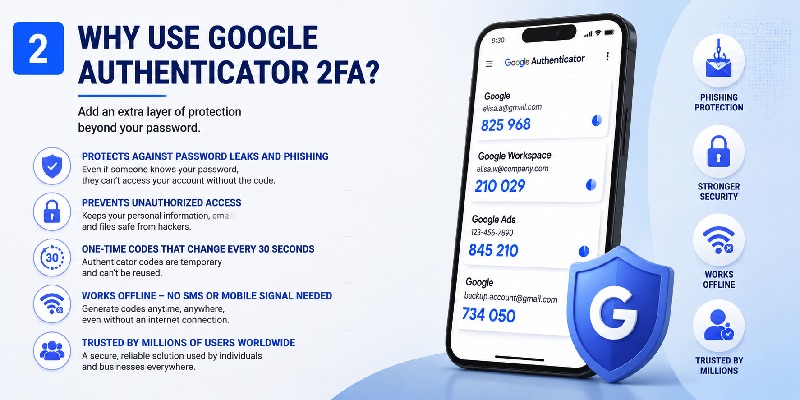
The main purpose of google authenticator 2fa is to reduce the risk associated with a compromised password.
If an attacker learns your password but cannot complete the requested second step, gaining account access becomes more difficult.
Password Plus Another Verification Step
With traditional password-only security, anyone who obtains the correct password may attempt to sign in.
With google two factor auth, authentication can involve:
Something you know: your password.
Something you have or control: an authorized device, Authenticator code, security key, or another verification method.
This concept is also why searches for google2fa, google two step, and Google MFA often lead to the same Google Account security area.
Google explains that 2-Step Verification provides additional protection even if someone obtains your password.
Authenticator Is Only One Available Second Step
Although this guide focuses on google authenticator 2fa, Google Accounts can use several verification methods.
Depending on your account and configuration, these can include:
- Google prompts
- Authenticator codes
- Backup codes
- Security keys
- Passkeys
- Phone-based verification methods
Google recommends prompts instead of SMS verification codes in many password-based sign-in scenarios because prompts can help reduce exposure to phone-number-based attacks such as SIM swapping.
Passkeys work differently. Google explains that when a passkey is used to sign in to an account with 2-Step Verification, it can bypass the additional authentication step because unlocking the passkey already demonstrates possession of the device.
Therefore, google authenticator 2fa should be viewed as part of a broader account-security system rather than the only way to secure a Google Account.
3. How to Set Up Google Authenticator 2FA Step by Step
The first requirement for google authenticator 2fa is enabling Google 2-Step Verification.
Google’s current account instructions direct users to the Security & sign-in area of their Google Account and then to 2-Step Verification under the sign-in settings.
Step 1: Open Your Google Account Security Settings
Sign in to the Google Account you want to protect.
Open the Security & sign-in settings and find the section covering how you sign in to Google.
Users searching for google security settings 2 step verification, 2 step verification settings google, or a google 2 step verification page are generally looking for this account-security area.
Select 2-Step Verification and follow Google’s on-screen instructions.
Step 2: Enable Google 2-Step Verification
Complete the initial setup requested by Google.
Your available verification methods can depend on the devices connected to your account and your account type.
After 2-Step Verification is active, look for the option to configure an Authenticator application.
Step 3: Add Authenticator
Open your Authenticator App on the device you intend to use.
The setup process typically presents a QR code. Scan it with the application to connect the account.
This setup is frequently described using searches such as:
- 2 step verification google authenticator
- google authenticator two step verification
- google two step authenticator
- google 2 step authenticator
- google 2 step verification authenticator app
After scanning the setup code, Authenticator starts displaying verification codes for the account.
Step 4: Confirm the Code
Enter the current Authenticator code into Google’s verification screen when requested.
Once accepted, your google authenticator 2fa method has been configured.
Do not assume that seeing codes inside Authenticator automatically means your entire account-recovery setup is complete. Configure backup methods as well so that losing one device does not leave you dependent on a single authentication path.
Google specifically recommends setting up backup methods for 2-Step Verification to reduce the risk of being locked out.
Download Authenticator App
Secure your accounts with fast, reliable two-factor authentication. Download now and protect your login in seconds.
📖 Read More Guides: Google Authenticator 2FA: Complete Guide to Two-Step Verification
4. How to Use Google Authenticator 2FA on Android and iPhone
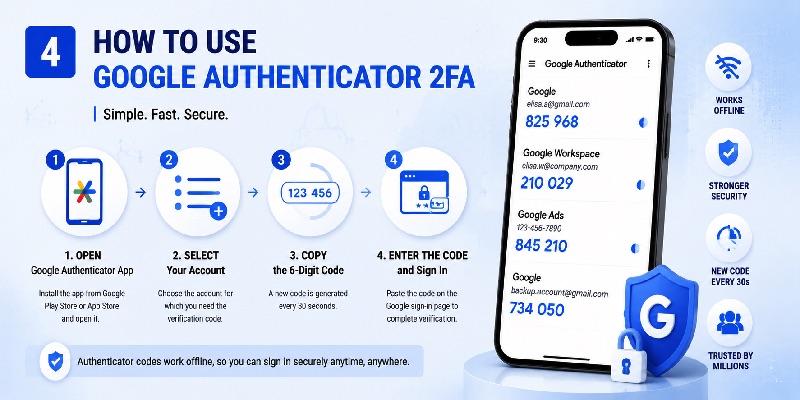
After configuration, using google authenticator 2fa is straightforward.
When Google requests your Authenticator verification code:
- Open Google Authenticator.
- Locate the correct account.
- Read the current verification code.
- Return to the Google sign-in screen.
- Enter the code.
- Complete sign-in.
Using Google Authenticator on Android
On Android, Authenticator can generate codes locally without requiring a mobile signal or active Internet connection.
That is useful when you need google authenticator 2fa while traveling or while your device is temporarily offline.
Google’s current Authenticator documentation also states that users can synchronize Authenticator codes across devices by signing in to their Google Account.
This is an important change from older versions of Authenticator, so older tutorials stating that Authenticator codes can never synchronize may now be outdated.
Using Google Authenticator on iPhone
The google two factor authentication iphone app workflow follows the same general principle.
Install Authenticator on your iPhone, connect the account using the QR setup process, and use the generated codes whenever they are requested.
Users searching for a google two factor authentication app or google two step verification app should distinguish between the overall Google Account 2-Step Verification feature and the Authenticator application itself.
2-Step Verification is the security system.
Authenticator is one method that can be used within that system.
Google also supports Google prompts on iPhones when supported Google apps are signed in to the account.
For this reason, google authenticator 2fa may be one of several authentication options visible on the same Google Account.
5. Google 2FA Without Phone: Backup and Recovery Options
A common concern is what happens to google authenticator 2fa if your phone is lost, damaged, replaced, or unavailable.
This is why backup methods should be configured before a problem occurs.
Can You Use Google 2FA Without Phone Access?
The phrase google 2fa without phone can mean several different things.
If you mean “without mobile service,” Authenticator can still generate codes offline after it has been configured.
If you mean “without having the Authenticator device at all,” you need another authentication or recovery method.
Possible options can include:
- Backup codes
- Another signed-in device
- Google prompts
- A security key
- A passkey
- Other recovery methods available on the account
Google allows users to create backup codes specifically for situations where their normal second step is unavailable.
Google 2 Step Verification Without Phone
For google 2 step verification without phone, backup codes can be particularly important.
Each backup code acts as an alternative second step. They should therefore be stored somewhere secure rather than kept only on the phone that you are trying to protect against losing.
If you cannot use any configured second step, Google may require account recovery. Google notes that additional security verification can make account recovery take several business days in some situations.
Therefore, do not wait until your phone disappears before thinking about recovery.
A resilient google authenticator 2fa setup has more than one way back into the account.
📖 Read More Guides: Google Account Authenticator QR Code: Complete Setup Guide
6. Google Authenticator 2FA for Gmail, Workspace, Ads, and Google Pay
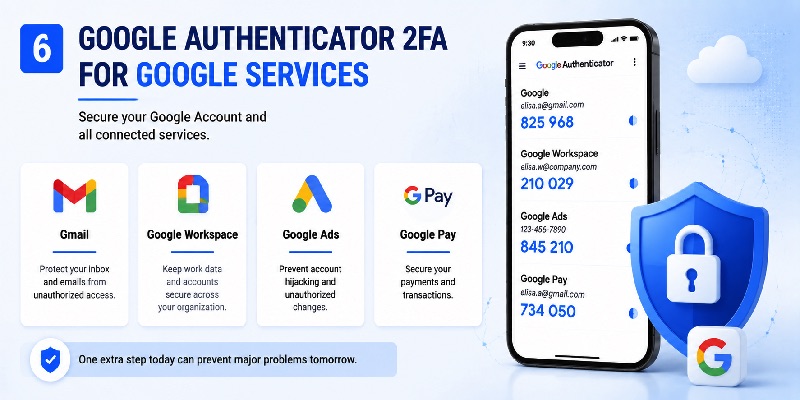
A Google Account can provide access to many different Google services. That is why google authenticator 2fa can protect more than just Gmail.
However, some business products also include additional administrator-controlled security requirements.
Google Mail 2 Step Verification
For most personal Gmail users, google mail 2 step verification is managed through the Google Account’s security settings.
You are protecting the Google Account used to access Gmail rather than configuring an entirely separate Gmail authenticator system.
After google authenticator 2fa is enabled as a verification method, Google can request an additional step when appropriate during account sign-in.
Google Workspace 2 Step Verification
Google workspace 2 step verification can behave differently because an organization administrator can manage security policies.
Google provides Workspace administrators with controls for deploying and enforcing 2-Step Verification across an organization.
This explains why an employee may see a message stating that their sign-in configuration does not meet the organization’s requirements even when a personal Google Account would allow different options.
If google authenticator 2fa is being used for a school or workplace account, organization policies may determine which methods are permitted.
Google Ads Two Step Verification
Google ads two step verification can also be controlled at the advertising-account level.
Google Ads states that 2-Step Verification helps protect advertising accounts from unauthorized access and account hijacking.
Administrators can manage the verification requirement from the Access and security settings in Google Ads. Google’s current instructions show a two-step-verification setting under the Security tab.
Therefore, google ads 2 step verification may involve both your Google Account authentication configuration and security requirements applied to the Ads account.
Google Pay 2 Step Verification
The phrase google pay 2 step verification can be confusing because payment verification and Google Account 2-Step Verification are not always the same process.
Google Pay recommends adding 2-Step Verification to the Google Account as an additional layer of account protection.
Separately, Google Pay or Google Wallet may request verification of payment information or require device verification for purchases. Payment-method verification codes can also come from the bank rather than from Google Authenticator.
In other words, google authenticator 2fa secures account authentication, while payment verification may involve additional processes.
7. How to Move Google Authenticator 2FA to a New Phone
Replacing your smartphone does not necessarily mean rebuilding every google authenticator 2fa entry from zero.
Google Authenticator currently provides synchronization and transfer options.
Option 1: Sync Authenticator Codes With Your Google Account
Google states that Authenticator codes can be synchronized across devices when you sign in to your Google Account inside Authenticator.
For supported versions, this can simplify device replacement.
Before wiping an old phone, check that the accounts you need are available correctly on the replacement device.
Option 2: Transfer Accounts With a QR Code
Authenticator also supports transferring accounts between devices.
Google’s instructions describe generating a QR code on the old device and scanning it using the new device.
A sensible migration process is:
- Keep the old device available.
- Install Authenticator on the new device.
- Use the transfer or synchronization option.
- Confirm that all required accounts appear.
- Test critical logins.
- Only then erase or dispose of the old device.
Do Not Remove the Old Device Too Early
The biggest mistake during a google authenticator 2fa migration is deleting the old authentication setup before confirming that the new one works.
If synchronization, transfer, or account configuration is incomplete, you may need to rely on backup codes or another second step.
A few minutes of verification before resetting a device can prevent a much longer account-recovery process.
📖 Read More Guides: Google Authenticator Web: How to Use 2FA Securely in Your Browser
8. Google Authenticator 2FA Not Working: Problems and Fixes
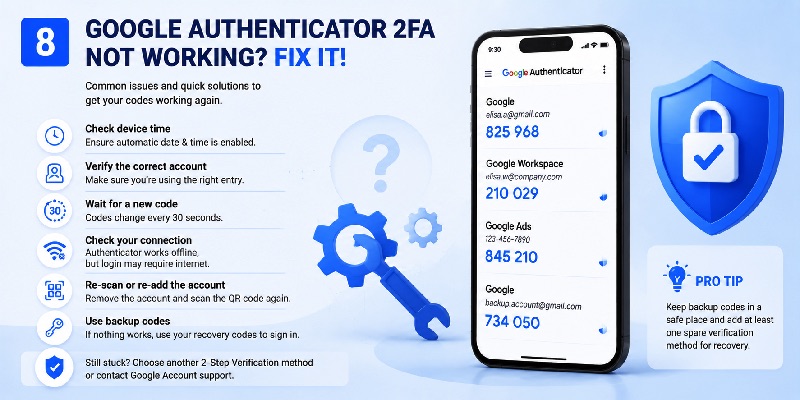
Even a correctly configured google authenticator 2fa setup can occasionally cause confusion.
The key is identifying which part of the authentication process is failing.
Google 2 Step Verification Not Showing Up
If google 2 step verification not showing up is the problem, first confirm that you are signed in to the correct Google Account.
Then check the Security & sign-in area and locate 2-Step Verification.
For work or school accounts, an administrator may control whether certain authentication options are available. Google explicitly notes that users of organization-managed accounts may need to contact their administrator when normal 2-Step Verification setup steps do not work.
The Authenticator Code Is Rejected
If your google authenticator 2fa code is rejected:
- Confirm you selected the correct account in Authenticator.
- Wait for the next code and try again.
- Confirm your device time settings are correct.
- Check whether the service is requesting another authentication method instead.
Google’s documentation notes that Authenticator now relies on the operating system’s time settings and that the older time-correction setting is no longer available in Authenticator version 7.0.
Google Prompt Appears Instead of a Code
Sometimes users expect a code but receive a Google prompt.
That does not necessarily mean google authenticator 2fa has stopped working.
Google may present different available authentication methods. Its troubleshooting documentation specifically notes that users who do not receive an expected verification code may have received a Google prompt instead.
Google Is Requiring Two-Step Verification
Searches such as google forcing 2 step verification or google requiring 2 step verification often come from users who suddenly encounter stronger sign-in requirements.
For personal accounts, security requirements can depend on Google’s account-protection policies.
For Workspace, administrators can enforce organization-wide 2-Step Verification policies. Google also documents enforcement of 2-Step Verification for Workspace administrator accounts.
For Google Ads, administrators can also require 2-Step Verification from the account’s security configuration.
The correct solution is therefore not automatically to disable google authenticator 2fa. First determine whether the requirement comes from your personal Google Account, an organization policy, or a specific Google product.
Download Authenticator App
Secure your accounts with fast, reliable two-factor authentication. Download now and protect your login in seconds.
9. Should You Turn Google 2-Step Verification Off?
People searching for google two step verification off or google 2 step verification off usually want to remove an inconvenient sign-in step.
Technically, Google provides a way to turn off 2-Step Verification for eligible personal accounts. However, Google warns that disabling it removes an additional security layer and can make unauthorized access easier.
When Turning Off 2-Step Verification Is Usually the Wrong Fix
Suppose you are having problems with google authenticator 2fa because you are changing phones.
Disabling account security entirely is usually less appropriate than:
- transferring Authenticator
- configuring synchronization
- adding a backup method
- creating backup codes
- using another supported verification option
Likewise, if Authenticator is inconvenient, you may be able to use a Google prompt, passkey, or security key rather than removing two-step security.
When You May Not Be Able to Turn It Off
For organization-managed accounts, users may not control the security requirement themselves.
A Workspace administrator can enforce 2-Step Verification policies.
Google Ads administrators can also configure a two-step-verification requirement for account access.
Therefore, searching for a universal google 2 step verification site or switch to disable the feature can be misleading. The available setting depends on the account and the policy controlling it.
Before removing google authenticator 2fa, consider whether replacing the authentication method would solve the problem without reducing account protection.
📖 Read More Guides: Google Authenticator MacBook: How to Use 2FA Safely on Mac
10. Google Authenticator 2FA Security Best Practices
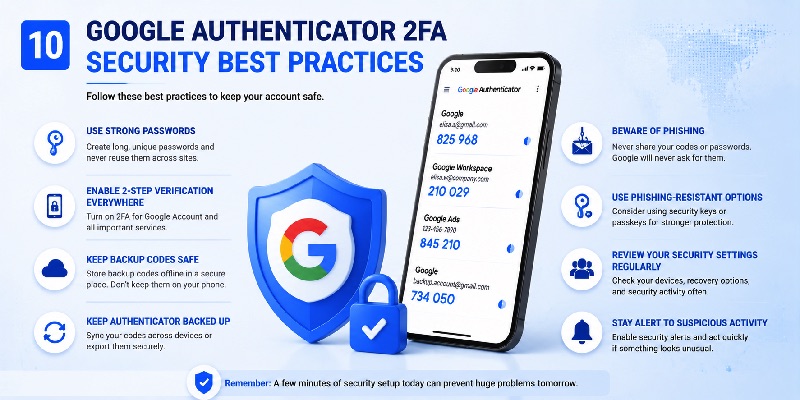
Setting up google authenticator 2fa is only the first step. A strong configuration should also account for device loss, recovery, phishing, and changes in the devices you use.
Set Up More Than One Recovery Path
Do not depend on a single phone.
Google recommends backup methods for users of 2-Step Verification. Backup codes can be created specifically for situations where your normal second step is unavailable.
Keep those codes somewhere appropriately protected.
Review Your Google Security Settings
Periodically review the google security 2 step verification area and confirm that the authentication methods belong to you.
Remove devices or methods you no longer control.
Check recovery information and make sure you understand which method will be available if your primary device disappears.
Never Share Verification Codes
Treat an Authenticator code like a temporary password.
A legitimate authentication workflow may ask you to enter a code into the service you are signing into, but you should not provide a code to someone who contacts you unexpectedly.
Google’s account-recovery guidance advises users to enter passwords and verification codes only through the legitimate Google Account sign-in environment.
Consider Phishing-Resistant Options
While google authenticator 2fa provides significant protection compared with password-only authentication, Google also supports passkeys and hardware security keys.
Google describes passkeys as providing stronger protection against phishing because they cannot be shared or copied in the same manner as traditional passwords.
For higher-risk accounts, it can therefore make sense to evaluate several authentication methods rather than viewing every form of 2FA as identical.
Test Your Recovery Setup
After completing google 2 step verification, make sure you know how you would sign in if your normal phone were unavailable.
A good security configuration answers these questions before an emergency:
- Do I have another authorized device?
- Do I have backup codes?
- Is my recovery information current?
- Do I know whether my Authenticator codes are synchronized?
- Does an employer or administrator control my account security?
- Do I have a security key or passkey configured?
The goal of google authenticator 2fa is not only to stop unauthorized users. It should also allow the legitimate account owner to recover access safely.
📖 Explore Articles: Google Password Verification: Passwords, 2FA, Passkeys and Authenticator
11. Frequently Asked Questions About Google Authenticator 2FA
What is Google Authenticator 2FA?
Google authenticator 2fa is a method of using the Google Authenticator application to generate temporary verification codes that can serve as an authentication step for compatible accounts. Google Authenticator can generate codes without mobile service or an Internet connection after setup.
Is Google Authenticator the same as Google 2-Step Verification?
No. Google 2 step verification is the broader Google Account security feature. Google Authenticator is one authentication method that can be used within it.
Google prompts, backup codes, security keys, passkeys, and other supported methods can also be part of the sign-in system.
Does Google Authenticator need Internet access?
No. Once configured, google authenticator 2fa can generate verification codes without Internet access or mobile service.
Internet access may still be necessary for the service you are attempting to sign in to.
Can I use Google Authenticator on more than one device?
Yes. Google’s current documentation says Authenticator codes can be synchronized across multiple devices by signing in to a Google Account in Authenticator. Google also provides account-transfer functionality.
What happens if I lose my phone?
Use another configured verification or recovery method.
Backup codes are specifically designed to help when normal verification methods are unavailable.
If no second step is accessible, you may need to use Google’s account-recovery process.
Why is Google asking for 2-Step Verification?
Google may request an additional authentication step to confirm that a sign-in is legitimate. Organization-managed Workspace accounts and Google Ads accounts can also have security requirements controlled by administrators.
Can I turn Google 2-Step Verification off?
Eligible personal accounts can have 2-Step Verification disabled, but Google warns that doing so removes an additional security layer.
Workspace or other managed-account policies may prevent individual users from changing the requirement.
Is an Authenticator app safer than SMS?
Google recommends Google prompts instead of SMS verification codes when a user is signing in with a password, noting that prompts provide better protection against phone-number-based account attacks.
Authenticator codes also avoid dependence on SMS delivery, but users should still protect their device and configure recovery methods.
Does Google Authenticator work for accounts outside Google?
Yes. Google describes Authenticator as capable of generating codes for sites and applications that support Authenticator app 2-Step Verification, not only Google Accounts.
Can I use a passkey instead of Google Authenticator?
For Google Accounts that support passkeys, a passkey can provide another way to sign in. Google states that when a passkey is used on an account with 2-Step Verification, it can bypass the second authentication step because successful device unlocking demonstrates device possession.
12. Final Thoughts
Google authenticator 2fa remains a practical way to add an authentication method beyond a Google Account password. It can generate verification codes even when your phone has no mobile service or Internet connection, and current versions can synchronize Authenticator codes through a Google Account.
However, account security should not depend on Authenticator alone.
A stronger approach combines google authenticator 2fa with secure recovery information, backup codes, trusted devices, and—where appropriate—phishing-resistant authentication such as passkeys or security keys.
For Gmail users, the configuration is primarily managed through Google Account security settings. For businesses, google workspace 2 step verification can be controlled by organization policy, while google ads two step verification can be managed through Google Ads account-security settings.
Most importantly, configure recovery methods before you need them. A good google authenticator 2fa setup should make an account difficult for an unauthorized person to enter without making recovery unnecessarily difficult for its legitimate owner.
Whether you are setting up a personal Gmail account, protecting Workspace data, managing advertising access, or simply looking for a reliable google two factor authentication app, understanding how each verification method works will help you build a safer and more resilient Google Account.
Download Authenticator App
Secure your accounts with fast, reliable two-factor authentication. Download now and protect your login in seconds.
