
Authenticator App Restore From Backup: A Complete Recovery Guide
An authenticator app restore from backup works only if a backup was actually created beforehand, through the app’s own cloud sync, an exported file, or a device backup that happened to include the app’s data.
The method you use to restore depends entirely on which kind of backup exists, and the uncomfortable truth is that many people discover no usable backup was ever made until the moment they need one.
This guide covers every realistic way to complete an authenticator app restore from backup, how to tell which backup type you actually have, and what to do when no backup exists at all.
Can You Restore an Authenticator App From a Backup?
Yes, but only if a backup already exists. An authenticator app restore from backup depends on one of three things being in place beforehand: the app’s own cloud sync, a manually exported backup file, or a device-level backup that captured the app’s data.
In other words, an authenticator app restore from backup is really the second half of a two-part process, and the first half, creating the backup, has to have happened already for any of this to work.
If none of these were set up before the app was lost or the phone was replaced, there’s no backup to restore from, and recovery shifts to each individual account’s own process instead.
This is the single most important thing to understand before starting: a restore is only ever as good as the backup made in advance, and no amount of troubleshooting can recover data that was never saved anywhere.
Download Authenticator App
Secure your accounts with fast, reliable two-factor authentication. Download now and protect your login in seconds.
Types of Authenticator App Backups

| Backup Type | How It’s Created | How You Restore |
|---|---|---|
| Cloud sync | Enabled once in the app’s settings | Sign into the same account on a new device |
| Exported file | Manually exported to a file or QR code | Import the file or scan the code on the new device |
| Device backup | Part of an iCloud or Google device backup | Restore the whole device, then reopen the app |
Knowing which type you have determines the entire restore process, so identifying it first saves time compared with trying methods that were never going to work.
If you’re not sure which type you have, start by opening the app’s settings on any device where it’s still installed, since that’s usually where an enabled sync or a previous export option will be visible.
A quick look at these settings tells you immediately whether an authenticator app restore from backup through sync is even an option, or whether you’ll be relying on a file or backup codes instead.
How to Restore Using Built-In Cloud Sync
Signing Into the Same Account
If the app offered sync tied to an account and you enabled it, installing the app on a new device and signing into that same account restores every entry automatically.
This is by far the smoothest kind of restore, since it requires no files, no QR codes, and no access to the old device at all, only the account credentials used for sync.
For anyone who set this up in advance, an authenticator app restore from backup through sync often feels almost anticlimactic, since the entire list simply reappears within seconds of signing in.
Confirming the Sync Actually Populated
After signing in, wait a moment for the list to fill in before assuming the authenticator app restore from backup failed, since a slow connection can delay entries appearing for a few seconds.
If the list is still empty after a minute or two on a solid connection, the most likely explanation is that you’re signed into a different account than the one sync was originally enabled with.
Signing out and back in with the correct account almost always resolves this, since the entries were never lost, just tied to a different sign-in.
How to Restore From an Exported Backup File

Importing a Saved Export File
If you previously exported accounts to a file, the app’s import option reads that file and rebuilds the account list from it, provided the file hasn’t been moved or deleted since.
Locating that file is often the hardest part, since export files are easy to save somewhere and forget about; checking cloud storage folders and email attachments from around the time of the export is a good place to start.
Once the file is found, the actual authenticator app restore from backup step itself usually takes only a few seconds through the app’s import option.
Scanning a Transfer QR Code
Some exports take the form of a QR code rather than a file; scanning it from the new device rebuilds the accounts the same way, without needing a saved file at all.
This method only works if you still have access to the QR code, which is why a screenshot of it stored securely can be a practical backup in its own right.
Store any such screenshot the same way you would a sensitive file, since it contains everything needed to regenerate your codes elsewhere.
Restoring From an iCloud or Google Device Backup
When Device Backups Include Authenticator Data
Some authenticator apps allow their data to be included in a full device backup, meaning restoring the whole phone from iCloud or Google also restores the app’s accounts.
When this works, it’s convenient because it happens as part of the normal device-setup flow, with no separate authenticator-specific step required at all.
The catch is that you often can’t tell in advance whether a given app supports this, which makes it the least predictable of the three backup types.
Why Some Apps Exclude Themselves From Device Backups
Many apps deliberately exclude their secret keys from standard device backups for security reasons, which is why a full phone restore doesn’t always complete an authenticator app restore from backup the way people expect.
This is intentional rather than a flaw: excluding secret keys from a device backup means a leaked or stolen backup file can’t be used to clone your two-factor codes elsewhere.
This is worth keeping in mind before relying on a device backup as your only recovery plan, since it may quietly leave your authenticator data out entirely.
What to Do If No Backup Exists

Using Backup Codes
Without any app backup, the backup codes generated by each service when two-factor authentication was first set up become the fastest way back into each account individually.
Work through the most important accounts first, email and financial services especially, since those often hold the keys to recovering everything else.
Each backup code is typically single-use, so cross off or note each one as you use it to avoid confusion about which still work.
Recovering Through Each Account’s Support
Without backup codes either, each account’s own identity-verification recovery process is the remaining path, handled one service at a time rather than through a single restore.
This route takes the most time and patience, sometimes several days per account for stricter services, which is exactly why setting up any backup in advance matters so much.
Starting the recovery for time-sensitive accounts first, rather than working alphabetically, gets you back the access that matters most sooner.
Common Problems Restoring an Authenticator App
| Symptom | Likely Cause | Fix |
|---|---|---|
| Restore brings back an empty list | Signed into the wrong account for sync | Confirm the exact account used when sync was enabled |
| Import file won’t open | File corrupted, moved, or from an incompatible app | Locate the original file or try re-exporting from the old device |
| Codes restored but rejected | Device clock out of sync | Enable automatic date and time on the new device |
Restored Accounts Generate Wrong Codes
This almost always traces back to the new device’s clock being slightly off; enabling automatic date and time settings resolves it in nearly every case.
It’s worth ruling this out before assuming the authenticator app restore from backup itself went wrong, since the entries are usually restored correctly and only the clock is at fault.
Only Some Accounts Came Back
A partial restore usually means the backup itself was incomplete, often because it was created before some accounts were added; the missing ones need to be re-added individually.
This is a good reason to refresh a manual export periodically rather than relying on one made months ago, since anything added since then simply won’t be in it.
Backup File Is From a Different App
Export formats aren’t always compatible between different authenticator apps, so a file exported from one app may not import cleanly into another without a QR-based transfer instead.
When switching between apps entirely, a QR-based transfer is generally more reliable than a file, since it uses a widely shared format rather than one app’s proprietary export.
How to Choose a Restore Method for Your Situation
Picking the right approach to an authenticator app restore from backup depends entirely on what you have available, so matching your situation to a method first avoids wasted effort.
- Have the old phone still working: use a QR-based transfer or export directly from it, the fastest and most complete option.
- Have cloud sync enabled: simply sign into the same account on the new device and let the list rebuild.
- Have only an old export file: import it, accepting that anything added after the export won’t be included.
- Have nothing but backup codes: recover each account individually and set up fresh entries afterward.
Working out which of these describes you before starting turns an authenticator app restore from backup from a frustrating guessing game into a clear, single path forward.
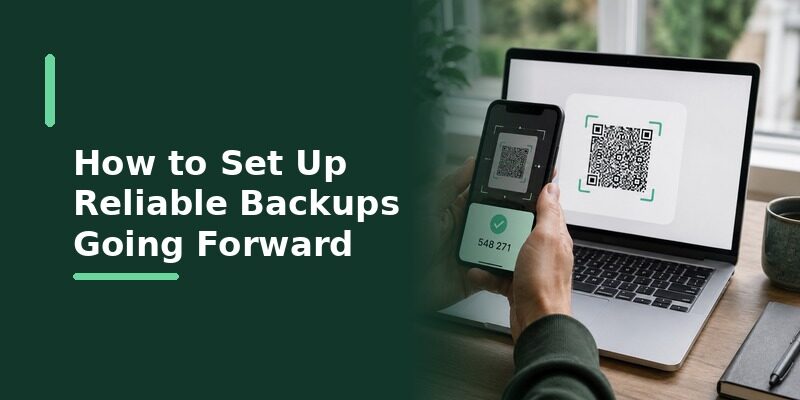
How to Set Up Reliable Backups Going Forward
Turning On Cloud Sync
Enabling sync as soon as you set up an authenticator app is the single most effective way to make any future restore quick and automatic rather than manual and stressful.
Turning it on early, before you have dozens of accounts, also means every account you add afterward is covered automatically without any extra thought.
This set-it-and-forget-it quality is what makes sync so much more reliable in practice than a manual export that depends on you remembering to refresh it.
Keeping Backup Codes Separately
Storing each account’s backup codes somewhere off the phone, such as a password manager or printed copy, gives you a fallback even when an authenticator app restore from backup isn’t possible at all.
Think of backup codes and app backups as two independent safety nets: having both means a single failure never leaves you completely locked out.
The two protect against different failures, a lost phone versus a corrupted backup, so neither one fully replaces the other.
Can Authenticator App Make Restoring Simpler?
Authenticator App treats sync as a core feature, so an authenticator app restore from backup usually means nothing more than signing into the same account on a new device and letting the list rebuild itself.
That removes the most common failure point described throughout this guide: discovering, too late, that no usable backup was ever created in the first place.
Building this same habit into whichever app you currently use, by enabling its sync or keeping a fresh export, closes most of the gap even without switching apps at all.
Frequently Asked Questions About Restoring an Authenticator App

Does restoring my phone from backup also restore my authenticator app?
Sometimes, but not always. Some apps include their data in a device backup while others deliberately exclude it for security, so a full phone restore is not a guaranteed way to recover authenticator accounts.
The only way to know for certain is to check the specific app’s own documentation, since this behavior varies from one authenticator app to the next.
Can I restore an authenticator app without the old phone?
Only if a cloud sync or an exported backup was created beforehand. Without either, and without the old device, each account has to be recovered through its own process instead.
This is why enabling sync the moment you first install an app matters so much: it’s the one step that makes a restore possible even when the old phone is gone entirely.
Is an exported backup file safe to keep?
Treat it like any sensitive file: store it somewhere encrypted or otherwise protected, since it contains the secret keys used to generate your account codes.
Anyone who obtains this file could potentially generate your codes, so it deserves the same care as a password file rather than being left in an easily accessible folder.
Why did only some of my accounts come back after restoring?
The backup was most likely created before those accounts were added, so they were never included in it; re-adding them individually is the only way to bring them back.
Refreshing your backup after adding any important new account prevents this gap from appearing in the first place.
How often should I back up my authenticator app?
With cloud sync enabled, backups happen continuously and automatically. With manual exports, re-exporting whenever you add a significant new account keeps the backup reasonably current.
For most people, cloud sync is worth choosing precisely because it removes the need to remember this step at all.
Final Thoughts
An authenticator app restore from backup is straightforward when a backup already exists, whether through cloud sync, an exported file, or a device backup that happened to include the app’s data.
The real work happens before anything goes wrong: enabling sync, keeping an export current, or saving backup codes separately turns a potential lockout into a quick, routine recovery.
Confirm which backup type you have, match it to the right restore method, and check the device clock if codes are rejected. Those three steps cover nearly every authenticator app restore from backup situation this guide has walked through.
Want restores that just work without hunting for a backup file? Download and keep every account synced automatically.
Download Authenticator App
Secure your accounts with fast, reliable two-factor authentication. Download now and protect your login in seconds.
