
Google Authenticator for iPhone: Setup, Transfer & Fixes
Published August 12, 2026
Using two-factor authentication is one of the simplest ways to protect an online account from password theft. Instead of relying only on a password, you can use google authenticator for iphone to generate a temporary security code whenever a supported account asks for additional verification.
The app is especially useful for Google accounts, email services, social networks, cloud platforms, cryptocurrency services, developer tools, password managers, and other websites that support time-based one-time passwords, commonly called TOTP.
Once configured, google authenticator for iphone can generate verification codes directly on your device. In most cases, you do not need to wait for an SMS message or depend on cellular reception every time you sign in.
However, installing the app is only one part of the process. You also need to connect each account correctly, understand where verification codes come from, know how to transfer accounts when replacing your iPhone, and keep recovery options available in case the phone is lost.
This complete guide focuses specifically on using google authenticator for iphone, from the first installation to account migration and troubleshooting.
1. What Is Google Authenticator for iPhone?
Google authenticator for iphone is a mobile application that generates temporary verification codes for accounts protected by two-factor authentication.
Instead of proving your identity with only something you know — your password — two-factor authentication asks for another verification method. With an authenticator app, that second factor is usually a six-digit code generated on your phone.
How the authentication process works
When you enable authenticator-based 2FA on a website, the service normally displays either a QR code or a secret setup key.
You add that information to google authenticator for iphone. The app and the service can then independently calculate matching temporary codes based on the shared secret and the current time.
When signing in, the typical process becomes:
- Enter your username or email address.
- Enter your normal password.
- Open google authenticator for iphone.
- Find the account you are signing in to.
- Enter the current six-digit code.
- Complete the login.
The code changes automatically after a short period, usually around 30 seconds.
📘 Find the Right Guide: Google Authenticator: Complete 2FA Setup & Security Guide
Is Google Authenticator available on iOS?
Yes. People searching can you get google authenticator on iphone are generally looking for the official iOS version of the application.
The app is designed for iPhone and provides the core functionality expected from google authenticator for ios, including adding accounts using QR codes or setup keys and generating time-based verification codes.
You may also see searches for ios google authenticator, google authenticator on ios, or google authenticator ios app. These terms all generally refer to using Google’s Authenticator application on an iPhone.
The important distinction is that the app generates verification codes. It is not an account that you normally “log into” before every 2FA verification.
2. How to Download Google Authenticator on iPhone
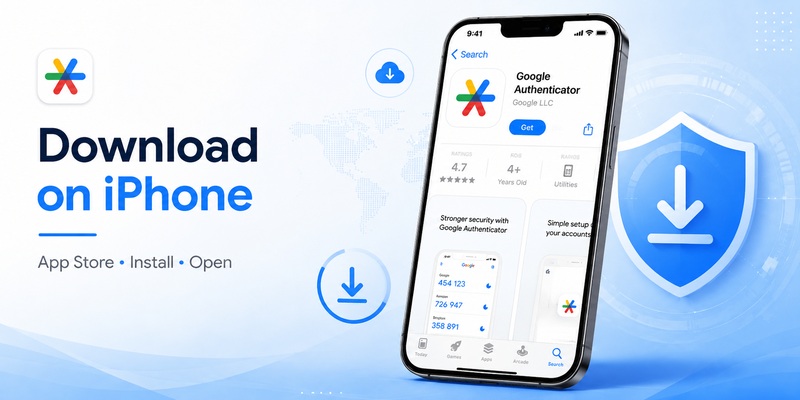
Before setting up google authenticator for iphone, install the official application from the App Store on your iPhone.
Step 1: Open the App Store
Unlock your iPhone and open Apple’s App Store.
Use the search field and look for Google Authenticator. Pay attention to the application name and publisher rather than downloading an unrelated authenticator with a similar name.
Searching for google authenticator app iphone may return several authentication applications, so checking the publisher is important.
Step 2: Install the application
Tap the download or Get button and complete the normal App Store authentication process.
Once installation finishes, open google authenticator for iphone.
Depending on your current app version and account configuration, you may see options related to using the app with a Google account or managing codes locally.
The central function remains the same: the application stores authentication credentials that allow it to generate temporary codes.
Step 3: Prepare the account you want to protect
Installing google authenticator for iphone does not automatically turn on two-factor authentication for your websites.
You still need to open the security settings of the account you want to protect.
Look for menu items such as:
- Two-Step Verification
- Two-Factor Authentication
- 2FA
- Multi-Factor Authentication
- Authenticator App
- Verification App
- TOTP
Select the authenticator option and follow that service’s setup procedure.
The service should eventually give you a QR code or a manual setup key. That information is what connects the account to google authenticator for iphone.
🛠️ Learn with Step-by-Step Guides: Google MFA App: Complete Guide to Secure Multi-Factor Authentication
3. How to Set Up Google Authenticator on iPhone
The exact interface can differ between websites, but the basic google authenticator set up iphone process is similar for almost every TOTP-compatible service.
Method 1: Scan a QR code
The fastest way to set up google authenticator on iphone is usually to scan the QR code displayed by the account you are protecting.
First, open that account on another device, such as your laptop or desktop browser.
Navigate to its security settings and enable authenticator-based two-factor authentication.
When the QR code appears:
- Open google authenticator for iphone.
- Choose the option to add a new account.
- Select the QR-code scanning option.
- Allow camera access if requested.
- Point your iPhone camera at the QR code.
- Wait for the account to appear in the app.
You should then see a six-digit code associated with that account.
Return to the website and enter the current code to confirm the setup.
Method 2: Enter a setup key manually
Sometimes you cannot scan the QR code. For example, you might be completing the setup entirely from your iPhone.
In that situation, look for an option such as “Can’t scan it?” or “Enter setup key.”
The service should provide a secret key.
For google authenticator set up key iphone, open the application, choose to add an account, and select manual entry.
You may need to provide:
- An account name
- The secret setup key
- The code type, typically time-based
Enter the information exactly as shown.
After the account appears in google authenticator for iphone, use the generated code to verify the connection.
Save recovery codes before finishing
One of the most important steps during setup has nothing to do with the Authenticator interface.
If the website provides backup or recovery codes, save them somewhere secure.
Do not rely entirely on google authenticator for iphone as your only path back into an important account.
A backup code can become extremely valuable if your iPhone is damaged, lost, erased, or unavailable.
Download Authenticator App
Secure your accounts with fast, reliable two-factor authentication. Download now and protect your login in seconds.
4. How Google Authenticator Codes Work on iPhone
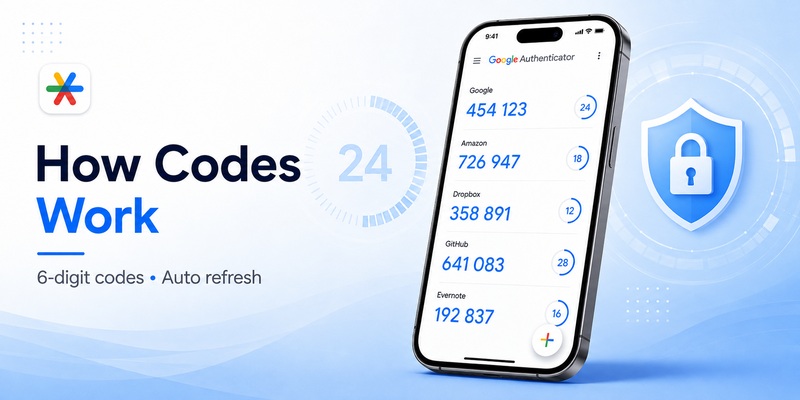
A common misunderstanding is that Google sends a new code to the iPhone every time authentication is required.
That is generally not how authenticator codes work.
Codes are generated on the device
After an account has been connected to google authenticator for iphone, the app can calculate temporary codes using the secret associated with that account.
The phone and website independently calculate the expected number.
This is why google authenticator for iphone can often generate codes even when the device has no cellular signal.
People searching for google authenticator code iphone are usually looking for the six-digit number displayed beside their account inside the application.
Simply open the app, locate the correct account, and use the code currently displayed.
Why does the code keep changing?
Time-based authentication codes are intentionally temporary.
A code normally remains valid for only a short window. When the timer expires, google authenticator for iphone automatically creates another code.
This reduces the usefulness of a stolen verification code.
If somebody sees an old code after it has expired, it normally cannot be reused as if it were a permanent password.
Google verification codes and Authenticator codes are not always identical
Searches such as google verification code iphone or google security code iphone can refer to several different Google security mechanisms.
For example, an account might request:
- An Authenticator-generated code
- A verification prompt on another device
- A recovery code
- An SMS code
- Another account-specific security method
If the login screen specifically asks for your authenticator code, open google authenticator for iphone and use the current number for that account.
Do not assume every Google security prompt requires the Authenticator app.
📖 Explore Articles: Chrome Google Authenticator: Setup, Extensions & Security Tips
5. How to Use Google Authenticator to Sign In
After setup, everyday use of google authenticator for iphone is simple.
Normal sign-in process
Suppose you are signing in to a website that has authenticator-based 2FA enabled.
Enter your normal login information first.
When the website asks for a verification code:
- Open google authenticator for iphone.
- Locate the matching service or account.
- Read the current six-digit number.
- Return to the login screen.
- Enter the code.
- Submit the verification.
If the code is close to expiring, waiting for the next one can reduce the chance of a timing-related error.
Do you log in to Google Authenticator itself?
Queries such as login to google authenticator app iphone and google authenticator login iphone can be misleading.
In normal use, you do not open Google Authenticator because you are trying to log into the Authenticator application itself.
Instead, you open google authenticator for iphone to retrieve the temporary code required by another account.
Think of the app as a secure code generator rather than a conventional website login page.
You might have account-related options available in the application, but those are different from using a TOTP code to sign in to a protected service.
Always check the account label
If you protect many accounts with google authenticator for iphone, several six-digit codes may be visible at once.
Do not automatically copy the first number you see.
Check the account name and service carefully before entering the code.
This becomes especially important if you have multiple accounts on the same platform.
6. How to Add More Accounts to Google Authenticator
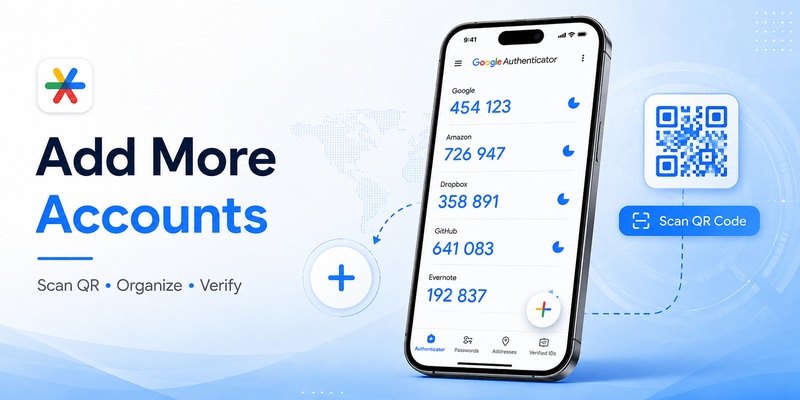
You do not need a separate Authenticator application for every website.
A single installation of google authenticator for iphone can manage multiple supported accounts.
Add each account separately
For every service you want to protect:
- Open its security settings.
- Enable authenticator-based 2FA.
- Request its QR code or setup key.
- Open google authenticator for iphone.
- Add the new account.
- Confirm the generated code on the website.
- Store the service’s backup codes.
Repeat this process for each account.
Use recognizable account names
Once many accounts have been added, organization matters.
A good label should help you immediately identify both the platform and the specific account.
For example, if you have several email accounts, simply seeing “Email” may not be enough.
Good organization makes google authenticator in iphone easier to use and reduces the risk of entering a code from the wrong profile.
Do not reuse setup secrets
Each account should have its own 2FA setup process.
You should not copy the secret key from one service and manually reuse it for another service.
The purpose of google authenticator for iphone is to generate a unique sequence of codes based on the secret provided by each individual account.
If you suspect a setup key has been exposed, disable that authenticator configuration from the service and create a new one rather than continuing to use the compromised secret.
7. How to Transfer Google Authenticator to a New iPhone
Replacing a phone is where many users run into trouble.
If you are preparing a google authenticator new iphone, plan the migration before erasing or trading in your old device.
Transfer before deleting the old iPhone
The safest order is:
- Keep your old iPhone active.
- Install google authenticator for iphone on the new device.
- Transfer or restore your authentication accounts using the available migration method.
- Test important accounts.
- Confirm your backup codes.
- Only then erase the old device.
Depending on how your Authenticator configuration is stored and synced, migration options may differ.
The important rule is not to assume that every code will automatically appear on the replacement phone.
Test your accounts after migration
After setting up google authenticator on new iphone, choose one important account and perform a controlled sign-in.
Enter the code from the new iPhone.
If authentication succeeds, test several other important accounts before removing access to the old device.
This is safer than discovering a migration problem after the original phone has already been erased.
Setting up from scratch
If automatic migration is unavailable, you may need to reconnect individual accounts.
To set up google authenticator on new iphone, sign in to each service using another available verification method and then replace or reconfigure its authenticator settings.
Usually this means:
- Sign in using a backup method.
- Open security settings.
- Remove or replace the existing authenticator configuration.
- Generate a new QR code.
- Scan it using google authenticator for iphone on the new phone.
- Verify the new code.
- Generate fresh recovery codes if necessary.
This takes longer but gives you a clean migration.
8. How to Move Google Authenticator from Android to iPhone
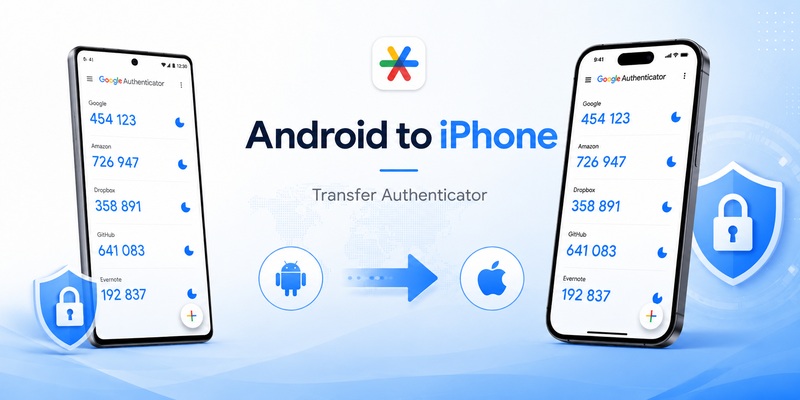
Switching operating systems requires the same level of care as replacing one iPhone with another.
Users searching google authenticator android to iphone usually want to move existing TOTP accounts without losing access.
Keep the Android phone until the transfer is complete
Do not factory-reset the Android device first.
Install google authenticator for iphone on the new iPhone and use the migration options available in your Authenticator configuration.
If direct transfer is available, follow the on-screen process carefully.
After the accounts appear on the iPhone, verify them.
Test several services
A successful-looking transfer does not necessarily mean you should immediately erase the Android phone.
Use google authenticator for iphone to authenticate into several accounts.
Prioritize services such as:
- Primary email
- Google account
- Password manager
- Cloud storage
- Financial services
- Work accounts
- Developer services
Only after confirming that important codes work should you remove the old device.
What if an account does not transfer?
Use that service’s recovery method.
You may have backup codes, another trusted device, an email recovery method, or another 2FA factor.
Once you regain access, reset the authenticator configuration and connect it to google authenticator for iphone.
This is another reason to save recovery codes when initially enabling 2FA.
📖 Explore Articles: Google OAuth: Complete Developer Guide to Tokens and APIs
9. What to Do If Google Authenticator Codes Do Not Work
You open google authenticator for iphone, enter the six-digit code, and the website says it is incorrect.
Before disabling 2FA, check several common causes.
Make sure you selected the correct account
If you have several accounts in the app, verify the label.
A code generated for one account cannot normally authenticate another account, even if both accounts belong to the same platform.
Wait for a fresh code
If a code is about to expire, the server may receive it after its valid time window has passed.
Wait until google authenticator for iphone generates the next number and enter it promptly.
Check the iPhone’s date and time
Time-based one-time passwords depend on accurate time.
On your iPhone, make sure the date, time, and time zone are correct.
Using automatic date and time settings can help prevent significant clock differences.
Confirm that the account was not reconfigured
If you recently disabled and re-enabled 2FA, an older entry in google authenticator for iphone may no longer match the new setup secret.
The account might still appear in the application and continue generating numbers, but the server expects codes based on a newer secret.
In this case, remove the obsolete configuration only after confirming that you can access the account and connect the new QR code safely.
Do not repeatedly guess
If several codes fail, stop and check the configuration.
Repeated login attempts can trigger account security systems.
Use an official backup method rather than endlessly entering random codes.
10. How to Protect Google Authenticator on Your iPhone
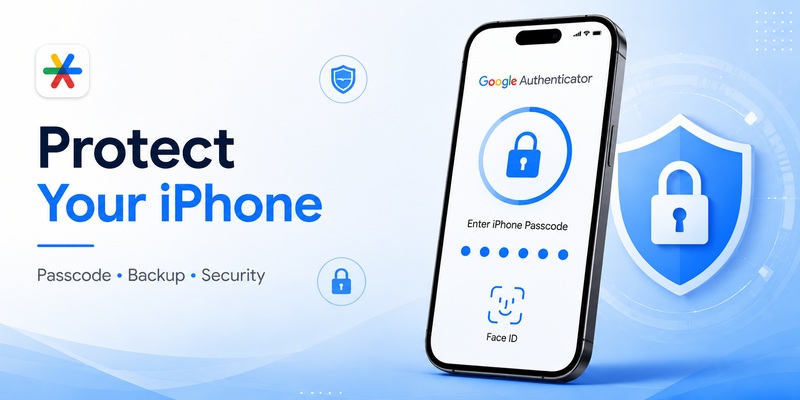
Using google authenticator for iphone improves account security, but the phone itself also needs protection.
Protect your iPhone with a strong passcode
Your iPhone contains far more than authentication codes.
It may also contain:
- Password-reset links
- Saved passwords
- Personal documents
- Banking apps
- Cloud services
Use an appropriate device passcode and biometric security where available.
An unlocked phone can weaken the additional security benefits of 2FA.
Keep authentication secrets private
When setting up google authenticator for iphone, QR codes and manual setup keys should be treated as sensitive information.
Anyone who obtains the secret may potentially configure another authenticator that generates the same TOTP sequence.
Avoid:
- Posting QR codes online
- Sending setup keys through public chats
- Leaving QR-code screenshots in shared folders
- Saving secrets in unsecured notes
- Sharing screen recordings containing setup information
Protect your recovery codes
Recovery codes can often bypass the normal Authenticator step.
That makes them extremely useful and extremely sensitive.
Do not store your only backup code in a place that becomes inaccessible when your iPhone is lost.
For example, keeping all recovery information only on the same iPhone running google authenticator for iphone creates a single point of failure.
Store recovery information separately in a secure location.
Review old devices
After moving google authenticator for iphone to another device, review the security settings of important accounts.
Remove devices or authentication methods that are no longer required.
This reduces unnecessary access paths.
11. Google Authenticator Backup and Recovery Tips
The best time to prepare for recovery is before anything goes wrong.
You should assume that at some point your phone could be lost, damaged, replaced, or reset.
Keep more than one recovery path
For every critical account protected by google authenticator for iphone, check which backup methods are available.
Depending on the service, these might include:
- Recovery codes
- Trusted devices
- Security keys
- Backup authentication methods
- Recovery email
- Account recovery procedures
You do not necessarily need every option, but relying on only one phone creates unnecessary risk.
Save backup codes immediately
When a service provides recovery codes during 2FA setup, save them before closing the setup screen.
Do not wait until you need them.
A recovery code can help you regain access even when google authenticator for iphone is unavailable.
Some services invalidate a recovery code after it has been used. Others let you generate a completely new set.
Review the rules for each important account.
Do not confuse backup with authentication
Backing up your phone is useful, but you should understand your application’s specific account-transfer or synchronization behavior instead of assuming that every authenticator credential behaves like an ordinary photo or contact.
Before resetting an iPhone, verify that your google authenticator for iphone accounts can be restored or transferred using the method available to you.
Perform a recovery check before traveling
If you are going abroad, replacing your SIM, or traveling without your usual backup devices, review your authentication options in advance.
Authenticator-generated codes can be useful because they are less dependent on SMS delivery, but losing the only phone containing your credentials can still create a serious problem.
For important travel accounts, confirm that your recovery options are accessible without depending entirely on google authenticator for iphone.
📖 Explore Articles: Google Authenticator App Android: Setup & Use Guide 2026
12. Common Google Authenticator for iPhone Questions
People setting up google authenticator for iphone often encounter similar questions. Understanding these details can prevent unnecessary account lockouts.
Does Google Authenticator need internet access?
Authenticator-based TOTP codes are generated from a shared secret and the current time, so code generation itself can generally work without a cellular connection.
That makes google authenticator for iphone useful when SMS reception is unreliable.
However, internet access may still be required for the website or application you are trying to sign in to, and some account-related features can depend on connectivity.
Is Google Authenticator the same as an SMS verification code?
No.
An SMS verification code is delivered through the mobile network.
A TOTP code displayed in google authenticator for iphone is calculated by the authenticator application.
Both may appear as short numeric security codes, but they are different verification methods.
Can I use Google Authenticator for non-Google accounts?
Yes, provided the service supports a compatible authenticator or TOTP method.
Despite the name, google authenticator for iphone is not limited to Google accounts.
Many third-party websites and apps can work with standard authenticator applications.
Always follow the security setup instructions provided by the specific service.
Can I have multiple accounts in the app?
Yes.
You can add multiple supported accounts to google authenticator for iphone.
The key is to label and organize them clearly so that you can quickly identify the correct code when signing in.
Can I delete an account from Authenticator?
You can remove an authenticator entry, but do not assume that deleting it automatically disables 2FA on the associated website.
The website may continue expecting codes that your iPhone can no longer generate.
Before deleting an entry from google authenticator for iphone, either disable that authentication method from the service itself or confirm that another working authentication method is available.
What happens if I lose my iPhone?
Your next step depends on the recovery methods configured for each account.
Possible options include backup codes, another trusted device, another authentication factor, or the service’s account recovery system.
Once you regain access, update the security configuration and connect the replacement device to google authenticator for iphone.
This is why recovery planning is just as important as initial setup.
13. Google Authenticator on Older iPhones
Some users still search for iphone 6 google authenticator because they want to use an older iPhone as their authentication device.
The main limitation is usually software compatibility rather than the concept of TOTP itself.
Check current app compatibility
Before relying on an older device, check whether the current version of the application can be installed on the iOS version supported by that iPhone.
App requirements can change over time.
If an old iPhone cannot run a currently supported version of google authenticator for iphone, using it as your primary authentication device may not be ideal.
Security updates matter
An authenticator protects valuable accounts, so the security condition of the phone matters.
A device that no longer receives appropriate operating-system security updates may create additional risk.
For important accounts, use google authenticator for iphone on a maintained device whenever practical.
An old device can sometimes be useful as part of a carefully designed backup strategy, but it should not automatically become your only recovery method.
14. Tips for Setting Up Google 2FA on iPhone Correctly
If your goal is specifically google 2fa iphone, the general principles are the same as with other services: enable two-step verification from the account’s security settings and select an authenticator-based option when available.
Configure account recovery first
Before changing security settings, confirm that your account recovery email, trusted devices, and other recovery methods are current.
Then connect google authenticator for iphone.
This order reduces the chance of accidentally locking yourself out during setup.
Verify before closing the setup screen
Once you scan the QR code, the account should appear inside google authenticator for iphone.
Enter the displayed code into the setup page.
Do not consider the process complete until the website confirms that authenticator-based verification is active.
Store the recovery information
If backup codes are offered, generate and save them securely.
Do not store the only copy alongside the phone.
A good 2FA strategy should survive the loss of your iPhone.
Test in a controlled way
After enabling 2FA, open a private browser window or another device and test the sign-in process.
Confirm that:
- Your password works.
- The account requests the second factor.
- google authenticator for iphone produces a valid code.
- Your recovery method is available.
Testing immediately is easier than troubleshooting months later when access is urgent.
15. Common Mistakes to Avoid With Google Authenticator on iPhone
Most problems involving google authenticator for iphone are preventable.
Several mistakes repeatedly cause account-access issues.
Mistake 1: Erasing the old phone too early
When moving to a new iPhone, verify all important authenticator entries before wiping the previous device.
Seeing the Authenticator app installed on the new phone does not by itself prove that every account has been transferred successfully.
Mistake 2: Not saving recovery codes
If google authenticator for iphone is your only second factor and the phone disappears, account recovery can become significantly harder.
Save recovery information when 2FA is first configured.
Mistake 3: Screenshotting QR codes casually
A 2FA setup QR code is not simply an image for convenience.
It contains information used to generate authentication codes.
Treat it like a secret.
Mistake 4: Deleting codes before disabling 2FA
Deleting an entry from google authenticator for iphone does not necessarily tell the associated website to stop requesting it.
Change the security settings on the website first.
Mistake 5: Selecting the wrong account
When several entries have similar names, entering the wrong code is easy.
Organize your google authenticator for iphone entries clearly and always check the account identifier before copying a number.
Mistake 6: Depending on only one recovery mechanism
Two-factor authentication improves security, but a strong setup also includes a safe recovery path.
Your objective should not simply be “enable 2FA.” It should be “enable 2FA without creating a future lockout.”
16. Google Authenticator for iPhone vs SMS Verification
Many users initially enable two-factor authentication using SMS because it is familiar.
However, google authenticator for iphone works differently and offers several practical advantages.
Authenticator codes do not rely on SMS delivery
When you use SMS verification, the authentication code must reach your phone through the telecommunications system.
With google authenticator for iphone, TOTP codes can be generated directly by the application.
This can be convenient when:
- Cellular reception is poor.
- You are traveling internationally.
- SMS messages are delayed.
- Your device does not currently have an active mobile connection.
Authentication is separated from your phone number
A TOTP authenticator is not based on receiving a message at a specific telephone number every time you sign in.
This makes google authenticator for iphone useful for users who change SIM cards or travel frequently.
That does not mean an authenticator removes every security risk. Your device, account-recovery options, passwords, and setup secrets still need protection.
Which option should you use?
If a service supports google authenticator for iphone, an authenticator-based option is often worth considering as part of a stronger account-security setup.
For highly sensitive accounts, the best authentication method may depend on which security options the service provides.
The most important rule is to avoid depending exclusively on a password.
17. Final Tips for Using Google Authenticator Safely
Setting up google authenticator for iphone only takes a few minutes, but maintaining a reliable authentication setup requires a little more planning.
Start by installing the official application and enabling authenticator-based two-factor authentication separately for each account you want to protect.
When a service displays a QR code, scan it with google authenticator for iphone and verify the first generated code before leaving the setup page.
Save recovery codes immediately.
If you replace your device, prepare the new phone while you still have access to the old one. Verify that google authenticator for iphone works for important accounts before erasing the previous device.
The same principle applies when moving between Android and iOS.
Do not delete an authenticator entry merely because you no longer want to see it in the application. First update the security settings of the corresponding account so you do not leave the account expecting a code that you can no longer generate.
Protect your iPhone with a strong passcode, keep QR codes and setup keys private, and maintain recovery methods that do not depend exclusively on the same device.
Most importantly, remember what google authenticator for iphone actually does: it provides temporary authentication codes used as an additional layer beyond your password.
It does not replace good password practices, secure recovery settings, device protection, or careful account management.
Used correctly, google authenticator for iphone provides a convenient way to strengthen supported accounts while reducing dependence on passwords alone. With proper backup planning and a careful migration process, it can remain reliable even when you upgrade your iPhone, switch platforms, or need to recover access after losing a device.
Download Authenticator App
Secure your accounts with fast, reliable two-factor authentication. Download now and protect your login in seconds.
