
Google Authenticator for Mac: Setup, Use & Best Alternatives
Published August 12, 2026 · Updated September 9, 2026
If you regularly work on a MacBook, iMac, Mac mini, or Mac Studio, keeping your phone nearby every time a website asks for a two-factor authentication code can become inconvenient. This is why many users search for google authenticator for mac and expect to find a desktop application that works exactly like Google Authenticator on a smartphone.
The situation is slightly more complicated.
Google Authenticator is primarily distributed as a mobile application. Google’s own documentation describes it as an application for generating one-time verification codes, while the official Apple App Store listing is designed for Apple’s mobile platforms rather than providing a dedicated macOS desktop edition.
That does not mean Mac users cannot generate authenticator codes on their computers.
Modern versions of macOS provide built-in support for verification codes through Apple’s Passwords app. Apple states that Passwords can store passwords, passkeys, and verification codes, and users can configure automatic verification codes for supported websites and applications.
Therefore, understanding google authenticator for mac is less about downloading one specific Google desktop application and more about choosing the right way to manage time-based one-time passwords, or TOTP codes, within your Mac-centered workflow.
This guide explains your options, how to configure them, and how to securely use authentication codes when working on macOS.
1. What Is Google Authenticator for Mac?
When people search for google authenticator for mac, they are usually looking for one of three things:
- A native Google Authenticator desktop application.
- A way to view Google Authenticator codes from a Mac.
- An alternative authenticator app capable of generating the same type of verification codes.
Google Authenticator generates temporary verification codes used as a second authentication factor. Google explains that Authenticator can generate one-time verification codes for websites and applications that support authenticator-based two-step verification.
A typical login process works like this:
You enter your username and password.
The website then asks for a six-digit verification code.
Your authenticator generates a temporary code.
You enter the code to finish signing in.
This additional factor makes an account harder to access using only a stolen password.
Google also notes that authenticator-generated codes can work when you do not have an internet connection or mobile service, which is one reason TOTP authentication remains useful.
The important point for Mac users is that the website generating the QR code normally does not require Google Authenticator specifically. It typically requires a compatible authenticator that understands the same verification-code setup.
Therefore, a mac google authenticator workflow can use another compatible code manager even if Google’s own Authenticator desktop app is unavailable.
Why Mac users want desktop authentication
A desktop authenticator can make sense if you spend most of your day working from a Mac.
For example, imagine signing into:
- Google Workspace
- GitHub
- Cloud dashboards
- Social platforms
- Email services
- Project-management software
- Banking or financial services
- Developer platforms
Switching from your keyboard to a smartphone dozens of times can interrupt your workflow.
Using google authenticator on mac or a compatible macOS solution can reduce that friction while maintaining two-factor authentication.
However, convenience should never come at the expense of account security. Keeping your password and second factor on exactly the same device changes the security model, which is why you should understand the trade-offs before migrating every code to your Mac.
Download Authenticator App
Secure your accounts with fast, reliable two-factor authentication. Download now and protect your login in seconds.
💡 Discover Helpful Guides: Google Authenticator: Complete 2FA Setup & Security Guide
2. Is Google Authenticator Available for Mac?
The first question most users have is simple:
Can you download an official google authenticator app for mac?
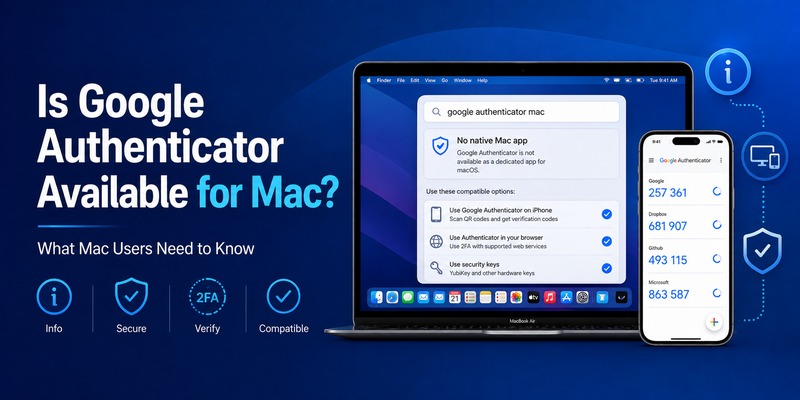
At present, Google’s official support documentation focuses Google Authenticator on mobile devices, and Apple’s official App Store listing describes Google Authenticator as generating codes on your phone. Google does not document a dedicated native macOS desktop version of Google Authenticator.
That distinction is important.
You may encounter websites claiming to provide a downloadable google authenticator app mac installer. Unless the software is distributed and verified by Google, it should not automatically be treated as the official Google Authenticator application.
Authentication applications contain highly sensitive secrets. Installing an unknown authenticator from an untrusted download website can potentially expose the very accounts you are trying to protect.
What can Mac users use instead?
Mac users have several practical approaches:
- Keep Google Authenticator on an iPhone or Android phone.
- Use Apple’s built-in Passwords verification-code feature.
- Use another reputable TOTP-compatible desktop authenticator.
- Use passkeys or hardware security keys where supported.
Apple provides built-in verification-code functionality through the Passwords app. Apple explains that Passwords on Mac can keep verification codes alongside passwords and passkeys.
So while a dedicated official google authenticator for mac os application is not required, the underlying authentication method can still be used conveniently on macOS.
Get Authenticator ℠ App
Secure your accounts with fast, reliable two-factor authentication. Download now and protect your login in seconds.
Avoid confusing Google Authenticator with Google sign-in prompts
Google provides several methods for two-step verification.
An authenticator code is only one method.
Depending on your account configuration, you may also encounter security keys, Google prompts, backup codes, or other verification methods. Google recommends 2-Step Verification as an additional layer of protection and provides Authenticator as one of the available verification options.
Therefore, searching for google authenticator in mac does not necessarily mean Google authentication itself requires a dedicated Mac application.
3. How Google Authenticator Works With a Mac
To understand google authenticator for mac, it helps to understand what happens behind the scenes.
When you enable authenticator-based two-factor authentication on a website, the service normally provides either:
- A QR code
- A secret setup key
Your authenticator stores that secret.
It then combines the secret with the current time to calculate temporary verification codes.
That is why your authenticator can continue producing codes even without an active internet connection.
Google explicitly notes that Authenticator can provide verification codes even when you lack internet connectivity or mobile service.
The Mac does not need to communicate with Google Authenticator
This is an important distinction.
Your Mac generally does not have to remotely retrieve every verification code from your phone.
Instead, an authenticator installed or configured on the Mac can independently generate compatible codes if it has the appropriate setup secret.
This is why Apple’s Passwords app can function as a verification-code generator.
Apple provides a setup process where users copy a website’s authenticator setup key into Passwords, after which the Mac generates verification codes for that account.
This means that users searching for google authenticator mac os can often accomplish their actual goal without having Google’s mobile application running directly on macOS.
Example workflow
Suppose a website asks you to enable two-factor authentication.
You select:
“Authenticator app.”
The site displays a QR code and possibly a setup key.
If you use Google Authenticator on your smartphone, you add the account there.
If you want verification codes on the Mac instead, you can use a compatible macOS authenticator or Apple’s Passwords feature.
Once configured, both approaches generate temporary verification codes accepted by the website.
🧭 Explore Guides: Google MFA App: Complete Guide to Secure Multi-Factor Authentication
4. How to Set Up Google Authenticator for Mac
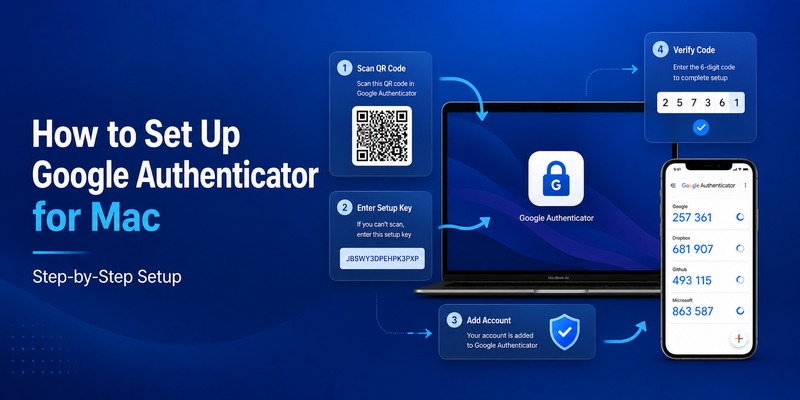
There are two main ways to create a google authenticator for mac workflow.
Method 1: Keep Google Authenticator on your phone
This remains the simplest approach for users who specifically want Google’s application.
First, install Google Authenticator from the official application store for your smartphone.
Next, open the security settings for the account you want to protect.
Enable two-step verification.
Choose the authenticator application option.
The service should display a QR code.
Scan the QR code using Google Authenticator.
Google Authenticator generates a verification code.
Enter that code into the website to confirm setup.
Google’s account documentation states that Authenticator can be configured as a method for generating one-time verification codes for accounts supporting authenticator-based two-step verification.
After setup, you can continue logging into websites on your Mac while reading your verification codes from your phone.
This approach keeps your password entry environment and authentication device separated.
Method 2: Generate verification codes directly on your Mac
If your goal is really google authenticator on mac, Apple’s built-in Passwords app can provide a more desktop-native workflow.
Apple’s documented method is:
- Open the security settings of the website you want to protect.
- Enable two-factor authentication.
- Select the authenticator application option.
- Choose the option to reveal or manually enter a setup key.
- Copy the setup key.
- Open Passwords on your Mac.
- Select the corresponding website account.
- Choose Edit.
- Choose Set Up Code.
- Paste the setup key.
- Confirm the setup.
- Copy the generated verification code back to the website.
These steps are based on Apple’s current macOS Passwords documentation.
Once configured, the verification code can appear as an autofill suggestion when a compatible website requests it.
Why the setup key matters
Many websites primarily display a QR code.
However, desktop setup is often easier with the underlying textual setup key.
Apple specifically instructs users setting up verification codes on Mac to choose the website’s manual setup-key option and paste that value into Passwords.
Treat this setup key like a sensitive credential.
Someone with access to the secret may be able to generate the same verification codes.
Do not paste it into random websites, online QR decoders, chat rooms, screenshots, or unsecured notes.
5. How to Use Verification Codes Directly on macOS
Once verification codes are configured, using google authenticator for mac functionality becomes straightforward.
Apple’s Passwords application can store verification codes alongside account credentials.
When a website requests your authentication code, macOS may offer the current verification code automatically.
If no automatic suggestion appears, Apple says you can open Passwords, select the account, copy the verification code, and paste it into the website or application.
Using automatic verification-code suggestions
A convenient workflow looks like this:
Open the website.
Enter your username.
Enter or autofill your password.
The website requests a two-factor code.
Select the verification-code suggestion from macOS.
Complete the login.
This is significantly faster than opening a phone, unlocking it, finding the authenticator app, locating the account, memorizing the code, and typing it on the Mac.
When desktop verification codes are useful
Using google authenticator in mac through a compatible verification-code manager is especially convenient for:
- Remote workers
- Software developers
- Digital marketers
- System administrators
- Business owners
- Freelancers
- Users managing many SaaS accounts
If you authenticate multiple times each day, reducing the number of device switches can noticeably streamline your workflow.
Download Authenticator App
Secure your accounts with fast, reliable two-factor authentication. Download now and protect your login in seconds.
6. Google Authenticator for Apple Silicon Macs
Another common search involves processor-specific versions such as google authenticator for mac m1, google authenticator mac m4, and even google authenticator mac m5.
The processor does not fundamentally change how TOTP verification works.
Whether your Mac uses Intel or Apple silicon, verification codes are generated from the same underlying authentication secrets and time-based process.
Google Authenticator for Mac M1
Users searching for google authenticator for mac m1 often assume that because Apple silicon Macs can run some applications from Apple’s mobile ecosystem, the official Google Authenticator application must automatically be available as a Mac application.
That should not be assumed.
Application availability is controlled by the developer and the platform’s distribution settings.
The official Google Authenticator App Store listing is still presented as a mobile Google Authenticator product rather than Google’s documented native Mac desktop authenticator.
For an M1 Mac, your reliable choices remain:
- Google Authenticator on a phone.
- Passwords on macOS.
- Another trusted Mac authenticator.
- A hardware security key.
- Passkeys when available.
Google Authenticator Mac M4
The same principle applies to google authenticator mac m4.
An M4-based Mac does not require a special authentication protocol.
If your Mac supports Apple’s current Passwords functionality, you can use macOS verification codes regardless of whether the underlying hardware is an M-series MacBook Pro, MacBook Air, Mac mini, iMac, or Mac Studio.
Apple says the Passwords app can manage passwords, passkeys, and verification codes across supported Apple software.
Google Authenticator Mac M5
Users searching for google authenticator mac m5 should likewise focus on macOS software compatibility rather than processor branding.
The important questions are:
Does your version of macOS support the verification-code manager you want?
Does the website support standard authenticator codes?
Can you securely import or configure the authenticator secret?
If the answer is yes, the underlying Apple silicon generation does not alter how the website’s TOTP code is created.
📖 Read More Guides: Google Authenticator for iPhone: Setup, Transfer & Fixes
7. How to Sync Google Authenticator Codes Across Devices
Synchronization is another major concern when evaluating google authenticator for mac.
Google has added the ability for Authenticator codes to be stored with a Google Account when users choose to sync them.
Google’s current Authenticator documentation explains that users can save Authenticator codes to their Google Account and manage the synced Authenticator data associated with that account.
This helps reduce one of the traditional weaknesses of authenticator applications: losing access when the original device disappears.
Google Authenticator sync does not automatically create a Mac app
Syncing your Google Authenticator codes to your Google Account should not be confused with installing an official google authenticator app for mac.
Synchronization primarily provides continuity between supported instances of Google Authenticator.
You should not assume that logging into Google in Safari automatically makes every Google Authenticator code available inside macOS Passwords.
They are separate systems.
Using Apple’s ecosystem
Apple’s Passwords app can manage verification codes alongside passwords and passkeys on supported devices.
For users already deeply invested in Apple’s ecosystem, this may provide a smoother cross-device workflow than trying to duplicate Google Authenticator itself on the desktop.
The decision comes down to which ecosystem you want responsible for managing your authentication information.
Plan for account recovery
Regardless of whether you choose mac google authenticator, Apple Passwords, or Google Authenticator on a smartphone, create recovery options before you need them.
Google provides backup codes for situations where your regular second step is unavailable. Google specifically describes backup codes as an option when you lose your phone, change your number, or otherwise cannot obtain your normal 2-Step Verification code.
Save backup codes somewhere secure and separate from the device used for everyday authentication.
8. Best Ways to Use an Authenticator App on Mac
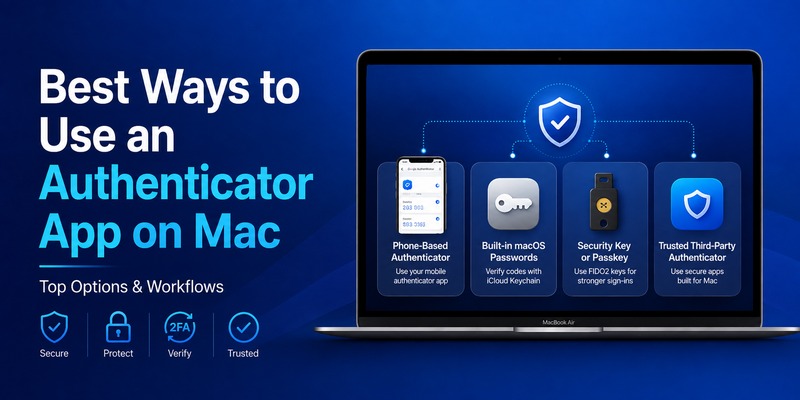
There is no single configuration that is ideal for everyone searching for google authenticator for mac.
The best approach depends on your security priorities and workflow.
Option 1: Google Authenticator on phone
Use this configuration if you want Google’s official authenticator and prefer keeping the second factor physically separate from your Mac.
Advantages include:
- Dedicated authentication device
- Official Google Authenticator experience
- Codes available even when your Mac is unavailable
- Reduced dependence on one desktop device
The disadvantage is additional friction every time you log in.
Option 2: macOS Passwords verification codes
This configuration is excellent for users who value convenience.
Apple’s Passwords application combines passwords, passkeys, and verification codes in one interface.
Advantages include:
- Verification codes available directly on Mac
- Faster login workflow
- Native macOS integration
- Verification-code autofill
- Fewer device switches
The primary trade-off is that storing multiple authentication factors in the same ecosystem can reduce some of the isolation gained from using a separate physical authentication device.
Option 3: Third-party authenticator
Some users prefer a dedicated third-party authenticator app with desktop support.
If you choose this route, evaluate the provider carefully.
Look for:
- Strong reputation
- Transparent security design
- Secure synchronization
- Encrypted backups
- Active development
- Clear recovery procedures
- Export controls
- Biometric or device authentication
Avoid downloading unknown applications simply because their names contain phrases like google authenticator mac os.
Google branding in a filename does not make software an official Google product.
Option 4: Security key or passkey
For high-value accounts, consider phishing-resistant authentication methods where supported.
Google’s security settings support multiple forms of 2-Step Verification, so an authenticator code does not have to be your only security method.
A layered strategy can include:
Password or passkey.
A hardware security key.
Authenticator codes as a fallback.
Offline backup codes for recovery.
📘 Find the Right Guide: Chrome Google Authenticator: Setup, Extensions & Security Tips
9. Google Authenticator for Mac Security Best Practices
Convenience should not be the only factor when setting up google authenticator for mac.
Authentication secrets deserve the same level of protection as passwords.
Never expose authenticator setup secrets
When a website displays a QR code or setup key, that information can be highly sensitive.
Do not:
- Upload screenshots publicly.
- Send QR codes over unsecured chat.
- Store setup keys in plain-text documents.
- Paste secrets into unknown websites.
- Include QR codes in screen recordings.
- Share authentication secrets with coworkers.
If someone obtains the authenticator secret, they may be able to generate valid verification codes.
Protect your Mac login
If your Mac stores verification codes, the Mac itself becomes part of your account-security boundary.
Use:
- A strong Mac login password.
- Automatic screen locking.
- FileVault where appropriate.
- Touch ID when available.
- Current security updates.
- Careful control of administrator permissions.
Keep recovery codes separate
Your recovery method should not depend entirely on the same device.
For example, if your Mac contains:
- Your passwords
- Your authentication codes
- Your backup codes
losing access to the Mac could create a much larger recovery problem.
Google recommends backup codes as an alternative second step when your usual verification method is unavailable.
Store them securely outside your normal authentication workflow.
Avoid fake Mac Authenticator downloads
Search terms like google authenticator app mac and google authenticator for mac os can surface unofficial software.
Before installing anything, verify:
Who developed it?
Where is it distributed?
Does the developer have a credible security history?
Does the application need unnecessary permissions?
How are authenticator secrets stored?
Does it support encrypted export or recovery?
A malicious authenticator application is especially dangerous because users deliberately provide it with authentication secrets.
10. Common Google Authenticator for Mac Problems
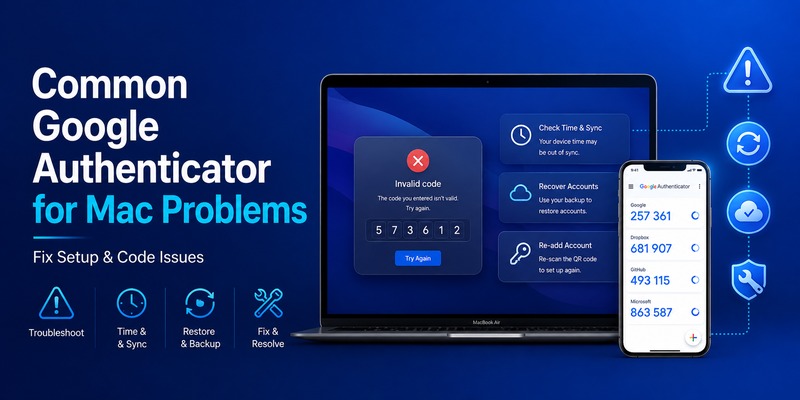
Even after configuring google authenticator for mac, you may occasionally encounter login problems.
Verification code is rejected
TOTP codes depend on accurate time.
If a verification code repeatedly fails:
Wait for the next code.
Make sure you are selecting the correct account.
Confirm the website expects an authenticator code.
Check the device’s date and time settings.
Avoid repeatedly submitting an expired code.
If you still cannot log in, use another configured verification method or recovery option.
Google maintains troubleshooting guidance for common 2-Step Verification problems.
You lost access to your authenticator
This is one of the most serious situations.
If your google authenticator on mac workflow becomes unavailable, try another configured second factor.
Google’s backup-code system is specifically intended for scenarios where your normal two-step verification method cannot be accessed.
This is why recovery preparation should happen when you configure 2FA rather than after your device is lost.
Verification code does not autofill
If a code is stored in Apple’s Passwords app but does not automatically appear, Apple recommends opening Passwords, selecting the appropriate account, copying the verification code, and manually pasting it into the website.
Autofill behavior can vary depending on the website and application.
You cannot find a Google Authenticator Mac download
That may be because you are looking for a product Google does not currently document as a dedicated native macOS application.
Instead of downloading an unfamiliar package labeled google authenticator for mac, use Google’s official smartphone application or a trusted macOS verification-code solution.
You changed Macs
Before replacing or resetting a Mac, verify that you still have access to your two-factor authentication credentials.
Do not erase your old authentication method until you confirm that:
Your new authenticator works.
Your verification codes are accepted.
Your recovery methods are available.
Your backup codes are stored securely.
Test the new setup before removing the old one.
📖 Read More Guides: Google Authenticator App Android: Setup & Use Guide 2026
11. Google Authenticator vs macOS Passwords
Users searching for google authenticator for mac often need to decide between Google’s Authenticator ecosystem and Apple’s built-in Passwords functionality.
Both can participate in authenticator-based authentication, but their workflows are different.
Google Authenticator
Google Authenticator focuses on generating one-time verification codes.
Google states that Authenticator supports websites and applications that use authenticator-based two-step verification and can store codes with a Google Account when synchronization is enabled.
It makes sense when:
You already use Google Authenticator.
You switch between Android and iOS devices.
You want a dedicated authentication application.
You prefer to keep your authentication codes on a phone.
macOS Passwords
Apple Passwords provides a broader credentials-management environment.
Apple says the Passwords app manages passwords, passkeys, and verification codes.
It makes sense when:
You primarily use Apple devices.
You want verification-code autofill on Mac.
You prefer fewer applications.
You want authentication integrated into the macOS workflow.
Which is more convenient?
For someone working on a Mac all day, Apple’s verification-code integration is typically more convenient.
You do not have to constantly reach for a smartphone.
If your priority is keeping your second factor on a separate physical device, however, Google Authenticator on a smartphone may be preferable.
Can both generate the same type of code?
For websites supporting standard authenticator-based verification codes, compatible applications can generate the codes required by the service once correctly configured.
This is why you do not necessarily need Google’s application specifically to use authenticator-based two-factor authentication from a Mac.
The authentication website is ultimately validating the temporary code generated from the shared setup secret.
12. Should You Use Google Authenticator for Mac?
For most people searching for google authenticator for mac, the key takeaway is straightforward:
You do not need to disable two-factor authentication simply because you work primarily on macOS.
Google Authenticator remains a strong option when used on a supported mobile device. Google’s documentation confirms that it generates one-time verification codes for services supporting Authenticator-based two-step verification.
If you specifically want your verification codes available on the desktop, macOS provides its own built-in solution.
Apple’s Passwords app can store and generate verification codes and can automatically suggest those codes when signing into supported websites and applications.
Therefore, your choice should depend on how you balance convenience and separation.
Choose Google Authenticator on your phone if you want:
- A dedicated second-factor device.
- Google’s official Authenticator experience.
- Authentication independent of your Mac.
Choose macOS Passwords if you want:
- Codes available directly on your Mac.
- Faster sign-ins.
- Native macOS integration.
- Verification-code autofill.
Choose another trusted authenticator app if you need:
- Cross-platform desktop support.
- Specific backup capabilities.
- More advanced account organization.
Regardless of the method, always keep recovery options available.
Google supports backup codes for circumstances where your regular second verification method cannot be used.
Final thoughts
The phrase google authenticator for mac can be misleading because many users expect a direct Google Authenticator download for macOS.
In practice, the better question is:
“How can I securely generate authenticator verification codes while using my Mac?”
You have several good answers.
You can keep Google Authenticator on your smartphone and enter its codes on your Mac.
You can configure Apple’s Passwords application to generate verification codes directly within macOS.
Or you can use a reputable third-party authenticator app that supports your preferred desktop workflow.
For users who want the familiar Google ecosystem and clear separation between devices, keeping Google Authenticator on a smartphone remains a sensible approach.
For users who spend almost all their time on a Mac and value speed, Apple’s built-in verification-code functionality can provide the experience many people expect when they search for google authenticator for mac.
Whichever option you choose, protect the authenticator setup secret, maintain secure recovery methods, keep backup codes available, and avoid unofficial applications pretending to be an official google authenticator app for mac.
Two-factor authentication is most valuable when it is both secure and practical enough that you continue using it consistently.
Download Authenticator App
Secure your accounts with fast, reliable two-factor authentication. Download now and protect your login in seconds.
