
Google Authenticator App Android: Setup & Use Guide 2026
Published August 11, 2026
Using strong passwords is important, but passwords alone are no longer enough for many online accounts. Data leaks, phishing attempts, reused passwords, and stolen login credentials can expose an account even when the password initially appears secure. This is why two-factor authentication has become an important extra layer of account protection.
One of the best-known tools for this purpose is google authenticator app android. Instead of relying only on a password, compatible websites and services can ask you to enter a temporary verification code generated on your phone.
The app is especially useful for Android users who want a simple way to manage time-based verification codes without depending on text messages. Google states that Authenticator can generate verification codes even when your phone does not have a network or cellular connection.
This guide explains how google authenticator app android works, how to install and configure it, how to add accounts, transfer your codes to another phone, troubleshoot common problems, and improve the security of your authentication setup.
1. What Is Google Authenticator App Android?
A simple two-factor authentication tool
Google authenticator app android is an authentication application developed by Google that generates temporary verification codes for accounts that support compatible two-step verification methods.
Normally, signing in to an account requires something you know: your password.
After two-factor authentication is enabled, the account may also require something you have: access to the authenticator configured on your phone.
For example, a normal login process might look like this:
- Enter your email address or username.
- Enter your password.
- Open google authenticator app android.
- Find the correct account.
- Enter the temporary code displayed in the app.
An attacker who discovers your password would therefore still need the additional authentication factor before successfully signing in.
Google Authenticator vs SMS verification
SMS verification and authenticator apps can both provide a second authentication step, but they work differently.
SMS authentication sends a verification code to your phone number. Authenticator applications generate the verification code directly on your device.
One major advantage of google authenticator app android is that verification codes can continue to be generated without an active internet or cellular connection.
This can be useful when traveling, using limited mobile data, or signing in somewhere with poor reception.
The google authenticator app for android is therefore particularly useful for people who regularly use websites, email accounts, productivity platforms, cloud services, developer tools, or other services that support authenticator-based verification.
[tvr_cta text=”Download TV Remote APP” url=”https://remotetv.begamob.com/dowload-appstore/?utm_source=Post&utm_campaign=SEO&utm_content=https://remotetv.begamob.com/lg-universal-remote-tv-codes/” style=”solid”]
📖 Read More Guides: Google OTP App: Complete Guide to OTP, TOTP, and 2FA
2. How Google Authenticator App Android Works
Understanding temporary authentication codes
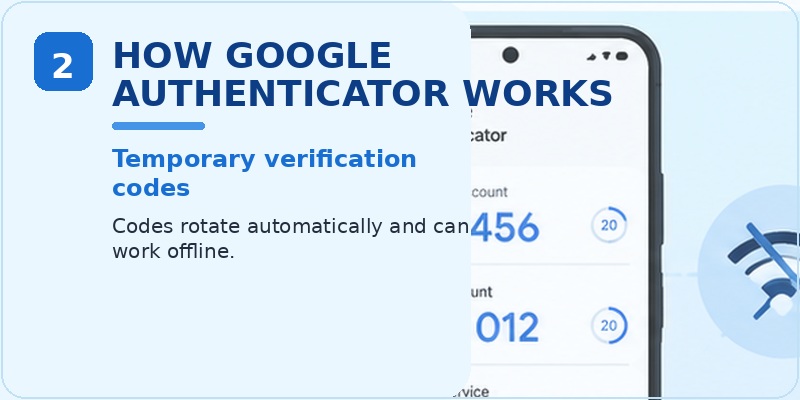
The verification codes displayed inside google authenticator app android are temporary.
When you activate authenticator-based two-factor authentication on a compatible service, that service provides setup information, commonly through a QR code. Scanning the QR code connects the corresponding account entry to your authenticator.
After configuration, the app generates rotating codes that can be entered when the website requests verification.
You do not scan a QR code every time you log in. Normally, the QR code is required during initial configuration. After that, you simply open google authenticator app android and use the current code associated with the service.
Why codes work without mobile data
A common misunderstanding is that the authenticator must contact Google whenever it creates a code.
That is not normally necessary for generating the verification code itself.
The authentication information added during setup allows google authenticator app android to calculate temporary codes on the device. This is why the Google Play listing states that codes can be generated without a network or cellular connection.
You may still need an internet connection to access the website you are signing in to, but the authenticator’s code generation is a separate process.
Some users searching for google code authenticator for android are essentially looking for this functionality: an Android application capable of creating verification codes that can serve as the second step of a login.
3. How to Download Google Authenticator on Android
Install the official application
The safest approach is to obtain google authenticator app android from Google Play and confirm that the listed developer is Google LLC. The official Google Play listing identifies Google LLC as the developer.
On your Android phone:
- Open Google Play.
- Search for Google Authenticator.
- Check the app name and developer.
- Select the official application from Google LLC.
- Tap Install.
- Open the app after installation.
Avoid installing random APK files from unknown websites simply because they use terms such as Google Authenticator in their names.
Authentication applications handle sensitive account setup information, so choosing a trusted source is particularly important.
Check your Android version
Before installing google authenticator app android, check whether your phone meets the current software requirements.
Google’s current English support documentation states that an Android device needs Android 6.0 or later to use Google Authenticator.
You can usually check your operating system by opening:
Settings → About phone → Android version
The exact menu names can differ between manufacturers.
This requirement is important because older search results may still contain information about earlier versions. We will discuss google authenticator android 5 compatibility separately later in this guide.
4. How to Set Up Google Authenticator App Android
Step 1: Enable two-factor authentication
Installing google authenticator app android does not automatically protect every account on your phone.
You must enable authenticator-based two-factor authentication separately for each supported account.
Open the account or website you want to protect and look for settings such as:
- Security
- Two-factor authentication
- 2-Step Verification
- Multi-factor authentication
- Authenticator app
- Authentication application
Select the authenticator-app option when available.
The website may then display a QR code or provide another setup method.
Step 2: Connect your account
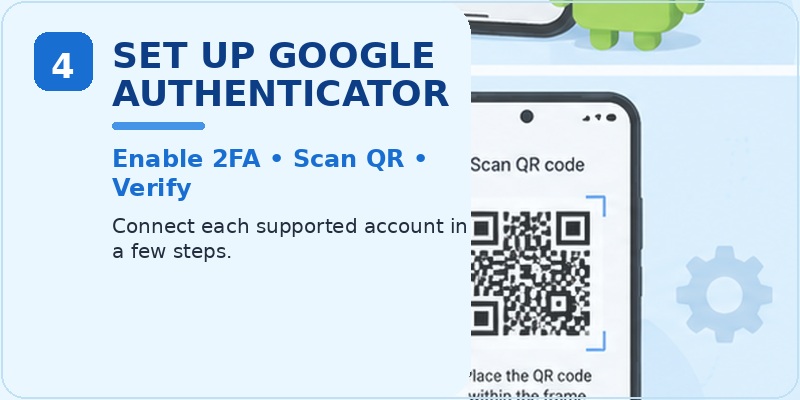
Open google authenticator app android and choose the option to add an account.
If the service displays a QR code on another screen, use the Authenticator scanning option and point your phone camera at that QR code.
Once recognized, an account entry should appear inside the authenticator.
The website may then ask you to enter one of the newly generated codes to confirm that setup was successful.
Complete that verification step before closing the security settings.
Step 3: Store recovery methods
After configuring google authenticator app android, check whether the service provides backup or recovery options.
For Google Accounts specifically, Google offers backup codes that can be used when the normal second verification step is unavailable.
Recovery methods vary between services, so follow the instructions provided by the account you are securing.
Do not wait until your phone is lost or damaged to think about recovery.
📖 Read More Guides: Google Authenticator Lost: How to Recover Codes and Account Acces
5. How to Add Accounts to Google Authenticator
Add multiple services
Google authenticator app android is not limited to one account.
If several websites or applications support compatible authenticator verification, they can usually be added as separate entries.
The general process is:
- Sign in to the website you want to protect.
- Open its security settings.
- Enable authenticator-based two-factor authentication.
- Display the setup QR code.
- Open google authenticator app android.
- Add a new account.
- Scan the QR code.
- Enter the generated code on the website.
- Confirm the setup.
Repeat the process for additional accounts.
Keep account names easy to recognize
When multiple accounts are stored in google authenticator app android, pay close attention to the account label before entering a code.
Two entries may belong to the same service but different email addresses.
For example, you might have separate verification entries for:
- A personal account
- A school account
- A work account
- A secondary email address
Entering a valid code from the wrong entry will usually result in the website rejecting it.
Organizing and checking your entries becomes increasingly important as the number of protected accounts grows.
This is also why users searching for google authenticator android should understand that the app is more than a single Google Account login tool—it can manage verification codes for various compatible services.
6. How to Use Google Authenticator Codes
Logging in with a verification code
Once configured, using google authenticator app android is straightforward.
Suppose a website asks for a verification code after you enter your password.
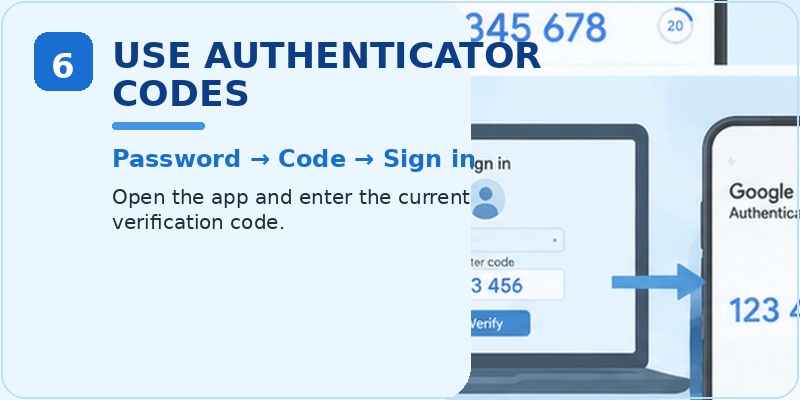
Open the authenticator application and locate the account corresponding to that website. Read the current verification code and enter it into the website before it changes.
A typical login looks like this:
Password → Verification request → Open Authenticator → Enter current code → Sign in.
You normally do not need to manually request a new code.
Google authenticator app android continuously provides the current verification value for configured accounts.
What happens when a code changes?
Authenticator codes are designed to be temporary.
If the displayed code is close to changing, it may be easier to wait for the next one before entering it.
If a website rejects a code from google authenticator app android, try the new code before changing your security settings.
Repeated errors do not necessarily mean the app is broken. Common causes include:
- Selecting the wrong account
- Entering an expired code
- Incorrect device time
- Using an old authenticator configuration
- Reconfiguring 2FA without updating the app
Check these simple causes before removing an account from your authenticator.
7. How to Transfer Google Authenticator to a New Android Phone
Transfer with a Google Account
Changing phones used to be one of the biggest concerns for authenticator users.
Google’s current documentation explains that if you sign in to your Google Account in Google Authenticator on a new device, your Authenticator codes can be synchronized automatically to that device.
This makes moving google authenticator app android to another compatible Android device easier when account synchronization is being used.
Install Google Authenticator on the new device, sign in with the appropriate Google Account, and verify that your required entries are available before removing access from the old device.
Do not erase your old phone until you have confirmed that important accounts work correctly.
Manual account transfer
You can also transfer Authenticator accounts manually.
Google’s support instructions explain that users who use Authenticator without a Google Account can manually transfer codes between devices. The old device creates a transfer QR code that can be scanned by the new device.
In general:
- Install google authenticator app android on the new phone.
- Open Google Authenticator on the old phone.
- Open the account transfer feature.
- Select the accounts you need to export.
- Generate the transfer QR code.
- On the new device, choose the import option.
- Scan the displayed transfer code.
- Verify that the required accounts appear.
Treat transfer QR codes as sensitive information. Someone who can copy authentication information may gain access to the same verification codes.
📖 Read More Guides: Google Authenticator Google Play: Download, Setup & 2FA App Guide
8.How to Fix Google Authenticator App Android Problems
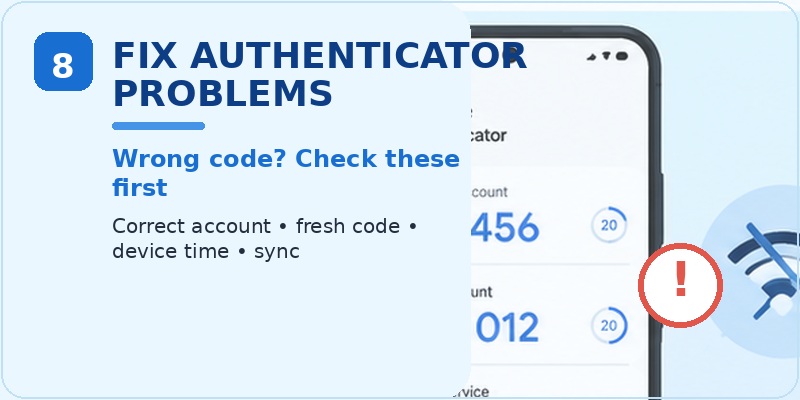
Problem 1: Verification code is incorrect
One of the most common problems with google authenticator app android is a website displaying an “invalid code” or similar error.
First, check the simplest possibilities.
Make sure you are using the entry associated with the correct account. If you have multiple email addresses for the same service, their verification codes are not interchangeable.
Next, wait for the current code to change and try again.
Also confirm that your Android device is using the correct date and time. Automatic network-provided time is generally preferable because authenticator codes depend on accurate device time.
Problem 2: The account disappeared
If an entry is missing from google authenticator app android, determine whether you were using Google Account synchronization or only local authenticator data.
If synchronization was enabled, sign in with the appropriate Google Account and check whether your Authenticator entries return.
Google states that Authenticator codes can synchronize between devices when signed in to a Google Account.
If you previously used Authenticator without account synchronization and no longer have the old phone, recovery will depend on the recovery methods provided by the affected service.
Do not repeatedly disable and re-enable security settings unless you understand how the account recovery process works.
Problem 3: You lost your old phone
Losing the device containing google authenticator app android does not automatically mean the protected account is permanently inaccessible.
Possible recovery options may include:
- Backup codes
- Another registered security method
- Another trusted device
- Account recovery
- Organization administrator assistance
- Authenticator synchronization, if previously configured
For Google Accounts, backup codes are specifically designed to provide another second step when normal verification methods are unavailable.
Recovery procedures differ by service, so use the official recovery process for the account you are trying to access.
📖 Read More Guides: Google Authenticator: Complete 2FA Setup & Security Guide
9.Google Authenticator Android 5: Does It Still Work?
Current Android requirements
People searching for google authenticator android 5 may find conflicting information online.
Some older versions of Google’s support pages referenced Android 5.0 or later. However, Google’s current English Android support documentation says Android 6.0 or above is required to use Google Authenticator.
Therefore, if you are specifically looking for google authenticator android 5, you should not assume that the current version of the official application supports an Android 5 device.
Requirements can also change as applications receive security and compatibility updates.
Should you install an old APK?
Trying to solve the google authenticator android 5 problem by downloading an old Authenticator APK from an unknown website is not a good security practice.
An authentication app protects access to important accounts. Installing an unofficial, modified, or unverified copy introduces unnecessary risk.
Instead, consider updating the Android operating system if your device supports it or moving your authentication setup to a currently supported device.
For users specifically searching for google code authenticator for android, compatibility should be checked before moving existing accounts or removing the old authentication method.
10. Security Tips for Google Authenticator on Android
Protect the phone itself
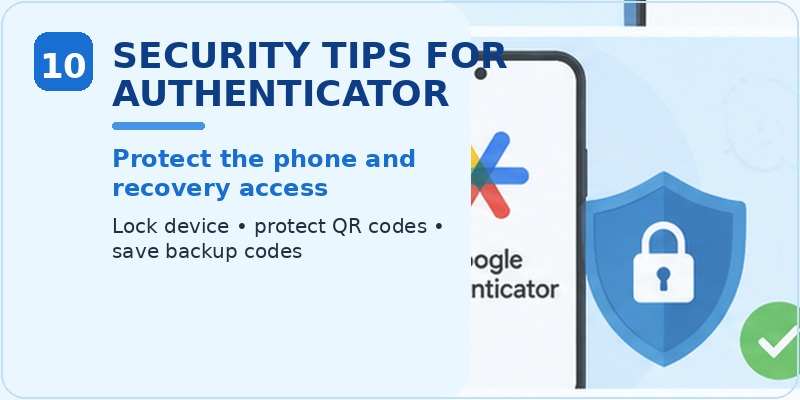
The security of google authenticator app android also depends on the security of your Android device.
Use a strong screen lock such as a PIN or password, and enable biometric unlocking when appropriate.
Keep Android and your installed applications updated. Updates frequently contain security fixes in addition to new features.
Do not leave an unlocked phone unattended when it contains authentication credentials for important accounts.
Never share setup QR codes
A QR code used to configure google authenticator app android is different from an ordinary QR code for a website.
Authentication setup information should be treated as sensitive.
Do not:
- Post setup QR codes online
- Send screenshots containing them to strangers
- Store them in public folders
- Include them in social media posts
- Let unknown people scan them
If you believe authenticator setup information has been exposed, reconfigure two-factor authentication through the affected service.
Save recovery options safely
A good authentication setup should include a recovery plan.
Before relying heavily on google authenticator app android, review the recovery methods available for your most important accounts.
Backup codes should be stored somewhere secure rather than left in an easily accessible screenshot gallery or shared document.
Also periodically check whether your recovery email address, trusted device, or other recovery information is still current.
Review old accounts
As you use google authenticator app android over time, the application may accumulate entries for services you no longer use.
Review the list periodically, but do not delete an entry simply because you do not recognize it immediately.
First confirm whether the associated account still relies on that entry for two-factor authentication.
Removing an authenticator entry from your phone does not necessarily disable 2FA on the website.
11. Is Google Authenticator App Android Worth Using?
Advantages for everyday users
For many users, google authenticator app android provides a practical balance between stronger account protection and everyday convenience.
Its primary advantages include:
- Temporary verification codes
- Offline code generation
- Support for multiple compatible accounts
- QR-code setup
- Account transfer options
- Google Account synchronization
Google confirms that verification codes can be generated without a network connection and that Authenticator codes can synchronize when a Google Account is used.
For someone currently relying entirely on passwords, adding two-factor authentication through google authenticator app android can provide an important additional login barrier.
Things to consider before switching
The app still needs to be managed carefully.
You should understand:
- How your accounts can be recovered
- Whether synchronization is enabled
- Where backup codes are stored
- How to transfer accounts before changing phones
- Which authenticator entry belongs to each account
Before deleting google authenticator app android, factory-resetting a phone, or selling an old device, verify that you can still authenticate on your new device.
For users comparing the google authenticator app for android with other authentication methods, recovery options and device compatibility are just as important as the basic code-generation feature.
Conclusion
Google authenticator app android offers a straightforward way to add authenticator-based two-factor verification to compatible online accounts.
After installation, you can connect supported services by scanning their authentication QR codes, then use the temporary codes generated by the app whenever an additional verification step is requested.
The biggest advantage of google authenticator app android is simplicity. Once an account has been configured, accessing a verification code usually takes only a few seconds, and Google states that codes can still be generated without mobile data or a network connection.
For users moving between Android devices, Google Account synchronization and manual account transfer can make migration easier. Google provides both approaches in its current Authenticator documentation.
Compatibility is also worth checking. Although older information may mention Android 5, Google’s current English documentation specifies Android 6.0 or later.
Most importantly, treat google authenticator app android as part of a broader account-security strategy. Protect your phone, keep recovery methods available, avoid sharing authentication QR codes, and verify your new device before removing access from an old one.
Configured correctly, google authenticator app android can make everyday account verification more secure without making the login process unnecessarily complicated.
[tvr_cta text=”Download TV Remote APP” url=”https://remotetv.begamob.com/dowload-appstore/?utm_source=Post&utm_campaign=SEO&utm_content=https://remotetv.begamob.com/lg-universal-remote-tv-codes/” style=”solid”]
