
Google Authenticator App Code: How to Get, Use, and Fix Verification Codes
Published August 12, 2026
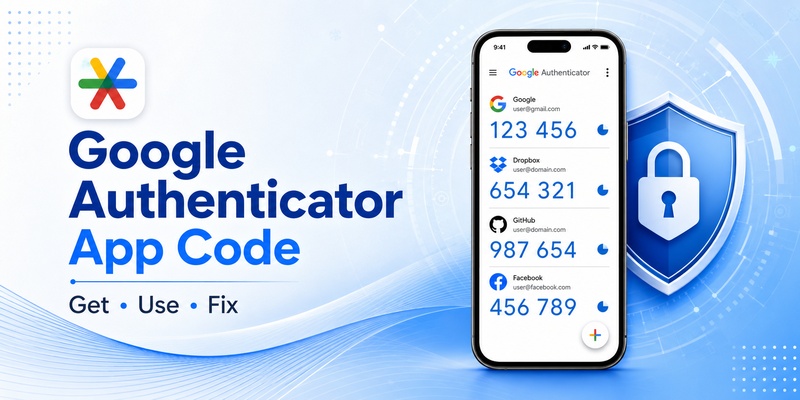
A google authenticator app code is one of the most common ways to complete two-factor authentication when signing in to an online account. Instead of relying only on a password, a supported service can ask you to open Google Authenticator and enter a temporary verification code.
Google states that Google Authenticator can generate one-time verification codes for websites and applications that support authenticator-app-based two-step verification. Once an account has been configured, the app can generate codes even when the phone does not have an Internet or cellular connection.
For many users, however, the confusing part is not installing the app. The questions usually come afterward: Where is the google authenticator app code? Why does the number keep changing? How do you connect an account with a QR code? What happens when the code disappears? Can you retrieve the same code again?
Understanding these basics makes using an authenticator app much easier.
This guide explains how a google authenticator app code works, how to configure it, how to find the correct verification number, how to use it during sign-in, and what to check when Google Authenticator stops displaying the code you expect.
1. What Is a Google Authenticator App Code?
A google authenticator app code is a temporary verification value generated by Google Authenticator for an account that has already been connected to the app.
Google Authenticator codes are a second verification step
When two-factor authentication is enabled on a compatible account, signing in often requires two pieces of information:
- Your normal account credentials, such as a password.
- A temporary verification code generated by an authentication method.
If Google Authenticator has been selected as that authentication method, you open the application and use the currently displayed google authenticator app code.
Google describes Authenticator as an application that adds an additional verification step to supported online accounts. The code can be generated directly on the phone instead of being delivered through SMS.
The term google authenticator code is therefore different from your password. Your password normally remains the same until you change it, while the authenticator value changes automatically.
Is it always a six-digit code?
Users often search for a 6 digit google authenticator code because many TOTP implementations display six digits.
For example, you might see a temporary number associated with an account inside Google Authenticator. When the displayed value changes, you should use the newest available google authenticator app code if the service still requires verification.
A search such as my google verification code can refer to several different Google verification methods. Google may use prompts, backup codes, SMS codes, security keys, passkeys, or an Authenticator-generated value depending on the security setup.
Therefore, when a website specifically says “enter a code from your authenticator app,” it is usually asking for the number shown beside the corresponding account inside Google Authenticator.
The important distinction is that the google authenticator app code belongs to a specific configured account. A code generated for one service cannot simply be reused for another service.
2. How Does a Google Authenticator App Code Work?
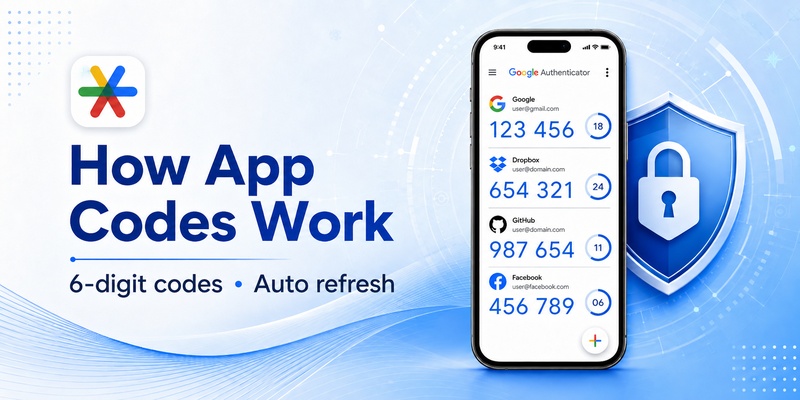
The reason a google authenticator app code can work without SMS or mobile data is that it is generated by the Authenticator application itself.
The code changes automatically
After an account has been properly added to Google Authenticator, the app has the information needed to generate verification codes for that account.
The displayed google authenticator app code changes periodically. You do not manually request a new SMS every time.
This is why searches such as 6 digit code google can be misleading. The number is not a universal Google code shared across every account. It is generated for the particular account configuration saved in the authenticator.
Similarly, a google 2fa code is not necessarily the same as every other Google security code. “2FA code” is a broad term describing a second authentication factor.
When a service expects an Authenticator-generated value, you need the current google authenticator app code associated with that service.
Why Authenticator can work offline
Google confirms that verification codes can be generated by Google Authenticator even without an active network or cellular connection.
That makes the process different from receiving a text message.
For example:
- You open the website you want to access.
- You enter your password.
- The website requests authentication.
- You open Google Authenticator.
- You read the current google authenticator app code.
- You enter it on the website.
Your phone does not need to receive a message containing the code.
This also explains why searching for get security code google does not always lead to the same process. Google supports multiple verification methods. If your login screen specifically requests Authenticator, use the code shown in the app rather than expecting an SMS.
🗺️ Browse How-To Guides: Google Authenticator: Complete 2FA Setup & Security Guide
3. How to Set Up Google Authenticator With a QR Code
Before a google authenticator app code can appear for an account, that account generally needs to be connected to Google Authenticator.
A common setup method uses a QR code.
Step 1: Enable two-factor authentication
Open the security settings of the account you want to protect.
Look for options such as:
- Two-factor authentication
- Two-step verification
- 2FA
- Authenticator application
- Authentication app
Choose the authentication-app option if it is available.
The website may then display a QR code.
Step 2: Scan the QR code
Open Google Authenticator and select the option for adding an account.
Use the camera to scan the google authenticator qr displayed by the service.
Google officially supports setting up Authenticator accounts using QR codes. Google also uses QR codes when manually transferring Authenticator accounts between devices.
After a successful setup, a new account entry should appear in the application along with a google authenticator app code.
Step 3: Confirm the first code
Do not stop simply because the account appears inside Authenticator.
Many services require you to confirm setup by entering the first generated google authenticator app code back into the website.
Select the matching account inside Google Authenticator, copy or remember the current code, and complete the verification page.
This process connects the configuration on the website with your authenticator.
Once confirmed, you should not need to scan the original setup QR code every time you log in. You simply open Google Authenticator and use the new google authenticator app code currently displayed.
Never post or publicly share an authentication setup QR code. Treat it as sensitive security information because it is associated with the setup of your authentication method.
🧭 Explore Guides: Google Authenticator 2FA: Complete Guide to Two-Step Verification
4. How to Get a Google Authenticator App Code
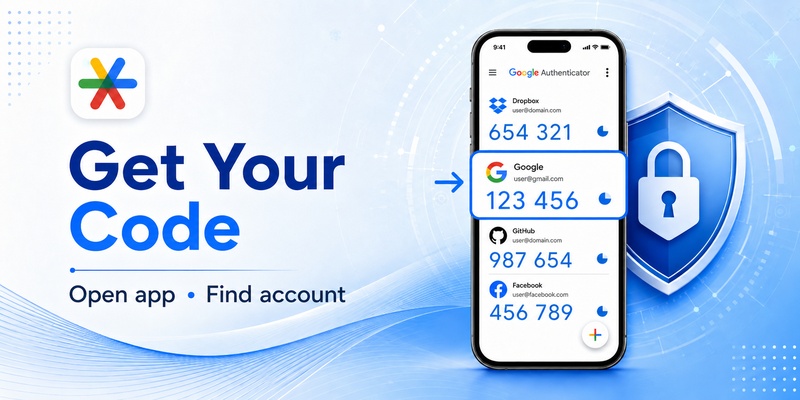
If an account is already configured, getting a google authenticator app code is usually straightforward.
Open Google Authenticator
Start the application on the device where your Authenticator accounts are stored.
You should see the accounts that have previously been added.
Locate the correct account and read its currently displayed google authenticator app code.
If you have many accounts, pay attention to the account name and associated identifier. Entering a code from the wrong entry will not authenticate the intended account.
When instructions say get a verification code from the google authenticator app, they generally mean this process:
- Open Google Authenticator.
- Locate the correct account.
- Read the current code.
- Return to the sign-in screen.
- Enter the code before it changes.
Do you need to request the code?
Normally, no.
You do not press a “send code” button each time to create a normal google authenticator app code. Once configured, Authenticator continuously generates the appropriate verification values.
That distinction is useful when someone searches get google verification code.
If a Google Account login page is asking specifically for Google Authenticator, open Authenticator. If it is asking for another verification method, follow that method instead.
The phrase my google authenticator code should therefore be understood as the current number associated with the correct entry in your app, not a permanent personal security number.
The same applies to international searches such as mon code google authenticator or code de google authenticator. Regardless of interface language, the basic workflow remains the same: open Authenticator, identify the account, and use the currently generated google authenticator app code.
5. How to Enter a Google Authenticator Code When Signing In
After you find the correct google authenticator app code, the next step is entering it into the service requesting verification.
Complete your normal login first
Most 2FA workflows begin with your normal account credentials.
After entering your username, email address, and password, the website may display an additional verification screen.
If that screen says to use an authentication application, open Google Authenticator.
Find the appropriate google authenticator app code and type it into the verification field.
The instruction enter google authenticator code does not normally mean entering your Google password, phone PIN, or device unlock code.
It means entering the temporary authentication value associated with the service.
Use the newest code
If the displayed code is close to changing, waiting for the next google authenticator app code may make the process easier.
Then:
- Read the new code.
- Switch back to the website.
- Enter it carefully.
- Submit the verification request.
The code from google authenticator app must correspond to the same account requesting authentication.
For example, if Google Authenticator contains several entries, do not simply enter the first number you see.
A google authenticator 2fa code generated for Account A cannot authenticate Account B merely because both accounts use the same Authenticator application.
Google Authenticator supports managing multiple accounts from one device, so checking the account label becomes increasingly important as you add more services.
Once the correct google authenticator app code is accepted, the login can continue according to the service’s normal authentication flow.
Download Authenticator App
Secure your accounts with fast, reliable two-factor authentication. Download now and protect your login in seconds.
6. Why Google Authenticator Is Not Showing a Code
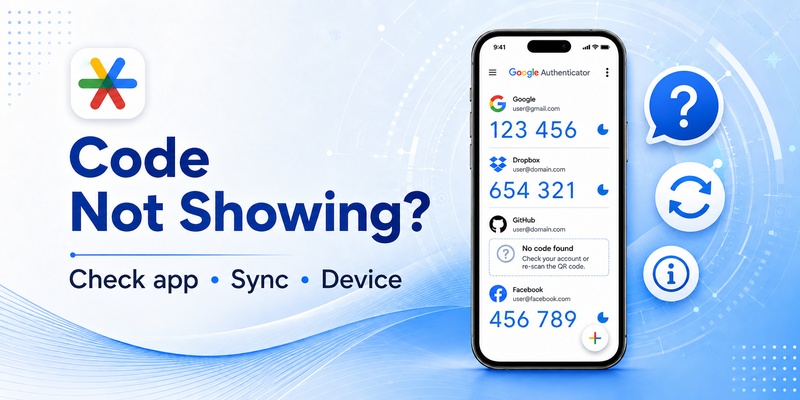
One common problem is google authenticator not showing code for an account that you expected to find.
The first step is determining whether the account was ever successfully configured.
Check whether the account exists in Authenticator
Open Google Authenticator and review the list of configured accounts.
If the service is not present, there may be no configuration available for Authenticator to generate a google authenticator app code.
Simply installing Google Authenticator does not automatically create verification codes for every account you own.
Each supported account needs to be configured or restored appropriately.
If you have recently changed phones, the account may still exist only on the old device.
Check whether codes were synced
Google currently supports syncing Authenticator codes with a Google Account when the user signs in to Google Authenticator. Google says that signing into the same Google Account in Authenticator on a new device can sync stored codes to that device.
If you use Authenticator without a Google Account, Google also supports manually transferring accounts from an old device to a new device.
Therefore, if a google authenticator app code disappears after changing phones, check whether you were using account synchronization or whether a manual transfer is required.
Do not assume that reinstalling an application automatically recreates every previously configured authenticator entry.
If you still have access to the old device, keep it available until you have verified that the required google authenticator app code appears correctly on the replacement device.
📘 Find the Right Guide: Google Authenticator Support: Setup, Supported Apps and Troubleshooting Guide
7. How to Fix a Google Authenticator Code That Does Not Work
Sometimes the google authenticator app code appears normally but the website rejects it.
Several common checks can help.
Make sure you selected the correct account
This is especially important if Authenticator contains many entries.
Verify the account name before entering the google authenticator app code.
A code from another account will not work merely because it looks similar.
Try the newest displayed code
If the code changes while you are entering it, use the newly displayed value.
Avoid repeatedly submitting an older google authenticator app code.
Check your device date and time
Time-based authentication depends on the device maintaining appropriate system time.
Google’s current Authenticator documentation notes that the previous time-correction setting is no longer available in version 7.0 and that Authenticator now uses the operating system’s time settings.
If codes are repeatedly rejected, make sure your phone’s date and time configuration is correct.
Confirm that the website expects Authenticator
Not every field labeled “verification code” expects a google authenticator app code.
A website may instead be requesting:
- An SMS code
- An email verification code
- A backup code
- Another authentication method
Read the instructions before entering the number.
A phrase such as google identification code is not a precise name for one universal credential. Google and other services can use several different security methods.
If the account specifically requests a google authenticator app code, use Authenticator. Otherwise, follow the verification method displayed by the service.
8. How to Move Google Authenticator Codes to a New Phone
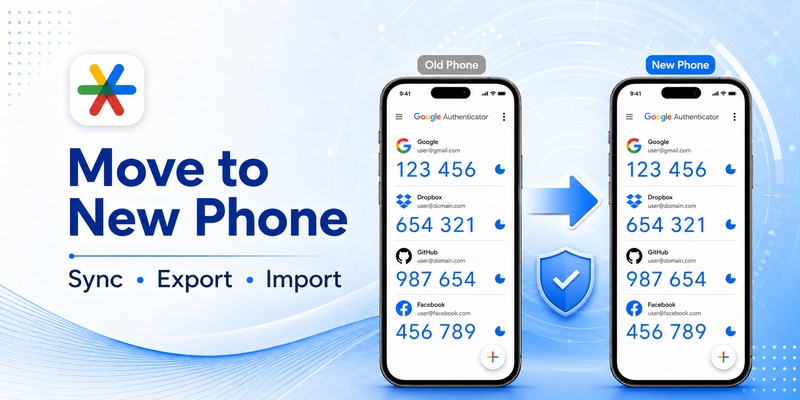
Moving to a new phone is one of the most important situations to plan for when you depend on a google authenticator app code.
Do not erase the old device until you know the new device can generate the codes you need.
Sync codes through your Google Account
Google says Authenticator can synchronize verification codes across devices when you sign in to a Google Account within the application. On a new device, signing in to the appropriate Google Account can make synchronized codes available there.
After installing Authenticator on the new device:
- Open the application.
- Sign in using the appropriate Google Account if you use synchronization.
- Check whether your accounts appear.
- Verify that the required google authenticator app code is available.
Do not remove access from the old device until the migration has been confirmed.
Transfer accounts manually
Google also provides a manual transfer process.
On the old device, Google instructs users to open Authenticator, choose Transfer accounts, and export selected accounts. The old device creates one or more QR codes. On the new device, choose the import option and scan those QR codes.
After the transfer, verify that every important account displays a google authenticator app code.
If an account is missing, resolve it before wiping the old phone.
For Google Accounts specifically, Google also recommends having backup verification methods. Backup codes can be used when normal two-step verification methods such as Authenticator are unavailable.
Planning before changing devices can prevent a missing google authenticator app code from becoming an account-recovery problem.
9. Can You Get a Google Authenticator Code Online?
The search phrase google authenticator code online can cause confusion because Google Authenticator itself is designed to generate verification codes through the Authenticator application.
You do not need Internet access to generate a code
Google explicitly states that Authenticator can generate verification codes even without a network or cellular connection.
Once an account has been configured, the application can display the current google authenticator app code locally.
That means you do not normally visit a website each time you need to generate a normal Authenticator code.
You simply:
- Open Google Authenticator.
- Find the appropriate account.
- Read the current google authenticator app code.
- Enter it into the service requesting verification.
What about synced codes?
Google Authenticator can sync codes through a Google Account across devices.
However, synchronization should not be confused with using a random third-party website to calculate your authentication codes.
Avoid entering authenticator setup secrets, QR-code information, or active verification codes into unknown websites claiming to provide an online code generator.
If you need to get google verification code for a Google Account and Authenticator is unavailable, use the recovery or alternative verification methods provided by Google rather than exposing authentication information to an unrelated service.
The safest place to obtain a normal google authenticator app code is the Authenticator environment where your account has been legitimately configured.
10. How to Use Google Authenticator Codes Safely
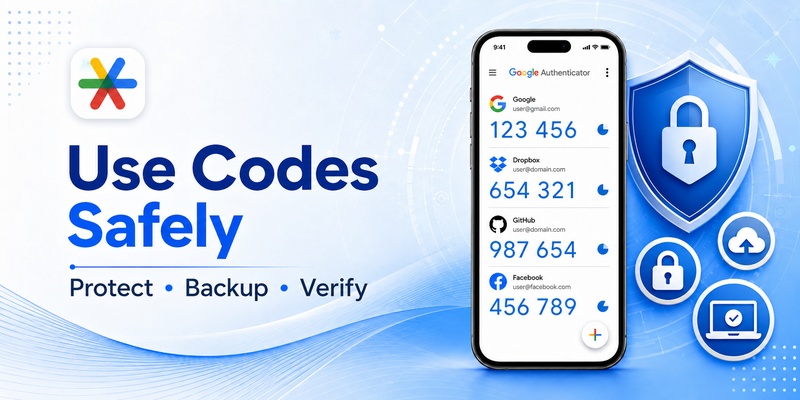
A google authenticator app code is designed to add an additional security step, but the way you handle the authenticator matters.
Never share active verification codes
Treat a current google authenticator app code as sensitive authentication information.
If another person asks you to send them your code so they can “verify” an account, do not automatically assume the request is legitimate.
Authentication codes are intended for the login process you initiated.
The same rule applies to QR codes used to configure Authenticator. Avoid sharing screenshots containing authentication setup information.
Protect the device containing Authenticator
Use your phone’s available security features, such as a screen lock.
Google’s current Google Authenticator listing also includes a Privacy Screen feature that can protect access to Authenticator using a device screen lock, PIN, or biometric authentication.
Protecting the device helps protect access to each google authenticator app code stored within the application.
Prepare a recovery method
Google supports backup codes for Google Accounts using two-step verification. Backup codes can help when you lose a phone or cannot access Authenticator through the normal method.
Do not wait until the phone is lost before reviewing recovery options.
Understand what code you are being asked for
Users searching for get security code google, my google verification code, or a google identification code may actually be dealing with different security mechanisms.
Always read the sign-in screen carefully.
If it specifically requests Google Authenticator, open the application and use the current google authenticator app code for the correct account.
If it requests a backup code, SMS verification, Google Prompt, security key, or another method, use that method instead.
Download Authenticator App
Secure your accounts with fast, reliable two-factor authentication. Download now and protect your login in seconds.
