
Amazon 2FA Authenticator App: Setup, QR Code, and Account Security Guide
Published August 24, 2026
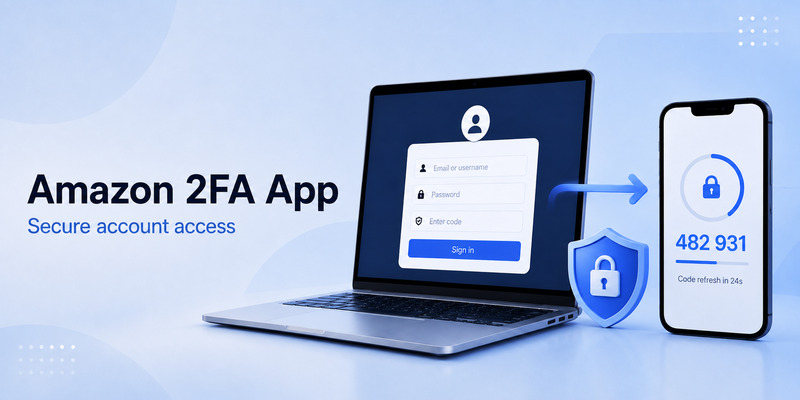
An amazon 2fa authenticator app adds an important second layer of protection to your Amazon account. Instead of relying only on your password, Amazon can require a temporary verification code when you sign in. That extra step helps reduce the chance of account takeover if a password is leaked, guessed, reused, or entered on a phishing website.
For many users, an amazon 2fa authenticator app is more practical than receiving security codes only through SMS. An authenticator can create codes even when you have no mobile signal, are traveling, or cannot receive text messages. It also keeps your verification method separate from your phone number.
Amazon calls this feature Two-Step Verification, also known as 2SV or two-factor authentication. You can generally choose a phone-based method, such as SMS or voice call, or an authenticator app that creates time-based one-time passwords.
This guide explains how an amazon 2fa authenticator app works, where to find the setup page, how to scan Amazon’s QR code, and what to do if the code does not work.
1. What Is an Amazon 2FA Authenticator App?
An amazon 2fa authenticator app is a third-party authentication tool that generates a temporary login code for your Amazon account. Amazon does not require you to use one single branded authenticator. Instead, you can choose a compatible TOTP authenticator, such as Google Authenticator, Microsoft Authenticator, Authy, or another trusted app.
This answers the common question, what is amazon authenticator app? It is not usually a separate Amazon-only app. It is an authenticator application that you connect to Amazon Two-Step Verification.
After setup, the app creates a short code—often six digits—that refreshes regularly. When Amazon asks for the second verification factor, you open the app, find the Amazon entry, and enter the current code.
The app-generated code is different from:
- Your Amazon password.
- An Amazon email verification code.
- An SMS security code.
- A delivery confirmation code.
- An account recovery code.
Always check what Amazon is asking for before entering a number. A one-time password from your authenticator app will not replace a code sent by email if Amazon specifically requests email verification.
Download Authenticator App
Secure your accounts with fast, reliable two-factor authentication. Download now and protect your login in seconds.
2. Does Amazon Have Two-Factor Authentication?
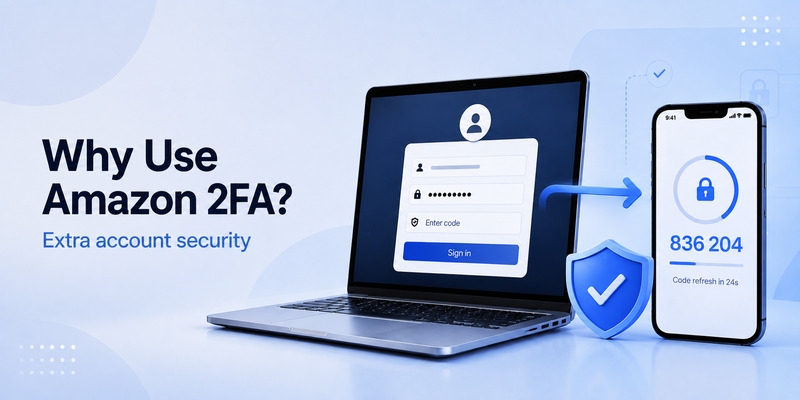
Yes. Does amazon have two factor authentication is a common question, and Amazon provides Two-Step Verification through its account Login & Security settings.
With 2fa on amazon, you sign in with something you know—your password—and then provide something you have, such as access to an authenticator app or registered phone number. This makes a stolen password less useful to an attacker.
Amazon supports authenticator applications as one option for two-step verification. It may also allow SMS text messages or automated voice calls, depending on account settings and region.
For a typical retail account, you can find the relevant controls by signing in and opening:
- Account & Lists.
- Your Account.
- Login & Security.
- Two-Step Verification or Advanced Security Settings.
The exact labels can vary slightly by Amazon site, account type, or location. The important point is that the amazon 2fa page is inside your signed-in Amazon security settings—not in an email link or a pop-up asking you to “verify immediately.”
For Amazon Business, Seller Central, KDP, and Developer accounts, two-step verification may have additional requirements. If several Amazon services use the same login credentials, turning on 2SV for one may also affect how you sign in to the others.
💡 Discover Helpful Guides: 2FA Authenticator App: Complete Guide to Setup, Use, Download, and Secure Your Accounts
3. Why Use an Authenticator App for Amazon?
Using an amazon 2fa authenticator app can offer advantages over text-message codes.
First, a code generator works without cell service after setup. This is useful when you are abroad, in an area with weak reception, or unable to receive SMS messages.
Second, authenticator codes can help reduce risks associated with phone-number attacks, including SIM swaps. An attacker who takes control of a phone number may receive SMS codes, but they should not automatically gain access to your authenticator tokens.
Third, a dedicated authenticator App can store codes for multiple accounts in one secure place. You may use it for Amazon, email, cloud storage, social networks, workplace platforms, and financial services.
However, an authenticator is not a complete security solution. You still need a strong, unique Amazon password and a secure email address. If someone gains access to your email, they may attempt password resets or change account settings.
An amazon 2fa authenticator app should be part of a wider account-security plan, not the only safeguard.
💡 Discover Helpful Guides: 2FA Authenticator App: Complete Guide to Setup, Use, Download, and Secure Your Accounts
4. How to Enable 2FA on Amazon
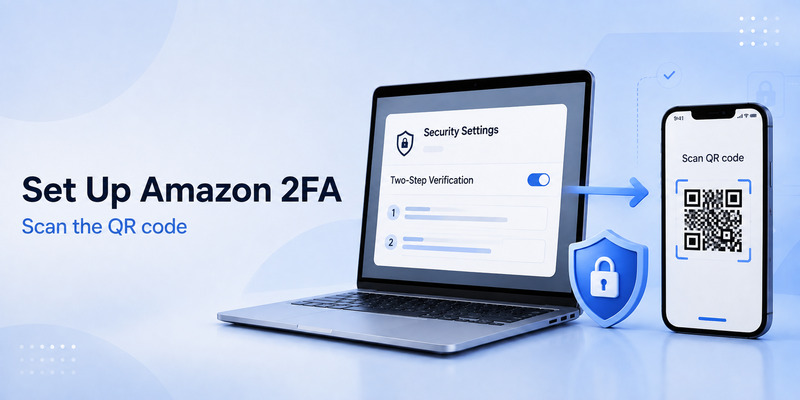
To enable 2fa amazon account protection, use Amazon’s official website or official mobile app. Do not follow setup links from unexpected text messages, advertisements, or emails.
The general process is:
- Sign in to your Amazon account.
- Go to Account & Lists and open Your Account.
- Select Login & Security.
- Find Two-Step Verification or Advanced Security Settings.
- Choose Edit or Get Started.
- Select Authenticator App as your preferred method.
- Open your chosen authenticator.
- Scan the QR code or enter the manual setup key.
- Enter the generated code on Amazon.
- Add and verify a backup method.
- Confirm the setup.
Once enabled, your amazon 2fa authenticator app will create a current code whenever Amazon requests it.
Do not rush through the backup step. Amazon commonly requires or strongly encourages a secondary verification method because people can lose devices, change phone numbers, or delete authenticator entries accidentally.
If you use a shared household Amazon account, consider the access implications before enabling 2SV. Each authorized user needs a secure and documented way to complete verification without exposing your password or authentication secrets.
5. How to Scan the Amazon QR Code
During setup, Amazon displays a barcode that links your account to the authenticator. This is the amazon qr code for authenticator app.
To scan it safely:
- Leave the Amazon setup screen open on a computer or secondary device.
- Open your authenticator app on your phone.
- Choose Add Account or Scan QR Code.
- Allow camera permission if requested.
- Scan the Amazon QR code.
- Check that a new Amazon entry appears in the authenticator.
- Enter the displayed temporary code back on Amazon.
The amazon 2fa qr code contains a secret that allows an authenticator to generate valid codes. Treat it like a password.
Never:
- Share the QR code through chat.
- Save it in an unprotected screenshot folder.
- Upload it to cloud storage without protection.
- Display it during a screen-share session.
- Send it to someone claiming to be Amazon support.
If another person scans the QR code, they may be able to generate the same Amazon verification codes. In that situation, disable and reconfigure the account’s 2SV method immediately.
If scanning is not possible, Amazon may provide a manual setup option. The amazon 2fa app key should be entered only into your own trusted authenticator. It is just as sensitive as the QR code.
📘 Explore More Useful Guides: Discord 2FA Code: Setup, Backup Codes, Errors, and Account Recovery Guide
6. Google Authenticator and Authy for Amazon 2FA
Many people search amazon 2fa google authenticator because Google Authenticator is a widely used TOTP application. It can generate temporary codes for Amazon once you scan Amazon’s QR code during setup.
Others prefer amazon 2fa authy because Authy may offer features such as encrypted backups and multi-device access. These can be convenient during a phone replacement, but they require careful configuration and a strong backup plan.
The best app depends on your needs:
| Option | Useful for | Consideration |
| Google Authenticator | Simple code generation | Review backup and transfer options before changing phones |
| Authy | Backup and multi-device workflows | Protect your backup password and trusted devices |
| Microsoft Authenticator | Users already in Microsoft ecosystems | Confirm that you add the correct Amazon TOTP entry |
| Other TOTP apps | Privacy, open-source, or desktop needs | Download only from official sources |
Amazon does not need access to your other authenticator accounts. The app stores the secret associated with Amazon and creates temporary codes locally.
Regardless of the app you choose, secure the phone with a passcode, biometric lock, updates, and remote-wipe options. Do not use an authenticator on a public or shared device.
7. How Amazon 2FA Codes Work
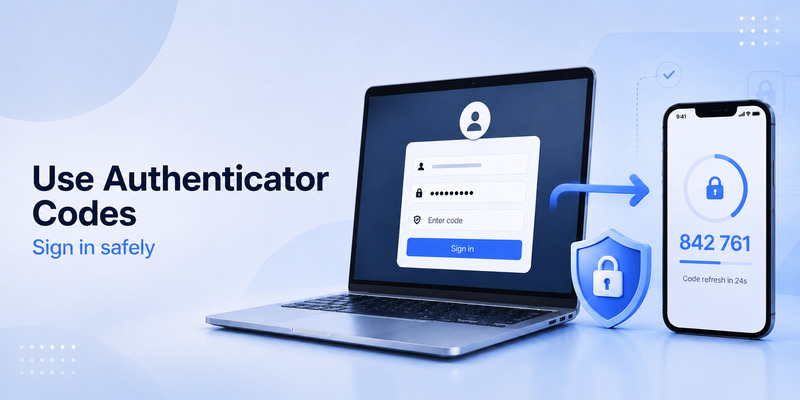
An amazon 2fa app typically generates a time-based one-time password, often called TOTP. The code changes on a repeating timer and is intended for one-time use.
When Amazon asks for the code:
- Open the authenticator.
- Select the Amazon account entry.
- Use the current code shown.
- Enter it before it changes.
- Complete the login.
If the code is close to expiring, wait for the next code before submitting it. This can prevent a failed attempt when the code refreshes during the sign-in process.
A rejected code may be caused by:
- Choosing the wrong account entry.
- Entering an expired code.
- Using an email or SMS code instead of an authenticator code.
- Incorrect phone date or time.
- An incomplete 2SV setup.
- A token that was replaced after changing security settings.
Enable automatic date, time, and time zone on your phone. Time-based codes depend on the device clock, and even a small difference can cause errors.
💡 Discover Helpful Guides: 2FA Authenticator Chrome: How to Set Up Secure Two-Factor Authentication in Your Browser
8. Add a Backup Verification Method
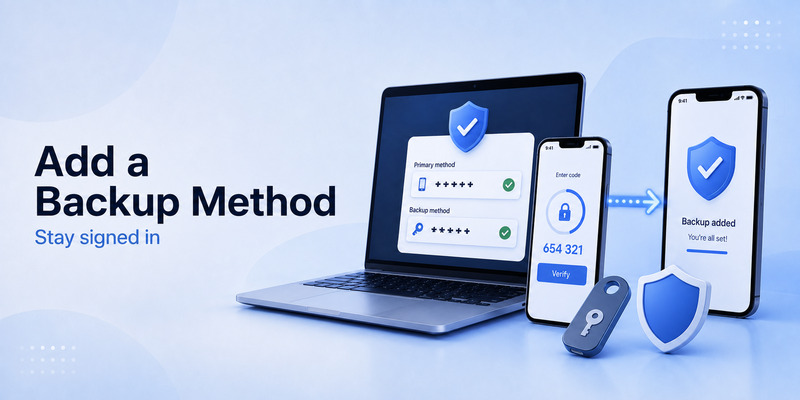
The most important part of an amazon 2fa authenticator app setup is planning for device loss.
A phone can be lost, broken, reset, stolen, or replaced. If your only verification method is inside that phone, account recovery can become much harder.
After enabling the authenticator, add a backup method in Amazon’s Two-Step Verification settings. This may be a second phone number for text or voice codes, or another supported backup method.
You should also:
- Keep Amazon recovery information current.
- Protect the email address linked to Amazon.
- Store account recovery details safely.
- Keep an additional trusted authenticator method for critical accounts when permitted.
- Update settings before changing or wiping a phone.
Do not delete the Amazon token from your authenticator until you have disabled or changed 2SV successfully within Amazon. Removing the token first can lock you out.
💡 Discover Helpful Guides: Roblox 2FA Authenticator: Setup, Login, Recovery, and Security Guide
9. Fix Amazon Authenticator App Problems
The code does not work
Confirm that you selected the Amazon entry, wait for a newly generated code, and check automatic time settings on the device.
I cannot scan the QR code
Use the manual key option if Amazon provides one. Enter it only in your official authenticator app. Never paste the key into a random website or browser extension.
I lost my phone
Try the backup method you registered with Amazon. If that is unavailable, start Amazon’s official account-recovery process. You may need to verify ownership before regaining access.
I changed phones
Transfer or restore your authenticator token before wiping the old phone. Then test an Amazon sign-in on the new device before deleting the old entry.
I received an unexpected verification request
Do not approve it or share a code. Change your Amazon password, review your Login & Security settings, check recent orders and addresses, and contact Amazon through its official help channels if you see unauthorized activity.
📘 Explore More Useful Guides: 2FA Authenticator Instagram: Complete Setup, Login, Recovery, and Troubleshooting Guide
10. Protect Your Amazon Account From Phishing
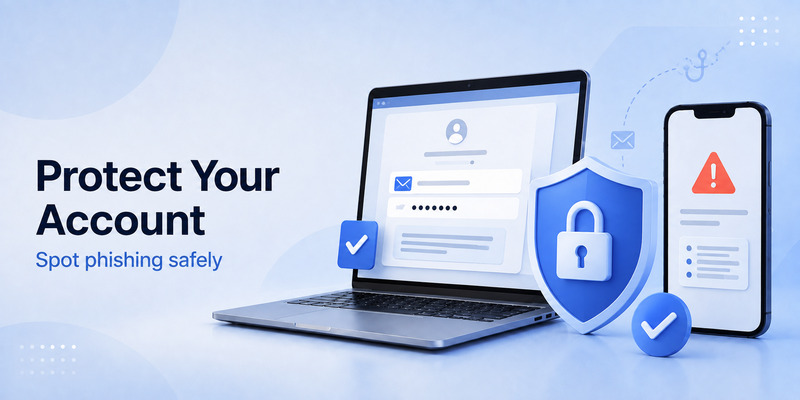
An amazon 2fa authenticator app is valuable, but phishing can still defeat it if you enter a current code into a fake Amazon site.
Before entering any password or code:
- Check the browser address carefully.
- Use Amazon bookmarks rather than email links.
- Avoid signing in from unexpected text messages.
- Do not share codes with “support agents.”
- Treat urgent warnings with caution.
- Review order and account activity directly in Amazon.
Amazon support should not need your current authenticator code, QR code, secret key, or full password. Anyone asking for these is likely attempting account takeover.
11. Frequently Asked Questions
Does Amazon have its own authenticator app?
Amazon supports compatible authenticator apps for Two-Step Verification. Most users choose a trusted third-party TOTP application rather than a dedicated Amazon-only authenticator.
Can I use Google Authenticator for Amazon?
Yes. You can generally connect Google Authenticator by selecting Authenticator App in Amazon’s Two-Step Verification setup, scanning the QR code, and entering the generated code.
Can I use Authy for Amazon?
Yes. Authy can generate standard TOTP codes after you scan the Amazon QR code. Secure Authy backups and secondary devices carefully.
What if I do not have phone signal?
An authenticator app can generate existing time-based codes without a mobile signal or internet connection. You may still need internet access to open Amazon and sign in.
Can I turn off Amazon Two-Step Verification?
Amazon retail accounts may allow you to manage this in Two-Step Verification settings. However, some Amazon services or business environments can require 2SV for sensitive actions. Review the current policy for your specific account type before disabling it.
📘 Explore More Useful Guides: Snapchat 2FA Code: Meaning, SMS Texts, Setup, and Account Security Guide
12. Final Thoughts
An amazon 2fa authenticator app is one of the simplest ways to make an Amazon account harder to compromise. It adds a temporary code to the login process, helping protect your orders, payment details, addresses, subscriptions, and account history when a password alone is not enough.
Set up Two-Step Verification from Amazon’s official Login & Security page, scan the QR code only with a trusted app, add a backup method, and protect your phone and email account. Most importantly, never share live verification codes, QR codes, or setup keys with anyone.
With a careful setup, an amazon 2fa authenticator app gives you stronger account protection while keeping sign-in straightforward.
Download Authenticator App
Secure your accounts with fast, reliable two-factor authentication. Download now and protect your login in seconds.
