
2FA Authenticator by TypingDNA: Browser-Based Codes and Typing Biometrics Guide
Published August 24, 2026
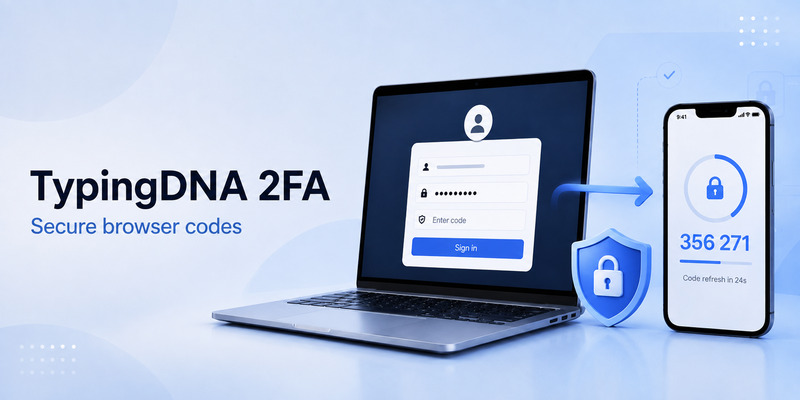
Most authenticator apps live on a smartphone. That approach is familiar and useful, but it is not ideal for everyone. Some users work primarily in Chrome, cannot use a personal phone for work authentication, or want a more direct way to access one-time passwords from their browser. 2fa authenticator by typingdna is designed for that browser-first use case.
Instead of requiring users to pick up a phone whenever a website asks for a verification code, 2fa authenticator by typingdna lets them access time-based one-time password codes from a Chrome extension. It can scan QR codes, store the secrets used to generate codes, and display the current code directly in the browser.
What makes the product different is its premium security model. TypingDNA can use typing biometrics—the distinct way a person types a phrase—to help protect access to stored 2FA secrets. This means the security experience can include more than a password alone.
This guide explains how 2fa authenticator by typingdna works, how to set it up, where codes are stored, and what to consider before relying on a browser extension for important accounts.
1. What Is 2FA Authenticator by TypingDNA?
2fa authenticator by typingdna is a Chrome-based authenticator that generates temporary verification codes for services that support time-based one-time passwords, also called TOTP.
A TOTP code is usually a six-digit number that changes every few seconds. When you log in to a website, you enter your password first and then provide the current code from the authenticator. The second code helps protect the account if your password is stolen.
The important distinction is that 2fa authenticator by typingdna works in the browser rather than as a traditional phone-first application. It is intended for users who want to view and copy codes without switching from their computer to a mobile device.
The extension can be used with many services that support standard TOTP authentication. However, availability and setup may differ by website. Always check the security settings of the account you are protecting before adding a new authenticator method.
An authenticator App is not a password manager and does not replace account-recovery codes. It generates the second factor required by a service. You should still use strong unique passwords, protect your email account, and store recovery codes safely.
Download Authenticator App
Secure your accounts with fast, reliable two-factor authentication. Download now and protect your login in seconds.
2. How TypingDNA’s Browser Authenticator Works
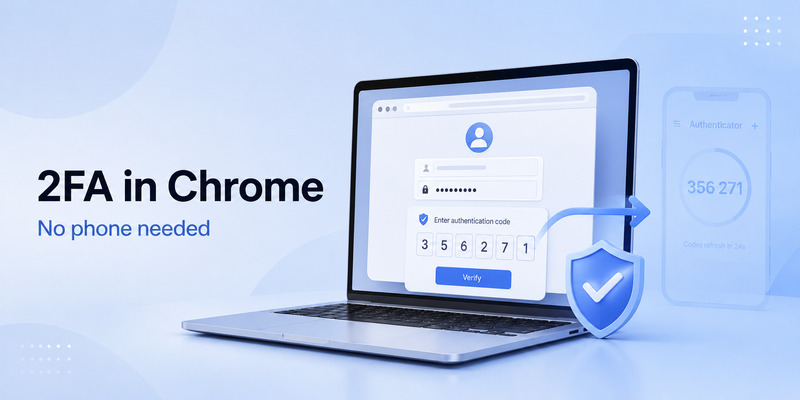
To understand 2fa authenticator by typingdna, it helps to understand the standard TOTP process.
When you enable authenticator-based two-factor authentication on a website, that website creates a secret key. It usually displays the secret in one of two ways:
- A QR code to scan.
- A manual setup key to enter.
The secret is stored in the authenticator. The website and your authenticator then use the same secret plus the current time to calculate matching temporary codes.
A basic 2fa authentication example looks like this:
- You sign in to a website with your username and password.
- The website requests a one-time verification code.
- You open the TypingDNA extension in Chrome.
- You select the right account entry.
- The extension shows the current temporary code.
- You enter or copy the code before it refreshes.
- The website verifies it and completes the sign-in.
The authenticator 2fa code is not sent by email, and it is not usually delivered by SMS. It is generated from the secret stored in the authenticator.
Because the code refreshes regularly, an old code normally cannot be used later. That makes it harder for an attacker to reuse a code captured from a previous login.
 Discover Helpful Guides: 2FA Authenticator App: Complete Guide to Setup, Use, Download, and Secure Your Accounts
3. Typing Biometrics: The Main Security Difference
The distinctive feature of 2fa authenticator by typingdna is its use of typing biometrics in the secured premium experience.
Typing biometrics analyzes behavioral characteristics such as typing speed, rhythm, timing, and key-press patterns. Rather than relying only on what you type, the system considers how you type it.
For example, two people can enter the same phrase, but their typing pattern may differ because of pauses, typing speed, key pressure timing, and overall rhythm. TypingDNA uses this pattern as an additional security signal.
With the premium version, 2fa authenticator by typingdna can use your typing pattern together with account credentials to help protect the encryption key used for stored secrets. The stored QR secrets are used to generate temporary authentication codes.
This model may appeal to users who want 2FA access in a browser but also want a stronger control than a simple extension password. It can also be useful in work settings where employees cannot use personal phones as a required authentication device.
However, typing biometrics are not magic. They do not eliminate the need for endpoint security. If an attacker fully controls your computer, browser profile, or session, other layers of protection still matter.
4. How to Set Up 2FA Authenticator by TypingDNA
Setting up 2fa authenticator by typingdna should begin with the official TypingDNA authenticator page or Chrome Web Store listing. Avoid browser extensions shared through ads, unofficial download websites, or direct messages.
Before installation, make sure that:
- Chrome is updated.
- Your computer uses a strong login password.
- Your browser profile is private and not shared.
- Your device is protected from malware.
- You are not using a public or borrowed computer.
The general setup process is:
- Install the official TypingDNA authenticator extension in Chrome.
- Open the extension after installation.
- Choose the free or secured premium option that matches your needs.
- If using premium, follow the enrollment steps for your email, password or secured phrase, and typing-pattern registration.
- Add your first two-factor authentication account.
- Test a code with a low-risk account before adding critical services.
During premium enrollment, type naturally and consistently. Very different keyboards, unusual typing positions, injuries, or intentionally altered typing speed may affect the typing-biometric experience.
If your typing style changes over time, TypingDNA provides account-reset options through the extension’s established recovery path. Do not try to work around authentication failures by creating duplicate or unsecured browser profiles without understanding the security implications.
Discover Helpful Guides: 2FA Authenticator App: Complete Guide to Setup, Use, Download, and Secure Your Accounts
5. Add Accounts With a QR Code or Secret Key
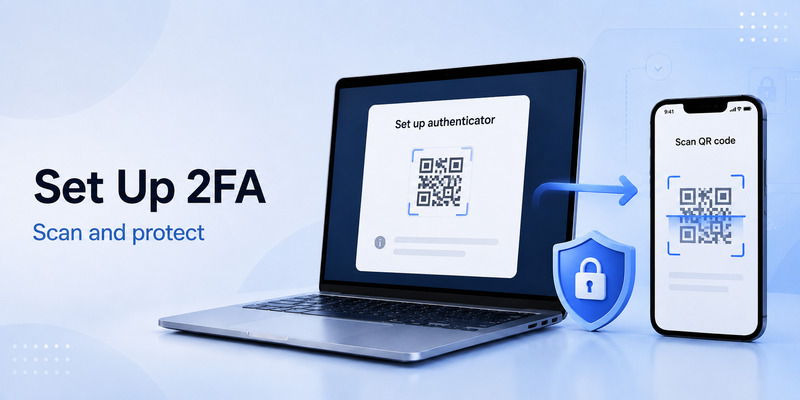
To add a website to 2fa authenticator by typingdna, you must first turn on TOTP-based two-factor authentication at that website.
The usual process is:
- Sign in directly to the website you want to protect.
- Open its Security, Login, or Two-Factor Authentication settings.
- Choose an authenticator-app option.
- Display the QR code or secret key.
- Open the TypingDNA extension.
- Scan the code or enter the secret manually.
- Enter the generated code back on the website to confirm setup.
- Save the website’s recovery codes separately.
A 2fa authenticator qr code contains highly sensitive information. Anyone who scans it can potentially generate the same verification codes for that account. Treat it like a password.
Do not send the QR code through chat, save it in an unprotected screenshot folder, post it in a support ticket, or leave it open while screen sharing. If you believe another person has copied the QR code, disable and reconfigure 2FA at the affected website.
Some websites also show a manual secret key. Use it only in the legitimate authenticator extension. Never give the key to a person claiming to be technical support.
6. How to Use and Copy Authentication Codes
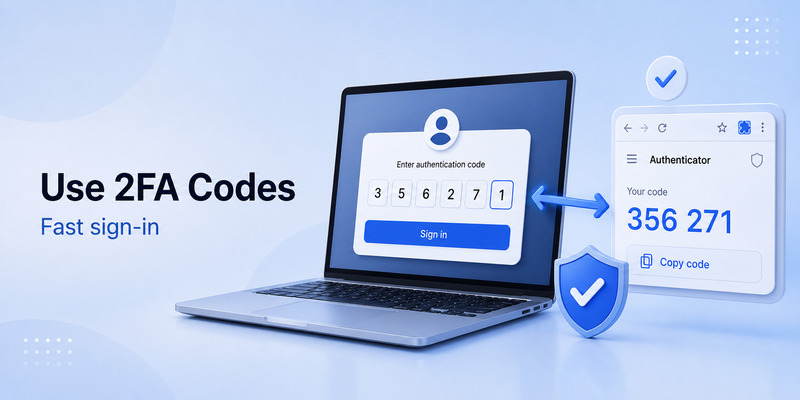
Once an account is added, 2fa authenticator by typingdna generates the current one-time code inside your browser.
Open the extension, locate the website or account label, and use the code currently displayed. In many cases, you can copy the code and paste it into the login screen.
That convenience is one of the biggest advantages of a browser authenticator. You do not need to interrupt your workflow, unlock a phone, open another app, and manually type a number.
Still, users should understand a limitation: some websites block pasted verification codes or treat pasted values differently. If a website rejects a code that was copied and pasted, try typing the current code character by character.
You should also wait for a fresh code if the countdown is about to expire. A code can become invalid while you are switching tabs or completing another login step.
If a code is rejected repeatedly, check:
- You selected the correct account entry.
- Your computer’s date and time are accurate.
- The site uses TOTP rather than another verification method.
- You entered the newest code before it refreshed.
- You did not accidentally add the wrong QR code.
- The website did not already reset or replace its 2FA setup.
 Explore More Useful Guides: Discord 2FA Code: Setup, Backup Codes, Errors, and Account Recovery Guide
7. Local Storage, Chrome Sync, and Backup Choices
A critical part of authenticator how does it work is understanding where the secret keys are stored.
TypingDNA explains that its secured premium model stores authentication secrets locally on the device. The typing-biometric protected encryption approach is designed to protect those secrets at rest.
The free version may offer local storage and Chrome Sync-based storage options. Chrome Sync can be convenient when you use the same Chrome profile on more than one device, but convenience introduces risk.
If secrets are stored through browser sync and someone gains access to your Google account or Chrome profile, they may be able to access synced code data. For this reason, carefully assess whether cloud sync is appropriate for high-value accounts.
A secure backup strategy should include:
- Recovery codes from each protected website.
- A protected export of secrets, if you choose to create one.
- A mobile authenticator backup for critical accounts.
- Strong security on the email account tied to Chrome.
- Regular review of signed-in browser profiles and devices.
A browser extension can be useful, but you should avoid making it the only recovery method for a banking, work, cloud, or cryptocurrency account.
Discover Helpful Guides: 2FA Authenticator Chrome: How to Set Up Secure Two-Factor Authentication in Your Browser
8. Free vs Premium Protection

The free and premium approaches to 2fa authenticator by typingdna serve different needs.
The free version is designed for users who want fast browser access to TOTP codes without the secure typing-biometric login flow. It can be simpler and faster because it does not require the same account-protection steps.
The premium version adds TypingDNA’s protected experience. Access to the stored secrets is tied to a local account and protected through credentials and typing-pattern authentication.
In practical terms, the choice is a tradeoff:
| Option | Best for | Key consideration |
| Free | Low-friction, local browser code access | Fewer protections around stored secrets |
| Premium | Users who want typing-biometric protection | Requires thoughtful setup and consistent recovery planning |
A reliable 2fa authenticator app review should not treat “free” as automatically unsafe or “premium” as automatically perfect. The right option depends on the accounts you protect, the security of your computer, your tolerance for setup friction, and whether you maintain backups.
For sensitive accounts, a premium browser setup plus a separate mobile backup may be safer than relying on only one factor or one device.
9. Migrate Codes to Another Device Safely
Moving 2fa authenticator by typingdna to another computer requires planning because locally stored secrets may not automatically appear on a new browser installation.
Before changing devices, export your secrets using the extension’s official export feature. Store the exported file securely, preferably with encryption. Then install the official extension on the new computer and import the file using the official import option.
A safe migration checklist includes:
- Keep your original computer available until migration is confirmed.
- Export secrets only from the official extension.
- Encrypt the export if you store it temporarily.
- Transfer it through a secure method.
- Import it into the official extension on the new device.
- Test at least one low-risk account.
- Confirm your most important codes are visible.
- Remove the export file once the migration is complete.
- Retain independent website recovery codes.
Do not wipe the old computer or reset your Chrome profile before checking that the new device produces valid codes.
Also remember that separate browser locations can behave as separate local environments. A change in device, operating system, OS user, Chrome installation, or Chrome profile can affect where locally stored authentication data is available.
Discover Helpful Guides: Roblox 2FA Authenticator: Setup, Login, Recovery, and Security Guide
10. Security Risks and Best Practices
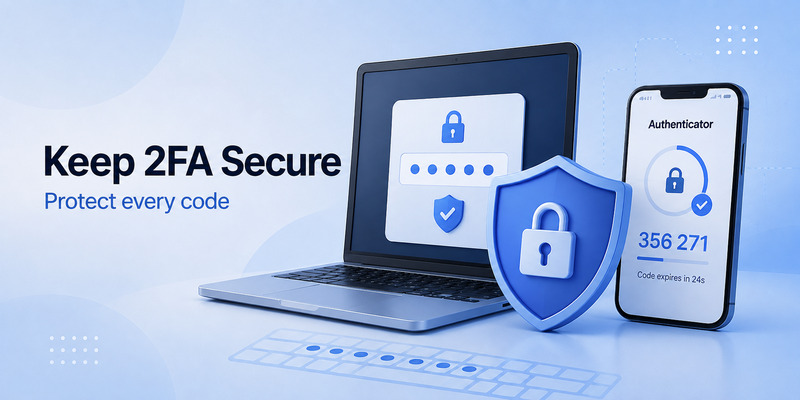
The biggest risk with 2fa authenticator by typingdna is not the code generator itself. It is the security of the browser and computer that store or display the codes.
Follow these practices:
- Use a strong Windows, macOS, or Linux account password.
- Enable automatic screen locking.
- Use full-disk encryption.
- Keep Chrome and the extension updated.
- Use a separate browser profile for sensitive work if appropriate.
- Do not use the extension on shared computers.
- Review Chrome extensions and remove unnecessary ones.
- Secure the Google account connected to Chrome.
- Keep another authenticator or recovery code for vital accounts.
- Never reveal a live 2FA code, QR code, or setup secret.
Phishing remains a major danger. A fake website can ask for your password and a current temporary code, then use both immediately on the real service. Check website addresses before entering any authentication code.
Typing biometrics can add a useful layer, but it cannot stop a user from entering a code into a convincing fake website. Awareness and careful login habits remain essential.
Explore More Useful Guides: 2FA Authenticator Instagram: Complete Setup, Login, Recovery, and Troubleshooting Guide
11. Common Problems and Troubleshooting
The extension cannot generate a code
Check whether the account token was added correctly. If the secret key was entered incorrectly, remove the token only after confirming you have recovery access to the original website.
The current code is rejected
Wait for a new code, verify your computer’s automatic time settings, and confirm that you selected the correct account. Some sites require manual typing rather than pasted codes.
Typing-biometric verification fails
Type naturally, use your usual keyboard where possible, and avoid rushing or adding unusual pauses. If your typing pattern changed significantly, follow the official reset option in the original extension environment.
You changed computers
Use the approved export-and-import process before retiring the old machine. Local storage does not automatically guarantee that codes are available on a separate computer or browser profile.
You lost access to your device
Use backup authenticator tokens or recovery codes from the individual websites. If no backup exists, follow the official account-recovery process for each protected service. Do not use third parties that claim they can bypass 2FA.
Explore More Useful Guides: Snapchat 2FA Code: Meaning, SMS Texts, Setup, and Account Security Guide
12. Frequently Asked Questions
Is 2FA Authenticator by TypingDNA a phone app?
It is a Chrome browser extension designed to provide 2FA codes directly in the browser. It can reduce dependence on a phone during sign-in.
Can I use it with Google Authenticator?
Both tools can support standard TOTP services. For critical accounts, you may choose to maintain a separate mobile authenticator backup, but check each website’s rules before configuring multiple methods.
Does TypingDNA store my secret codes in the cloud?
TypingDNA states that secured premium secrets are stored locally, while cloud-related behavior differs depending on the storage option selected. Review the current product settings before enabling any synchronization feature.
What happens if I lose my browser profile?
If codes were only stored locally and you have no export, backup authenticator, or recovery codes, you may need to recover each protected website individually. Plan backups before a device loss occurs.
Is typing biometrics enough by itself?
No. It is an extra protection layer. You still need a secure computer, strong passwords, a protected email account, and phishing awareness.
13. Final Thoughts
2fa authenticator by typingdna is a browser-based alternative for users who want TOTP verification codes available directly in Chrome. Its main differentiator is the option to protect local secrets with TypingDNA’s typing-biometric authentication.
The product can be useful for browser-heavy workflows and phone-free 2FA situations, but it should be configured with care. Store recovery codes separately, protect your browser profile, avoid untrusted extensions, and keep an independent backup method for important accounts.
When combined with strong endpoint security and good recovery planning, 2fa authenticator by typingdna can make two-factor authentication more convenient without removing the need for careful account protection.
Download Authenticator App
Secure your accounts with fast, reliable two-factor authentication. Download now and protect your login in seconds.
