
2FA Authenticator App Download: How to Choose, Install, and Use a Secure Authenticator
Published August 24, 2026
A 2FA Authenticator App download gives you a convenient way to generate time-based security codes and add an extra layer of protection to your online accounts. However, not every authenticator app offers the same level of security, privacy, backup, or recovery options. This guide explains how to choose a secure authenticator, install it safely, set up 2FA, and use verification codes without losing access to your accounts.
1. What Does 2FA Authenticator App Download Mean?
A 2fa authenticator app download is the process of installing an app that generates temporary verification codes for your online accounts. These apps support two-factor authentication, also called 2FA, which adds another sign-in step after your password.
When an account supports app-based two-factor authentication, it gives you a QR code or a manual setup key. You add that information to your chosen app, and the app begins generating short, time-limited codes. The next time you sign in, you enter your password and the current code from the app.
A 2fa authenticator app download is useful for protecting email, social media, shopping, cloud storage, finance, work, gaming, and creator accounts. Even if someone obtains your password, they should not be able to finish signing in without the second code or another approved verification method.
Many people search 2fa download because they receive a message telling them to turn on two-step verification but do not know what to install. The important point is that you do not usually need an app made by every individual website. One trusted authenticator can often hold codes for many services.
Before beginning a 2fa authenticator app download, understand the difference between an authenticator app and a password manager. An authenticator app stores the secret used to create temporary login codes. A password manager primarily stores passwords, although some password managers can also generate one-time codes. Both tools can be useful, but separating them may offer an additional layer of protection for some users.
Download Authenticator App
Secure your accounts with fast, reliable two-factor authentication. Download now and protect your login in seconds.
2. Why Download an Authenticator App?
A 2fa authenticator app download gives you a stronger alternative to password-only sign-in. Passwords can be guessed, reused, leaked in breaches, stolen by malware, or captured on phishing pages. A rotating code adds a second requirement that is much harder for a basic attacker to meet.
Authenticator codes are commonly based on a standard called TOTP, or time-based one-time password. The code changes frequently and is accepted only for a short window. Unlike a static password, a code from ten minutes ago is normally useless.
A 2fa authenticator app download can be particularly valuable when you:
- Reuse passwords or suspect you may have reused them in the past.
- Manage business, creator, admin, or financial accounts.
- Keep private files in cloud storage.
- Buy products online using a saved payment method.
- Use public Wi-Fi or shared devices.
- Want to reduce reliance on SMS messages.
- Need verification codes even when your phone has no mobile signal.
SMS verification is better than having no second factor, but it can be vulnerable to SIM-swap attacks, message interception, or number-recycling problems. An app-based code is generated directly on your device and does not depend on a text message arriving.
A secure 2fa authenticator app download also gives you a simple routine: unlock the app, find the account name, enter the active code, and continue. Once you are used to it, the added sign-in step usually takes only a few seconds.
💡 Discover Helpful Guides: 2FA Authenticator App: Complete Guide to Setup, Use, Download, and Secure Your Accounts
3. How Do 2FA Apps Work?
People asking how do 2fa apps work are often surprised that the app can create working codes even without Wi-Fi or mobile data. The answer is that the app and the website share a secret during setup. Both use that secret and the current time to calculate the same temporary code.
A 2fa authenticator app download does not give the app access to every password you own. Instead, it creates a local entry for each account you add. The entry may include the service name, your username or email address, a six- or eight-digit code, and a countdown indicator.
The setup normally follows this sequence:
- Sign in to the website you want to protect.
- Open its Security, Privacy, Login, or Two-Factor Authentication settings.
- Choose an authenticator app as the verification method.
- Scan a QR code or enter a manual setup key.
- Type the current code from your app to confirm the connection.
- Save recovery or backup codes in a secure location.
After a 2fa authenticator app download, the app becomes a key part of your login security. Never share a current code with another person. A legitimate company, support agent, friend, employer, game moderator, or buyer should not ask for it. If someone asks you to provide a fresh code “for verification,” assume they may be attempting to access your account.
💡 Discover Helpful Guides: 2FA Authenticator App: Complete Guide to Setup, Use, Download, and Secure Your Accounts
4. Choose the Right Authenticator Before Downloading
Not every 2fa authenticator app download offers the same features. The safest choice depends on your devices, recovery needs, privacy preferences, and the number of accounts you want to protect.
Start with the basics. Look for an app from a recognizable publisher, a good security reputation, a clear privacy policy, and a regular update history. Download it only from the official Apple App Store, Google Play Store, Microsoft Store, a verified developer website, or another official platform channel.
Then compare these features:
Device support
If you use Android, iPhone, Windows, Mac, or Linux, make sure the app works on the devices you actually use. Some apps are mobile-only. Others support both phone and desktop access.
Backup and transfer options
A 2fa authenticator app download should not become a single point of failure. Check whether the app supports encrypted backup, secure sync, device transfer, export, or a recovery process. Read the instructions before you place dozens of accounts into the app.
App lock
Choose an app that supports a PIN, fingerprint, Face ID, or another local lock when possible. This helps protect your codes if someone gets temporary access to an unlocked phone.
Clear account management
You should be able to search, rename, organize, and remove entries easily. This matters when you use an authenticator for many accounts.
Privacy model
Review whether the app collects analytics, uses ads, requires an account, or offers encrypted syncing. For example, a proton authenticator download may appeal to users who want a free, open-source option with secure syncing and backup features. Proton states that its Authenticator supports iOS, Android, Windows, macOS, and Linux, and can be used without creating a Proton Account. See the official Proton Authenticator page for current details.
The best 2fa authenticator app download is not automatically the most famous app. It is the one you can keep updated, understand, recover safely, and use consistently.
📘 Explore More Useful Guides: Discord 2FA Code: Setup, Backup Codes, Errors, and Account Recovery Guide
5. Where to Download a 2FA Authenticator App Safely
A safe 2fa authenticator app download starts with the source. Search engines, sponsored ads, unofficial APK sites, browser pop-ups, and fake “security alert” pages can lead to counterfeit apps. These apps may steal the QR codes or setup keys you add.
Use these safe download practices:
- Search for the exact app name in the official app store.
- Check the developer or publisher name carefully.
- Visit the official developer website and follow its store link.
- Avoid “premium unlocked,” cracked, or modded authenticator downloads.
- Do not install apps from links sent in unsolicited texts, DMs, or emails.
- Review permissions and reject anything unrelated to the app’s core function.
- Keep your phone and the authenticator app updated.
The phrase download two factor authentication app can lead to many results, but you should not choose an app based only on its search ranking. Attackers often copy real app names, icons, and screenshots. Verify the publisher before tapping Install.
Likewise, authenticator download should mean installing an app from an official, trusted source—not downloading an unknown file from a random website. A real authenticator does not need your social-media password, bank password, or email password during installation.
After your 2fa authenticator app download finishes, set an app lock immediately if available. Then create a secure device lock. A strong authenticator is much less helpful if your phone is left unlocked or your screen PIN is easy to guess.
💡 Discover Helpful Guides: 2FA Authenticator Chrome: How to Set Up Secure Two-Factor Authentication in Your Browser
6. How to Set Up Your First 2FA Account

Once your 2fa authenticator app download is complete, choose one important account to protect first. Your primary email account is usually the best place to start because it is often used for password resets on other services.
Sign in to the account using the official website or app. Go to the account’s security settings and look for options such as “Two-Factor Authentication,” “Two-Step Verification,” “Authenticator App,” or “Authentication App.”
Select the authenticator option. The service will usually display a QR code. Open your new authenticator, tap the add-account button, and choose the scan option. After scanning, the app should display a changing code for that account.
Enter the code on the website before it expires. The service should then confirm that two-factor authentication is active.
A successful 2fa authenticator app download is only the beginning. Right after setup, complete these safety tasks:
- Download or generate recovery codes.
- Store those codes somewhere secure and separate from your phone.
- Confirm your recovery email address and phone number are current.
- Add a passkey or security key if the account supports it.
- Test a new sign-in on another browser before relying fully on the setup.
If you see get code 2fa app download in a search query, remember that you do not download a new app every time a website asks for a code. You install your authenticator once, add each supported account, and retrieve the current code from the matching entry.
7. Use QR Codes and Manual Setup Keys Safely
QR codes are convenient, but they are sensitive. During a 2fa authenticator app download and setup process, the QR code contains the secret that creates your account’s future verification codes. Anyone who scans it can potentially generate the same codes.
Treat the QR code like a password:
- Do not screenshot it.
- Do not send it to a friend, coworker, or “support agent.”
- Do not show it during a video call or screen share.
- Do not upload it to cloud storage or a chat app.
- Do not scan codes from unofficial websites.
If a website offers a manual key instead of a QR code, protect it in the same way. Enter it only into the authenticator app you chose. Do not paste it into web forms, AI chatbots, public notes, or browser extensions.
A 2fa authenticator download should also include a plan for accidental exposure. If you believe someone saw your QR code or setup key, return to that account’s security settings, remove the existing authenticator connection, and set it up again. This replaces the old secret with a new one.
Using a 2fa authentication app download safely means protecting not just the short codes, but also the secret that generates them.
💡 Discover Helpful Guides: Roblox 2FA Authenticator: Setup, Login, Recovery, and Security Guide
8. Is 2FA Free?
The answer to is 2fa free is usually yes. Many websites offer two-factor authentication at no extra cost, and many authenticator apps can be installed and used for free. However, features such as advanced backup, family sharing, enterprise administration, or premium password-management tools may require payment.
Free does not mean unsafe. A 2fa authenticator app download can provide substantial protection without a subscription. What matters most is whether the app is reputable, kept up to date, and suitable for your recovery needs.
Before paying for an app, decide what problem you are solving. You may need:
- Multi-device syncing.
- Encrypted cloud backup.
- Desktop access.
- Team administration.
- A bundled password manager.
- Offline code access.
- Advanced account organization.
For a basic personal setup, a free authenticator may be enough. For a business owner, developer, or user with many high-value accounts, additional security and recovery options may justify a paid plan.
A 2fa authenticator app download should always be followed by a backup-code review. Even the best app cannot protect you from a lost device if you have no recovery options.
📘 Explore More Useful Guides: 2FA Authenticator Instagram: Complete Setup, Login, Recovery, and Troubleshooting Guide
9. iPhone, Android, and Desktop Authenticator Options
An iphone 2fa app works much like an Android authenticator. You download it from the App Store, protect it with Face ID or a passcode when available, then scan a QR code from each account’s security settings.
Users sometimes ask does apple have a 2fa app because iPhone and Mac have built-in password and verification-code features in Apple’s ecosystem. Apple’s Passwords tools can help manage verification codes for supported sign-ins, while third-party authenticator apps provide another option for people who want a dedicated code generator or cross-platform access.
The right 2fa authenticator app download depends on whether you use only Apple devices or switch between iPhone, Android, Windows, and Mac. Cross-platform users may prefer an app with a well-documented encrypted sync or export process. Apple-only users may prioritize tight device integration and iCloud-based recovery.
Desktop support can be useful, but it also changes your security model. If codes are available on your computer, protect that computer with a strong login password, disk encryption, automatic updates, and screen lock. Do not assume a desktop app is automatically less safe; instead, understand where your codes are stored and how access is protected.
10. Move Your Codes to a New Phone Without Losing Access
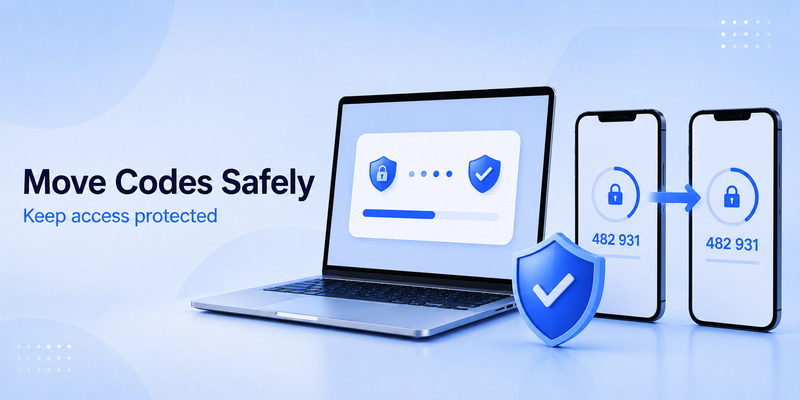
Changing phones is one of the biggest risks after a 2fa authenticator app download. Do not erase, reset, sell, or trade in your old phone until you have confirmed that every critical account works on the new device.
Before moving, list your important accounts: email, banking, cloud storage, work, social media, gaming, and password manager. Check whether the authenticator offers an official transfer, export, backup, or sync process. Follow its documentation exactly.
A safe migration plan looks like this:
- Keep the old phone active and unlocked.
- Install the same authenticator on the new phone from the official source.
- Use the app’s approved transfer, encrypted backup, or sync procedure.
- Verify codes on the new device for each important account.
- Test one login where practical.
- Confirm backup codes and recovery methods still work.
- Remove old-device access only after verification is complete.
Never trust a random website claiming it can “move 2FA codes instantly.” A legitimate download 2fa authenticator workflow happens inside the official app or through the provider’s documented recovery tools.
If the old phone is already lost, use saved backup codes, passkeys, verified recovery email, security keys, or each service’s official account-recovery process. Do not pay strangers who promise to bypass 2FA.
📘 Explore More Useful Guides: Snapchat 2FA Code: Meaning, SMS Texts, Setup, and Account Security Guide
11. Common Download and Setup Problems
A 2fa authenticator app download can fail for simple reasons. If an app will not install, check your device storage, operating-system version, app-store region, parental controls, and internet connection. Restarting the device and updating the operating system may resolve the problem.
If a code does not work, check these issues:
The wrong account entry
You may have multiple entries with similar names. Make sure you are using the code linked to the account you are signing into.
Code expired before submission
Wait for a fresh code and enter it promptly. Do not submit a code that is about to change.
Device time is incorrect
Authenticator codes depend on accurate time. Set your phone’s time and time zone to automatic, then try again.
QR code was scanned twice
Duplicate entries can cause confusion. Confirm the active entry before deleting anything. If you are unsure, use recovery codes or contact the service’s official support.
No backup method
This is the most serious problem. A two factor authentication app download should always be paired with recovery codes, a verified email, or another approved recovery method.
Fake authenticator app
If you suspect the app is fake, remove its access from each important account immediately, change passwords, set up a trusted authenticator, and review your email account for suspicious activity.
📘 Explore More Useful Guides: Amazon 2FA Authenticator App: Setup, QR Code, and Account Security Guide
12. Frequently Asked Questions
Is a 2FA authenticator app safer than SMS?
In many cases, app-based verification is stronger than SMS because it is not tied to a mobile phone number. However, you still need to protect your phone, app lock, QR codes, setup keys, and backup methods.
Can I use one app for multiple accounts?
Yes. A single authenticator App can usually generate codes for many websites and services. Add each account separately through its official security settings.
Do I need internet access to generate a code?
Usually no. Once an account is set up, most authenticator apps generate TOTP codes offline. You only need internet access for sign-in pages, setup, syncing, updates, or recovery.
Should I save screenshots of my QR codes?
No. Screenshots can expose your authentication secret. Save recovery codes instead, and store them securely.
Can I delete my old authenticator after moving phones?
Only after you confirm that all important accounts generate valid codes on your new device and your recovery options are safe. Do not rush this step.
Is a password manager with 2FA better than a dedicated app?
It depends on your preference and threat model. Keeping passwords and codes in one protected tool is convenient. Using separate tools may provide more separation. Either choice requires a strong master password, trusted recovery methods, and secure devices.
13. Final Thoughts
A 2fa authenticator app download is a practical step toward safer online accounts. Choose a trusted app, download it only from official sources, secure the app with a device lock, and set up your most important accounts first.
The strongest approach combines your 2fa authenticator app download with unique passwords, a protected email account, saved recovery codes, and passkeys or security keys where available. Never share a current code, QR code, or manual setup key with anyone.
With the right setup and recovery plan, an authenticator app can make password theft far less dangerous and help you stay in control of your digital accounts.
Download Authenticator App
Secure your accounts with fast, reliable two-factor authentication. Download now and protect your login in seconds.
