
Proton 2FA Authenticator: Setup, Codes, Recovery, and New Phone Guide
Published August 24, 2026
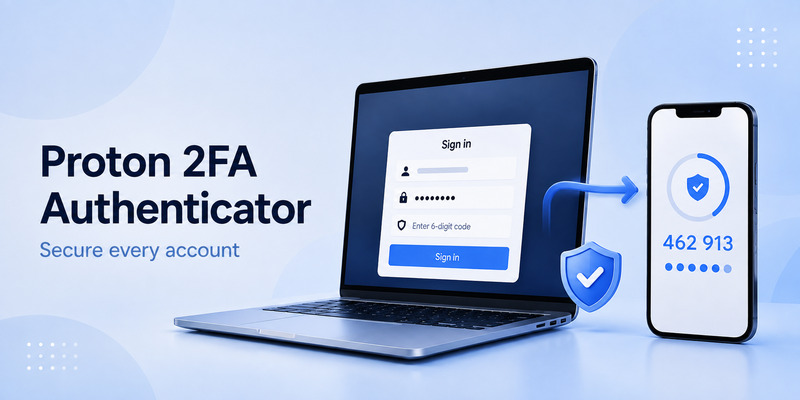
Proton 2FA Authenticator helps protect online accounts with time-based two-factor authentication codes while keeping your login credentials under your control. Whether you’re setting up Proton Authenticator for the first time, troubleshooting an invalid code, recovering access, or moving your 2FA accounts to a new phone, this guide covers the essential steps for a secure and reliable setup.
1. What Is a Proton 2FA Authenticator?
A proton 2fa authenticator is a tool or workflow that helps you protect online accounts with time-based one-time passwords, often called TOTP codes. These codes are generated on a trusted device and provide a second layer of verification after your password.
If you are asking what is 2fa authentication, it means two-factor authentication. Instead of proving your identity with only one factor—usually a password—you provide a second factor. This may be a code from an authenticator app, a passkey, a hardware security key, or a security prompt on your device.
A proton 2fa authenticator can refer to Proton Authenticator, Proton Pass’s built-in TOTP functionality, or a third-party authenticator used to protect a Proton Account. The best option depends on which account you are securing and how you want to handle backups, device changes, and recovery.
For normal websites, a proton 2fa authenticator can generate a temporary six-digit code when the website supports TOTP. The code usually refreshes every 30 seconds. Someone who steals your password should not be able to sign in without also accessing the current code.
This extra layer is especially useful for email, password managers, financial accounts, cloud storage, developer tools, and social accounts. However, 2FA is only effective when you protect the setup key, recovery codes, and devices that store your authentication data.
Download Authenticator App
Secure your accounts with fast, reliable two-factor authentication. Download now and protect your login in seconds.
2. Proton Authenticator, Proton Pass, and Proton Account 2FA
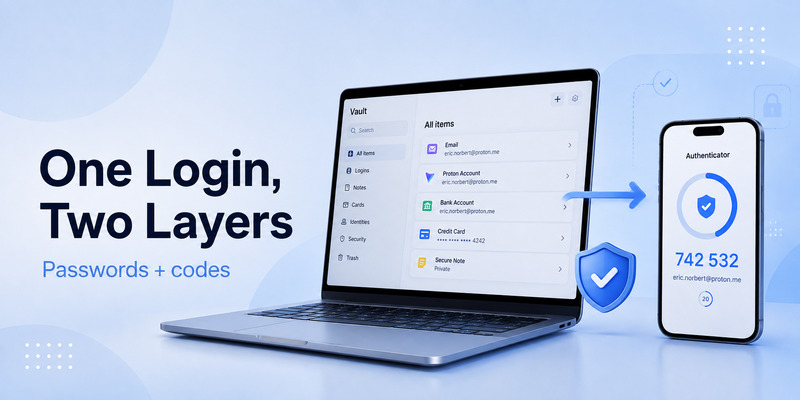
It is important to separate three related concepts.
First, the proton authenticator app is designed to generate TOTP codes for your online accounts. It can be used for websites and services that request an authenticator-app code.
Second, proton pass 2fa authenticator functionality allows Proton Pass to store login credentials and generate TOTP codes for compatible third-party websites. This can make sign-in easier because passwords and verification codes are available in one protected password-manager workflow.
Third, proton 2 factor authentication for your Proton Account protects your Proton Mail, Proton Drive, Proton Pass, Calendar, VPN, and other connected Proton services. This is the account you must secure most carefully because it can provide access to many other accounts and recovery details.
There is one critical security distinction: Proton recommends that you do not use Proton Pass TOTP to secure your Proton Account itself. Use a separate third-party authenticator or another approved method for the Proton Account. This preserves separation between your password vault and the second factor that protects it.
Proton Pass can generate six-digit TOTP codes for saved logins, while Proton Account 2FA should have an independent authentication path. Proton’s official Proton Pass 2FA guide explains this distinction and the setup options.
In short, use 2fa proton pass for third-party accounts when the convenience fits your security model. Use an independent authenticator for the Proton Account that protects your vault and broader Proton ecosystem.
💡 Discover Helpful Guides: 2FA Authenticator App: Complete Guide to Setup, Use, Download, and Secure Your Accounts
3. How TOTP Authentication Codes Work
A proton 2fa authenticator typically uses TOTP technology. During setup, a website displays a QR code or a manual secret key. The authenticator saves this secret and uses it with the current time to create a temporary code.
A simple 2fa authentication example might look like 382 641. This is only an example; your real code will be different and should never be shared.
The basic process is:
- You sign in with your username and password.
- The website requests a second factor.
- Your authenticator generates the current temporary code.
- You enter or autofill the code.
- The website checks that the code matches its expected value.
- You gain access if the code is valid.
An authenticator 2fa code usually changes every 30 seconds. When a new code appears, the previous code expires. If a code fails, wait for the next one and try again rather than submitting an almost-expired code repeatedly.
Time accuracy is essential. A phone with the wrong date, time, or time zone can generate codes that websites reject. Set device date and time to automatic whenever possible.
A proton 2fa authenticator does not send codes through text messages. It calculates them locally from the secret key. This means it can often work without a mobile signal, but it also means losing the authenticator without a backup plan can create access problems.
💡 Discover Helpful Guides: 2FA Authenticator App: Complete Guide to Setup, Use, Download, and Secure Your Accounts
4. Set Up 2FA Codes in Proton Pass
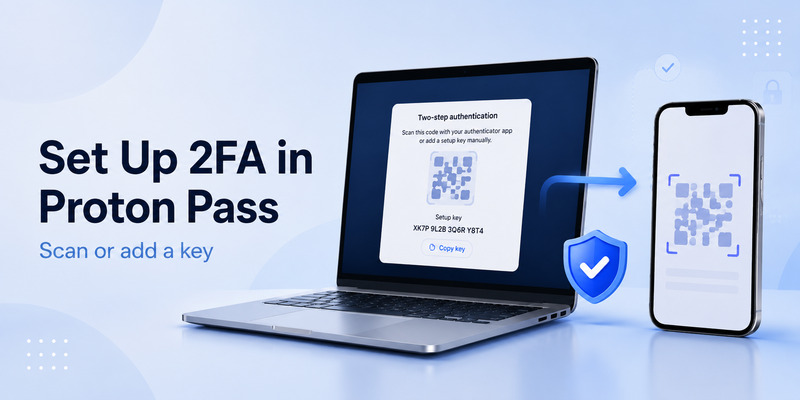
A proton pass 2fa authenticator can generate TOTP codes for online accounts stored in Proton Pass. This is useful if you want one place for your login, password, and second-factor code.
To add a code in Proton Pass:
- Open the website where you want to enable 2FA.
- Go to its security settings.
- Choose an authenticator-app or TOTP option.
- When the website displays a QR code or secret key, open the relevant Proton Pass login item.
- Edit the item and locate the 2FA or TOTP field.
- Scan the QR code on supported mobile apps, or paste the manual setup key.
- Save the item.
- Enter the first generated code on the website to confirm activation.
- Download the website’s recovery codes before finishing.
A 2fa authenticator qr code contains the secret needed to generate all future codes for that account. Treat it like a password. Never share it in a message, store it in an unprotected screenshot folder, or upload it to a public document.
Proton Pass can also help you enter codes during sign-in. Its browser extension may show a current code and provide an autofill option. On mobile, you may need to copy or paste the code depending on your operating system and settings.
A proton 2fa authenticator workflow is convenient, but it must be planned carefully. For ordinary websites, storing passwords and codes in the same encrypted password manager may be appropriate. For your most critical account—the Proton Account itself—keep the second factor separate.
📘 Explore More Useful Guides: Discord 2FA Code: Setup, Backup Codes, Errors, and Account Recovery Guide
5. Use Proton Authenticator for Online Accounts
The proton 2fa app is useful when you want a dedicated place for TOTP codes instead of storing them inside your password manager.
Use the proton authenticator app for accounts that support common authenticator standards, such as:
- Email providers
- Social-media accounts
- Online stores
- Developer platforms
- Gaming accounts
- Financial tools
- Work applications
- Cloud-storage services
The setup process is generally the same. Choose “Authenticator App” in the service’s security settings, scan the QR code, enter the confirmation code, and save recovery codes.
If you are familiar with how to use google authenticator 2fa, the core TOTP process will feel similar. The service provides a QR code or secret key, and your app produces rotating codes. The difference is the app’s backup model, device support, interface, and privacy features.
A proton 2fa authenticator should be chosen based on more than code generation. Check whether the app supports encrypted backup, device transfer, offline access, export or migration controls, and the devices you use every day.
💡 Discover Helpful Guides: 2FA Authenticator Chrome: How to Set Up Secure Two-Factor Authentication in Your Browser
6. How to Secure a Proton Account With 2FA
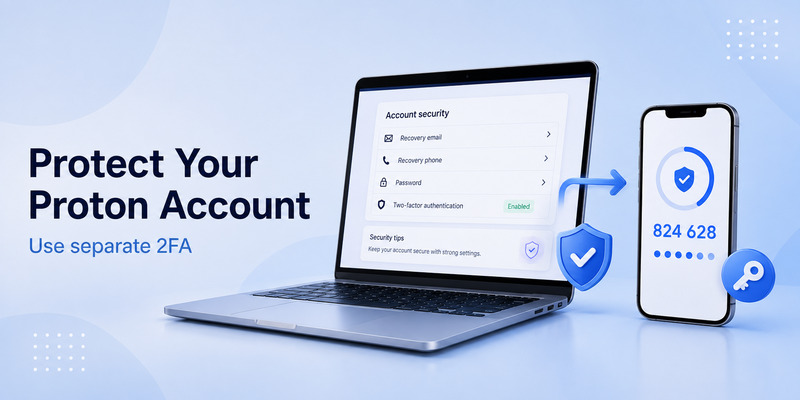
2fa protonmail searches usually refer to adding two-factor authentication to a Proton Account. This is one of the most important security steps because the account can control Proton Mail, Pass, Drive, VPN, and account-recovery settings.
To enable 2FA for your Proton Account, sign in through the official Proton website or app, open account settings, and locate the security or two-factor authentication section. Proton may offer options such as authenticator-app codes, security keys, or recovery methods depending on your account and device.
For 2fa protonmail, use a separate authenticator from Proton Pass for your Proton Account’s TOTP codes. This separation reduces the risk that one compromised or inaccessible system blocks both your password vault and your second factor.
Once enabled, Proton should ask for your second factor during sensitive login events. Keep your primary password unique and strong, protect the email or recovery method connected to the account, and never share a current code with anyone.
A proton 2fa authenticator helps reduce password-related risk, but it cannot protect you if you enter your password and current code on a phishing page. Always check that you are on an official Proton domain before signing in.
📘 Explore More Useful Guides: 2FA Authenticator Instagram: Complete Setup, Login, Recovery, and Troubleshooting Guide
7. Authenticator on a New Phone: Safe Migration Steps
An authenticator on a new phone is one of the most common reasons users get locked out. Do not erase, trade in, reset, or repair your old phone until you have confirmed that the new device can generate valid codes.
Before switching devices:
- Review the backup or transfer instructions for your authenticator.
- Confirm that you can sign in to your Proton Account.
- Make sure you have current recovery codes for important services.
- Transfer or restore your authenticator entries securely.
- Test a code from the new phone on one non-critical account.
- Test your important accounts only after confirming the process works.
- Keep the old phone temporarily as a fallback.
- Remove the old device only after you have verified access.
Some people want an authenticator on two phones for convenience. This can be useful as a backup, but it increases the number of devices that must be protected. Both phones need strong screen locks, current software updates, and private access.
Do not create extra copies of a TOTP secret casually. Anyone with the secret can generate the same future codes. Only use approved backup or multi-device processes that you understand and trust.
A proton 2fa authenticator plan should include both daily access and emergency recovery. The goal is not merely to avoid lockout; it is to recover without weakening security.
8. Proton 2FA Recovery Codes and Account Planning
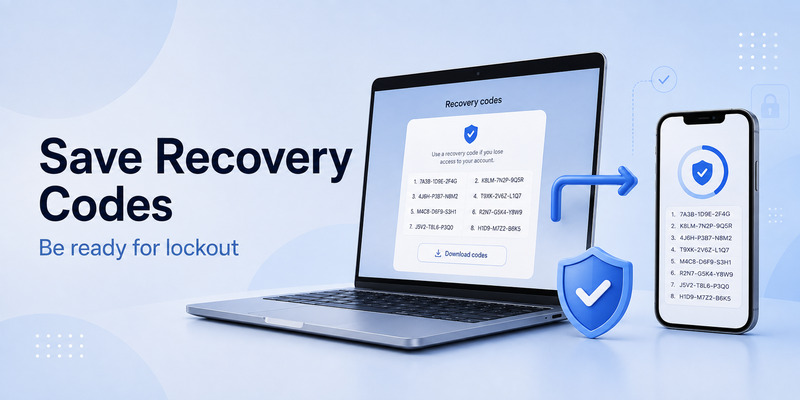
Proton 2fa recovery codes are emergency credentials that help you regain access if your normal authenticator is unavailable. They are not everyday login codes. Store them somewhere secure, separate from your phone, and easy to reach during an emergency.
Good options include:
- A reputable password manager secure note.
- An encrypted file stored safely offline.
- A printed copy in a private physical location.
- A secure storage method managed according to your personal risk level.
Avoid putting recovery codes in a public cloud folder, unprotected email draft, casual screenshot, or direct message. Recovery codes can be as powerful as the authenticator itself.
Proton also provides account-recovery methods that can help you preserve access to your account. Review your available options before a crisis. Proton’s account recovery guidance explains the available recovery approach and why it should be configured in advance.
A proton 2fa authenticator is strongest when you have a layered plan:
- Strong and unique Proton Account password
- Separate authenticator for Proton Account 2FA
- Protected Proton Pass vault
- Recovery codes for critical websites
- A tested path to a new phone
- A passkey or security key where supported
- Awareness of phishing attempts
📘 Explore More Useful Guides: 2FA Authenticator Instagram: Complete Setup, Login, Recovery, and Troubleshooting Guide
9. QR-Code Safety and Common Mistakes
A proton 2fa authenticator setup starts with a QR code, but the QR code is not harmless. It normally contains the secret used to create authentication codes.
Avoid these mistakes:
- Sending a QR-code screenshot to “support.”
- Saving setup keys in an unprotected notes app.
- Using random QR-code generator websites.
- Scanning a code with an app you do not trust.
- Deleting the old authenticator before testing the new one.
- Forgetting to save recovery codes.
- Using the same authenticator setup for your Proton Account and your Proton Pass vault without considering separation.
If a QR code or setup key is exposed, disable 2FA on that specific website through the official account settings and configure it again with a new secret.
A proton 2fa authenticator protects accounts only while its secret remains private. Treat setup secrets, backup codes, and current codes as confidential account-access information.
📘 Explore More Useful Guides: Binance 2FA Authenticator: Setup, Code Errors, Reset, and Security Guide
10. Frequently Asked Questions
What is a Proton 2FA authenticator?
A proton 2fa authenticator is a Proton-based method for generating or managing TOTP verification codes for online accounts. Proton Authenticator and Proton Pass can support different parts of this workflow.
Can Proton Pass generate 2FA codes?
Yes. Proton pass 2fa authenticator functionality can generate TOTP codes for compatible saved logins. Proton notes that this feature is available on eligible Proton Pass plans.
Should I use Proton Pass to secure my Proton Account?
No. Proton advises using a separate third-party authenticator or another independent method to secure the Proton Account with TOTP. This keeps your password vault and second factor separate.
Why is my code not working?
Check that you selected the correct account entry, wait for a fresh code, and enable automatic date and time on your device. If you changed phones or reset 2FA, you may be viewing an outdated entry.
Can I use one authenticator on two phones?
You can use a secure backup or supported multi-device approach, but every additional device increases exposure. Protect each device with a strong lock and remove old devices when they are no longer needed.
What should I do before changing phones?
Make sure you have access to recovery codes, transfer or restore authenticator entries safely, test the new phone, and keep the old phone until the process is verified.
Final Thoughts
A proton 2fa authenticator can make online accounts much safer by adding a rotating code beyond your password. Proton Pass offers convenient TOTP management for third-party accounts, while Proton Authenticator provides a dedicated route for authentication codes.
For your most important account, keep your Proton Account 2FA separate from your Proton Pass vault. Save recovery codes, plan for a new phone before you need one, and never share authentication secrets. A well-planned proton 2fa authenticator setup provides both stronger security and a practical recovery path.
Download Authenticator App
Secure your accounts with fast, reliable two-factor authentication. Download now and protect your login in seconds.
