
Google Authenticator Website Login: How to Sign In on a Computer
Published September 7, 2026
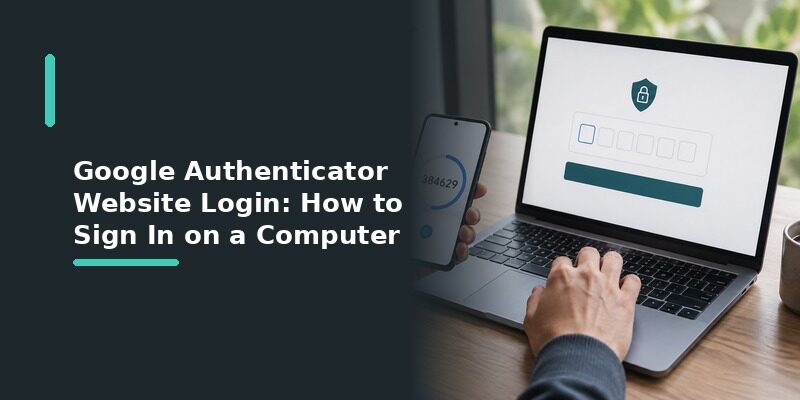
A Google Authenticator website login works by entering your password on the website, then typing the six-digit code from the Google Authenticator app on your phone, since the app itself has no website you log into.
So if you came here looking for a page to sign into for the app, the short answer is that no such page exists, and the sections below explain what to do instead.
That last point causes most of the confusion: Google Authenticator is a phone app with no online portal or account, so there’s nothing to “log into” on the web except the accounts it protects.
This guide explains exactly how a Google Authenticator website login works on a computer, how to use the codes in Chrome or on a PC, and what to do when a code is rejected or the app isn’t available.
Is There a Google Authenticator Website Login?
No, there is no website to log into for Google Authenticator itself; it’s a phone app with no online account, so a Google Authenticator website login really means using its codes to sign into a website on your computer.
This design is deliberate: keeping the app offline and account-free means there’s no online service that could be breached to expose your codes, which is a genuine security advantage.
This is different from a password manager or an email service, which have their own web portals. Google Authenticator only generates codes locally on your phone, with nothing to sign into online.
Clearing up this single misconception resolves most of the confusion, since people often search expecting a login page that simply doesn’t exist for this app.
Reframing the question, from logging into the app to using the app for a website sign-in, is the key to understanding how a Google Authenticator website login actually works.
Download Authenticator App
Secure your accounts with fast, reliable two-factor authentication. Download now and protect your login in seconds.
How to Use Google Authenticator Codes for a Website Login
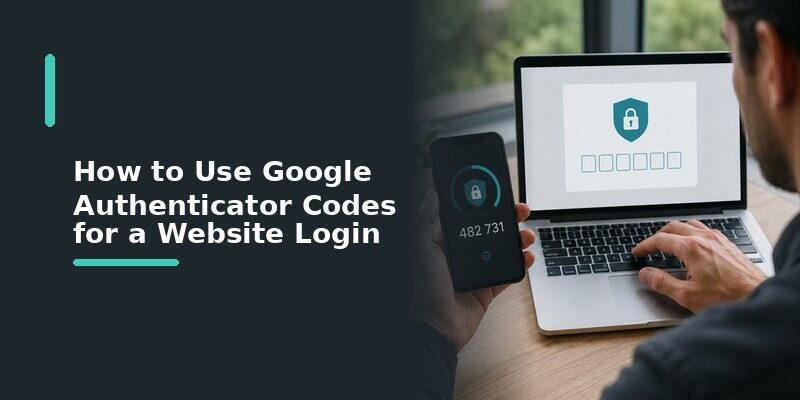
Entering Your Password First
On the website’s sign-in page, enter your username and password as usual, which is the first step before any authenticator code is requested.
Nothing about this first step changes when two-factor is enabled, so the sign-in feels completely normal right up until the code prompt appears.
If a website never asks for a code after your password, it may not have two-factor turned on yet for that account, which is worth enabling for anything important.
Adding the Code From Your Phone
When the site asks for a verification code, open Google Authenticator on your phone, find the matching account, and type its six digits to complete the Google Authenticator website login.
Make sure you’re reading the code for the correct account, since a long list of similar entries makes it easy to grab the wrong one by mistake.
💡 Discover Helpful Guides: App Authenticator: Complete Guide to 2FA, OTP Codes, Setup & Recovery
Google Authenticator Website Login in Chrome
Signing In Through the Chrome Browser
In Chrome, the process is the same as any browser: enter your password on the site, then read the current code from your phone’s app and type it into the verification field.
There’s no Chrome-specific step here, since Chrome is simply the window the website is open in rather than part of the authenticator itself.
The same is true of Safari, Edge, Firefox, or any other browser, since the code always comes from the phone regardless of what you’re browsing with.
Why the Code Still Comes From Your Phone
Even in Chrome on a computer, the code for a Google Authenticator website login comes from the phone app, since Google Authenticator doesn’t run inside the browser itself.
Anyone wanting codes directly in Chrome would need a separate browser-extension authenticator, which is a different tool from Google’s phone app.
🗺️ Browse How-To Guides: Best Authenticator App Android: 6 Free Apps Reviewed and Setup Guide
Google Authenticator Website Login on a PC
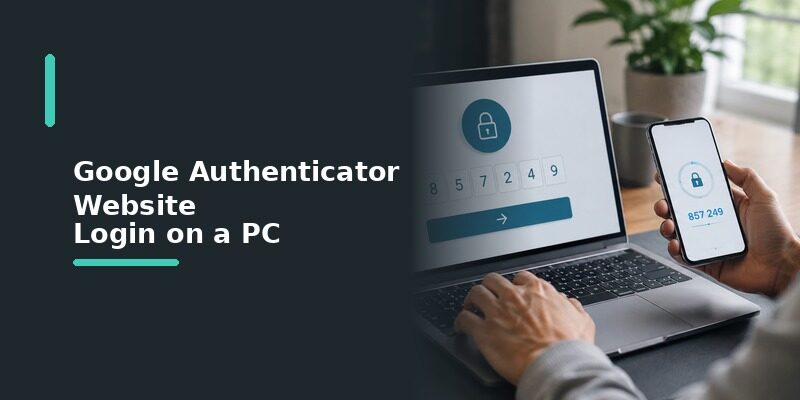
Using Your Phone Alongside the PC
On a PC, you keep your phone nearby to read the code while you type it into the website on your computer, since the app has no desktop version you sign into on Windows.
For most people this two-device routine is quick once it’s familiar, taking only a few seconds to glance at the phone and type the code.
Alternatives for Desktop Users
People who dislike reaching for their phone during a Google Authenticator website login sometimes use a different authenticator that offers a desktop app or browser extension, which can show codes on the computer itself.
This is a matter of convenience rather than security, since the underlying codes work the same way regardless of which device displays them.
So the choice between a phone-only app and a desktop-capable one comes down entirely to how you prefer to work, not to how protected your accounts are.
What to Do If You Can’t Reach the App
Using Backup Codes
If your phone is unavailable, the backup codes generated when you set up two-factor authentication let you complete the website login without the app at all.
Storing those codes somewhere off your phone, such as a printout or a password manager, is what makes them useful in exactly this situation.
Using Account Recovery
Without backup codes either, the website’s own account-recovery process is the remaining path back in, handled through that specific service rather than Google Authenticator.
This process varies by service and can take anywhere from minutes to several days, which is why a saved backup method is so much faster when it exists.
Setting up backup codes takes only a minute at the time you enable two-factor, and it’s the single best insurance against this slower recovery route.
💡 Discover Helpful Guides: Authenticator App Desktop: Safe Ways to Use 2FA on Windows and Laptops
Common Google Authenticator Website Login Problems
| Symptom | Likely Cause | Fix |
|---|---|---|
| Code rejected | Phone clock out of sync | Turn on automatic date and time on the phone |
| Code expires before you type it | Reading slowly digit by digit | Read the full code, then type it quickly |
| Can’t find the account in the app | Wrong entry or long list | Use the app’s search or scroll carefully |
The Code Is Always Rejected
A phone clock out of sync is the most common cause, since the code depends on matching time between your phone and the website’s server; enabling automatic date and time resolves it.
This is especially common after traveling across time zones or manually setting the clock, which is exactly when a device’s time is most likely to drift.
The Code Expires Too Fast
Codes rotate roughly every 30 seconds, so read the whole code first and type it in one go rather than glancing back and forth, which is what usually causes it to expire mid-entry.
If a code does expire as you type, simply wait for the next one to appear and enter that instead, rather than reusing the expired digits.
Website Login vs Signing Into the App Itself
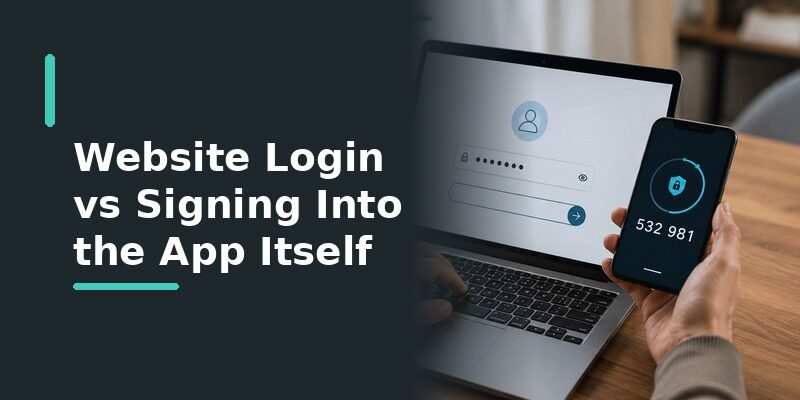
Part of what makes a Google Authenticator website login confusing is the difference between logging into a website and the idea of logging into the app. This comparison makes the distinction clear.
| Action | Does It Exist? | What Actually Happens |
|---|---|---|
| Log into a website using its code | Yes | Enter password, then the app’s code |
| Log into Google Authenticator online | No | The app has no website or account |
| See codes in a browser | Not with this app | Requires a separate browser extension |
Once this is clear, the searches people make around a web login mostly resolve to the same simple answer: use the phone code on the site.
Whether the query is about Chrome, a PC, or an online portal, the mechanics of a Google Authenticator website login are identical underneath.
💡 Discover Helpful Guides: Why Is My Authenticator App Not Opening? 7 Fixes That Actually Work
Google Authenticator Website Login on a New Phone
Transferring Your Accounts
Before switching phones, use Google Authenticator’s export or account-transfer feature to move your codes, so website logins keep working on the new device without interruption.
Doing this before wiping the old phone, rather than after, avoids the awkward gap where you need a code from an app that’s no longer accessible.
If You Already Switched Without Transferring
If you changed phones without moving your codes, each website’s own recovery or backup codes restore access, after which you can set up the Google Authenticator website login again on the new phone.
Start with your most important accounts, email especially, since regaining those often makes recovering the rest much easier.
Tips for a Smooth Google Authenticator Website Login
Keep Your Phone’s Clock Automatic
Leaving automatic date and time enabled prevents the single most common cause of a failed Google Authenticator website login, a rejected code from a drifting clock.
Label Your Accounts Clearly
Renaming entries with a clear service name and username makes it much faster to find the right code when a website asks for one, especially once you protect many accounts.
A moment spent labeling each entry at setup pays off every time you sign in afterward, turning a scroll through cryptic names into an instant match.
Save Backup Codes for Important Sites
Keeping backup codes for your most important accounts means a Google Authenticator website login is never fully blocked just because your phone is out of reach.
📘 Find the Right Guide: How to Download TCS Authenticator App on iPhone: Step-by-Step Guide
Can Authenticator App Show Codes on Your Computer?

Because Google Authenticator has no desktop version, anyone who wants codes available directly on their computer during a website login may prefer a cross-platform option; Authenticator App keeps the same codes accessible across a phone and a browser session.
For people who spend most of their day at a computer, having codes on the same device they’re signing in from removes a small but frequent bit of friction.
It won’t matter much to someone who only occasionally signs in, but for heavy desktop users those saved seconds add up over a day.
This removes the need to reach for a phone during every desktop sign-in, while still keeping the accounts synced and consistent everywhere you use them.
Which Services Use a Google Authenticator Website Login?
Almost any website that supports authenticator-app two-factor authentication can use a Google Authenticator website login, since the app follows the same open standard the vast majority of services rely on.
Common Categories
Email providers, social networks, banking and finance sites, gaming platforms, and workplace tools all commonly accept authenticator-app codes, which means one app can cover a broad mix of your accounts.
Because the standard is so widely adopted, a Google Authenticator website login works across most of the accounts an average person uses in a given week.
When a Site Needs a Specific App
A small number of banks or enterprise systems require their own app instead, in which case Google Authenticator won’t apply, but this is the exception rather than the rule across the web.
💡 Discover Helpful Guides: Authenticator App Is Not Showing Code: How to Fix Missing Verification Codes
Frequently Asked Questions About Google Authenticator Website Login

Can I log into Google Authenticator on a website?
No. Google Authenticator has no website or online account; it only generates codes on your phone, which you then use to log into other websites on your computer.
This is the single most common question about it, and the answer is consistently the same: there’s nothing to log into for the app itself.
Does Google Authenticator work in a browser?
The app itself doesn’t run in a browser; you read the code from your phone and enter it into the website open in your browser.
If you specifically want codes inside your browser, a dedicated browser-extension authenticator is a separate tool that can do that.
How do I log in on my computer if the app is on my phone?
Keep your phone nearby, open the app to read the current code, and type it into the verification field on the website on your computer.
This is the intended workflow for the app, so needing your phone during a desktop sign-in is normal rather than a sign that something is set up wrong.
What if my code keeps getting rejected on the website?
This is almost always a phone clock issue. Turning on automatic date and time syncs the clock and fixes rejected codes in the large majority of cases.
If it still fails after that, double-check you’re entering the code for the exact account shown on the website, since a mismatched entry looks identical to a wrong code.
Can I see my Google Authenticator codes on a PC?
Not with Google Authenticator itself, since it has no desktop version. A cross-platform authenticator with a desktop app or browser extension can show codes on a PC instead.
Switching to such an app is optional and purely about convenience, since Google Authenticator on your phone protects your accounts just as effectively.
Final Thoughts
A Google Authenticator website login simply means entering your password on a website and then a code from the phone app, since Google Authenticator has no web portal of its own to sign into.
Most trouble comes down to a phone clock out of sync or a code that expires while typing, both quick to fix, and keeping backup codes ready ensures a missing phone never fully blocks a sign-in.
Want your codes available right on your computer instead of only your phone? Download and keep them synced across every device.
Download Authenticator App
Secure your accounts with fast, reliable two-factor authentication. Download now and protect your login in seconds.
