
Binance Google Authenticator: Setup, Codes, and Recovery Explained
Published September 7, 2026
Setting up Binance Google Authenticator means linking the Google Authenticator app to your Binance account so it generates the six-digit code Binance requires for logins and withdrawals.
Google Authenticator is one of the apps Binance officially recommends, and once linked, it produces a rotating code tied specifically to your Binance account as a second layer beyond your password.
This guide covers linking Binance Google Authenticator step by step, where the 16-digit key and 6-digit code come from, how recovery works if you lose access, and what to do when a code is rejected.
What Is Binance Google Authenticator?
Binance Google Authenticator is simply the Google Authenticator app connected to your Binance account, generating the rotating six-digit verification code Binance asks for as part of its two-factor authentication.
In other words, Binance Google Authenticator isn’t a separate product but a pairing: your Binance account on one side and the Google Authenticator app on the other.
Binance lists Google Authenticator as a recommended option, though it works the same way as any standard authenticator app, since all follow the same underlying code standard.
For a platform holding cryptocurrency, this second layer is especially valuable, since transactions can be irreversible and funds are an obvious target for attackers.
That’s why properly setting up and backing up this protection is one of the first things careful users handle on any exchange account.
Skipping it, or setting it up without saving any recovery method, is a common way people end up temporarily locked out of their own funds.
Download Authenticator App
Secure your accounts with fast, reliable two-factor authentication. Download now and protect your login in seconds.
How to Set Up Binance Google Authenticator
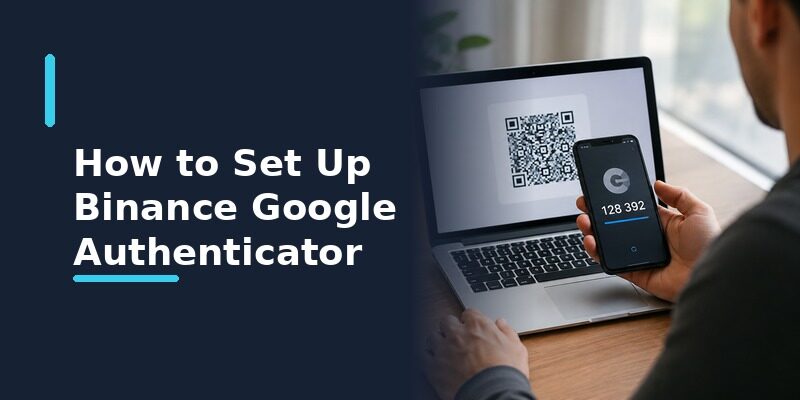
Enabling It in Binance Security Settings
In your Binance security settings, choose the authenticator app option and select Google Authenticator when prompted, which starts the linking process.
Install the app on your phone before you begin so you can complete the whole link in one uninterrupted session.
Scanning the QR Code
Binance displays a QR code; open Google Authenticator, tap to add an account, scan the code, and the Binance Google Authenticator link is created, with codes appearing immediately.
Before finishing, Binance asks you to enter a code the app generates, confirming the link works so you aren’t locked out right after setup.
Completing this confirmation carefully, rather than rushing past it, is what verifies the whole setup actually functions before you rely on it.
The Binance 16-Digit Key for Google Authenticator
What the Key Does
The 16-digit key is the text form of the secret behind the QR code, letting you add the Binance entry to Google Authenticator manually when scanning isn’t possible.
It appears on the same setup screen as the QR code and represents exactly the same secret, just in a form you can copy and store as text.
Saving It for Recovery
Saving this key during setup is the most important step for recovery, since it lets you restore Binance Google Authenticator on a new phone without going through Binance support.
Think of it as a spare key to your codes: safe now, and potentially a huge time-saver if your phone is ever lost or reset.
Finding the 6-Digit Code From Binance Google Authenticator
Reading the Code
Open Google Authenticator, locate the Binance entry, and the current six-digit code appears with a small timer showing how long it remains valid.
If you use the app for several accounts, check the label above the digits to be sure you’re reading the code tied to Binance and not another service.
Entering It on Binance
Type those six digits when Binance requests a verification code, doing so before the code refreshes, which happens about every 30 seconds for Binance Google Authenticator.
Reading the full number first and typing it in one go avoids the common problem of the code expiring while you glance back and forth.
Binance Google Authenticator Recovery
Recovering With the 16-Digit Key
If you saved the 16-digit key, you can re-add the Binance entry to Google Authenticator on any device by choosing manual entry and typing the key, restoring your codes instantly.
Because this skips the support queue entirely, having the key can mean the difference between minutes and days when regaining access to funds.
Recovering Without the Key
Without the key or your old phone, Binance Google Authenticator recovery goes through Binance’s identity-verification process, which is slower and highlights why saving the key beforehand matters.
That verification step, while slower, is deliberate, since it’s the same barrier that stops an attacker from using recovery to hijack your account.
Viewed that way, the friction is protecting you as much as it’s inconveniencing you, which is worth remembering during a stressful recovery.
Binance Google Authenticator Verification Steps
When Binance Asks for a Code
Binance requests a verification code at sign-in and before sensitive actions like withdrawals, so a code entered incorrectly simply blocks that action until a correct one is provided.
There’s no penalty for a mistyped code beyond having to try again, so take your time entering it correctly rather than rushing.
Repeated failures may briefly pause further attempts as a security measure, but this clears on its own and isn’t a sign of a deeper problem.
Confirming the Right Action
Since the code authorizes a specific action, check what you’re confirming on screen before entering a Binance Google Authenticator code, especially for a withdrawal.
Setting Up Binance Google Authenticator on a New Phone
Transferring With Google Authenticator’s Tools
Google Authenticator offers an export or account-transfer feature that moves entries to a new phone, which carries your Binance link across without re-setup.
This feature moves all your entries at once through a QR-based transfer, so it handles Binance alongside every other account in a single step.
Keep both phones on and unlocked during the transfer so the process completes without interruption.
Re-Adding With the Saved Key
If you didn’t transfer beforehand, the saved 16-digit key lets you re-add Binance Google Authenticator on the new phone, which is faster than full account recovery.
This is the fallback that saves people who forgot to transfer, which is exactly why saving the key at setup is worth the small effort.
Binance Google Authenticator vs SMS Verification
Why the App Is Safer
An app-generated code doesn’t depend on a phone number, so it can’t be intercepted through SIM-swapping, an attack that has repeatedly targeted cryptocurrency accounts specifically.
When SMS Is Still Offered
SMS may still be available as a backup, which is better than nothing, but an authenticator app is the stronger primary method for protecting exchange funds.
Best Practices for Binance Google Authenticator
Set It Up Before Depositing Funds
Enabling two-factor before adding money means the account is protected from the moment it holds anything worth stealing, rather than after the fact.
Keep Two Recovery Paths
Combining a saved 16-digit key with Google Authenticator’s own transfer feature gives you two independent ways to regain access, sensible for an account tied to real money.
Double-Check Withdrawal Prompts
Since a code confirms a specific action, glance at the withdrawal details before entering one, since the code authorizes exactly what’s shown on screen.
Common Binance Google Authenticator Problems
| Symptom | Likely Cause | Fix |
|---|---|---|
| Binance rejects the code | Phone clock out of sync | Turn on automatic date and time |
| Code missing after new phone | Entry not transferred | Re-add with the saved 16-digit key |
| Lost access entirely | No key saved | Use Binance account recovery |
Every Code Is Rejected
A phone clock slightly out of sync is the most common cause; enabling automatic date and time on the phone syncs it and resolves the rejected codes in most cases.
The Binance Entry Vanished
If Binance Google Authenticator disappeared after a phone change, it usually means the entry wasn’t transferred; re-adding it with the saved key restores it.
This is one of the most common issues people hit after upgrading a phone, and it’s entirely preventable by transferring accounts before the switch.
Binance Google Authenticator on Different Devices
On iPhone and Android
The Binance link works identically on iPhone and Android, since Google Authenticator runs on both and generates the same standard codes regardless of platform.
On a PC or in a Browser
Google Authenticator itself has no desktop version, so on a PC most people read the code from their phone while signing into Binance on the computer, keeping the two factors on separate devices.
Binance Google Authenticator vs Other Options
Google Authenticator is a solid, widely used choice for Binance, but it isn’t the only one, and Binance Google Authenticator behaves the same at its core as any other compatible app.
The main practical difference between apps is how they handle backup, which matters more here than for a typical account given that funds are involved.
That’s the lens worth applying when choosing an app to run Binance Google Authenticator: prioritize reliable recovery over minor feature differences.
| Option | Notable Strength | Consideration |
|---|---|---|
| Google Authenticator | Simple and widely recommended | Backup tied to a Google account |
| Authy | Built-in cloud backup | Requires a separate account |
| Authenticator App | One synced list across devices | Newer than some established names |
For anyone weighing which app to pair with Binance, the honest answer is that all reputable options protect the account equally well, so the decision comes down to backup and convenience. If you’d rather keep Binance codes alongside every other account in one consistent place, works with Binance the same way Google Authenticator does, while syncing across a phone and a browser session.
Keeping Binance Google Authenticator Secure
Protect the 16-Digit Key
Store the key offline and privately, since anyone who has it could recreate your Binance codes; treat it with the same care as your account password.
A written copy in a secure place or an entry in an encrypted note both work well, whereas leaving it in an unprotected file or photo is a genuine risk.
Keep the App and Phone Secure
A locked phone and an updated app keep Binance Google Authenticator protected day to day, complementing the saved key as your recovery safeguard.
Together, a secure device and a safely stored key cover both everyday protection and worst-case recovery, which is a sensible standard for an exchange account.
Frequently Asked Questions About Binance Google Authenticator
Is Google Authenticator recommended for Binance?
Yes, Binance lists it as a recommended authenticator app, though any standard compatible app works the same way since they all follow the same code standard.
Its popularity comes from simplicity and familiarity rather than any unique capability, so choosing it is a reasonable default rather than a requirement.
If another app suits your habits better, using it instead won’t reduce your account’s security in any way.
Where is the 16-digit key for Binance Google Authenticator?
It appears during setup alongside the QR code as the manual entry option; save it then, since it’s difficult to retrieve once setup is finished.
Once you move past the setup screen, the original key often can’t be shown again, which is why capturing it in the moment is so important.
How do I recover Binance Google Authenticator on a new phone?
Use Google Authenticator’s transfer feature before switching, or re-add the Binance entry with the saved 16-digit key; without either, use Binance account recovery.
Doing the transfer before wiping the old phone avoids the awkward gap where you need a code from an app you can no longer open.
Why does Binance say my Google Authenticator code is wrong?
Almost always a clock issue. Turning on automatic date and time on your phone syncs the clock and fixes the rejected codes in the large majority of cases.
This is particularly common after traveling across time zones, which is exactly when a manually set clock is most likely to have drifted.
Can I use Google Authenticator for Binance on more than one device?
Yes, by scanning the same setup code on both or using the saved key on each device, keeping the Binance entry available in more than one place.
Having it on a second device is a reasonable redundancy for an account tied to funds, as long as both devices are kept secure.
Just remember that each device holding the code is another place that needs to stay protected, so a spare should be locked and stored safely too.
Final Thoughts
Binance Google Authenticator links the Google Authenticator app to your Binance account, generating the rotating codes that keep your funds protected behind more than a password alone.
The step that matters most is saving the 16-digit key at setup, since it turns a lost phone from a slow recovery ordeal into a quick re-link on a new device.
Prefer your Binance codes synced alongside everything else? Download and keep every account consistent across your devices.
Download Authenticator App
Secure your accounts with fast, reliable two-factor authentication. Download now and protect your login in seconds.
