
Authy App: Complete Guide to Setup, Backup, Security, and Troubleshooting
Published September 8, 2026
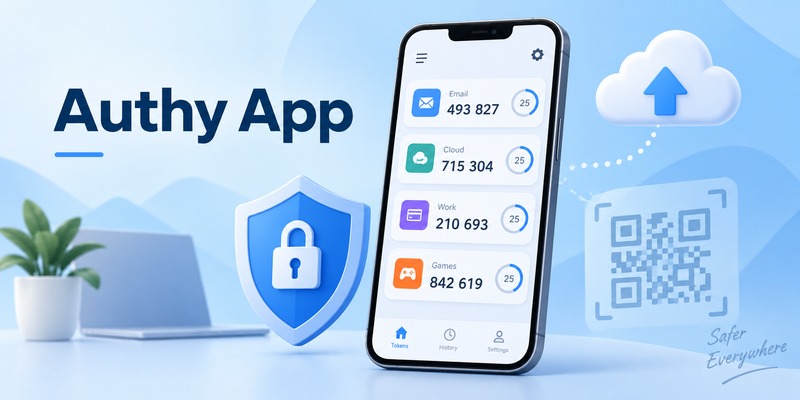
Quick answer: The authy app is a two-factor authentication application that generates temporary verification codes for online accounts. It is mainly used on iPhone, iPad, and Android devices and supports features such as encrypted token backups, multi-device access, offline code generation, and recovery options.
If a website supports app-based two-factor authentication, Authy can often be used as the second login factor.
Instead of signing in with only a password, you enter your password and then retrieve a temporary code from the authy app.
This creates an additional security layer because someone who obtains your password may still need access to your authentication device before they can sign in.
Authy is particularly well known for combining standard TOTP authentication with encrypted cloud backup and multi-device support.
However, the product has changed over time.
Authy’s desktop applications for Windows, macOS, and Linux reached end of life in March 2024. Today, users should primarily think of Authy as a mobile authenticator app rather than a desktop authentication solution.
This guide explains everything you need to know about the authy app, including how it works, how to configure it, how backup works, what to do when Authy fails, how it compares with Google Authenticator, and whether it is still a good option for securing online accounts.
What Is the Authy App and What Is It Used For?
The authy app is a two-factor authentication application designed to help users protect online accounts with an additional verification step.
Two-factor authentication, usually called 2FA, requires users to provide two types of authentication before an account grants access.
The first factor is usually a password.
The second factor can be a temporary verification code generated by an application such as Authy.
For example, a normal login might look like this:
Username and password → Authy verification code → account access.
The second step is important because passwords are not always enough.
Passwords may be reused, leaked in data breaches, guessed, or stolen through phishing.
Adding the authy app creates another barrier between an attacker and your account.
What Types of Accounts Can Authy Protect?
Authy can work with many websites that support standard TOTP-based authentication.
These may include:
- email services;
- social media accounts;
- developer platforms;
- cloud services;
- online marketplaces;
- hosting accounts;
- financial platforms;
- productivity tools;
- cryptocurrency-related services.
Compatibility depends on the individual website.
If a service allows you to enable two-factor authentication using an authenticator application and displays a QR code or secret setup key, Authy can often be used.
Why Do People Use Authy?
The basic job of the authy app is similar to many other 2FA applications: generate temporary verification codes.
Its main difference is the additional account recovery functionality.
Authy has historically focused heavily on features such as:
- encrypted cloud backup;
- synchronization between trusted devices;
- offline code generation;
- account organization;
- device management.
These features make Authy attractive to users who manage many 2FA-protected accounts and want to reduce the risk of losing all their authentication codes when a phone is damaged or replaced.
How the Authy App Works
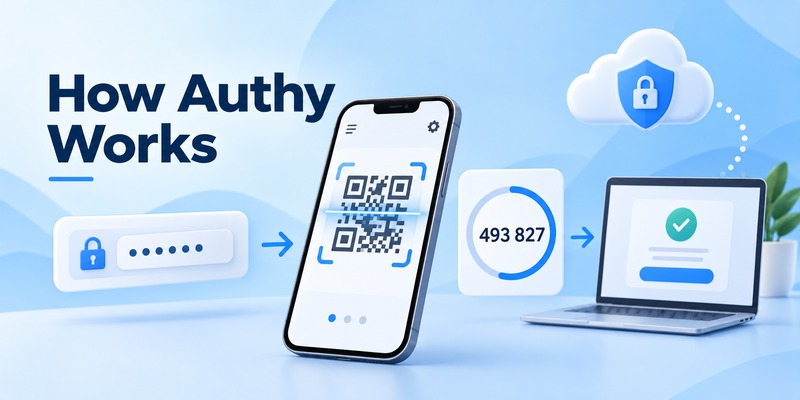
The authy app usually works with Time-based One-Time Password technology, commonly abbreviated as TOTP.
TOTP authentication creates temporary codes from a shared secret and the current time.
When you activate two-factor authentication on a website, the service creates a secret key.
Instead of showing that secret as a long string of random characters, most websites display it as a QR code.
You scan the QR code with Authy.
The application stores the authentication secret and uses it to generate new codes at regular intervals.
The website knows the same secret and calculates the expected code independently.
If the number entered during login matches the number the service expects, authentication succeeds.
Why Authy Codes Change
Authentication codes are intentionally temporary.
A code displayed in the authy app only works for a limited amount of time.
After that period ends, Authy generates another code.
The short validity period reduces the value of a stolen code.
Even if someone sees one of your authentication codes, they have only a short window in which it may be usable.
Does Authy Need Internet Access?
Standard TOTP codes can usually be generated locally on the phone.
This means the authy app can continue generating verification codes even when your phone does not have mobile data or Wi-Fi.
Internet access is still required for features such as:
- registering a new device;
- synchronizing accounts;
- restoring backups;
- changing some account settings.
But everyday TOTP code generation itself does not depend on receiving a text message or maintaining a continuous network connection.
This makes authentication apps particularly useful while traveling or when mobile reception is unreliable.
Download Authenticator App
Secure your accounts with fast, reliable two-factor authentication. Download now and protect your login in seconds.
How to Download and Set Up Authy
Users looking to download authy app should install it only from official app stores.
For iPhone and iPad, use the Apple App Store.
For Android, use Google Play.
Avoid unofficial APK downloads or third-party software mirrors.
Authentication applications handle sensitive security credentials, so installing a modified version from an unknown source could expose the very accounts you are trying to protect.
Is the Authy App Free?
For normal end users, authy app free access is available through the mobile application.
You do not normally need to pay simply to generate authentication codes for personal accounts.
Step 1: Install Authy
Download and install the official authy app on your mobile device.
Open the application and begin registration.
Authy uses a phone number as part of its account registration and device verification process.
Enter your phone number and complete the verification procedure shown in the application.
Step 2: Prepare an Online Account
Next, choose an account where you want to enable two-factor authentication.
Sign in normally.
Navigate to an area such as:
Security;
Login Security;
Privacy and Security;
Two-Factor Authentication;
Multi-Factor Authentication;
or Two-Step Verification.
Choose the option for an authenticator application when available.
Step 3: Scan the QR Code
The website should display a QR code or setup key.
Open the authy app and select the option to add an account.
Scan the QR code.
If scanning is unavailable, you may be able to enter the setup key manually.
Step 4: Name the Account
Give the token a recognizable name.
This matters more than many users expect.
If you eventually store 20 or 30 different accounts in Authy, clear naming makes it much easier to select the correct code.
For example:
Personal Gmail
Work Gmail
GitHub
Cloud Hosting
Main Facebook Account
instead of using several vague labels.
Step 5: Confirm the Setup
The authy setup process usually ends with the website asking for the current verification code.
Open Authy.
Enter the displayed code into the website.
If accepted, two-factor authentication is enabled.
At this point, save any recovery codes that the website provides.
Recovery codes can become extremely important if you later lose access to the authy app.
How to Use Authy for Two-Factor Authentication
Once setup is complete, using Authy is straightforward.
For users searching how to use authy, the everyday workflow generally has only a few steps.
Signing In With Authy
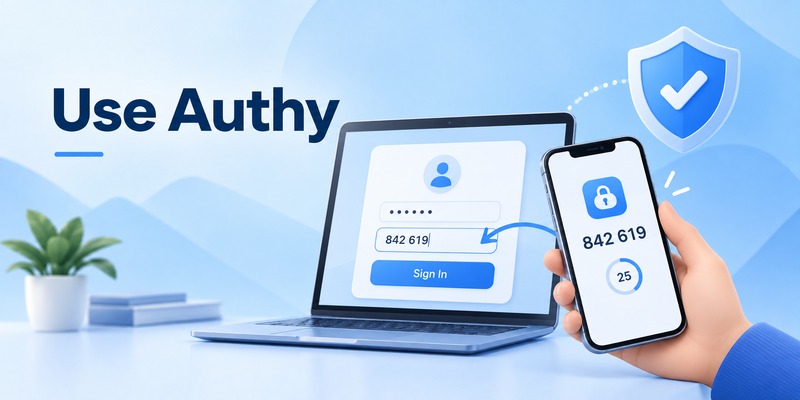
First, visit the service you want to access.
Enter your normal username and password.
The website then asks for a two-factor authentication code.
Open the authy app.
Select the correct account.
Read the current temporary code.
Enter it on the website.
If the code is valid, access is granted.
Using Authy With Multiple Accounts
The usefulness of Authy becomes more obvious when many accounts use two-factor authentication.
Instead of receiving SMS codes from different services, you can manage numerous authentication tokens in one place.
For instance, the authy app might contain separate entries for:
- Google;
- Microsoft;
- GitHub;
- Discord;
- Dropbox;
- cloud hosting;
- social media;
- e-commerce accounts.
When logging in, simply choose the relevant token.
Do Not Share Authy Codes
Temporary verification codes should be treated like passwords.
Do not send them to someone who contacts you by:
- email;
- messaging apps;
- social media;
- text message;
- telephone.
Attackers sometimes steal a password first and then impersonate a support representative to request the victim’s current 2FA code.
The authy app can reduce account takeover risk, but it cannot prevent you from manually giving a valid authentication code to an attacker.
Save Recovery Codes
Whenever a service provides backup or recovery codes during 2FA setup, save them somewhere secure.
Do not store the only copy on the same phone that runs Authy.
If that phone disappears, you could lose both your authentication app and your recovery method at the same time.
Authy Backup and Multi-Device Features
One of the most important differences between Authy and many basic authentication tools is authy backup.
The problem with traditional authentication apps is simple.
If all your authentication secrets exist only on one phone and that phone is lost, broken, or wiped, recovering dozens of accounts can become difficult.
Authy attempts to reduce that risk through encrypted backups and trusted-device synchronization.
How Authy Backup Works
When backup is enabled, eligible authentication tokens can be encrypted and stored so they can later be restored to another authorized device.
The encryption is protected with a backup password.
This is different from your ordinary phone unlock code.
The backup password is important because it controls access to the encrypted token data.
Choose Your Backup Password Carefully
Use a strong password for authy backup.
Ideally, it should be unique and difficult to guess.
You may want to store it securely in a trusted password manager.
Losing the password can create serious problems because encrypted authentication secrets cannot simply be decrypted without it.
A backup feature is only useful if you can actually unlock the backup when needed.
What Is Multi-Device Support?
Multi-device support allows more than one trusted mobile device to connect to the same Authy account.
For example, you might use:
an iPhone as your main device;
and an iPad or second phone as a backup device.
If your tokens are synchronized correctly, the second device can help you retain access if the primary phone fails.
Should Multi-Device Stay Enabled?
A practical security strategy is to enable multi-device while adding trusted devices and then restrict future device enrollment once everything is configured.
This reduces the opportunity for an unauthorized new device to be added later.
Existing authorized devices can continue working.
The key principle is simple:
Only allow devices that you actually control to access the authy app account.
How Secure Is the Authy App?
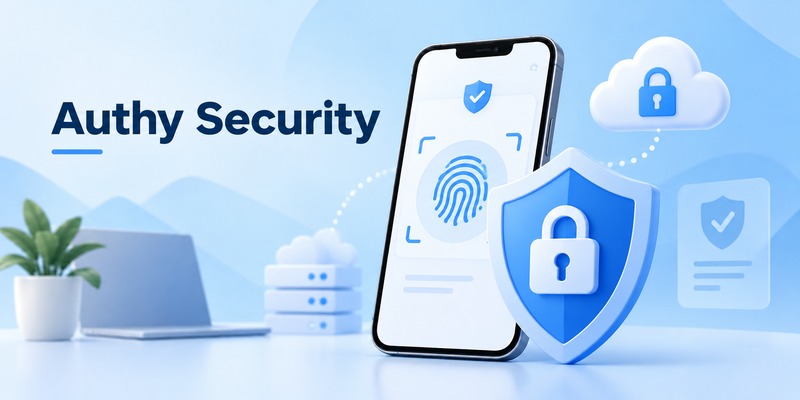
The authy app can provide significantly stronger account protection than using only a password.
However, its security should be understood as one part of a larger security system.
Protection Beyond Passwords
If someone steals your password, they may still be unable to sign in without the temporary authentication code.
This is the primary benefit of two-factor authentication.
App-generated codes also avoid some of the weaknesses associated with receiving every authentication code through SMS.
Local Device Security Matters
The authy app is only as secure as the device that contains it.
Your phone should have:
- a strong PIN or password;
- biometric protection where appropriate;
- automatic operating system updates;
- remote device-locking capabilities.
If someone gains full access to an unlocked phone, the protection provided by an authentication application may be weakened.
Protect Your Backup Password
If you use encrypted backup, the backup password becomes a critical credential.
Do not reuse a weak password.
Do not share it.
Do not store it openly in notes or messages.
Treat it as seriously as the password to a password manager.
Be Careful With QR Codes
The QR code displayed during authentication setup may represent the secret used to generate future verification codes.
Do not share screenshots of 2FA setup screens publicly.
Anyone who obtains the underlying secret may potentially generate the same TOTP codes.
2FA Does Not Eliminate Phishing
A sophisticated phishing site may ask for both your password and the current authentication code.
Because the code is valid for a short period, an attacker may immediately use it.
Always check the domain before entering login credentials or Authy codes.
The authy app makes account takeover harder, but good security habits are still necessary.
What Happens If You Lose or Change Your Phone?
Phone replacement is one of the most important issues to consider before choosing an authentication application.
If you have prepared properly, switching phones should be manageable.
If not, losing the only device containing your 2FA codes can create a difficult recovery process.
Before Changing Phones
Before wiping or selling an old device:
- Confirm that your Authy tokens are backed up.
- Make sure you know your backup password.
- Check that important account recovery codes are stored safely.
- Verify that a second trusted device works, if you use one.
- Register the new phone before removing the old phone whenever possible.
If Your Phone Is Lost
If another trusted device is already connected to the authy app, use it to access your authentication tokens and review registered devices.
Remove the lost phone from your Authy account when appropriate.
You should also consider remotely locking or erasing the device using Apple’s or Google’s device management tools.
Recovery Codes Still Matter
Authy recovery features should not replace service-level recovery methods.
Important accounts should have independent recovery options.
For example, your email provider might give you ten emergency codes.
A developer platform might provide a recovery key.
A social network might offer backup login codes.
Keep those somewhere safe.
If Authy recovery fails, they can provide another path back into your account.
Authy Not Working: Common Problems and Fixes
The search authy not working can refer to many different issues.
A rejected code requires a different solution from missing tokens or a failed device registration.
Start by identifying the exact symptom.
Authy Code Is Rejected
If a website repeatedly says your code is incorrect, check the phone’s time settings.
TOTP authentication depends on accurate time.
Set date and time to update automatically.
Next, verify that you selected the correct token in the authy app.
If you manage multiple accounts from the same provider, it is easy to enter a code from the wrong profile.
Wait for the next code to appear and try again.
Authentication Token Is Missing
A missing token may indicate that backup was not enabled or that the device has not restored synchronized authentication data.
Check your backup and synchronization settings.
If the account is still accessible using another recovery method, you can also disable and re-enable two-factor authentication on the original website.
New Device Cannot Be Added
Check whether multi-device registration has been disabled.
If you previously disabled new device enrollment for security, temporarily enable it from an existing trusted device before registering the replacement.
Disable it again afterward if you no longer need additional devices.
Backup Password Does Not Work
The backup password is used to decrypt protected authentication data.
Double-check whether you are entering the correct backup password rather than:
your Authy account PIN;
your phone password;
your Apple ID password;
or your Google account password.
These credentials are not interchangeable.
Authy Desktop Does Not Work
Older articles may still recommend installing Authy on Windows or macOS.
That advice is outdated.
Authy’s desktop applications for Windows, macOS, and Linux reached end of life in March 2024.
Users today should primarily use supported mobile applications.
If desktop access is an essential requirement, a different authenticator app may be more appropriate.
Authy App Will Not Open
Basic mobile troubleshooting can include:
- restarting the phone;
- updating Authy;
- updating the operating system;
- checking available storage;
- reinstalling only after confirming your recovery and backup options.
Do not delete an authentication app impulsively unless you know how your tokens will be restored.
Authy vs Google Authenticator
The authy vs google authenticator comparison is one of the most common questions among users choosing a 2FA application.
Both products can generate TOTP authentication codes.
The differences are mainly related to account structure, backup, synchronization, portability, and ecosystem preference.
Backup and Synchronization
Authy has long emphasized encrypted cloud backup and access across trusted devices.
Google Authenticator now also supports synchronization through a Google Account.
This means the historical difference between the two products is smaller than it once was.
Account Model
The authy app is tied to an Authy account that uses a phone number during registration.
Google Authenticator can synchronize through a Google Account and can also be used in configurations where users do not sync their codes.
Some people prefer keeping their authentication environment separate from Google.
Others prefer having authentication codes integrated with the Google ecosystem.
Multi-Device Usage
Authy offers a dedicated multi-device model that allows trusted mobile devices to access synchronized tokens.
Google Authenticator also allows synchronized codes to appear across devices when account synchronization is enabled.
Both approaches reduce the risk of losing everything when one phone fails.
Migration and Portability
This is an important difference.
Google Authenticator provides built-in options for transferring accounts.
Authy does not provide a standard direct token export function.
If you decide to leave Authy, you may need to visit each protected website individually, disable its existing 2FA configuration, and re-enable authentication with the new app.
For users managing dozens of accounts, this can be time-consuming.
Which One Is Better?
There is no universal winner in authy vs google authenticator.
Authy may suit users who prioritize:
- encrypted backup;
- a separate backup password;
- trusted multi-device access;
- account recovery convenience.
Google Authenticator may appeal more to users who:
- already use Google heavily;
- want simple account transfer;
- prefer Google’s synchronization system;
- want less dependence on a phone-number-based Authy account.
The better choice depends on your recovery strategy and how easily you want to migrate between authenticator applications later.
Advantages, Limitations, and Who Should Use Authy
The authy app combines strong usability with several recovery-focused features.
For many mobile users, that makes it practical.
However, no authentication application is ideal for everyone.
Main Advantages
One of Authy’s biggest advantages is encrypted token backup.
Losing a phone does not necessarily mean rebuilding every 2FA account from scratch.
Multi-device support can add another recovery layer.
Offline code generation is useful when traveling or when mobile service is unavailable.
The interface also makes it possible to manage many different accounts from one application.
Main Limitations
Authy also has several limitations users should understand before committing to it.
The first is the phone-number requirement.
The second is the discontinued desktop application.
The third is limited token portability.
Because there is no simple standard export mechanism, moving a large number of accounts away from the authy app may require considerable manual work.
Who Should Consider Authy?
Authy can make sense for users who:
- primarily authenticate on mobile devices;
- manage many 2FA accounts;
- want encrypted backups;
- want access from more than one trusted mobile device;
- are concerned about phone loss;
- prefer easy recovery over maximum token portability.
Who May Prefer Another Authenticator?
You may want to compare alternatives if:
- desktop authentication is essential;
- you do not want to register with a phone number;
- direct token export is a priority;
- you frequently migrate between authentication tools.
Choosing an authenticator app should involve thinking beyond today’s login experience.
Think about what happens when you change phones, lose a device, forget a password, or decide to switch applications two years from now.
Frequently Asked Questions About the Authy App
Is the Authy app free?
Yes. The consumer mobile version is generally available without a subscription fee, so users searching for authy app free can install and use it for personal two-factor authentication.
What is the Authy app used for?
The authy app generates temporary security codes used during two-factor authentication.
These codes provide an additional verification step after entering a password.
How do I download Authy?
To download authy app, use the official Apple App Store or Google Play Store.
Avoid unofficial downloads and third-party APK sites.
Can Authy work offline?
Yes.
Standard TOTP authentication codes can be generated locally on the device without an active internet connection.
Some features, including registration, synchronization, and backup restoration, still require connectivity.
Can I use Authy on multiple phones?
Yes, when multi-device access is configured.
For better security, only register devices you control and consider disabling new device enrollment once setup is complete.
Can Authy restore my codes after I lose my phone?
If encrypted backup was configured correctly, supported tokens may be restored on another authorized device.
Recovery success also depends on having access to the required Authy credentials and backup password.
What happens if I forget my Authy backup password?
The backup password protects encrypted authentication data.
If you cannot decrypt the backup, you may need to recover individual accounts using recovery codes or reconfigure two-factor authentication directly with each service.
This is why the authy backup password should be stored securely.
Can I use Authy on Windows or Mac?
The previous Authy Desktop applications for Windows, macOS, and Linux reached end of life in March 2024.
Authy should now primarily be considered a mobile authentication application.
Does Authy replace my password?
No.
The authy app adds a second authentication factor.
You still need your normal username and password unless a particular service uses another authentication method.
Is Authy safer than SMS verification?
An application-generated TOTP code avoids some risks associated with delivering login codes by text message.
However, account security still depends on protecting your device, passwords, recovery options, and email account.
What should I do before getting a new phone?
Before replacing your phone:
- verify that backups work;
- confirm your backup password;
- save important account recovery codes;
- add the new device before wiping the old one where possible.
Can I export Authy tokens to another app?
Authy does not provide a standard direct export feature for TOTP tokens.
Moving to another application may require manually reconfiguring two-factor authentication for each website.
Is Authy still worth using?
For users who prioritize mobile authentication, encrypted backup, and multi-device recovery, the authy app can still be a practical option.
Users who prioritize desktop access or easy token export may prefer another solution.
Final Thoughts
The authy app is more than a basic code generator.
Its main value lies in combining two-factor authentication with recovery-oriented features such as encrypted backups and multi-device access.
For users who protect only one or two accounts, almost any reputable authentication application may be sufficient.
The difference becomes more important when you manage dozens of accounts.
At that scale, losing a phone without a recovery strategy can become a serious problem.
Authy’s backup model helps reduce that risk.
At the same time, users should understand the limitations before making Authy their primary authentication solution.
The desktop apps are no longer supported.
A phone number is required for registration.
Token export is limited.
And forgetting the backup password can make restoring encrypted authentication data difficult.
For mobile-first users, however, the authy app remains useful because it balances security with practical account recovery.
The best way to use it is to configure everything before something goes wrong.
Enable two-factor authentication on important accounts.
Set up encrypted backup carefully.
Use a strong backup password.
Save emergency recovery codes separately.
Limit access to trusted devices.
Review old devices periodically.
And never share temporary authentication codes with anyone.
Used correctly, the authy app can add a meaningful extra layer of protection to email accounts, social platforms, developer services, cloud tools, and many other services that support TOTP-based two-factor authentication.
Download Authenticator App
Secure your accounts with fast, reliable two-factor authentication. Download now and protect your login in seconds.
