
Duo Mobile App: Complete Guide to Setup, Backup, Security, and Troubleshooting
Published September 8, 2026
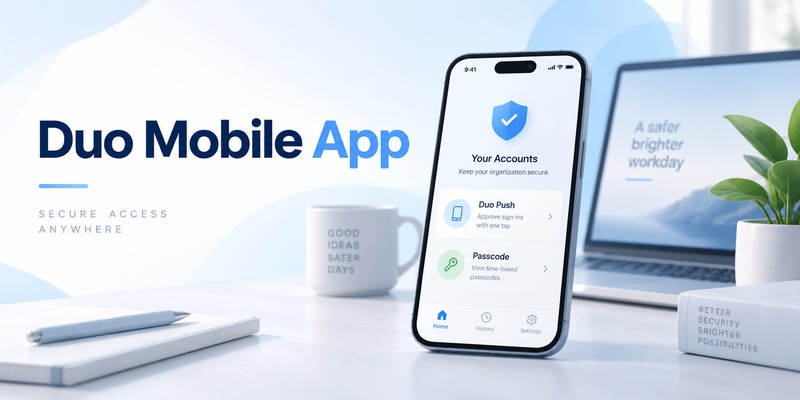
Quick answer: The duo mobile app is a two-factor and multi-factor authentication application from Cisco Duo. It can approve login requests through Duo Push, generate temporary passcodes for Duo-protected accounts, and work as a TOTP authenticator for many third-party services. It is available for supported iOS and Android devices and also includes backup and restore options for eligible accounts.
The duo mobile app is best known in workplaces, universities, healthcare organizations, technology companies, and other environments where administrators use Cisco Duo to protect access to applications and networks.
However, that is not its only purpose.
The application can also store third-party TOTP accounts, meaning you can scan QR codes from supported online services and use Duo Mobile in a similar way to other authenticator applications.
When used with a Duo-protected organization, the experience may be even simpler.
You enter your username and password, receive a Duo Push request on your phone, review the login, and approve it.
Duo also supports stronger verified push workflows in which users may be required to enter a numeric code displayed by the application they are accessing before approving the request.
That combination of push authentication, offline passcodes, third-party TOTP support, device management, and account recovery makes the duo mobile app different from a basic code-only authentication application.
This pillar guide explains what Duo Mobile is, how it works, how to install it, how to complete duo mobile setup, how backup and recovery work, how to troubleshoot common problems, and how it compares with Google Authenticator.
What Is the Duo Mobile App?
The duo mobile app is an authentication application developed by Duo Security, which is part of Cisco.
Its primary purpose is to provide an additional identity verification step after a user enters a password.
This is commonly called two-factor authentication, or 2FA, and multi-factor authentication, or MFA.
Instead of allowing access based on a password alone, a protected service may require confirmation from a trusted mobile device.
A typical login might look like:
Username and password → Duo verification → account access.
Cisco describes Duo Mobile as an application capable of receiving Duo Push authentication requests and generating time-based one-time passcodes.
What Can Duo Mobile Protect?
There are two main categories of accounts you may encounter inside the duo mobile app.
The first is a Duo-protected account.
These accounts belong to organizations using Duo’s authentication infrastructure.
Examples may include:
- company email;
- corporate VPN access;
- internal web applications;
- cloud services;
- university systems;
- remote work environments;
- administrative portals;
- operating system login workflows.
In these environments, your organization usually controls the Duo deployment.
The second category is a third-party account.
Duo Mobile can act as a traditional TOTP authenticator app for websites that provide a compatible QR code.
Cisco’s documentation explains that users can add third-party accounts by enabling authenticator-based 2FA on the service and scanning the displayed QR code with Duo Mobile.
That means the application is not limited to accounts operated by your employer.
Why Do Organizations Use Duo?
Organizations use Duo because authentication can be combined with broader identity and access policies.
Cisco Duo can protect access to resources such as VPNs, email, web applications, cloud services, and local operating system logins.
From the user’s perspective, however, much of that complexity is hidden.
The duo mobile app provides the mobile interface used to confirm identity.
For many users, that means simply reviewing a push request and selecting the appropriate action.
Download Authenticator App
Secure your accounts with fast, reliable two-factor authentication. Download now and protect your login in seconds.
How Does the Duo Mobile App Work?
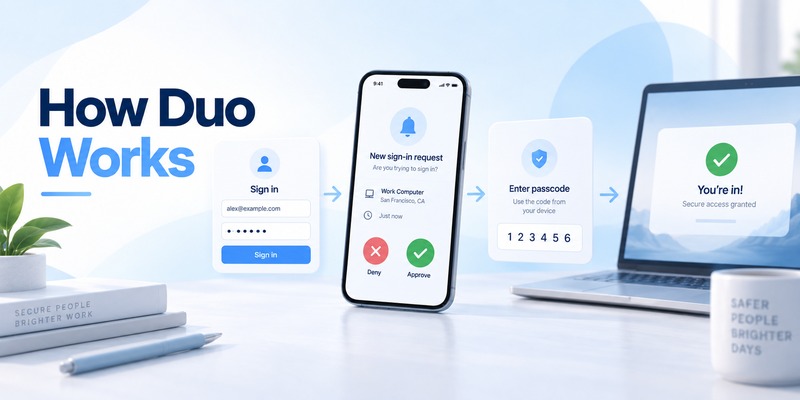
The duo mobile app can authenticate users in more than one way.
Understanding these methods helps explain why Duo differs from simpler TOTP-only applications.
Duo Push
Duo Push is one of the application’s core authentication methods.
After you enter your username and password, the protected service sends an authentication request to your phone.
The duo mobile app displays the request.
You review it and approve or deny the login.
Cisco describes Duo Push as a mobile authentication method where a request is sent to Duo Mobile on iOS or Android for the user to approve or deny.
This eliminates the need to manually copy a six-digit code for every login.
Verified Duo Push
Organizations can strengthen push authentication through Verified Duo Push.
Instead of simply tapping Approve, the user may have to enter a numeric verification code shown on the device or application where the login is occurring.
This reduces the effectiveness of push fatigue attacks.
A push fatigue attack occurs when an attacker repeatedly triggers MFA notifications and hopes the victim eventually approves one.
Verified Duo Push adds context to the approval process.
If your laptop displays one verification code but your phone asks you to confirm something unexpected, you have a clear reason not to approve the request.
Cisco currently supports verified push policies that can require users to enter a numeric code before approval.
Duo Mobile Passcodes
The duo mobile app can also generate passcodes.
These can be entered manually when a login screen requests a one-time code.
Unlike push authentication, generated passcodes can be useful when your phone has no mobile data or Wi-Fi.
Cisco notes that Duo Mobile-generated passcodes remain an app-based authentication option and do not incur telephony costs associated with SMS or phone-call authentication.
Third-Party TOTP Codes
The application can also generate standard TOTP codes for third-party accounts.
The process is similar to Google Authenticator and other authentication applications.
A website generates a secret.
The secret is encoded into a QR code.
You scan the QR code with the duo mobile app.
Duo Mobile then generates temporary codes based on that secret and the current time.
Cisco’s third-party account guide specifically documents this QR-code enrollment workflow.
How to Download and Set Up Duo Mobile
Users searching for download duo mobile app should generally install the application through the official Apple App Store or Google Play Store.
Cisco’s support page provides direct links for iOS and Android, and Cisco recommends obtaining the Android application from Google Play whenever possible to receive automatic updates and full functionality.
Is Duo Mobile Free?
The mobile application itself can be downloaded without paying a consumer app purchase fee.
Therefore, users searching for duo mobile app free can install Duo Mobile on compatible mobile devices.
However, this should not be confused with the pricing of Cisco Duo services used by businesses and organizations.
Your employer, university, or other organization may subscribe to a Duo plan separately.
Installing the duo mobile app does not automatically create access to an organization’s protected resources.
You still need enrollment or activation from the organization.
Step 1: Install Duo Mobile
Go to the official app store for your device.
Search for Duo Mobile and verify that the application is published by the legitimate Duo publisher.
Install it.
Avoid downloading unofficial modified packages from unknown websites.
Cisco does provide an official Android APK for situations where Google Play is unavailable, but Cisco itself recommends Google Play where possible.
Step 2: Begin Enrollment
For an organizational Duo account, enrollment is usually initiated by your employer, school, or administrator.
You may receive an enrollment link or see a Duo enrollment workflow after signing into a protected service.
Follow the prompts to register your phone.
Depending on your organization’s configuration, you may be asked to scan a Duo activation QR code.
Duo administrators can also activate or reactivate mobile devices for users through the Duo Admin Panel.
Step 3: Scan the Activation Code
Open the duo mobile app when prompted.
Use the application to scan the QR code displayed during enrollment.
The account will be added to the application once activation succeeds.
For a normal Duo-protected account, this activation allows the application to receive Duo Push requests and generate relevant authentication passcodes.
Step 4: Add a Third-Party Account
The procedure is slightly different when using Duo Mobile as a normal TOTP application.
First, sign in to the website you want to protect.
Navigate to the security settings.
Enable two-factor authentication.
Choose the option for an authenticator application.
The site usually displays a QR code.
Open the duo mobile app, select Add, choose the QR-code option, and scan the code.
Cisco recommends ignoring service-specific references to another authenticator if the service supports standard TOTP, because Duo Mobile can often be used instead.
Step 5: Verify the Account
The website will normally ask you to enter the code generated by Duo Mobile.
Open the account inside the application.
Generate or reveal its passcode.
Enter that passcode on the website.
Once accepted, your duo mobile setup for that third-party account is complete.
Save Recovery Codes
Many websites provide emergency recovery codes after 2FA activation.
Save them.
Do not keep your only recovery codes exclusively on the same phone where the duo mobile app is installed.
If that device is lost, you do not want both your primary authentication factor and backup method to disappear together.
How to Use Duo Mobile for Two-Factor Authentication
For anyone searching how to use duo mobile, the answer depends on whether you are authenticating through Duo Push or a standard passcode.
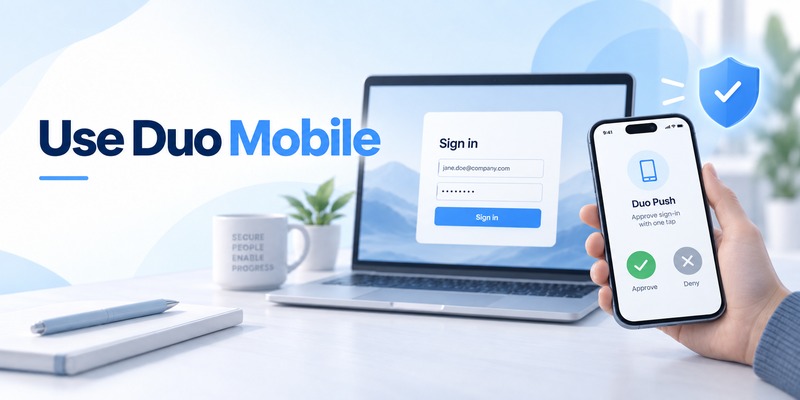
Logging In With Duo Push
Start by visiting the protected application.
Enter your username and password.
After primary authentication succeeds, the site requests Duo authentication.
A notification arrives on your phone.
Open the duo mobile app.
Review the login details.
If you initiated the request and everything appears correct, approve it.
If you did not initiate the login, deny it.
Do not approve an unexpected push simply because you want the notification to disappear.
Logging In With Verified Duo Push
Your organization may use a stronger verification workflow.
In that case, the login screen may display a short numeric code.
Open the duo mobile app.
Enter the requested code into the push approval interface.
Confirm the login only if the code matches the login session you started.
Verified Duo Push is designed to make blind approval more difficult.
Logging In With a Passcode
Some Duo prompts allow you to choose a passcode instead of push authentication.
Open the relevant account in the duo mobile app.
Generate the passcode.
Enter it on the login screen.
This can be especially useful when push notifications are delayed or your phone is temporarily offline.
Using Duo Mobile With Third-Party Accounts
The workflow resembles other TOTP applications.
Sign into your account with your username and password.
When the website requests an authentication code:
- Open Duo Mobile.
- Find the relevant account.
- Reveal or copy its passcode.
- Return to the website.
- Enter the code.
- Complete the login.
Cisco’s guidance confirms that third-party passcodes can be copied from Duo Mobile and pasted into another application where required.
Never Approve Unexpected Requests
The duo mobile app can help block fraudulent logins only when the user evaluates authentication requests carefully.
If your phone displays a Duo Push notification while you are not signing in anywhere, do not approve it.
If available, report it as fraudulent.
Cisco also supports protections that can temporarily mute repeated push notifications after a user marks a request as fraudulent.
Duo Mobile Backup and Restore
Account recovery is an important part of any authentication strategy.
If dozens of logins depend on one phone, losing that phone can become a major problem.
Duo mobile backup is handled through a collection of features known as Duo Restore.
Cisco states that Duo Restore can help recover both Duo-protected accounts and third-party OTP accounts, although the exact process and requirements differ depending on account type and operating system.
Duo-Protected Accounts vs Third-Party Accounts
This distinction matters.
Duo-protected accounts are managed through organizations using Duo.
Third-party OTP accounts are websites you added manually as standard authenticator tokens.
The backup and restore rules are not identical.
For example, Cisco’s Instant Restore functionality can recover Duo-protected and Duo administrator accounts when enabled by the organization.
Third-party OTP accounts require their own backup and recovery configuration.
Duo Restore on iPhone
On iOS, Duo Restore can work with iCloud-based device backup.
Cisco states that users should have iCloud backup enabled and, for Instant Restore, iCloud Keychain enabled.
Encrypted Finder or iTunes backups may also be relevant to certain recovery workflows.
For third-party accounts, users can enable backup in Duo Mobile and create a recovery password.
That recovery password is extremely important.
Cisco states that Duo Support cannot recover third-party accounts for users or reset the third-party recovery password.
Duo Restore on Android
Modern Android recovery relies on Google’s device backup infrastructure.
Cisco’s current guidance says Android users should enable Google backup and include application data in the device backup.
A secure device lock such as a PIN, pattern, or password is also required for automatic backup workflows.
Third-party account recovery can also be enabled within Duo Mobile.
Protect the Recovery Password
If you enable backup for third-party OTP accounts, use a strong recovery password.
Do not forget it.
Consider storing it in a trusted password manager.
The recovery password protects encrypted authentication information, and Duo cannot simply reveal or reset it for you.
Backup Does Not Mean Universal Portability
The duo mobile app should not be treated as a universal export tool.
Cisco states that third-party accounts cannot simply be exported from Duo Mobile.
Duo Restore is designed primarily for recovery within Duo Mobile.
This distinction becomes important if you later decide to switch to another authentication application.
Android-to-iPhone Restore
One limitation worth understanding before you depend heavily on backup is that Duo backups cannot simply be restored across mobile platforms.
Cisco states that Duo Restore backups cannot be restored directly from Android to iOS or from iOS to Android.
If you are moving between ecosystems, you may need to reactivate accounts using organizational self-service options, contact your administrator, or manually reconfigure third-party accounts.
How Secure Is the Duo Mobile App?

The duo mobile app provides significantly stronger login protection than relying on passwords alone.
Its security value comes from separating the authentication process into multiple factors.
Even if an attacker learns your password, the protected service can still require verification from another device or factor.
Push Authentication
Duo Push improves convenience because users do not need to type a temporary code every time.
However, push authentication must be used carefully.
Users should inspect each request rather than automatically approving it.
Unexpected requests should be denied.
Verified Push Reduces Push Fatigue Risk
Verified Duo Push adds additional context by requiring the user to interact with information from the active login session.
For example, the user may need to enter a numeric code shown in the browser.
That means repeated unsolicited notifications are less likely to succeed simply because the victim accidentally presses Approve.
Cisco offers Verified Duo Push as an authentication policy option.
Third-Party TOTP Security
When the duo mobile app is used for ordinary third-party TOTP accounts, security works similarly to other code-generating applications.
The application holds the secret required to generate the temporary code.
Anyone who gains access to that secret may be able to reproduce authentication codes.
Therefore, QR codes shown during enrollment should be treated as confidential.
Do not publish screenshots containing QR codes.
Secure Your Phone
Authentication software cannot compensate for an unprotected phone.
Use:
- a strong PIN or passcode;
- biometric protection where appropriate;
- current operating system updates;
- automatic application updates;
- device encryption;
- remote locking and wiping features.
If someone gains control of an unlocked phone running the duo mobile app, your authentication security may be weakened.
Watch for Phishing
MFA does not eliminate phishing.
An attacker may create a fake login page that asks for both your password and current authentication code.
Some attacks may also trigger a real push notification after stealing your password.
Only approve Duo requests that correspond to a login you initiated.
Check the website domain before entering credentials.
What Happens When You Change or Lose Your Phone?
Phone replacement is one of the most important practical considerations when using the duo mobile app.
The ideal time to prepare for losing your phone is before you lose it.
Before Replacing Your Phone
Before wiping, trading in, or selling your old device:
- Check whether Duo Restore is configured.
- Confirm your device backup has completed.
- Verify any third-party recovery password.
- Store website recovery codes safely.
- Add or activate the new device where possible.
- Test important accounts.
- Only then remove access from the old phone.
Duo Instant Restore
Organizations can enable Duo Mobile Instant Restore.
When properly configured, it can help users recover Duo-protected accounts on a replacement iOS or Android device.
For iOS, Cisco documents an iCloud-based process where the application can locate backed-up Duo accounts and restore them.
For current Android workflows, Duo Mobile can use supported Google device backup data to locate and restore eligible accounts.
Your Organization May Need to Reactivate Duo
Not every organization enables the same recovery features.
If Instant Restore is unavailable or the device cannot be recovered, contact your organization’s IT department or Duo administrator.
Cisco explicitly directs end users to work with the organization responsible for their Duo implementation for enrollment, activation, reactivation, and many troubleshooting issues.
Third-Party Accounts Are Different
If you also use the duo mobile app for third-party TOTP accounts, organizational reactivation will not necessarily recover them.
You need the appropriate third-party backup configuration or individual service recovery options.
Cisco strongly recommends keeping backup access such as recovery codes for these accounts because Duo Support cannot alter the authentication settings of an unrelated third-party website.
Remove the Old Device
After successfully moving to a new phone, review the old device.
For Duo-protected accounts, successful Instant Restore may deactivate corresponding accounts on the previous device.
However, restoring third-party OTP accounts does not automatically disable those tokens on the old phone.
Delete the third-party accounts or wipe the old device before giving it to someone else.
Duo Mobile Not Working: Common Problems and Fixes

The phrase duo mobile not working can describe several unrelated problems.
A missing push notification requires a different solution from an invalid TOTP code or failed account activation.
Identify the specific problem before changing your configuration.
Duo Push Notification Does Not Arrive
First check your internet connection.
Push authentication requires network connectivity.
Confirm that the phone has mobile data or Wi-Fi.
Then check notification permissions.
Make sure notifications are enabled for the duo mobile app.
Also verify that battery optimization or background restrictions are not preventing Duo Mobile from receiving notifications.
Cisco provides built-in push troubleshooting tools for users who stop receiving Duo Push notifications.
Push Arrives but Authentication Fails
Confirm that you are approving the correct login request.
If your organization uses Verified Duo Push, make sure the verification code is entered accurately.
If the authentication session has expired, return to the login page and initiate a new request.
Passcode Is Rejected
Check that you selected the correct account.
Users with many entries inside the duo mobile app can accidentally copy a code from the wrong profile.
If you are authenticating to a third-party service, confirm that the original 2FA configuration has not been reset.
If the service recently disabled or regenerated its authenticator secret, older codes will no longer work.
New Phone Shows No Accounts
A blank application after phone replacement often indicates that restoration was not completed.
Check whether you restored the correct iCloud or Google device backup.
For Android, verify that you signed into the same Google account associated with the backup.
Cisco lists choosing the wrong Google account or never having enabled backup on the original phone as possible reasons a restore cannot locate accounts.
Third-Party Accounts Cannot Be Restored
Check whether you enabled third-party account backup before losing the old device.
You may also need your recovery password.
If no valid backup exists, Duo Support cannot reconstruct the authentication secrets for unrelated services.
You will usually need to recover each account through the provider and configure 2FA again.
Duo Mobile Needs Reactivation
Changing phones can require a Duo-protected account to be reactivated.
Depending on your organization, you may be able to do this through self-service device management.
Otherwise, contact your IT team.
Duo administrators can generate activation or reactivation workflows from the administration system.
The Application Crashes or Will Not Open
Start with standard mobile troubleshooting:
- restart your device;
- update the application;
- update the operating system;
- check available storage;
- verify that your device is supported.
Do not uninstall the duo mobile app immediately if it contains important third-party authentication tokens.
Confirm your recovery options first.
Deleting authentication data without a valid backup can make account recovery much harder.
Duo Mobile vs Google Authenticator
The duo mobile vs google authenticator comparison is not simply a question of which application can generate six-digit codes.
Both can work as TOTP applications.
Their biggest differences involve push authentication, organizational integration, recovery, account synchronization, and migration.
Duo Push vs TOTP-First Authentication
Duo’s biggest differentiator is Duo Push.
Organizations using Cisco Duo can send authentication requests directly to the duo mobile app.
Users can approve or deny logins without manually copying TOTP codes.
Verified Duo Push can additionally require a numeric verification step.
Google Authenticator is primarily centered on generating authentication codes rather than acting as the front end for a broad enterprise push-authentication platform.
Third-Party Accounts
Both applications can handle standard TOTP accounts.
If a website shows a compatible QR code during authenticator setup, either application may often be suitable.
Duo’s official documentation specifically supports adding third-party accounts in this way.
Backup and Synchronization
Google Authenticator supports synchronization of authentication codes through a Google Account.
When users sign into the same Google Account on a new device, synchronized Authenticator codes can appear there automatically.
Google also allows users to run Authenticator without signing into a Google Account.
Duo uses a different model.
The duo mobile app provides Duo Restore functionality, with separate considerations for Duo-protected accounts and third-party OTP accounts.
Organizational settings can also affect whether Instant Restore is available.
Moving Accounts Between Devices
Google Authenticator provides account transfer functionality.
Users operating without Google Account synchronization can export accounts from an old phone through QR codes and import them on another device.
Duo’s third-party account migration is more tied to Duo Restore.
Cisco states that users cannot simply export third-party accounts from Duo Mobile.
This is a meaningful difference for users who prioritize portability.
Enterprise Integration
For company or university environments already protected by Duo, the duo mobile app has a major advantage because it is part of the organization’s authentication system.
Google Authenticator cannot replace Duo Push when an employer specifically requires Duo.
In that case, the choice may not actually be optional.
Which One Should You Choose?
Choose Duo Mobile when:
- your employer or university requires Duo;
- you want Duo Push;
- your organization uses Verified Duo Push;
- you want to combine Duo accounts and TOTP accounts;
- Duo Restore fits your recovery requirements.
Google Authenticator may be more attractive when:
- you primarily want standard TOTP codes;
- you already depend heavily on a Google Account;
- straightforward account transfer is important;
- you do not need Duo’s enterprise authentication features.
The best option depends on how you authenticate, not simply which application has the shorter setup process.
Advantages, Limitations, and Who Should Use Duo Mobile
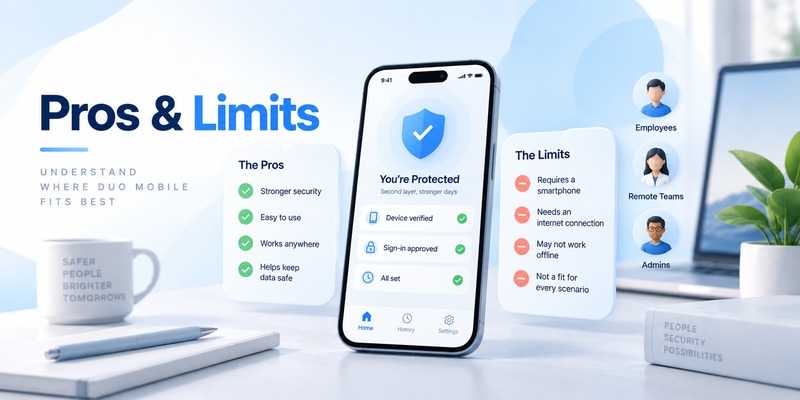
The duo mobile app offers a strong combination of enterprise MFA functionality and ordinary TOTP authentication.
For certain users, it is an obvious choice.
For others, a simpler authenticator may be enough.
Main Advantages
The first advantage is Duo Push.
Approving a trusted login can be faster than manually copying authentication codes.
The second is Verified Duo Push.
Organizations can add additional verification steps that make accidental approvals less likely.
The third is flexibility.
The duo mobile app can manage both Duo-protected accounts and compatible third-party OTP accounts.
Another benefit is offline passcode generation.
If push is unavailable, a generated passcode may still allow authentication where the protected system permits it.
Finally, Duo Restore can simplify phone replacement when backups and organizational policies are configured correctly.
Main Limitations
Recovery can be more complex than users initially expect because Duo-protected accounts and third-party accounts follow different rules.
Instant Restore may depend on organizational settings.
Third-party account restoration requires advance preparation.
Direct third-party token export is not available.
Cross-platform Duo Restore between Android and iOS is also not supported as a simple backup migration.
For users who frequently change authentication applications, that reduced portability may matter.
Who Should Use Duo Mobile?
The duo mobile app is particularly suitable for:
- employees whose companies use Cisco Duo;
- students whose universities require Duo;
- administrators managing Duo environments;
- users who want Duo Push;
- users who need both organizational MFA and TOTP tokens;
- users who value verified push authentication.
Who Might Prefer Another Authenticator?
Another application may be more appropriate if your only requirement is storing a few standard TOTP codes.
Users who prioritize easy cross-platform export or migration may also want to compare alternatives.
The important question is not whether the duo mobile app is universally better.
It is whether its authentication and recovery model matches your requirements.
Frequently Asked Questions About the Duo Mobile App
Is Duo Mobile free?
The application itself is free to install on supported mobile devices.
Organizations using Cisco Duo may pay separately for Duo’s business authentication services.
What is Duo Mobile used for?
Duo mobile is used to provide two-factor and multi-factor authentication.
It can receive push login requests, generate one-time passcodes, and store compatible third-party TOTP accounts.
How do I download Duo Mobile?
The safest way to download duo mobile app is through the official Apple App Store or Google Play Store.
Cisco recommends Google Play for Android whenever possible.
Does Duo Mobile work without internet?
Generated authentication passcodes can work without an active network connection.
Duo Push requires connectivity because the authentication request must reach your mobile device.
Can Duo Mobile replace Google Authenticator?
For many standard TOTP services, yes.
Cisco documents support for adding third-party accounts by scanning their authenticator QR codes.
However, not every authentication system is interchangeable.
If an organization specifically requires a particular authentication workflow, follow its instructions.
Can I have multiple accounts in Duo Mobile?
Yes.
The duo mobile app can contain multiple Duo-protected accounts and multiple compatible third-party accounts.
What happens if I lose my phone?
Recovery depends on the account type and whether backup or restore features were configured before the phone was lost.
For organizational Duo accounts, you may also need help from your administrator.
Third-party accounts may require Duo Restore or the original provider’s backup codes.
Can Duo Support recover my third-party accounts?
No.
Cisco states that Duo Support cannot recover third-party accounts without the required backup or change the settings on an unrelated service to bypass its authentication requirements.
Can I back up Duo Mobile?
Yes.
The duo mobile backup and recovery system is known as Duo Restore.
The exact workflow differs between iOS and Android and between Duo-protected and third-party accounts.
Can I move Duo Mobile from Android to iPhone?
You can use Duo Mobile on a new device, but a Duo Restore backup cannot simply be restored across Android and iOS platforms.
You may need to reactivate Duo-protected accounts or manually configure accounts on the new platform.
Why am I not receiving Duo Push notifications?
Check your internet connection, operating system notification permissions, background restrictions, and whether the Duo account remains activated.
Duo Mobile also includes push troubleshooting features for supported devices.
Should I approve every Duo notification?
No.
Only approve a push request when you initiated the corresponding login.
An unexpected push may indicate that someone has your password or is attempting to access your account.
What is Verified Duo Push?
Verified Duo Push adds an extra confirmation step.
Depending on the organization’s policy, the user may need to enter a numeric code associated with the active login before approving the request.
Can Duo Mobile generate normal authenticator codes?
Yes.
Besides Duo Push, the duo mobile app can generate time-based passcodes and can store compatible third-party TOTP accounts.
What should I do before changing phones?
Check your Duo Restore configuration, verify device backups, preserve recovery passwords and backup codes, and activate your new device before erasing your old phone where possible.
Is Duo Mobile only for businesses?
No.
Although Duo is strongly associated with enterprise authentication, the application can also store standard third-party TOTP accounts.
However, Duo-protected organizational accounts require enrollment through the organization managing the Duo deployment.
Is Duo Mobile better than SMS authentication?
App-based authentication avoids relying on an SMS message for every authentication request.
Duo Push and app-generated passcodes are also independent of telephony authentication costs within the Duo platform.
Security still depends on how the user and organization configure the overall authentication system.
Final Thoughts
The duo mobile app is a powerful authentication tool because it does more than generate temporary security codes.
For organizations using Cisco Duo, it becomes a direct interface between the user and the organization’s MFA system.
Users can receive Duo Push requests, review authentication activity, use Verified Duo Push where configured, and generate passcodes when necessary.
At the same time, the duo mobile app can function as a standard TOTP authenticator for many third-party accounts.
That flexibility is one of its strongest advantages.
A user may keep an employer’s Duo authentication profile alongside several personal TOTP accounts in the same application.
Recovery deserves particular attention.
Duo Restore can make moving to a replacement device much easier, but users should understand the difference between Duo-protected accounts and third-party accounts.
Backup should be configured before a phone is lost.
Recovery passwords should be stored securely.
Emergency recovery codes from important third-party websites should also be preserved independently.
The application has some limitations.
Third-party accounts cannot simply be exported like a normal portable file.
Backup migration between Android and iOS is not straightforward.
And organizational Duo account recovery may depend on settings controlled by an employer or administrator.
Despite those limitations, the duo mobile app remains particularly well suited to organizations and users who value push authentication, enterprise integration, verified login workflows, and support for standard authentication codes.
The most important security rule is simple: never approve an authentication request you did not initiate.
A strong password combined with carefully used multi-factor authentication creates a much stronger defense than passwords alone.
If you use the duo mobile app, configure recovery before you need it, protect your phone with a secure lock, keep the application updated, save backup codes for critical accounts, and treat every unexpected Duo Push request as a potential security warning.
Used correctly, the duo mobile app can provide a practical additional layer of protection for work systems, university accounts, online services, and many other accounts that support modern two-factor authentication.
Download Authenticator App
Secure your accounts with fast, reliable two-factor authentication. Download now and protect your login in seconds.
