
Authy 2FA Authenticator: Setup, Backup, Recovery, and Security Guide
Published August 24, 2026
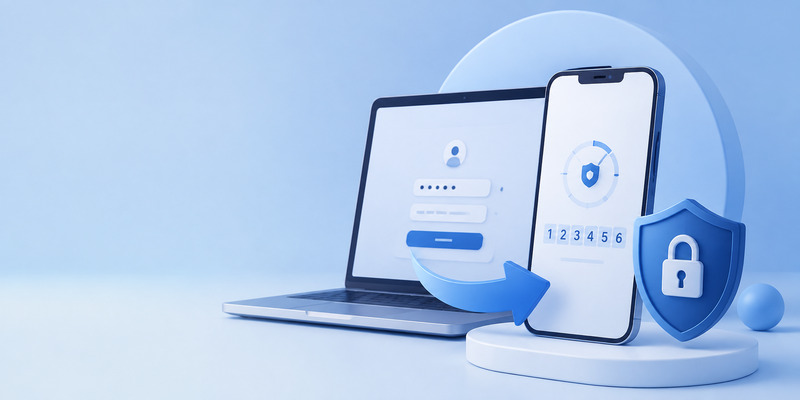
Passwords are still essential, but they are no longer enough to protect important accounts. Password reuse, phishing pages, credential leaks, malware, and social engineering can all expose a login. An authy 2fa authenticator adds a second layer of protection by requiring a temporary code generated on a trusted device.
Authy is a two-factor authentication application that stores and generates time-based verification codes for websites and services. When a service supports authenticator-based 2FA, you can usually scan its setup QR code with Authy, then use the changing code from the app whenever you sign in.
The biggest advantage of an authy 2fa authenticator is that it can combine code generation with encrypted backups and controlled multi-device access. That can be helpful when you replace a phone or need a backup device. However, those convenience features must be configured carefully. A forgotten backup password, deleted token, or unsecured secondary device can create serious access problems.
This guide explains how authy 2fa authenticator works, how to set it up, how to protect your backup information, and what to do if you lose a device.
1. What Is Authy 2FA Authenticator?
An authy 2fa authenticator is an app that creates one-time verification codes for accounts protected by two-factor authentication. These codes are usually six digits long and refresh on a short timer, often every 30 seconds.
The app does not replace your password. Instead, it acts as the second factor after you enter your username and password. A criminal who knows your password should still be blocked if they cannot access your active verification code.
The terms authy 2-factor authentication, two factor authentication authy, and 2fa authy all describe the same general purpose: using Authy to generate or manage login codes for supported services.
Authy can be used with many websites and apps that support time-based one-time passwords, often called TOTP. You might use it for an email account, social network, cryptocurrency exchange, cloud service, online store, or work platform.
The authy 2fa app can work offline because the codes are generated on your device. That is useful when you are traveling, have no mobile signal, or cannot receive SMS messages.
Download Authenticator App
Secure your accounts with fast, reliable two-factor authentication. Download now and protect your login in seconds.
2. How Authy Two-Factor Authentication Works
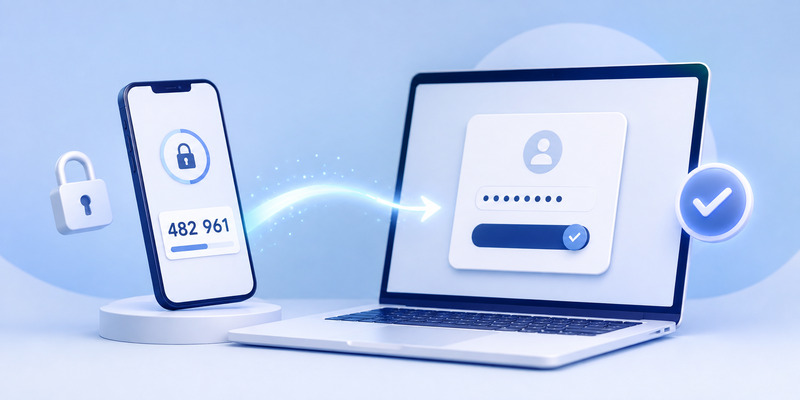
To understand authy 2fa authenticator, think of each protected account as having a unique secret key. During setup, the website displays a QR code or manual setup key. You scan or enter that key into Authy.
Authy and the website then use the same secret and the current time to calculate matching temporary codes. When you enter the displayed code at login, the website checks whether it matches the expected value for that time window.
The usual login flow is simple:
- Open the service you want to access.
- Enter your username and password.
- Open Authy on your trusted device.
- Find the correct account entry.
- Enter the current 6 digit 2fa code before it refreshes.
- Complete the sign-in.
An authy 2fa authenticator code is not the same as an email code, SMS code, recovery code, or passkey approval. Always read the verification prompt carefully. Entering the wrong code type is a common reason for failed logins.
Never send your live Authy code to another person. A legitimate company should not ask you to disclose an active authenticator code through email, social media, text messages, or phone calls.
💡 Discover Helpful Guides: 2FA Authenticator App: Complete Guide to Setup, Use, Download, and Secure Your Accounts
3. Why Use Authy Instead of SMS Codes?
SMS verification is better than using only a password, but it has weaknesses. Messages can be delayed, intercepted through SIM-swap attacks, or unavailable while traveling. An authy 2fa authenticator avoids many of these issues because the code is generated directly on the device.
The main benefits include:
- Works without a mobile network connection.
- Uses short-lived verification codes.
- Can support multiple protected accounts.
- Offers encrypted backups when configured.
- Can support a secondary trusted device.
- Helps reduce dependence on SMS-based verification.
An authenticator app is not perfect, though. If someone can unlock your phone, access a synced backup, or trick you into revealing a current code, 2FA can still be compromised. Your device security and personal habits matter as much as the app itself.
For strong protection, pair authy 2fa authenticator with a unique password, a secure email account, up-to-date device software, and phishing awareness.
💡 Discover Helpful Guides: 2FA Authenticator App: Complete Guide to Setup, Use, Download, and Secure Your Accounts
4. How to Set Up Authy 2FA Authenticator
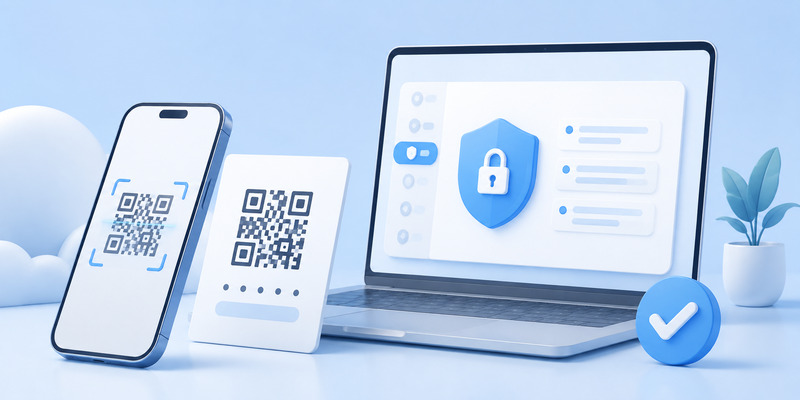
Start by installing the official Authy mobile app from your device’s official app store. Do not install an app from a random download link, advertisement, or direct message.
When registering, Authy may ask for your phone number and a method to verify the device. Follow the in-app process and protect your device with a passcode or biometric lock.
Next, enable two-factor authentication on the account you want to protect. Most services follow a similar flow:
- Sign in to the website or app.
- Open Security, Privacy, Account, or Login settings.
- Choose two-factor authentication.
- Select an authenticator app option.
- Scan the QR code with Authy.
- Save the service’s recovery codes in a secure location.
- Enter the first code from Authy to confirm setup.
Once the connection is confirmed, the new account appears inside the authy 2fa authenticator token list. Rename the item clearly if needed, especially if you manage several accounts from the same provider.
Do not screenshot the QR code unless you have a very specific, secure reason. The QR code often contains the secret needed to create valid login codes. Treat it with the same care as a password.
5. How to Add Accounts and Get a 6-Digit Code
Each service you protect should create a separate account token in Authy. You should only add a token after enabling 2FA directly in that service’s official security settings.
To get a code from authy – 2fa authenticator, open the app, select the account you need, and use the current number shown on screen. Most entries display a countdown indicator so you can see when a new code will appear.
If a code is rejected, check these basics before attempting repeatedly:
- Confirm you selected the correct account token.
- Wait for a fresh code if the timer is almost finished.
- Enable automatic date and time on your phone.
- Check that you are entering an authenticator code, not an email or SMS code.
- Confirm that the service’s 2FA setup was completed successfully.
A device with an incorrect clock can generate invalid codes. Enable automatic time and time-zone settings, then restart the app if the issue continues.
The 2fa authy app is best used as an organized, deliberate security tool. Keep only accounts you actively use, label them clearly, and avoid adding duplicate tokens unless the service specifically instructs you to do so.
📘 Explore More Useful Guides: Discord 2FA Code: Setup, Backup Codes, Errors, and Account Recovery Guide
6. Authy Backups and Multi-Device Access
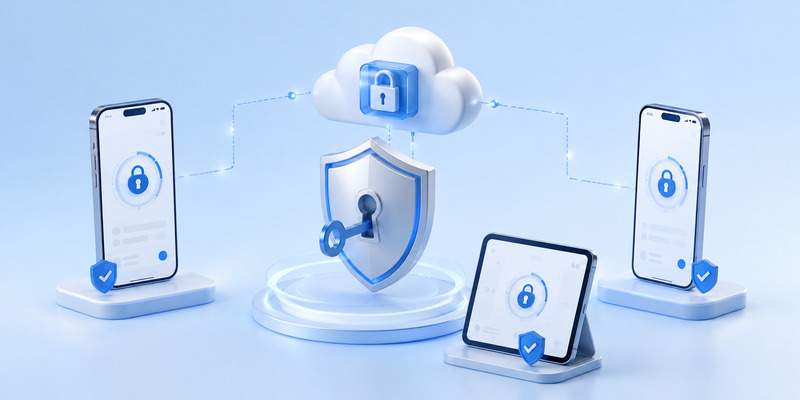
Backups are one reason people choose an authy 2fa authenticator. When backups are enabled, Authy can store an encrypted copy of your account tokens so that they may be restored on another authorized device.
This feature is valuable, but the backup password is critical. It protects the encryption used for your backed-up tokens. Authy does not store or recover that password for you.
Create a strong backup password that is different from your main email password. Store it securely in a trusted password manager or another protected recovery method. Do not rely only on memory if losing the password would lock you out of important accounts.
Multi-device access can also help you avoid total lockout. For example, you may temporarily add a tablet as a secondary Authy device, confirm your tokens are available, then disable new device registration again.
Do not leave multi-device enrollment open permanently. A safer approach is:
- Enable multi-device only when adding a trusted backup device.
- Confirm the new device can access the required tokens.
- Disable new device additions after setup.
- Remove old, lost, or unused devices immediately.
This balance gives authy 2fa authenticator users recovery options without unnecessarily expanding the number of devices that can receive their tokens.
💡 Discover Helpful Guides: 2FA Authenticator Chrome: How to Set Up Secure Two-Factor Authentication in Your Browser
7. Authy 2FA Account Recovery After Losing a Phone
Authy 2fa account recovery can be straightforward or difficult depending on what you prepared before the loss.
If you still have a trusted secondary device and know your backup password, you may be able to regain access to your Authy tokens more easily. If your tokens were backed up, you can set up an authorized replacement device and decrypt the tokens using the backup password.
If you have lost every trusted device and forgot the backup password, the situation is more serious. The encrypted tokens cannot simply be bypassed or recovered by support. You may need to recover each underlying account directly with the relevant service provider, disable its old 2FA method through that provider’s verification process, and then set up Authy again from scratch.
Do not trust websites or individuals who claim they can instantly recover Authy tokens, bypass two-factor authentication, or reset an account without proof of ownership. These offers are often scams aimed at people who are stressed after losing a phone.
A legitimate recovery process may include waiting periods, phone verification, identity checks, recovery codes, or review by the service you are trying to access. That friction is intentional: it helps stop attackers from taking over accounts.
📘 Explore More Useful Guides: 2FA Authenticator Instagram: Complete Setup, Login, Recovery, and Troubleshooting Guide
8. How to Move Authy to a New Device Safely

Do not wipe, sell, trade in, or reset your old phone until you have tested your new authy 2fa authenticator setup.
A safe migration process looks like this:
- Keep the old phone active and charged.
- Confirm you know your backup password.
- Install Authy on the new phone from the official app store.
- Complete device verification through the official Authy process.
- Restore or decrypt your tokens as required.
- Test a low-risk account login first.
- Confirm all important tokens are present and usable.
- Remove the old device only after the new device is fully working.
- Disable additional device enrollment if you enabled it temporarily.
If you do not know the backup password, do not assume the new device will be able to use encrypted tokens. Check your active old device first and update the backup password while you still have access, if the app permits it.
A little preparation prevents the most common authy 2fa authenticator migration mistake: erasing the old device before confirming that the replacement can generate valid codes.
📘 Explore More Useful Guides: Snapchat 2FA Code: Meaning, SMS Texts, Setup, and Account Security Guide
9. Common Authy Problems and Fixes
Authy code does not work
Check the correct account entry and ensure your phone time is automatic. Wait for a new code, then try again once. If it still fails, verify the account’s 2FA setup through the service’s official support resources.
A token is missing
First, check whether backups were enabled before the token disappeared. Then confirm you are using the correct Authy account and have completed the device verification flow. If the token was deleted, review Authy’s deletion and recovery guidance quickly because some deleted tokens may have a limited recovery period.
New device setup is blocked
Your account may have multi-device access disabled. If you still have an active trusted device, use it to manage device settings. If you do not, follow the official account-recovery process and expect a security waiting period.
You forgot the backup password
If another active device still has decrypted tokens, update the backup password there. If no active device remains, you may need to recover each individual service account instead. Do not guess repeatedly or use untrusted recovery tools.
📘 Explore More Useful Guides: 2FA Authenticator Instagram: Complete Setup, Login, Recovery, and Troubleshooting Guide
10. Authy Security Best Practices

A secure authy 2fa authenticator setup is about more than code generation.
Use a strong screen lock and biometric protection on every device that can access Authy. Keep your operating system and Authy app current. Remove old phones, tablets, or devices from your account as soon as you stop using them.
Protect your primary email account with strong authentication because email is often used for password resets. Use a password manager to create a unique password for every important service.
Keep recovery codes separate from your everyday phone. If possible, store them in a secure password manager, encrypted storage, or a protected offline document.
Never share:
- Current Authy codes.
- Backup passwords.
- Setup QR codes.
- Manual setup keys.
- Service recovery codes.
- Password-reset links.
- Device verification prompts.
A trustworthy authenticator App provides useful protection, but it cannot prevent phishing if you voluntarily enter a fresh code on a fake website. Always check the domain before signing in and avoid clicking login links from unexpected messages.
11. Frequently Asked Questions
Is Authy free to use?
Authy is offered as a free two-factor authentication app for end users. Check official Authy or Twilio pages for the latest availability and platform details.
Can Authy work without internet?
Yes. Existing time-based tokens can generate codes offline. Internet access may still be needed for device registration, backups, syncing, or account recovery.
Can I use Authy on a desktop computer?
Authy’s desktop applications reached end of life and are no longer supported. Use the mobile app on a supported phone or tablet instead.
Can I recover a forgotten Authy backup password?
No. The backup password is not stored by Authy, so it cannot be recovered or reset by support. This is why secure password storage is essential.
Can I delete an Authy token?
Yes, but disable 2FA at the underlying website before deleting its Authy token. Otherwise, you may lock yourself out of that website.
12. Final Thoughts
An authy 2fa authenticator can make account security stronger by adding changing verification codes, encrypted backups, and controlled multi-device support. It is especially useful for people who protect many important accounts and want a recovery plan for a lost phone.
Set up backups before an emergency, store the backup password securely, test a secondary device carefully, and disable new device additions when you are finished. Most importantly, treat every Authy code, QR code, and recovery detail as sensitive security information.
With the right setup, authy 2fa authenticator gives you a practical way to reduce account-takeover risk while keeping your login codes available when you need them.
Download Authenticator App
Secure your accounts with fast, reliable two-factor authentication. Download now and protect your login in seconds.
