
GitHub Two Factor Authentication: Complete Setup, Recovery Codes & Troubleshooting Guide
Published September 9, 2026

GitHub two factor authentication adds a second identity check to your GitHub login, and GitHub requires 2FA for users who contribute code on GitHub.com. GitHub recommends a TOTP authenticator application as the primary method, with a passkey, security key, or GitHub Mobile as an additional method. SMS remains supported but carries more security and reliability trade-offs.
To enable it, go to:
Profile picture → Settings → Password and authentication → Enable two-factor authentication
Scan GitHub’s QR code with an authenticator app, enter the six-digit code it generates, and download your recovery codes before finishing. GitHub then places the account into a 28-day 2FA check-up period designed to make sure your new authentication method really works.
The most important advice is simple: do not rely on one phone. Keep your GitHub recovery codes somewhere secure and configure more than one authentication or recovery method.
If you lose both your 2FA credentials and every recovery method, GitHub warns that you can permanently lose access to the account. GitHub Support cannot simply disable 2FA and return the account to you.
1. What GitHub Two Factor Authentication Protects
A GitHub account can be far more valuable than an ordinary social-media account.
It may control:
- Source-code repositories
- Private organization repositories
- Package publishing
- Actions workflows
- Deployment configuration
- Personal access tokens
- Organization permissions
- Open-source projects
- Developer identity and reputation
That makes github two factor authentication a control not only for protecting an individual user, but also for reducing software supply-chain risk.
Without 2FA, someone who steals a valid password may be able to attempt a direct account login.
With two factor authentication for github, a normal password-based login requires another credential.
Depending on your configuration, that second step may involve:
- A TOTP code
- An SMS code
- GitHub Mobile
- A security key
- A passkey
GitHub describes 2FA as an additional security layer requiring both normal login credentials and another form of authentication.
Why passwords alone are not enough
Credential abuse remains a major source of account compromise.
Verizon’s 2025 Data Breach Investigations Report examined more than 22,000 security incidents and 12,195 confirmed breaches. Compromised credentials accounted for 22% of initial access in the breaches analyzed.
The same research found that, in a median infostealer dataset, only 49% of a user’s passwords across different services were unique.
These figures are not specific to GitHub. They illustrate why developer accounts need additional protection beyond passwords.
A compromised GitHub account can potentially affect:
one developer → one organization → multiple repositories → downstream users.
That broader impact helps explain why GitHub moved from simply recommending 2FA to requiring it for code contributors.
Download Authenticator App
Secure your accounts with fast, reliable two-factor authentication. Download now and protect your login in seconds.
2. Why GitHub Requires 2FA for Code Contributors

GitHub began its large-scale mandatory 2FA rollout in March 2023.
GitHub’s current documentation states that users who contribute code on GitHub.com are required to enable one or more forms of 2FA.
The company did not simply switch millions of developers over overnight.
Eligible users received a notification and entered a 45-day enrollment period. If an affected user does not complete enrollment and allows the following 7-day grace period to expire, access to GitHub.com is blocked until 2FA is configured.
This is the situation behind messages resembling:
two factor authentication 2fa is required for your github account
It is not necessarily an error or evidence that someone changed your account.
It can be GitHub enforcing its mandatory enrollment policy.
Did mandatory 2FA actually increase adoption?
Yes.
GitHub reported that among code contributors who received the requirement during its 2023 rollout, the 2FA opt-in rate reached nearly 95%.
GitHub also reported a 54% increase in 2FA adoption among all active contributors after the mandatory rollout began.
Those numbers matter because GitHub sits inside the software supply chain.
Securing developer identities helps protect more than the developers themselves.
The 28-day check-up period
After you configure github two factor authentication, GitHub starts another safeguard: a 28-day check-up period.
If you successfully perform 2FA during those 28 days, the check is satisfied.
If you do not, GitHub asks you to verify the new configuration from an existing session on day 28. If the authentication method fails, GitHub provides an opportunity to reconfigure it while you still have access.
That process explains searches such as:
github verify your recently configured two factor authentication method
or:
verify your recently configured two factor authentication method github
The message is essentially GitHub checking:
Can you actually use the authentication method you just registered?
Do not ignore that check. It exists to prevent discovering months later that your authenticator was configured incorrectly.
3. How to Set Up GitHub Two Factor Authentication
For users searching how to enable two factor authentication in github, GitHub’s TOTP setup is straightforward.
Step 1: Open GitHub Settings
Sign in directly to GitHub.
Click your profile picture in the upper-right corner.
Choose:
Settings
Step 2: Open Password and authentication
In the sidebar, find the Access section.
Select:
Password and authentication
Step 3: Enable 2FA
Find the Two-factor authentication section.
Click:
Enable two-factor authentication
This starts the github set up two factor authentication flow.
Step 4: Scan GitHub’s QR code
GitHub displays a QR code.
Open your chosen github two factor authentication app and add a new account.
Scan the QR code.
If you cannot scan it, GitHub also provides a setup key that you can enter manually into a compatible TOTP application.
Step 5: Enter the six-digit code
After enrollment, your application displays a six-digit authentication code.
Enter it into GitHub under:
Verify the code from the app
GitHub’s documented TOTP parameters currently use:
- TOTP
- Six digits
- SHA-1
- 30-second period
Step 6: Download recovery codes
GitHub then displays the recovery-code step.
Choose Download and save the codes somewhere secure.
Then confirm:
I have saved my recovery codes
Only after that should you consider the initial github enable two factor authentication process complete.
Step 7: Add another method
Do not stop at one TOTP application.
GitHub strongly recommends adding multiple authentication and recovery methods so one lost device does not lock you out.
A sensible setup might be:
TOTP authenticator + passkey/security key + recovery codes
4. Which GitHub 2FA Method Should You Choose?
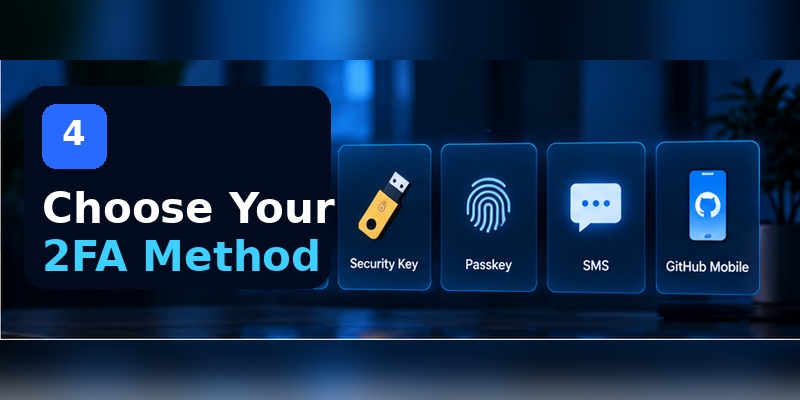
GitHub supports several two factor authentication methods, but they do not have identical security or recovery characteristics.
TOTP authenticator app
GitHub currently recommends a TOTP app as the primary 2FA method.
A two factor authentication app for github can run on mobile or desktop and produces rotating authentication codes.
GitHub says TOTP apps are generally more reliable than SMS, especially outside the United States, and notes that many support secure cloud backup.
Good for: most developers.
SMS
GitHub also supports verification codes delivered by text message.
SMS is convenient, but GitHub’s mandatory-2FA documentation acknowledges that it has security risks that may not fit every threat model.
For users who can use TOTP, GitHub explicitly recommends TOTP and security keys instead of SMS.
Security key
After configuring TOTP or SMS, you can add a WebAuthn-compatible security key as another 2FA method.
Examples include:
- Physical FIDO2 keys
- Apple Touch ID in supported environments
- Windows Hello
GitHub describes WebAuthn as the technology behind security-key authentication.
Security keys provide a significant security advantage: they resist conventional credential-phishing attacks better than manually entered one-time codes.
Passkey
GitHub also supports passkeys.
A passkey can satisfy both the password and 2FA requirements, allowing a one-step GitHub sign-in.
GitHub still recommends maintaining a fallback method to reduce lockout risk.
GitHub Mobile
Once you have configured TOTP or SMS, GitHub Mobile can also act as another authentication method.
GitHub Mobile uses public-key cryptography and can provide a convenient backup on a previously authenticated mobile device.
A practical recommendation
For most developers:
Primary: TOTP authenticator
Backup: passkey, security key, or GitHub Mobile
Recovery: securely stored recovery codes
For higher-risk users, organization owners, maintainers of widely used packages, or developers with sensitive private repositories:
TOTP + hardware security key/passkey + offline recovery codes
provides stronger resilience than relying on SMS alone.
5. How GitHub Authenticator Codes Work
A two factor authentication code generated by a TOTP application is intentionally temporary.
GitHub’s current setup uses a 30-second period.
That means a new code is generated every 30 seconds.
If you’re asking how to get two factor authentication code for github, GitHub does not normally send a TOTP code to you.
You need to open the application that you originally connected to GitHub.
Examples might include:
- Microsoft Authenticator
- Google Authenticator
- 1Password
- Another compatible TOTP application
Find the entry labeled for your GitHub account and use its current code.
Why does GitHub reject a code?
A TOTP code can fail because:
- You entered an expired code
- Device time is incorrect
- You selected the wrong GitHub account inside the authenticator
- You are using an older 2FA enrollment
- Extra spaces or characters were entered
GitHub recommends waiting for a fresh code and entering it immediately when troubleshooting.
A six-digit code is not automatically safe
TOTP significantly improves security compared with a password alone.
However, TOTP is still susceptible to real-time phishing.
A fake GitHub login page can request:
username → password → TOTP code
and relay those credentials while the temporary code remains valid.
This is one reason passkeys and security keys are valuable for higher-risk accounts.
Verizon’s 2025 DBIR places phishing among major breach entry techniques, and Verizon reported that phishing accounted for about 15% of breaches in its 2025 dataset.
Use 2FA, but still verify that you are actually signing in to GitHub.
6. GitHub Recovery Codes: The Part You Should Not Skip

The most important file created during github two factor authentication setup may be:
github-recovery-codes.txt
GitHub provides a set of one-time recovery codes when 2FA is enabled.
What are GitHub recovery codes?
GitHub 2fa recovery codes are emergency credentials.
If your normal second factor becomes unavailable, a valid unused recovery code can replace it during authentication.
Each code is:
- One-time use
- Sensitive
- Intended for account recovery
GitHub currently describes an individual code as 10 alphanumeric characters with a hyphen in the middle, formatted similarly to:
xxxxx-yyyyy
Where should you store them?
GitHub recommends storing recovery codes securely, such as in a password manager.
Consider maintaining a separate secure backup as well.
Avoid:
- Leaving the only copy on your authenticator phone
- Sending the codes to yourself in an unsecured message
- Committing the file into a repository
- Uploading it to a public GitHub Gist
- Storing it in plaintext on a shared workstation
Never commit github-recovery-codes.txt to Git.
How to regenerate recovery codes
Open:
Settings → Password and authentication → Recovery codes → View
Then choose:
Generate new recovery codes
Generating new codes invalidates the old set.
Why can a recovery code fail?
If GitHub says:
Recovery code authentication failed
the likely explanations are:
- The code has already been used
- It is from an older recovery-code set
- You regenerated your recovery codes
- You disabled and re-enabled 2FA
- You entered it incorrectly
GitHub specifically warns that disabling and re-enabling 2FA creates a new set and invalidates the previous codes.
7. GitHub 2FA Not Working: Fix the Error Before Starting Recovery
A github two factor authentication failed message does not automatically mean you have lost the account.
GitHub says this error normally means the authentication code entered is incorrect.
Work through the likely causes first.
Problem 1: Authenticator code is rejected
If github two factor authentication not working means your TOTP code is invalid:
Check your device clock first.
GitHub states that TOTP depends on synchronized time.
Turn on:
- Automatic date
- Automatic time
- Automatic time zone
Then wait for a fresh code.
Problem 2: You are using the wrong application
GitHub does not send TOTP codes to your authenticator.
You must open the same TOTP application or restored secret used for your current GitHub configuration.
If you previously changed authenticator apps, an old entry may still appear but generate invalid codes.
Problem 3: Microsoft Authenticator code fails
For searches like two factor authentication failed github microsoft authenticator, the same TOTP checks apply:
- Automatic device time
- Correct GitHub entry
- Fresh code
- Correct migrated account
GitHub’s recovery documentation links specifically to backup guidance for Microsoft Authenticator among popular TOTP applications.
Problem 4: Code expires while typing
A GitHub TOTP code changes every 30 seconds.
If only a few seconds remain, wait for the next code before entering it.
Problem 5: SMS never arrives
If your configured method is SMS, check:
- Mobile signal
- Correct number
- Carrier filtering
- Roaming
- Whether another authentication method is available
GitHub warns that Support cannot troubleshoot your 2FA methods on your behalf, including SMS delivery.
Problem 6: The new method fails during GitHub’s check-up
If GitHub asks you to verify a recently configured 2FA method within the 28-day check-up period and it fails, do not ignore the prompt.
GitHub provides a route to reconfigure 2FA while the existing authenticated session is still available.
This is considerably easier than discovering the problem after every trusted session has expired.
8. Moving GitHub Two Factor Authentication to a New Phone

The right time to solve github two factor authentication new phone is before the old device is erased.
Do not simply delete the old authenticator
GitHub explicitly warns that if you delete your authenticator after configuring 2FA, you will need another authentication or recovery method to regain access.
Option 1: Migrate your TOTP application
Many modern TOTP applications support:
- Cloud backup
- Device transfer
- Secret export
- Encrypted synchronization
GitHub points users to backup instructions for apps including Google Authenticator, Microsoft Authenticator, and 1Password.
After migration:
- Open the new phone.
- Confirm the GitHub token exists.
- Generate a code.
- Test it against GitHub.
- Only then wipe the old device.
Option 2: Reconfigure the TOTP method in GitHub
GitHub lets you change the authenticator application without disabling 2FA entirely.
This is often the cleaner option when switching authenticator providers.
Before changing phones
Make sure you have at least two of these:
- Working authenticator
- Recovery codes
- Passkey
- Security key
- GitHub Mobile
- Verified recovery method
A phone migration should be a routine maintenance task, not an account-recovery emergency.
9. Changing Your Authenticator Without Disabling 2FA
One of GitHub’s most useful features is that you do not need to disable github two factor authentication simply to change the TOTP application or phone number.
GitHub specifically supports reconfiguring an existing method while keeping 2FA enabled.
Why is that important?
Disabling and re-enabling 2FA can have side effects.
For example, it creates a new recovery-code set and can affect memberships in organizations that require 2FA.
Reconfiguring instead lets you retain existing recovery codes and organization access.
Safer migration process
Use this order:
- Stay logged in.
Do not log out of your only working GitHub session. - Confirm your recovery codes.
- Add or configure the new TOTP method.
- Verify the new code.
- Add another backup method.
- Remove the obsolete authenticator only after testing.
This minimizes the chance of locking yourself out during the transition.
Can you add multiple 2FA methods?
Yes.
GitHub now recommends adding more than one method specifically to reduce account lockout risk.
For example:
TOTP + passkey + security key
gives you considerably more flexibility than one authenticator installed on one phone.
10. Passkeys, Security Keys, GitHub Mobile, and Browser Extensions
The modern github two factor auth system is broader than mobile authenticator codes.
Passkeys
GitHub passkeys can satisfy both the normal password and 2FA requirements.
That means a passkey can provide a one-step sign-in while still delivering strong authentication.
Passkeys use asymmetric cryptography:
- The service stores a public key.
- Your authenticator protects the private key.
- The private credential does not need to be typed into a phishing page.
This makes passkeys attractive for developers who want stronger phishing resistance.
Security keys
A FIDO2/WebAuthn security key can act as an additional method after primary 2FA has been configured.
For maintainers of important repositories or organization administrators, keeping a physical security key as a backup is worth considering.
GitHub Mobile
GitHub Mobile can also authenticate login attempts after you establish the initial 2FA configuration.
Because it uses public-key cryptography, it gives users another option that does not depend on manually typing TOTP codes.
What about a GitHub 2FA browser extension?
The intent behind github two factor authentication browser extension needs a careful answer.
GitHub officially supports TOTP applications on mobile or desktop, but it does not require or provide a dedicated GitHub authenticator browser extension.
Third-party browser extensions do exist. For example, the open-source Authenticator project supports Chrome, Firefox, Edge, and Safari and can generate OTP codes in a browser.
However, think about the security model before using one.
If the same browser contains:
- Your GitHub session
- Stored password
- TOTP secret
then compromising that browser environment could expose several authentication layers at once.
Separating the second factor onto another trusted device or hardware security key provides stronger isolation.
Convenience matters, but so does independence between authentication factors.
11. GitHub 2FA and Git, SSH, HTTPS, APIs, and Personal Access Tokens
This is where two factor authentication in GitHub differs from many consumer services.
Turning on 2FA does not mean you type a rotating TOTP code every time you run:
git pull
or:
git push
SSH authentication
GitHub says enabling 2FA does not change command-line authentication using SSH URLs.
If your repository remote uses SSH, authentication continues through your SSH key.
HTTPS authentication
For Git over HTTPS, GitHub no longer uses normal account passwords for command-line Git authentication.
You generally use a credential manager or personal access token.
A command-line prompt may still say “password,” but GitHub notes that this may actually be where the personal access token is expected.
Personal access tokens
Mandatory GitHub 2FA also does not automatically invalidate existing PATs.
GitHub’s mandatory-2FA documentation notes that tokens can remain operational because they are used by important automation.
That is convenient, but it creates another security responsibility:
2FA protects interactive account login; it does not magically protect a stolen PAT.
Treat personal access tokens like passwords.
Use:
- Minimum required permissions
- Fine-grained tokens when suitable
- Expiration dates
- Secret scanning
- Rotation after suspected exposure
Why developers need layered security
A developer account can have several authentication paths:
Browser login → 2FA
Git SSH → SSH key
Git HTTPS/API → token/credential manager
Automation → tokens or app credentials
Securing only the browser login leaves other credentials untouched.
A strong github two factor authentication strategy should therefore sit inside a broader developer credential-management strategy.
12. What Happens If You Lose Every 2FA Method?
This is the section worth reading before anything goes wrong.
If you lose your normal github two factor authentication method, GitHub provides several possible recovery paths.
Recovery code
At login:
More options → 2FA recovery code
Enter an unused recovery code.
This can restore access immediately.
Passkey
If you previously configured a passkey, GitHub says it can automatically restore account access.
Because a passkey satisfies the password and 2FA requirements, you may not need your password during that recovery route.
Security key
A previously registered security key can also act as a recovery authentication method.
Verified device, SSH key, or personal access token
GitHub has an account-recovery process that may use:
- Previously verified devices
- SSH keys
- Personal access tokens
as evidence during recovery.
In some cases, GitHub says recovery can take up to three business days while a request is reviewed.
What if none of those exist?
This is the serious part.
GitHub states:
If you cannot use any recovery method, you have permanently lost access to the account.
GitHub Support cannot simply bypass 2FA.
That strict policy exists because a support agent who could easily remove 2FA would itself become a path attackers could exploit through social engineering.
You may be able to unlink an email address from the inaccessible account and reuse it with another GitHub account, but that does not restore the locked account itself.
The recovery plan must therefore be created while you still have access.
13. A Better Security Setup for Developers
There is no universal 2FA configuration for every GitHub user.
A student learning Git and the maintainer of a package used by millions of projects face different risk profiles.
But several principles apply broadly.
1. Prefer TOTP over SMS
GitHub explicitly recommends TOTP and security keys rather than SMS.
2. Add a phishing-resistant method
A passkey or hardware security key gives you protection that manually entered OTP codes cannot fully provide.
3. Keep two independent recovery paths
For example:
Recovery codes in password manager + hardware security key stored separately
is stronger than:
Authenticator + screenshot of recovery codes on the same phone.
4. Protect your email account
Your GitHub email is central to:
- Alerts
- Password reset
- Device verification
- Account recovery
Use strong MFA there too.
5. Protect SSH keys and tokens
Browser 2FA does not secure credentials copied from your development environment.
Secure:
- SSH private keys
- Personal access tokens
- Secrets in .env files
- CI/CD credentials
- Cloud credentials
6. Treat unexpected authentication prompts as suspicious
If you did not initiate a GitHub login, do not approve a request simply because it appears legitimate.
Verizon’s 2026 DBIR found that mobile-focused conversational social-engineering attacks had a 40% higher success rate than traditional email phishing, showing how attackers are shifting toward more interactive deception.
7. Test recovery while everything works
You should know:
- Where your recovery codes are
- Which TOTP application is active
- Which security key belongs to GitHub
- Whether your passkey synchronizes
- Which SSH keys remain valid
A backup you have never tested is only an assumption.
14. GitHub Two Factor Authentication FAQ
Does GitHub require two-factor authentication?
GitHub requires 2FA for users who contribute code on GitHub.com. The large-scale enrollment rollout began in March 2023.
GitHub reported nearly 95% enrollment among the code contributors included in its 2023 mandatory rollout and a 54% increase in 2FA adoption among active contributors overall.
How do I enable two-factor authentication in GitHub?
For enable two factor authentication 2fa github, open:
Profile picture → Settings → Password and authentication → Enable two-factor authentication
Then scan the QR code using a TOTP application, enter the six-digit verification code, and save your recovery codes.
What authenticator app can I use with GitHub?
GitHub supports standard TOTP applications on mobile or desktop.
You can use a compatible authenticator app that supports GitHub’s TOTP configuration.
GitHub’s recovery documentation provides backup references for popular tools including Google Authenticator, Microsoft Authenticator, and 1Password.
Does Microsoft Authenticator work with GitHub?
Yes.
Microsoft Authenticator supports the TOTP method GitHub uses.
If you encounter two factor authentication failed github microsoft authenticator, first verify automatic device time, use a fresh code, and ensure you selected the correct GitHub entry.
How often does the GitHub authentication code change?
GitHub’s TOTP configuration uses a 30-second period.
Wait for a fresh code if the current code is close to expiring.
Why does GitHub say “Two-factor authentication failed”?
GitHub says the message means the authentication code you entered is incorrect.
Check:
- Correct authenticator
- Correct GitHub account
- Automatic time
- Fresh code
- No extra spaces
Why is GitHub asking me to verify my recently configured 2FA?
After enabling 2FA, GitHub places the account into a 28-day check-up period.
Successfully using your second factor during that period confirms the configuration works. Otherwise GitHub asks you to verify it from an existing authenticated session.
What are GitHub recovery codes?
GitHub 2fa recovery codes are single-use credentials that can restore account access when your normal second factor is unavailable.
Store them securely and never publish them.
Where are my GitHub recovery codes?
Go to:
Settings → Password and authentication → Recovery codes → View
You can also generate a fresh set from this area.
What is the default GitHub recovery-code filename?
GitHub says downloaded recovery codes use the default filename:
github-recovery-codes.txt
What happens when I generate new recovery codes?
The previous recovery-code set becomes invalid.
Only the newest unused codes should be trusted.
Can I move GitHub 2FA to a new phone?
Yes.
Either migrate the existing TOTP secret using your authenticator’s supported backup/transfer system or reconfigure the TOTP method from GitHub Settings.
GitHub lets you change authenticators without disabling 2FA entirely.
Should I disable 2FA before changing phones?
Usually, no.
GitHub specifically supports changing an existing authentication method without turning off 2FA.
This preserves your existing recovery codes and avoids unnecessary disruption to organizations that require 2FA.
Can I use a browser extension as a GitHub authenticator?
A third-party TOTP browser extension can technically generate compatible codes, but GitHub does not provide a dedicated official github two factor authentication browser extension.
GitHub officially supports TOTP applications on mobile or desktop.
For stronger factor separation, consider keeping the authenticator outside the browser used for your main GitHub session.
Can I use a passkey instead of entering a password and 2FA code?
Yes.
GitHub says passkeys can satisfy both password and 2FA requirements, allowing a one-step sign-in.
GitHub still recommends maintaining fallback authentication methods.
Does turning on GitHub 2FA affect Git over SSH?
No.
GitHub states that enabling 2FA does not change authentication for Git operations using SSH URLs.
Do I enter my GitHub 2FA code when pushing over HTTPS?
Normally, no.
GitHub command-line HTTPS authentication uses appropriate token or credential-manager authentication rather than your rotating TOTP code.
Can GitHub Support remove 2FA if I lose my phone?
Not simply because you ask them to.
GitHub explicitly warns that Support cannot restore access if you lose both your 2FA credentials and all account recovery methods.
Can an SSH key help recover a GitHub account?
Potentially, yes.
GitHub lists qualifying SSH keys among the recovery factors that can help establish account ownership during the recovery process.
What is the safest GitHub 2FA setup?
For many developers, a strong configuration is:
TOTP authenticator + passkey or security key + securely stored recovery codes.
GitHub recommends TOTP as the primary method and a passkey, security key, or GitHub Mobile as backup.
Final GitHub 2FA Checklist
Before considering github two factor authentication fully configured, verify that:
- Your primary 2FA method works
- You have completed GitHub’s 28-day check-up
- Your recovery codes are stored securely
- The recovery-code file is not inside a Git repository
- You have more than one authentication method
- You have considered a passkey or security key
- Your authenticator has a migration or backup plan
- You know what will happen before changing phones
- Your email account is protected with strong MFA
- Your SSH private keys are secured
- Personal access tokens use minimal permissions
- You know that GitHub Support cannot simply bypass lost 2FA
- You do not enter GitHub credentials into links from unexpected messages
GitHub’s mandatory 2FA rollout demonstrates how central authentication has become to software security. After GitHub began requiring 2FA in March 2023, the company reported nearly 95% enrollment among affected code contributors and a 54% rise in 2FA adoption among active contributors overall.
But simply having github two factor authentication enabled is not the finish line.
A TOTP application can be lost with a phone. SMS can fail. A TOTP code can be phished. A hardware key can disappear. Recovery codes can become inaccessible.
The strongest practical configuration removes single points of failure.
Use a reliable primary factor. Add a separate backup. Save your recovery codes securely. Protect your development credentials outside the browser login. And migrate authentication before replacing devices rather than trying to recover after access disappears.
For most developers, that means:
TOTP authenticator + passkey/security key + securely stored recovery codes.
That combination gives github two factor authentication what it actually needs to be useful: stronger login protection without making one lost phone capable of locking you out of your development identity.
Download Authenticator App
Secure your accounts with fast, reliable two-factor authentication. Download now and protect your login in seconds.
