
Discord Two Factor Authentication: Complete 2FA Setup, Backup Codes & Troubleshooting Guide
Published September 9, 2026
Discord two factor authentication adds an extra security check to your Discord account so a stolen password alone is less likely to give someone access. Discord now describes its broader security system as Multi-Factor Authentication, or MFA.
For most users, the simplest discord 2fa setup is to open User Settings, go to Account/My Account, choose Enable Authenticator App, scan the QR code with an authentication application, enter the generated six-digit code, and then download your backup codes immediately.
The most important part is not just enabling 2FA. Save your recovery methods before you need them. Discord explicitly warns that its support team cannot simply remove MFA if you lose access to your authentication methods and backup codes.
If you are setting up discord two factor authentication for the first time, this guide covers the complete process: authenticator setup, login methods, backup codes, lost-phone recovery, troubleshooting, security keys, SMS, and common mistakes.
1. What Is Discord Two Factor Authentication?
Discord two factor authentication protects your account by requiring more than your normal password during authentication.
A password is one security factor.
A second factor proves that the person signing in also controls something else, such as:
- An authentication application
- A security key
- A passkey
- A registered phone for SMS authentication
Discord currently groups these protections under Multi-Factor Authentication (MFA). Its support documentation lists three main MFA types: Security Keys/Passkeys, Authenticator App, and SMS.
For users searching for discord two factor authentication, the terms 2FA and MFA may appear interchangeably in tutorials. The principle is the same: a password alone should not be enough to access the account when additional authentication is required.
Why does Discord need 2FA?
Discord accounts can contain far more than casual messages.
Your account may provide access to:
- Private conversations
- Community servers
- Moderation permissions
- Administrative roles
- Paid subscriptions
- Developer communities
- Business contacts
- Creator audiences
- Connected applications
- Personal information
For a server owner or administrator, a compromised account can also affect other people.
An attacker who gains access to a high-permission Discord account may attempt to:
- Remove moderators
- Change server settings
- Send phishing links
- Impersonate the account owner
- Target members
- Abuse bots or integrations
Discord two factor authentication creates another barrier between an exposed password and the account.
Does 2FA make a Discord account impossible to hack?
No.
2FA reduces risk; it does not eliminate every attack.
An attacker may still target:
- Active login sessions
- Malware-infected devices
- Phishing pages
- Stolen backup codes
- Compromised authentication apps
- Social engineering
- Browser tokens
That is why discord two factor authentication works best as part of a broader security setup rather than as the only protection you use.
2. How to Enable Discord Two Factor Authentication
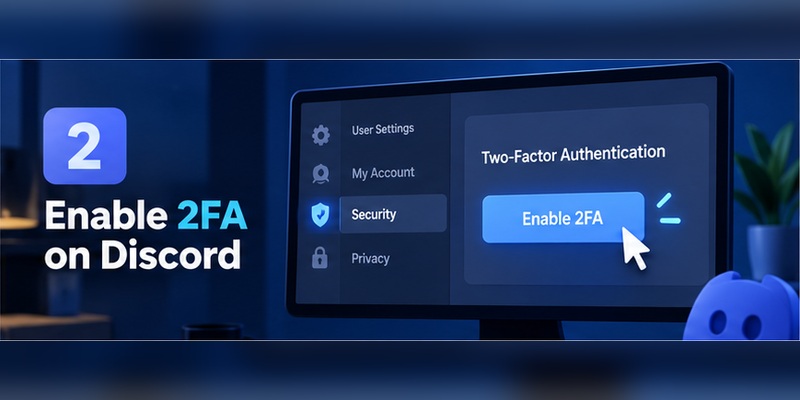
If you are searching for how to enable 2fa on discord, the exact menu differs slightly between mobile and desktop.
Discord currently allows authenticator configuration from mobile, desktop, and browser account settings.
How to enable 2FA on Discord desktop or browser
Start from Discord while logged into your account.
Step 1: Open User Settings
Click the cogwheel icon next to your username.
This opens User Settings.
Step 2: Open My Account
Discord should take you to the My Account area.
Find the Password and Authentication section.
Step 3: Choose Enable Authenticator App
Select:
Enable Authenticator App
Discord will begin the authenticator enrollment process.
Step 4: Open an authentication application
Use a compatible authenticator app on your phone.
Discord’s help documentation specifically gives Google Authenticator and Authy as examples. Other compatible TOTP applications may also work if they support the same standard.
Step 5: Scan Discord’s QR code
Discord displays a QR code.
Open your authentication application and choose the option to add or scan a new account.
Scan the code shown by Discord.
Step 6: Enter the six-digit code
The authentication application generates a six-digit code.
Enter that code into Discord and choose Activate.
Discord’s current setup guide confirms that the application generates the six-digit code used to complete enrollment.
Step 7: Download your backup codes
Do not skip this.
After enabling the authenticator, Discord provides backup codes that can replace an authenticator code during account recovery.
Store them somewhere separate from the phone running your authenticator.
Your basic discord two factor authentication setup is now complete.
How to enable Discord 2FA on mobile
The mobile flow is similar.
Step 1: Open Discord.
Step 2: Tap your avatar.
Step 3: Open the settings cogwheel.
Step 4: Tap Account.
Step 5: Select Enable Authenticator App.
Step 6: Follow Discord’s instructions to add the secret key to your authentication application.
Step 7: Enter the generated verification code.
Step 8: Save the backup codes Discord provides.
Discord’s current mobile instructions use this Account → Enable Authenticator App flow.
Quick setup checklist
For a successful discord two factor authentication configuration:
Enable authenticator → verify code → save backup codes → add another recovery method if appropriate → test your login.
The recovery step matters as much as enrollment.
3. How to Set Up an Authenticator App on Discord
The discord authenticator app setup uses a standard known as TOTP, or Time-based One-Time Password.
Once connected, the authentication application generates a temporary code that changes regularly.
Discord states that authenticator codes refresh every 30 seconds.
What you need
Before starting, have:
- Access to your Discord account
- Your Discord password
- A phone or device running an authentication application
- A secure place for backup codes
Step 1: Start authenticator enrollment
Go to your Discord account settings and choose Enable Authenticator App.
Discord displays the information required to connect your account.
Step 2: Scan the QR code
Open your authentication application.
Tap the option to add an account and scan the QR code displayed by Discord.
On mobile, Discord may instead instruct you to copy the secret key into the authentication application.
Step 3: Protect the secret key
The QR code and secret key are sensitive credentials.
Do not:
- Post screenshots of them
- Send them through Discord
- Upload them to public cloud folders
- Share them with moderators
- Send them to someone claiming to be Discord Support
Anyone who obtains the authentication secret may be able to generate valid codes.
Step 4: Enter the current code
Your discord two factor authentication app should begin generating temporary codes.
Enter the current code into Discord.
If the code is about to expire, wait for the next one and enter it promptly.
Step 5: Confirm activation
After Discord accepts the code, MFA becomes active for the account.
Step 6: Save recovery codes
Discord then provides recovery codes.
Download them immediately.
This is not an optional housekeeping task.
Discord explicitly warns users that losing access to both their MFA method and recovery codes can result in losing access to the account.
Which authentication app should you use?
Choose a reputable application that supports TOTP and offers the recovery model you need.
Before choosing one, consider:
- Device migration
- Encrypted backups
- Cross-device synchronization
- Account export
- Device lock protection
- Recovery procedures
Not every authentication application handles synchronization or backups in the same way.
Discord specifically warns that some authenticators may not sync across devices or through the cloud.
This matters if you replace, lose, or damage your phone.
Download Authenticator App
Secure your accounts with fast, reliable two-factor authentication. Download now and protect your login in seconds.
4. Discord 2FA Methods: Authenticator, Passkey, Security Key, and SMS
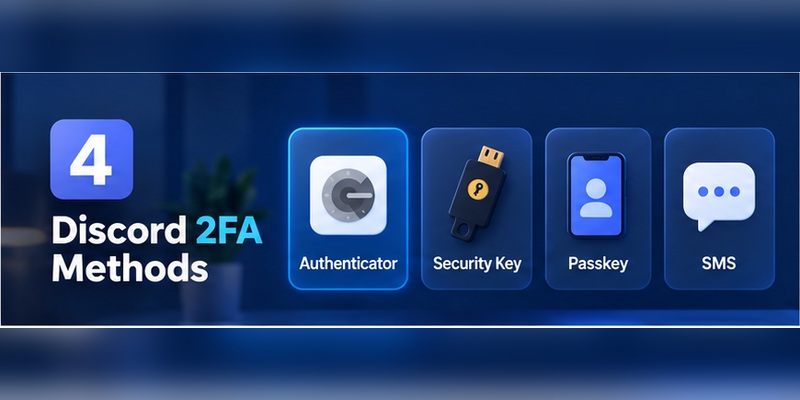
Discord two factor authentication is no longer limited to a single authenticator workflow.
Discord’s current MFA system includes:
- Security Keys and Passkeys
- Authenticator App
- SMS
Discord also provides backup codes for recovery.
Authenticator App
An authenticator uses TOTP codes.
Discord describes this as an established MFA standard.
The advantage is that the verification code does not depend on receiving a text message from your mobile carrier.
The main risk is recovery.
If the only authenticator is stored on a lost device and you did not preserve another recovery option, you can create a serious account-access problem.
Passkeys and Security Keys
Discord currently recommends setting up a security key and describes passkeys/security keys as one of its strongest authentication options.
A passkey can use device security such as:
- Fingerprint
- Face authentication
- Device screen lock
Passkeys are also designed to provide stronger resistance against conventional phishing than manually entered passwords and codes.
This does not make the authenticator method obsolete.
Instead, users can build a layered discord two factor authentication configuration with more than one supported option.
SMS authentication
Discord supports SMS MFA, but Discord’s own documentation says it does not recommend SMS as the primary security choice.
Discord also states that SMS authentication can only be enabled after an Authenticator App has already been configured.
Why?
Phone numbers can face risks such as:
- SIM swapping
- Carrier account compromise
- Message interception
- Number reassignment
SMS may still provide useful recovery flexibility, but it should not be mistaken for the strongest available option.
Which Discord 2FA method is best?
For a security-focused setup:
Consider using a passkey/security key together with an authenticator and securely stored backup codes.
For users who prefer a simpler setup:
Authenticator + backup codes provides a strong starting point.
The best configuration is one that is both secure and recoverable.
5. How Discord Two Factor Authentication Works When You Log In
Once discord two factor authentication is active, Discord can request an additional verification factor during login.
With an authenticator-based setup, the flow is straightforward:
- Enter your Discord login credentials.
- Discord asks for an authentication code.
- Open your authentication application.
- Find the Discord entry.
- Enter the current code.
- Confirm the login.
Discord also allows an unused backup code to be entered instead of the authenticator code in supported recovery situations.
Why does the code keep changing?
TOTP codes are temporary.
Discord states that authenticator codes refresh every 30 seconds.
This short lifetime reduces the usefulness of an old code.
What if someone asks for your Discord code?
Do not send it.
A current authentication code is a credential.
If someone already has your password and convinces you to provide a valid second factor, they may complete the login.
Treat messages such as these as suspicious:
- “Send me the code to verify you’re the owner.”
- “Discord staff needs your 2FA code.”
- “Give me the code to claim Nitro.”
- “Your server will be deleted unless you verify.”
Your verification code is for your login screen, not for another person.
2FA and QR login scams
Discord users should also be careful around QR codes sent by strangers.
A QR code can perform actions other than setting up discord two factor authentication.
Never scan an unfamiliar QR code simply because someone claims it is part of:
- Verification
- Moderation
- Nitro rewards
- Server partnerships
- Account appeals
Security depends on knowing what you are authorizing.
6. Discord Backup Codes: How to Save and Use Them
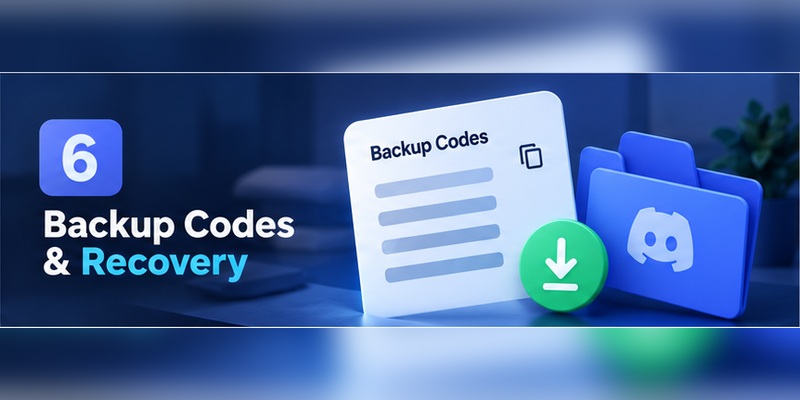
Discord backup codes are one of the most important parts of Discord account recovery.
Unlike an authenticator code that continuously changes, a Discord backup code is a special one-time recovery code.
Discord recommends keeping these codes secret and storing them securely, such as in a password manager or a protected physical copy.
Why backup codes matter
Imagine this:
Your phone breaks.
Your authentication application was only stored on that phone.
You try to sign into Discord on a new device.
Discord asks for MFA.
Without another method, you are stuck.
An unused backup code can provide the path back into the account.
How to view Discord backup codes
If you are already logged in:
- Open User Settings.
- Go to My Account.
- Select View Backup Codes.
- Complete the required identity check.
- View or download your available codes.
Discord’s current MFA instructions specifically provide the View Backup Codes option in My Account.
How to use a backup code
If Discord asks for your authenticator code:
- Choose Verify with something else.
- Select Use a backup code.
- Enter an unused backup code.
- Confirm.
Discord’s recovery documentation currently describes backup codes as eight-digit codes in this recovery flow.
Each code works once
Do not reuse a backup code that has already been consumed.
Discord’s MFA documentation states that every backup code is one-time use.
After using recovery codes or reconfiguring MFA, review the codes available to you.
Where should you store backup codes?
Good options include:
- A trusted password manager
- An encrypted offline file
- A securely stored printed copy
Avoid storing your only recovery copy in the same place as your authenticator.
For example, keeping only a screenshot on the phone running your authentication application gives you little protection if the phone is lost.
Can Discord Support generate new codes for you?
No, not when you are locked out and lack the necessary recovery access.
Discord states that its support team cannot issue new backup codes or simply remove MFA for a user who has lost the required recovery options.
That makes recovery planning a critical part of discord two factor authentication.
7. Discord 2FA Not Working: Problems and Fixes
If discord 2fa not working is preventing you from signing in, identify exactly which part is failing.
Do not immediately remove MFA.
Problem 1: Discord says the authenticator code is invalid
Start with the simplest fixes.
Check the device time.
TOTP authentication depends on synchronized time.
Set your phone to:
- Automatic date
- Automatic time
- Automatic time zone
Then wait for a fresh code.
Enter it immediately.
Problem 2: You have multiple Discord entries in your authenticator
This often happens after setting up MFA more than once.
You may see:
- Discord
- Discord 2
- An old Discord account
- Another entry with the same email
One entry may contain an obsolete secret.
Do not delete everything immediately.
Identify which entry generates the working code first.
Problem 3: The six-digit code expires before you enter it
Authenticator codes change quickly.
If only a few seconds remain, wait for the next code.
Then enter the new one promptly.
Problem 4: The authenticator was reset
Deleting an authenticator entry does not disable discord two factor authentication on Discord’s side.
The server still expects the code generated from the original secret.
Use:
- A backup code
- Another configured MFA method
- An existing logged-in session
Then reconfigure authentication.
Problem 5: SMS is not available
Discord’s SMS option has an important limitation.
Discord states that SMS MFA can only be enabled after an authenticator application has been set up.
If you never configured SMS authentication, you cannot assume your phone number will automatically act as an MFA fallback.
Problem 6: Backup code is rejected
Possible reasons include:
- You already used it
- You copied it incorrectly
- It belongs to another Discord account
- You regenerated or changed MFA
- All backup codes have already been consumed
Discord notes that if the backup-code option disappears, the codes may already have been used or the current security action may not accept them.
Problem 7: You are logged in on one device but locked out elsewhere
Do not log out of the working session.
That session may be your best recovery opportunity.
While still logged in:
- Open User Settings.
- Access My Account.
- View your backup codes if available.
- Review MFA settings.
- Reconfigure your authentication method carefully.
Discord’s recovery guide specifically provides a recovery path for users who remain logged into an existing client.
Problem 8: Nothing works
If you have:
- No authenticator access
- No unused backup codes
- No usable secondary method
- No logged-in Discord session
the situation becomes much harder.
Discord’s current support documentation states clearly that its team cannot remove MFA or issue new backup codes if you lack access to your recovery codes.
This is why recovery preparation should happen before a device is lost.
8. What to Do If You Lose Your Phone or Authenticator
Losing your phone does not always mean losing Discord.
Your next steps depend on how you configured discord two factor authentication.
Option 1: Restore your authenticator
Some authentication applications support:
- Cloud synchronization
- Encrypted backups
- Account migration
- Multi-device recovery
Follow the official recovery instructions for the authentication application you use.
Discord notes that authenticator backup capabilities vary between apps.
Option 2: Use a backup code
At the Discord authentication screen:
Verify with something else → Use a backup code → enter an unused code.
After you regain access, fix the MFA setup immediately.
Do not continue relying on a disappearing set of recovery codes.
Option 3: Use SMS if you enabled it previously
If SMS authentication was already configured, Discord can offer SMS as an alternative method.
Discord’s recovery instructions confirm that users with SMS MFA configured can request an SMS authentication code instead of using the normal authenticator code.
Option 4: Use an existing Discord session
Check:
- Desktop app
- Laptop
- Browser
- Tablet
- Old phone
If any device remains logged in, keep that session active until recovery is complete.
What Discord Support cannot do
This is one of the most important facts in this guide:
Discord Support cannot simply remove MFA from your account when you have lost the required recovery access.
Discord states this directly in its support documentation.
So when enabling discord two factor authentication, treat backup-code storage as part of setup, not an optional step for later.
9. Moving Discord 2FA to a New Phone
Changing phones is the safest time to migrate authentication because you may still have access to both devices.
Do the migration before wiping the old phone.
Before switching phones
Confirm that you have:
- Your Discord password
- A working Discord session
- Backup codes
- Access to your old authenticator
- Access to other configured MFA methods
Step 1: Check whether your authenticator supports transfer
Your application’s migration process may include:
- Export and import
- Cloud synchronization
- Encrypted backup
- QR-based transfer
Use the authentication provider’s official migration method.
Step 2: Confirm Discord appears on the new device
Open the authenticator on the new phone.
Check that the Discord entry is present.
Step 3: Test authentication
Before erasing your old phone, confirm that the new authenticator generates a valid Discord code.
Step 4: Keep backup codes accessible
Do not assume migration will always work.
Your backup codes should remain independently available.
If the transfer fails
If you can still access Discord, you can remove and reconfigure the authenticator method using the appropriate account settings and verification steps.
Then create a clean discord two factor authentication configuration on the new device.
Never wipe the old phone first and hope the authenticator will appear automatically afterward.
10. How to Make Discord Two Factor Authentication More Secure
Simply switching on MFA is good.
Building a complete account-security setup is better.
Use a unique Discord password
Your Discord password should not be reused on:
- Steam
- TikTok
- X
- Gaming services
- Forums
- Other community platforms
If another website leaks a reused password, attackers may test it against Discord.
Consider a passkey or security key
Discord currently recommends security keys within its MFA options and describes passkeys as phishing-resistant.
For users protecting:
- Large communities
- Business servers
- Valuable accounts
- Moderator permissions
a security key or passkey can provide stronger protection against common credential-phishing attacks.
Protect your backup codes
Your backup codes can bypass the need for a normal authenticator code.
That makes them sensitive credentials.
Do not store them in:
- Public Google Docs
- Discord messages
- Shared server channels
- Unencrypted notes
- Screenshots synced to shared photo libraries
Secure the device running your authenticator
Use:
- A strong screen lock
- Device encryption
- Fingerprint or Face ID where appropriate
- Current software updates
- Remote device-lock features
Discord two factor authentication is less useful if anyone holding your unlocked phone can access both Discord and your authenticator.
Be skeptical of Discord DMs
Attackers may impersonate:
- Discord staff
- Server administrators
- Game developers
- Moderators
- Artists
- Potential employers
Their goal may be to obtain:
- Your password
- Authentication codes
- Recovery codes
- Session access
Never provide an MFA code because someone asks for it in a conversation.
Keep recovery independent
A resilient security setup avoids one single point of failure.
For example:
Phone authenticator + backup codes stored outside the phone + security key
is more resilient than:
Authenticator + screenshot of backup codes on the same phone.
11. Common Discord 2FA Mistakes to Avoid
Many discord two factor authentication failures begin during setup rather than during an attack.
Mistake 1: Enabling 2FA without downloading backup codes
This is the biggest avoidable mistake.
Discord explicitly tells users to save backup codes after MFA is enabled.
Fix: Save them immediately and verify that you can access the stored copy.
Mistake 2: Keeping every security factor on one phone
If your:
- Authenticator
- Discord session
- Backup-code screenshot
- SMS SIM
all exist only on one device, losing that device becomes much more serious.
Fix: Keep at least one recovery option somewhere else.
Mistake 3: Assuming Discord Support can disable 2FA
Do not build your recovery plan around contacting Support.
Discord says it cannot remove MFA for users who lack the necessary backup access.
Mistake 4: Sharing an authenticator QR code
That QR code contains sensitive enrollment information.
Fix: Treat it like a password.
Mistake 5: Sharing a backup code
A backup code is not just a reference number.
It can be used as an authentication credential.
Fix: Never send one to another person.
Mistake 6: Depending entirely on SMS
Discord itself says it does not recommend SMS MFA as its preferred security method.
Use stronger supported authentication where practical.
Mistake 7: Logging out of the only working session
If your authenticator is unavailable but Discord remains open on your computer, that existing session is valuable.
Fix: Resolve recovery before signing out.
Mistake 8: Waiting until phone replacement day
Prepare migration while both devices still work.
A good discord two factor authentication setup should survive normal events such as upgrading a smartphone.
12. Discord Two Factor Authentication FAQ
Does Discord have two-factor authentication?
Yes.
Discord two factor authentication is available as part of Discord’s broader Multi-Factor Authentication system.
Discord currently supports Authenticator Apps, Security Keys/Passkeys, and SMS-based MFA.
How do I enable 2FA on Discord?
On desktop or browser, open:
User Settings → My Account → Password and Authentication → Enable Authenticator App.
Scan the Discord QR code using a compatible authentication application, enter the generated six-digit code, activate the feature, and save your recovery codes.
What authenticator does Discord use?
Discord uses the TOTP standard for authenticator-based MFA.
Discord’s documentation specifically uses Google Authenticator and Authy as examples.
Compatible TOTP applications may also work.
How often does a Discord authenticator code change?
Discord states that authenticator codes refresh every 30 seconds.
If a code is nearly expired, wait for a fresh one before entering it.
Can I use Discord 2FA without SMS?
Yes.
An authenticator does not require SMS to generate TOTP codes.
Discord actually states that SMS MFA can only be enabled after an authenticator application has already been configured.
Is SMS good enough for Discord 2FA?
SMS is better than having no additional protection, but Discord explicitly says it does not recommend SMS MFA because of risks such as SIM-swap attacks.
For stronger protection, consider an authenticator, passkey, or security key.
What are Discord backup codes?
Discord backup codes are single-use recovery codes that can substitute for your normal MFA method in supported login situations.
Each code can only be used once.
Where can I find my Discord backup codes?
If you are logged in:
User Settings → My Account → View Backup Codes.
Discord allows you to view available codes and download them from this area.
What if I lose my Discord backup codes?
If you remain logged into Discord, check View Backup Codes in My Account.
If you are completely locked out with no authenticator, no backup codes, and no alternative MFA method, recovery may not be possible through Discord Support.
Discord says Support cannot issue new backup codes or remove MFA on behalf of users who lack the necessary recovery access.
Can Discord Support remove 2FA?
Not simply because you lost your authenticator.
Discord’s current support documentation states that if you cannot access your backup codes, Discord Support cannot remove MFA or issue new backup codes.
Why is my Discord authenticator code not working?
Common causes include:
- Incorrect device time
- Using an expired code
- Selecting an old Discord authenticator entry
- Reconfiguring MFA
- Using a code for another Discord account
Set your device clock to automatic and try a fresh code.
What happens if I lose the phone with my authenticator?
Try:
- Restoring the authentication application.
- Using an unused backup code.
- Using SMS if it was already configured.
- Checking for an existing logged-in Discord session.
- Using another previously configured MFA method.
Then repair your discord two factor authentication setup before logging out of any working session.
Can I move Discord 2FA to a new phone?
Yes, but the exact method depends on your authentication application.
Some applications provide synchronization or migration.
Transfer and test your authenticator before wiping your old device.
Is a passkey better than an authenticator code?
Passkeys and security keys provide important phishing-resistance advantages.
Discord currently recommends security keys as part of its MFA guidance.
However, the best practical setup may combine multiple recovery-safe methods rather than relying on one factor alone.
Should Discord server owners enable 2FA?
Yes.
Accounts with administrative or moderation access deserve stronger protection because compromising one account can affect an entire community.
For admins, discord two factor authentication should be part of a broader security process that also includes unique passwords, protected recovery methods, secure devices, and careful permission management.
Final Discord 2FA Security Checklist
Before considering your account fully protected, check each item:
- Enable discord two factor authentication
- Use an authenticator or stronger supported method
- Save your backup codes
- Store backup codes away from your authenticator device
- Consider a passkey or security key
- Use a unique Discord password
- Never share six-digit authenticator codes
- Never share backup codes
- Never expose your authenticator QR code
- Do not depend on Discord Support as your recovery plan
- Prepare before changing phones
- Keep an existing logged-in session active during recovery
- Test your recovery options before an emergency
The key lesson is simple:
Setting up Discord two factor authentication takes only a few minutes. Recovering an account without the right backup methods can be far more difficult.
Enable MFA while you still control every device and recovery channel. Save your codes somewhere secure. Understand which authentication methods you have configured. Then test that your setup works before you depend on it.
For most users, discord two factor authentication with a reputable authenticator and securely stored backup codes provides a strong baseline. Users who need higher protection can add a passkey or security key.
The goal is not to create the most complicated login process possible.
The goal is to make your Discord account difficult for an attacker to enter while keeping it recoverable for you.
That balance is what makes discord two factor authentication genuinely useful.
Download Authenticator App
Secure your accounts with fast, reliable two-factor authentication. Download now and protect your login in seconds.
