
TikTok Two Factor Authentication: Complete 2FA Setup, Authenticator App, Recovery & Fixes
Published September 9, 2026
TikTok two factor authentication adds another identity check when TikTok detects a login from a new or unfamiliar device. TikTok officially calls the feature “2-step verification.” You can enable it from Profile → Menu → Settings and privacy → Security & permissions → 2-step verification.
TikTok currently asks users to select at least two verification methods. The available methods documented by TikTok are phone, email, authenticator, and password. If you choose authenticator verification, TikTok provides a QR code or setup key that you add to a compatible authenticator app.
Short answer: If you want strong protection without depending entirely on SMS, enable TikTok two factor authentication with an authenticator plus a second recovery method such as email. Keep your email and phone details current, review trusted devices, and never give a verification code to anyone who contacts you.
This guide explains the complete setup, including how to enable 2fa on tiktok, choosing verification methods, configuring an authenticator, recovering access, troubleshooting login codes, and protecting your account after 2FA is enabled.
1. What Is TikTok Two Factor Authentication?
TikTok two factor authentication is an account-security feature that requires an additional verification step when TikTok needs to confirm that a login is really yours.
A password is normally the first layer of account protection. The problem is that passwords can be exposed through phishing, reused credentials, malware, data breaches, or someone gaining access to a device.
With TikTok two factor authentication enabled, knowing the password alone may not be enough to sign in from an unfamiliar device.
For example:
- Someone obtains your TikTok username and password.
- They try to sign in from a new phone.
- TikTok requests an additional verification step.
- The attacker also needs access to one of your configured verification methods.
- Without that additional proof, the login becomes harder to complete.
TikTok describes 2-step verification as an extra layer of protection for new or unfamiliar-device logins and recommends enabling it as part of its account-security guidance.
Is TikTok 2FA the same as two-step verification?
For practical purposes, yes.
People commonly search for TikTok two factor authentication, 2FA, two-step authentication, or multi-factor authentication. TikTok’s interface uses the term 2-step verification.
That difference in terminology can be confusing when you look through TikTok settings. If you cannot find a button labeled “two-factor authentication,” look for “2-step verification.”
Why TikTok accounts need more than a password
A TikTok account may contain more than videos.
Depending on how you use the platform, an account can include:
- Private messages
- Saved content
- Creator audiences
- Business relationships
- Advertising access
- Shop or commerce activity
- Personal contact information
- Drafts and unpublished work
- Established usernames
- Brand reputation
For a creator or business, losing access can also interrupt publishing and communication.
That is why TikTok two factor authentication should be treated as a basic security control rather than an optional feature for high-profile accounts only.
2. How to Enable 2FA on TikTok Step by Step
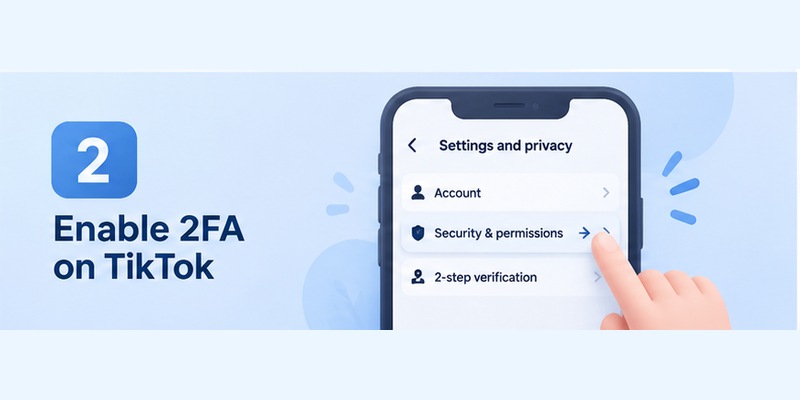
The current tiktok 2fa setup is managed through the TikTok mobile application’s security settings.
TikTok’s official instructions specify the following path.
Step 1: Open TikTok
Open TikTok on your phone and make sure you are signed in to the account you want to protect.
If you manage multiple TikTok profiles, confirm the username before changing security settings.
Step 2: Open your profile
Tap Profile at the bottom of the TikTok app.
Step 3: Open Settings and privacy
Tap the menu icon at the top of your profile.
Choose:
Settings and privacy
Step 4: Open Security & permissions
Find:
Security & permissions
This section contains several account-protection features, including device management and security checks.
Step 5: Select 2-step verification
Tap:
2-step verification
This is the setting people looking for TikTok two factor authentication need.
Step 6: Select verification methods
TikTok currently tells users to choose at least two verification methods.
TikTok documents these options:
- Phone
- Authenticator
- Password
The exact options available to you can depend on your account configuration and app version.
Step 7: Tap Turn on
After selecting your methods, tap Turn on.
TikTok may ask you to verify your email address or phone number if the information has not already been confirmed.
Step 8: Complete each verification method
Follow the instructions shown by TikTok.
For phone or email verification, you may receive a one-time code.
For the authenticator option, TikTok provides information that you enter or scan into an authentication application.
Step 9: Confirm that 2-step verification is active
Return to the 2-step verification page and make sure your selected methods are enabled.
Your TikTok two factor authentication configuration is now active.
If you searched how to enable 2fa on tiktok, those are the essential steps:
Profile → Menu → Settings and privacy → Security & permissions → 2-step verification → choose at least two methods → Turn on.
3. Which TikTok 2FA Method Should You Choose?
Turning on TikTok two factor authentication is only the first decision. You also need to decide which verification methods to use.
TikTok currently lists phone, email, authenticator, and password as available methods in its consumer account-security documentation.
Authenticator
An authenticator generates temporary login codes through a dedicated authentication application.
This is a strong choice because the code does not depend on an SMS message reaching your mobile carrier.
TikTok’s own security guidance for creators recommends using an authenticator instead of SMS where possible because app-based authentication provides stronger protection against certain interception attempts.
Email provides a useful alternative verification route.
However, your TikTok security then partly depends on your email security.
Protect your email account with:
- A unique password
- Two-factor authentication
- Updated recovery information
- Secure devices
Using a compromised email account as your TikTok recovery method weakens the overall setup.
Phone
Phone verification is convenient because most users already have a mobile number connected to their account.
Its main advantage is accessibility.
Its weakness is that SMS depends on the security of your phone number and carrier account.
If you use SMS as one TikTok method, combine it with another independent method.
Password
TikTok also currently lists password as one of its 2-step verification methods.
Regardless of which combination you select, continue using a strong, unique password.
A practical setup
For many users, a practical configuration is:
Authenticator + Email
You can also maintain a verified phone number as another way to recover or verify the account.
The objective is resilience.
Your TikTok two factor authentication should not depend on one device, one phone number, or one inbox that you could lose access to at the same time.
4. How to Set Up an Authenticator App for TikTok

An authenticator-based configuration is one of the most useful parts of TikTok two factor authentication.
TikTok’s official instructions mention compatible apps such as Google Authenticator and Microsoft Authenticator. The platform provides either a QR code or key during setup.
Here is the complete tiktok authenticator app setup process.
Step 1: Install an authenticator
Install a trusted authenticator app on your phone.
The application needs to support the type of time-based verification codes used during TikTok’s authenticator setup.
Use an official app-store source rather than downloading an unknown APK or configuration profile from a random website.
Step 2: Open TikTok’s 2-step verification settings
Navigate to:
Profile → Menu → Settings and privacy → Security & permissions → 2-step verification
Select Authenticator as one of your verification methods.
Remember that TikTok currently asks you to select at least two methods.
Step 3: Start authenticator configuration
Continue until TikTok displays its authenticator setup information.
TikTok may provide:
- A QR code
- A setup key
Both represent the secret used to generate temporary authentication codes.
Treat this information like a password.
Do not send a screenshot of the QR code or key to another person.
Step 4: Add TikTok to your authenticator
Open your authentication application.
Choose the option to add a new account.
Depending on the application, you can usually:
- Scan the QR code, or
- Enter the setup key manually
Label the entry clearly if needed, especially if you manage several TikTok accounts.
Step 5: Generate the verification code
After TikTok is added, the authenticator app should display a temporary numeric code.
These codes change automatically after a short period.
Step 6: Enter the code in TikTok
Return to TikTok.
Enter the current code generated by the authenticator and complete verification.
TikTok’s official account-safety instructions describe this process: scan the QR code or copy the provided key, add the TikTok account to the authenticator, then enter the generated code back in TikTok.
Step 7: Verify your other method
Because TikTok two factor authentication requires multiple methods in the current documented setup, make sure the second method is also working.
For example:
Authenticator + Email
is more resilient than configuring an authenticator while ignoring an outdated email address.
Protect the authenticator itself
A tiktok two factor authentication app only helps if the device containing it is secure.
Use:
- A screen lock
- Face ID, fingerprint, or device PIN
- Current operating-system updates
- Secure cloud or migration options when supported
- A recovery plan before replacing the phone
Never approve or share a code simply because someone claims to work for TikTok.
TikTok’s security guidance warns that TikTok will not ask users for passwords or 2FA codes through unsolicited direct messages, calls, or emails.
5. How TikTok Two Factor Authentication Works When You Log In
After TikTok two factor authentication is enabled, you may wonder why TikTok does not ask for an authentication code every time you open the application.
That is normal.
TikTok explains that 2-step verification adds protection when signing in from a new or unfamiliar device. TikTok can also remember trusted devices after successful verification.
Example login flow
Imagine that you sign in on a new smartphone.
TikTok may ask for:
- Your normal account credentials.
- An additional verification method.
- A code from your email, phone, or authenticator.
- Confirmation of the login.
After the device becomes recognized or trusted, TikTok may not require the same code every time.
Trusted devices matter
Trusted devices improve convenience, but they also need regular review.
To check them:
Profile → Menu → Settings and privacy → Security & permissions → Manage devices
TikTok recommends reviewing the list and deleting devices you do not recognize. If an unfamiliar device appears, TikTok also recommends changing your password.
This step is important because TikTok two factor authentication does not replace device management.
If someone already has an active authorized session, simply switching authentication methods may not address the entire problem.
If you receive an unexpected verification code
An unexpected code can mean someone attempted to sign in.
Do not share it.
Then:
- Review Manage devices
- Check security activity
- Change your password if needed
- Confirm your email and phone details
- Verify that your authenticator configuration has not changed
An authentication code is useful only when it remains private.
Download Authenticator App
Secure your accounts with fast, reliable two-factor authentication. Download now and protect your login in seconds.
6. TikTok Backup Codes and Account Recovery
Users often search for tiktok backup codes after using services that provide a downloadable list of single-use recovery codes.
This is an important area where you should not assume every platform works the same way.
TikTok’s current personal-account safety instructions list phone, email, authenticator, and password as 2-step verification methods. The same official guidance describes alternative recovery options but does not document a conventional downloadable set of single-use backup codes as part of the standard personal-account 2SV setup.
So instead of relying on tiktok backup codes that may not appear in your account, build redundancy into your security configuration.
Use at least two accessible methods
TikTok already requires at least two verification methods in its documented setup.
A useful combination is:
Authenticator + verified email
You can also maintain an up-to-date phone number.
Keep your email current
If your authenticator device is unavailable but you still control the email connected to TikTok, an alternative verification route may help you regain access.
Do not leave an old work email, expired school address, or inaccessible inbox attached to an important account.
Keep your phone number current
Change the account information when you change mobile numbers.
Do this before the old SIM is disconnected when possible.
Use TikTok’s recovery options
TikTok’s current account-safety documentation also describes account recovery using friend verification when standard access methods fail.
The documented process can be started through TikTok’s account recovery interface, and TikTok states that at least two connected friends are required for the friend-verification process.
That makes a recovery plan important even when TikTok two factor authentication is functioning normally.
Do not invent your own “backup codes”
Do not screenshot authenticator codes and expect them to work later.
Authenticator codes expire.
Likewise, do not save the authenticator setup QR code in an unsecured photo gallery just because you want a backup. Anyone who obtains the underlying setup secret may be able to generate valid codes.
The safer approach is to use supported backup or migration features provided by your chosen authentication application and maintain independent TikTok verification methods.
7. TikTok 2FA Not Working: Common Problems and Fixes
When tiktok 2fa not working becomes the problem, identify which part is failing before changing security settings.
The issue may involve TikTok, your email, your phone number, your device clock, or the authenticator.
Problem 1: Authenticator code is rejected
If TikTok says your authenticator code is incorrect:
- Wait for a fresh code.
- Enter it immediately.
- Make sure you selected the correct TikTok account in the authenticator.
- Check your phone’s date and time.
- Enable automatic date, time, and time zone.
- Retry the login.
Time-based authentication depends on accurate time.
A device clock that is significantly incorrect can produce codes that do not match the server.
Problem 2: You added TikTok twice
During TikTok two factor authentication setup, users sometimes scan the QR code more than once.
That can leave several TikTok entries inside the authenticator.
One entry may be old while another is current.
Check the account label and remove obsolete entries only after confirming which one works.
Problem 3: SMS code never arrives
If you use phone verification:
- Confirm the number is correct.
- Check your mobile signal.
- Restart the phone.
- Make sure SMS messages are not being filtered.
- Avoid requesting codes repeatedly within a very short period.
- Try another configured verification method if TikTok offers it.
Standard carrier delays can also affect SMS.
Problem 4: Email verification code is missing
Check:
- Spam
- Junk
- Promotions
- Automated-message filters
- Mailbox rules
- Storage limits
Also verify that you are checking the same email address linked to the TikTok account.
Problem 5: Authenticator disappeared after changing phones
Moving TikTok to a new phone does not automatically guarantee that your authentication secrets move with it.
The behavior depends on the authentication application.
Use another TikTok verification method if available, sign in, then reconnect your authenticator on the new device.
Problem 6: TikTok keeps asking for verification
TikTok may consider a device or login environment unfamiliar.
Repeated prompts can occur after:
- Switching devices
- Clearing application data
- Reinstalling TikTok
- Changing browsers
- Logging in from a new location
- Removing remembered sessions
Check the trusted-device list after you confirm the login is legitimate.
Problem 7: You no longer have the old email or phone
This is more serious.
Try every verification method already connected to the account.
If none is available, use TikTok’s account-recovery options instead of repeatedly guessing codes.
TikTok’s current support material includes a friend-verification recovery route for users who cannot access normal login or password-reset methods.
Problem 8: You think someone changed your 2FA
Treat this as a possible account compromise.
Immediately:
- Change your password if you still have access.
- Review Manage devices.
- Remove devices you do not recognize.
- Check linked email and phone details.
- Review security activity.
- Reconfigure TikTok two factor authentication if necessary.
- Secure your email account too.
Fixing tiktok 2fa not working should not mean disabling security permanently. Find the failing method, restore access, and rebuild a configuration with more than one independent recovery route.
8. What to Do When You Get a New Phone
A new phone is one of the most common times people lose access to TikTok two factor authentication.
Prepare before wiping or selling the old device.
Before changing phones
Check your TikTok account while the old phone still works.
Confirm:
- Your current email
- Your current phone number
- Your selected 2FA methods
- Access to your authenticator
- Trusted devices
- Password access
Transfer your authenticator
If your authentication application supports account transfer, encrypted backup, synchronization, or migration, follow the provider’s official procedure.
Do not assume that installing the same app on the new phone will automatically restore every token.
Test the new phone
Before erasing the old device:
- Open your authenticator on the new phone.
- Confirm the TikTok entry exists.
- Test access to your email.
- Confirm your phone number works.
- Verify your TikTok login.
Only then should you remove sensitive data from the old device.
If the authenticator did not transfer
Use one of your other configured methods to access TikTok.
Then return to:
Settings and privacy → Security & permissions → 2-step verification
Reconnect the authenticator to the new phone.
This is another reason the current TikTok two factor authentication requirement for multiple methods is useful. One method can act as a fallback when another becomes unavailable.
9. How to Secure TikTok Beyond Two-Factor Authentication
TikTok two factor authentication is important, but a secure account needs more than one setting.
TikTok’s Security Checkup combines several controls, including verified contact information, 2-step verification, trusted-device review, security activity, and passkeys. TikTok introduced the centralized Security Checkup to make these protections easier to review.
Use a unique password
Never reuse the same password across TikTok, email, social media, and other services.
Password reuse creates a chain reaction.
If another site is compromised, attackers may test the stolen credentials against TikTok.
Secure your email account
Your email can become a recovery channel for TikTok.
That makes email security part of TikTok security.
Enable strong authentication on the email account too.
Review Manage devices
Open:
Settings and privacy → Security & permissions → Manage devices
Remove devices you no longer own or recognize.
Check security activity
Review suspicious activity when TikTok flags it.
Do not ignore unexpected login notifications simply because your account still appears to work.
Consider a passkey
TikTok also supports passkeys as a separate login feature.
TikTok describes a passkey as a digital credential stored through supported device security systems such as Face ID, device passcodes, Touch Unlock, or PIN.
A passkey is useful, but do not confuse it with the tiktok two factor authentication app configuration described earlier.
They are separate security mechanisms.
Watch for phishing
A phishing page may copy TikTok’s design and ask you to enter:
- Username
- Password
- Verification code
Once an attacker has both the password and the current code, the protection offered by TikTok two factor authentication can be undermined.
Never enter TikTok credentials after clicking an unexpected link without checking where you are signing in.
TikTok’s security guidance specifically warns users about phishing and says TikTok will not request passwords or 2FA codes through unsolicited direct messages, calls, or email.
Keep TikTok updated
Security interfaces change.
Using a current TikTok version reduces the chance that you are following an outdated menu structure or missing newer security features.
10. Common TikTok 2FA Mistakes to Avoid
A technically enabled TikTok two factor authentication setup can still be fragile.
Avoid these mistakes.
Mistake 1: Depending on only one device
Your authenticator, TikTok app, email, and SMS may all be accessible from the same phone.
If that phone disappears, several security channels disappear together.
Build a recovery plan before you need it.
Mistake 2: Leaving an old email connected
An inaccessible email provides little recovery value.
A compromised old inbox can be even worse.
Keep account information current.
Mistake 3: Sharing verification codes
A 2FA code is a temporary credential.
Do not send it to:
- “TikTok support” accounts in DMs
- Brand partners
- Agencies
- Buyers
- Friends
- Unknown callers
Someone who needs your verification code to “verify your account” should be treated as suspicious.
Mistake 4: Saving the authenticator QR code carelessly
The QR code shown during tiktok authenticator app setup contains sensitive setup information.
Do not post it, message it, or leave screenshots in a shared folder.
Mistake 5: Ignoring logged-in devices
Enabling TikTok two factor authentication does not mean you should forget about existing sessions.
Review Manage devices periodically.
Mistake 6: Disabling 2FA when troubleshooting
If a code stops working, identify the cause.
Disabling account protection should not be the default fix.
Use another verification method, correct the authenticator configuration, then restore strong authentication.
Mistake 7: Assuming backup codes exist
Do not wait until you lose your phone before searching for tiktok backup codes.
TikTok’s current consumer account-security instructions focus on multiple verification methods and supported account-recovery processes rather than documenting a conventional downloadable backup-code list.
Prepare those recovery methods now.
11. TikTok Two Factor Authentication FAQ
Does TikTok have two-factor authentication?
Yes. TikTok offers a security feature called 2-step verification, commonly referred to as TikTok two factor authentication or 2FA.
It can be accessed through:
Profile → Menu → Settings and privacy → Security & permissions → 2-step verification.
TikTok currently instructs users to select at least two verification methods.
How do I enable 2FA on TikTok?
For how to enable 2fa on tiktok, open your profile, tap the menu, select Settings and privacy, open Security & permissions, choose 2-step verification, select at least two verification methods, and tap Turn on.
Complete the verification instructions for each selected method.
Can I use an authenticator app with TikTok?
Yes.
TikTok’s current help documentation supports Authenticator as a verification method and specifically mentions apps such as Google Authenticator and Microsoft Authenticator.
During TikTok two factor authentication setup, TikTok displays a QR code or setup key. Add it to your authentication application and enter the generated code back into TikTok.
What is the best TikTok 2FA method?
For users who want to reduce dependence on SMS, an authenticator is a strong choice.
TikTok’s creator-security guidance also recommends using an authenticator instead of SMS where possible.
Pair it with another method, such as a secured email address.
Can I use TikTok 2FA without a phone number?
TikTok’s current instructions list several methods, including email, authenticator, phone, and password.
The options available to a particular account can vary, so check the 2-step verification screen on your account.
The important requirement in TikTok’s current documentation is selecting at least two methods.
Why is my TikTok authenticator code invalid?
An invalid code can result from:
- Incorrect device time
- An expired code
- Selecting the wrong authenticator entry
- Using an old setup
- Reconfiguring TikTok without updating the authenticator
- An incomplete TikTok two factor authentication setup
Enable automatic date and time, wait for a new code, and confirm you are using the correct TikTok token.
What happens if I lose my authenticator phone?
Try another verification method connected to your account, such as email or phone.
Once you regain access, reconnect your authenticator on the replacement device.
TikTok also documents account-recovery options for cases where normal methods are unavailable.
Does TikTok provide backup codes?
Users searching for tiktok backup codes should note that TikTok’s current personal-account 2-step verification instructions do not document a standard downloadable list of single-use recovery codes.
Instead, TikTok currently emphasizes multiple verification methods and account-recovery options.
Do not rely on assumed backup codes that you have never generated or confirmed inside your own account.
Why does TikTok ask me for a verification code?
With TikTok two factor authentication enabled, TikTok may request additional verification when you sign in from a new or unfamiliar device.
That extra check helps prevent someone who knows your password from immediately accessing the account.
Why doesn’t TikTok ask for 2FA every time?
TikTok can recognize trusted devices.
According to TikTok’s account-safety guidance, users can choose to remember a known device after completing verification so they do not have to enter a one-time code on every login.
You should still review trusted devices regularly.
Can someone hack TikTok if 2FA is enabled?
No security feature guarantees that an account can never be compromised.
TikTok two factor authentication significantly improves login protection, but attackers may still use:
- Phishing
- Malware
- Stolen active sessions
- Compromised email
- Social engineering
- Access to an unlocked phone
That is why 2FA should be combined with a unique password, secure devices, protected email, phishing awareness, and device-session monitoring.
Should creators enable TikTok 2FA?
Yes.
Creators can have audiences, drafts, partnerships, communication history, and business value attached to one account.
TikTok itself encourages users and creators to enable 2-step verification as part of broader account-security practices.
The larger the impact of losing an account, the more important TikTok two factor authentication becomes.
Final Checklist: Secure Your TikTok Account
A strong TikTok security setup does not need to be complicated.
Use this checklist:
- Enable TikTok two factor authentication
- Select at least two verification methods
- Configure an authenticator where appropriate
- Verify your email address
- Keep your phone number current
- Use a unique TikTok password
- Secure the email account connected to TikTok
- Review trusted devices
- Remove devices you do not recognize
- Check suspicious security activity
- Prepare before changing phones
- Never share 2FA codes
- Never expose your authenticator setup QR code
- Understand your recovery options before you lose access
The most important step is to configure TikTok two factor authentication before there is a problem.
For most users, combining an authenticator with another reliable method provides a practical balance of security and recovery. TikTok’s current account-security system also gives you tools for reviewing devices, checking security activity, adding a passkey, and recovering access when normal login methods are unavailable.
A password protects your account only while that password remains secret. TikTok two factor authentication adds another barrier when the password alone is no longer enough.
Download Authenticator App
Secure your accounts with fast, reliable two-factor authentication. Download now and protect your login in seconds.
