
PayPal Two Factor Authentication: Setup, Authenticator App, Lost Phone & Troubleshooting Guide
Published September 9, 2026
Yes, PayPal supports two-factor authentication. PayPal calls the feature 2-step verification, and it adds another identity check on top of your normal account credentials.
For the standard PayPal two factor authentication setup, sign in to PayPal in a web browser, open Settings → Security → 2-step verification, choose an available verification method such as an authenticator application, and follow the on-screen instructions. PayPal’s current Help Center specifically notes that configuring 2-step verification is done through the browser rather than the PayPal app.
If you have the choice, an authenticator app is generally preferable to relying only on SMS. CISA ranks app-generated one-time codes above SMS because SMS is vulnerable to risks such as SIM swapping and telecommunications interception. However, authenticator codes can still be phished, so no 2FA method makes an account invulnerable.
The recovery part matters just as much as setup. Keep your PayPal phone number and email current, know which alternative verification methods your account offers, and never share a verification code with anyone.
PayPal states that it will never ask you to provide your security code over the phone, email, or text message.
1. What PayPal Two Factor Authentication Actually Does
PayPal two factor authentication adds another layer between your password and your financial account.
If someone obtains your PayPal password, a second verification step can make it harder for that person to complete the login.
That matters because stolen credentials remain a major security problem.
Verizon’s 2025 Data Breach Investigations Report analyzed more than 22,000 security incidents and 12,195 confirmed data breaches. Compromised credentials were the initial access vector in 22% of breaches, while phishing appeared as an initial access vector in roughly 15%.
Those numbers are not PayPal-specific. They show why a password-only security model is fragile.
A typical attack might look like this:
- You reuse a password on another website.
- That website suffers a data breach.
- The credentials are sold or shared.
- An attacker tests the same email and password against financial services.
- If PayPal requires another authentication factor, the stolen password alone may not be sufficient.
This is the purpose of two factor authentication for PayPal.
Does PayPal have two-factor authentication?
If you’re asking does paypal have two factor authentication, the answer is yes.
PayPal refers to its feature as 2-step verification.
PayPal defines it as an additional security layer for accessing your account and currently documents authenticator applications as a supported setup option. Its US security guidance also describes receiving one-time codes through an authenticator application or SMS, although available methods can vary by region or account.
You may also encounter the broader term multi-factor authentication, or MFA.
PayPal describes MFA as verification using at least two categories of evidence:
- Something you know, such as a password or PIN
- Something you have, such as a smartphone
- Something you are, such as a fingerprint or facial recognition
The terminology is less important than the goal: one stolen credential should not be enough to take over the account.
2. How to Set Up PayPal Two Factor Authentication
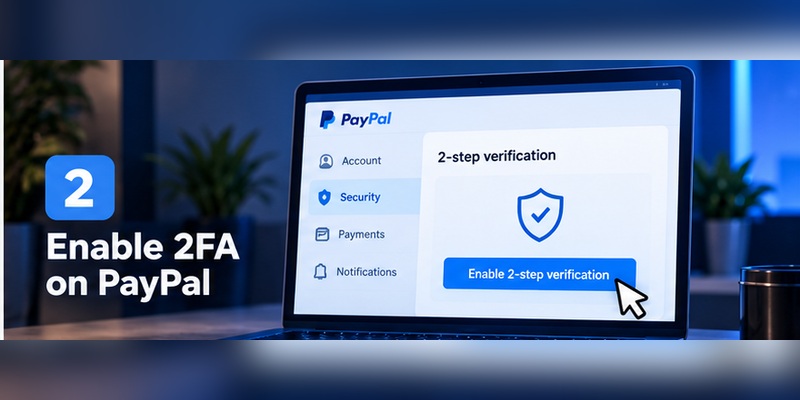
The most important detail about paypal 2fa setup is easy to miss:
Use PayPal in a web browser.
PayPal’s Help Center states that the 2-step verification configuration process is performed through the web browser, not inside the PayPal mobile application.
Step 1: Sign in directly to PayPal
Open your browser and navigate to PayPal yourself.
Avoid enabling security settings from a link in an unexpected email.
This reduces the risk of landing on a phishing page designed to imitate PayPal.
Step 2: Open Settings
After signing in, choose the Settings icon.
Step 3: Open Security
Select the Security section.
Look for:
2-step verification
Step 4: Select Set Up
Choose Set Up next to 2-step verification.
If you were searching for how to enable 2fa on paypal, this is the central control you need.
Step 5: Choose your available authentication method
PayPal’s current US security page describes two methods:
- An authenticator application
- SMS text code
Its Help Center prominently documents using an authenticator application such as Google Authenticator or Microsoft Authenticator.
The exact options can vary by country, regulation, and account configuration.
Follow what appears in your own PayPal Security settings rather than assuming every account has the same menu.
Step 6: Complete verification
If you choose an authenticator, PayPal will guide you through linking the application and entering the generated one-time code.
If your account offers SMS verification, PayPal sends the code to the registered phone.
Step 7: Test your recovery information
Before considering your PayPal two factor authentication setup complete, check:
- Is your phone number current?
- Is your email current?
- Can you access your authenticator?
- Can you access PayPal from another trusted device?
- Do you know where PayPal’s alternative login options appear?
Security without recovery is incomplete security.
Download Authenticator App
Secure your accounts with fast, reliable two-factor authentication. Download now and protect your login in seconds.
3. Authenticator App or SMS: Which PayPal 2FA Method Is Better?
Convenience and security are not always the same thing.
SMS is familiar. An authenticator usually requires an extra application. But the stronger practical choice is often the authenticator.
Why an authenticator is a strong default
An authenticator app generates a one-time code on the device.
That means the verification process does not depend on receiving a text message from your carrier.
CISA ranks app-generated OTP authentication above SMS or voice MFA. It notes that SMS can be vulnerable to phishing, SS7 interception, and SIM-swap attacks.
For a PayPal account that may be connected to payment methods or business activity, reducing dependence on SMS makes sense.
But authenticator codes are not phishing-proof
This point is often omitted in generic “2FA is secure” articles.
An authenticator code can still be stolen through phishing.
Imagine a fake PayPal page that asks for:
- Your email
- Your password
- Your current authentication code
If you provide all three while the attacker uses them immediately, a conventional one-time code may not stop the attack.
CISA explicitly distinguishes app-generated OTP from phishing-resistant authentication such as FIDO/WebAuthn.
So the purpose of PayPal two factor authentication is to reduce risk, not create a guarantee.
When SMS still has value
SMS can still be useful when:
- You cannot use an authenticator
- It is an available recovery method
- Your account does not offer a stronger option
- You need a second independent verification path
The mistake is not using SMS.
The mistake is assuming SMS has the same resistance to attacks as stronger authentication methods.
Practical recommendation
If your PayPal account offers it:
Use an authenticator for routine 2FA and keep your contact information current for recovery.
Also consider PayPal’s passkey support, which we’ll cover later.
4. How to Connect an Authenticator App to PayPal
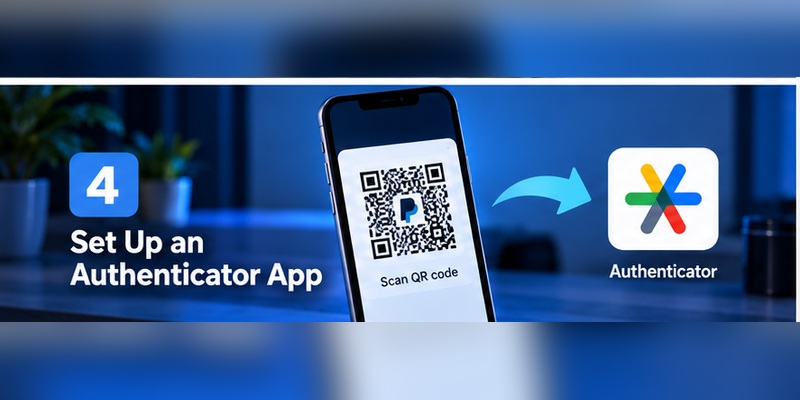
The paypal authenticator app setup is straightforward, but there are two things you should protect carefully: the enrollment secret and the device that generates your codes.
Start in PayPal Security settings
Open:
Settings → Security → 2-step verification
Choose the option to use an authenticator application.
PayPal specifically mentions Google Authenticator and Microsoft Authenticator as examples of compatible apps.
Add PayPal to your authenticator
During enrollment, follow PayPal’s on-screen instructions to connect your chosen paypal two factor authentication app.
Depending on the flow presented to your account, this normally involves linking the account using the information PayPal provides during setup.
European PayPal documentation describes authenticator enrollment as scanning the displayed QR code or entering a unique serial key. Once linked, the application generates one-off passcodes that change periodically.
Enter the current code into PayPal
Your authenticator will display a one-time code.
Enter the current code on PayPal to prove that the authenticator has been linked correctly.
Do not share the setup secret
The enrollment QR code or secret is not decorative.
It is security-sensitive information.
Never post a screenshot of it.
Avoid:
- Sending it through email
- Saving it in a public folder
- Sharing it with employees unnecessarily
- Posting it in a support forum
- Sending it to someone claiming to work for PayPal
Think about phone migration now
Ask one question before finishing:
What happens if this phone disappears tomorrow?
Different authenticator applications handle backup, synchronization, export, and device migration differently.
Some synchronize accounts. Others are intentionally device-local.
Know how yours works before relying on it.
That turns PayPal two factor authentication from a setup task into an actual security plan.
5. What Happens When PayPal Asks for an Authentication Code?
A paypal authentication code is proof that you control one of the verification methods associated with your account.
Depending on the situation, PayPal may ask for additional verification because:
- You’re logging in from a new device
- You’re signing in from an unusual location
- PayPal detects unusual activity
- A security check is required
- Strong customer authentication rules apply
- You’re completing a sensitive action
PayPal says it may request identity verification when it notices new or unusual activity, including access from a new device or location.
Security-check codes can expire
For PayPal security checks delivered by SMS, PayPal says it may send a 6-digit code, and that code can expire after approximately 5 to 10 minutes.
That is separate from the rotating code generated inside an authenticator application.
Never disclose the code
A common social-engineering pattern is:
“I’m from PayPal. I just sent you a code. Read it back to me.”
Do not do this.
PayPal states clearly:
It will never ask you for the code over a phone call, email, or text message.
The code belongs on PayPal’s legitimate verification screen.
Not in a DM.
Not in a phone call.
Not in an email reply.
If you receive an unexpected code
If you were not trying to log in, treat the event as a warning.
Check your account directly.
Consider:
- Changing your password
- Reviewing your contact details
- Checking recent activity
- Confirming your authentication settings
- Securing the email account associated with PayPal
Unexpected verification prompts should be investigated, not approved automatically.
6. Lost Your Phone? Recovering Access Without Making Things Worse
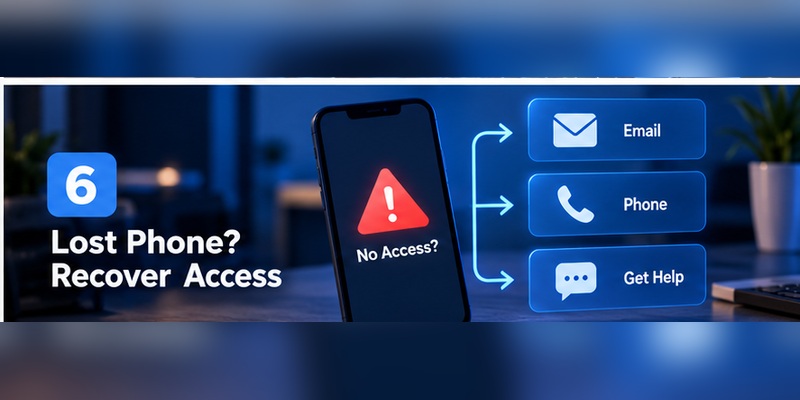
The search paypal two factor authentication lost phone usually appears at the worst possible time: after access has already disappeared.
The right recovery path depends on what was lost.
Scenario A: You lost the phone running your authenticator
First, check whether your authenticator supports restoration or synchronization.
If the PayPal entry can be restored securely on a new device, use that route.
If not, go to PayPal’s normal login page and look for alternative verification options.
PayPal’s current MFA guidance says that if its normal verification prompt does not work, users can select Login using other ways on the web screen and choose another available challenge.
Availability depends on your account.
Scenario B: You changed your mobile number
This is more predictable.
PayPal explicitly warns users to update the phone number registered on the account when they switch numbers.
Otherwise, the access code may continue going to the old number, preventing login.
If this has already happened:
- Use PayPal’s account-recovery options.
- Regain account access.
- Update the mobile number immediately.
- Review your 2-step verification settings.
Scenario C: Your phone was stolen
Do more than restore PayPal.
Secure:
- Your mobile carrier account
- Your email
- Your device account
- Your authenticator backup
- Your PayPal password
If you also use PayPal passkeys, PayPal states that a passkey stored on a lost device cannot be used without the device’s face, fingerprint, or PIN. PayPal also allows users to remove a passkey associated with a lost device.
One important rule
Do not disable every security layer simply because recovery was inconvenient.
Recover access first.
Then build a better configuration so the same failure cannot lock you out twice.
7. Do PayPal Backup Codes Exist?
This keyword needs a direct answer because search results often blur different platforms together.
The short answer
Do not assume PayPal provides a downloadable list of static backup codes like Discord, Google, or some other services.
In the current PayPal Help Center documentation reviewed for this guide, PayPal explains:
- Authenticator-based 2-step verification
- SMS or one-time codes in supported flows
- Alternative authentication challenges
- Account recovery
- Passkeys
- Updated phone and email information
But those official pages do not document a standard printable set of PayPal 2FA recovery codes for ordinary account 2-step verification.
That means searches such as paypal backup codes or paypal 2 factor authentication backup codes should not lead you to invent or look for a menu that may not exist for your account.
What should you use instead?
Your recovery plan should include:
- Current phone information
Do not leave an old mobile number attached to PayPal.
- Current email
Your email is part of your broader recovery surface.
Protect it with strong authentication too.
- Alternative PayPal authentication methods
When PayPal offers Login using other ways, use a verified method that you still control.
- Authenticator recovery
Understand whether your authentication application supports safe backup or migration.
- PayPal support and account recovery
If normal access fails, use PayPal’s official Contact Us and account-access routes rather than trusting a third-party “PayPal recovery service.” PayPal’s Contact Us area includes dedicated options for login problems and unauthorized access.
Why this distinction matters
A useful security article should tell you what the service actually supports.
Not what another platform supports.
Recovery advice that assumes nonexistent backup codes can make a lockout worse.
8. PayPal 2FA Not Working: Fix the Problem by Symptom
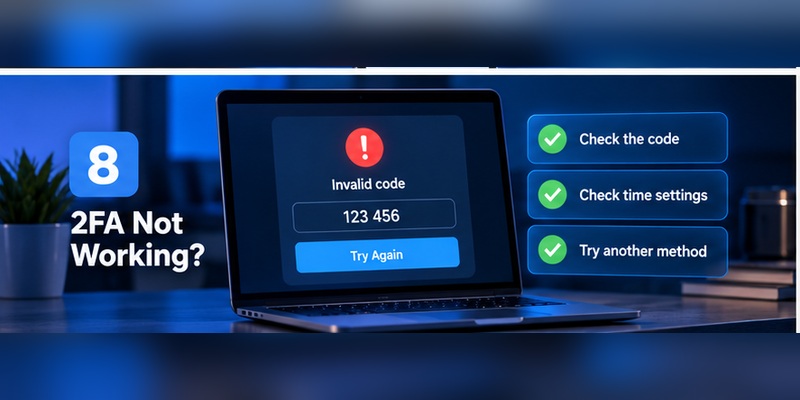
When users search paypal 2fa not working or paypal two factor authentication not working, the cause is usually more specific than “2FA is broken.”
Identify the symptom first.
“My authenticator code is rejected”
Try these steps:
- Make sure you’re using the PayPal entry in your authenticator.
- Wait for a fresh code.
- Enter it promptly.
- Check that your phone’s date and time are automatic.
- Confirm you did not recently reconfigure the PayPal authenticator.
- Use another PayPal verification method if offered.
Time-based authentication depends on correct device time.
“I never receive the SMS”
PayPal advises checking that the correct phone number is associated with the account.
For security checks, PayPal may also let users select a different registered number or add a current number in some flows.
Also check:
- Cellular service
- SMS blocking
- Carrier filtering
- Roaming
- Whether the number changed recently
“The code expired”
PayPal states that SMS security-check codes can expire after 5–10 minutes.
Use Resend when that option appears.
“The code keeps going to my old phone”
This is an account-information problem.
PayPal explicitly says that if 2-step verification is tied to an old mobile number, the access code can continue being sent there.
Recover the account and update the number.
“PayPal keeps asking me to verify again”
This is not automatically a malfunction.
PayPal can require extra checks because of:
- New devices
- New locations
- Unusual activity
- Regulatory authentication requirements
PayPal also uses the concept of a remembered device.
A remembered device can help PayPal recognize one of your normal devices, although PayPal may still ask for another check when needed.
“Nothing works”
Use the Login using other ways option if PayPal presents it.
If no available challenge is accessible, move to PayPal’s official account-recovery or Contact Us flow.
Do not pay someone online to “bypass PayPal 2FA.”
That is a strong sign of fraud.
9. Moving PayPal Two Factor Authentication to a New Phone
The best time to solve paypal 2 factor authentication new phone is before wiping the old phone.
Before switching devices
Check:
- Your PayPal password
- Your current mobile number
- Your current email
- Your authenticator access
- Whether your authenticator supports transfer or sync
- Whether the old device still has a trusted PayPal session
Move the authenticator
Follow the migration instructions for your chosen authenticator.
Do not assume that installing the same application on the new phone automatically restores your PayPal token.
Test before erasing
Before resetting the old device:
- Open the authenticator on the new phone.
- Confirm the PayPal entry appears.
- Test authentication.
- Verify your phone number and email on PayPal.
- Confirm you can complete alternative verification if necessary.
Changing the phone number too?
Update PayPal before giving up the old number.
This point is directly supported by PayPal’s own recovery guidance: if the account still contains the old number, codes can continue going there.
A five-minute check before changing devices can prevent a much longer recovery process later.
10. Should You Turn Off PayPal Two Factor Authentication?
There are legitimate reasons someone may search how to turn off two factor authentication paypal.
For example:
- An authenticator is being replaced
- The current 2FA configuration is broken
- You’re rebuilding account security
- You want to switch authentication methods
PayPal currently documents the following browser flow:
Settings → Security → Update next to 2-step verification → Turn Off → confirm Turn It Off.
A warning for SMS users
PayPal’s Help Center notes that customers who currently have 2-step verification through text may not be able to enable text-based 2-step verification again after turning it off.
That is a strong reason not to disable it casually.
Better approach: replace, don’t simply remove
If 2FA is causing problems:
- Regain stable account access.
- Prepare the replacement authenticator or method.
- Verify your phone and email.
- Make the change.
- Test it.
- Only then retire the old method.
Temporarily removing security without a replacement creates an unnecessary exposure window.
11. Passkeys, Remembered Devices, and the Security Layer Beyond 2FA
PayPal two factor authentication is important, but PayPal’s authentication system has evolved beyond one-time codes.
PayPal passkeys
PayPal supports passkeys for eligible accounts and devices.
A passkey lets you sign in using the same device authentication you use to unlock your device, such as:
- Face authentication
- Fingerprint
- PIN
- Device password
PayPal says biometric data used by the device is not shared with PayPal and does not leave the device.
PayPal currently documents passkey support across eligible platforms including iOS, macOS, Windows, and Android, subject to browser and operating-system requirements.
Why passkeys matter
Traditional one-time authentication codes can be phished.
FIDO-based authentication is designed to resist phishing more effectively because authentication is bound to the legitimate service.
CISA describes FIDO authentication as the strongest form of MFA in its mobile-security guidance and recommends phishing-resistant authentication where feasible.
That does not mean every user needs to abandon PayPal two factor authentication immediately.
It means account security now has multiple layers.
Remembered devices
PayPal can also remember devices after successfully confirming your identity.
A remembered device may reduce repeated verification requests during normal usage, although PayPal can still request another factor when circumstances require it.
The stronger PayPal security model
Rather than thinking:
Password + code = finished.
Think:
Unique password + 2FA + secure authenticator + current recovery details + passkey where appropriate + phishing awareness.
That is a much harder setup to defeat through one stolen credential.
12. PayPal Two Factor Authentication FAQ
Does PayPal have 2 factor authentication?
Yes. PayPal provides 2-step verification, commonly called PayPal two factor authentication or 2FA. Authenticator applications are supported, and PayPal’s US security documentation also describes SMS one-time codes as an available method in supported accounts.
How do I enable two-factor authentication on PayPal?
For how to enable two factor authentication on paypal, sign in through a web browser and open:
Settings → Security → 2-step verification → Set Up.
Then select an available authentication method and complete the verification process.
Can I set up PayPal 2FA in the mobile app?
PayPal’s current Help Center says the 2-step verification configuration process is completed through a web browser, not the PayPal app.
Which authenticator apps work with PayPal?
PayPal specifically gives Google Authenticator and Microsoft Authenticator as examples.
Compatible apps that implement the required one-time-password standard may also work, but follow PayPal’s on-screen setup instructions.
Is an authenticator better than SMS for PayPal?
Generally, app-generated OTP codes avoid some risks associated with SMS, such as SIM swapping and telecom interception.
CISA ranks authenticator OTP above SMS, although it also notes that app-generated codes remain vulnerable to phishing.
Does PayPal have backup codes?
The current PayPal documentation reviewed for this article does not describe a standard downloadable backup-code set for ordinary 2-step verification.
Instead, PayPal documents alternative login challenges, account recovery, phone/email maintenance, one-time codes, authenticator applications, and passkeys.
Do not assume a backup-code feature exists unless you actually see it in your PayPal account.
What if I lose my phone?
For paypal two factor authentication lost phone, first try restoring your authenticator or using another PayPal authentication challenge.
PayPal’s MFA guidance tells users to choose Login using other ways when an initial verification method does not work.
If you changed your mobile number, recover account access and update the number immediately.
What if PayPal sends the code to my old phone number?
PayPal warns that this happens when the old number remains associated with 2-step verification.
Recover access and update the mobile number on the account.
How long does a PayPal code last?
For PayPal SMS security checks, PayPal says a 6-digit code may expire after approximately 5–10 minutes.
Authenticator-generated codes follow their own rotating schedule.
Why am I getting a PayPal code I didn’t request?
It may indicate an attempted login or another security event.
Do not provide the code to anyone.
Log into PayPal directly, review your account, and change your password if you see suspicious activity.
Will PayPal ask me for my 2FA code by phone?
No.
PayPal explicitly states that it will not ask you for the code over phone, email, or text message.
Can I disable PayPal 2FA?
Yes.
The current documented flow is:
Settings → Security → Update → Turn Off → Turn It Off.
Be aware that text-based 2-step verification may not be available to re-enable afterward for some customers.
Should I use a passkey instead?
It does not have to be an either-or decision.
PayPal supports passkeys for eligible devices, and passkeys provide strong phishing resistance.
Use the strongest login and recovery configuration available to your account.
Final Security Checklist
Before leaving your PayPal Security settings, confirm the following:
- PayPal two factor authentication is enabled
- Your authenticator works
- Your PayPal phone number is current
- Your email address is current and secured
- You know how to access Login using other ways
- Your authenticator has a safe migration or recovery plan
- You use a unique PayPal password
- You understand that PayPal will never ask you to share a verification code
- You have considered adding a passkey
- You will update PayPal before changing phone numbers
- You will migrate 2FA before wiping an old phone
The most useful way to think about PayPal two factor authentication is not as a checkbox.
It is one layer in a recovery-ready security system.
A password can be stolen. An SMS can be intercepted. A one-time code can be phished. A phone can disappear.
Good account security assumes one layer may eventually fail and makes sure another layer is ready.
That approach is especially important for PayPal because the account may connect directly to your cards, bank accounts, payment history, business transactions, and personal information.
Enable PayPal two factor authentication, but do not stop there.
Use an authenticator where appropriate, keep recovery information current, understand what happens when you lose a device, consider phishing-resistant passkeys, and never give a verification code to another person.
That combination protects the account far better than relying on a password alone.
Download Authenticator App
Secure your accounts with fast, reliable two-factor authentication. Download now and protect your login in seconds.
