
Aegis Authenticator App: Complete Guide to Setup, Backup, Security, and Use
Published September 8, 2026
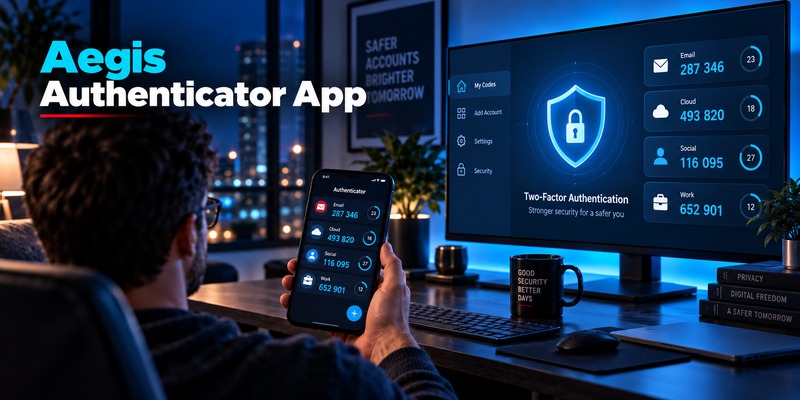
Short answer: The aegis authenticator app is a free, open-source two-factor authentication application for Android that generates time-based and counter-based one-time passwords. It supports TOTP and HOTP, stores authentication tokens inside an encrypted vault, offers password and biometric protection, and allows encrypted exports and automatic backups.
For Android users who want more control over their 2FA credentials, encrypted local storage, easy backups, and an open-source alternative to mainstream authentication apps, Aegis is one of the most feature-rich options available.
Aegis is officially described as a free, secure, open-source Android application for managing two-step verification tokens. It supports TOTP and HOTP standards and can import credentials from several other authentication applications.
This pillar guide explains everything you need to know about the aegis authenticator app, including installation, configuration, daily use, account migration, security, backups, troubleshooting, and how it compares with Google Authenticator.
What Is the Aegis Authenticator App?
The aegis authenticator app is an Android application used to generate one-time verification codes for accounts protected by two-factor authentication.
When a website asks you to scan a QR code during 2FA enrollment, that QR code normally contains a secret key. Aegis stores that secret and uses it to generate temporary verification codes.
These codes provide an additional layer of protection beyond your password.
For example, when signing in to an account protected with Aegis, you may enter:
Step 1: Your password
followed by:
Step 2: A temporary six-digit code generated by Aegis
Even if someone discovers your password, they would normally still need access to your authentication secret or valid verification code to complete the login.
The aegis authenticator project is free and open source. According to its official documentation, Aegis supports the standardized HOTP and TOTP authentication methods used by thousands of online services.
Key features of Aegis
The aegis authenticator app includes:
- TOTP authentication
- HOTP authentication
- Encrypted vault storage
- Password protection
- Biometric unlocking
- QR code scanning
- Manual secret-key entry
- Account groups
- Search
- Custom sorting
- Custom and automatically generated icons
- Encrypted exports
- Automatic local backups
- Imports from several competing authenticator applications
- Light, dark, and AMOLED themes
Aegis officially states that its vault uses AES-256-GCM encryption and that password-based access uses scrypt, while biometric unlocking can use the Android Keystore.
That combination makes the aegis authenticator app particularly interesting for users who prioritize local control over their authentication credentials.
Download Authenticator App
Secure your accounts with fast, reliable two-factor authentication. Download now and protect your login in seconds.
How Does Aegis Authenticator Work?
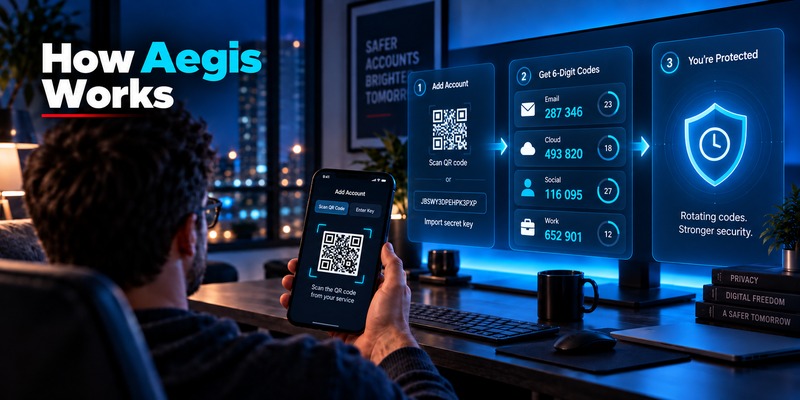
To understand the aegis authenticator app, it helps to understand TOTP.
Most services that support authentication applications provide a secret during setup. This secret is normally represented by a QR code.
After you scan the QR code, both the website and your authenticator app know the same secret.
Neither side needs to send a new verification code to your phone every time you sign in.
Instead, both independently calculate the current code.
TOTP codes
TOTP stands for Time-Based One-Time Password.
A typical TOTP code:
- Contains six digits
- Remains valid for a short period
- Changes automatically
- Can usually be generated without internet access
The aegis authenticator app stores the secret required to generate these codes.
When you open Aegis, it calculates the current code using the stored secret and current time.
HOTP codes
Aegis also supports HOTP, or HMAC-Based One-Time Password.
Instead of changing based on time, HOTP codes rely on a counter.
Aegis officially supports both HOTP and TOTP standards.
For most modern consumer services, however, TOTP is the format users are most likely to encounter.
Does Aegis need internet access?
For standard TOTP generation, no internet connection is required.
Once the account secret has been saved, the aegis authenticator app can generate codes locally.
This is one of the important advantages of authenticator-based 2FA: your phone does not need cellular service to generate a standard TOTP code.
Why Use the Aegis Authenticator App?
There are dozens of 2FA applications available, so why would someone choose the aegis authenticator app?
The strongest reasons are security, control, backups, privacy, and customization.
1. Your authentication vault can be encrypted
The app can keep your tokens inside an encrypted vault.
Aegis documents AES-256-GCM as the encryption mechanism used to protect vault contents. Password-derived credentials use scrypt, while biometric credentials can rely on Android Keystore protection.
That matters because your TOTP secrets are highly sensitive.
Anyone who obtains the underlying secret may be able to generate future authentication codes.
2. Aegis is open source
The source code is publicly available.
For security-conscious users, open-source software allows developers and security researchers to examine how the application handles authentication data.
Open source does not automatically make an application secure, but it provides transparency that closed applications cannot offer in the same way.
3. You control backups
One of the biggest reasons people choose the aegis authenticator app is backup control.
Aegis supports manual exports and automatic vault backups.
According to the official FAQ, exports are created manually, while backups are created automatically; both use the same vault file format.
This is valuable because losing a phone containing your only copy of your 2FA secrets can turn account recovery into a major problem.
4. Account organization is flexible
Users with dozens of 2FA accounts can organize credentials using:
- Groups
- Search
- Custom sorting
- Account names
- Issuer information
- Icons
Instead of scrolling through a long list of nearly identical entries, you can build a more manageable 2FA vault.
5. It is designed specifically for Android
The aegis authenticator app is focused on Android rather than trying to support every platform.
That allows the application to integrate features such as Android Keystore-backed biometric access.
However, this is also an important limitation: Aegis does not currently offer official iOS, Windows, macOS, or browser-extension versions, and its official FAQ says there are no plans to port it to those platforms.
How to Download Aegis Authenticator App
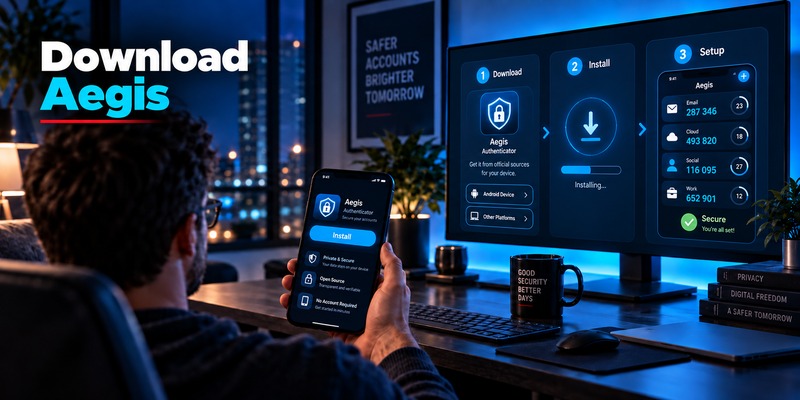
If you want to download aegis authenticator app, use a trusted distribution channel rather than downloading an APK from an unknown website.
The official project lists:
- Google Play
- F-Droid
as supported distribution options.
The official Aegis website also describes the application as free, open source, and specifically designed for Android.
Is Aegis Authenticator free?
Yes.
Users searching for aegis authenticator app free do not need to purchase a subscription simply to use the official application.
Aegis is free and open source.
That makes it attractive for people who want a capable TOTP manager without depending on a paid subscription.
Avoid unofficial APK websites
Authentication applications contain extremely sensitive information.
For that reason, avoid installing modified Aegis APK files distributed by unknown websites.
A malicious authenticator application could potentially access the secrets used to generate your verification codes.
Whenever possible, install Aegis through its official distribution channels.
Aegis Authenticator Setup: Step-by-Step Guide
A standard aegis authenticator setup takes only a few minutes.
Step 1: Install Aegis
Install the aegis authenticator app on your Android device.
Open the application after installation.
Step 2: Create your vault
During initial configuration, Aegis allows you to protect the vault containing your 2FA entries.
Choose a strong password.
Do not reuse your email, banking, social media, or primary password-manager password.
A unique password reduces the damage that could occur if another account is compromised.
Step 3: Configure biometric unlocking
If supported by your Android device, you can enable biometric unlocking.
This allows faster daily access while the vault remains protected through the Android security infrastructure.
Aegis documentation explains that biometric access uses a key backed by the Android Keystore.
Step 4: Open the security settings of the account you want to protect
For example:
- Sign in to the website.
- Open Security.
- Find Two-Factor Authentication or Two-Step Verification.
- Select an authenticator application.
- Display the QR code.
The exact wording varies between services.
Step 5: Add the account to Aegis
Open the aegis authenticator app and add a new entry.
Depending on your situation, you can usually:
- Scan a QR code
- Scan an image containing a QR code
- Enter the secret manually
Aegis officially supports all three approaches.
Step 6: Verify the generated code
Aegis will generate a temporary code.
Enter that code into the website to confirm that configuration was successful.
Step 7: Save recovery codes
Many services provide emergency recovery codes after enabling 2FA.
Store these somewhere separate from your phone.
Recovery codes can be extremely important if your phone is stolen, damaged, factory-reset, or otherwise unavailable.
Step 8: Create your first backup
Do not wait until you have 50 accounts.
Once your aegis authenticator app contains important credentials, configure an encrypted backup.
This makes recovery significantly easier if you replace or lose your device.
How to Use Aegis Authenticator
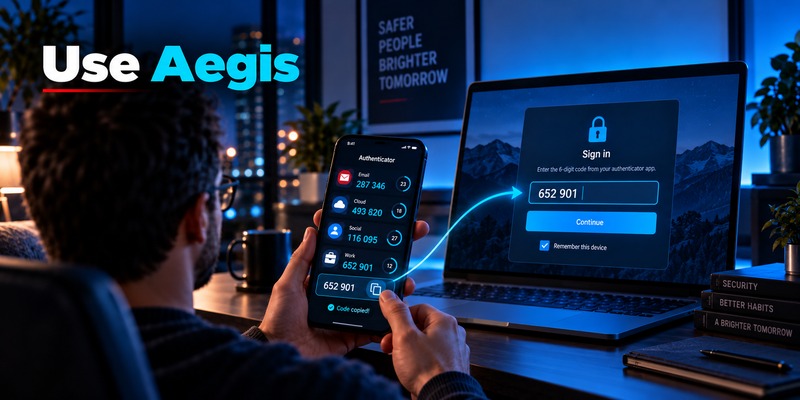
Users asking how to use aegis authenticator generally need to understand two tasks:
- Adding accounts
- Using codes during login
Adding a new account
When a service displays a 2FA QR code:
- Open Aegis.
- Unlock your vault.
- Select the option to add an account.
- Scan the QR code.
- Confirm the account information.
- Save the entry.
The account should now appear inside the aegis authenticator app.
Signing in with Aegis
When the website requests an authentication code:
- Open Aegis.
- Unlock the vault.
- Find the relevant account.
- Read or copy the current code.
- Enter it into the website before it expires.
You normally do not need to wait for an SMS or email.
The code is generated locally.
Organizing large numbers of accounts
As your 2FA collection grows, organization becomes important.
The aegis authenticator app supports groups, search, sorting, and icons.
For example, you might create groups such as:
- Work
- Social
- Finance
- Developer
- Shopping
- Personal
You can then locate the correct token much faster during login.
How Secure Is the Aegis Authenticator App?
Security is one of the main reasons people search for the aegis authenticator app.
The application includes several noteworthy protections.
AES-256-GCM vault encryption
Aegis documentation states that vault data uses AES-256 in GCM mode, providing confidentiality as well as integrity and authenticity checks for encrypted vault contents.
In practical terms, this means the secrets stored in an encrypted Aegis vault are not simply kept as readable text.
Password-based protection
Aegis uses the scrypt key-derivation function when deriving encryption credentials from the user’s password.
A strong vault password is therefore an important part of the security model.
Biometric access
Biometric unlocking can use the Android Keystore.
This provides convenience without requiring you to type your long vault password every time you need a code.
Screen protection
Aegis also lists features including:
- Screen capture prevention
- Tap to reveal
- Password-protected vaults
- Biometric unlocking
among its security capabilities.
Local-first design
Another interesting privacy feature is Aegis’s approach to networking.
The project’s FAQ states that Aegis does not have internet access, which affects how cloud backup integrations work.
Rather than uploading the vault directly to a proprietary Aegis cloud account, users retain more direct control over backup storage.
Security still depends on the user
No aegis authenticator app configuration can protect you from every failure.
Security can still be weakened by:
- A weak vault password
- Malware on the device
- Exposed backup files
- Saving recovery codes insecurely
- Giving verification codes to phishing sites
- Losing every copy of your recovery information
The authenticator is one layer of your account security, not the entire security system.
Aegis Authenticator Backup and Restore
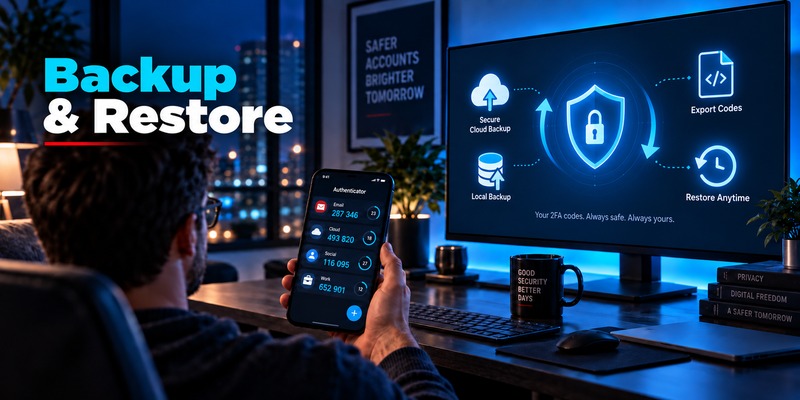
Backup is one of the strongest features of the aegis authenticator app.
If you use 2FA for dozens of services, recreating every entry individually after losing your phone can be difficult.
A proper aegis authenticator backup strategy solves much of this problem.
Manual exports vs automatic backups
Aegis explains the distinction clearly:
Exports are manual, while backups are automatic.
Both use the same vault format.
This gives users two useful approaches.
You can create an export before changing phones, while automatic backups can provide ongoing protection against unexpected device failure.
Encrypted exports
For sensitive credentials, prefer encrypted exports.
Aegis states that the password configured for vault encryption is also used for encrypted exports and imports.
Keep the backup password available separately.
A backup that you cannot decrypt is not useful during an emergency.
Automatic backups
The aegis authenticator app can automatically save backups to a location you choose.
Its official documentation lists automatic vault backup as one of the application’s core features.
A sensible approach is:
Phone → encrypted local backup → independently synchronized secure storage
Aegis’s FAQ notes that cloud-oriented automatic backups depend on storage providers participating in Android’s Storage Access Framework. Another suggested pattern is to back up locally and use a separate synchronization application.
Where should you keep backups?
Ideally, keep more than one protected recovery path.
For example:
Primary copy: Android phone
Backup copy: Encrypted vault file
Emergency recovery: Service-specific recovery codes stored separately
Avoid keeping your only backup on the same phone as the original vault.
If that phone is lost, stolen, or destroyed, both copies could disappear simultaneously.
Test your recovery process
A backup strategy is incomplete until you understand how restoration works.
Before depending heavily on the aegis authenticator app, make sure you know:
- Where your backup file is stored
- Which password decrypts it
- How you would access the file from a replacement phone
- Where your emergency recovery codes are stored
Recovery planning is just as important as enabling 2FA.
How to Transfer Accounts to Aegis Authenticator
Switching from another authentication application does not necessarily mean manually configuring every account again.
The aegis authenticator app supports imports from numerous applications and formats.
The project documentation lists import support for sources including:
- Google Authenticator
- 2FAS Authenticator
- Authenticator Plus
- Authy
- andOTP
- FreeOTP
- FreeOTP+
- Microsoft Authenticator
- Steam
- TOTP Authenticator
- WinAuth
- Plain-text formats
Some import methods may have additional requirements, including root access in certain cases.
Moving from Google Authenticator
A common migration path is:
- Export accounts from Google Authenticator.
- Generate the transfer QR code.
- Import or scan the supported transfer information using Aegis.
- Compare several generated codes.
- Confirm access before deleting your old authenticator configuration.
Never erase the old authenticator until the migration has been verified.
For especially important accounts, sign in to each one after migration and confirm that the new codes are accepted.
Moving to a new Android phone
If you already use the aegis authenticator app, an encrypted vault export can simplify migration.
A typical process is:
- Create a current encrypted export.
- Move the encrypted file securely to the new device.
- Install Aegis on the new Android phone.
- Import the vault.
- Enter the appropriate vault password.
- Verify important accounts.
- Keep the old device available until testing is complete.
Do not factory-reset the original phone before confirming the new phone works.
Aegis Authenticator Not Working: Common Fixes

If you search for aegis authenticator not working, the actual problem may be the phone’s clock, an incorrect secret, account configuration, vault access, or an import issue rather than Aegis itself.
Here are the most useful checks.
1. Verification codes are rejected
TOTP depends heavily on accurate time.
If your phone’s clock is significantly incorrect, the aegis authenticator app may generate a mathematically valid code for the wrong time window.
Check:
Settings → Date & Time → Automatic date and time
The wording varies between Android versions.
Enable network-provided or automatic time and try again.
Google similarly notes that authenticator codes depend on the operating system’s time settings.
2. Confirm that you are using the right account
People with multiple email addresses can accidentally select a token for the wrong account.
Compare:
- Account name
- Email address
- Issuer
- Service name
before entering the code.
3. Wait for the next code
If a TOTP code is close to expiring, the service may reject it by the time you submit the login form.
Wait for the next code and enter it immediately.
4. Recheck manual configuration
If you manually entered the secret, verify:
- Secret key
- Algorithm
- Number of digits
- TOTP/HOTP type
- Counter, if using HOTP
- Period, if customized
Most consumer accounts use standard settings, but some services use different parameters.
5. Check the original account configuration
If the service’s 2FA configuration was reset after you added it to the aegis authenticator app, the old secret is no longer valid.
You may need to remove the outdated entry and enroll the account again.
6. Biometric unlock fails
Biometric behavior can vary across Android devices.
Aegis notes that some devices have problematic Android Keystore implementations, which can cause biometric unlocking to fail even when biometrics appear to work in other applications.
Use your vault password if biometric authentication is unavailable.
7. Aegis cannot restore a backup
Check:
- Whether the file is actually an Aegis-compatible backup
- Whether it is encrypted
- Whether you know the correct encryption password
- Whether the file was corrupted during transfer
Never delete your original working vault while troubleshooting an import.
8. You lost your phone
If the phone containing the aegis authenticator app is gone, recovery depends on the safeguards you prepared earlier.
Possible recovery options include:
- An Aegis encrypted backup
- Service recovery codes
- Another authorized security key
- Another signed-in session
- The service’s account-recovery process
This is why creating backups before an emergency occurs is essential.
Aegis Authenticator vs Google Authenticator
The aegis authenticator vs google authenticator comparison is one of the most common questions among Android users.
Both applications can generate standard authentication codes, but their approaches to storage, backup, platforms, and account management are different.
| Feature | Aegis Authenticator | Google Authenticator |
| TOTP | Yes | Yes |
| HOTP | Yes | Yes |
| Android | Yes | Yes |
| iOS | No official Aegis version | Yes |
| Open source | Yes | Not fully comparable as an open-source Aegis-style project |
| Encrypted local vault | Yes | Different account/sync architecture |
| Password-protected vault | Yes | Privacy Screen/device authentication available |
| Biometric protection | Yes | Device-based Privacy Screen available |
| Manual export/transfer | Yes | Yes |
| Automatic Aegis-style local vault backups | Yes | No equivalent workflow |
| Google Account synchronization | No | Yes |
| Custom groups and advanced organization | Yes | More limited |
| Offline code generation | Yes | Yes |
Aegis information is based on its official project documentation, while Google states that Google Authenticator can synchronize verification codes between devices when users sign in with a Google Account. Google also supports manual account transfer when users operate Authenticator without account synchronization.
Choose Aegis if you want more local control
The aegis authenticator app may be the stronger fit when you prioritize:
- Open-source software
- Local encrypted vaults
- Manual encrypted exports
- Automatic backup control
- Advanced account organization
- Android-focused security controls
Choose Google Authenticator if convenience across platforms matters
Google Authenticator may be more convenient if you want:
- Android and iOS support
- Google Account synchronization
- Easy multi-device restoration
- A simpler mainstream experience
Google says authentication codes synchronized through a Google Account are encrypted both in transit and at rest.
Which is more secure?
There is no meaningful universal answer of “Aegis is secure and Google is insecure” or the reverse.
They use different security and recovery models.
Aegis emphasizes user-controlled encrypted vaults.
Google Authenticator can emphasize account-based synchronization and easier multi-device recovery.
The better choice depends on your threat model and your ability to manage backups safely.
For users comfortable managing their own encrypted recovery files, the aegis authenticator app provides a high degree of control.
Aegis Authenticator for Multiple Accounts
One of the situations where the aegis authenticator app becomes especially useful is when you have dozens of tokens.
A typical user may eventually have 2FA enabled for:
- Microsoft
- GitHub
- Discord
- Cloud services
- Social networks
- Shopping accounts
- Crypto platforms
- Developer tools
- Hosting platforms
- Work systems
Managing all of these in one long unorganized list quickly becomes frustrating.
Use groups
Create meaningful groups such as:
Work
Personal
Social
Finance
Development
Shopping
Grouping makes tokens easier to locate.
Use consistent account names
Instead of accepting unclear default labels, use recognizable naming conventions.
For example:
GitHub – [email protected]
is much clearer than:
GitHub
if you have several GitHub accounts.
Use search and icons
The aegis authenticator app supports searching by name or issuer and provides icon options to visually distinguish services.
These small organizational features become surprisingly valuable when your vault contains 30, 50, or 100 entries.
Best Practices for Using Aegis Safely
Installing the aegis authenticator app is only the beginning.
Good operational habits matter just as much.
Use a strong vault password
Your vault password protects highly sensitive authentication secrets.
Use something:
- Long
- Unique
- Difficult to guess
- Not reused elsewhere
Create encrypted backups
Do not rely on a single phone.
Phones are lost, broken, stolen, reset, and replaced.
Create at least one encrypted backup and make sure you know how to retrieve it.
Keep service recovery codes
When a website gives you recovery codes, save them somewhere secure.
Recovery codes exist specifically for situations where your normal second factor is unavailable.
Google, for example, recommends backup codes as an alternative sign-in method if a user loses access to normal 2-Step Verification methods.
Protect your backup separately
Do not store:
Phone + Aegis vault + only backup + recovery codes
in one location.
That creates a single point of failure.
Be careful with QR codes
A 2FA enrollment QR code usually contains the secret necessary to generate authentication codes.
Treat setup QR codes as sensitive credentials.
Do not:
- Post screenshots online
- Send them through unsecured chats
- Save them indefinitely in your photo gallery
- Upload them to public cloud folders
Do not approve phishing pages
TOTP protects against many password-only attacks, but it does not make phishing impossible.
A fake login page can ask for your password and then immediately ask for your temporary verification code.
Always verify the website before entering credentials.
Keep Aegis updated
Install updates from trusted sources.
Security applications should not remain several versions behind without a reason.
Test backups periodically
A backup that has never been tested creates uncertainty.
Periodically confirm that:
- You can locate the file
- You still know the password
- The file is current
- Your recovery instructions make sense
This dramatically improves the usefulness of the aegis authenticator app during a real emergency.
Advantages and Limitations of Aegis Authenticator
No authentication solution is perfect.
The aegis authenticator app has several important strengths as well as limitations.
Advantages
Free and open source
Aegis can be used without a subscription fee, and its source code is publicly available.
Strong vault protection
The encrypted-vault architecture provides additional protection for locally stored authentication secrets.
Excellent backup controls
Manual exports and automatic backups give users more control over recovery.
Flexible migration
Imports from several other authenticator applications can make switching easier.
Strong organization tools
Groups, icons, search, and sorting are valuable for users with large numbers of accounts.
Works offline
Standard OTP generation does not require continuous internet access.
No proprietary Aegis cloud account required
Users can keep control of where their vault backups are stored.
Limitations
Android only
This is the largest limitation.
If you use an iPhone, the aegis authenticator app is not an option.
The project’s FAQ explicitly states that there are no current plans for official iOS, Windows, macOS, or browser-extension ports.
Backup management requires responsibility
The ability to control your encrypted backups is powerful, but it also means the user needs a recovery plan.
If you lose:
- Your phone
- Your backup
- Your password
- Your service recovery codes
Aegis cannot magically reconstruct your authentication secrets.
Less automatic cross-device convenience
Users who want instant account synchronization across several devices may prefer an authentication system designed around cloud sync.
The aegis authenticator app instead appeals more strongly to people who value controlled local storage.
Frequently Asked Questions
Is the Aegis Authenticator app safe?
The aegis authenticator app includes several security-oriented features, including an encrypted vault, password protection, Android Keystore-backed biometric access, screen capture prevention, and encrypted export capabilities. Its source code is also publicly available.
However, overall account security still depends on device security, backup practices, password strength, and protection against phishing.
Is Aegis Authenticator free?
Yes. Aegis Authenticator is free and open source.
There is no mandatory subscription required to use its standard authentication features.
Is Aegis available for iPhone?
No official iOS version is currently offered.
The Aegis FAQ states that the project does not currently plan to port the application to iOS, Windows, macOS, or a browser extension.
Can Aegis replace Google Authenticator?
For many Android users, yes.
Both applications support common one-time-password workflows. Aegis may be preferable if you want local encrypted backups and more vault organization, while Google Authenticator may be preferable if you want Google Account synchronization and official iOS support.
Can I use Aegis without internet?
Yes.
Once an OTP secret has been configured, the aegis authenticator app can generate standard TOTP codes locally without continuously connecting to the internet.
Can I import Google Authenticator accounts into Aegis?
Yes. Google Authenticator is listed among the applications supported by Aegis’s import functionality.
Always verify imported accounts before deleting the originals.
What happens if I lose my phone?
If you have an encrypted Aegis backup, you may be able to restore your vault on another Android device.
If you have no backup, you may need to use service-specific recovery codes or individual account-recovery procedures.
Does Aegis support biometrics?
Yes.
Biometric unlocking can be configured on supported Android devices, with Aegis using a key backed by Android Keystore for this purpose.
Can Aegis automatically back up my accounts?
Yes.
Automatic backups are one of the features documented by the Aegis project. The destination is controlled by the user, and cloud-related storage behavior depends on Android’s storage framework and the cloud provider’s application.
Should I save an unencrypted Aegis export?
For most users, an encrypted export is the safer choice because a readable export may expose the secrets required to generate authentication codes.
Treat any unencrypted OTP export as highly sensitive.
Why is my Aegis code incorrect?
Common causes include:
- Incorrect phone time
- Wrong account selected
- Expiring code
- Incorrectly entered secret
- Incorrect OTP parameters
- 2FA having been reset on the website
- An outdated token remaining in Aegis
Start by verifying automatic date and time on Android and confirming that you selected the correct account.
Final Verdict: Is Aegis Authenticator Worth Using?
For Android users who want strong control over their two-factor authentication credentials, the aegis authenticator app is a compelling option.
Its biggest strengths are not simply that it generates six-digit authentication codes.
The real advantages are:
Encrypted local storage.
Password and biometric protection.
Automatic backups.
Encrypted exports.
Flexible account migration.
Advanced organization.
Open-source development.
These capabilities make the aegis authenticator app particularly suitable for people who manage many online accounts or prefer to control where their authentication secrets and backups are stored.
It is especially attractive for users who dislike relying entirely on a proprietary cloud synchronization system.
The major trade-off is platform support.
Aegis is fundamentally an Android solution.
If you regularly switch between Android and iOS or need authentication codes synchronized automatically across multiple operating systems, another application may provide a more convenient workflow.
But for an Android-first security setup, the aegis authenticator app provides an impressive balance of security, flexibility, backup control, organization, and usability.
The most important step is not simply installing the application.
Configure it properly:
Use a strong vault password.
Enable biometric access if appropriate.
Create encrypted backups.
Store service recovery codes separately.
Test your recovery process before you need it.
When those practices are combined, the aegis authenticator app can become a reliable foundation for managing two-factor authentication across dozens of online accounts.
Download Authenticator App
Secure your accounts with fast, reliable two-factor authentication. Download now and protect your login in seconds.
