
1Password Authenticator: Complete Guide to Setup, Use, Backup, Troubleshooting, and Security
Published September 8, 2026
Short answer: 1password authenticator is the built-in two-factor authentication functionality inside 1Password. It can save the secret behind a website’s TOTP verification codes, generate rotating one-time passwords, and automatically fill those codes when you sign in. It is not a separate standalone authenticator product; the functionality is built into the main 1Password apps, browser extension, and 1Password.com.
For people who already use 1Password as their password manager, this approach can make two-factor authentication considerably easier. Instead of opening one application for your password and another for a six-digit code, 1password authenticator can keep the login and its one-time password together and fill both during sign-in.
1Password officially supports saving one-time passwords through its browser extension, desktop and mobile apps, and 1Password.com. When signing in to supported websites, 1Password can automatically fill the generated one-time password after filling the username and password.
However, convenience is only one part of the decision. You also need to understand security separation, account recovery, synchronization, backups, and what happens if 1Password itself becomes unavailable.
This pillar guide explains the entire 1password authenticator workflow from initial setup to everyday use.
What Is 1Password Authenticator?
1password authenticator refers to 1Password’s ability to generate one-time passwords for websites that use two-factor authentication.
When a service asks you to set up an authentication application, it normally displays either:
- A QR code
- A secret key
- Or both
That information contains a shared secret used to calculate temporary authentication codes.
You save the secret inside the login item in 1Password. After that, 1password authenticator generates the current verification code whenever you need to sign in.
For example, a website may require:
Step 1: Username
Step 2: Password
Step 3: Six-digit verification code
If the username, password, and TOTP secret are stored in 1Password, the application can help handle all three parts.
What type of code does 1Password generate?
The functionality is commonly used for TOTP, or Time-Based One-Time Passwords.
A TOTP typically:
- Contains six digits
- Changes after a short interval
- Is calculated from a secret key and the current time
- Can be generated without receiving an SMS
- Does not require the website to send a new code each time
The resulting experience makes 1password authenticator particularly convenient for people who enable 2FA across dozens of accounts.
Is 1Password primarily an authenticator?
No.
1Password is primarily a password manager. Its authentication-code feature is part of a much larger platform that can store passwords, passkeys, secure notes, payment information, and other sensitive data.
That distinction is important when comparing 1password authenticator with dedicated apps such as Google Authenticator.
Download Authenticator App
Secure your accounts with fast, reliable two-factor authentication. Download now and protect your login in seconds.
How Does 1Password Authenticator Work?
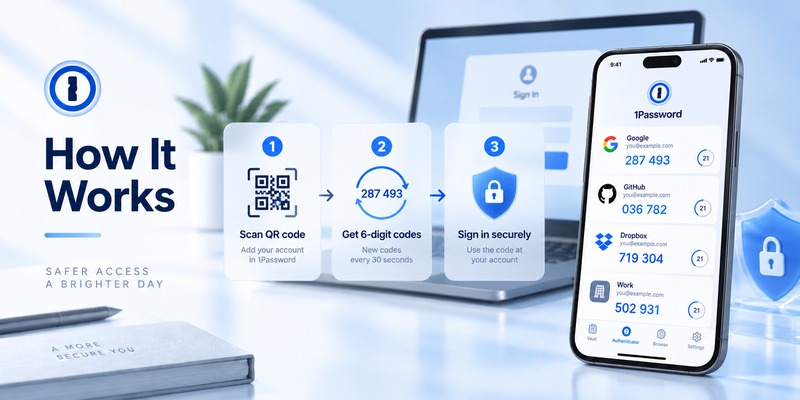
The underlying concept is simpler than it may appear.
When you enable authenticator-based 2FA on a website, the website creates a secret.
The website knows the secret.
Your 1password authenticator also receives the secret.
Both sides then use the secret and the current time to calculate the same temporary verification code.
Step 1: The website displays a QR code
Suppose you are enabling 2FA on an email, social media, hosting, developer, or financial account.
The website displays a QR code.
Step 2: 1Password saves the TOTP information
You scan that QR code with 1Password or save the corresponding secret manually.
1Password’s official instructions allow users to add a One-Time Password field to a Login item and scan the QR code from supported desktop and mobile platforms.
Step 3: A temporary code appears
The 1password authenticator begins generating the one-time password associated with the account.
Step 4: The website verifies the code
During initial setup, the website usually asks you to enter one generated code.
If the code matches what the website expects, 2FA becomes active.
Step 5: 1Password can fill the code later
During future logins, 1Password can fill your username and password and then supply the one-time password.
The important point is that the code does not need to be sent to you by email or SMS.
It is calculated locally using the stored secret.
Is There a Separate 1Password Authenticator App?
This is one of the most important points for searchers looking for a 1password authenticator app.
There is not a separate consumer app called “1Password Authenticator” that you need to install alongside 1Password.
Instead, authenticator functionality is integrated into the main 1Password ecosystem.
You can work with one-time passwords using:
- 1Password for Android
- 1Password for iPhone and iPad
- 1Password for Windows
- 1Password for Mac
- 1Password for Linux
- The 1Password browser extension
- 1Password.com
The service’s official support documentation specifically explains how one-time passwords can be saved through the browser extension, apps, and web interface.
This integration is one of the main differences between 1password authenticator and dedicated authenticator applications.
What does that mean in practice?
Instead of maintaining:
Password Manager → passwords
and
Authenticator → 2FA codes
you can maintain:
1Password → passwords + one-time passwords
For many people, that dramatically reduces login friction.
How to Download 1Password Authenticator
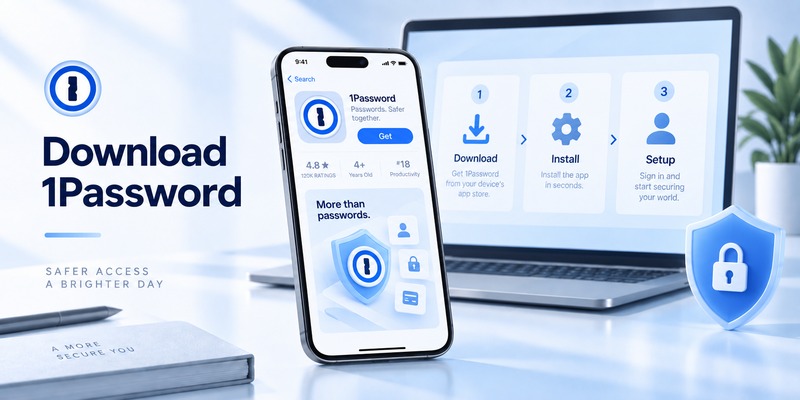
Users searching for download 1password authenticator app should install the regular 1Password application.
You do not need to search for a separate authenticator download.
1Password currently provides applications for major desktop and mobile platforms, as well as extensions for popular browsers. Its membership documentation states that subscribers can use 1Password across Mac, Windows, Linux, iOS, Android, and supported browsers.
Where can you use it?
Depending on your setup, install:
- 1Password for Android
- 1Password for iOS/iPadOS
- 1Password for Windows
- 1Password for macOS
- 1Password for Linux
- The extension for Chrome, Firefox, Edge, Brave, or Safari
After installation:
- Sign in to your 1Password account.
- Unlock your vault.
- Open or create a Login item.
- Add a One-Time Password field.
- Scan the website’s 2FA QR code.
Is 1Password Authenticator free?
Users searching for 1password authenticator app free should understand an important distinction.
1Password is not currently a permanently free consumer password manager.
At the time of writing, 1Password offers a 14-day free trial for its Individual and Families plans, after which a paid membership is normally required. Pricing can change, so users should check the current plan page before subscribing.
Therefore, you should not describe 1password authenticator as a completely free alternative to Google Authenticator.
Its authenticator functionality is effectively part of the broader paid 1Password service.
1Password Authenticator Setup: Step-by-Step
A typical 1password authenticator setup takes only a few minutes.
The exact wording differs from website to website, but the workflow is generally the same.
Step 1: Open the account you want to protect
Sign in to the website.
Navigate to a section such as:
- Security
- Account Security
- Privacy and Security
- Two-Factor Authentication
- Two-Step Verification
- Multi-Factor Authentication
Choose the option for an authentication application.
Step 2: Display the QR code
The website should display a QR code or manual secret.
Do not share this QR code.
Anyone who obtains the underlying TOTP secret could potentially generate future verification codes.
Step 3: Open 1Password
Find the Login item corresponding to the website.
Choose Edit.
Then select:
Add More → One-Time Password
1Password provides this workflow across its supported apps.
Step 4: Scan the QR code
Use 1password authenticator to scan the QR code.
Depending on your platform, you may be able to scan:
- The screen
- Your clipboard
- The device camera
If QR scanning is unavailable, many services let you copy the secret manually instead.
Step 5: Save the login item
Save your changes.
A rotating one-time password should now appear within the login.
Step 6: Verify the setup
Return to the website.
Enter the current code generated by 1password authenticator.
The site should confirm that 2FA is active.
Step 7: Save the site’s recovery codes
Many websites provide recovery or backup codes after enabling 2FA.
Do not ignore them.
Store them securely so that you still have a recovery method if access to your password manager is interrupted.
Step 8: Test the login
Before signing out of all existing sessions:
- Open a private browser window.
- Sign in.
- Confirm the password fills properly.
- Confirm the one-time password works.
- Verify that you can access recovery information.
Testing before an emergency is one of the most valuable 2FA habits you can develop.
How to Use 1Password Authenticator Every Day
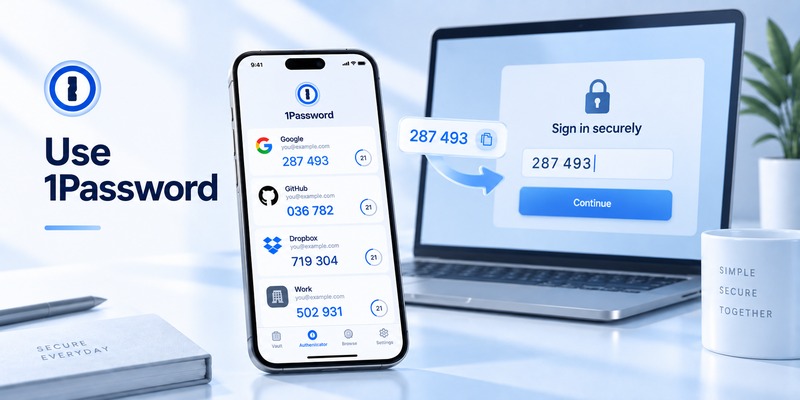
Once configured, how to use 1password authenticator becomes straightforward.
The main benefit is automation.
Sign in normally
Open the website and allow 1Password to fill the saved username and password.
When the website displays its verification-code field, 1password authenticator can fill the one-time password.
According to 1Password’s current support documentation, the apps can automatically fill one-time passwords when signing in to sites using two-factor authentication.
This means you often do not need to memorize, type, or manually copy the six-digit number.
Copy a code manually
Automatic filling will not work on every website or application.
In that case:
- Open 1Password.
- Search for the account.
- Open the Login item.
- Find the current one-time password.
- Copy it.
- Return to the website.
- Paste it into the verification field.
Automatically copy codes
On supported platforms, 1Password also provides settings that can copy one-time passwords after filling a login.
This can be useful when a website’s verification screen appears on a separate step.
Use codes across devices
Because your 1Password data synchronizes with your account, saved items become available across devices where you are authorized and signed in.
1Password states that changes made on one device are made available on the others connected to the membership.
For someone working across a laptop, desktop computer, tablet, and phone, this is one of the biggest advantages of 1password authenticator.
How Secure Is 1Password Authenticator?
The security of 1password authenticator cannot be evaluated only by asking whether it generates six-digit codes correctly.
You need to consider:
- How the vault is protected
- How the TOTP secret is stored
- How account recovery works
- Whether passwords and OTP secrets are kept together
- How your devices are secured
Your OTP secret is stored with the login
This creates significant convenience because one Login item can contain:
- Username
- Password
- Website
- One-time password
However, it also affects security architecture.
A separate authenticator application creates stronger separation between the stored password and the second-factor secret.
With 1password authenticator, both may be accessible through the same encrypted password-manager account.
Your account uses additional protection
1Password’s security model includes an account password and a Secret Key. 1Password explains that these are combined as part of the protection of account data.
This means protecting your 1Password account becomes especially important when it contains both passwords and TOTP credentials.
Use a strong account password
Your account password should be:
Unique.
Long.
Not reused on another website.
Known only to you.
A password manager becomes a high-value security asset because it can contain credentials for many other services.
Secure your devices
If someone can unlock your computer and your unlocked password manager is available, multiple credentials could potentially be exposed.
Use:
- A strong device PIN or password
- Biometrics where appropriate
- Automatic device locking
- Current operating-system security updates
- 1Password’s available locking controls
The security of 1password authenticator is partly the security of the devices on which you use it.
1Password Authenticator Backup and Recovery
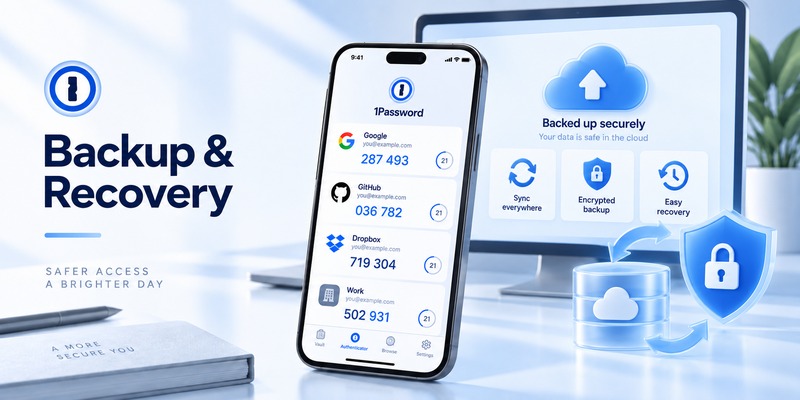
Understanding 1password authenticator backup is essential before depending on the system for dozens of important accounts.
Unlike many standalone TOTP apps, you generally do not manage a separate file containing only your authentication tokens.
The one-time-password information is stored as part of your 1Password items.
1Password automatically backs up account data
1Password states that the vaults and items stored in 1Password accounts are backed up on its servers every day. It also notes that losing a device does not mean losing the account data stored online.
This gives 1password authenticator an important recovery advantage.
If your phone breaks, your only copy of every TOTP secret is not necessarily trapped inside the destroyed device.
Moving to another device
On a replacement device:
- Install 1Password.
- Sign in to your account.
- Complete the necessary account authentication.
- Allow the vault to synchronize.
- Open your saved logins.
- Verify that their one-time passwords are available.
1Password documents that users can install the application on a new device, sign in, and have their vault data appear automatically.
Protect your Emergency Kit
The Emergency Kit is particularly important.
1Password describes it as a PDF containing critical account-access information, including the sign-in address, email address, Secret Key, and Setup Code, with a place to record the account password.
Store your Emergency Kit somewhere you can still access if all your primary devices are unavailable.
For example:
- Printed copy in a secure location
- Secure offline storage
- Personal cloud storage protected appropriately
Do not make the only copy dependent on the same laptop or phone you are trying to recover.
How to Transfer 1Password Authenticator Codes to a New Device
Transferring 1password authenticator data is typically simpler than manually exporting every OTP account.
Because one-time-password details are saved in your 1Password account, your normal synchronization workflow handles the move.
Basic transfer process
On the new device:
- Install 1Password.
- Sign in with your account details.
- Complete authorization.
- Unlock 1Password.
- Wait for your items to synchronize.
- Open several important logins.
- Confirm their OTP fields appear.
- Test actual sign-ins before wiping the old device.
Never erase the old phone until you verify the new device.
What if the old phone is already gone?
If your account remains accessible, install 1Password elsewhere and sign in.
1Password says account data remains available online even when a device is lost or stolen.
If a device has actually been stolen, you should also review the authorized-device list and consider deauthorizing the missing device.
Why this approach is useful
A standalone authenticator often requires:
- Export
- QR transfer
- Manual backup
- Cloud synchronization
- Or re-enrolling accounts individually
With 1password authenticator, authentication secrets travel with the corresponding saved items through the normal 1Password synchronization system.
That can make phone replacement significantly less stressful.
1Password Authenticator Not Working: Common Problems and Fixes
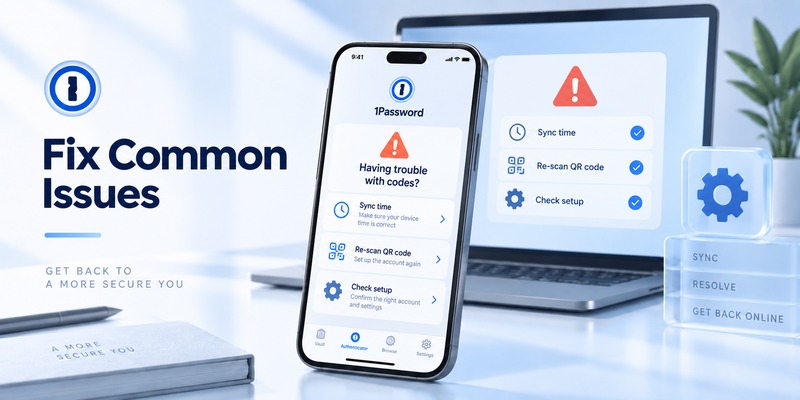
If you search for 1password authenticator not working, the problem is often caused by time synchronization, incorrect account configuration, an outdated secret, or autofill rather than a failure of the OTP algorithm itself.
1. The verification code is rejected
The first thing to check is your device clock.
TOTP relies on time.
If the phone or computer generating the code has an incorrect clock, it may calculate a different verification code from the website.
1Password specifically recommends checking that the date and time are set correctly when websites reject one-time passwords.
Turn on automatic time synchronization and try again.
2. You saved the wrong QR code
If you restarted the website’s 2FA enrollment process after scanning its first QR code, it may have generated a new secret.
The original entry in 1password authenticator would then be invalid.
Remove or replace the old OTP information and scan the current QR code.
3. You are using the wrong Login item
Users with several accounts on the same service can accidentally choose the wrong saved login.
Verify:
- Email address
- Username
- Domain
- Account name
before copying the code.
4. The code expired while you were entering it
TOTP codes have short validity windows.
If the current number is almost expired, wait for the next one before submitting the login form.
5. Autofill does not appear
First determine whether the OTP itself works.
Open 1Password manually, copy the code, and paste it into the website.
If that works, the problem is likely related to autofill rather than 1password authenticator code generation.
Check:
- Browser-extension status
- Autofill permissions
- Correct website URL
- Saved Login item
- Browser or app updates
6. The OTP field disappeared
Open the Login item and verify that the One-Time Password field still exists.
If necessary, edit the item and reconfigure it using the website’s current 2FA secret.
7. You changed your 2FA configuration on the website
Disabling and re-enabling 2FA commonly creates a new secret.
The previous token will no longer work.
Update 1password authenticator using the new QR code.
1Password Authenticator vs Google Authenticator
The 1password authenticator vs google authenticator question is really a comparison between two different approaches.
Google Authenticator is primarily a dedicated OTP application.
1Password is a password-management platform that also generates and fills OTPs.
| Feature | 1Password Authenticator | Google Authenticator |
| TOTP codes | Yes | Yes |
| Password manager | Yes | No |
| Automatic password filling | Yes | No |
| OTP autofill integration | Yes | More limited/different workflow |
| Account synchronization | Yes | Yes, when signed into Google |
| Manual OTP transfer | Account sync handles normal migration | Yes |
| Password + OTP in one vault | Yes | No |
| Dedicated authenticator experience | No | Yes |
| Desktop apps | Yes | Primarily mobile authenticator |
| Browser extension | Yes | Not equivalent |
| Paid membership | Generally required after trial | No |
| Passkey management | Yes | Separate Google ecosystem functionality |
Google states that Authenticator codes can synchronize to a new device when the user signs in with a Google Account. Users who do not use Google Account synchronization can manually transfer codes between devices.
Choose 1Password if convenience matters
1password authenticator is especially attractive when you already use 1Password.
You can keep:
Password + OTP + passkeys + related login information
inside one workflow.
That can reduce the friction that causes people to avoid enabling 2FA.
Choose Google Authenticator if you want separation
Google Authenticator keeps authentication codes outside your password manager.
For security-conscious users who specifically want their password and TOTP seed stored in different systems, that separation can be attractive.
Which is better?
Neither is universally better.
Choose 1password authenticator when integration, autofill, multi-device access, and easier credential management are priorities.
Choose a separate authentication application when factor separation is more important than convenience.
Should You Store Passwords and 2FA Codes in the Same App?
This is the most important security question surrounding 1password authenticator.
Two competing ideas are both reasonable.
Argument for keeping them separate
Traditional two-factor authentication is based partly on separation.
If an attacker compromises your password manager and that same vault contains the OTP secret, the attacker may potentially obtain both credentials.
Keeping OTP codes in another application creates another barrier.
Argument for keeping them together
Security is also about real human behavior.
A more convenient 2FA system may lead users to:
- Enable 2FA on more accounts
- Avoid SMS when TOTP is available
- Stop reusing passwords
- Use stronger generated passwords
- Complete 2FA consistently instead of disabling it
For many everyday users, 1password authenticator may therefore represent a substantial improvement over password-only authentication.
A balanced approach
You do not have to use the same strategy for every account.
For normal online services, storing OTP codes in 1Password may provide a strong balance between security and usability.
For exceptionally sensitive accounts, you may prefer:
- A separate authenticator
- A hardware security key
- Passkeys
- Or another phishing-resistant authentication method
Security architecture should match the value and threat model of the account.
Best Practices for Using 1Password Authenticator
A few habits can significantly improve the safety of 1password authenticator.
Protect your 1Password account strongly
Because your vault can contain both passwords and OTP secrets, treat it as one of your most important accounts.
Use a unique account password.
Protect your Secret Key.
Secure every authorized device.
Keep your Emergency Kit accessible
Do not wait until your laptop is broken or phone is stolen to locate recovery information.
Download the Emergency Kit and store it safely.
Save website recovery codes separately
A website’s recovery codes can help you regain access when normal 2FA is unavailable.
Do not rely exclusively on the same vault for every possible recovery method.
Test important logins
After enabling 1password authenticator, test each high-value account before signing out everywhere.
Keep devices updated
Install security updates for:
- Your operating system
- Browser
- 1Password application
- Browser extension
Never expose 2FA QR codes
A QR code used during enrollment is effectively sensitive authentication material.
Avoid:
- Screenshots in shared folders
- Posting it online
- Sending it through public chat
- Leaving temporary QR screenshots in photo backups
Consider security keys or passkeys for critical accounts
TOTP is useful, but newer phishing-resistant methods may provide stronger protection when a service supports them.
1Password also supports storing and using passkeys across supported environments.
Who Should Use 1Password Authenticator?
1password authenticator is especially well suited to people who already depend on 1Password.
It is a strong fit for people with many accounts
If you manage 30, 50, or 100 online accounts, repeatedly switching between a password manager and a second application can become tedious.
Integrated OTP support simplifies the workflow.
It is useful across multiple devices
Users who regularly move between:
- Windows PC
- Mac
- Android phone
- iPhone
- Tablet
- Multiple browsers
can benefit from synchronized access to credentials.
It works well for families and teams
Because OTP data can be stored within login items, accounts intentionally shared through appropriate vaults can be easier to manage.
1Password notes that logins containing one-time passwords can be shared through suitable shared vaults.
It may not suit users seeking a free standalone OTP app
If all you need is a basic TOTP generator and you do not need a password manager, 1password authenticator may be more functionality than necessary.
A dedicated free authenticator may be a better match.
It may not suit strict factor-separation strategies
People who deliberately keep password storage and second-factor secrets in completely independent systems may prefer a dedicated authenticator or security key.
Frequently Asked Questions
Does 1Password have an authenticator?
Yes. 1password authenticator functionality is built into 1Password. It can store one-time-password information, generate temporary verification codes, and fill those codes on supported websites.
Is there a separate 1Password Authenticator app?
No separate consumer authenticator application is required. The 1password authenticator app functionality is integrated into the main 1Password applications and browser experience.
Can 1Password replace Google Authenticator?
For many websites, yes.
If a website supports standard TOTP authentication, 1password authenticator can often store and generate the code needed during login.
Is 1Password Authenticator free?
The authenticator capability is part of 1Password. New users currently have access to a 14-day free trial, but consumer membership is generally paid after the trial.
Can 1Password automatically fill 2FA codes?
Yes. One of the major benefits of 1password authenticator is that 1Password can fill one-time passwords during supported login workflows.
Does 1Password Authenticator work offline?
Once the required item data is available on an authorized device, 1Password data can remain available during periods without connectivity. 1Password states that synchronized account data remains available when you temporarily go offline.
What happens if I lose my phone?
Your account data is not necessarily lost with the device. Install 1Password on another authorized device and sign in using your account recovery information. 1Password states that account data is backed up and available online.
Why is my 1Password verification code incorrect?
Check the date and time first. Incorrect clock settings are a common cause of rejected TOTP codes. Also verify that you saved the correct QR code and selected the correct account.
Can I store several accounts for the same website?
Yes.
Each Login item can correspond to a separate account, allowing 1password authenticator to generate the appropriate code for each identity.
Use clear account names or usernames to avoid selecting the wrong entry.
Should I use 1Password to protect my 1Password account itself?
No.
This is a particularly important exception.
1Password explicitly recommends using a different authenticator app to store the 2FA code for your 1Password account. Its documentation compares storing the 1Password account’s own 2FA secret inside 1Password to putting the key to a safe inside the safe.
For the 1Password account itself, use another supported authenticator application or a suitable security key.
Does 1Password support security keys?
Yes. 1Password supports compatible security keys as a second factor for a 1Password account.
Is 1Password Authenticator better than SMS?
For services that support TOTP, authenticator-based verification generally avoids several weaknesses associated with receiving codes through the telephone network.
However, the strongest available authentication option depends on what the service supports. Security keys and passkeys can provide additional phishing resistance.
Download Authenticator App
Secure your accounts with fast, reliable two-factor authentication. Download now and protect your login in seconds.
