
Bitwarden Authenticator App: Complete Guide to Setup, Backup, Security, and Troubleshooting
Published September 8, 2026
Quick answer: The bitwarden authenticator app is a free standalone two-factor authentication application for iOS and Android. It generates time-based one-time passwords, or TOTP codes, for websites that support app-based 2FA. You do not need a Bitwarden Password Manager account to use it. Codes can remain local on your phone, be backed up through the device’s cloud backup system, exported manually, or optionally synchronized with TOTP entries stored in Bitwarden Password Manager.
For most people, that means the bitwarden authenticator app can replace a basic code-generating authentication application while providing more control over how 2FA data is stored and moved.
You can scan a QR code from a supported website, open Bitwarden Authenticator when the site asks for a verification code, and enter the temporary number displayed on your phone.
The app is separate from Bitwarden Password Manager.
That distinction matters.
You can keep passwords in one place and authentication codes in another, use Bitwarden Authenticator without using the Bitwarden password manager at all, or optionally connect the two applications if you prefer a more integrated workflow.
The bitwarden authenticator app currently supports iOS and Android and is mobile-only as a standalone product. Bitwarden’s documentation lists iOS 15 or later and Android 9 or later for current installations.
This pillar guide explains what the app does, how to install it, how to configure 2FA, how backup and synchronization work, what happens when you change phones, how to troubleshoot common problems, and how Bitwarden compares with Google Authenticator.
What Is the Bitwarden Authenticator App?
The bitwarden authenticator app is a standalone application from Bitwarden designed primarily to generate time-based one-time passwords for accounts protected with two-factor authentication.
Bitwarden launched the standalone Authenticator to give users another option beyond the TOTP functionality already integrated into Bitwarden Password Manager.
The standalone app is available to everyone, including people who do not have a Bitwarden account.
That makes it fundamentally different from a feature that exists only inside a password-manager subscription.
What does Bitwarden Authenticator actually do?
When a website supports app-based 2FA, it typically gives you either:
- a QR code;
- or a secret authentication key.
The bitwarden authenticator app stores that authentication secret and uses it to calculate temporary verification codes.
A typical login then looks like this:
Username + password → temporary 2FA code → account access
Even if someone obtains your password, they may still be unable to sign in without access to the authentication factor.
What type of codes does it generate?
Bitwarden says its standalone application generates TOTP codes and supports codes between five and ten digits.
By default, the application uses:
- six digits;
- SHA-1;
- a 30-second refresh period.
Those settings can be changed for local entries when a particular service requires a different configuration.
For most websites, you should leave the defaults alone because the service determines the correct algorithm, number of digits, and refresh interval.
Is Bitwarden Authenticator the same as Bitwarden Password Manager?
No.
This is one of the most important points to understand.
There are currently two related Bitwarden authentication options:
Bitwarden Authenticator – a standalone mobile application available to everyone.
Bitwarden Password Manager integrated authenticator – TOTP functionality built into the password manager.
The bitwarden authenticator app can be used completely independently.
Bitwarden’s integrated authenticator has different plan and platform characteristics. Bitwarden documentation says free Password Manager accounts can store TOTP keys, while generation of TOTP codes in the integrated authenticator is available to Premium users and members of paid organizations.
Can the two Bitwarden apps work together?
Yes.
Users who want integration can synchronize authentication codes stored in Bitwarden Password Manager so they also appear in the standalone Authenticator application.
Users who prefer separation can keep local codes only inside the bitwarden authenticator app.
That flexibility is one of Bitwarden Authenticator’s strongest features.
It allows you to choose between convenience and separation instead of forcing every user into the same architecture.
Download Authenticator App
Secure your accounts with fast, reliable two-factor authentication. Download now and protect your login in seconds.
How Does Bitwarden Authenticator Work?
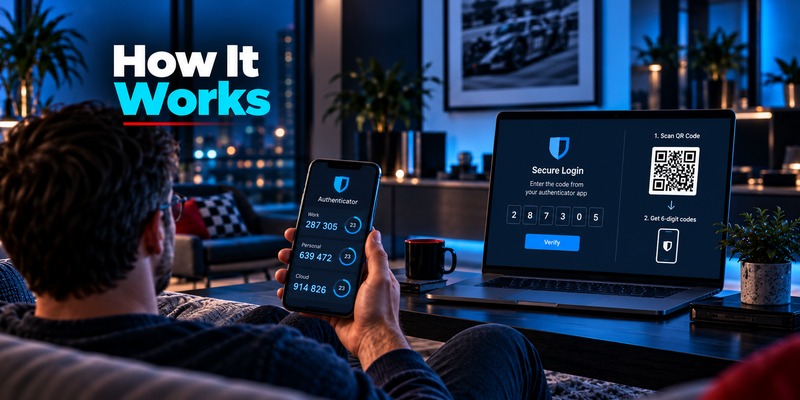
The bitwarden authenticator app is based primarily on the TOTP standard.
TOTP stands for Time-based One-Time Password.
A website and your authentication application share a secret.
Both use that secret and the current time to independently calculate the same temporary code.
Why do you scan a QR code?
When you enable 2FA on a website, the site creates an authentication secret.
A QR code is simply a convenient way to transfer that secret into your phone.
You scan it with the bitwarden authenticator app, and the application saves the information needed to calculate future verification codes.
You usually do not need to understand or manually type the secret.
Why do the codes keep changing?
The code is intentionally temporary.
If the same number worked permanently, anyone who saw it once could potentially use it later.
With TOTP, the current time is part of the calculation.
When the time window ends, a new code is generated.
Short-lived codes reduce the value of a stolen verification code.
They do not make phishing impossible, but they create another obstacle for an attacker.
Does Bitwarden Authenticator need internet access?
For locally stored TOTP codes, continuous internet access is not required.
Once the secret is stored on the device, the bitwarden authenticator app can calculate verification codes locally.
That means you can usually generate a code even when:
- Wi-Fi is unavailable;
- cellular data is disabled;
- you are traveling;
- the website cannot send an SMS.
Internet connectivity becomes relevant for features such as Password Manager synchronization or cloud-based device backups.
Local codes vs synced codes
Bitwarden currently lets you decide where a newly added code should live.
When adding an account, you may be able to choose:
Save here – the code stays local in Authenticator.
Save to Bitwarden – the entry is stored as a login item in Bitwarden Password Manager and can participate in synchronization.
Bitwarden labels synchronized entries using the corresponding Bitwarden account, while locally stored entries remain identified as local codes.
This distinction is important for security planning.
A local code keeps the second factor separate from your password vault. A synchronized code favors convenience and multi-device availability.
Neither approach is automatically correct for every user.
How to Download and Set Up Bitwarden Authenticator
Users looking to download bitwarden authenticator app should use the official Apple App Store or Google Play Store.
Bitwarden currently supports:
- iOS 15+
- Android 9+
through the standalone mobile application.
Is Bitwarden Authenticator free?
Yes.
The standalone bitwarden authenticator app free version is available to everyone, and you do not need to subscribe to Bitwarden Password Manager to generate TOTP codes.
Bitwarden explicitly describes its standalone Authenticator as a free mobile application that can be used without a Bitwarden account.
Step 1: Install the official app
Open your device’s official app store.
Search for Bitwarden Authenticator.
Verify that you have selected the legitimate Bitwarden application before installing it.
Avoid unofficial APK sites or random download mirrors.
An authentication application stores secrets capable of generating valid 2FA codes. Installing a malicious copy could compromise the security benefit of using 2FA in the first place.
Step 2: Open the website you want to protect
Sign in to the account where you want to enable two-factor authentication.
Look for settings named something similar to:
- Security;
- Two-Factor Authentication;
- Two-Step Verification;
- Multi-Factor Authentication;
- MFA;
- Authenticator App.
Choose app-based authentication.
Step 3: Display the QR code
The website should generate a QR code.
Do not share this QR code publicly.
The QR code can contain the secret required to reproduce your authentication codes.
Treat it like a sensitive credential.
Step 4: Scan the code
Open the bitwarden authenticator app.
Tap the Add icon.
Point your camera at the QR code.
Bitwarden says scanning occurs automatically once the code is recognized.
Step 5: Choose where to save the code
Depending on how you use Bitwarden, you may see two storage options.
Choose Save here if you want the authentication secret stored only in the standalone application.
Choose Save to Bitwarden if you want it attached to a login item in Password Manager.
For users trying to maximize separation between passwords and second factors, local storage is the more separated architecture.
Step 6: Verify the setup
The website will normally ask you for a verification code.
Open the bitwarden authenticator app.
Tap the newly created entry to copy the current code.
Paste or enter it into the website.
Once accepted, the bitwarden authenticator setup is complete.
Step 7: Save the recovery codes
This step is easy to overlook.
Many services provide emergency recovery codes after enabling 2FA.
Save them somewhere secure.
Do not keep your only recovery method on the same phone that stores your authentication codes.
If that phone disappears, both methods could disappear simultaneously.
This is especially important when using Bitwarden Authenticator itself to protect your Bitwarden account. Bitwarden warns users to save their two-step login recovery code because losing access to the second factor can otherwise lock them out of their vault.
How to Use Bitwarden Authenticator for 2FA
For anyone searching how to use bitwarden authenticator, the daily workflow is straightforward.
You configure each account once and then use the temporary codes during future logins.
Signing in with a TOTP code
Suppose your email account is protected by Bitwarden Authenticator.
You enter your email address and password.
The website asks for a verification code.
Open the bitwarden authenticator app.
Locate the email account.
Tap it to copy the current code.
Paste the code into the login screen.
If the code is valid, the service completes the login.
Organize accounts clearly
The difficulty increases when you manage many accounts.
Imagine having:
- two Google accounts;
- three Microsoft accounts;
- two GitHub accounts;
- several work tools;
- hosting accounts;
- social platforms.
A list of generic labels becomes confusing.
Bitwarden allows local codes to include a username field, which is useful when multiple profiles exist for the same provider.
Use labels such as:
Google – Work
Google – Personal
GitHub – Main
Microsoft – Client Account
This makes it much harder to accidentally copy the wrong verification code.
Use Favorites for important entries
Local entries in the bitwarden authenticator app can be marked as favorites.
Favorited accounts move toward the top of the list, making frequently used codes easier to find.
This is especially useful for people who maintain dozens of 2FA accounts.
Do not change TOTP settings without a reason
Bitwarden lets users change:
- algorithm;
- refresh period;
- number of digits.
That flexibility is useful for unusual services, but do not modify these values simply because the options exist.
The website determines what code configuration it expects.
Using the wrong algorithm or code length will cause every generated code to fail.
Can Bitwarden Authenticator protect Bitwarden itself?
Yes.
Bitwarden specifically says the standalone application can be used to add 2FA to a Bitwarden account.
However, Bitwarden recommends keeping that authentication code local rather than syncing the code into the same vault it protects.
Keeping your Bitwarden login’s TOTP outside the Bitwarden vault preserves meaningful separation between the password vault and its second factor.
That is an important configuration detail for security-conscious users.
Bitwarden Authenticator Backup, Sync, and Account Transfer
A good authentication system needs a recovery strategy.
The bitwarden authenticator app currently provides several approaches rather than relying on a single backup method.
These include:
- operating-system cloud backup;
- manual Authenticator export;
- synchronization with Bitwarden Password Manager for selected entries.
How Bitwarden Authenticator backup works
According to Bitwarden’s current documentation, authentication keys and related metadata for local codes are stored in a local database on the device.
The operating system’s cloud backup service can back up the application data.
Examples include:
- iCloud Backup;
- Google One/device backup.
Bitwarden states that an encrypted backup can be created through the device’s cloud backup system and restored when the device backup is restored.
That makes bitwarden authenticator backup different from systems where the authentication provider maintains its own dedicated cloud account for every token.
Manual backup through export
The application also lets users export locally stored authentication data.
Current Bitwarden documentation supports exporting Authenticator data as:
- .json;
- .csv.
The exported data includes the TOTP secret information needed to recreate the entries.
That export file is extremely sensitive.
Anyone who obtains a usable copy may potentially reproduce your verification codes.
Store exports only in a protected location, such as encrypted storage.
Do not leave them in:
- Downloads;
- email attachments;
- shared cloud folders;
- unencrypted USB drives.
What gets included in an Authenticator export?
There is an important distinction.
The Authenticator export contains locally stored items.
Bitwarden says TOTP entries synchronized from your Bitwarden vault are not included in the standalone Authenticator export and need to be exported through the vault separately.
That means you should understand whether each code is:
Local
or
Synced from Password Manager
before building your recovery plan.
Syncing with Bitwarden Password Manager
Users who want synchronization can allow Bitwarden Password Manager authentication codes to appear automatically in the standalone bitwarden authenticator app.
Bitwarden added and expanded this integration, with current documentation describing automatic synchronization between the two products.
This offers major convenience when moving devices.
Install Bitwarden Password Manager, authenticate to the vault, enable the appropriate Authenticator syncing option, and supported codes can become available in Authenticator.
Should you sync everything?
Not necessarily.
For most ordinary accounts, the convenience may be valuable.
For the TOTP used specifically to protect your Bitwarden account, keeping the second factor outside the vault is safer from a separation perspective.
Bitwarden explicitly recommends saving the code for your own Bitwarden account locally rather than syncing it into the vault it protects.
Import support
Bitwarden Authenticator also supports importing from several other authentication applications.
Current documentation includes import pathways for:
- Google Authenticator through QR transfer;
- LastPass Authenticator JSON exports;
- 2FAS backups;
- Aegis on Android;
- Raivo on iOS;
- Bitwarden Authenticator exports.
This makes migration into Bitwarden easier than manually disabling and re-enabling 2FA for every account.
How Secure Is the Bitwarden Authenticator App?
The bitwarden authenticator app can significantly improve account security because a password alone is no longer sufficient to authenticate.
But security depends on more than the name of the application.
You need to understand where secrets are stored, how the phone is protected, and how backup is configured.
TOTP adds another security barrier
If an attacker obtains your password, the account can still request a temporary code.
Unless the attacker also gains access to your TOTP secret, device, or valid current code, the password alone may not be enough.
This is the core benefit of using two-factor authentication.
Bitwarden Authenticator is open source
Bitwarden states that its standalone Authenticator is open source.
Open-source software allows the code to be publicly examined rather than requiring users to rely entirely on a closed implementation.
That does not automatically guarantee perfect security, but transparency is an important consideration for users evaluating security software.
How are local secrets stored?
This is an important detail.
Bitwarden’s documentation says local authentication keys and metadata are stored in a local unencrypted database on the device.
That statement deserves attention.
It means device security becomes extremely important.
Bitwarden also provides biometric protection for access to the application, while operating-system protections and device encryption form part of the overall security boundary.
Use a strong phone passcode and enable biometric protection if it fits your threat model.
Protect exported backups carefully
Manual exports contain enough information to recreate authentication codes.
A plain export should therefore be considered highly sensitive.
If you create one:
- Move it immediately into encrypted storage.
- Verify that the backup can be accessed when needed.
- Remove unnecessary temporary copies.
- Do not send the file through unsecured channels.
An exported TOTP secret is not like a screenshot of one temporary code.
The secret can generate future codes repeatedly.
TOTP does not eliminate phishing
A six-digit code can still be phished.
An attacker may create a fake login site, collect your username, password, and current TOTP code, and immediately relay them to the real website.
For highly sensitive services, passkeys or hardware-backed security keys can provide stronger phishing resistance when available.
The bitwarden authenticator app is still an important improvement over password-only authentication, but it should be part of a broader account-security strategy.
How to Move Bitwarden Authenticator to a New Phone
Phone migration is one of the most important practical considerations when choosing a 2FA application.
The bitwarden authenticator app provides several migration methods.
The right one depends on whether your codes are local or synchronized.
Method 1: Export and import local codes
If the old phone still works, this is a direct migration strategy.
On the old phone:
- Open Bitwarden Authenticator.
- Go to Settings.
- Choose Export.
- Select JSON or CSV.
- Export the data.
On the new phone:
- Install the bitwarden authenticator app.
- Open Settings.
- Choose Import.
- Select the correct Bitwarden export format.
- Import the file.
Bitwarden documents export/import as the primary transfer method for local codes.
Delete unsecured copies of the transfer file after confirming the migration.
Method 2: Restore the phone backup
If your device’s cloud backup system included Authenticator, restoring that device backup may restore authentication data.
Bitwarden identifies iCloud or Google device backup as the automatic backup mechanism for locally stored Authenticator information.
Do not assume the backup exists.
Check your device’s backup settings before erasing the old phone.
Method 3: Re-sync Password Manager codes
If your entries were synchronized from Bitwarden Password Manager, configure Authenticator syncing on the replacement phone.
Bitwarden states that codes linked to Password Manager can be pulled into the new Authenticator installation through synchronization.
This can make migration substantially easier.
Before erasing your old phone
Use this checklist:
Verify all important accounts.
Confirm your Bitwarden recovery code is stored safely.
Confirm local TOTP entries transferred successfully.
Confirm synced entries appear.
Test several high-value logins.
Keep the old phone until the new one works.
Only then should you wipe or trade in the old device.
What if the old phone is already gone?
If no backup or export exists, you may need to recover accounts individually.
Possible recovery methods include:
- service-specific recovery codes;
- alternate MFA methods;
- email recovery;
- account-support procedures.
This is why recovery codes should be saved when you first enable 2FA, not after the phone is lost.
Bitwarden Authenticator Not Working: Common Problems and Fixes
The phrase bitwarden authenticator not working can mean several different things.
The application may open normally while the website rejects the code.
A synchronized account may disappear.
A QR code may fail to scan.
Or the app may not restore correctly on a replacement phone.
Identify the symptom first.
Verification code is rejected
Check the phone’s date and time.
TOTP codes depend on time synchronization.
Set:
Date & Time → Automatic
where possible.
Next, verify that you selected the correct account.
If you have several entries for the same website, use the username field to distinguish them.
Check TOTP configuration
Bitwarden allows local entries to use different:
- algorithms;
- digit counts;
- refresh periods.
Most websites use common defaults, but some do not.
If you manually changed these settings, compare them with the configuration required by the service.
A wrong SHA algorithm, time period, or digit count will generate codes that look valid but will never be accepted.
QR code will not scan
Make sure Bitwarden Authenticator has camera permission.
Increase screen brightness on the device showing the QR code.
Move the phone closer or farther away until the entire QR code is visible.
If scanning continues to fail, use the manual key-entry option.
Bitwarden allows users to add an account by typing the secret key instead.
Synced code is missing
If a Password Manager-linked entry does not appear in the bitwarden authenticator app, verify:
- you are using the expected Bitwarden account;
- Authenticator syncing is enabled;
- the Password Manager vault has synchronized;
- the login item actually contains a TOTP secret.
Bitwarden Password Manager also provides a manual “Sync vault now” option when you want to pull the latest vault information immediately.
New phone has no local codes
Check whether you restored your device backup.
If you still have the original phone, export its local data and import it to the new phone.
Local entries do not automatically become Password Manager entries unless you deliberately save or copy them there.
Import fails
Confirm that you selected the correct import format.
Bitwarden supports multiple formats, and the source must match the file or QR workflow you are using.
For example, Google Authenticator migration uses its QR transfer workflow rather than a generic JSON file.
App will not open or keeps crashing
Try:
- restarting the phone;
- updating Bitwarden Authenticator;
- updating iOS or Android;
- checking available storage.
Do not delete the application until you know whether your authentication data is backed up.
Reinstalling a 2FA application without a recovery plan can turn a minor app problem into an account-access problem.
Bitwarden Authenticator vs Google Authenticator
The bitwarden authenticator vs google authenticator comparison is particularly relevant because both applications are free and primarily focused on TOTP authentication.
Both can scan QR codes.
Both generate temporary verification codes.
Both support iOS and Android.
The differences become clearer when you compare backup, portability, transparency, and ecosystem integration.
Basic TOTP functionality
For ordinary app-based 2FA, both can handle common TOTP workflows.
You scan a QR code and receive a temporary verification code.
If that is your only requirement, either application may be sufficient.
Google Account synchronization
Google Authenticator supports syncing authentication codes through a Google Account.
When you sign in to the same Google Account on another device, synchronized codes can become available there automatically.
Users can also operate Google Authenticator without Google Account synchronization.
Bitwarden’s storage choices
The bitwarden authenticator app takes a more flexible approach.
You can:
- keep codes local;
- rely on device-level backup;
- manually export local data;
- synchronize selected TOTP entries with Bitwarden Password Manager.
This provides more choices about where authentication secrets live.
Manual transfer
Google Authenticator supports QR-based account transfer.
Users can select accounts on the old device, generate one or more transfer QR codes, and scan them on the replacement device.
Bitwarden supports JSON/CSV export for its own local entries and can import Google Authenticator accounts through Google’s transfer QR codes.
Import and export flexibility
This is one area where Bitwarden stands out.
Current Bitwarden import support includes multiple authentication applications and formats.
Its local Authenticator data can also be exported as JSON or CSV.
That provides more explicit portability for users who want to maintain their own backup.
Open-source model
Bitwarden Authenticator is open source.
This may matter to security-focused users who value publicly inspectable software.
Which one is better?
Choose the bitwarden authenticator app if you prioritize:
- open-source software;
- optional separation from a password manager;
- manual exports;
- broad import options;
- optional Bitwarden Password Manager integration;
- more direct control over where TOTP data is stored.
Google Authenticator may be more convenient if:
- you already rely heavily on Google;
- automatic Google Account synchronization is your preferred recovery method;
- you want a simple TOTP-only experience;
- QR-based phone-to-phone transfer meets your needs.
There is no universal winner.
The better choice depends on whether you value ecosystem simplicity or greater control over storage and portability.
Advantages, Limitations, and Who Should Use It
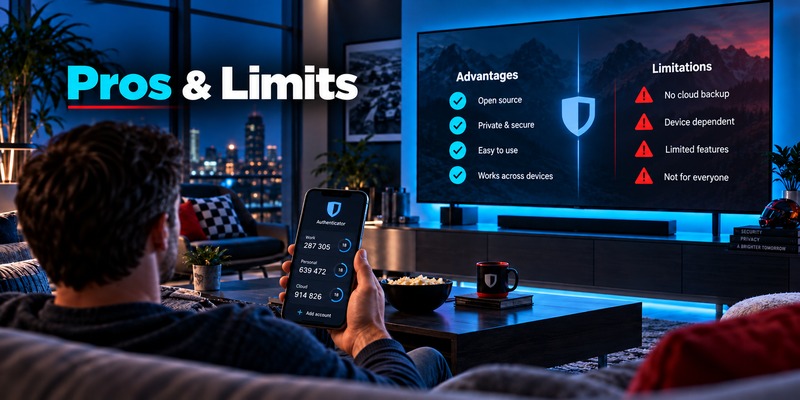
The bitwarden authenticator app is an attractive option for users who want a free, standalone, open-source TOTP application.
Its strongest feature may not be any single security technology.
Its strongest feature is flexibility.
Main advantages
Free standalone application
You do not need a paid Bitwarden Password Manager plan or even a Bitwarden account to generate TOTP codes.
Open source
Bitwarden publishes the Authenticator source code.
Local storage option
Authentication entries can remain separate from Password Manager.
Optional Bitwarden synchronization
Users who prioritize convenience can synchronize Password Manager TOTP entries into the standalone app.
Manual export
Local entries can be exported for backup or migration.
Multiple import formats
Migrating from Google Authenticator, LastPass Authenticator, 2FAS, and some other applications is supported.
Custom TOTP settings
Advanced users can adjust code length, algorithm, and refresh interval for compatible services.
Important limitations
The standalone bitwarden authenticator app is mobile-only.
Users wanting a dedicated standalone Windows or macOS Authenticator interface may need another approach.
Local database considerations
Bitwarden’s documentation states that local authentication keys are stored in an unencrypted local database on the device.
That makes device security especially important.
Use:
- a strong device passcode;
- biometric app protection;
- current OS updates;
- device encryption.
Syncing passwords and 2FA has a trade-off
Storing a password and its TOTP secret in the same vault is extremely convenient.
However, it reduces the logical separation between factors.
Some users deliberately keep authentication codes outside their password manager for this reason.
Bitwarden lets you choose.
Who should use Bitwarden Authenticator?
The application is particularly suitable for users who:
- want a free TOTP application;
- prefer open-source security software;
- want to keep 2FA separate from passwords;
- already use Bitwarden;
- want optional synchronization rather than mandatory synchronization;
- value manual backups and imports;
- frequently migrate between authentication tools.
Who might prefer another solution?
Consider alternatives if:
- you need a dedicated desktop authenticator;
- you want automatic provider-managed synchronization without configuring another application;
- your organization mandates a specific MFA platform;
- you primarily use phishing-resistant hardware keys or passkeys.
For many individual users, however, the bitwarden authenticator app offers a strong balance of simplicity, portability, and control.
Frequently Asked Questions About Bitwarden Authenticator
Is the Bitwarden Authenticator app free?
Yes.
The standalone bitwarden authenticator app free offering can be installed and used without paying for Bitwarden Password Manager and without creating a Bitwarden account.
What is Bitwarden Authenticator used for?
The bitwarden authenticator app generates TOTP verification codes for websites and applications that support authenticator-based two-factor authentication.
Is Bitwarden Authenticator separate from Bitwarden Password Manager?
Yes.
They are separate applications.
You can use Authenticator alone or optionally integrate it with Password Manager.
Can I use Bitwarden Authenticator without a Bitwarden account?
Yes.
A Bitwarden account is not required for locally stored Authenticator codes.
Can Bitwarden Authenticator protect my Bitwarden vault?
Yes.
Bitwarden explicitly supports using its standalone Authenticator for Bitwarden account 2FA.
Store that particular code locally rather than syncing it into the vault it protects.
Does Bitwarden Authenticator work offline?
Yes, locally stored TOTP codes can be generated without a continuous internet connection.
Synchronization and cloud-backup-related functions require connectivity.
Does Bitwarden Authenticator back up codes?
Yes.
For local app data, the device’s backup system—such as iCloud or Google backup—can provide restoration.
Users can also manually export Authenticator data.
Can I manually back up my codes?
Yes.
The application can export locally stored Authenticator information as JSON or CSV.
Because these exports contain sensitive TOTP secrets, store them securely and preferably encrypted.
Can I move my codes to a new phone?
Yes.
For local codes, export them from the old phone and import them into the new installation.
For codes synchronized with Password Manager, configure synchronization on the new phone.
Can I import Google Authenticator codes into Bitwarden?
Yes.
Bitwarden Authenticator supports importing Google Authenticator accounts using the QR code generated by Google’s Transfer Accounts workflow.
Can I import LastPass Authenticator accounts?
Current Bitwarden documentation supports importing LastPass Authenticator JSON exports.
Why is my Bitwarden Authenticator code wrong?
Possible causes include:
- incorrect device time;
- wrong account selected;
- incorrect TOTP algorithm;
- wrong number of digits;
- incorrect refresh period;
- the service has reset its original authentication secret.
Set the device clock automatically and verify the account configuration first.
Can I customize the generated codes?
Yes.
For local entries, Bitwarden allows configuration of algorithm, refresh period, and code length.
Defaults are typically SHA-1, 30 seconds, and six digits.
Is Bitwarden Authenticator open source?
Yes.
Bitwarden states that the standalone application is open source.
Is Bitwarden Authenticator safer than SMS?
TOTP avoids relying on receiving every verification code through a cellular text message.
That removes several SMS-specific concerns.
However, TOTP remains vulnerable to some forms of phishing, so security keys and passkeys may offer stronger phishing resistance for sensitive services.
Should I store my passwords and 2FA codes together?
That depends on your priorities.
Keeping both together is more convenient.
Keeping them separate provides stronger logical separation between authentication factors.
The bitwarden authenticator app supports both approaches, which is one of its biggest advantages.
Is Bitwarden Authenticator better than Google Authenticator?
It depends.
Bitwarden offers open-source code, explicit export options, imports from multiple applications, optional Password Manager integration, and local-only storage.
Google Authenticator offers simple Google Account synchronization and QR-based transfer.
Choose the workflow that best matches your recovery and security preferences.
Download Authenticator App
Secure your accounts with fast, reliable two-factor authentication. Download now and protect your login in seconds.
