
Google Authenticator vs Microsoft Authenticator: Which Is Better 2026
Published September 16, 2026
Google Authenticator and Microsoft Authenticator are two of the most widely recognized apps for two-factor authentication, but they are no longer identical tools with different branding.
Both can generate time-based one-time passwords for supported accounts. However, Google Authenticator focuses more heavily on straightforward TOTP management and Google Account synchronization, while Microsoft Authenticator combines OTP codes with deeper Microsoft account, work, school, MFA, and passwordless sign-in features. Google confirms that Authenticator codes can be synchronized through a Google Account or kept only on the device, while Microsoft supports OTP accounts, push-based sign-in and passwordless authentication for supported accounts.
So, in Google Authenticator vs Microsoft Authenticator, the better option depends less on which app can generate a six-digit code and more on how you manage accounts, backups, devices, and recovery.
Quick Answer
Google Authenticator is a strong fit for users who mainly want a simple TOTP app with optional Google Account sync. Microsoft Authenticator is better suited to users who depend heavily on Microsoft personal, work, or school accounts and want additional sign-in methods beyond OTP codes.
Choose Google Authenticator if you want:
- Straightforward TOTP management
- Google Account synchronization
- Manual QR-code transfer
- The option to use the app without a Google Account
- A relatively simple interface
Choose Microsoft Authenticator if you want:
- Microsoft account integration
- Work or school authentication
- Sign-in approval notifications
- Passwordless Microsoft sign-in
- Standard TOTP codes alongside Microsoft’s broader authentication system
For ordinary third-party TOTP accounts, both apps can perform the core authentication task.
Google Authenticator vs Microsoft Authenticator at a Glance
| Feature | Google Authenticator | Microsoft Authenticator |
| TOTP codes | Yes | Yes |
| Third-party accounts | Yes | Yes |
| Offline OTP generation | Yes | Yes |
| Cloud backup/sync | Google Account sync | Backup and recovery |
| Use without cloud account | Yes | TOTP possible, but advanced Microsoft features rely on account integration |
| Manual QR transfer | Yes | QR used during setup; recovery centers more on backup/restore |
| Google ecosystem | Strong integration | Standard TOTP support |
| Microsoft ecosystem | Standard TOTP support | Deep integration |
| Work/school accounts | Standard TOTP where supported | Full Microsoft-focused support |
| Passwordless Microsoft sign-in | No | Yes |
| Push approval | Not a core feature | Yes for supported accounts |
| iPhone | Yes | Yes |
| Android | Yes | Yes |
| Cross-platform migration | Google Account sync is more flexible | Backup/restore limited to same device type |
| Best for | Simple TOTP use | Microsoft-heavy users |
Google says codes can automatically synchronize when the user signs into the same Google Account on another device. Microsoft currently states that Authenticator backup and restore only work across the same device type—for example, an iOS backup cannot be restored directly to Android.
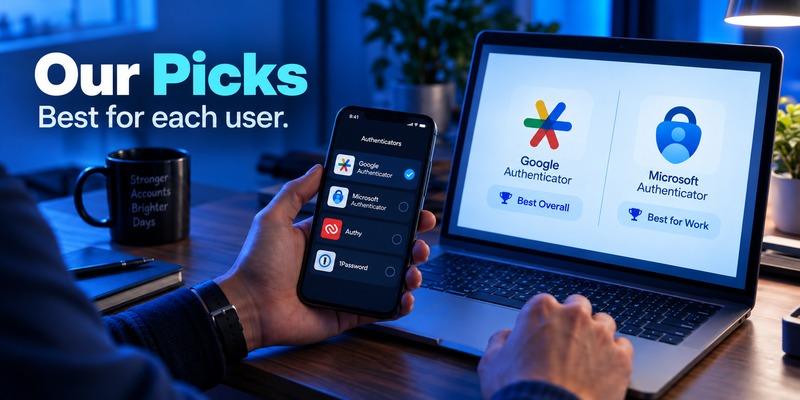
Our Picks
Instead of asking which app is universally better, it is more useful to ask which app is better for a particular type of user.
Best for Simple TOTP: Google Authenticator
Google Authenticator remains very easy to understand if your main task is scanning QR codes and generating rotating verification codes.
Best for Microsoft Accounts: Microsoft Authenticator
Microsoft Authenticator provides additional functionality for personal Microsoft accounts beyond ordinary TOTP.
Best for Google Account Sync: Google Authenticator
Google can synchronize Authenticator codes across devices using the same Google Account.
Best for Work or School Accounts: Microsoft Authenticator
Microsoft Authenticator is designed to work closely with Microsoft work and school identity systems and supports additional authentication workflows.
Best for Local-Only TOTP Storage: Google Authenticator
Google provides a Use without an account option, allowing codes to remain only on the device rather than being synchronized with a Google Account.
Best for Microsoft Passwordless Sign-In: Microsoft Authenticator
Microsoft supports using Authenticator for passwordless sign-in on supported Microsoft accounts.
Setup and Ease of Use
For basic TOTP accounts, setup is similar in both apps:
- Enable two-factor authentication on the website.
- Select an authenticator app.
- Scan the displayed QR code.
- Enter the generated verification code.
- Save any recovery codes provided by the service.
The difference becomes more obvious after setup.
Google Authenticator
Google Authenticator keeps most of the experience centered around OTP codes.
A typical workflow is:
Open app → locate account → read code → sign in.
Users can also:
- Add accounts via QR code
- Organize codes
- Synchronize codes through a Google Account
- Transfer accounts manually
- Use Authenticator without signing into Google
Google officially supports manual QR transfer when users do not want to rely on account synchronization.
For someone who does not need extensive identity-management features, that simplicity is valuable.
Microsoft Authenticator
Microsoft Authenticator has a broader role.
It supports:
- Microsoft personal accounts
- Work accounts
- School accounts
- Third-party OTP accounts
- MFA approval
- Two-step verification
- Passwordless authentication
Microsoft explicitly lists personal, work, school and non-Microsoft accounts such as Amazon, Facebook, Instagram and Google.
This flexibility is useful, but users who only want OTP codes may find Microsoft Authenticator more feature-heavy.
Which Is Easier to Use?
For basic TOTP, Google Authenticator has the simpler mental model.
Microsoft Authenticator becomes more useful as soon as you need Microsoft-specific authentication rather than just six-digit codes.
Security

A comparison of Google Authenticator vs Microsoft Authenticator security should not simply declare one app “safer.”
Both support standard TOTP authentication.
The more meaningful differences involve:
- How credentials are stored
- Whether codes are synchronized
- Recovery options
- Device protection
- Additional authentication methods
Google Authenticator Security
Google Authenticator can generate verification codes without an internet connection or mobile service.
Users can choose between two models.
Synced mode:
Codes are associated with a Google Account and synchronized across supported devices.
Device-only mode:
Users select Use without an account, keeping codes on that device instead.
Google says synchronized Authenticator codes are encrypted both in transit and at rest.
This gives users a useful choice between easier recovery and more device-local storage.
Microsoft Authenticator Security
Microsoft Authenticator goes beyond standard TOTP.
Microsoft describes three major uses for the app:
- Verification during sign-in
- Two-step or multi-factor authentication
- Passwordless authentication
It can also use device security mechanisms such as fingerprint, face recognition or PIN in applicable sign-in flows.
Beginning in 2026, Microsoft also introduced jailbreak/root detection for Entra work and school credentials, according to its Authenticator documentation.
Key Security Differences
For standard TOTP, both apps offer a similar core purpose.
The main difference is the surrounding system:
Google Authenticator: more focused on codes and optional synchronization.
Microsoft Authenticator: combines OTP with broader Microsoft identity authentication.
Users who want stronger phishing resistance should also understand that TOTP itself is not phishing-resistant. Where supported, passkeys or physical security keys may provide stronger protection against phishing than entering a six-digit OTP.
Backup, Recovery, and New-Phone Migration
This is one of the most important parts of Google Authenticator vs Microsoft Authenticator.
A good authenticator app is not only about generating codes today. It also needs a practical answer to:
What happens when my phone is lost, broken, or replaced?
Google Authenticator Backup and Sync
Google Authenticator supports Google Account synchronization.
If codes are saved to your Google Account, signing into the same account inside Authenticator on another device can automatically synchronize them.
This is particularly useful when replacing a phone.
Users who do not want cloud synchronization can instead choose device-only storage.
Microsoft Authenticator Backup and Recovery
Microsoft also supports backup and restore, but the rules are different.
Microsoft currently states that backup and restore work only on the same device type.
For example:
- iPhone → iPhone: supported
- Android → Android: supported
- iPhone → Android: not directly supported through backup restore
- Android → iPhone: not directly supported through backup restore
Microsoft also distinguishes between account types.
Third-party TOTP accounts can have their OTP information restored, while Microsoft passwordless accounts and many work or school accounts may require the user to sign in again.
Moving Google Authenticator to a New Phone
There are two main methods.
If Google Account sync is enabled:
- Install Google Authenticator.
- Sign into the same Google Account.
- Synced codes appear on the new device.
If you use Authenticator without a Google Account:
- Open Authenticator on the old phone.
- Select Transfer accounts.
- Choose Export accounts.
- Generate the QR code.
- Open Authenticator on the new device.
- Choose Import accounts.
- Scan the QR code.
Google documents this manual transfer workflow officially.
Moving Microsoft Authenticator to a New Phone
Microsoft’s recovery process relies more heavily on backup.
On the new device, you restore the Authenticator backup and then complete any required sign-ins.
Some accounts may return immediately, while others require additional verification.
Microsoft specifically notes that work or school accounts restore only certain information and require users to authenticate again.
Switching Between iPhone and Android
This is an important difference.
Google Account synchronization can simplify switching between supported devices.
Microsoft’s current backup system does not allow a backup created on iOS to be restored directly on Android or vice versa.
If you frequently change operating systems, this should be considered before choosing your primary authenticator.
Google and Microsoft Ecosystem Integration
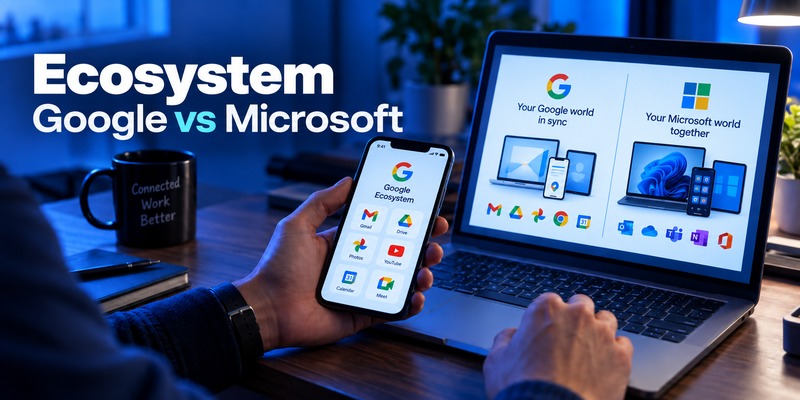
This is where the two apps differ most clearly.
Google Authenticator and Google Accounts
Google Authenticator’s strongest ecosystem feature is code synchronization through a Google Account.
However, the app still remains primarily an authenticator rather than a complete Google identity-management application.
That simplicity may be exactly what some users want.
Microsoft Authenticator and Microsoft Accounts
Microsoft Authenticator is more deeply connected to Microsoft’s authentication ecosystem.
It supports:
- Personal Microsoft accounts
- Work accounts
- School accounts
- MFA sign-in
- Passwordless authentication
- Approval notifications
For someone using Microsoft 365 or Microsoft Entra at work or school, these features can be much more important than basic TOTP.
Work and School Accounts
This is one of Microsoft Authenticator’s clearest strengths.
Organizations using Microsoft identity services can require Authenticator for sign-in verification, MFA or other access policies.
Google Authenticator may still work where an organization permits standard TOTP, but it does not provide the same Microsoft-specific authentication workflows.
Third-Party Account Support
Another misconception is that Google Authenticator only works with Google and Microsoft Authenticator only works with Microsoft.
Both support compatible third-party TOTP accounts.
Third-Party Accounts in Google Authenticator
Google Authenticator can generate codes for sites and apps that support authenticator-based 2-Step Verification.
This can include many types of services:
- Social networks
- Cloud services
- Developer platforms
- Financial services
- Crypto exchanges
- Productivity tools
Support ultimately depends on whether the service offers standard authenticator-app setup.
Third-Party Accounts in Microsoft Authenticator
Microsoft also supports non-Microsoft accounts.
Its documentation specifically mentions accounts such as:
- Amazon
So if your only requirement is:
“Can it generate a TOTP code for a third-party website?”
either app can usually handle compatible services.
Interface and Everyday Use
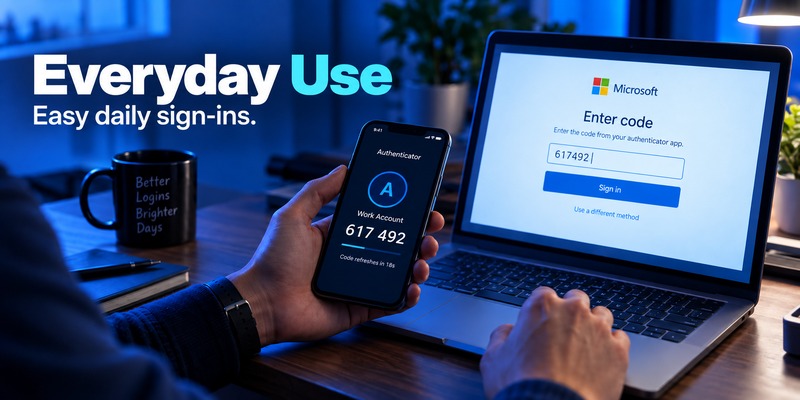
An authenticator app may be opened several times a day, so interface simplicity matters more than it first appears.
Google Authenticator Interface
Google Authenticator stays relatively focused on the code list.
That makes it convenient for users whose workflow is simply:
Find account → copy code → return to login screen.
It also supports organizing and reordering codes, which becomes useful when many accounts are stored in the app.
Microsoft Authenticator Interface
Microsoft Authenticator needs to accommodate more account types and authentication methods.
A user may encounter:
- OTP codes
- Personal Microsoft accounts
- Work identities
- Sign-in approval
- Recovery
- Passwordless authentication
This gives Microsoft Authenticator more functionality but also more complexity.
Managing Multiple Accounts
Both apps can handle multiple accounts.
Google Authenticator can also synchronize Authenticator codes associated with multiple Google Accounts on the same device.
The better interface ultimately depends on your account mix.
If most accounts are standard TOTP, Google is more straightforward.
If many are Microsoft identities, Microsoft’s extra functionality becomes useful rather than clutter.
Device Compatibility
Both Google Authenticator and Microsoft Authenticator are available for modern iPhone and Android devices.
Microsoft’s official documentation currently lists its Authenticator mobile app for iOS and Android rather than Windows or Mac desktop.
iPhone
For iPhone users, both apps work well for standard authentication.
Google Authenticator can synchronize codes through a Google Account.
Microsoft Authenticator uses its iOS backup and recovery system, with platform-specific limitations when moving to Android.
Android
Android users get the same fundamental choice.
Google Authenticator fits naturally with Google Account synchronization.
Microsoft Authenticator may be more useful when the Android device is also used for Microsoft corporate, school or personal authentication.
For standard TOTP codes, the practical difference is relatively small.
Privacy and Account Sync

There is no single privacy choice that works for everyone.
Cloud synchronization improves recovery but means authentication credentials are no longer purely device-local.
Local storage limits synchronization but makes recovery more dependent on the user.
Google Authenticator Privacy and Sync
Google gives users an explicit choice.
You can sign into a Google Account and synchronize codes, or choose Use without an account.
When switching to account-free use, Google says the codes are removed from the Google Accounts and stored on the device instead.
This makes the trade-off relatively transparent.
Microsoft Authenticator Privacy and Backup
Microsoft Authenticator’s design is more closely integrated with Microsoft identity services and backup mechanisms.
This is helpful if your accounts already live within Microsoft’s ecosystem.
Users who want a dedicated TOTP-only app with minimal ecosystem integration may prefer a different approach.
Offline Use
Both apps can generate standard TOTP codes locally after an account has already been configured.
Google explicitly confirms that Authenticator can generate verification codes without internet access or mobile service.
Microsoft’s third-party accounts also use rotating one-time passwords generated by the Authenticator app.
However, not every feature works offline.
Features that may require connectivity include:
- Cloud synchronization
- Backup
- Recovery
- Push approval
- Initial account setup
- Passwordless online sign-in
So offline OTP generation should not be confused with the entire app working without internet access.
Pricing
For normal consumer use, both Google Authenticator and Microsoft Authenticator are available without a separate app purchase fee.
| App | App Cost | TOTP |
| Google Authenticator | Free | Included |
| Microsoft Authenticator | Free | Included |
For most users, price therefore does not meaningfully separate these two apps.
The more important differences are features and ecosystem integration.
Google Authenticator Pros and Cons
Pros
- Straightforward TOTP experience
- Google Account synchronization
- Optional device-only mode
- Manual QR transfer
- Offline code generation
- Supports third-party TOTP accounts
- Available on iPhone and Android
- Easy to understand for basic 2FA
Cons
- Fewer advanced identity features
- Local-only users need a careful migration plan
- No Microsoft-style approval workflow
- Mainly focused on verification codes
Microsoft Authenticator Pros and Cons
Pros
- Standard TOTP support
- Microsoft personal account integration
- Strong work and school account support
- Sign-in approval notifications
- Passwordless authentication
- Third-party OTP support
- Backup and recovery
- Useful for Microsoft-heavy environments
Cons
- More complex if you only need TOTP
- Backup restore is currently platform-specific
- Some restored accounts require reauthentication
- Advanced features are most useful inside Microsoft’s ecosystem
Who Should Choose Google Authenticator?
Google Authenticator is a good match if your main goal is simple and predictable TOTP authentication.
It is particularly suitable if:
- You mainly use six-digit verification codes.
- You already use a Google Account.
- You want automatic code synchronization.
- You want the option to avoid cloud synchronization.
- You may need manual QR migration.
- You prefer a dedicated authenticator rather than a larger identity platform.
The ability to switch between synced and device-only modes is one of Google Authenticator’s most useful characteristics.
Who Should Choose Microsoft Authenticator?
Microsoft Authenticator is better suited to users whose authentication needs extend beyond standard TOTP.
Consider it if:
- You use Microsoft accounts every day.
- Your company uses Microsoft 365 or Entra.
- Your school requires Microsoft authentication.
- You use push approval.
- You want Microsoft passwordless sign-in.
- You want third-party TOTP and Microsoft authentication in one app.
Microsoft supports personal, work, school and third-party accounts in the same Authenticator app.
Google Authenticator vs Microsoft Authenticator: Final Comparison
The Google Authenticator vs Microsoft Authenticator decision is easier once you stop asking which one is universally better.
For straightforward TOTP authentication, both can generate the codes needed to secure compatible accounts.
The differences appear around that core feature.
Google Authenticator is better aligned with users who want:
- Simplicity
- Google Account code sync
- Manual account transfer
- Optional device-only storage
Microsoft Authenticator is better aligned with users who need:
- Microsoft account integration
- Work or school authentication
- Push verification
- Passwordless Microsoft sign-in
- A broader identity-management experience
The practical choice depends on which accounts you use and how you expect to back up or transfer them later.
Looking for Another Authenticator App?
Google Authenticator and Microsoft Authenticator are two popular choices, but they are not the only ways to manage two-factor authentication.
Authenticator App by Begamob
Authenticator App by Begamob provides another option for users who want to manage authentication codes through a dedicated authenticator interface.
When comparing Begamob with Google or Microsoft, focus on the features that actually affect daily use:
- QR-code setup
- TOTP management
- Backup and recovery
- Account organization
- Device support
- Biometric protection
- Pricing
- New-phone migration
Rather than choosing an app only because of the brand name, users should compare how well each product matches their account setup and recovery needs.
CTA suggestion:
Try Authenticator App by Begamob
Phần này nên chèn banner CTA ngang của Begamob ngay dưới đoạn giới thiệu app.
Alternatives to Google Authenticator and Microsoft Authenticator
Users looking beyond Google and Microsoft have several other options worth comparing.
Aegis Authenticator
Aegis is particularly relevant to Android users who prefer an authenticator with a strong focus on encrypted local storage and open-source development.
Internal link: Aegis Authenticator App Review
2FAS Authenticator
2FAS focuses on dedicated two-factor authentication and is another option for users who do not need a large account ecosystem.
Internal link: 2FAS Authenticator App Review
Ente Auth
Ente Auth is worth considering for users interested in cross-device synchronization and encrypted backup.
Internal link: Ente Authenticator App Review
Proton Authenticator
Proton Authenticator is a newer option that fits users already interested in privacy-focused software.
Internal link: Proton Authenticator App Review
Bitwarden Authenticator
Bitwarden Authenticator is another option for users comparing dedicated authentication tools with security ecosystems that also include password management.
Internal link: Bitwarden Authenticator App Review
Download Authenticator App
Secure your accounts with fast, reliable two-factor authentication. Download now and protect your login in seconds.
Frequently Asked Questions
Is Microsoft Authenticator better than Google Authenticator?
It depends on the use case.
Google Authenticator focuses more heavily on standard TOTP codes, Google Account synchronization and simple account transfer.
Microsoft Authenticator adds Microsoft-specific functionality such as work or school authentication, approval notifications and passwordless sign-in.
For basic third-party TOTP accounts, both can perform the core task.
Is Google Authenticator safer than Microsoft Authenticator?
Neither app can be described as universally safer for every user.
Both support TOTP-based authentication, but they differ in backup, account synchronization and additional authentication features.
Your security also depends on how well you protect your phone, recovery account, passwords and backup codes.
Can Microsoft Authenticator generate codes for Google accounts?
Yes.
Microsoft Authenticator supports non-Microsoft accounts, and Microsoft specifically lists Google among the services that can be added as third-party accounts.
Can Google Authenticator be used with Microsoft accounts?
It can be used when a Microsoft service permits standard third-party TOTP authenticator setup.
However, Google Authenticator will not provide Microsoft-specific features such as applicable push approval or Microsoft passwordless sign-in.
Does Google Authenticator have cloud backup?
Google Authenticator can synchronize verification codes using a Google Account.
When you sign into the same Google Account on another supported device, synchronized codes can appear on that device.
Does Microsoft Authenticator have backup?
Yes.
Microsoft supports Authenticator backup and recovery, but backup restoration currently works only between the same type of device.
Which authenticator is easier when switching phones?
Google Authenticator is straightforward when Google Account sync is enabled because synchronized codes can automatically appear on the new device.
It also supports manual QR transfer.
Microsoft offers backup and recovery, but switching between iOS and Android is less straightforward because backups cannot currently be restored across those two device types.
Can Google Authenticator work without internet?
Yes. Google confirms that Authenticator can generate one-time verification codes without mobile service or an internet connection.
Does Microsoft Authenticator work offline?
Standard TOTP codes can be generated locally after an account has been configured.
However, features such as push approval, backup, recovery and online sign-in naturally require connectivity.
Can I use Google Authenticator and Microsoft Authenticator at the same time?
Yes, depending on how the individual service handles authenticator enrollment.
Some services allow multiple authentication methods, while others may only register one authenticator configuration at a time.
Always keep the recovery codes supplied by the service when enabling two-factor authentication.
Which is better for iPhone?
Both support iPhone.
Google Authenticator may be more convenient for users who want simple TOTP and Google Account synchronization.
Microsoft Authenticator is especially useful for iPhone users who frequently sign into Microsoft personal, work or school accounts.
Which is better for Android?
Both work well for basic TOTP.
Google Authenticator fits naturally into a Google-centric Android setup, while Microsoft Authenticator may provide more value if your Android phone is also used for Microsoft corporate, school or personal authentication.
Download Authenticator App
Secure your accounts with fast, reliable two-factor authentication. Download now and protect your login in seconds.
