Microsoft Email Authenticator: Outlook Sign-In Explained
Published September 22, 2026
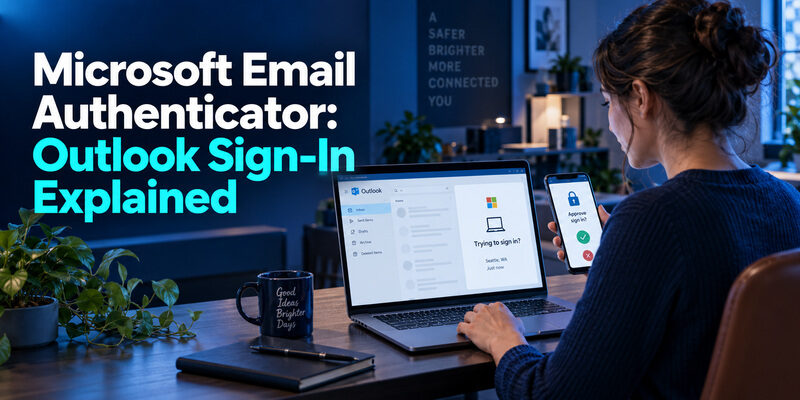
verifies the account you use to access Outlook email. The phrase Microsoft usually describes this extra sign-in check, rather than a separate Microsoft email product. An approval request, an app-generated code, and a code delivered to another inbox are different methods, even when they appear during the same attempt to open your mailbox.
The right next step depends on whether you own a personal Microsoft account or use an organization-managed work account. This guide explains what triggered the request, how to recognize the correct method, and what to do when your phone is unavailable. It also separates mailbox sign-in problems from older email-client authentication problems, so you can fix the actual cause without deleting your only working security method.
What Microsoft Email Authenticator Actually Means
The mailbox and its account
Outlook is where you read messages; the Microsoft account or work identity is what signs you in. Microsoft Authenticator helps prove control of that identity. Adding an account to the app does not copy its inbox, configure mail folders, or replace Outlook. You still need an email application or browser to read and send messages.
Think of Microsoft email authenticator as shorthand for account verification attached to email access. The same identity may also protect files, meetings, and other services. A change to its sign-in methods can therefore affect more than your mailbox. Check the account name before changing anything, especially when your phone holds both personal and employer accounts.
The app and the email code
A code sent to a recovery email address is different from a code generated inside an authenticator. The first depends on access to that inbox; the second depends on a previously enrolled app credential. A push approval is a third experience, requiring the registered Microsoft app and the applicable sign-in flow.
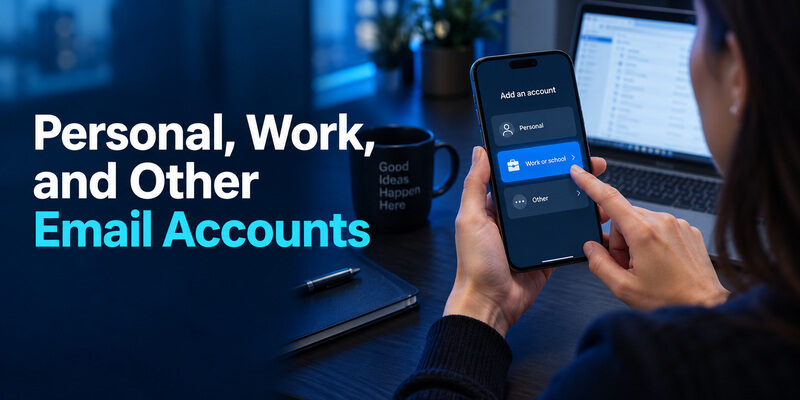
Microsoft Support’s account-addition guide distinguishes personal, work or school, and other accounts. That distinction is the useful starting point for a Microsoft email authenticator problem. It tells you who controls enrollment and which recovery route applies. Avoid choosing an account type merely because its visible address ends in a familiar email domain.
💡 Discover Helpful Guides: Email Authenticator: Complete Guide to Secure Email Authentication
Why Outlook Suddenly Asks for Approval
A request you initiated
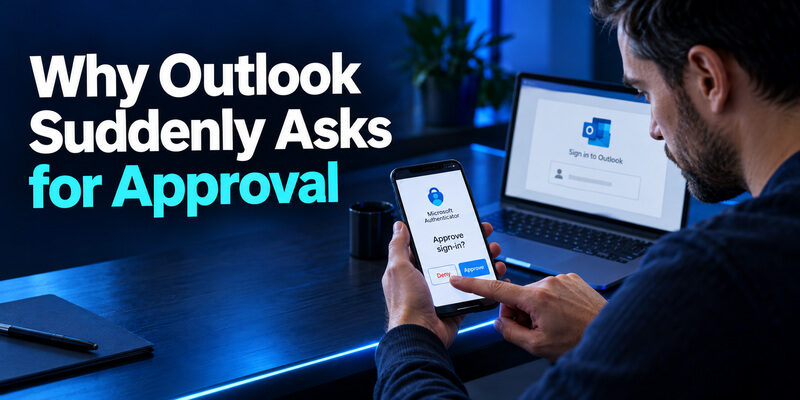
An Outlook sign-in can need another verification step after a new device, a fresh browser session, or an organizational policy change. The prompt alone does not identify the cause. Read what the sign-in page requests, then check the matching account inside Authenticator. A recognized request should correspond to something you are doing now, not simply to an email address you recognize.
If you are asking, “why is my email asking for Microsoft authenticator,” start with that timing check. A Microsoft email authenticator prompt immediately after your own sign-in is different from one arriving while you are away from your computer. On a work account, the IT team can explain an enrollment requirement or authentication policy that you cannot inspect yourself.
A request you did not initiate
Do not approve an unexpected notification to make it disappear. Deny it, use the reporting option if offered, and open the account’s security page independently. Review recent sign-ins and contact your organization when a managed account is involved. If the account may be compromised, change its password through a trusted session and review registered methods.
Repeated notifications deserve investigation, but they do not by themselves prove that the mailbox has been opened. Record the approximate time and affected account. Those details make a Microsoft email authenticator support request useful without exposing codes, QR images, or recovery secrets in a ticket.
📘 Find the Right Guide: Email Authentication Outlook: Setup and Recovery
Choose the Right Verification Method
The sign-in screen decides which evidence it will accept. Entering an app code into a field expecting an emailed code will fail even when both contain the same number of digits. Similarly, a push approval cannot be completed by typing a random rotating code elsewhere. Follow the named method, account, and session together.
| What you see | What it means | What to use |
|---|---|---|
| Approve a request | Registered app approval | The matching Microsoft Authenticator account |
| Enter an authenticator code | Previously enrolled OTP credential | The code for that exact account |
| Check your email | A message sent to a displayed address | The newest message for this request |
| More information required | Enrollment or security registration | The organization’s approved setup process |
For a Microsoft email authenticator workflow, first separate registration from everyday verification. A QR code usually belongs to setup; it is not something you should expect to scan at every ordinary mailbox login. If a page unexpectedly asks you to enroll a new method, verify its origin and the reason before continuing.
Do not send a screenshot of an enrollment QR code to someone offering assistance. It can contain sensitive setup material. Share the non-secret error wording instead. For a deeper explanation of rotating codes, see . Understanding the method prevents a Microsoft email authenticator issue from becoming a cycle of repeated attempts with the wrong credential.
Personal, Work, and Other Email Accounts
Personal Outlook and Hotmail accounts
A personal Microsoft account uses its own security settings. Begin there when enrolling an app, reviewing verification methods, or enabling two-step verification. The app’s account list is not the complete security configuration. Merely seeing an address on your phone is insufficient evidence that every intended protection is active or that a replacement phone can already sign in.
Work or school accounts
For an organization-managed identity, use the organization’s Security info registration flow. Administrators determine available methods and may require Microsoft Authenticator specifically. They also control recovery procedures for employees who cannot complete their current challenge. A Microsoft email authenticator setup for work cannot be redesigned by changing a personal Microsoft account with a similar address.
Other providers using standard codes
Microsoft Authenticator can also hold compatible accounts from other providers. Start enrollment at that provider’s security settings and choose the appropriate other-account flow. This adds a verification credential, not a Microsoft mailbox. The provider remains responsible for account access and recovery.
Before making a Microsoft email authenticator change, write down which service owns the identity and which organization, if any, manages it. For example, two entries can both display your name while one belongs to a personal account and another to your employer. Labeling the distinction in your own records is more useful than repeatedly deleting entries that look duplicated.
💡 Discover Helpful Guides: Email 2FA: Protect Your Inbox and Understand Email Codes
How to Read a Number-Matching Request
Compare the request with your sign-in
Microsoft Learn describes number matching for Authenticator push notifications: a sign-in displays a number that you enter in the app’s matching request. Check the account and request context before confirming. The number is tied to the current transaction; it is not the same thing as a rotating one-time password listed in an account tile.
A Microsoft email authenticator approval is an authorization decision. Never enter a number supplied by a caller who says they are helping you log in. Only act on the sign-in you opened yourself. If your browser shows one account while the phone shows another, cancel and restart with the correct identity rather than guessing which request is safe.
Recognize same-device differences
Microsoft documents a different experience for some supported Microsoft mobile-app sign-ins on the same phone: the user may see a Yes/No confirmation. Browser-based sign-ins can still ask for the number. A different screen layout therefore does not automatically mean enrollment is broken.
The practical check remains consistent: your action, your account, your current session. Keep the sign-in page open while responding on the phone, and return to confirm that the intended mailbox opened. If Microsoft email authenticator repeatedly prompts after a successful approval, record whether the failure happens in Outlook, a browser, or both. That distinction helps separate app-session trouble from an identity-wide issue.
📘 Find the Right Guide: Email Authentication Failed Fixes for Login and Sending
Basic Authentication Is a Different Email Problem
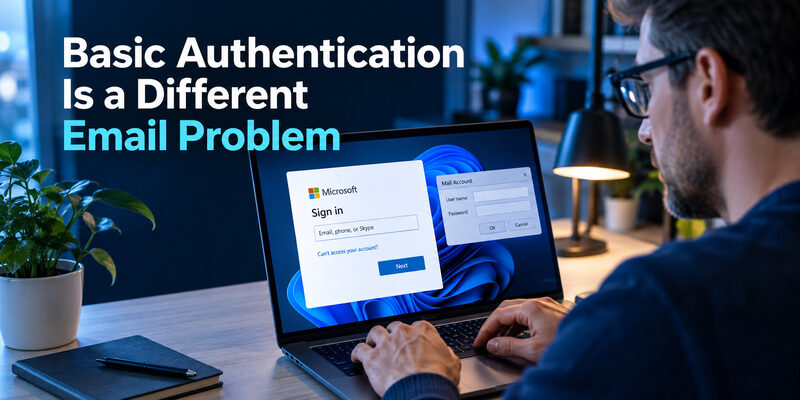
The search phrase Microsoft email basic authentication concerns how an email client proves its identity to a mail service. It is not the name of an Authenticator setting. Modern authentication uses an interactive, token-based sign-in flow; an older client may instead keep asking for a username and password in a basic connection dialog.
Microsoft Support’s guidance on modern authentication for Outlook email explains why older connection methods may stop working. Do not assume every mail protocol, account type, and retirement schedule follows the same rule. For a work mailbox, the administrator should identify the exact client, protocol, and tenant policy involved.
| Symptom | Investigate first | Avoid assuming |
|---|---|---|
| Old mail client repeatedly rejects a password | Supported modern sign-in method | That removing MFA fixes compatibility |
| Browser asks for app approval | Registered verification method | That the mailbox password is wrong |
| Sending fails but browser mail works | Client and outgoing-mail configuration | That all account access is broken |
A Microsoft email authenticator challenge can occur during modern sign-in, but it does not turn an unsupported client into a supported one. Update or replace the client according to provider guidance, then reconnect using the correct account option.
For a useful support report, note whether browser access works and whether the failure affects receiving, sending, or both. This keeps Microsoft email authenticator troubleshooting focused on evidence. Do not disable security features as a general-purpose test for an email application that may simply need a different connection method.
💡 Discover Helpful Guides: Passwordless Email Authentication With Magic Links and Codes
When the App or Code Does Not Work
No notification reaches the phone
Open the app manually and confirm that the intended account is present. Check connectivity and notification permissions, then retry one sign-in from a trusted page. Avoid triggering a pile of requests: overlapping challenges make it harder to know which notification belongs to the current attempt. A code-based alternative may be available, but only use methods the sign-in page actually offers.
If Microsoft email authenticator works on another approved device but not this phone, describe that difference to support. Include the app and operating-system versions when asked. Do not remove the registered method before confirming how you will get back into the account.
A rotating code is rejected
Check the account label, automatic device time, and whether the code is nearly expired. Wait for a fresh code, then enter it once in the correct field. A correctly timed code from an old or different enrollment still will not work. Repeated failures after a phone migration can point to registration rather than typing speed.
The distinction matters: Microsoft email authenticator push delivery and offline code generation have different dependencies. A phone can display a rotating code without having a working notification channel. For persistent code failures, the separate guide covers that branch. Stop repeated retries when the account presents a lockout or recovery message, and follow the provider’s next step.
Download Authenticator App
Secure your accounts with fast, reliable two-factor authentication. Download now and protect your login in seconds.
Replacing a Phone Without Losing Access
While the old phone still works
Keep the old phone available until the new one has passed a real sign-in test. Review your account’s registered methods, add the replacement through the appropriate security flow, and verify it from a fresh session. Only then remove obsolete registrations and prepare the old device for disposal. Treat each work and personal account separately.
A Microsoft email authenticator migration is complete when the new phone can perform the required challenge, not when an account name reappears. Microsoft Support’s restoration guidance explains that work or school accounts can require additional sign-in or registration after restoration. A restored list should therefore be treated as a starting point for verification.
When the old phone is unavailable
Try another already registered method if the sign-in page offers one. For a work account, contact the organization’s support team to follow its identity-verification and re-registration process. For a personal account, use Microsoft’s account-specific recovery guidance. Installing the app again does not recreate a missing registration by itself.
Before a future Microsoft email authenticator move, record which accounts depend on that phone and where their recovery options are kept. A practical rehearsal is to confirm one approved alternative while the old phone still works. Do not assume that a cloud backup, a phone number, and a recovery code are interchangeable; their capabilities depend on the account and its configured protection.
💡 Discover Helpful Guides
Google Email Two Factor Authentication Setup for Gmail
Email Messages, Phishing, and Recovery Addresses
A Microsoft authentication email may be a security notice, a verification code, or an attempt to impersonate Microsoft. The subject line and familiar logo are insufficient proof. When a message asks you to change security settings, open the account’s known sign-in page independently rather than following an unexpected link.
Pay attention to what the message wants you to do. A legitimate code belongs in the sign-in or recovery flow you initiated. It does not belong in a reply to a stranger, a support chat you did not request, or a form that asks for several unrelated recovery secrets. If you did not request the message, investigate the account activity through trusted access.
Your recovery inbox also needs protection. If someone controls it, they may be able to intercept account notices or participate in recovery flows. A Microsoft email authenticator plan should therefore consider the mailbox used for recovery, not just the primary Outlook address. Keep that inbox accessible and review its own sign-in methods.
Also distinguish account verification from sender authentication. SPF, DKIM, and DMARC concern how receiving systems evaluate mail sent by a domain; they do not approve your . Changing DNS records will not repair a missing phone registration. This separation saves time when a support conversation uses the broad word “authentication” for two unrelated problems.
Where Authenticator App Fits
A compatible code-based alternative
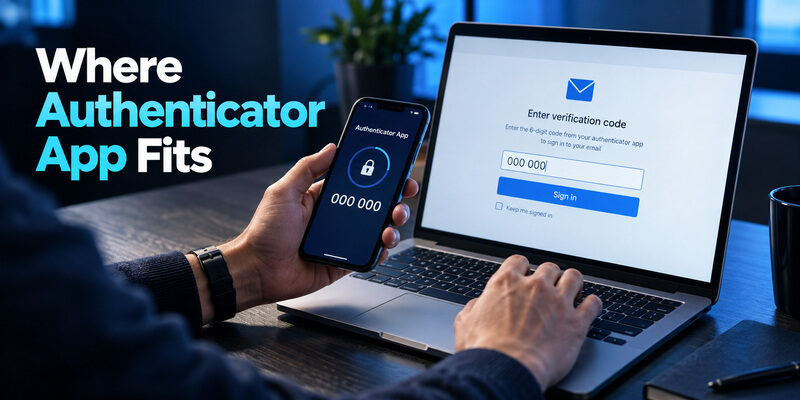
If an account explicitly supports a standard authenticator-app code and permits your chosen app, is an option to evaluate for that enrollment. This can be useful when you want an app-generated code for a supported email provider instead of depending on delivery to another inbox. Confirm the provider’s setup requirements before changing a working method.
That option has boundaries. A Microsoft email authenticator requirement for Microsoft push approval, organization-managed registration, or another Microsoft-specific capability does not become interchangeable with a generic TOTP account. Follow the employer’s policy and the method named on the sign-in screen. Do not promise a replacement app will accept the same QR code in every flow.
A switch with a verification step
When a compatible switch is allowed, enroll the new app at the provider, complete its confirmation challenge, and test a fresh sign-in. Keep the old method until the new one works and an appropriate recovery route is ready. If the provider replaces the secret during enrollment, old codes may no longer be valid.
The useful goal is a dependable Microsoft email authenticator arrangement, not collecting several untested entries. Document the service name, chosen method, and recovery location without writing down secret keys in an ordinary checklist. For the Microsoft-specific enrollment walkthrough, use .
💡 Discover Helpful Guides: How to Add Email to Authenticator App With QR or Manual Setup
Frequently Asked Questions
Does Microsoft Authenticator read my Outlook messages?
No. Its account-verification role is separate from reading email. Outlook or another mail client displays the inbox. Adding a verification account to the authenticator should not be treated as configuring mail synchronization or granting a new email client access to your messages.
Can one phone contain personal and work accounts?
Yes. Microsoft supports multiple account types in the app. Select the exact account involved in the current request. Your organization’s registration and recovery rules still apply to its account, even when a personal Microsoft account is visible beside it on the same phone.
Can an emailed code replace a push approval?
Only when the sign-in flow offers that email method for the task. Available recovery or verification options vary by account and policy. A Microsoft email authenticator prompt cannot be satisfied by obtaining a code from an unrelated inbox or selecting a method the organization has not enabled.
Does restoring a backup finish a work-account migration?
No. Restoration may bring back an account entry while further verification or registration remains necessary. Test an actual work sign-in before retiring the old phone. If you cannot complete the remaining challenge, ask your organization’s support team for its approved recovery process.
Should I approve a request from someone claiming to be support?
No. Approve only the sign-in you initiated and recognize. A caller’s explanation does not establish that a request is yours. Deny unexpected prompts, review the account through a trusted session, and contact your organization’s support channel independently when a work identity is involved.
📖 Explore Articles: How to Add Email to Authenticator App With QR or Manual Setup
Final Thoughts
The most useful Microsoft email authenticator habit is to identify the account and method before acting. Outlook access, app enrollment, emailed codes, and older mail-client authentication may appear in the same conversation, but each has a different fix. Choose the branch that matches the screen in front of you.
For an expected sign-in, complete the requested verification and confirm that the intended mailbox opens. For an unexpected approval, deny it and investigate through trusted account access. For a missing phone, use an existing alternative or the account owner’s recovery process. Reinstalling an app or deleting an entry is not a substitute for those steps.
If you manage several accounts, make a short private inventory of their account types and recovery locations. Do not store actual codes or setup secrets in that inventory. Review it before changing phones, changing jobs, or removing an old device, when forgotten dependencies are most likely to matter.
A reliable Microsoft email authenticator setup should survive an ordinary device replacement without confusion. Keep recovery options current, verify any new registration with a real sign-in, and remove old methods deliberately. Where standard TOTP enrollment is supported, consider the app that fits that requirement; where Microsoft-specific approval is required, retain the official flow. The right choice follows the account’s capabilities and your ability to recover access.