
Microsoft Authenticator for Mac: Complete Setup Guide
If you search for microsoft authenticator for mac, you may expect to find a native application that can be installed directly on a MacBook, iMac, or Mac mini. The current Microsoft setup works differently. Microsoft explicitly states that Microsoft Authenticator is not available as a PC or Mac desktop application. Authenticator is designed as a mobile app for iOS and Android, while your Mac can be the device where you initiate a Microsoft sign-in, display a QR code, or access the security settings used to register the mobile app.
That distinction is the key to understanding microsoft authenticator for mac. You do not normally install Authenticator directly on macOS. Instead, you install it on a smartphone, connect your Microsoft personal, work, school, or supported third-party account, and then use the phone to approve authentication attempts that originate from your Mac.
For example, you might open Outlook, Microsoft 365, Teams, OneDrive, or another protected service on your Mac. After you enter your account information, the Mac displays a sign-in prompt. Authenticator sends the approval request to your phone, where you confirm the login. Microsoft documents this notification and number-matching workflow as a standard Authenticator sign-in method.
This guide explains how to configure microsoft authenticator for mac correctly, including installation, QR-code enrollment, personal and organizational accounts, MFA approvals, passwordless authentication, passkeys, and troubleshooting.
1. Is Microsoft Authenticator Available for Mac?
There is no native Microsoft Authenticator Mac app
The most important fact about microsoft authenticator for mac is that Microsoft does not currently provide a native Authenticator application for macOS.
Microsoft’s official download documentation states that Authenticator is a mobile application and specifically says it is not available for PC or Mac. Microsoft directs users to install Authenticator on either an iOS or Android device.
Therefore, searches such as microsoft authenticator app for mac, microsoft authenticator app mac, or microsoft authenticator mac should not lead you to install an unofficial desktop application claiming to be Microsoft’s Authenticator.
The correct architecture is:
Mac or MacBook: where you start the sign-in.
iPhone or Android phone: where Microsoft Authenticator runs.
Microsoft account or organization: where the authentication method is registered.
This arrangement is intentional rather than a missing Mac feature.
Why Microsoft keeps Authenticator on a separate device
Microsoft explains that Authenticator is designed around smartphones partly because keeping authentication on a separate device strengthens the second-factor model. If both your password and authentication factor are stored on the same desktop computer, compromising that computer could expose both factors.
Microsoft also points to availability: users typically carry phones with them, whereas a desktop computer is less portable.
Consequently, the practical meaning of microsoft authenticator on mac is not “run Authenticator inside macOS.” It means using Authenticator on your phone to secure accounts that you access from your Mac.
Once that concept is clear, setting up microsoft authenticator for mac becomes much easier.
🧭 Explore Guides: Microsoft Authenticator: Complete Setup, Login, Backup & Troubleshooting Guide
2. What You Need to Use Microsoft Authenticator with a Mac
Prepare your Mac and mobile device
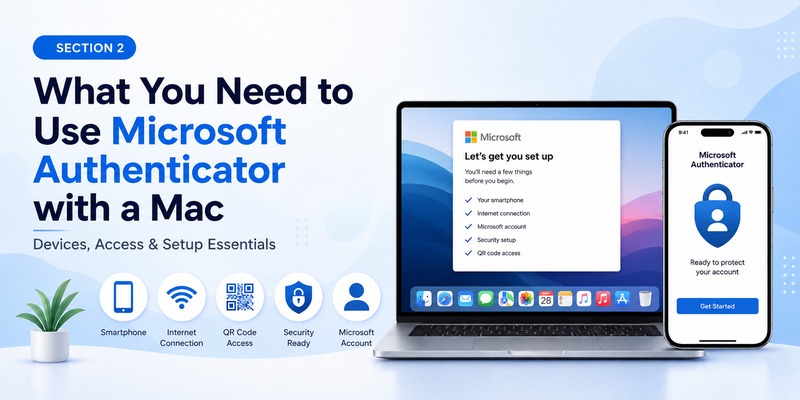
Before configuring microsoft authenticator for mac, prepare two devices if possible:
- Your MacBook, iMac, Mac mini, or other Mac
- An iPhone or supported Android smartphone
Microsoft requires the latest version of Authenticator when adding accounts and states that versions more than one year old are no longer supported.
Install the Authenticator App on the phone rather than looking for a macOS installer.
Your Mac is useful during setup because it can display the Microsoft account security page and the QR code while your phone scans that code.
This two-screen workflow is one of the easiest ways to configure microsoft authenticator for mac.
Make sure you can access your account
Before starting, confirm that you know the credentials for the account you want to protect.
Microsoft Authenticator can work with:
- Personal Microsoft accounts
- Work or school Microsoft accounts
- Compatible non-Microsoft accounts
Microsoft documents all three categories in its current account-addition guidance.
If you are configuring microsoft authenticator macbook access for an employer or university, your administrator may control which authentication methods are available. Microsoft notes that organizational policies can prevent or restrict Authenticator registration.
Keep another valid authentication or recovery method available while performing the initial microsoft authenticator for mac setup. Do not remove a working MFA method until Authenticator has been successfully tested.
Download Authenticator App
Secure your accounts with fast, reliable two-factor authentication. Download now and protect your login in seconds.
3. How to Set Up Microsoft Authenticator for Mac
Step 1: Install Authenticator on your phone
The first step in setting up microsoft authenticator for mac happens on your smartphone.
On iPhone, install Microsoft Authenticator from Apple’s App Store. On Android, install it through Google Play where available. Microsoft’s official download authenticator app page provides separate mobile installation paths and confirms there is no Mac desktop version.
After installation, open Authenticator.
Depending on your account, you will eventually choose one of three account categories:
- Personal account
- Work or school account
- Other account
Do not choose a category randomly. The category determines how Authenticator registers the account.
Step 2: Open the Microsoft security page on your Mac
Next, continue the microsoft authenticator for mac setup from your Mac browser.
For a personal account, sign in to Microsoft’s account Security area. Microsoft’s current instructions then have users select the controls for managing sign-in methods and adding a new way to sign in or verify. Choose the option to use an app.
The page can then display a QR code.
Leave this page open on the Mac.
On your phone, open Microsoft Authenticator, select Add account, choose Personal account, and scan the QR code shown on the Mac. Microsoft documents this exact browser-to-phone workflow.
You have now established the basic microsoft authenticator for mac relationship: the Mac displays the enrollment information, while the mobile app stores and uses the authentication credential.
💡 Discover Helpful Guides: Microsoft Multi Factor Authentication: Complete MFA Guide
4. How to Add a Personal Microsoft Account on Mac
Add Authenticator as a verification method
For a personal account, microsoft authenticator for mac can be configured as an additional way to verify your identity.
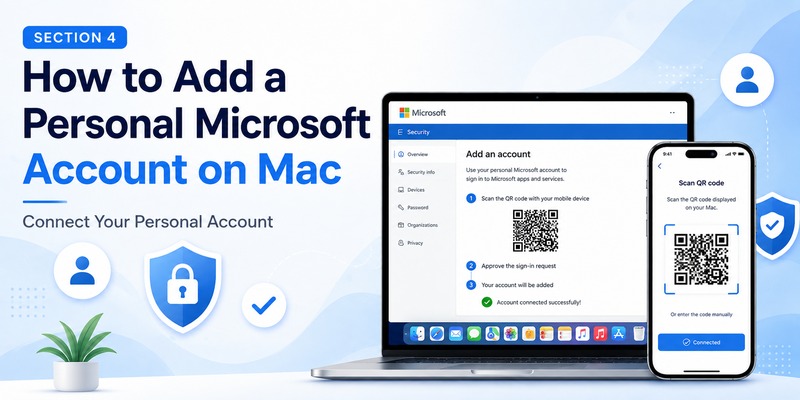
On the Mac:
- Open Microsoft’s account security settings.
- Sign in with the personal Microsoft account you want to configure.
- Open the area for managing how you sign in.
- Choose to add a new sign-in or verification method.
- Select the option to use an authentication app.
- Continue until the QR code appears.
Microsoft’s current setup guide follows this sequence and instructs users who already have Authenticator to proceed until the QR code is revealed.
Then switch to the phone, open Authenticator, add a Personal account, and scan the code.
This is the standard personal-account configuration for microsoft authenticator for mac.
Enable two-step or passwordless verification
Authenticator can serve several roles for a Microsoft account.
Microsoft currently describes three common configurations: using Authenticator as a method to verify a sign-in, using it for two-step verification with one-time codes, or using Authenticator as the sign-in method in a passwordless configuration.
If your primary objective with microsoft authenticator macos is stronger account security, two-step verification is the straightforward option.
If you prefer passwordless authentication, Microsoft also allows eligible accounts to enable a passwordless account and approve authentication through Authenticator.
After configuration, perform a real sign-in from the Mac before considering the microsoft authenticator for mac setup complete.
📘 Find the Right Guide: Microsoft Authenticator Passwordless Sign-In: Complete Guide
5. How to Set Up a Work or School Account on Mac
Open Security info on the Mac
Work and school accounts follow a slightly different microsoft authenticator for mac setup process.
Microsoft directs organizational users to the Security info page. From there, users can select Add sign-in method, choose Microsoft Authenticator, and continue until a QR code appears.
On the Mac:
- Open your work or school Security info page.
- Sign in using your organizational account.
- Choose Add sign-in method.
- Select Microsoft Authenticator.
- Continue until your Mac displays the QR code.
On the phone:
- Open Authenticator.
- Add an account.
- Choose Work or school account.
- Select Scan a QR Code.
- Scan the QR code displayed on your Mac.
This is usually the most relevant workflow for users searching microsoft authenticator app for macbook because they need to access Microsoft 365, Teams, Outlook, or internal company services from a Mac.
Organizational policies can change the setup
Your company’s microsoft authenticator for mac process may not exactly match another user’s setup.
Microsoft states that administrators can control whether phone sign-in is allowed and can apply Conditional Access policies that block Authenticator registration in certain situations.
If the Security info page tells you that Authenticator cannot be registered, do not try to bypass the restriction using an unofficial microsoft authenticator app for mac.
Instead, contact your IT administrator.
Microsoft’s documentation specifically recommends contacting the work or school administrator when organizational policies prevent registration.
Once the account is properly registered, your phone can handle approval requests triggered by sign-ins on your Mac.
📖 Read More Guides: Microsoft Authenticator Setup: How to Install, Add Accounts, and Secure Sign-In
6. How to Sign In on Mac with Microsoft Authenticator
Start the login on your Mac
After setup, using microsoft authenticator for mac is straightforward.
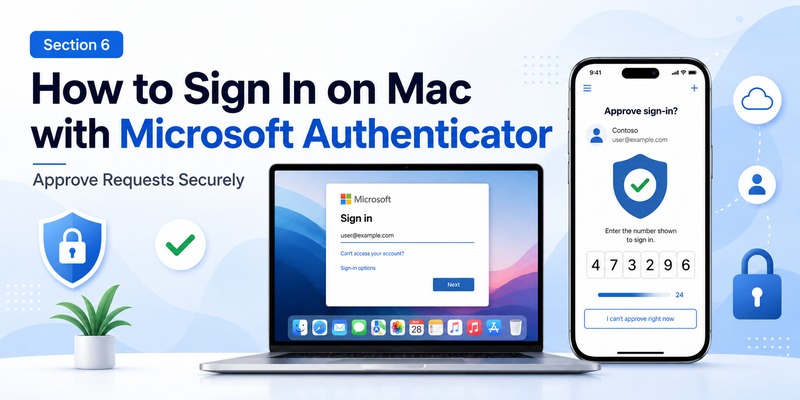
Open the website or service on your Mac and enter your username. Depending on the account configuration, Microsoft may offer Send notification or an option such as approving a request in Microsoft Authenticator.
Your Mac may then display a number.
At this stage, switch to your phone.
Microsoft says users can open Authenticator or tap the new sign-in request notification, enter or select the corresponding number when required, and approve the authentication request.
Once approved, the browser or application on your Mac continues signing in.
That is the normal daily workflow for microsoft authenticator for mac.
The phone needs internet for push approvals
An important detail concerns connectivity.
Microsoft says one-time verification codes themselves do not require an internet connection. However, sign-in notifications and approval responses do require the mobile device to be online.
Therefore, if microsoft authenticator on mac appears to stop working because your Mac is waiting indefinitely for approval, check the phone rather than only troubleshooting macOS.
Make sure:
- Authenticator has internet access.
- Notifications are enabled.
- The phone is not in a state that prevents notifications.
- You are checking the correct Authenticator account.
- The sign-in request matches the login you started on your Mac.
Never approve a request you did not initiate.
7. How to Use QR Codes When Setting Up Authenticator on Mac
Why the Mac is ideal for displaying the QR code
Although there is no native microsoft authenticator for mac, a Mac is extremely useful during enrollment.
Microsoft’s setup process often displays a QR code in the browser. The smartphone running Authenticator then scans that code. For personal accounts, Microsoft instructs users to display the QR code on the security page and select Personal account > Scan a QR Code on the mobile device.
For work or school accounts, the Mac can similarly display the QR code through Security info while the mobile microsoft authenticator app for macbook workflow continues on your phone.
Position the entire QR code clearly on the Mac screen and point the phone camera at it.
You normally do not need to photograph the code or send it to your phone first.
What to do if scanning does not work
Microsoft also provides manual enrollment alternatives.
For personal accounts, users who cannot scan the QR code can choose the option indicating that the barcode cannot be scanned and enter the code manually on the mobile device.
For work or school accounts, Microsoft similarly provides a Can’t scan the image option and manual-entry route.
Therefore, a camera problem does not automatically prevent you from completing microsoft authenticator for mac setup.
Do not use an online QR-code generator or a random QR image. The enrollment information needs to come from the actual account security page.
Once registration succeeds, the QR code is not required for every future microsoft authenticator for mac login.
📘 Find the Right Guide: Microsoft Authenticator for iPhone iOS: Complete Guide 2026
8. Using Microsoft Authenticator with Mac Passwordless Sign-In
Authenticator passwordless approval still happens on mobile
Some users searching for microsoft authenticator mac actually want to stop entering a password whenever they sign in from their Mac.
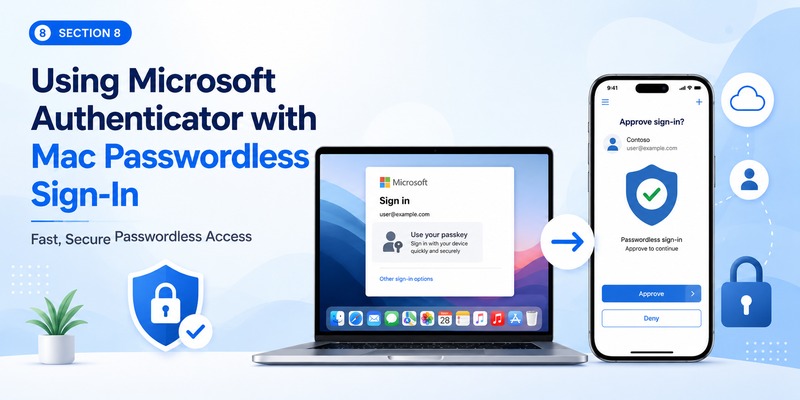
Microsoft supports passwordless authentication with Authenticator for eligible accounts. The account is configured so the phone becomes part of the authentication process instead of relying on a conventional password for every login.
Even in this configuration, microsoft authenticator for mac remains mobile-based.
You initiate the sign-in from your Mac, while the authorization occurs on Authenticator on your smartphone.
Microsoft’s current sign-in flow may show a number on the sign-in screen and require you to confirm that corresponding number in Authenticator before approving the request.
This separation is exactly why downloading a third-party microsoft authenticator app mac is unnecessary.
macOS can also support passkeys
Passkeys provide another modern authentication option on Macs, although they should not be confused with installing Authenticator directly on macOS.
Microsoft’s current passkey compatibility documentation lists macOS Ventura and newer among supported operating systems and Safari 16+, Chrome 109+, and Edge 109+ among supported browser versions. It separately notes that passkeys stored in Microsoft Authenticator require iOS 17+ or Android 14+.
In other words, macOS itself can participate in passkey authentication while Microsoft Authenticator remains a mobile credential option.
For users researching microsoft authenticator for mac, this gives you two related but different approaches:
Use mobile Authenticator for MFA, approval notifications, codes, or eligible passwordless sign-in.
Use supported passkey mechanisms when the account and browser provide that option.
Neither approach requires a native microsoft authenticator macos desktop app.
🧭 Explore Guides: Microsoft Authenticator Locked on iPhone: Fix Guide
9. Fix Microsoft Authenticator Problems on Mac
No notification arrives on the phone
A common microsoft authenticator for mac problem is seeing “Check your Authenticator app” on the Mac while nothing appears on the phone.
Because sign-in notifications require internet access on the mobile device, first check the phone’s connection. Microsoft distinguishes this from one-time codes, which can function offline.
Next:
- Open Authenticator manually.
- Check whether a request is waiting inside the app.
- Verify that notifications are allowed.
- Make sure you selected the correct account.
- Confirm the login was initiated by you.
- Retry the sign-in from the Mac.
If the account belongs to a company or school, organizational policies may also affect the available verification method.
This is usually more productive than repeatedly searching for a replacement microsoft authenticator for mac application.
The QR code or account setup fails
If the Mac displays a QR code but Authenticator refuses to register the account, confirm that you chose the correct account category.
Personal Microsoft accounts use Personal account. Organizational credentials use Work or school account.
Microsoft also states that the latest version of Authenticator is required to add an account.
Work or school users can encounter errors when administrators have not enabled the necessary feature or have applied Conditional Access restrictions. In those cases, Microsoft advises contacting the administrator.
Another common misconception is assuming that microsoft authenticator app for mac should open automatically after clicking something on macOS. It will not, because Authenticator is installed on the mobile device.
Keep the phone available throughout the microsoft authenticator for mac enrollment process.
Protect your setup when changing phones
Because microsoft authenticator for mac depends on a separate mobile device, losing or replacing that phone can affect access from your Mac.
Microsoft provides Authenticator backup options. For iOS, Microsoft currently requires the appropriate iCloud settings to be enabled. Microsoft also states that Authenticator backups can only be restored within the same device type: iOS backups restore to iOS and Android backups restore to Android.
Not every credential restores identically. Microsoft says work or school accounts restore the account name but require the user to sign in again. Personal passwordless accounts may also require sign-in after recovery.
Plan for device replacement before losing access to the phone used for microsoft authenticator for mac.
10. Microsoft Authenticator for Mac FAQ
Can I download Microsoft Authenticator directly on a Mac?
No. Microsoft explicitly states that Microsoft Authenticator is not available for PC or Mac and directs users to the iOS or Android application instead.
Therefore, the correct microsoft authenticator for mac setup uses a phone as the authentication device and the Mac as the device where you initiate the login.
Is there a Microsoft Authenticator app for MacBook?
There is currently no official native microsoft authenticator app for macbook from Microsoft. Microsoft describes Authenticator as a mobile app and says it is not available for desktop PCs or Macs.
If a website offers a supposed Mac desktop version, verify it carefully rather than assuming it is Microsoft’s official application.
How do I use Microsoft Authenticator on Mac?
To use microsoft authenticator on mac, install Authenticator on your iPhone or Android phone and register the account using Microsoft’s security settings.
Then start the login on your Mac. When Microsoft sends an Authenticator request, open the mobile app and approve it. Microsoft may ask you to enter or match a number shown on the Mac.
This is the normal microsoft authenticator for mac workflow.
Can my Mac display the Authenticator QR code?
Yes. In fact, displaying the QR code on a Mac while scanning it with Authenticator on your phone is a convenient setup method.
Microsoft’s personal-account and work/school enrollment instructions both support browser-displayed QR codes scanned using the mobile Authenticator application.
Can Microsoft Authenticator generate codes without internet?
Yes, verification codes can work without internet connectivity. Microsoft says those codes do not require phone service or a data connection.
However, Authenticator sign-in notifications and approval responses require the mobile device to be connected to the internet.
This distinction is useful when troubleshooting microsoft authenticator for mac.
Can I use Microsoft Authenticator with Safari on Mac?
You can use Safari on the Mac to access a Microsoft login page and then complete Authenticator verification on your phone.
The authentication occurs through the Microsoft account and mobile Authenticator workflow rather than through a native microsoft authenticator app mac extension.
For passkeys, Microsoft’s current compatibility guidance lists Safari 16 or newer as supported and macOS Ventura or newer as a supported operating system.
Does Microsoft Authenticator support work accounts on a MacBook?
Yes, in the sense that you can use the mobile Authenticator application to secure work or school accounts that you access from a MacBook.
Microsoft’s Security info workflow allows eligible work and school users to register Authenticator by displaying a QR code in the browser and scanning it from the mobile app.
Your administrator controls whether certain authentication methods are permitted.
Why does Microsoft Authenticator not have a macOS version?
Microsoft explains that keeping authentication on a separate mobile device improves security because the second factor is separated from the desktop where the password may be entered. Microsoft also cites the portability and availability of smartphones.
That is why microsoft authenticator for mac is intentionally based on a phone-plus-Mac workflow rather than a native microsoft authenticator macos application.
Can I use an iPhone with Microsoft Authenticator and a MacBook?
Yes. This is one of the normal configurations for microsoft authenticator for mac.
Install Authenticator on the iPhone, add the relevant account, and initiate Microsoft logins from your MacBook. When prompted, approve the authentication request on your iPhone.
If you use Authenticator backup on iOS, Microsoft currently uses an iCloud-based backup process and requires the appropriate iCloud settings to be enabled.
What happens if I lose the phone I use with my Mac?
Losing the Authenticator phone can interrupt microsoft authenticator for mac sign-ins if you have no other authentication method.
Microsoft supports Authenticator backup and restoration, but the restored information varies by account type. Work or school accounts require signing in again after restoration, while some one-time-password accounts can restore their codes.
Maintaining another approved recovery method is therefore advisable.
Can Microsoft Authenticator run on an Apple Silicon Mac?
Microsoft’s official position is broader than processor architecture: Authenticator is not available for Mac desktop computers.
Therefore, having an Apple Silicon Mac does not change the standard microsoft authenticator for mac setup. Use the official mobile application and approve Mac sign-ins from that device.
Is Microsoft Authenticator for Mac the same as a passkey?
No.
microsoft authenticator for mac generally describes using the mobile Authenticator application to verify access to an account being opened on a Mac.
A passkey is a password-replacement credential supported by compatible operating systems and browsers. Microsoft currently lists macOS Ventura and later as supporting passkeys, while passkeys specifically stored in Microsoft Authenticator require a supported iOS or Android version.
The technologies can coexist, but they are not identical.
Conclusion
The most important thing to know about microsoft authenticator for mac is that you should not be searching for a normal macOS Authenticator installer.
Microsoft currently states that Microsoft Authenticator is not available for PC or Mac. The official Authenticator App runs on supported iOS and Android devices because Microsoft intentionally keeps the authentication factor on a separate, portable device.
To configure microsoft authenticator for mac, install Authenticator on your phone, open the relevant Microsoft security settings on your Mac, add Authenticator as a sign-in method, and scan the QR code displayed on the Mac when required. Personal accounts and work or school accounts use slightly different security pages, but both ultimately connect the mobile Authenticator application with the account.
Once configured, everyday use is simple. Start the login on your Mac, choose Authenticator when necessary, check your phone, match the number shown on the Mac if prompted, and approve the request.
If microsoft authenticator for mac does not appear to work, troubleshoot the phone first: check connectivity, notifications, account registration, and the Authenticator version. For organizational accounts, also consider administrator restrictions.
Mac users can additionally take advantage of modern passkeys where supported. Microsoft currently supports passkeys on macOS Ventura and newer with compatible browsers, while Authenticator-stored passkeys remain associated with supported mobile versions of Authenticator.
In short, microsoft authenticator for mac is best understood as a two-device security workflow: your Mac handles the login, and your phone running Microsoft Authenticator confirms that the person attempting that login is really you.
Download Authenticator App
Secure your accounts with fast, reliable two-factor authentication. Download now and protect your login in seconds.
